

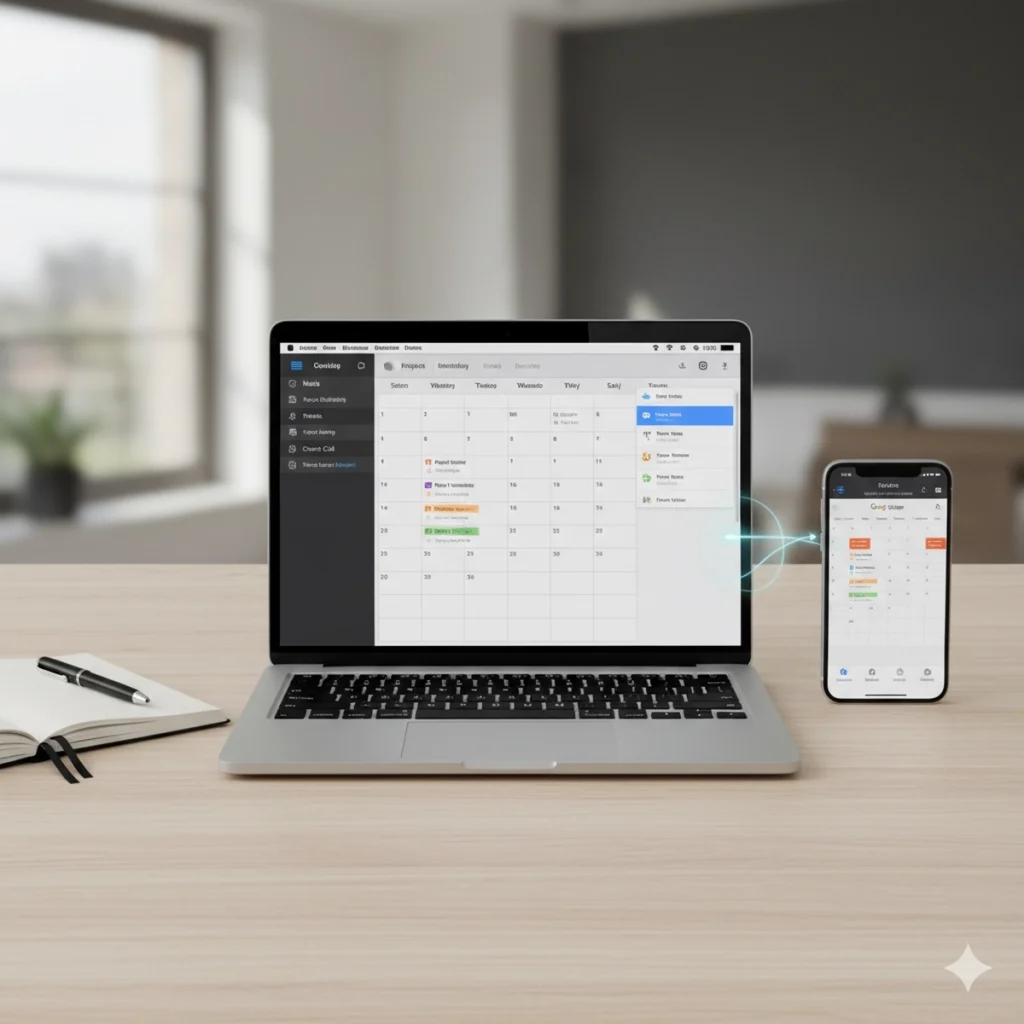
Google and Apple ecosystems don’t always play nice together, but when it comes to calendar syncing, there’s a straightforward solution. I’ve helped countless readers fix this exact issue, and I know how frustrating missed meetings can be.
If you’re struggling to get your Google Calendar events to show up properly on your iPhone or Mac, this guide is for you. We’ll walk through the exact steps to connect everything properly so your events sync seamlessly across all devices.
This guide works perfectly with the latest macOS and iOS versions, as well as older models.
If you run into any trouble or want more personalized help, don’t hesitate to get in touch with us. We’d also love to hear about your experience in the comments below, and don’t forget to check out the poll at the end!
How to Sync Google Calendar with Apple Calendar on iPhone & Mac
This step-by-step guide will help you eliminate sync issues, duplicate entries, and missed meetings. Let’s get your calendars working together properly.
Step 1: Add Your Google Account to iPhone
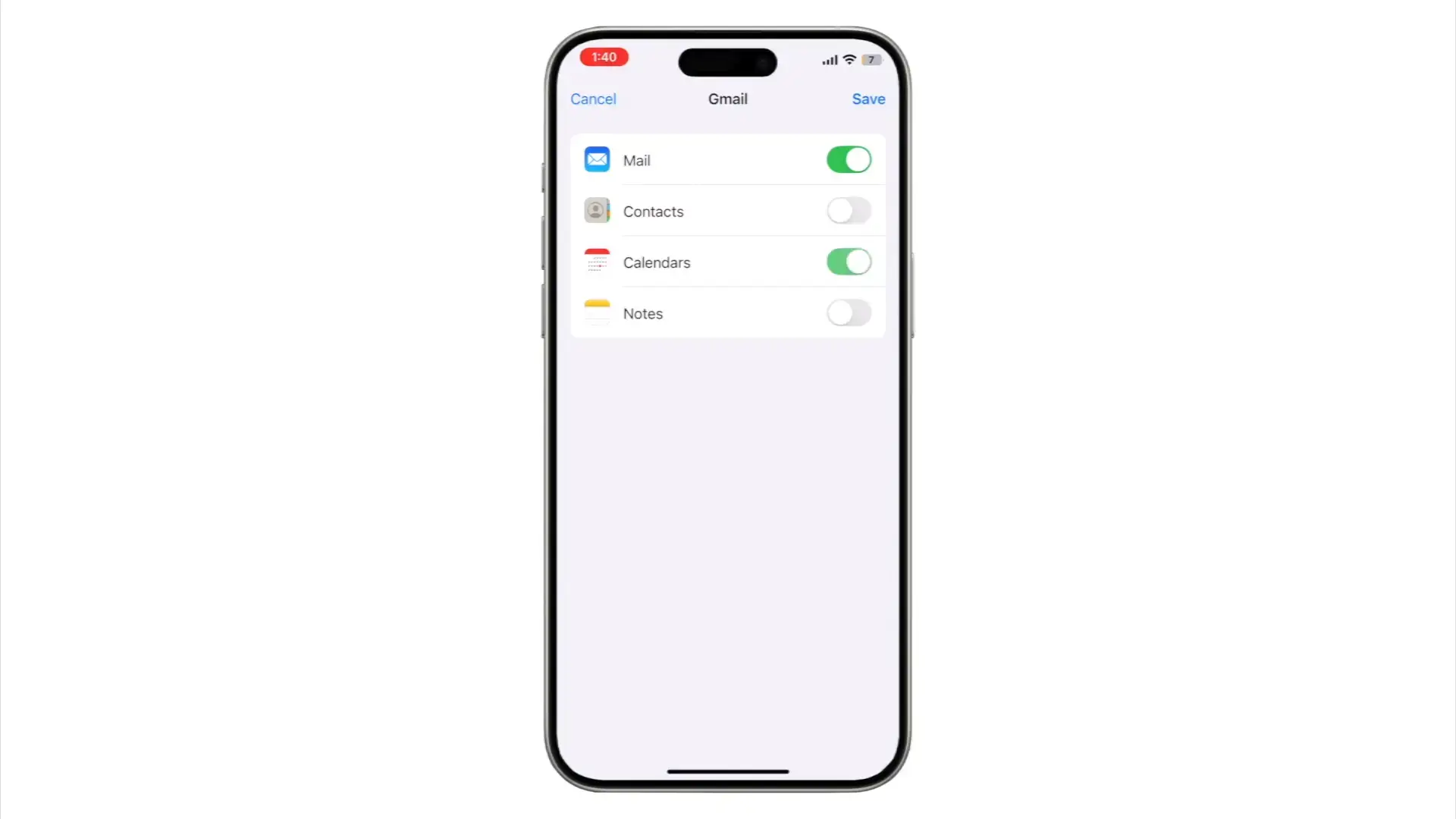
Start on your iPhone. Go to Settings > Calendar > Accounts > Add Account > Google. Sign in with your Gmail address. After logging in, make sure “Calendars” is switched on – don’t skip this step, as some people only enable mail or contacts.
Step 2: Set Google Calendar as Default (Crucial)
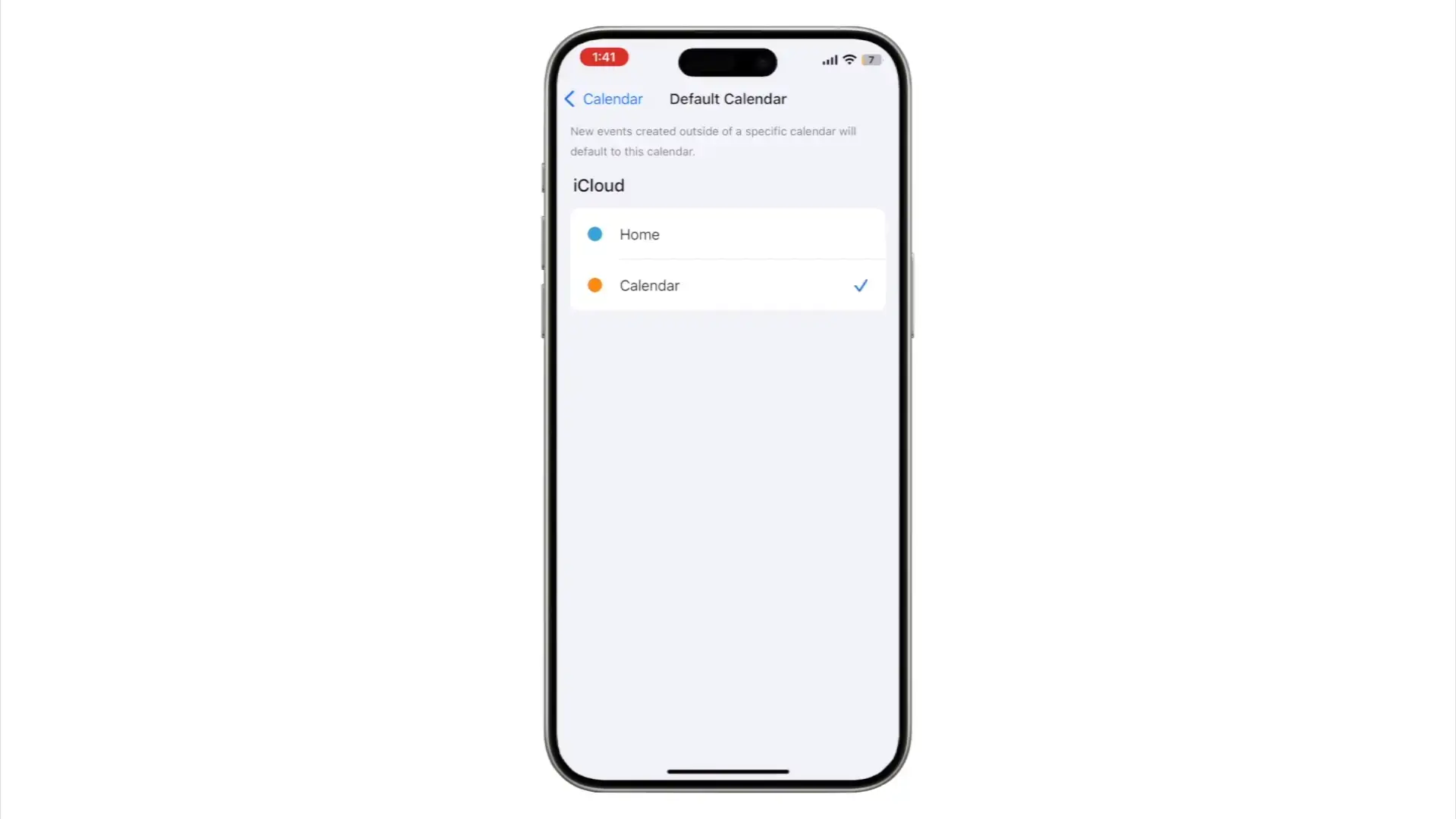
This is the most important step many people miss. Go to Settings > Calendar > Default Calendar and choose your Google Calendar here. Why this matters? If you keep creating events under “iCloud” or “Home,” they’ll never show up in your Google Calendar even though you added the account.
Step 3: Add Google Account to Mac
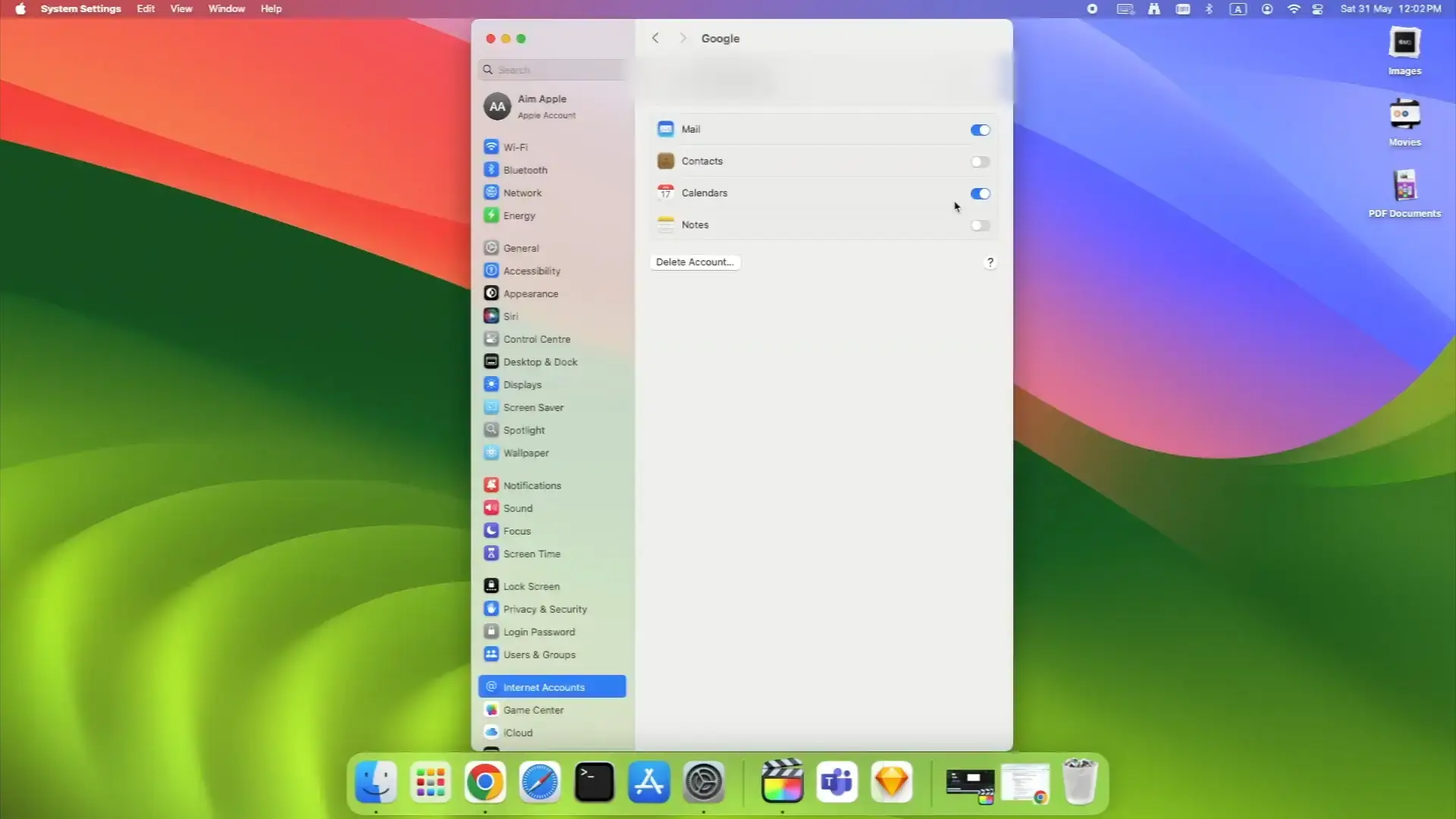
Now let’s get your Mac in sync. Open System Settings > Internet Accounts. Click Google or add it if not already there. Log in with your Gmail and make sure “Calendars” is checked. Open the Calendar app and check the left sidebar – you should see your Google Calendar listed.
Step 4: Verify Calendar Visibility
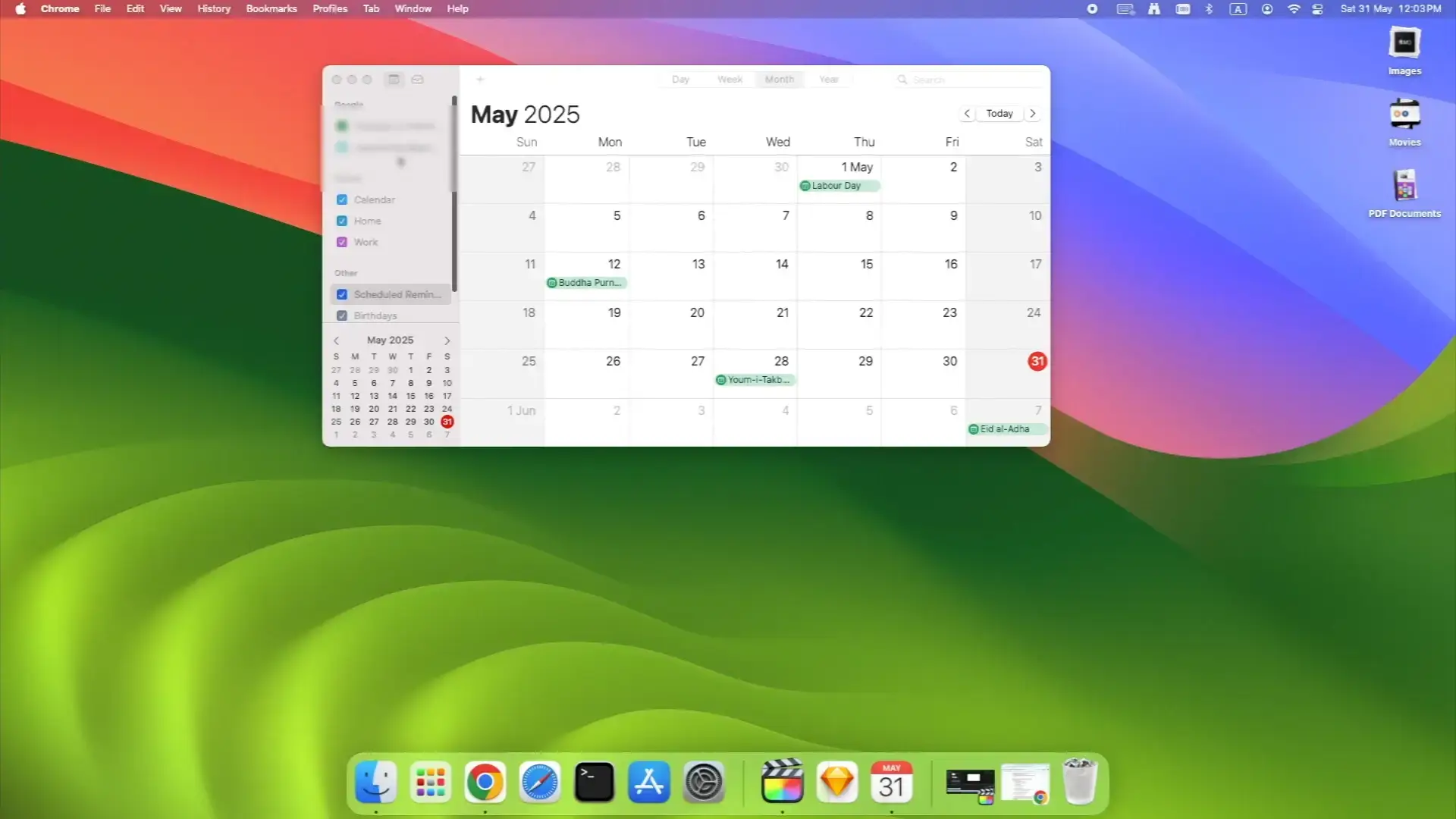
If events appear on the wrong calendar or colors don’t match, it’s usually because of account filtering.
- On iPhone: Open Calendar app, tap “Calendars” at the bottom, make sure all Google calendars are selected.
- On Mac: In Calendar sidebar, check that all Google calendars are ticked. Sometimes shared calendars are unchecked by default.
Step 5: Troubleshooting Sync Issue
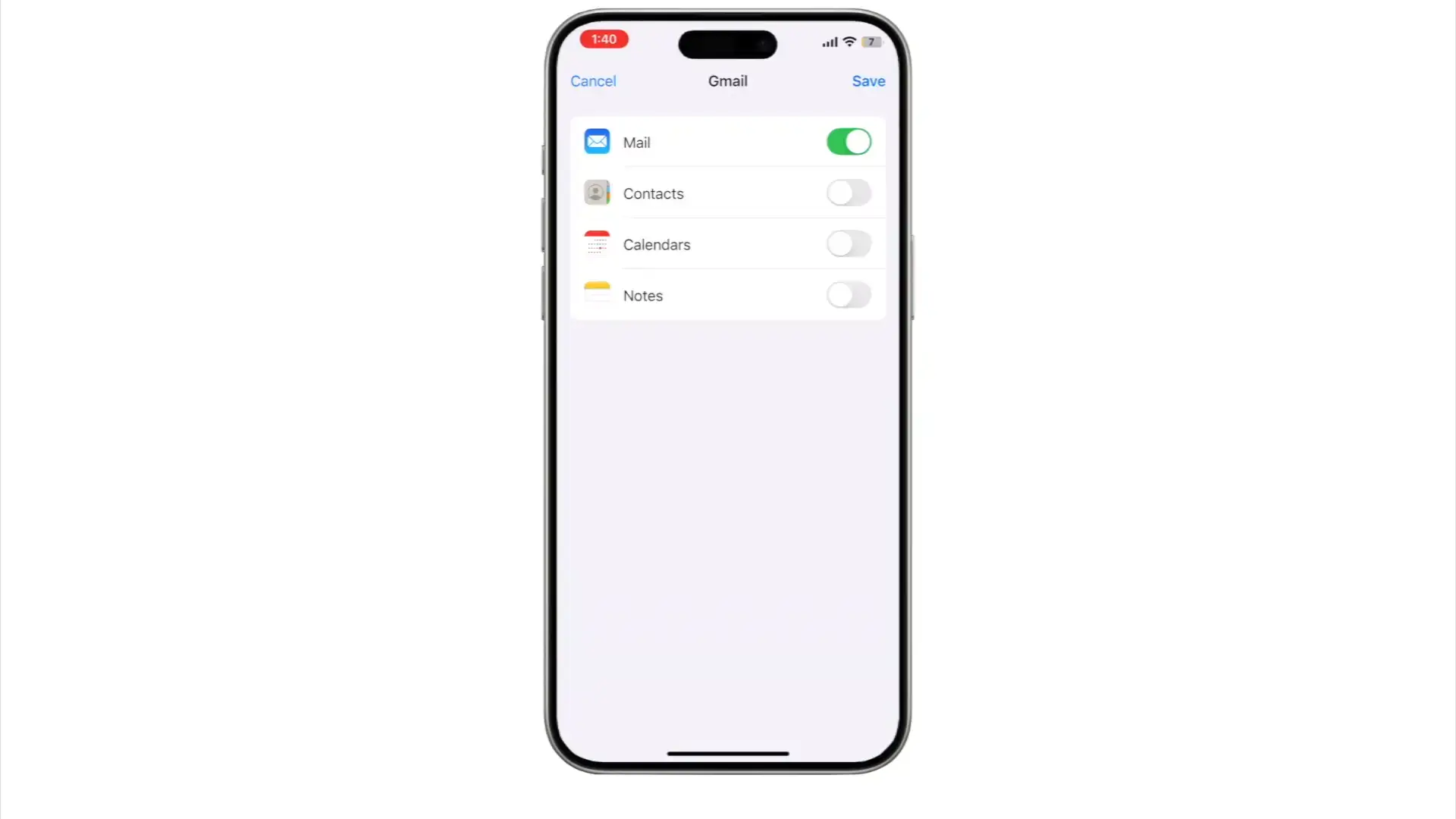
If events still aren’t syncing:
- On iPhone, go to Settings > Calendar > Accounts, tap your Google account, toggle Calendars off, wait a few seconds, then turn it back on. Still not working? Reboot your phone – this clears sync cache.
- On Mac: In System Settings > Internet Accounts, toggle calendars off and on.
Step 6: Test Your Sync
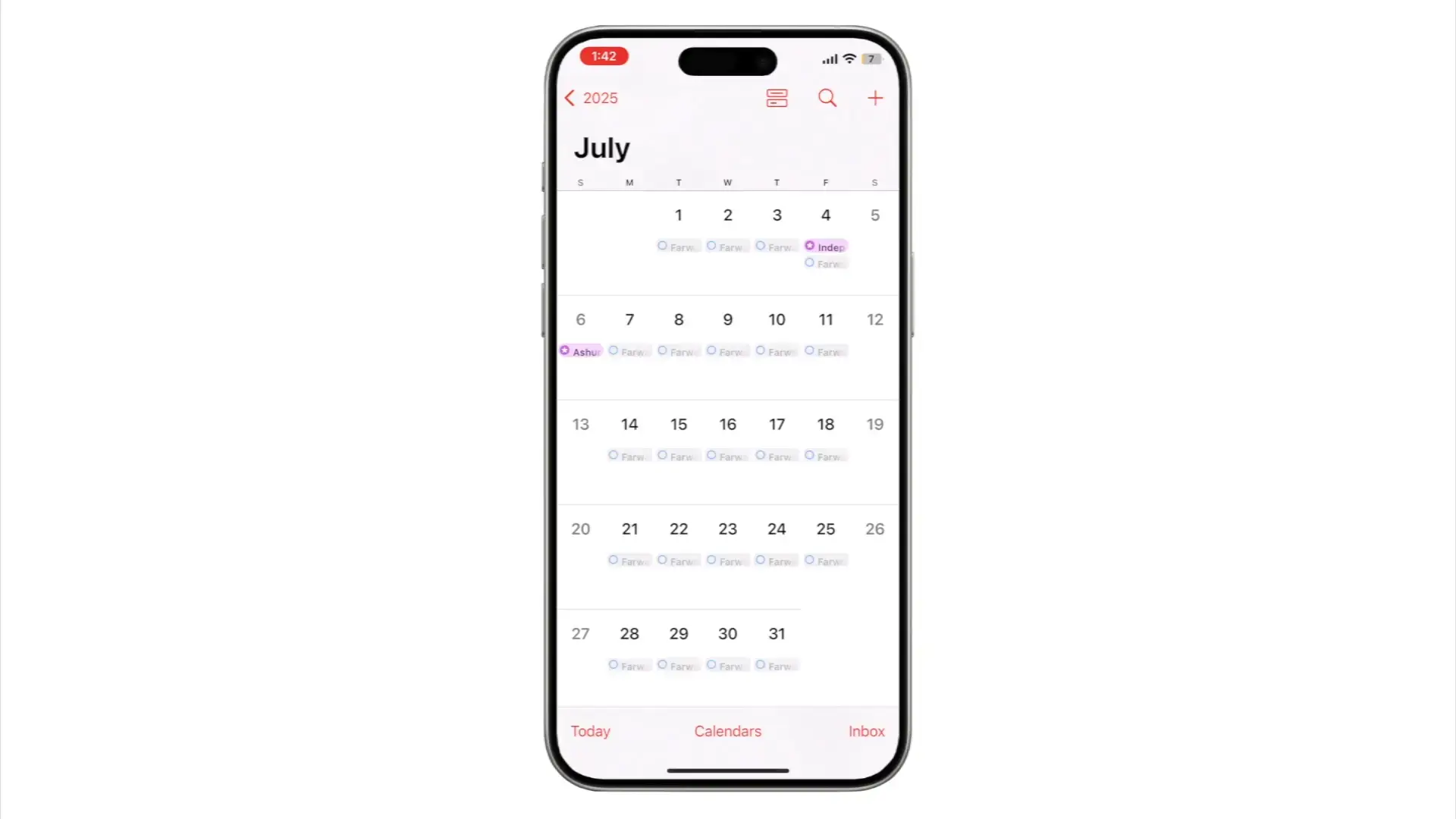
Here’s a pro move: Add a test event from your Mac and check if it shows up on your iPhone. Then add one from your phone and check your Mac. This lets you know immediately if sync is working instead of finding out hours later when something goes wrong.
Video Walkthrough
If you are a visual person like me who learns more from videos, watch the full guide below;

Community Poll
Check out our other Google Calendar guides: How to Draft a Google Calendar Event Directly in Docs and Google Calendar Keyboard Shortcuts with Gemini.