

Looking to access Microsoft Word, Excel, PowerPoint, or other Office apps on your Chromebook?

Whether you’re a student, remote worker, or casual user, you can easily use Microsoft 365 Copilot on ChromeOS in 2025. In this updated guide, we’ll walk you through the best ways to get started and explain what still works, what’s changed, and what to expect.
Need more help? Leave a comment or contact us.
✅ The Three Best Ways to Use Microsoft 365 Copilot on a Chromebook
You can access Microsoft 365 Copilot using web apps, the official Microsoft 365 Copilot Android app, or individual Office Android apps.
1. Microsoft 365 Copilot Web Apps
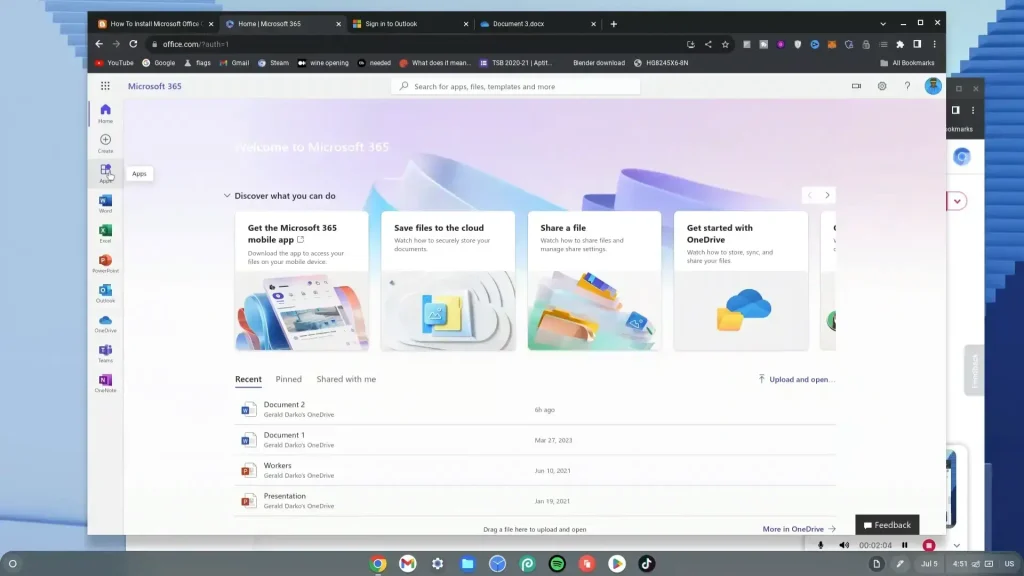
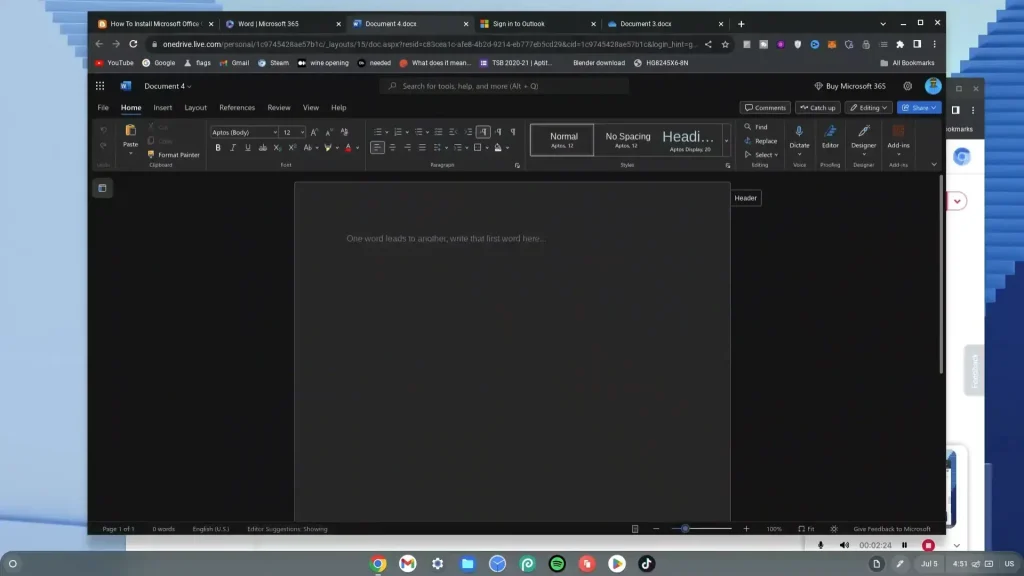
Access the full suite of tools like Word, Excel, and PowerPoint in your browser with no installation needed.
- Open Chrome and visit m365.cloud.microsoft.
- Sign in with your Microsoft account.
- Start using Word, Excel, PowerPoint, Outlook, and more—all online.

✅ Pros:
- Fully supported by both Google and Microsoft
- No download or install needed
- Fast, secure, and updated automatically
🚫 Cons:
- Requires an internet connection
- Some advanced features may be missing
2. Microsoft 365 Copilot Android App (Official App)
Microsoft offers a standalone Microsoft 365 Copilot Android app which provides cloud-connected access to Office tools with some offline capabilities.
- Enable the Google Play Store on your Chromebook.
- Install the Microsoft 365 Copilot app from the Play Store.
- Log in with your Microsoft account and use the integrated Office tools.
✅ Pros:
- Offers some offline access
- Integrated app experience with cloud syncing
- Regularly updated and supported
🚫 Cons:
- Requires Google Play Store enabled
- Offline features are limited compared to full desktop
3. Individual Microsoft Office Android Apps (Word, Excel, PowerPoint)
The classic Android apps for Word, Excel, and PowerPoint still work on many Chromebooks but are no longer officially supported or updated specifically for ChromeOS.
- Enable the Google Play Store on your Chromebook.
- Install Microsoft Word, Excel, and PowerPoint from the Play Store.
- Log in with your Microsoft account and test functionality on your device.
Note: These apps may behave inconsistently and have limited support on Chromebooks.
✅ Pros:
- Offline access
- Touch-optimized for mobile interfaces
🚫 Cons:
- No longer officially supported or updated for ChromeOS
- Performance and reliability vary by device
📊 Office Web Apps vs. Copilot Android App vs. Individual Android Apps (2025 Comparison)
| Feature | Web (Copilot) | Microsoft 365 Copilot App | Individual Android Apps |
|---|---|---|---|
| Official Support | ✅ Yes (Google & Microsoft) | ✅ Yes (Microsoft) | ❌ No |
| Offline Access | ❌ Limited | ✅ Some | ✅ Yes |
| Updates | ✅ Frequent & Automatic | ✅ Regular | ❌ No updates |
| Touch Optimization | ⚠️ Basic | ✅ Yes | ✅ Yes |
| Advanced Features | ⚠️ Some Missing | ⚠️ Some Missing | ⚠️ Some Missing |
🧠 Which Microsoft 365 Option Should You Use on Chromebook?
| Use Case | Best Option |
|---|---|
| Up-to-date features & cloud syncing | Copilot Web Apps |
| Offline access with some cloud sync | Microsoft 365 Copilot Android App |
| Offline access for basic tasks | Individual Office Android Apps |
| Best compatibility & stability | Copilot Web Apps |
| Touchscreen experience | Microsoft 365 Copilot or Individual Android Apps |
💡 Final Tips
- Back up your documents to OneDrive regularly.
- Web apps provide the most reliable and up-to-date experience.
- Test the Microsoft 365 Copilot Android app for offline use and integration.
- Try individual Android Office apps only if you need offline access for basic editing.
📚 Related Resources
- Enable Google Play Store on your Chromebook
- Microsoft 365 Copilot (official site)
- Google Support: Use Office files on Chromebook
💬 Questions? Comments?
Drop a comment below or check out the r/chromeos community for help from Chromebook users just like you.
Read more Chromebook tutorials: Learn how to protect your downloaded files on a Chromebook with simple tips.