

Readers like you help support this site. When you make a purchase using links on our site, we may earn an affiliate commission. All opinions remain our own.


Whether you’re creating logos or editing graphics, Infinite Design brings 5 million downloads of precise tools to ChromeOS via its Android app.
It’s free to start and shines with a stylus on touchscreen Chromebooks.
We’ll show you how to set up Infinite Design, highlight its best features, and explore why it’s worth a try.
Ready to design? Share your thoughts or contact us below.
How to Set Up Infinite Design on Chromebook
Infinite Design runs on Chromebook through its Android app, built for devices with Play Store support. It’s a quick install for creative work.
Install Infinite Design Android App
- Open the Google Play Store on your Chromebook.
- Search for “Infinite Design.”
- Click “Install” to download.
- Launch the app from your drawer.
- Start drawing or sign in for extras.
Get Infinite Design Android App
Quick Tip: 💡 Pair with a stylus for smoother vector tracing on your touchscreen.
What is Infinite Design About?
Infinite Design, launched in 2013 by Infinite Studio, is a vector graphics app available on Chromebook via its Android app, with a 4.2-star rating.
It stands out with scalable vectors and transform tools, offering more precision than raster apps like Infinite Painter, ideal for graphic design.
Key Features:
- Unlimited canvas with infinite zoom
- Vector paths and shape tools
- Transform and symmetry options
- Export as SVG or PNG
Why You Might Like Infinite Design:
It’s great for designing logos like a custom “ChromeGeek” emblem or tweaking vectors, with a clean setup perfect for Chromebook touchscreens.
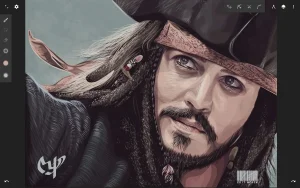
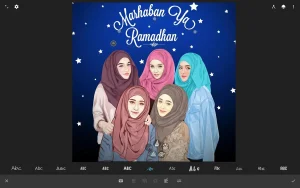
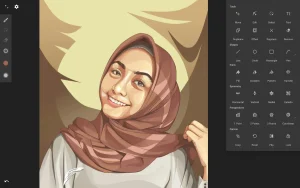
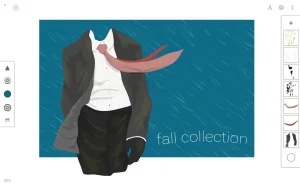
Infinite Design Screenshots
Infinite Design Tutorial for Beginners

Infinite Design on Chromebook FAQ:
- Is it free?Yes, basic features are free; premium tools require in-app purchases.
- Does it need a touchscreen?Not required, but recommended for best use.
- Can I export vectors?Yes, save as SVG, PNG, or other formats.
Infinite Design Chromebook Requirements:
- OS Version: ChromeOS with Android 9.0+.
- Device Specs: 4GB+ RAM recommended.
- Storage Space: 1GB+ for app and projects.
- Internet: Optional, for updates and sharing.
For more help:
Explore more Chromebook apps: Infinite Painter or best photo editors on Chromebook.