How to Install and Use Infinite Painter on Chromebook and Googlebook
 by
Juniya Sankara
Post Updated: November 3, 2026
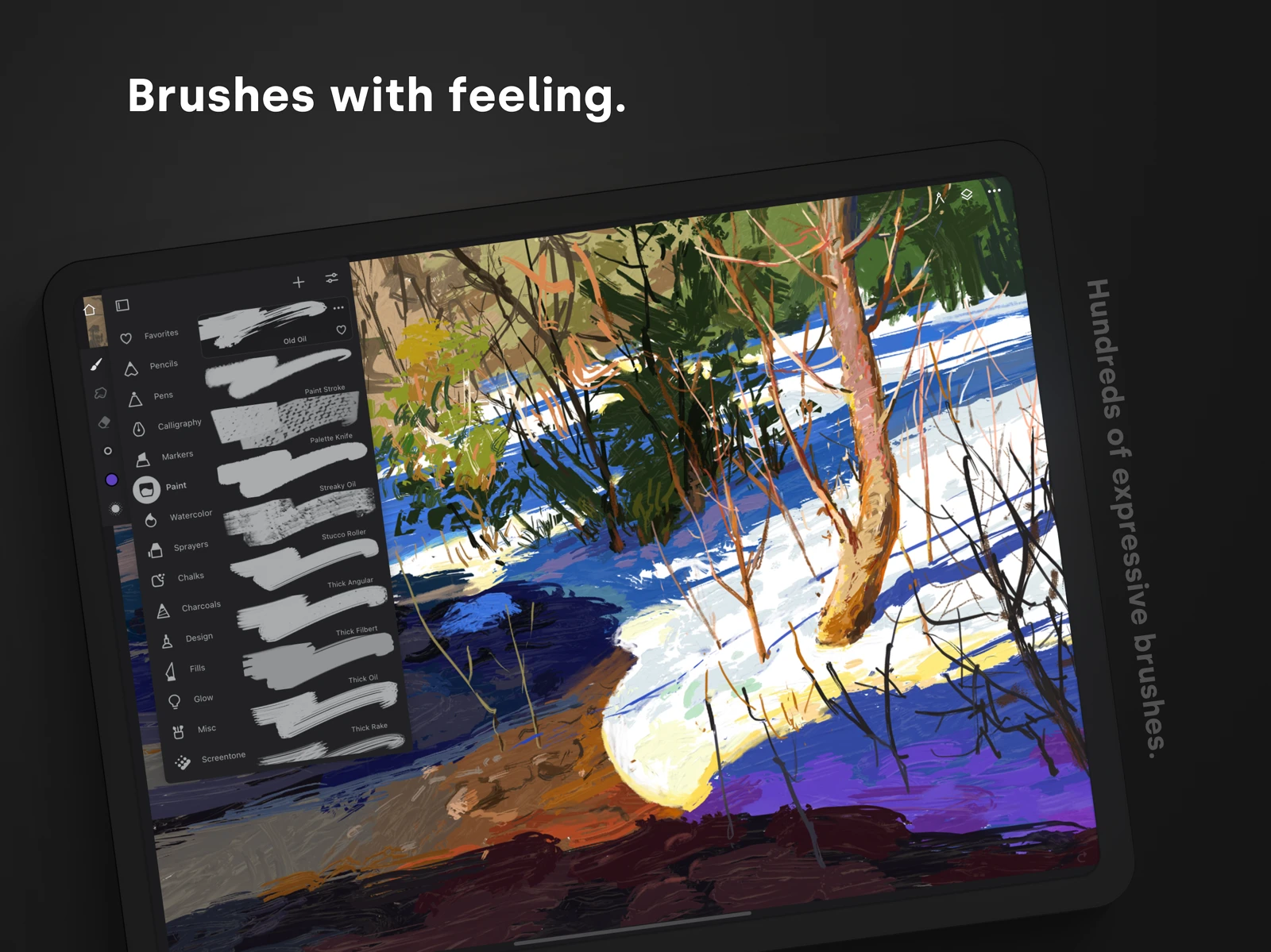
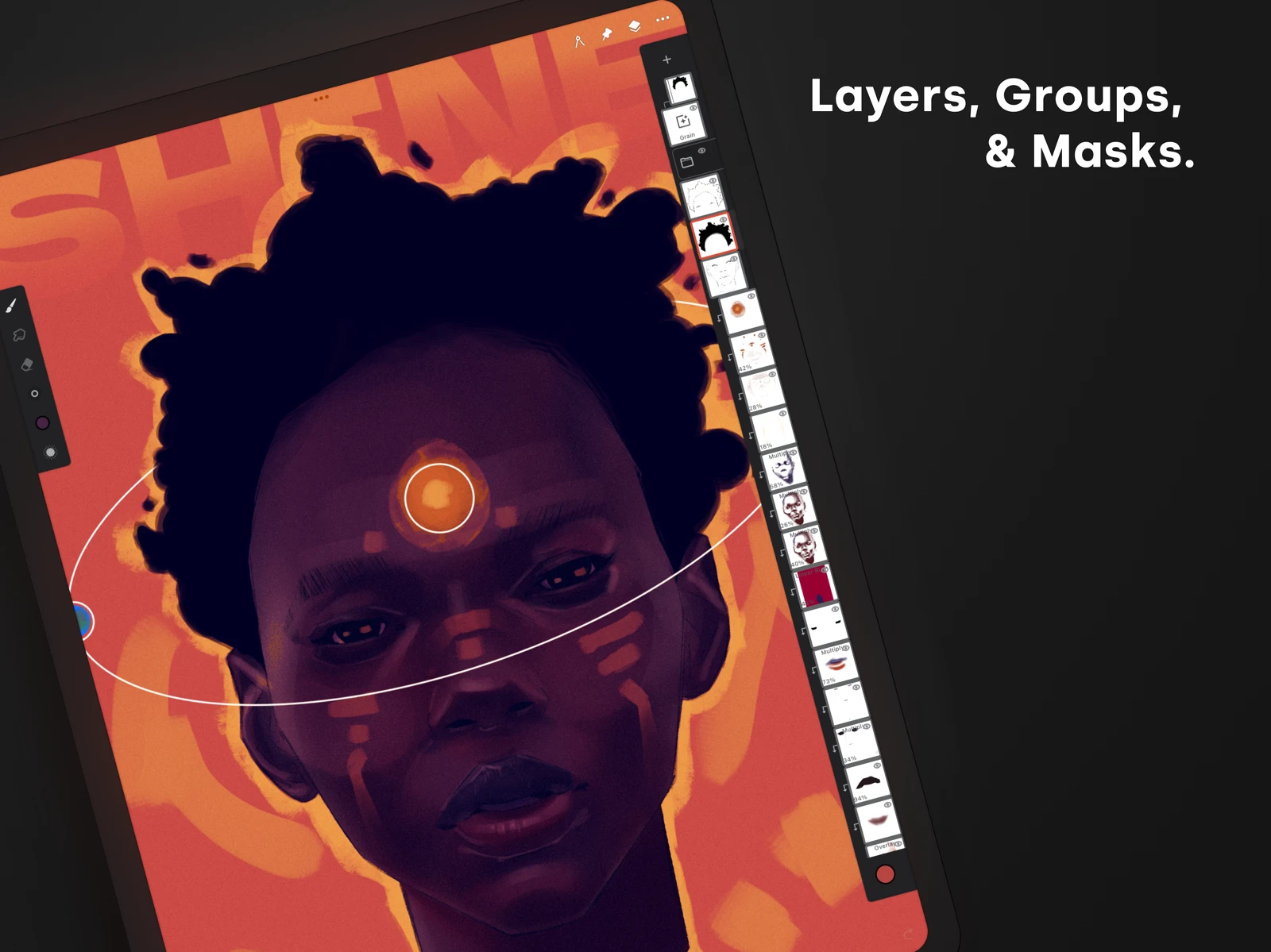
You can install and use Infinite Painter on Chromebook and Googlebook through the official Android app from Google Play or by streaming your mobile canvas directly to your laptop display. Built specifically for digital painters, illustrators, and concept artists, it delivers a studio-grade drawing environment powered by over 160 realistic brushes, non-destructive layer blending, and precision perspective tools.
ChromeOS and Googlebook devices provide an exceptional hardware canvas for Infinite Painter, combining large high-resolution touchscreens, low-latency USI stylus support, and seamless tablet-to-laptop versatility. Whether you sketch on a convertible 2-in-1 in tablet mode or connect a drawing tablet to your Googlebook, this guide details installation, stylus calibration, core studio workflows, and performance optimization.
Need guidance configuring stylus pressure or calibrating palm rejection for your Chromebook model? Contact us with your device setup and questions.

Choose your preferred way to run Infinite Painter
Depending on your creative workspace, you can install Infinite Painter directly from the official Google Play Store listing or explore developer tutorials and brush packs at infinitestudio.art.
How to install Infinite Painter on Chromebook and Googlebook
If the Play Store is missing or managed by an organization, review Google’s Android app setup guide for Chromebook or the official guide on installing apps on Googlebook. On school or enterprise accounts with Play Store restrictions, check with your network administrator to approve Infinite Painter for your managed Google account.
Cast Infinite Painter from your phone on Googlebook
If you began sketching a concept on your smartphone while on the move and want to continue detailing linework on a larger screen, Googlebook’s Cast My Apps feature lets you project your phone’s Infinite Painter canvas directly to your laptop display. Simply link your mobile device through the Googlebook phone hub, launch Cast My Apps, and select Infinite Painter. You can immediately refine line weights, adjust color palettes, and preview fine details on a wider display without transferring working files or re-authenticating accounts.
Key digital painting tools and studio features on ChromeOS
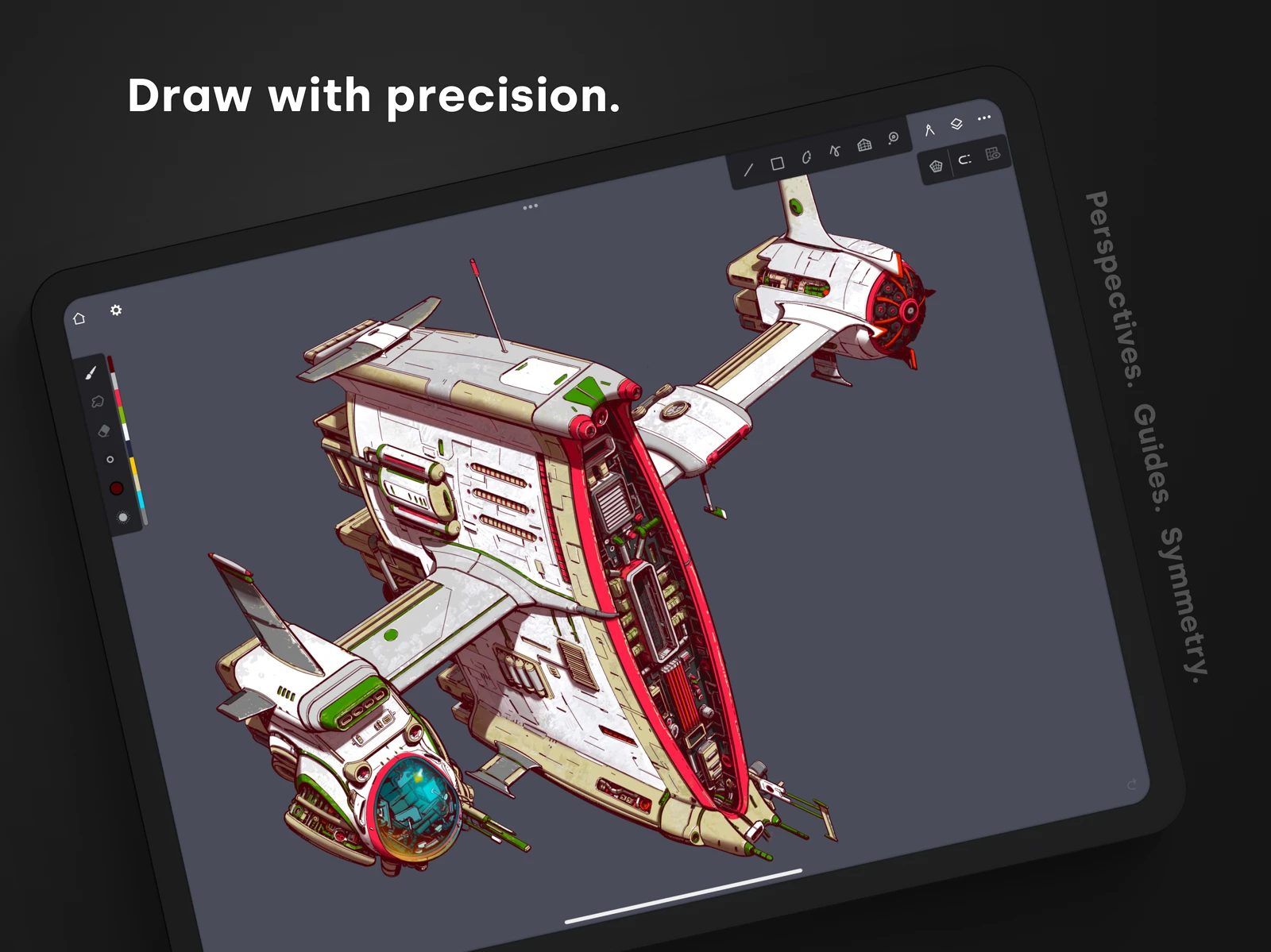
Infinite Painter organizes these capabilities into a minimalist, non-intrusive interface that maximizes your active canvas area. Its powerful fluid watercolor engine and customizable brush creator let artists craft personalized textures, import Photoshop ABR brush files, and create clean comic or concept artwork on Chromebook screens.
Stylus setup and performance optimization on Chromebook
- USI Stylus Pressure Calibration: In Infinite Painter settings under Stylus, customize the pressure response curve so light touches create gentle feathering while firmer pressure renders deep opaque strokes.
- Enabling Palm Rejection: Toggle “Stylus Only” input mode to ensure accidental hand contact on the glass screen never leaves stray marks while you sketch.
- Managing Canvas Resolution and Layers: Higher canvas resolutions (like 4K or 300 DPI) consume more memory. On Chromebooks with 4GB of RAM, keep layer counts moderate or merge finished background elements to preserve butter-smooth zoom and rotation.
- Two-Finger Touch Gestures: Take full advantage of ChromeOS multi-touch gestures to pinch-to-zoom, rotate the canvas dynamically, and double-tap to undo strokes instantly.
Quick fixes for common Infinite Painter issues
- Stylus lag or jittery lines: Open the brush settings menu and increase the “Smooth” or “Streamline” parameter slightly to filter out micro-jitters, and ensure your USI stylus battery is fully charged.
- App closes unexpectedly on large projects: Lower the maximum undo buffer in app preferences and merge inactive layers to free system memory on entry-level Chromebooks.
- Pressure sensitivity not responding: Confirm in ChromeOS Settings > Device > Stylus that your active pen is recognized, or uncheck “Finger as Pen” inside Infinite Painter settings.
- Saving projects to external storage: Use Infinite Painter’s Export menu to save project backups (.PRJ or .PSD) directly to your Google Drive or connected microSD card to prevent accidental data loss.
Related creative and design guides
- Infinite Design on Chromebook and Googlebook: Design scalable vector artwork, geometric shapes, and precision logos from the same creative engine.
- Adobe Photoshop Express on Chromebook and Googlebook: Retouch photos, correct lighting, and apply artistic filters to complement your digital illustrations.
- Canva on Chromebook and Googlebook: Turn your digital paintings into promotional graphics, book covers, social media headers, and marketing layouts.
- Chromebooks That Support Android Apps: Verify hardware compatibility, USI active pen support, and Google Play optimization for creative workflows.
Frequently asked questions
Is Infinite Painter free to use on Chromebook and Googlebook?
Does Infinite Painter support pressure sensitivity with USI styluses on Chromebooks?
Can I export Infinite Painter projects to Adobe Photoshop?
Does Infinite Painter work offline on ChromeOS?
What hardware specs do I need to run Infinite Painter smoothly on Chromebook?
Discover more from Chrome Geek
Subscribe to get the latest posts sent to your email.