6 Best Webcams for Chromebook and Googlebook (2026)
 by
Joseph Vance
Post Updated: November 14, 2026
The best webcams for Chromebook and Googlebook are the Logitech Brio 301 for easy USB-C video calls, the Logitech MX Brio for sharp 4K video, and the Logitech C920x for a proven, low-cost upgrade. Each one works with Google Meet, Zoom and the ChromeOS Camera app as soon as you plug it in.
We picked webcams for every need, from simple plug-and-play cameras to an AI tracking camera that follows you around the room and a studio-grade camera for streaming. Each card shows how it connects and what it works with.
Camera not showing up on your laptop? Contact us with your laptop and webcam model, and we will help you sort it out.
Best webcams for Chromebook and Googlebook
Logitech Brio 301
$ Budget
USB-C
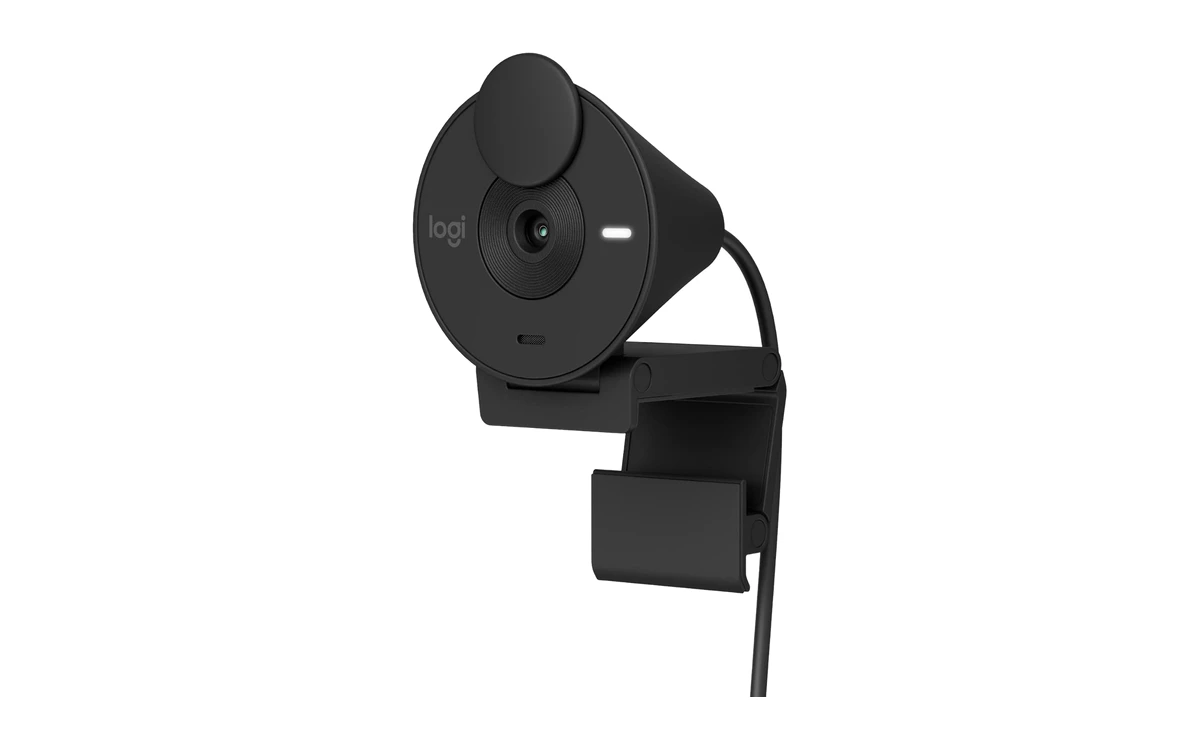
The Logitech Brio 301 is the webcam we would recommend to most Chromebook and Googlebook owners. It plugs straight into a USB-C port, Logitech lists ChromeOS as supported, and its automatic light correction keeps you looking clear even in a dim room.
- Plugs into USB-C: No adapter needed on Googlebooks and Chromebooks with only USB-C ports.
- Looks good in poor light: RightLight 2 automatically brightens your face when the room is dark or backlit.
- Built-in privacy shutter: Spin the shutter over the lens when you are not on a call.
Worth knowing: It is 1080p at 30fps with a single microphone, so it is made for calls, not streaming.
Logitech MX Brio
$$$ Premium
4K
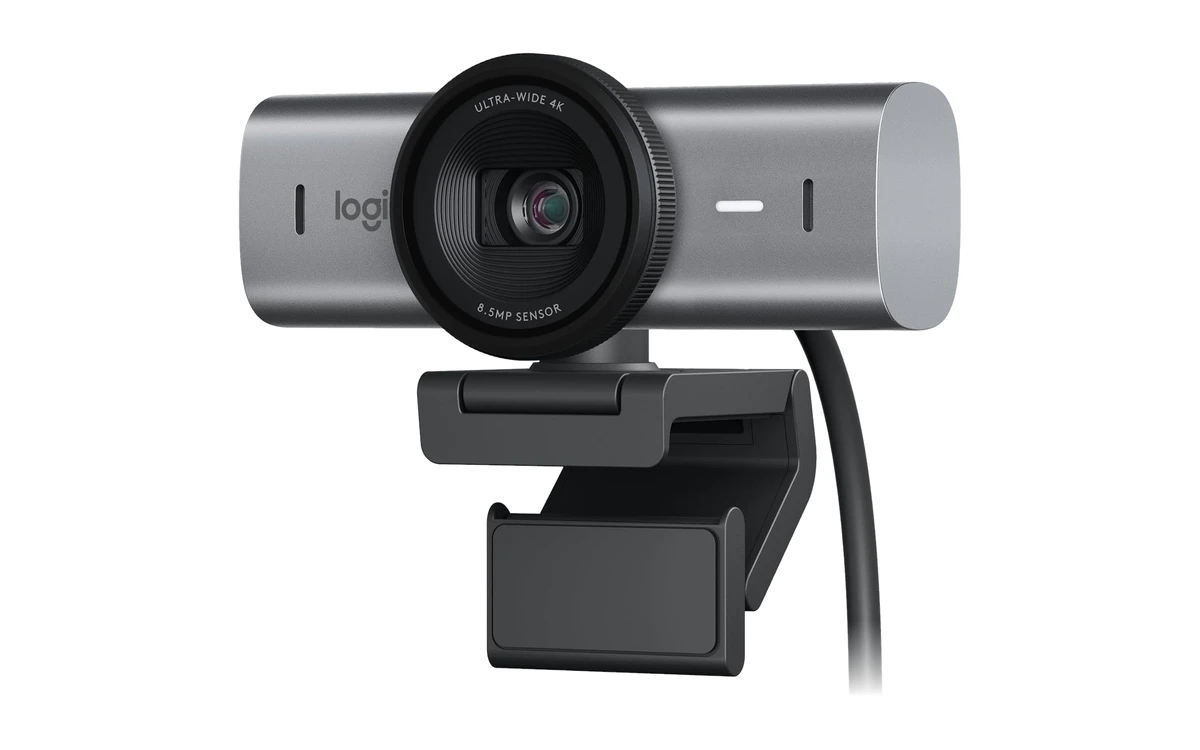
The Logitech MX Brio is Logitech’s best webcam, with a large 4K sensor that keeps your face sharp and natural in tricky light. It connects over USB-C, Logitech lists ChromeOS as supported, and its two microphones pick up your voice while cutting background noise.
- Sharp 4K video: Its large sensor gives finer detail and better low-light video than any other pick here.
- Smooth 1080p at 60fps: Choose 60fps for smoother motion in recordings and streams.
- Clear dual mics: Beamforming microphones focus on your voice and reduce room noise.
Worth knowing: It is the most expensive pick. Its fine image controls and Show Mode are set up in Logitech’s software, which does not run on Chromebooks, so you get the automatic settings.
Logitech C920x HD Pro
$ Budget
Best Seller
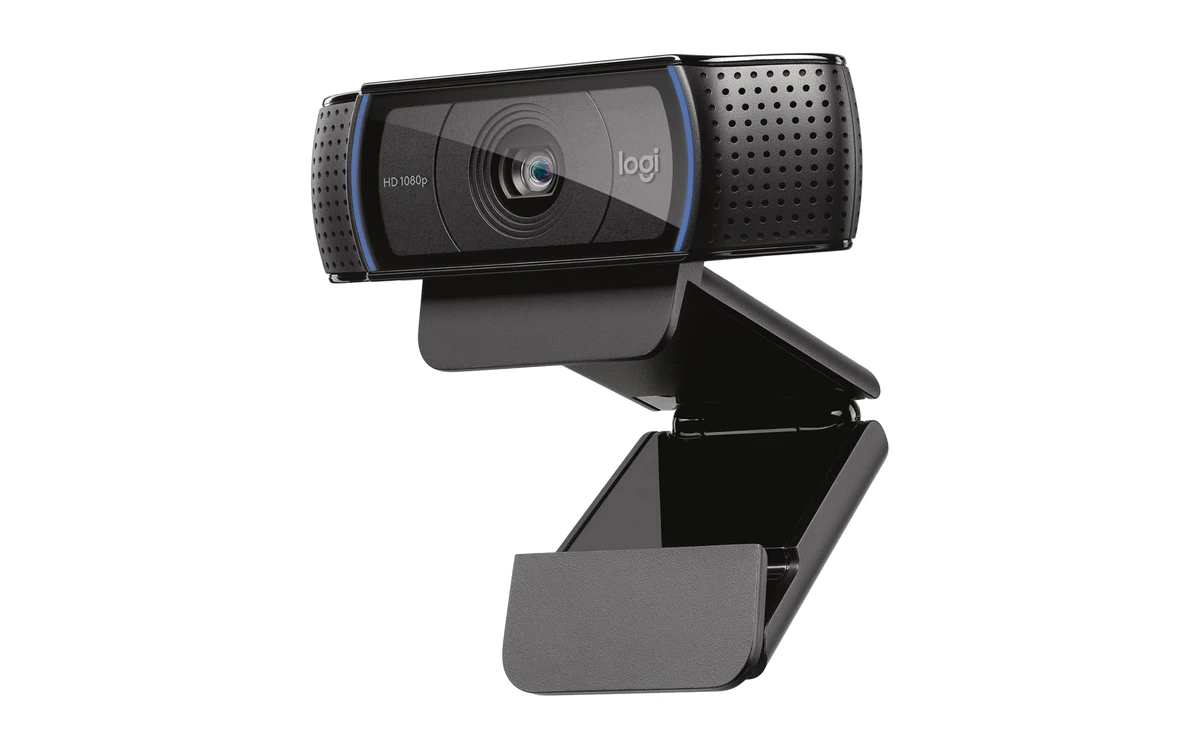
The Logitech C920x is one of the most popular webcams ever made, and for good reason. It gives you sharp 1080p video, autofocus and stereo sound for a low price, and it works as a standard USB camera on any Chromebook or Googlebook.
- Proven and reliable: Tens of thousands of reviews and years on the market make it a safe choice.
- Stereo sound: Two microphones give your voice a more natural sound than single-mic webcams.
- Autofocus: Stays sharp when you lean in or hold something up to the camera.
Worth knowing: Its cable is USB-A, so you will need a small USB-C adapter on laptops with only USB-C ports. It has no privacy shutter.
Anker PowerConf C200
$ Budget
2K
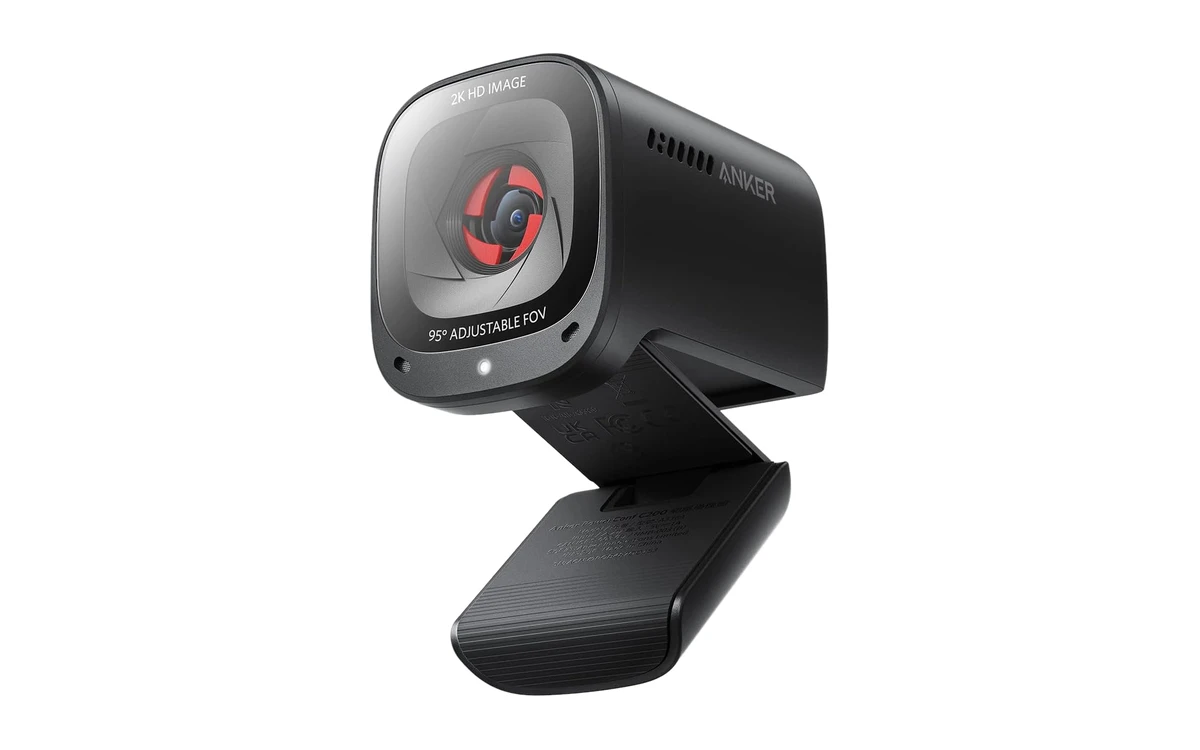
The Anker PowerConf C200 gives you sharper-than-1080p video for about the price of a basic webcam. It handles dim rooms well, has two noise-canceling microphones and a sliding privacy cover, which makes it a smart upgrade from a laptop’s built-in camera.
- Sharper 2K video: More detail than the 1080p webcams at a similar price.
- Good in dim rooms: Low-light correction keeps you visible on late-night calls.
- Built-in privacy cover: Slide it closed over the lens between calls.
Worth knowing: Anker lists Windows and macOS, not ChromeOS, though it works as a standard USB webcam. Its adjustable field of view is set in Anker’s desktop software, so on a Chromebook it stays at the default.
Insta360 Link 2
$$$ Premium
AI Tracking
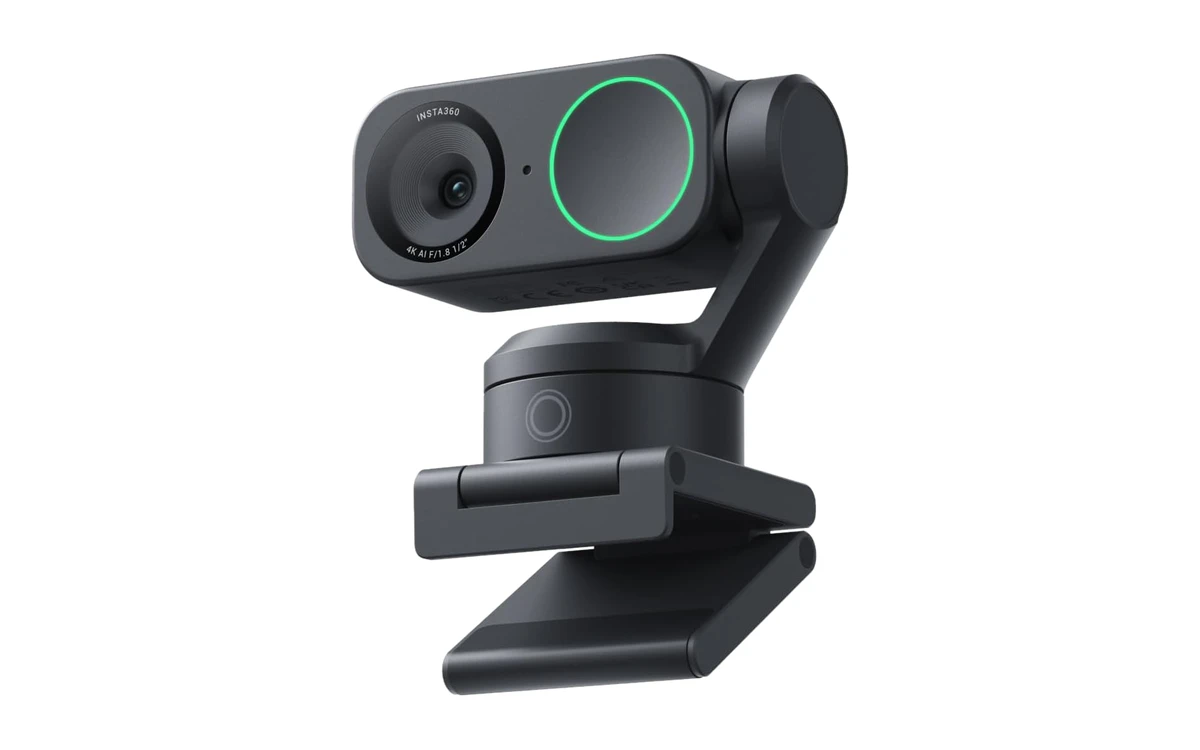
The Insta360 Link 2 sits on a small motorized gimbal that physically turns to follow you around the room. It is great for teachers, presenters and anyone who stands up or moves during calls, and you can start tracking or zoom with simple hand gestures.
- Follows you around: The camera pans and tilts to keep you in frame as you move.
- Gesture control: Use hand gestures right on the camera to start tracking or zoom in and out.
- Large 4K sensor: A 1/2-inch sensor and HDR give a clear picture in mixed light.
Worth knowing: It is expensive, and Insta360 does not list ChromeOS. It works as a USB webcam, and gestures work on the camera itself, but the desktop controller app is not available on Chromebooks.
Elgato Facecam MK.2
$$ Mid-range
1080p60
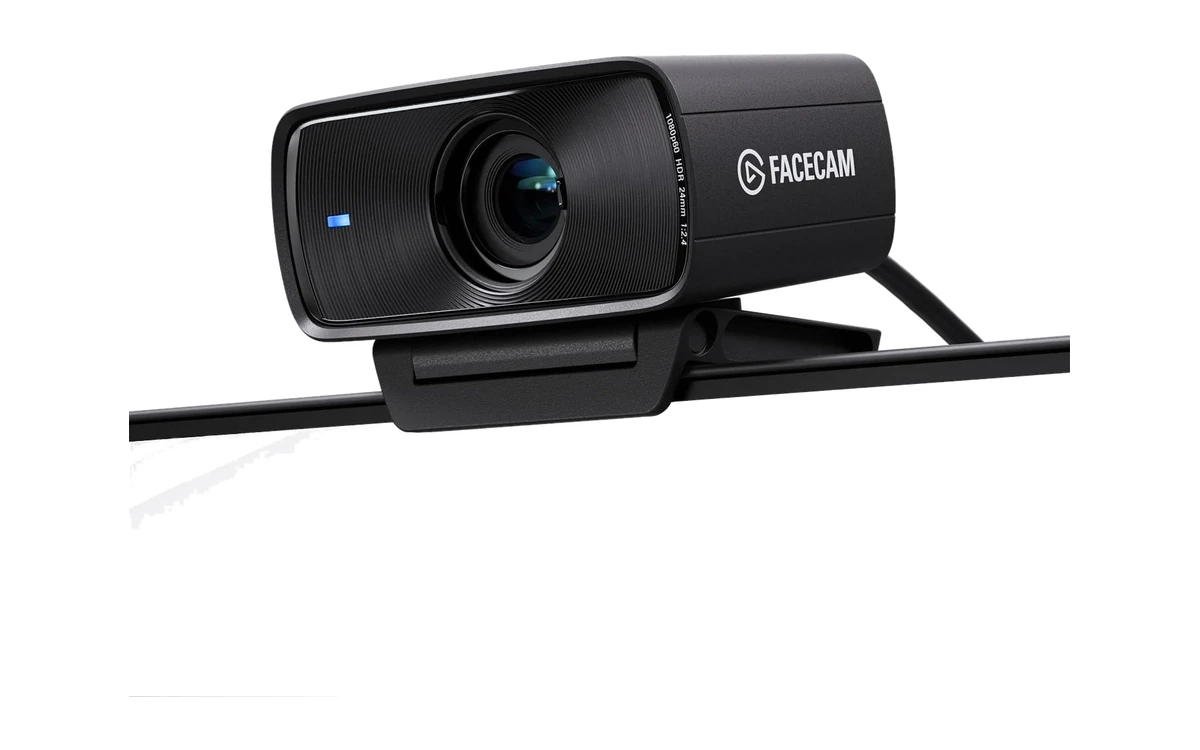
The Elgato Facecam MK.2 is built for creators who want smooth, detailed video. It records smooth 1080p at 60fps, with HDR at 30fps, from a Sony sensor, which looks great for streaming, recording lessons or making videos on a Chromebook.
- Smooth 60fps video: Motion looks fluid, which matters for streams and recordings.
- HDR for tricky light: Handles bright windows and dark rooms better than most webcams.
- Easy-slide shutter: Close the lens with one finger when you are done.
Worth knowing: It has no built-in microphone, so pair it with a headset or USB mic. Its advanced settings are set in Elgato’s Camera Hub app, which is made for Windows and macOS.
How to choose a webcam for Chromebook and Googlebook
USB-C or USB-A?
A USB-C webcam plugs straight into Googlebooks and Chromebooks that only have USB-C ports. USB-A webcams work too, but need a small USB-C adapter on those laptops.
Resolution and frame rate
1080p is plenty for video calls. 2K and 4K add detail if you record videos or crop the picture, and 60fps makes motion smoother for streaming.
Microphone and privacy
Most webcams have a built-in mic, but a headset usually sounds better. A privacy shutter or cover is worth having on any webcam that stays plugged in.
Software features
Webcam apps from Logitech, Anker, Insta360 and Elgato are made for Windows and macOS. On a Chromebook, the camera works with its automatic settings, so pick one that looks good out of the box.
Frequently asked questions
Do USB webcams work with Chromebooks?
Yes. Almost any USB webcam works with a Chromebook or Googlebook with no drivers needed. Plug it in, and it shows up in the Camera app, Google Meet, Zoom and other video apps.
How do I switch to an external webcam on a Chromebook?
In the Camera app, select the switch camera button. In Google Meet, open Settings, then Video, and choose your webcam from the Camera list. Other video apps have a similar camera setting.
Do webcams work with Googlebook?
Yes. Googlebooks use USB webcams the same way Chromebooks do. Because some Googlebooks only have USB-C ports, a USB-C webcam like the Logitech Brio 301 or MX Brio is the easiest choice.
Can I use the webcam’s microphone on a Chromebook?
Yes. Open Quick Settings, select the arrow next to the volume slider, and choose the webcam’s microphone as the input. You can also pick it in the audio settings of Google Meet or Zoom.
Why does my Chromebook not detect my webcam?
Try another USB port or a different adapter, and check that the camera is allowed in Settings, then Privacy and security, then Privacy controls. If an app still cannot see it, restart the Chromebook with the webcam plugged in.
More Chromebook guides
- Pairing a webcam with a big screen? See our best monitors for Chromebook and Googlebook.
- Finishing your desk setup? Check the best keyboards for Chromebook and Googlebook.
- Need a mouse too? See the best mice for Chromebook and Googlebook.
- Working from home? Our guide to the best Chromebooks for work has laptops made for video calls.
Discover more from Chrome Geek
Subscribe to get the latest posts sent to your email.