How to Install and Use uTorrent on Chromebook and Googlebook
 by
Juniya Sankara
Post Updated: October 26, 2026
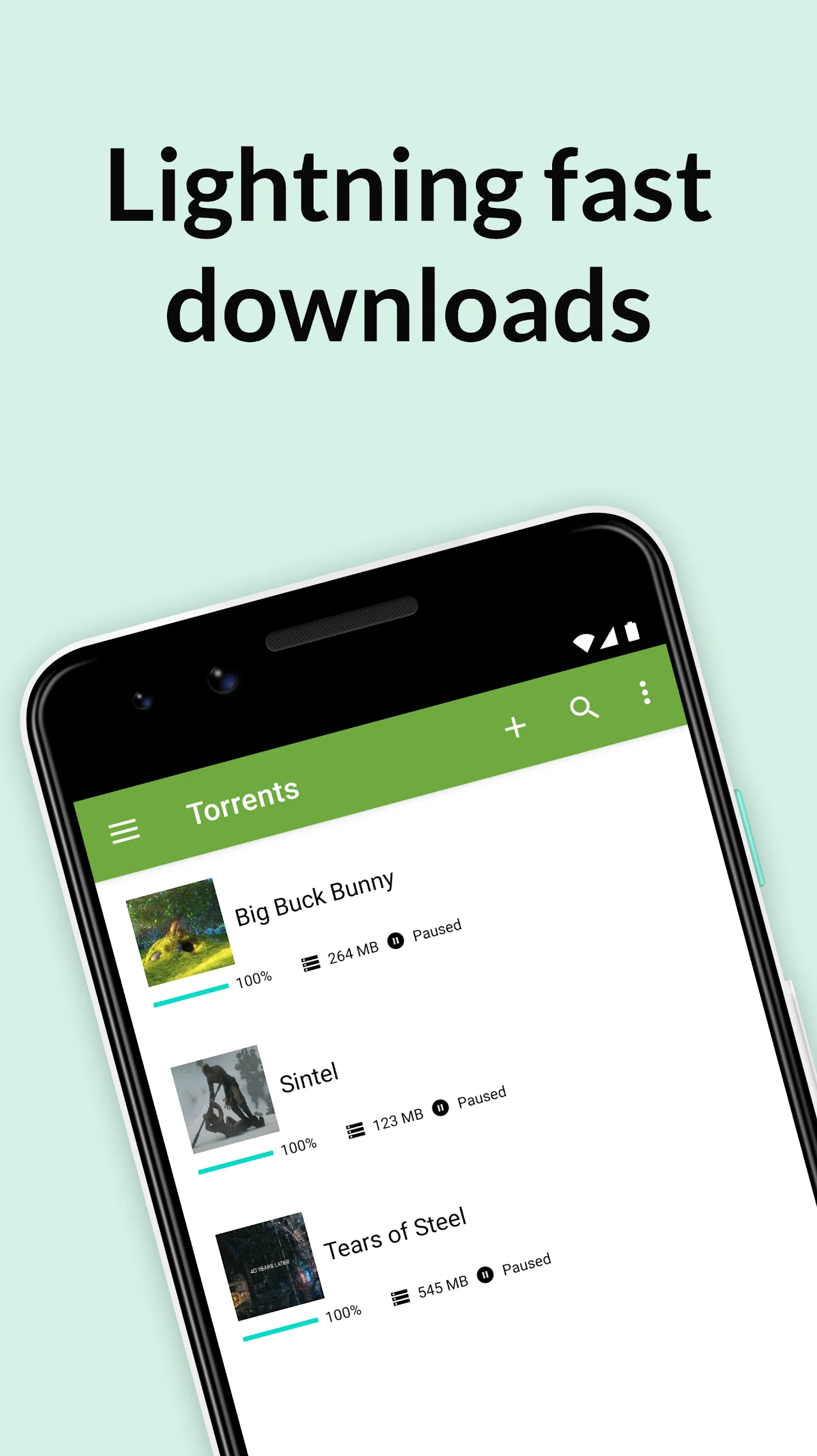
You can install and use uTorrent on Chromebook and Googlebook through the official app from Google Play. It gives you a fast, lightweight torrent downloader to download and manage P2P files, media, and open-source software directly on ChromeOS.
Googlebook runs Android apps natively through Google Play, giving you the same dependable downloading performance alongside phone-app casting. This guide walks you through the Google Play installation, Chromebook file storage configuration, bandwidth and Wi-Fi limits, magnet link association, and local media playback.
Need help configuring your download folder? Contact us with your laptop model and any setup questions.

Choose uTorrent Android app or Web client
The official Google Play listing identifies bittorrent.com (Rainberry, Inc.) as the developer with the package name com.utorrent.client. Sticking to the official Play Store app ensures legitimate software updates and avoids unverified APK files from risky third-party repositories.
How to install uTorrent on Chromebook and Googlebook
If the Play Store is not visible, check Google’s Android app setup guide for Chromebook or the guide on installing apps on Googlebook. On school or workplace laptops, administrator policies may limit Play Store downloads. If app installs are restricted, you can still download files via browser-based tools or explore Linux torrent packages (such as Transmission via sudo apt install transmission-gtk) when the Linux development environment is enabled.
Cast uTorrent from your phone on Googlebook
If you already have your favorite torrents and downloads running in uTorrent on your Android phone, Googlebook’s Cast My Apps feature lets you control your phone’s uTorrent client directly on your laptop display. Connect your phone through the Googlebook phone hub, open Cast My Apps, and select uTorrent. You can check transfer speeds, add new magnet links, and inspect finished files on a larger screen without moving files between devices.
Configuring download storage and bandwidth limits
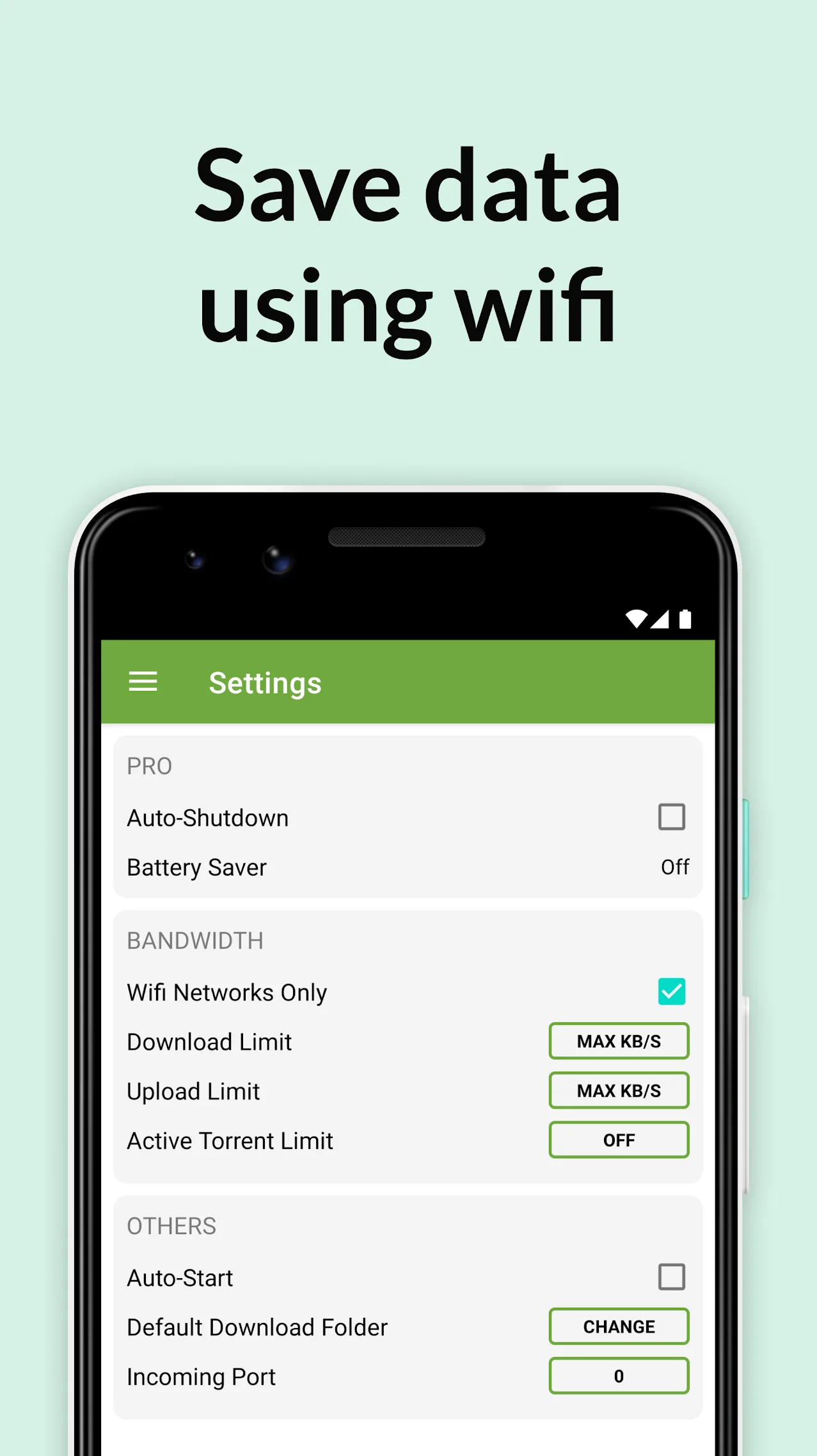
To get reliable download speeds without exhausting your Chromebook’s local storage or hogging your entire home Wi-Fi network, adjust these key settings in uTorrent:
Managing magnet links and file selections
Downloading torrents on ChromeOS is simple once file associations are set up:
- Clicking magnet links in Chrome: when you click a magnet link on a public repository in Google Chrome, select uTorrent from the application prompt to hand the link directly to the app.
- Opening .torrent files: if you download a .torrent file, open the Files app, right-click the file, select Open with, and choose uTorrent.
- Selective file downloading: when a torrent contains multiple items, uncheck unwanted extra files (like sample videos or extra languages) before starting to save disk space on smaller Chromebook eMMC drives.
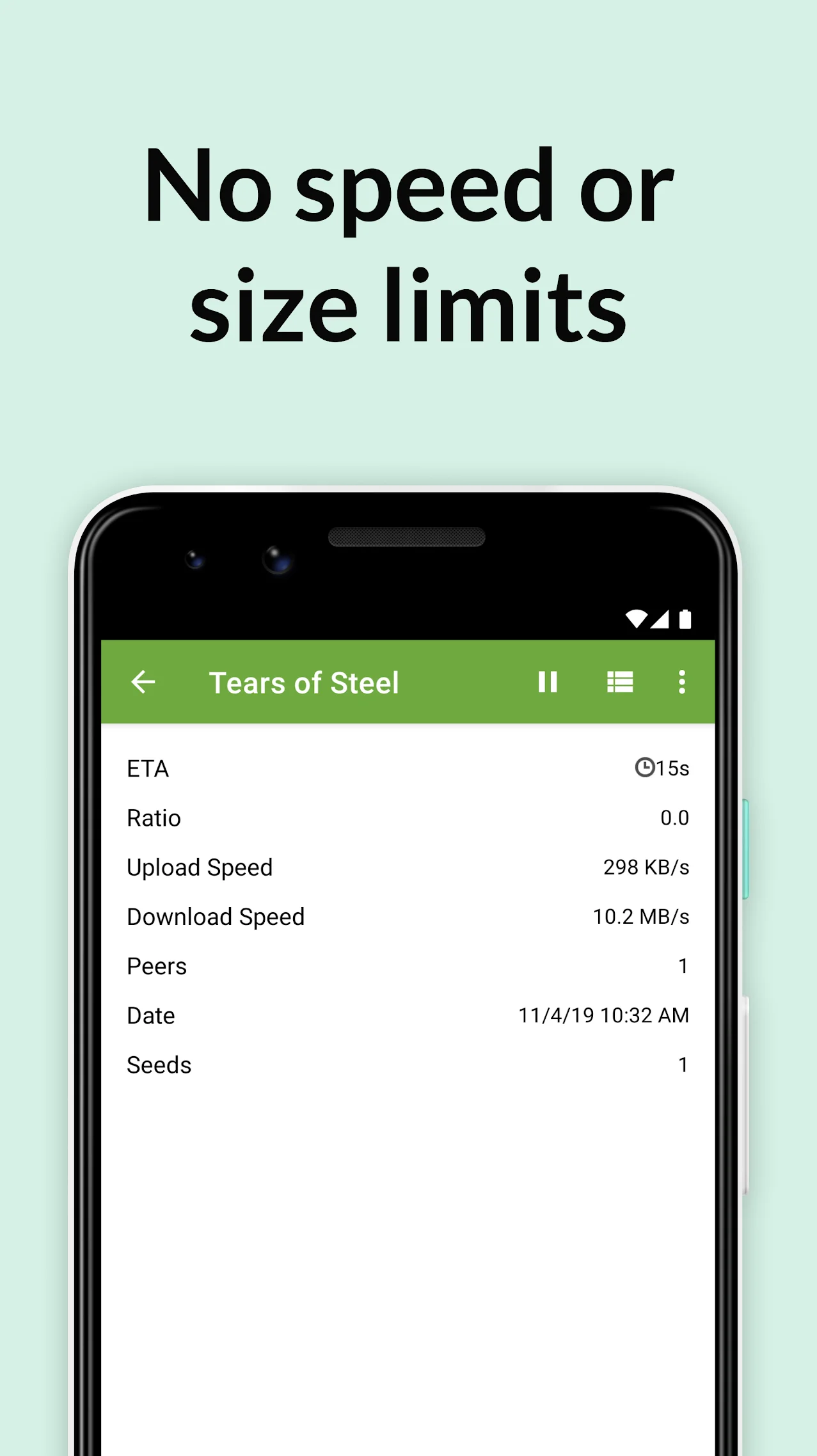
- Inspecting peers and seeds: tap any active download in your queue to inspect real-time metrics, including upload speed, download rate, connected seeders, and estimated completion time.
Playing downloaded media on Chromebook
Once your torrent finishes downloading, you can enjoy your media files directly on your Chromebook:
- Integrated media player: uTorrent includes a built-in player that lets you listen to downloaded music tracks and watch video files straight from the app queue.
- Multi-format playback with VLC: for advanced audio codecs, multi-track subtitles, and MKV video files, open your downloads using VLC on Chromebook for smooth offline viewing.
- Organizing files: move completed files into Google Drive or an external SD card via the Files app to keep your internal Chromebook storage clear.
Quick fixes for common uTorrent issues on Chromebook
- Downloads pause when switching apps: ChromeOS may put background Android apps to sleep. Open ChromeOS Settings > Apps > Manage your apps > uTorrent > Battery, and set battery usage to Unrestricted.
- Storage permission or write errors: ensure uTorrent has permission to access device storage in ChromeOS Settings > Apps > uTorrent > Permissions > Files and media.
- Download speed stuck at 0 KB/s: verify that the torrent has active seeders. If connected to a school or workplace network, network firewalls may block P2P traffic.
- App crashes on launch: open ChromeOS Settings > Apps > uTorrent > Storage, and click Clear Cache. If problems continue, uninstall and reinstall the app from Google Play.
Related download and media guides
- VLC on Chromebook and Googlebook: Set up offline video playback, subtitle tracks, and network media streaming.
- Best Download Manager Extensions for Chrome: Compare top browser download accelerators, queue managers, and media grabbers.
- JSTorrent on Chromebook: A native browser-based torrent client designed specifically for ChromeOS.
- Best Media Players on Chromebook: Find top video and audio players for local playback and external drive media.
Frequently asked questions
Is uTorrent free on Chromebook and Googlebook?
Can I use uTorrent without installing the Android app?
How do I install uTorrent on a Googlebook?
Where does uTorrent save downloaded files on ChromeOS?
How do I make torrents download only on Wi-Fi?
Discover more from Chrome Geek
Subscribe to get the latest posts sent to your email.