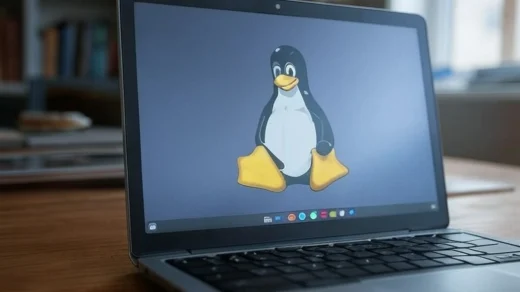
12 Best PDF Editors for Chromebook
 by
Juniya Sankara
Post Updated: November 2, 2026
Looking for the best PDF editors for Chromebook? Adobe Acrobat Reader, Sejda, Smallpdf, PDF2Go, and ProPDF are among 12 options worth considering. Some work directly in Chrome, while others offer Android apps or extensions.
Whether you’re annotating notes, signing contracts, or editing forms, these tools bring powerful PDF functionality to ChromeOS.
Most Chromebooks since 2017 support Android apps, and many editors also work via the web or extensions, offering flexible options.
We’ve packed this list with download links, tips, and features to help you pick the best PDF editor for your needs, all tailored for Chromebook.
Ready to edit? Share your favorites or contact us below.
Best PDF Editors on Chromebook
#1. Adobe Acrobat Reader
Adobe Acrobat Reader on Chromebook
Adobe Acrobat Reader is the go-to PDF viewer and editor for Chromebook users.
Quick Tip: 💡 Use the Chrome extension for quick web annotations.
Key Features:
- View and annotate PDFs
- Fill and sign forms
- OCR text recognition (premium)
- Cloud sync with Adobe
Why you might like this: Its familiar interface and robust free tools make it a reliable daily driver. Premium options unlock advanced editing for power users.
Get it on Chromebook:
#2. DocuSign
DocuSign excels at e-signatures and basic PDF edits on Chromebook.
Quick Tip: 💡 Scan docs with your camera for instant signing.
Key Features:
- E-signatures
- Document upload
- Real-time tracking
- Google Workspace integration
Why you might like this: It’s perfect for quick, legally binding signatures without fuss. The free tier suits casual users, while premium plans boost workflow.
Get it on Chromebook:
#3. Sejda PDF Editor

Sejda PDF Editor is a versatile web-based editor for Chromebook.
Quick Tip: 💡 Edit existing text without watermarks on free tier.
Key Features:
- Text editing
- Form filling
- Merge/split PDFs
- Annotate and sign
Why you might like this: Its no-install, watermark-free approach is ideal for quick edits. The intuitive design simplifies complex tasks.
Get it on Chromebook:
#4. Smallpdf
Smallpdf offers a sleek, all-in-one PDF solution for Chromebook.
Quick Tip: 💡 Compress files to save space before editing.
Key Features:
- Edit and annotate
- Convert formats
- Compress PDFs
- E-signatures
Why you might like this: Its fast, cloud-based tools streamline PDF tasks. The free limit (two edits/day) suits light users.
Get it on Chromebook:
#5. Kami
Kami is a collaborative PDF editor for Chromebook, great for education.
Quick Tip: 💡 Use voice annotations for hands-free notes.
Key Features:
- Annotate PDFs
- Text and shape tools
- Google Drive sync
- Collaboration
Why you might like this: Its classroom-friendly features shine for students and teachers. Real-time teamwork adds flexibility.
Get it on Chromebook:
- Chrome Extension
- Web Access
- Full Guide
#6. Lumin PDF

Lumin PDF brings a polished PDF editing experience to Chromebook.
Quick Tip: 💡 Share files in real-time for team edits.
Key Features:
- Annotate and highlight
- Digital signatures
- Page rotation
- Cloud collaboration
Why you might like this: Its clean interface and sharing options make it a breeze for group projects. Free tools cover most needs.
Get it on Chromebook:
#7. PDFescape
PDFescape is a simple, web-based PDF editor for Chromebook.
Quick Tip: 💡 Whiteout text to overlay new content.
Key Features:
- Add text and shapes
- Form filling
- Sticky notes
- Basic annotations
Why you might like this: It’s lightweight and free for small files (under 10MB/100 pages). No install means instant access.
Get it on Chromebook:
#8. Xodo
Xodo offers a robust PDF editor for Chromebook users.
Quick Tip: 💡 Sync edits with Google Drive for backups.
Key Features:
- Annotate and edit
- Form filling
- Cloud integration
- Signature tools
Why you might like this: Its free, feature-rich app rivals premium editors. Cloud sync keeps your work safe.
Get it on Chromebook:
#9. Soda PDF
Soda PDF delivers a full-featured PDF editor for Chromebook.
Quick Tip: 💡 Use virtual sticky notes for reminders.
Key Features:
- Text editing
- Convert PDFs
- E-signatures
- Cloud storage
Why you might like this: Its slick design and conversion tools suit multitaskers. Free features handle most edits.
Get it on Chromebook:
#10. PDF2Go
PDF2Go is a free, web-based PDF editor perfect for Chromebook users.
Quick Tip: 💡 Unlock password-protected PDFs directly in your browser.
Key Features:
- Edit text and images
- Compress and convert PDFs
- Add annotations
- Merge or split files
Why you might like this: It’s fast and requires no installation, making it a breeze for quick edits. The online access suits Chromebook’s web-first design.
Get it on Chromebook:
#11. ProPDF
ProPDF is a free, browser-based PDF editor for Chromebook, with no software to download and no account to create.
Quick Tip: 💡 Drop a Word, Excel or image file straight into the editor, so there is no need to convert it to PDF first.
Key Features:
- Edit existing text in place, add new text, insert images and sign
- Build PDF forms from scratch with fields, checkboxes and dropdowns
- Compress, convert, merge, split and protect PDFs
- Works in any browser on Chromebook, Mac, Windows, Android and iOS
Why you might like this: It runs entirely in Chrome, and ProPDF says your original fonts, spacing and layout stay intact when you edit. ProPDF also says files are encrypted and deleted automatically after processing.
Get it on Chromebook:
#12. PDF-File Edit PDF
PDF-File Edit PDF is a free PDF editor that runs in Chrome and can change the text that is already in a PDF, with no account and nothing to install.
Quick Tip: 💡 Keep a new line about as long as the one it replaces. Longer text stays on one line and does not wrap, so change a paragraph line by line.
Key Features:
- Click a line to change its words, and the old text is removed from the file
- Add text, PNG or JPEG images, links, highlights, white-out and check marks
- Free with no sign-up and no watermark on the saved file
- Works in the Chrome browser, so there is nothing to download
Why you might like this: In our test in Chrome, we changed a line in a sample invoice and saved it. The downloaded PDF showed the new text, the old words were gone from the text layer, and there was no watermark. PDF-File says uploads are deleted from its server within two hours. Scanned pages are images, so for those you need White-out and Add text instead.
Get it on Chromebook:
Explore more Chromebook tools: Best Photo Editors and Best Remote Desktop Apps.
Discover more from Chrome Geek
Subscribe to get the latest posts sent to your email.