10 Best Remote Desktop Apps for Chromebook and Googlebook (2026)
 by
Frank Cross
Post Updated: November 16, 2026
The best remote desktop apps to install and use on Chromebook and Googlebook include Chrome Remote Desktop for instant free access, TeamViewer for cross-platform IT support, and AnyDesk for fast low-latency control. Each tool connects your lightweight laptop securely to Windows PCs, Macs, and Linux servers from anywhere.
Our guide covers the rest of the top remote desktop apps worth running on ChromeOS, while Googlebook runs Android apps natively from Google Play alongside instant phone-app casting from the Phone Hub.
Need help setting up remote access or forwarding keyboard shortcuts? Contact us with your laptop model and host operating system.
Best remote desktop apps for Chromebook and Googlebook
1. Chrome Remote Desktop
100% Free (Play Store & Web)
Android & Web
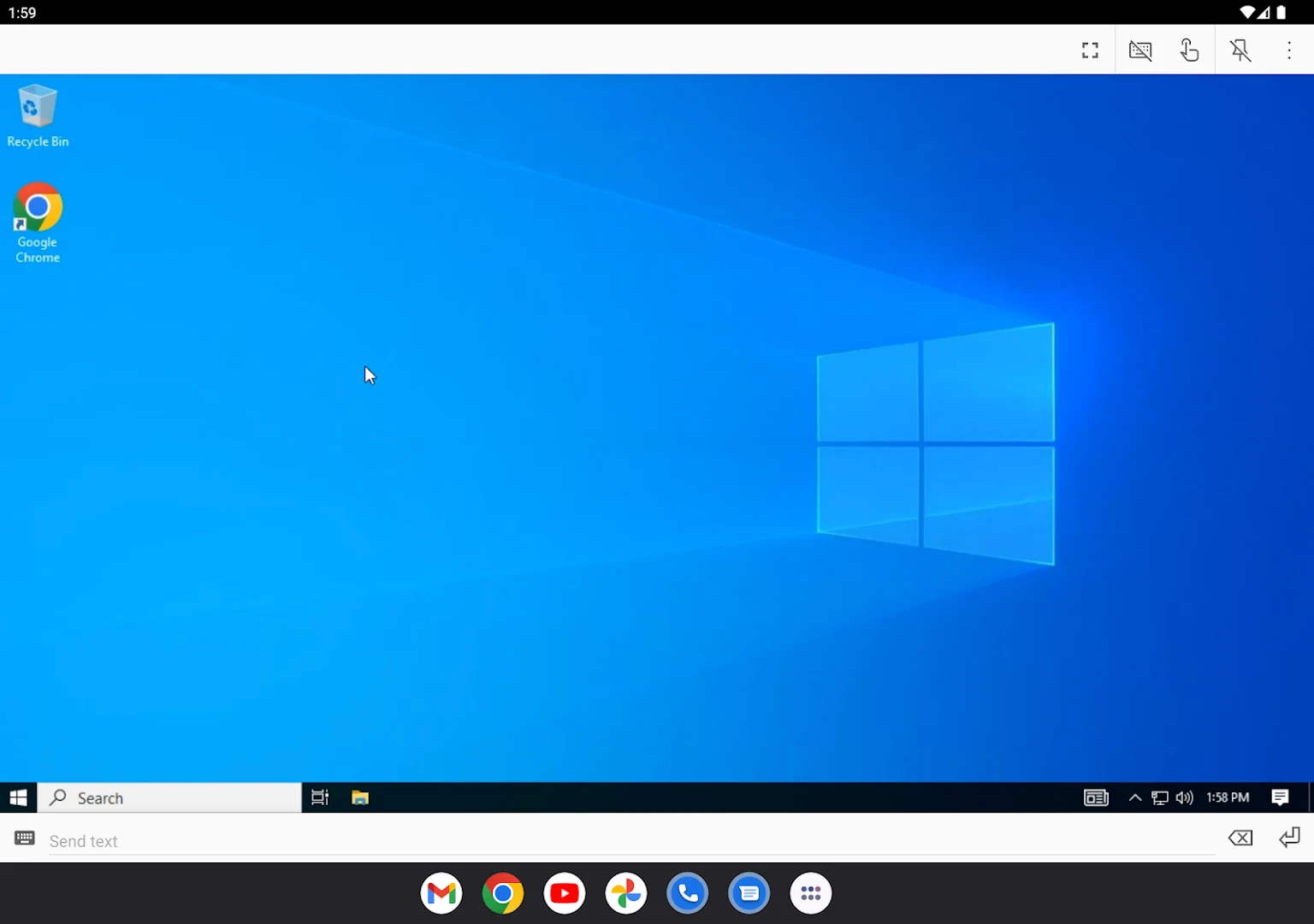
Chrome Remote Desktop connects Chromebook and Googlebook laptops to Windows, macOS, and Linux computers via Google’s official Android app (com.google.chromeremotedesktop) and remotedesktop.google.com.
- Unattended PIN access: Install the host service on your home or office PC once and log in anytime with a private six-digit PIN.
- One-time Remote Support codes: Share or join temporary screen-sharing sessions using five-minute 12-digit access codes for quick troubleshooting.
- Automatic WebRTC encryption & key forwarding: Streams audio and video over encrypted peer connections while forwarding
Ctrl+Alt+Deland host shortcuts.
2. TeamViewer
Free Personal / Paid Commercial
Android, Web & Linux
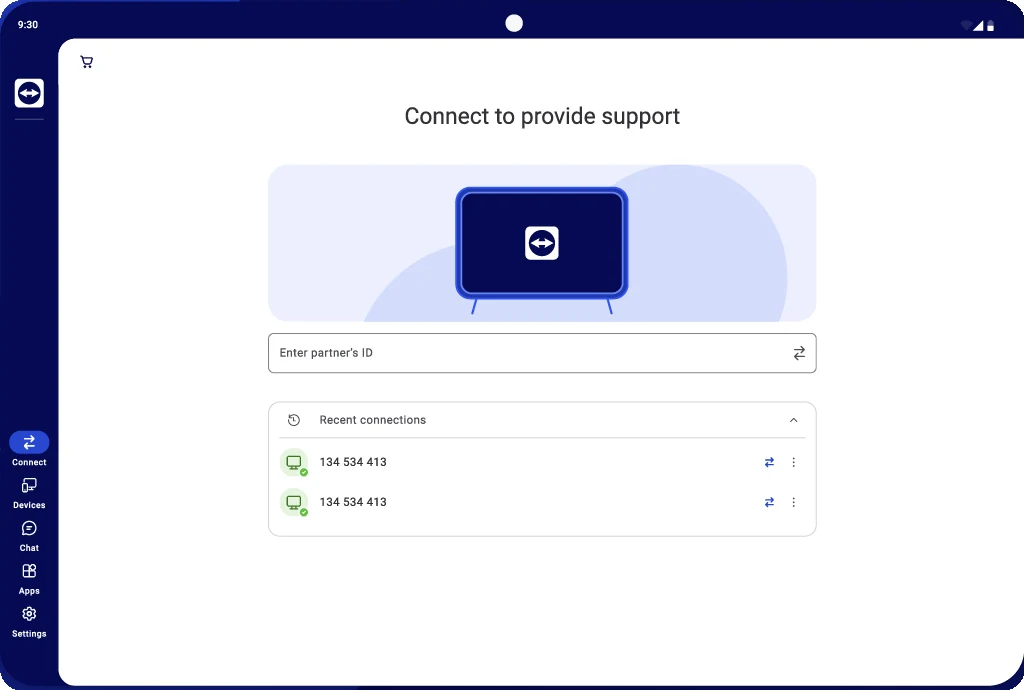
TeamViewer delivers encrypted remote control, live help desk messaging, and multi-platform device management via its Android app (com.teamviewer.teamviewer.market.mobile), web.teamviewer.com, and the Debian Linux client.
- Partner ID & Contacts directory: Connect immediately with a 9-digit or 10-digit partner ID, or sign in to view saved computers and online status.
- Two-way file transfer & live chat: Send logs, installers, and documents between Chromebook storage and remote hosts while chatting in real time.
- Multi-monitor & quality controls: Jump across multiple remote displays and switch between Optimize Speed and Optimize Quality on slower Wi-Fi.

3. AnyDesk
Free Personal / Paid Licenses
Android & Web
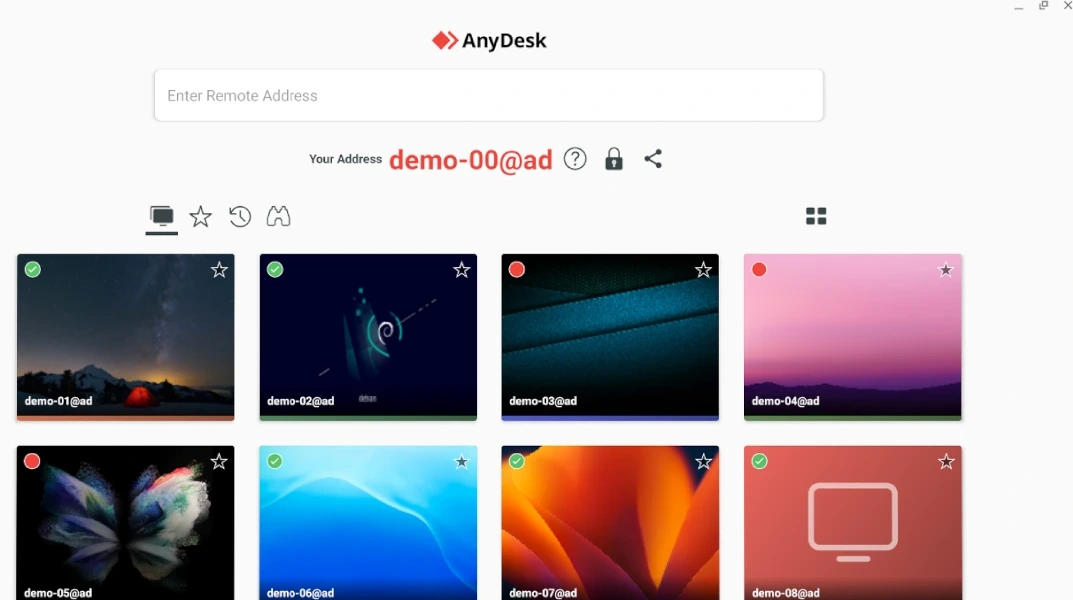
AnyDesk emphasizes speed and lightweight responsiveness on Chromebook and Googlebook through its Google Play app (com.anydesk.anydeskandroid) and browser tools at anydesk.com.
- DeskRT low-latency streaming: Engineered for smooth 60 FPS screen updates and crisp text rendering even on bandwidth-constrained hotel or mobile networks.
- Radial pie menu & unattended access: Access quick input actions, keyboard shortcuts, and screen recording from a clean floating pie menu, or connect unattended via a fixed password.
- Built-in side-by-side file manager: Browse Chromebook folders next to your remote desktop directory to upload or download project files without interrupting work.

4. Splashtop
Free Local Wi-Fi / Paid Remote Access
Android & Web
Splashtop specializes in high-frame-rate desktop streaming with synchronized audio for creative software and business workflows via Splashtop Personal (com.splashtop.remote.pad.v2), Splashtop Business (com.splashtop.remote.business), and splashtop.com.
- Smooth 60 FPS video & HD audio: Stream Premiere Pro, CAD software, and browser media from your desktop PC with minimal audio-video lag.
- On-screen shortcuts & whiteboard tools: Pin custom hotkey overlays for editing suites or sketch live annotations during remote presentations.
- Multi-monitor & USB redirection: Switch across dual or triple monitors cleanly and transfer files with 256-bit AES encryption.
5. RemotePC Viewer
Free Trial / Paid Annual Plans
Android & Web
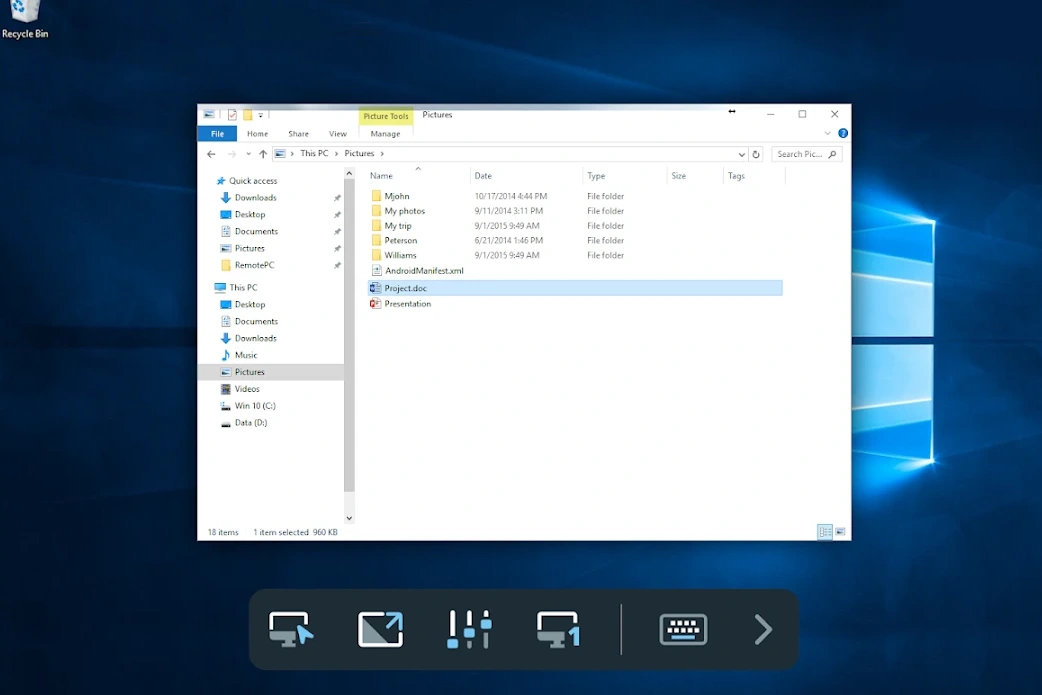
Built by IDrive Inc., RemotePC Viewer links Chromebooks and Googlebooks to Always-On Windows, macOS, and Linux computers through its official Play Store app (com.prosoftnet.rpcnew) and browser web viewer.
- Private Personal Key security: Requires a secondary local encryption key stored on the host computer before revealing your desktop screen.
- Standalone File Access mode: Browse remote folders and upload or download documents straight to the ChromeOS Files app without opening a full desktop session.
- Computer groups & multi-monitor bar: Organize office desktops by department folder and jump across dual or triple host displays from the bottom floating toolbar.
6. RealVNC Viewer
Free Personal / Paid Connect Plans
Android & Linux
RealVNC Viewer brings official VNC Connect cloud brokering and direct local IP access to Chromebook and Googlebook via its Google Play app (com.realvnc.viewer.android) and Debian Linux package.
- Built-in Raspberry Pi support: Connects right away to Raspberry Pi OS desktops and Linux servers with zero third-party agent headaches.
- Cloud address book & Direct IP modes: Sync saved hosts across devices through RealVNC Connect, or connect directly over local Wi-Fi and VPNs via IP address.
- View-Only monitoring & picture presets: Watch unattended tasks safely without sending accidental input and tune image quality on slower connections.
7. Microsoft Remote Desktop (Windows App)
Free Official Microsoft Client
Android & Web
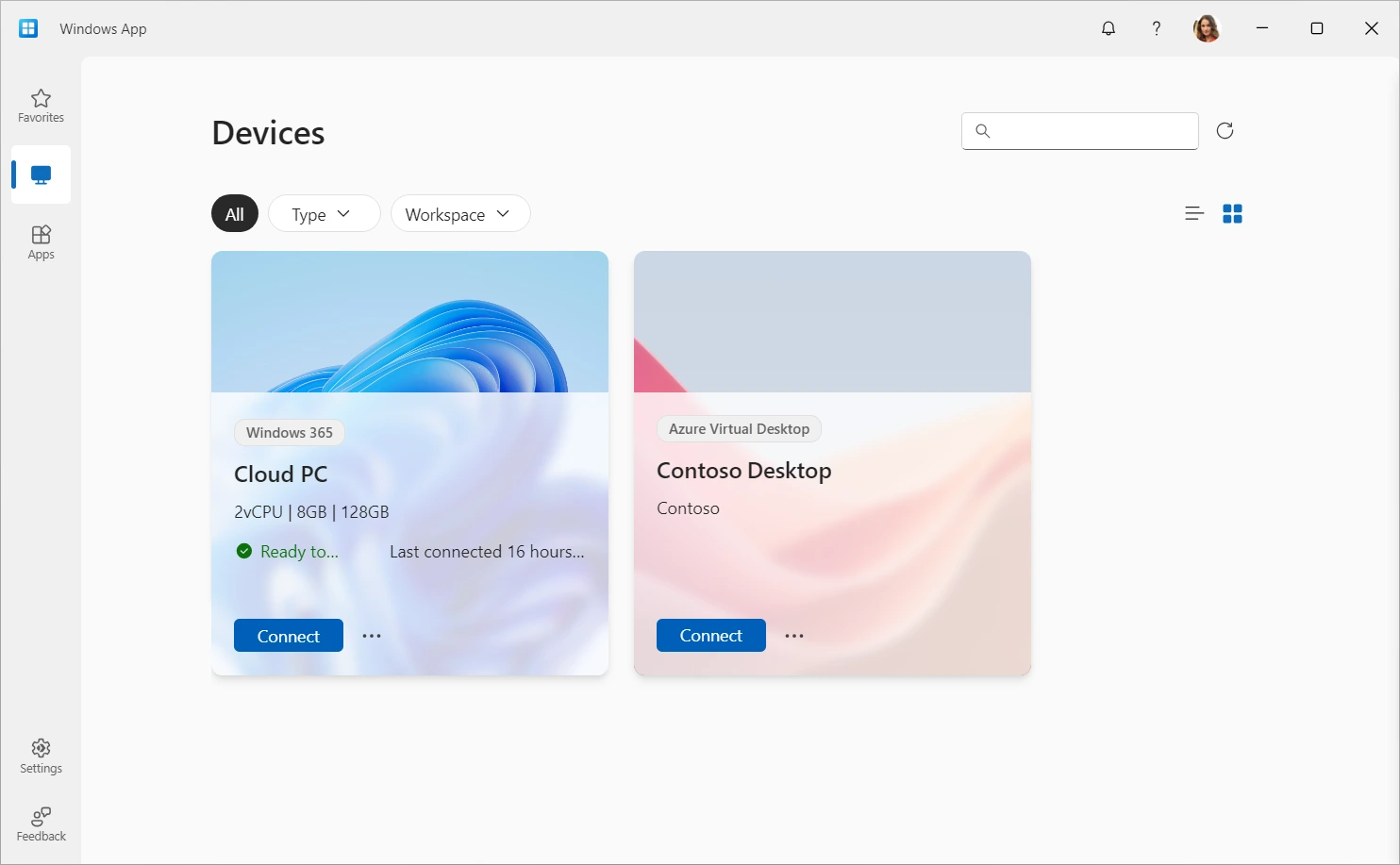
Now branded on Google Play as Windows App, Microsoft’s official client (com.microsoft.rdc.androidx) and web portal at windows.cloud.microsoft connect Chromebooks and Googlebooks directly to Windows Pro PCs, Windows 365 Cloud PCs, and Azure Virtual Desktop.
- Zero extra host software on Windows Pro: Enable Windows Remote Desktop in system settings and connect directly over Microsoft’s native RDP protocol on local networks or VPNs.
- Windows 365 & Azure Virtual Desktop hub: Switch between personal RDP PCs, corporate Cloud PCs, and published Microsoft 365 RemoteApps from one Favorites view.
- Audio, microphone & storage redirection: Stream PC sound cleanly through your laptop speakers and map local Chromebook folders to transfer files inside RDP sessions.
8. RustDesk
100% Free & Open Source
Web, Linux & Android
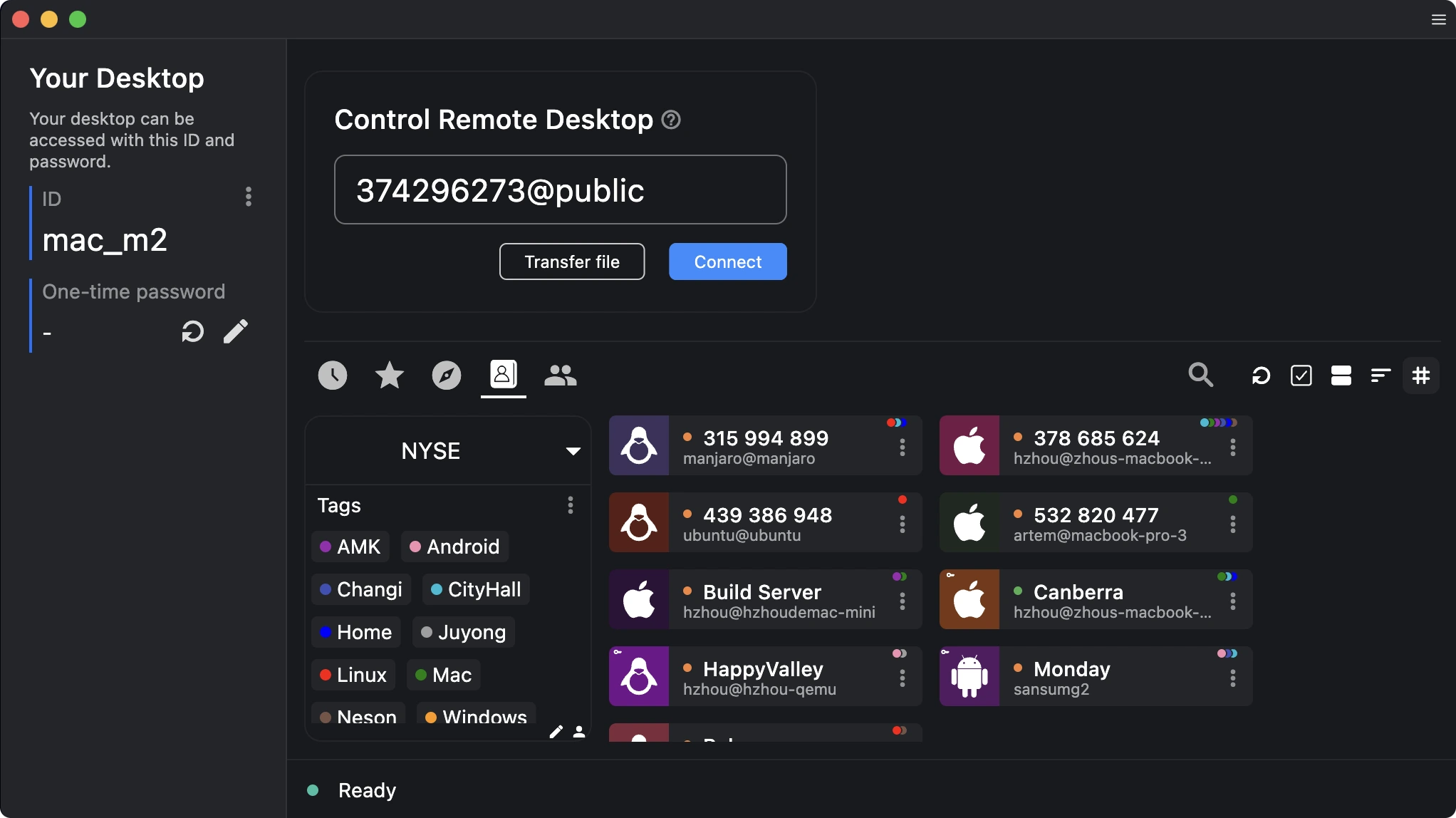
RustDesk is a fast, open-source alternative to TeamViewer and AnyDesk that runs on Chromebook and Googlebook via its browser web client, official Debian Linux package, or GitHub Android APK from rustdesk.com.
- Self-hosted relay servers: Keep full ownership of your network traffic and device address book by running your own free RustDesk relay server in Docker or on a VPS.
- Zero-hassle ID & password sharing: Works right out of the box with public relays using a simple ID and one-time or permanent password, with built-in file transfer and chat.
- Tagged cross-platform fleet view: Organize Windows, macOS, Linux, and Android devices by custom color tags inside a clean dark or light dashboard.

9. Zoho Assist
Free Plan / Paid Support Tiers
Android & Web
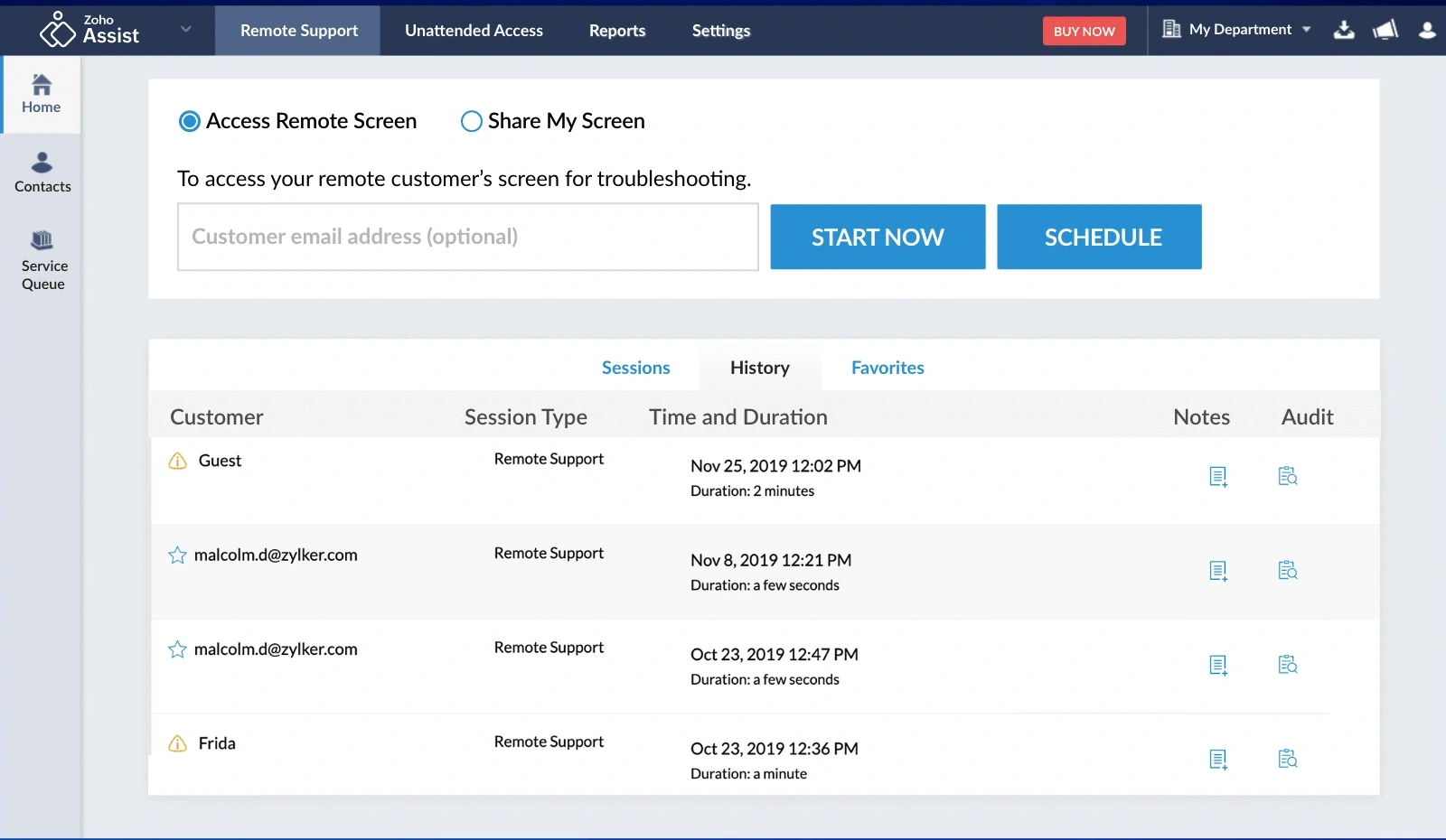
Zoho Assist is built for IT technicians, help desks, and support teams connecting from Chromebook and Googlebook via its browser console at zoho.com/assist and Google Play client (com.zoho.assist).
- Browser-based support sessions: Invite customers with an email link or quick session key so they can join without heavy software installs.
- Session recording & audit logs: Automatically record remote troubleshooting walkthroughs, export diagnostic reports, and review duration logs by department.
- Unattended access & voice/video chat: Reboot remote Windows or Mac endpoints into Safe Mode, send files securely, and talk with end users inside the support window.

10. Shadow PC
Monthly Cloud Subscription
Android & Browser
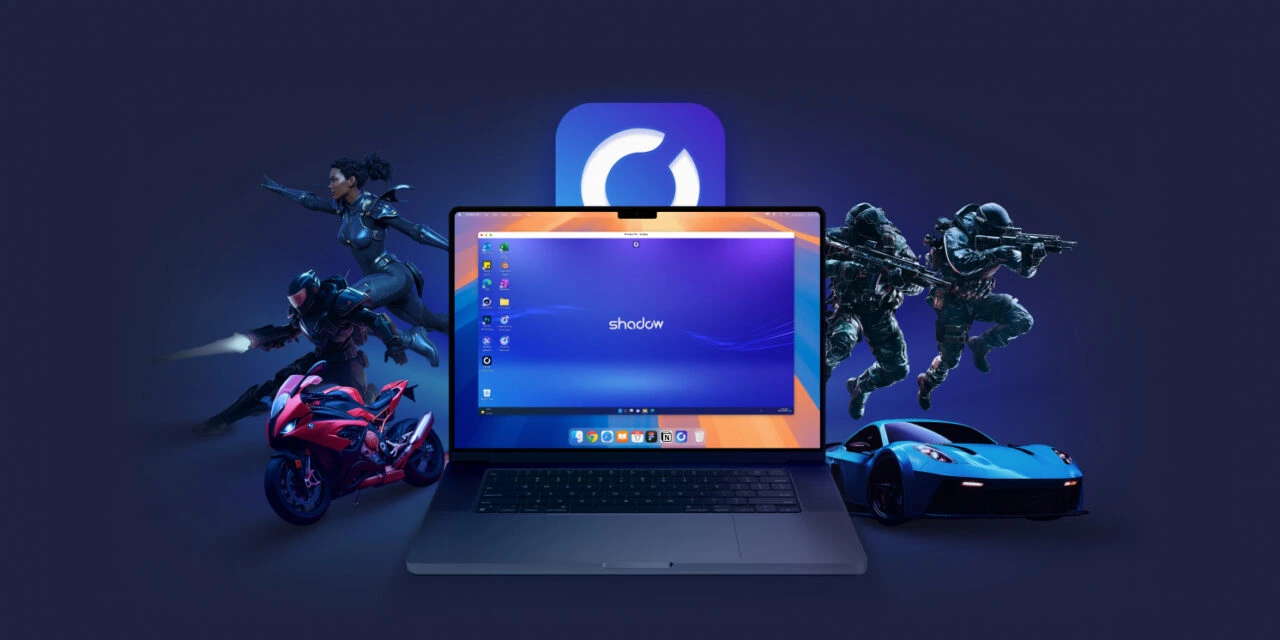
Unlike tools that connect to a computer you own at home, Shadow PC rents you a complete high-powered Windows desktop in the cloud accessible from Chromebook and Googlebook via its Google Play app (com.blade.shadowcloudgaming) and shadow.tech.
- Full Windows PC with dedicated GPU: Install any Windows creative suite, engineering program, or PC game launcher onto persistent cloud storage without owning a desktop tower.
- High-bitrate streaming & USB peripherals: Tune bandwidth sliders for crisp text, dual-screen workflows, or controller input directly from your ChromeOS laptop.
- Access across all your devices: Start a project on your Chromebook or Googlebook and pick up the exact same Windows desktop state later from another screen.
How to install, cast, and optimize remote desktop apps on Chromebook and Googlebook
Both Chromebooks and Googlebooks let you choose between Android apps, browser web clients, and Linux desktop tools depending on your workflow:
Install official remote desktop clients from the Play Store for touch trackpad controls, saved device lists, and quick window switching. If the Play Store is not enabled yet, check Google’s Android app setup guide for Chromebook or the guide on installing apps on Googlebook.
Use Chrome Remote Desktop, TeamViewer Web, Zoho Assist, or RemotePC straight in Chrome on managed laptops where Play Store installs are restricted. Click the three-dot Chrome menu > Cast, save, and share > Create shortcut and check Open as window for a distraction-free workspace.
If your Android phone already has saved host profiles or two-factor authentication active, open Phone Hub on the bottom-right Googlebook shelf and use Cast My Apps to stream your phone’s active remote desktop app into a desktop window right away.
Press the Full-Screen key (
F4) so ChromeOS does not intercept Alt+Tab during remote work, and set your home Windows PC or Mac power settings to stay awake while plugged in so it never goes offline mid-day.
Frequently asked questions about remote desktop apps on Chromebook and Googlebook
What is the best free remote desktop app for Chromebook and Googlebook?
Chrome Remote Desktop is the easiest free remote desktop tool for ChromeOS because it works directly in Google Chrome or the Android app with no session time limits. For open-source self-hosting, RustDesk is also completely free, while TeamViewer and AnyDesk offer free personal tiers.
Can I control a Windows PC or Mac from a Chromebook without installing Android apps?
Yes. Chrome Remote Desktop, TeamViewer Web, Zoho Assist, and RemotePC all offer browser-based web clients that run directly inside Google Chrome on Chromebook and Googlebook. You can also connect via native Linux clients inside the ChromeOS Linux environment.
How do I cast remote desktop apps from my Android phone to a Googlebook?
Open the Phone Hub from the bottom-right corner of your Googlebook shelf with your Android phone connected, click Cast My Apps, and pick your remote desktop app. Your phone’s active remote session and saved device list open right inside a resizable desktop window without logging in again.
Which remote desktop apps support multi-monitor switching and file transfers on ChromeOS?
TeamViewer, AnyDesk, Splashtop, RemotePC Viewer, and Windows App (Microsoft Remote Desktop) support switching across multiple monitors on your host PC. TeamViewer, AnyDesk, Splashtop, RemotePC Viewer, RustDesk, and Zoho Assist also include built-in file transfer tools.
How do I send Ctrl+Alt+Del or Windows keyboard shortcuts from a Chromebook?
Because ChromeOS intercepts keys like Alt+Tab and Search, open the in-session toolbar inside Chrome Remote Desktop, TeamViewer, RealVNC Viewer, or RemotePC Viewer to tap dedicated shortcut buttons for Ctrl+Alt+Del, Windows, Alt+Tab, and function keys, or switch your remote window to full-screen mode.
Companion remote work and hardware guides
Expand your remote workstation setup with enterprise virtual desktops, phone mirroring, external displays, and Googlebook OS tools:
- Enterprise virtual desktops: Connect to company Windows sessions and published corporate apps with our guide to Citrix Workspace on Chromebook and Googlebook.
- Phone screen mirroring over USB and Wi-Fi: Control your physical smartphone right from a laptop window using Vysor on Chromebook and Googlebook.
- Larger screens for dual-monitor sessions: Pair your laptop with a single-cable USB-C display from our best monitors for Chromebook and Googlebook roundup.
- Comfortable full-size desktop typing: Upgrade your remote workstation desk setup with our picks for the best keyboards for Chromebook and Googlebook.
- Googlebook OS tips and phone casting: Configure Better Together phone sync and workspace shortcuts in our guide to My Googlebook on Googlebook.
Discover more from Chrome Geek
Subscribe to get the latest posts sent to your email.