How to Install and Use TikTok on Chromebook and Googlebook
 by
Frank Cross
Post Updated: October 25, 2026
by
Frank Cross
Post Updated: October 25, 2026
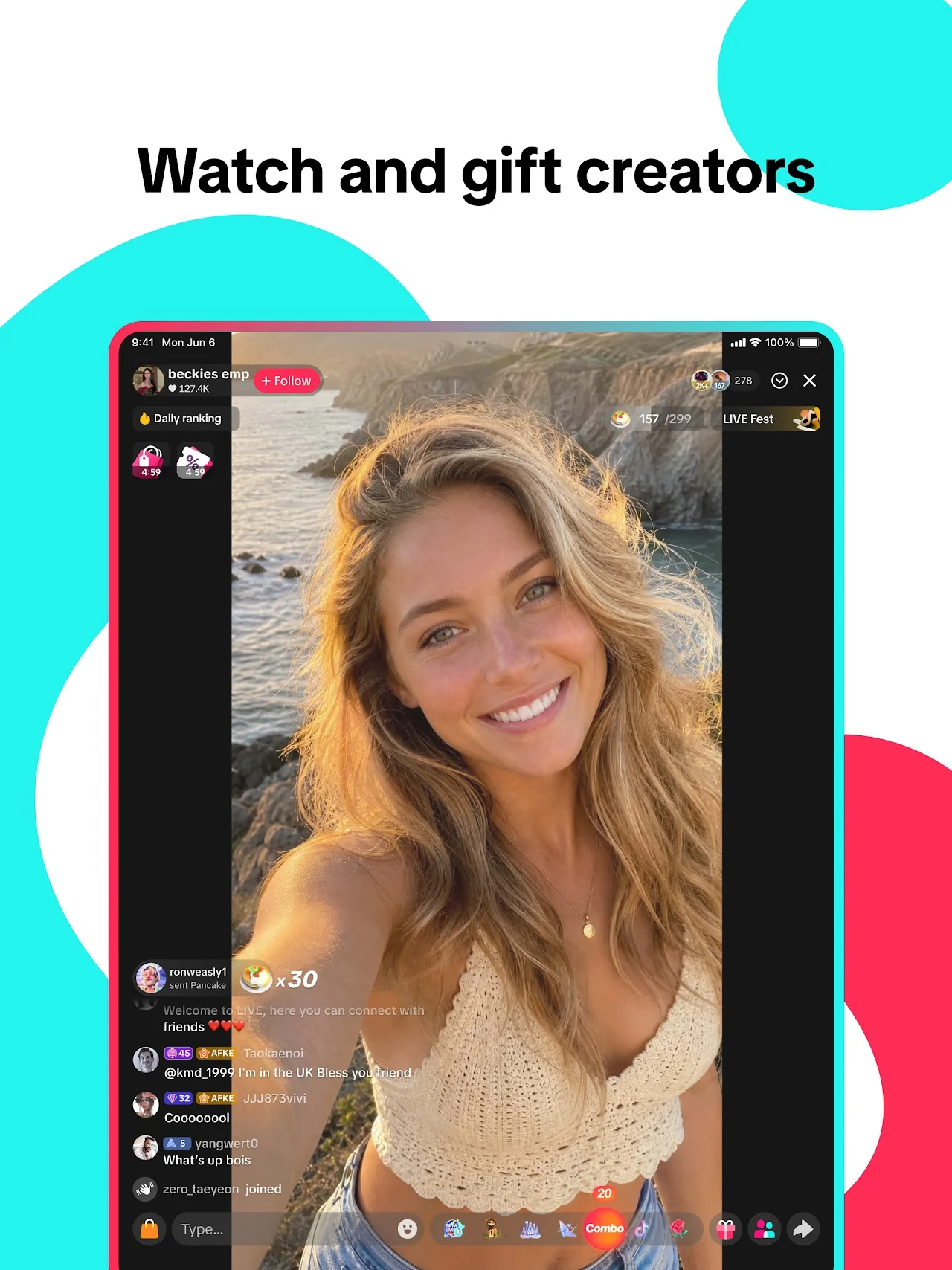
You can install and use TikTok on Chromebook and Googlebook through the official app from Google Play or directly through your web browser. It gives you a fast, full-screen video discovery feed to explore trending creators, watch educational STEM clips, discover new music, and share videos with friends.
Googlebook runs Android apps natively through Google Play, giving you the same rich short-form video experience alongside seamless phone-app streaming. This guide walks you through the Google Play installation, Googlebook phone casting with Cast My Apps, web browser access on Chrome, navigation and keyboard controls, offline video downloads, and essential account privacy settings.
Need help setting up your feed? Contact us with your laptop model and any setup questions.

Choose TikTok Android app or TikTok web
The official Google Play listing identifies TikTok Pte. Ltd. as the developer (package name: com.zhiliaoapp.musically). Using the official app or verified web portal guarantees account security and eliminates the risks of unverified APK download sites.
How to install TikTok on Chromebook and Googlebook
If the Play Store is not visible, check Google’s Android app setup guide for Chromebook or the guide on installing apps on Googlebook. On school or workplace laptops, administrator policies may limit Play Store downloads. If app installs are restricted, you can still access the complete service via TikTok Web directly in Google Chrome.
Cast TikTok from your phone on Googlebook
If you already have your favorite creators, saved audio clips, and draft videos set up in TikTok on your Android phone, Googlebook’s Cast My Apps feature lets you stream your phone’s TikTok app directly onto your laptop display. Pair your phone via the Googlebook phone hub, open Cast My Apps, and launch TikTok. You can view private drafts, review incoming direct messages, and browse your personalized feed without logging into a second device.
Navigation, keyboard shortcuts, and Auto Scroll
Whether you use the Google Play app or the web version in Chrome, you have multiple ways to navigate through videos seamlessly:
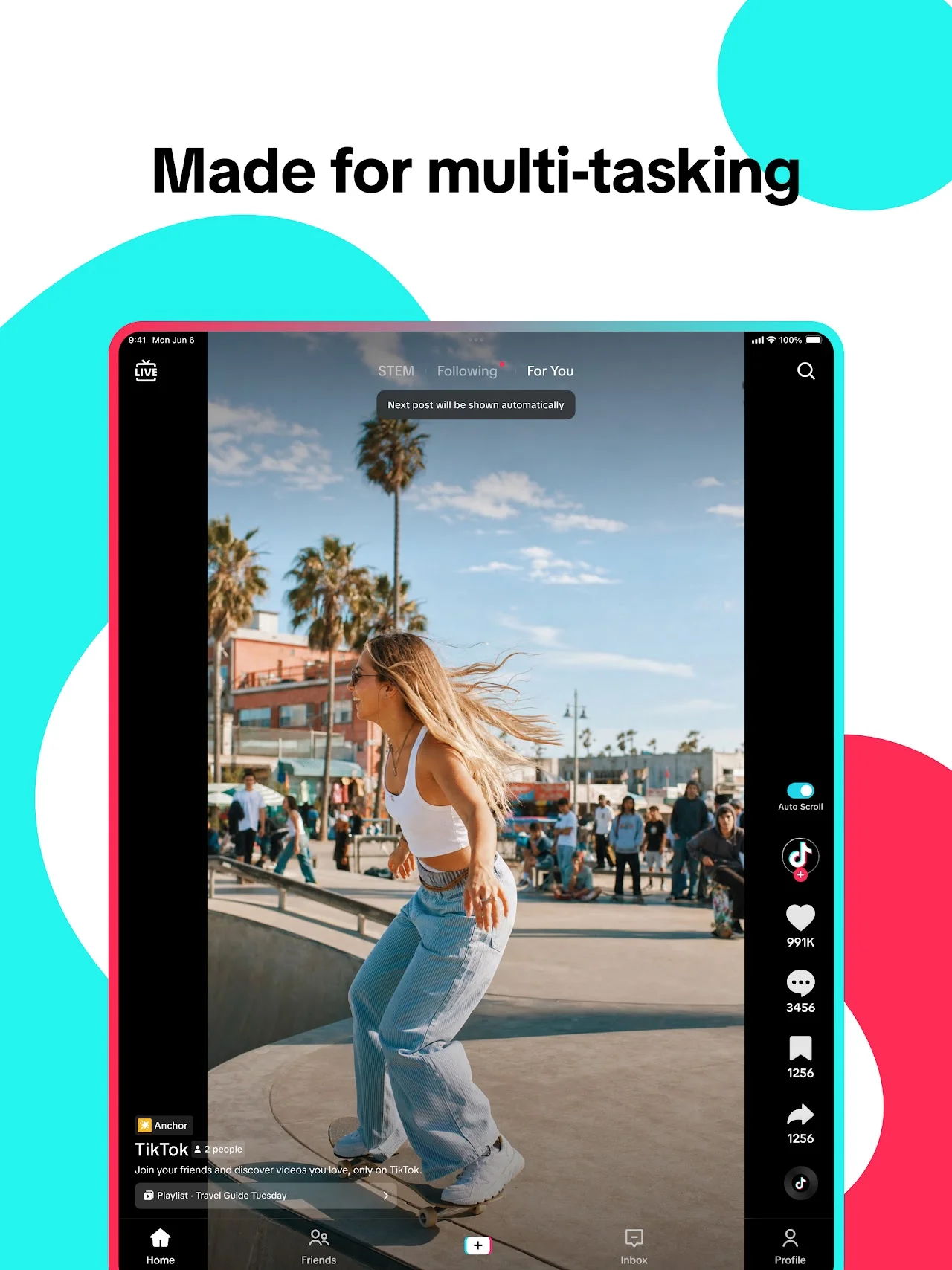
- Touch gestures: on touchscreen Chromebooks and 2-in-1 convertibles, swipe up or down to change videos, double-tap the screen to like, and swipe left on a video to inspect the creator’s profile.
- Web keyboard shortcuts: when viewing on tiktok.com in Chrome, use the Up/Down Arrow keys to jump to the previous or next video, press L to like a clip, press M to mute or unmute audio, and press F to enter full-screen mode.
- Hands-free Auto Scroll: in the Android app, long-press any video or open the Share menu and tap Auto Scroll. When active, the player automatically flips to the next video the moment the current one ends.
- Picture-in-Picture: on Chrome web, right-click the video twice and choose Picture in Picture to keep a compact floating player visible in the corner while studying or working in other tabs.
Creating and editing videos on ChromeOS
TikTok on ChromeOS is not limited to passive viewing; you can create, record, and publish your own short clips directly from your laptop:
Offline videos and data saver options
When preparing for flights, road trips, or areas with spotty Wi-Fi, the TikTok Android app provides a dedicated offline caching feature. Navigate to your Profile, tap the hamburger menu in the top right, and select Offline videos. You can choose to download 50, 100, or 200 videos to your Chromebook’s internal storage so you can watch continuously without an internet connection.
If you are tethering your laptop to a cellular hotspot, turn on Data Saver under Settings and Privacy. This setting automatically reduces video resolution to lower cellular bandwidth usage without interrupting playback.
Account privacy, safety, and screen time management
TikTok includes comprehensive safety and digital wellness controls to help customize your viewing environment:
- Private account setting: switch on Private Account under Settings and Privacy > Privacy to ensure only approved followers can watch your clips and view your profile information.
- Screen time limits: configure daily screen time breaks (40, 60, 90, or 120 minutes) and schedule sleep reminders to avoid late-night scrolling sessions.
- Restricted Mode: activate Restricted Mode to filter out mature or sensitive themes across your For You and Following feeds.
- Family Pairing: parents can link their personal TikTok account to a teen’s account to manage daily screen time allowances, direct messaging permissions, and search accessibility remotely.
Quick fixes for common TikTok issues on Chromebook
- Video stutters or shows a black screen: open ChromeOS Settings > Apps > Manage your apps > TikTok > Storage and click Clear Cache. On the web version, clear cached images and cookies in Chrome settings.
- Window sizing and rotation glitches: click the window control icon at the center of the app title bar to switch between Phone, Tablet, and Resizable modes to suit your screen dimensions.
- Microphone or camera not detected: open ChromeOS Settings > Privacy and Security > Camera and verify that Android apps have permission to access your webcam.
- Audio delay with Bluetooth headphones: disconnect and re-pair your Bluetooth audio device, or toggle hardware acceleration off and on in Chrome settings (
chrome://settings/system).
Related social and media guides
- Messenger on Chromebook and Googlebook: Set up chats, make HD video calls, and communicate with Meta AI on ChromeOS.
- X on Chromebook: Install the official app, set up browser shortcuts, and follow trending topics.
- RedNote on Chromebook: Explore lifestyle tips, fashion trends, and photo sharing on ChromeOS.
- 11 Best Video Editors for Chromebooks: Discover top desktop apps and web editors for short-form video creation.
Frequently asked questions
Is TikTok free on Chromebook and Googlebook?
Can I use TikTok without downloading the Google Play app?
How do I install TikTok on a Googlebook?
Can I upload and edit TikTok videos on Chromebook?
How do I enable hands-free scrolling on TikTok for Chromebook?
Discover more from Chrome Geek
Subscribe to get the latest posts sent to your email.