How to Install and Use MX Player on Chromebook and Googlebook
 by
Frank Cross
Post Updated: October 26, 2026
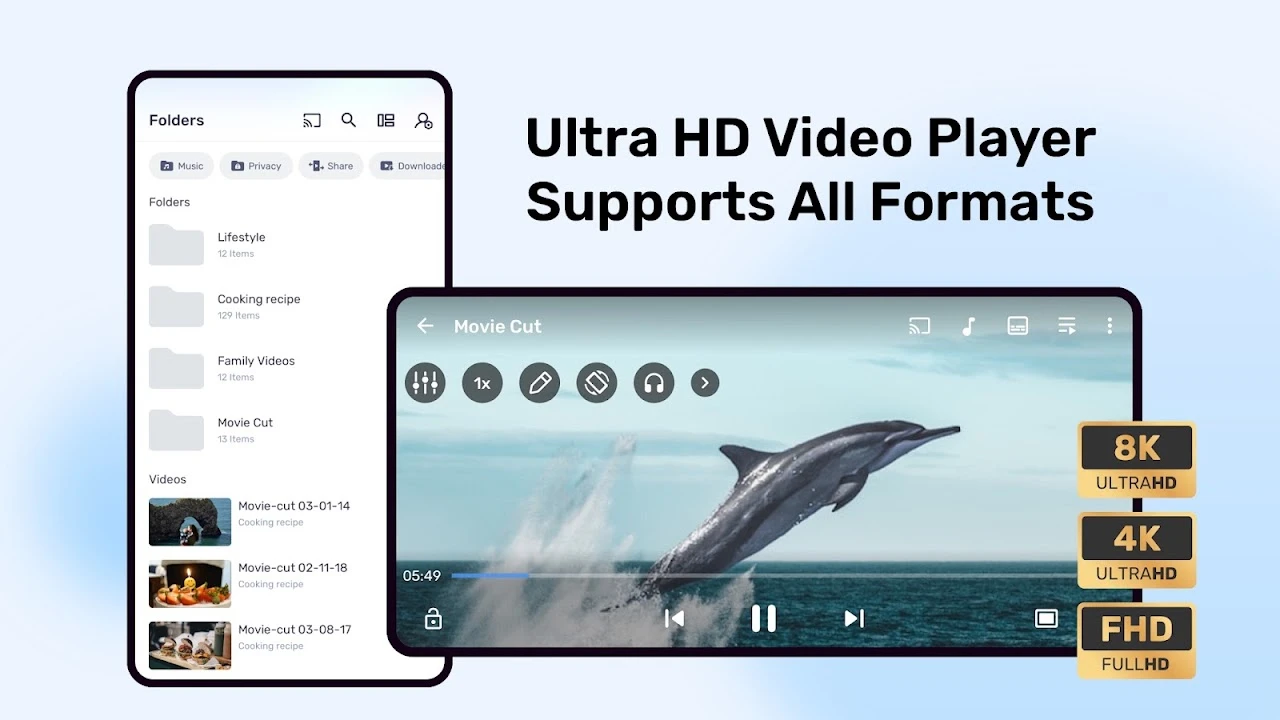
You can install and use MX Player on Chromebook and Googlebook through the official app from Google Play. It gives you a high-performance media player engineered for multi-core processors, featuring advanced HW+ hardware acceleration, smooth touch controls, and versatile subtitle formatting.
Googlebook runs Android apps natively through Google Play, giving you dependable local video playback alongside phone-app casting. This guide walks you through the Google Play installation, Chromebook file setup, HW+ hardware acceleration settings, touch and subtitle gestures, and privacy folder management.
Need help setting up your media? Contact us with your laptop model and the file format you want to play.

Choose MX Player for hardware acceleration and smooth playback
MX Player operates as a local Android application that decodes video and audio directly on your device hardware. It reads video files stored in your local Downloads folder, external USB thumb drives, or SD cards. The official Google Play listing identifies MX Media & Entertainment Pte. Ltd. as the publisher.
How to install MX Player on Chromebook and Googlebook
If the Play Store is not visible, check Google’s Android app setup guide for Chromebook or the guide on installing apps on Googlebook. On school or workplace laptops, your system administrator may manage app permissions and store access.
Cast MX Player from your phone on Googlebook
If you already have your favorite media and playlists configured in MX Player on your Android phone, Googlebook’s Cast My Apps feature lets you control your phone’s MX Player player directly on your laptop screen. Connect your phone through your Googlebook phone hub setup, open Cast My Apps, and select MX Player. This lets you stream your phone’s local media and playlists immediately without copying files over to your laptop.
Video playback and on-screen gesture controls
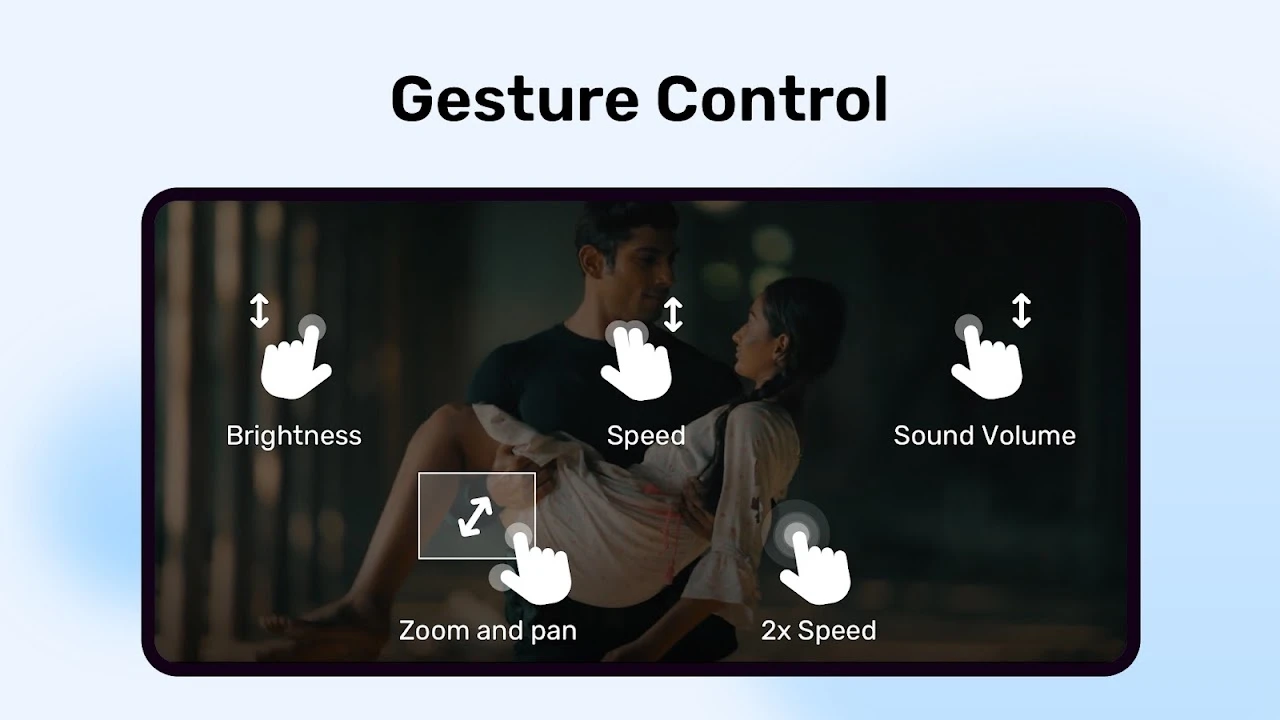
MX Player is celebrated for its responsive gesture navigation. During video playback, you can adjust essential viewing settings instantly without pausing or searching through deep option menus:
- Brightness: slide your finger or drag the cursor up or down on the left side of the screen to brighten or dim the display.
- Volume: slide up or down on the right side of the screen to raise or lower audio levels.
- Playback speed: swipe two fingers vertically in the center to adjust speed between 0.25x and 4x, or press and hold the screen for quick 2x speed.
- Pinch to zoom and pan: pinch inward or outward anywhere on the video to resize the frame, then drag to inspect specific details.
- Seeking: drag horizontally across the screen to quickly scrub forward or backward through your timeline.
Advanced subtitle formatting and subtitle gestures
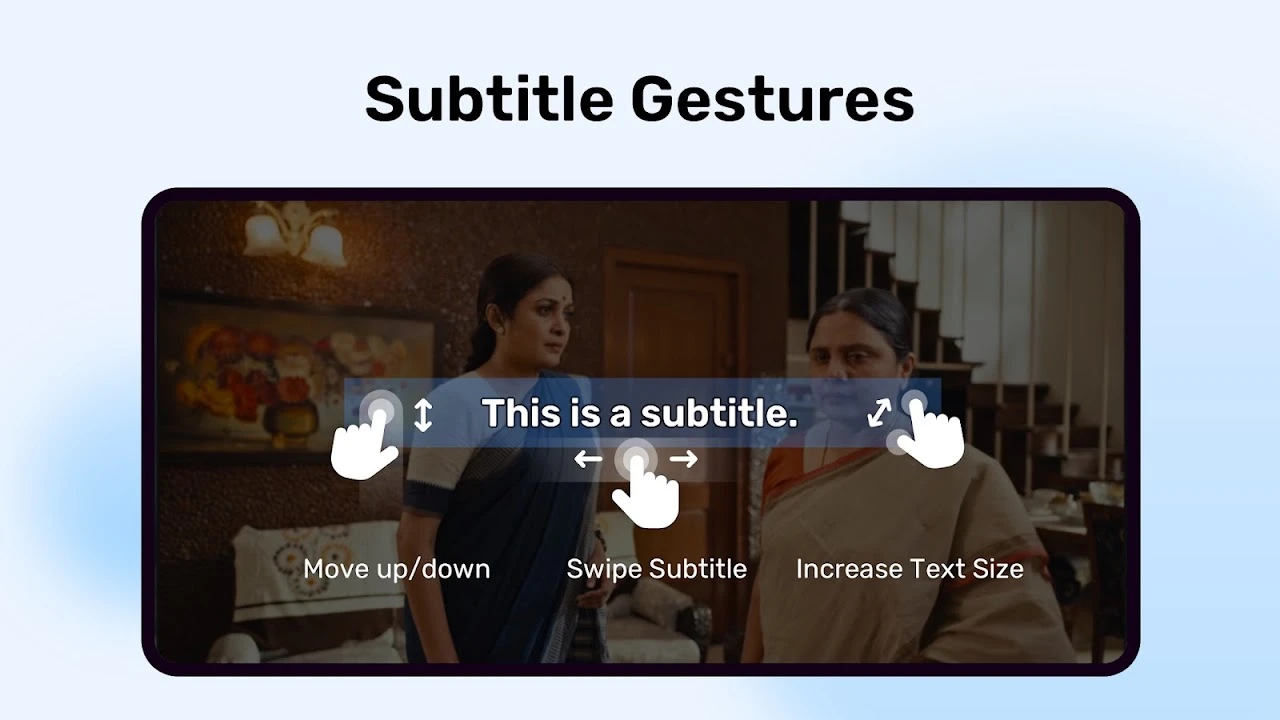
MX Player provides unmatched subtitle support. Beyond displaying captions, it allows you to adjust subtitle positioning and styling dynamically while watching:
MX Player supports virtually all subtitle containers, including SubRip (.srt), SubStation Alpha (.ssa / .ass), SAMI (.smi), MicroDVD (.sub), VobSub (.idx / .sub), TMPlayer, and WebVTT. If your video is missing subtitles, tap the subtitle menu icon and choose Online subtitles to search and download matching caption files directly.
Privacy folder and Kids Lock settings
MX Player includes thoughtful utility features that protect your media collection and streamline family viewing:
Quick fixes for common MX Player issues
- Video stutters or drops frames: tap the decoder button (HW, HW+, or SW) in the top-right corner of the playback screen and toggle to HW+ or SW to find the smoothest mode for your laptop processor.
- Audio has no sound: if a video uses an audio format like DTS or EAC3 that produces silence, tap the decoder button and select SW Audio to decode the sound via software.
- Video files in Downloads missing: open MX Player Settings > List > Folders, tap Add, and select your Downloads folder or external drive to include them in the media scan.
- Subtitles do not appear: verify that your subtitle file (.srt) shares the exact same base name as your video clip (for example, video.mp4 and video.srt), or tap the subtitle icon to load the file manually.
Related media guides
- VLC on Chromebook and Googlebook: Install the open-source media player for local playback and local network streaming.
- Best Media Players on Chromebook: Compare top media players for local playback, streaming, and audio on ChromeOS.
- How to Play DVDs on a Chromebook Without Using Windows: Connect an external drive to watch DVD movies directly on ChromeOS.
Frequently asked questions
Is MX Player free on Chromebook and Googlebook?
What is the difference between HW and HW+ decoder in MX Player?
How do I install MX Player on a Googlebook?
Can MX Player play videos offline without internet?
Does MX Player support online subtitle downloads?
Discover more from Chrome Geek
Subscribe to get the latest posts sent to your email.