How to Install and Use Spotify on Chromebook and Googlebook
 by
Gloria Brown
Post Updated: November 2, 2026
You can install and use Spotify on Chromebook and Googlebook through the official Android app from Google Play, the modern Web Player PWA, or the native Linux desktop package. As the world’s most popular audio streaming service, Spotify delivers over 80 million tracks, millions of podcasts, audiobooks, and personalized editorial mixes directly to your laptop display.
Googlebook runs Android audio applications natively through Google Play and introduces cross-device phone app casting, giving you multiple ways to stream albums, curate playlists, and listen to podcasts. This complete guide walks you through setting up Google Play installation, the high-performance Web Player PWA, real-time lyrics, offline downloads, sound quality settings, and proven troubleshooting fixes.
Have questions about streaming audio or managing playlists? Contact us with your laptop model and ChromeOS version details.
How to install Spotify on Chromebook and Googlebook
Installing the official Spotify application from Google Play provides a dedicated touch-and-keyboard desktop interface with offline download capabilities across your ChromeOS devices:
The official Google Play listing identifies Spotify under the package name com.spotify.music. Running the dedicated Android app gives you responsive media controls, keyboard shortcut support, and local storage access for offline song downloads.
If the Play Store is not currently enabled on your laptop, consult Google’s official Android app setup guide for Chromebook or the guide on installing apps on Googlebook. Note that on school or enterprise managed devices, administrator policies may regulate Play Store installations. For environments where Google Play is restricted, ChromeOS also lets you install the Spotify Web Player as a lightweight Progressive Web App (PWA) or configure the official Debian Linux client inside the Linux development environment.
Cast Spotify from your phone on Googlebook
If your Android phone already stores your favorite downloaded playlists, customized audio equalizer presets, or active podcast progress, Googlebook’s Cast My Apps feature lets you stream the mobile app directly onto your laptop display. Open the Phone Hub in the bottom-right shelf of your Googlebook, select Cast My Apps, and tap Spotify. Your phone’s active playback session and navigation controls immediately appear in an adaptive window on your desktop screen, letting you control music, queue up new releases, and respond to playlist invites without re-entering login credentials or downloading gigabytes of audio files again.
Navigating the widescreen tablet dashboard and personal library
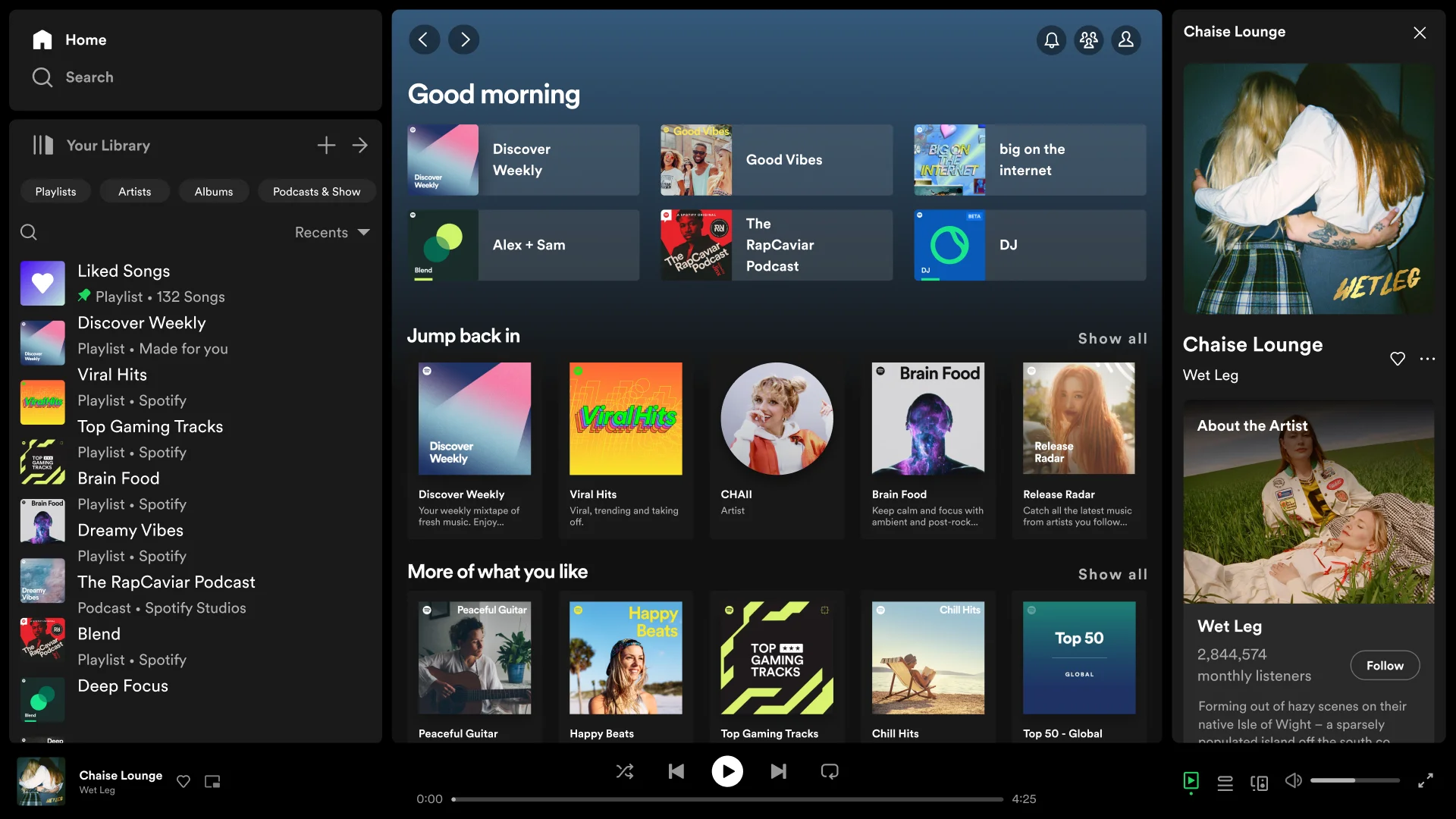
On Chromebooks and Googlebooks, Spotify adopts a full tablet widescreen interface rather than a narrow phone viewport. The layout presents a collapsible sidebar on the left, an algorithmic recommendation feed in the center, and comprehensive Now Playing controls along the bottom edge:
Managing playlists, tracklists, and offline downloads
The tablet layout on ChromeOS expands your custom playlists into multi-column desktop-style tables showing track titles, associated albums, date added timestamps, and duration meters:
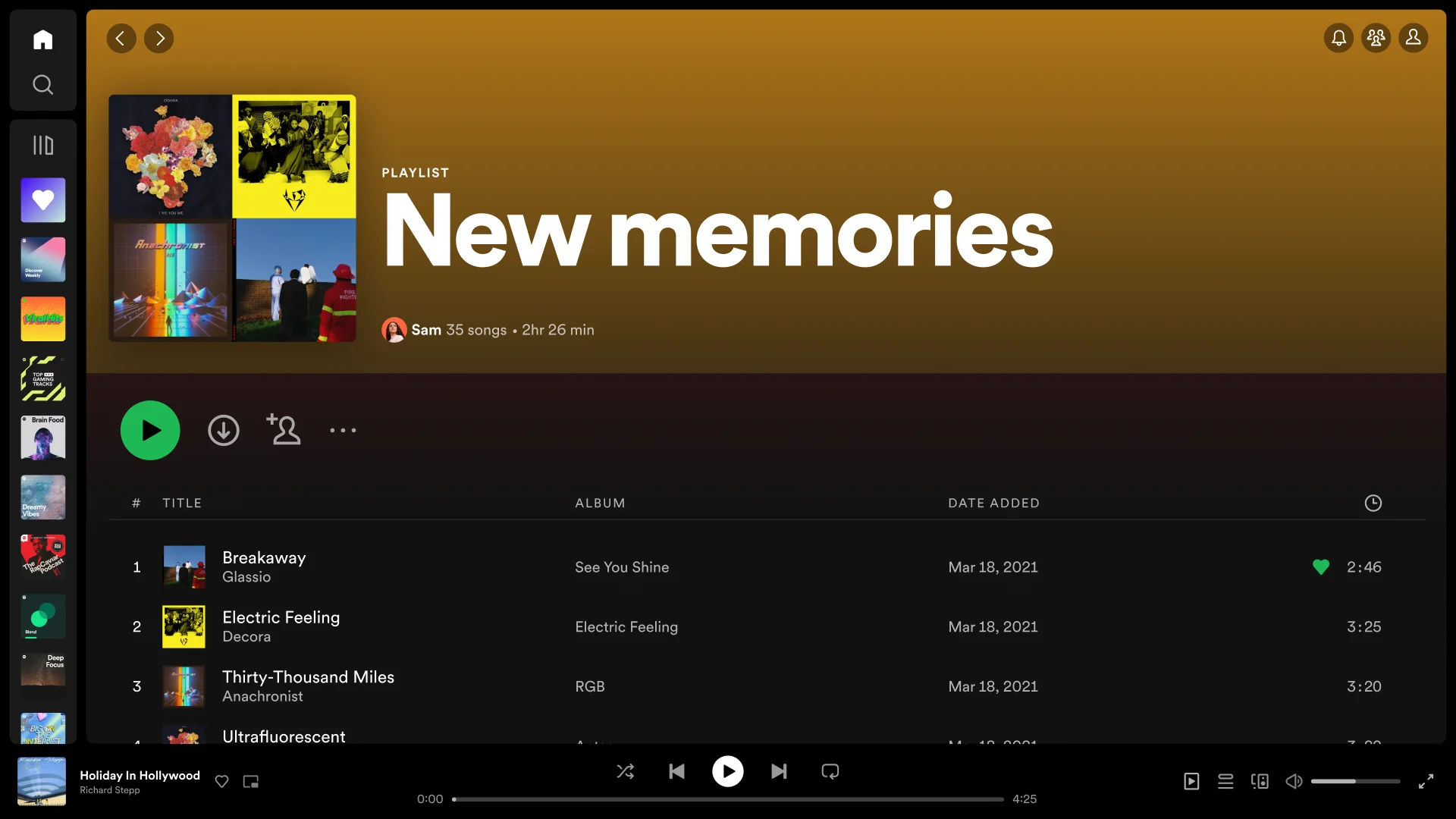
Spotify offers versatile tools for both social sharing and offline convenience:
- One-Click Offline Downloads (Premium): toggle the downward download arrow next to any album, playlist, or podcast. Spotify saves encrypted audio files to your ChromeOS storage so you can listen while flying, camping, or working in areas without Wi-Fi.
- Spotify Blend: invite up to 10 friends to create a shared playlist that automatically merges your taste profiles into a single collaborative feed with taste-match scores and daily updates.
- Collaborative Playlists: toggle the Collaborative switch on any custom playlist to let classmates, roommates, or co-workers add, remove, and reorder tracks in real time.
- Custom Playlist Artwork: upload custom cover images from your ChromeOS Files app and add rich descriptions to organize your personal collections.
Exploring artist discographies, bio panels, and live releases
When browsing musicians and bands, the tablet layout utilizes full-bleed header banners, verified artist badges, and an interactive right-hand sidebar featuring artist bios and monthly listener data:
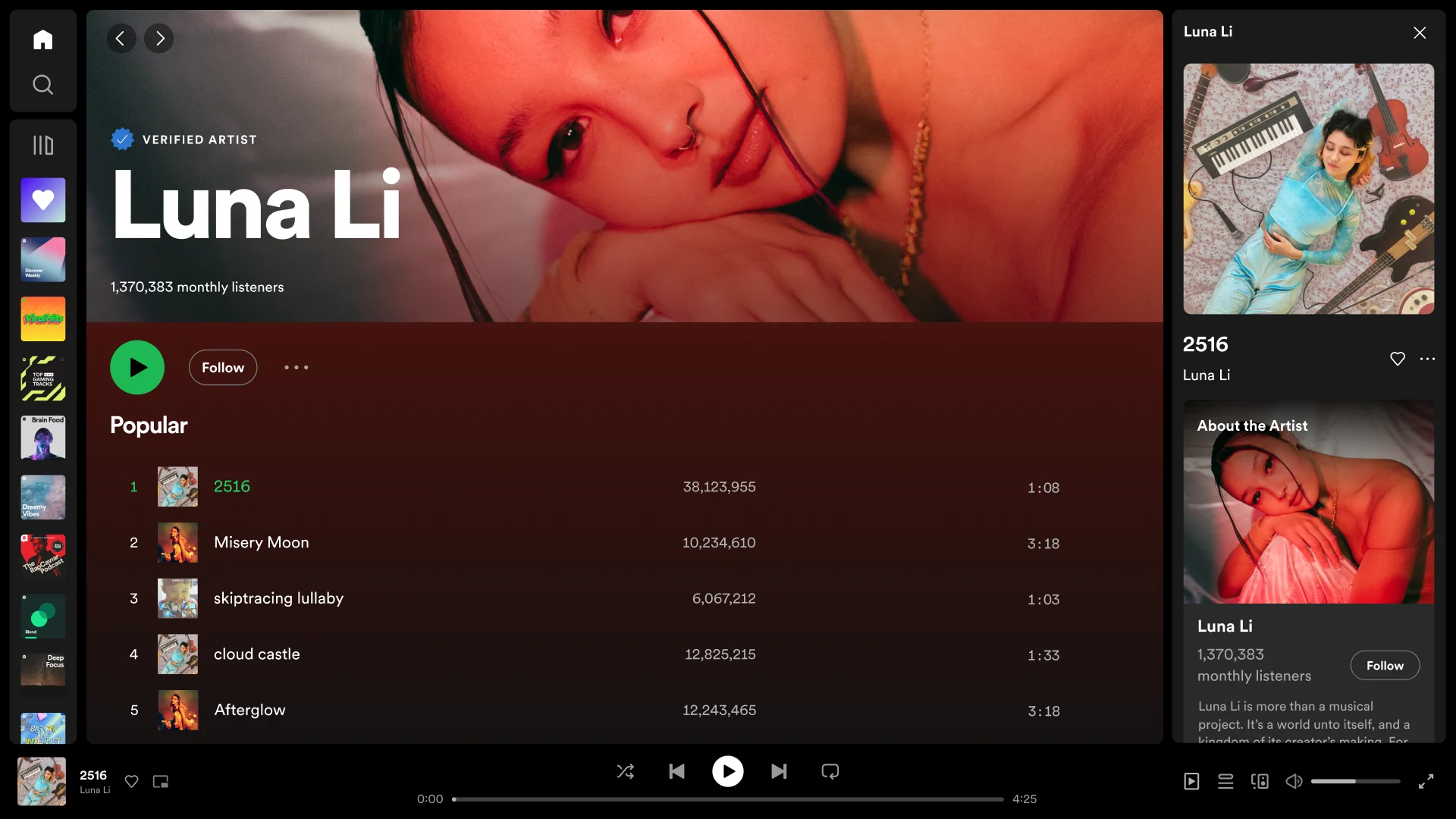
Artist profiles provide immediate access to complete musical catalogs:
- Popular Releases Ranking: view real-time play counts and ranking order for an artist’s top trending tracks worldwide.
- Comprehensive Discography: easily filter between studio albums, singles, EPs, live compilations, and featured guest appearances.
- Artist Bio & Social Links: read verified biographical profiles, view tour dates, and explore official merchandise shops directly within the tablet interface.
- Fans Also Like: discover new musicians through algorithmic artist recommendations based on global listening patterns.
Streaming video podcasts, episode catalogs, and playback speed
Spotify is a premier destination for podcasts, featuring exclusive video shows, independent creators, and educational broadcasts. On Chromebook and Googlebook, the widescreen tablet format offers a comfortable two-pane viewing experience:
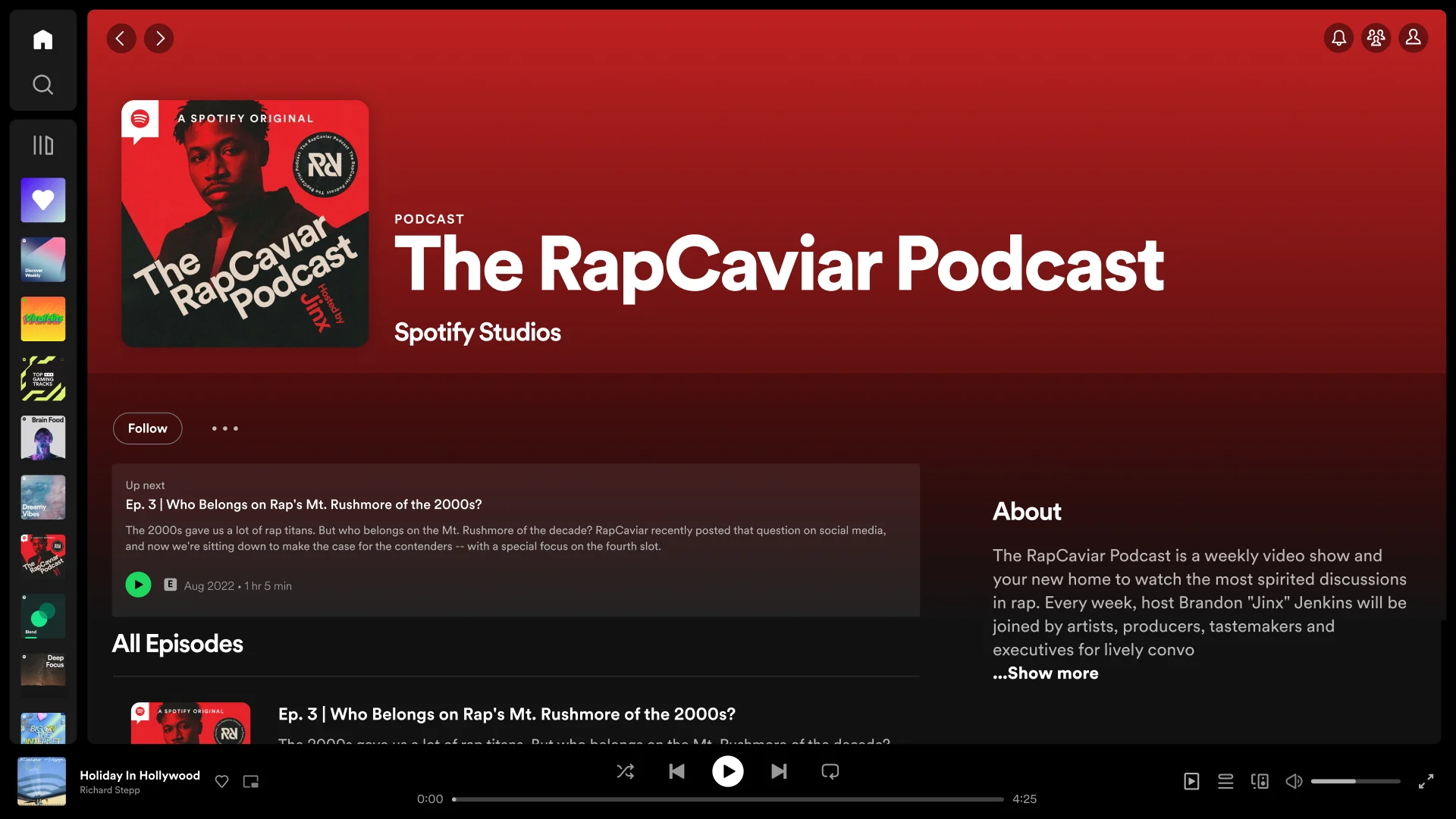
Key podcast features tailored for laptop listening include:
- Picture-in-Picture & Video Podcasts: watch video podcasts in full-screen mode or pop the video out into a floating window to continue watching while taking lecture notes or browsing documents in Chrome.
- Granular Playback Speed: adjust narration speed from 0.5x up to 3.5x to power through long news briefings, interviews, or audio lectures efficiently.
- 15-Second Quick Skip: use the dedicated 15-second backward and forward buttons to quickly skip sponsor spots or replay a missed sentence.
- Sleep Timer Integration: tap the crescent moon icon to set an automatic shutdown timer (5 minutes, 15 minutes, 45 minutes, or end of episode), ideal for falling asleep to bedtime stories or ambient soundscapes.
- Interactive Q&As and Polls: vote in host polls and submit listener responses directly within the podcast player interface.
Optimizing audio streaming quality and equalizer settings
To get the best possible sound through your Chromebook speakers, USB-C DAC, or Bluetooth headphones, configure Spotify’s audio streaming settings:
Alternative access: Spotify Web Player PWA and native Linux client
If you prefer not to install the Android app or need to save disk storage, ChromeOS provides two powerful desktop alternatives:
- Spotify Web Player Progressive Web App (PWA): open Google Chrome and navigate to open.spotify.com. Click the three-dot menu icon in the upper-right corner of Chrome, select Save and share > Install Spotify (or click the install icon in the address bar). Spotify opens in its own frameless window, integrates with ChromeOS media keys, and uses virtually no disk space.
- Native Linux Desktop Client (Crostini): for developers and Linux enthusiasts, enable the Linux development environment in ChromeOS Settings. Open Terminal and add the official Spotify Debian repository keys:
curl -sS https://download.spotify.com/debian/pubkey_6224F9941A8AA4D1.gpg | sudo gpg --dearmor --yes -o /etc/apt/trusted.gpg.d/spotify.gpg
echo "deb http://repository.spotify.com stable non-free" | sudo tee /etc/apt/sources.list.d/spotify.list
sudo apt-get update && sudo apt-get install spotify-client
Once installed, the native desktop Spotify client launches from your Linux apps folder with complete desktop keyboard integration and native PulseAudio/PipeWire sound output.
Troubleshooting Spotify on Chromebook and Googlebook
If you encounter playback buffering, unexpected app closes, or audio pauses while using Spotify on ChromeOS, follow these practical troubleshooting steps:
- Audio pauses when switching apps or minimizing window: ChromeOS power management aggressively throttles background Android processes to conserve battery. Open Settings > Apps > Manage your apps > Spotify > More settings and permissions > Battery, and switch battery optimization to Unrestricted.
- Black screen or blank interface on app launch: clear the application cache. Go to Settings > Apps > Manage your apps > Spotify > Storage & cache, and tap Clear cache. If the issue persists, ensure your ChromeOS is updated to the latest stable release.
- Offline downloads taking up excessive storage: in the Spotify app, click your profile avatar, navigate to Settings & privacy > Storage, and view the breakdown between Cache and Downloads. Tap Clear cache to purge temporary streaming data without deleting your offline downloaded songs.
- Hardware media keys (Play/Pause, Skip) not responding: if your Chromebook keyboard top-row media keys do not control Spotify playback, open Chrome and type
chrome://flags/#hardware-media-key-handlinginto the address bar. Set the flag to Enabled and click Relaunch. - Spotify Web Player reports “Enable player in your browser”: Google Chrome requires protected content permissions to stream DRM-encrypted audio. In Chrome, open Settings > Privacy and security > Site settings > Additional content settings > Protected content IDs, and verify that Sites can play protected content is enabled.
Frequently asked questions about Spotify on Chromebook and Googlebook
Is Spotify free to use on Chromebook and Googlebook?
Yes. Spotify provides a free, ad-supported tier that grants full access to its catalogue of over 80 million songs, podcasts, and curated playlists. A Spotify Premium subscription eliminates audio advertisements, unlocks unlimited track skips, enables offline playlist downloads, and delivers high-bitrate 320 kbps audio streaming.
Can I download songs for offline listening on my Chromebook?
Yes. If you have an active Spotify Premium subscription and install the Spotify Android app from Google Play, you can download entire albums, custom playlists, and podcast episodes directly to your laptop’s local storage for offline playback. Note that the Spotify Web Player in Chrome does not support offline downloads.
Which version of Spotify is better on ChromeOS: Android app or Web Player PWA?
Both versions offer unique strengths. The Google Play Android app supports offline music downloads, hardware equalizer tuning, and sleep timers, making it ideal for travel and commutes. The Spotify Web Player Progressive Web App (PWA) requires zero local storage, consumes fewer system resources on budget devices, and integrates smoothly with browser extensions.
Why does Spotify pause or stop playing when I switch to another app or tab?
ChromeOS power management may throttle background Android apps when system memory is constrained. To ensure continuous playback while multitasking, navigate to ChromeOS Settings > Apps > Manage your apps > Spotify > More settings and permissions > Battery, then set background usage to Unrestricted.
How do I cast Spotify from my phone to Googlebook?
Open the Phone Hub from the bottom-right shelf of your Googlebook and ensure your Android phone is linked. Click Cast My Apps, then select Spotify. Your phone’s current listening session, active queue, and saved playlists will open in an adaptive desktop window on your laptop screen without interrupting playback or requiring you to re-authenticate.
Explore more audio streaming and media guides on ChromeGeek
To build a complete multimedia setup on your laptop, explore our companion guides covering alternative streaming services, local playback, and cloud audio production:
- How to Install and Use Amazon Music on Chromebook and Googlebook: Stream lossless audio, access millions of podcasts, and cast playlists directly from your phone.
- Tidal on Chromebook: Install Guide & Web Access: Experience Master Quality Authenticated (MQA) and HiFi lossless streaming on ChromeOS.
- How to Install and Use VLC on Chromebook and Googlebook: Play offline audio tracks and high-resolution video files locally with hardware acceleration.
- How to Install and Use Soundtrap on Chromebook and Googlebook: Record original music, podcast episodes, and beats with multi-track cloud audio editing.
- 10 Best Media Players for Chromebook and Googlebook: Compare the top audio streaming suites and video playback apps across ChromeOS.
Discover more from Chrome Geek
Subscribe to get the latest posts sent to your email.