How to Install and Use Soundtrap on Chromebook and Googlebook
 by
Gloria Brown
Post Updated: October 28, 2026
by
Gloria Brown
Post Updated: October 28, 2026
You can install and use Soundtrap on Chromebook and Googlebook through the official Android app from Google Play or directly via the cloud studio in your Google Chrome browser. Developed by Spotify, Soundtrap delivers a complete multi-track digital audio workstation (DAW) in the cloud, giving music creators, podcasters, and students access to thousands of royalty-free loops, software instruments, and real-time audio collaboration.
Googlebook runs Android applications natively through Google Play, giving you the same dependable recording tools alongside effortless phone-app casting. This comprehensive guide walks you through the Google Play installation, Chrome browser setup, multi-track timeline editing, loop arrangement, beatmaker tools, real-time collaboration, and proven troubleshooting fixes.
Need assistance configuring your audio interface or school account? Contact us with your laptop model and any audio setup questions.
How to install Soundtrap on Chromebook and Googlebook
Installing the official Soundtrap application from Google Play provides quick touch access, local audio imports, and convenient mobile sketch syncing on your laptop:
The official Google Play listing packages Soundtrap under the application identifier com.soundtrap.studioapp. Installing the Android application ensures automatic background updates and quick touch gesture editing.
If the Play Store is not active on your device, check Google’s Android app setup guide for Chromebook or the guide on installing apps on Googlebook. On school and workplace devices, administrator policies may regulate Android installations. While there is no native Debian Linux package (.deb) for ChromeOS Linux, you can always navigate directly to Soundtrap online in Google Chrome to start producing music immediately without installing local software.
Cast Soundtrap from your phone on Googlebook
If your Android phone already holds rough voice recordings, melody sketches, or an active Soundtrap studio session, Googlebook’s Cast My Apps feature lets you stream your phone’s app directly onto your laptop display. Open the Phone Hub in the bottom-right corner of your Googlebook shelf, click Cast My Apps, and select Soundtrap. Your phone’s active recording session appears instantly in an adaptive desktop window, allowing you to audition mobile vocal takes and review audio tracks without manually uploading separate files.
Soundtrap Web vs. Android app: choosing your ideal ChromeOS setup
On Chromebooks and Googlebooks, you have three convenient ways to work with Soundtrap. Each connects directly to your central cloud account, letting you pick the right workflow for your project:
Multi-track timeline editing and studio recording on ChromeOS
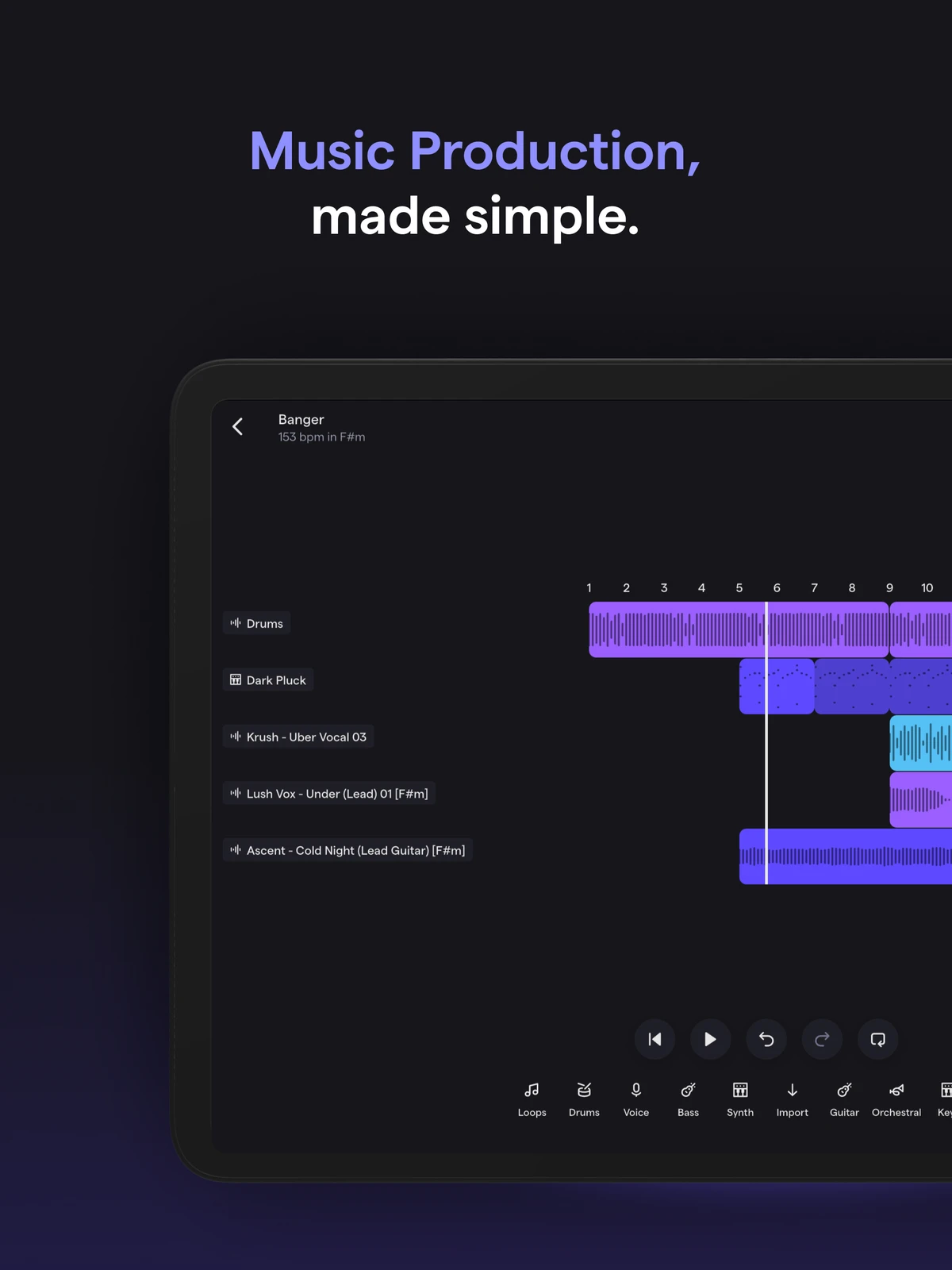
Soundtrap functions like Google Docs for audio production. Inside the browser, you can layer dozens of audio and MIDI tracks, balance volume levels, adjust stereo panning, and monitor real-time waveforms without stalling your laptop:
Extensive royalty-free loops library and curated sound packs
Starting a song from a blank canvas is easy with Soundtrap’s built-in sound browser. You can explore thousands of professionally recorded loops and one-shot samples organized by instrument, tempo, and genre:
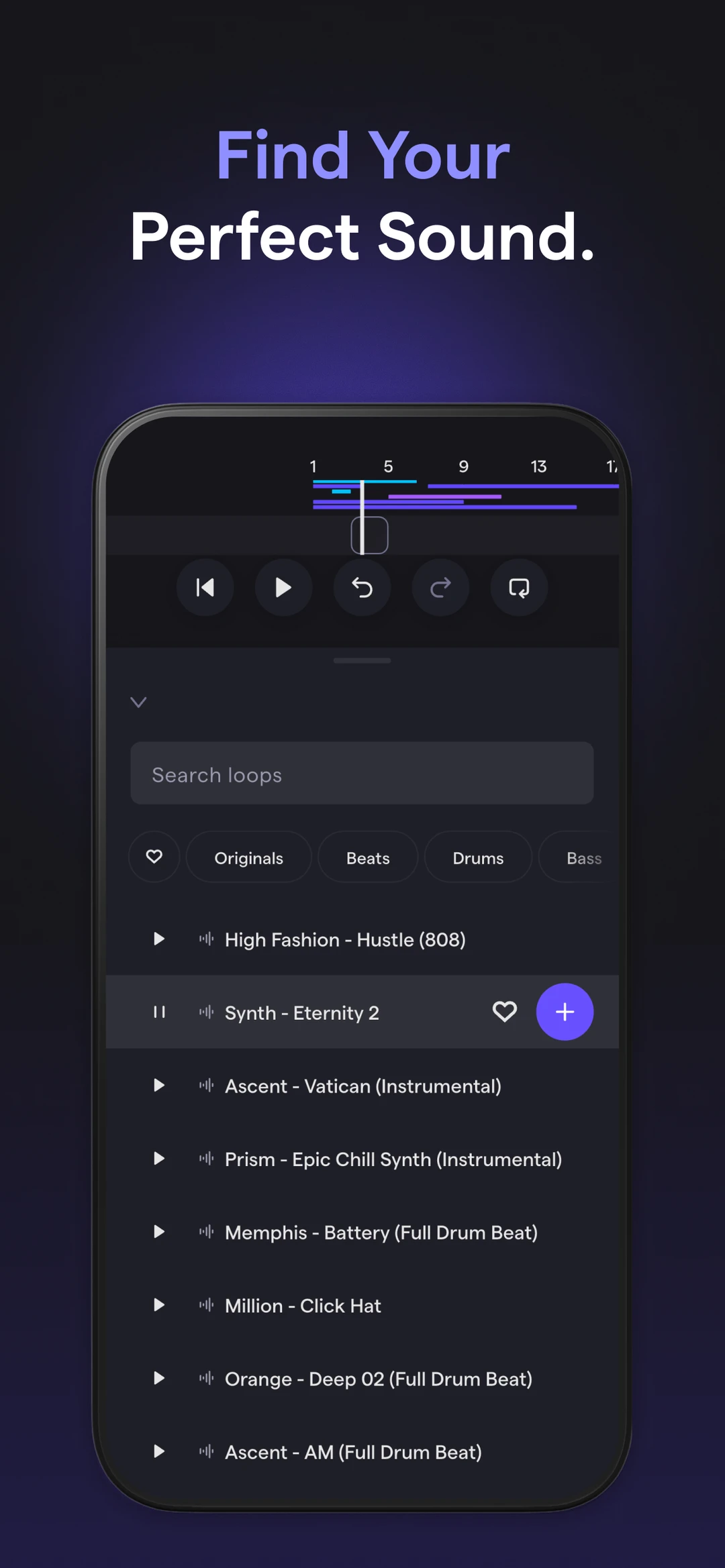
Soundtrap categorizes sounds into Beats, Drums, Bass, Synth, Guitars, and FX. When you drag a loop onto the timeline, Soundtrap automatically adjusts its tempo and pitch to match your song’s master key. Curated sound packs drop regularly, offering authentic sounds from Hip-Hop, Trap, Pop, EDM, Rock, R&B, and Lo-Fi.
Beatmaker pattern grid and virtual software instruments
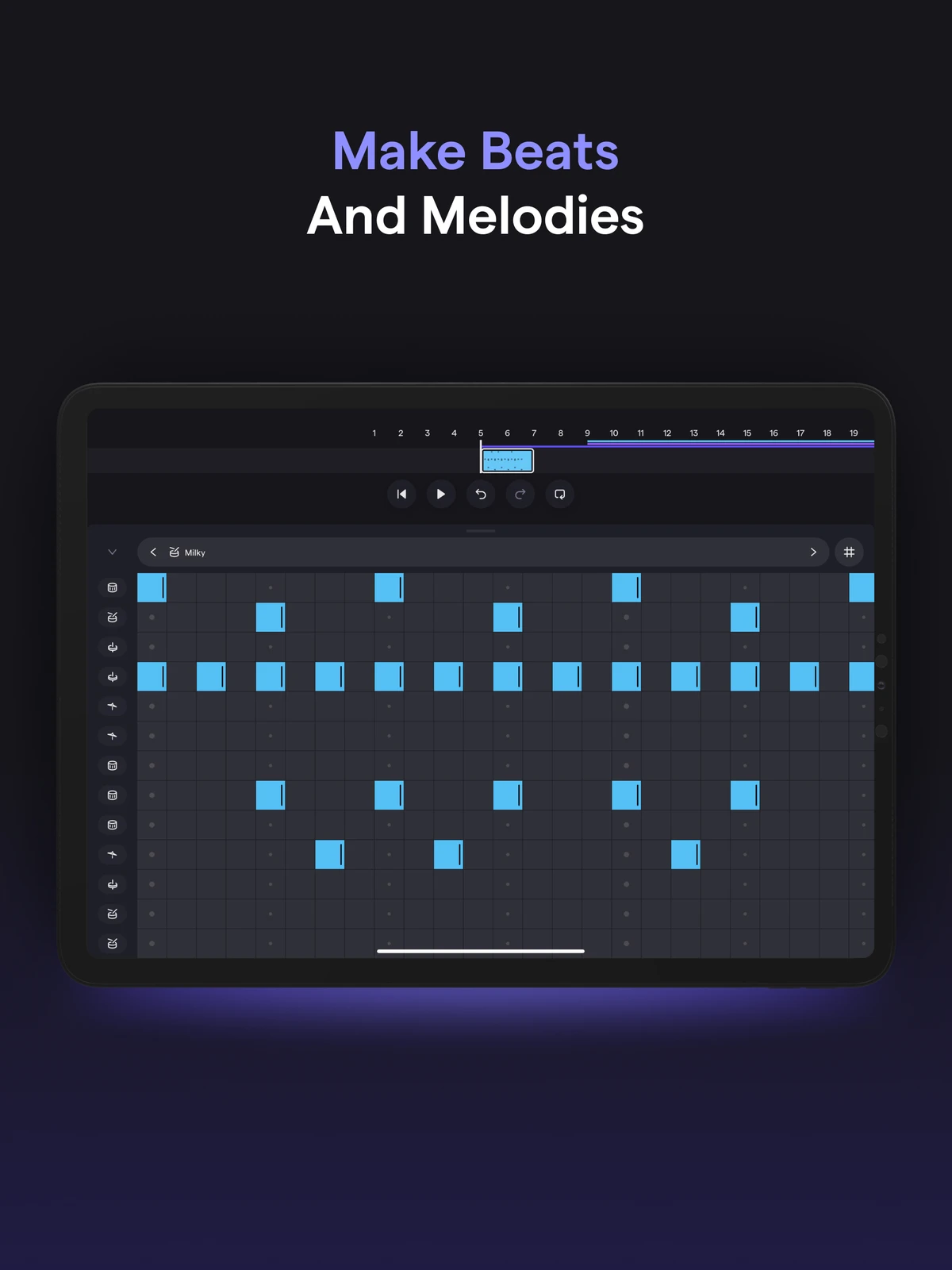
Producing original beats does not require expensive outboard hardware drum machines. Soundtrap includes an intuitive step sequencer and an expansive roster of sampled instruments:
Real-time cloud collaboration and in-studio group chat
Collaboration is the core strength of Soundtrap. Instead of bouncing demo MP3 files back and forth over email, multiple producers, songwriters, and band members can work inside the exact same project simultaneously:
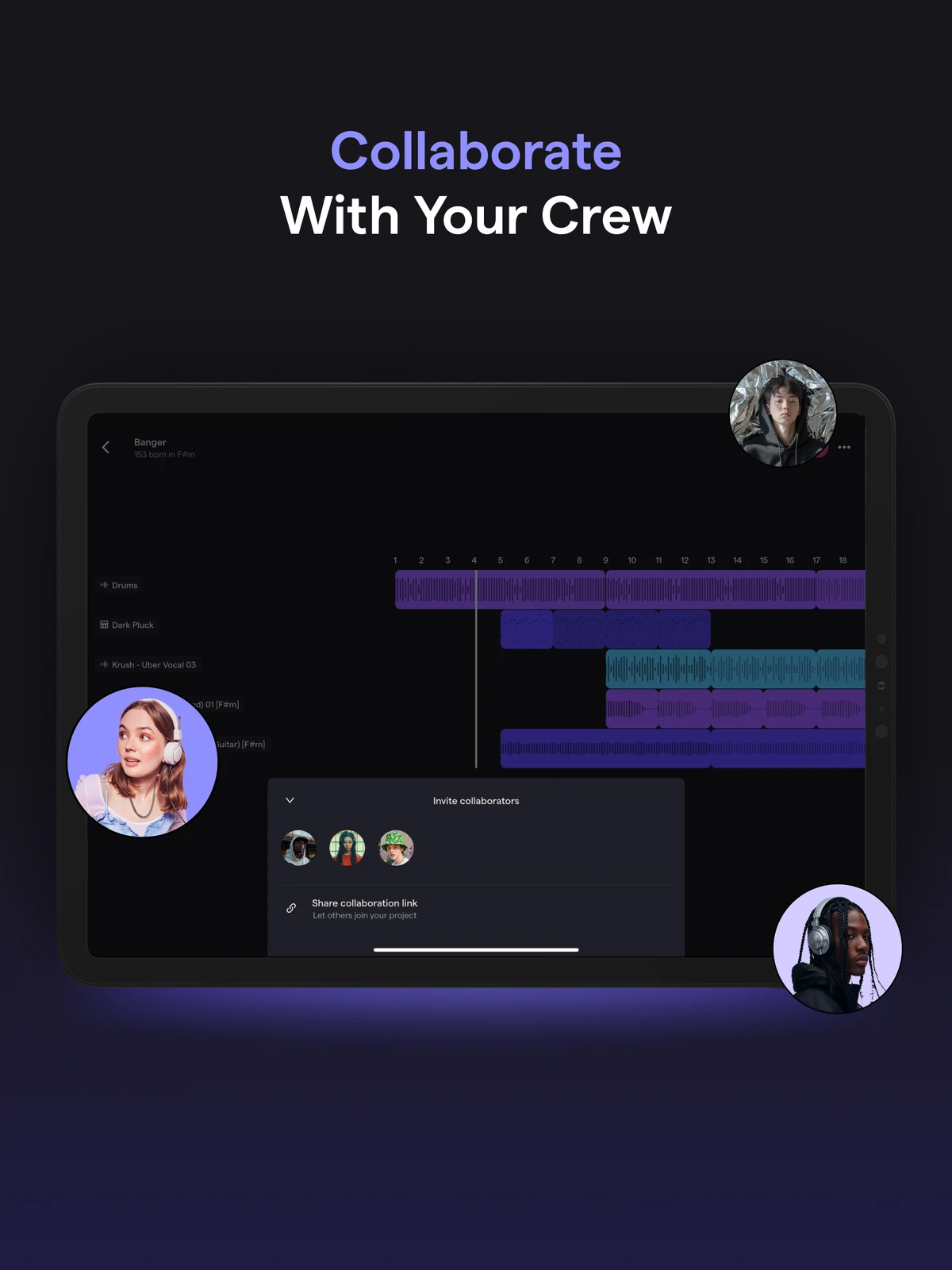
Click the Collaborators panel on the right side of the studio to invite friends by email or username. All invited contributors see edits, audio recordings, and mix changes update in real time. Soundtrap also features built-in text and video chat directly inside the studio window, enabling remote brainstorming sessions without leaving your mix.
Vocal Tuner, audio effects rack, and podcasting tools
Soundtrap provides studio-grade audio processing tools designed to polish vocals and instrumental tracks to commercial streaming standards:
Soundtrap for Education: classroom audio creativity and safety
Soundtrap is widely adopted across K-12 schools and university music departments. Built specifically for collaborative learning, Soundtrap for Education provides a secure, walled-garden environment that complies with student privacy laws, including FERPA and COPPA.
Educators can create classes, assign composition or podcasting assignments, provide timestamped teacher feedback directly on the audio timeline, and integrate with learning platforms like Google Classroom and Canvas. Because Soundtrap operates entirely in the browser, school districts can deploy it across thousands of student Chromebooks without local software installation or IT hardware overhead.
Audio export options, stem downloads, and Spotify distribution
When your track or podcast episode is complete, Soundtrap makes exporting and sharing seamless:
Frequently asked questions about Soundtrap on Chromebook
Is Soundtrap free to use on Chromebook and Googlebook?
Yes. Soundtrap offers a comprehensive free tier that provides access to the online cloud studio, hundreds of software instruments, and thousands of royalty-free loops with unlimited project saves. Optional premium subscriptions (such as Music Makers, Podcasts, and Soundtrap for Education) unlock advanced vocal tuning, automation, stem downloads, and expanded commercial sound packs.
Can I use Soundtrap offline on my Chromebook?
No. Soundtrap is an online cloud-first digital audio workstation that requires an active internet connection to load the studio interface, stream audio assets, and sync changes across cloud servers. However, you can draft ideas or record voice memos offline using mobile recording apps and import the audio files into your Soundtrap timeline once reconnected to Wi-Fi.
Why cannot Soundtrap detect my Chromebook microphone or audio interface?
If Soundtrap cannot access your audio input, your browser or ChromeOS permissions may be blocking it. In Google Chrome, click the site settings tune icon on the left side of the address bar, ensure Microphone is toggled to Allow, and refresh the tab. For USB audio interfaces or MIDI keyboards, verify that ChromeOS recognizes the device under Quick Settings > Audio before launching the Soundtrap studio.
How do students and schools access Soundtrap for Education on Chromebooks?
Schools using Google Workspace for Education can deploy Soundtrap across student Chromebooks through the Google Workspace Marketplace or Google Play administrator console. Students can authenticate directly using Google Single Sign-On (SSO), allowing teachers to create walled-garden classroom groups, assign audio projects, and review student mixes in compliance with FERPA and COPPA privacy standards.
What audio file formats can I export from Soundtrap?
Soundtrap allows you to export finished mixes directly as high-resolution MP3 or uncompressed WAV audio files to your Chromebook local storage or Google Drive. You can also export individual instrument and vocal tracks as separate audio stems for external mixing or share listening links directly via email, social media, and Spotify.
Explore more creative apps for Chromebook
Looking to build your creative toolkit on ChromeOS? Check out our guides to cloud video editing in How to Install and Use WeVideo on Chromebook and Googlebook, social video creation with CapCut on Chromebook and Googlebook, and our roundup of the 11 best video editors for Chromebook. You can also explore high-fidelity music streaming in How to Install and Use Amazon Music on Chromebook and Googlebook and Tidal on Chromebook.
Discover more from Chrome Geek
Subscribe to get the latest posts sent to your email.