How to Install and Use Telegram on Chromebook and Googlebook
 by
Juniya Sankara
Post Updated: October 25, 2026
by
Juniya Sankara
Post Updated: October 25, 2026
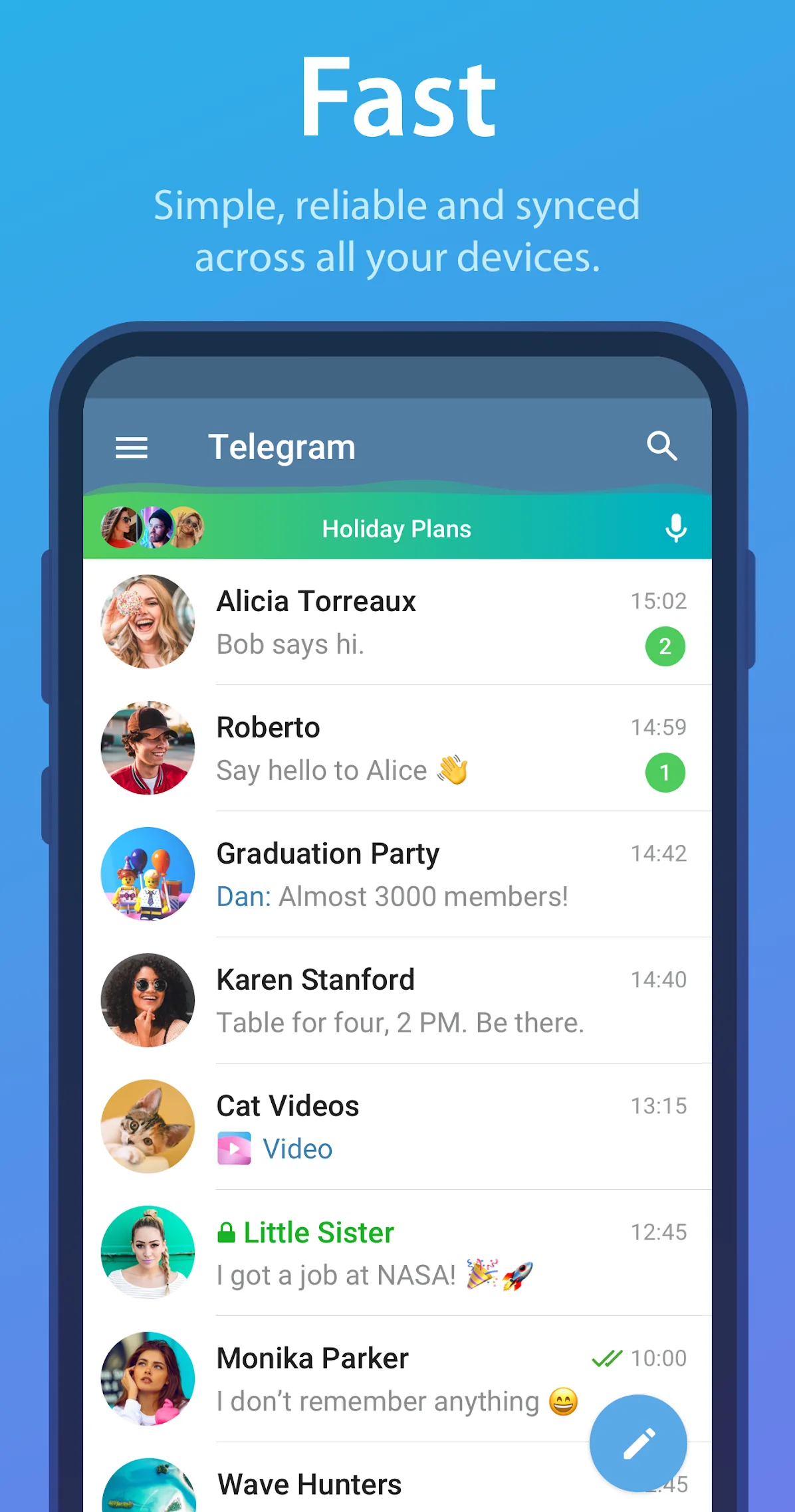
You can install and use Telegram on Chromebook and Googlebook through the official app from Google Play or directly in Chrome via Telegram Web. It gives you a fast, reliable, cloud-based messaging platform capable of sharing files up to 2GB, hosting massive community channels, and synchronizing your entire conversation history across all devices.
Googlebook runs Android apps natively through Google Play, giving you the same seamless messaging alongside phone-app casting. This guide walks you through the Google Play installation, Googlebook phone-app casting, Telegram Web in Chrome, 2GB cloud file sharing, group channels, voice and video calls, and account privacy settings.
Need help setting up your chats? Contact us with your laptop model and any setup questions.

Choose Telegram Android app, Telegram Web, or Linux desktop
The official Google Play listing identifies Telegram FZ-LLC as the developer. Using the official app or the browser version ensures your account remains secure and avoids unofficial third-party wrappers.
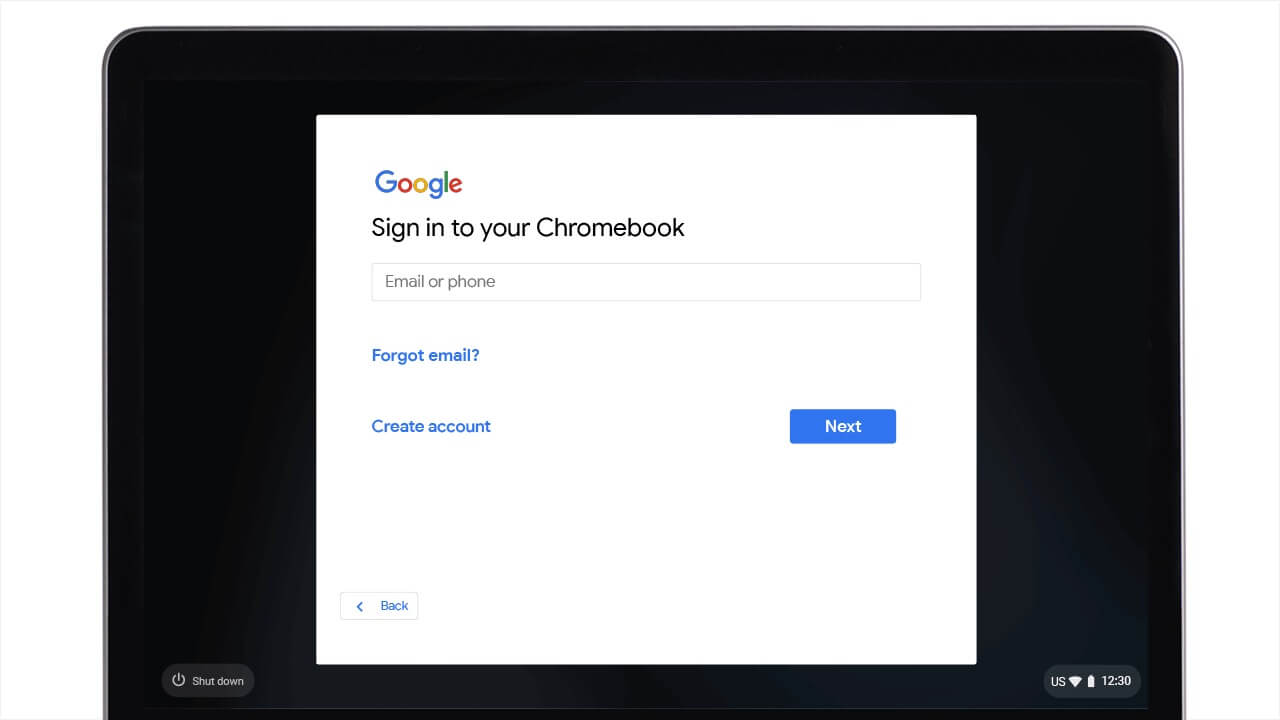
How to install Telegram on Chromebook and Googlebook
If the Play Store is not visible, check Google’s Android app setup guide for Chromebook or the guide on installing apps on Googlebook. On school or workplace laptops, the administrator may manage app installations. If you cannot install apps from Google Play, you can open Telegram Web in Google Chrome, or install the Linux desktop package via the terminal with sudo apt install telegram-desktop.
Cast Telegram from your phone on Googlebook
If you already have Telegram active on your Android phone, Googlebook’s Cast My Apps feature lets you access your mobile chat sessions directly on your laptop screen. Connect your phone through your Googlebook phone hub setup, open Cast My Apps, and select Telegram. This lets you respond to notifications, reply to urgent messages, and browse channels directly from your laptop without reinstalling the app or syncing duplicate logins.
Send files up to 2GB with unlimited cloud storage
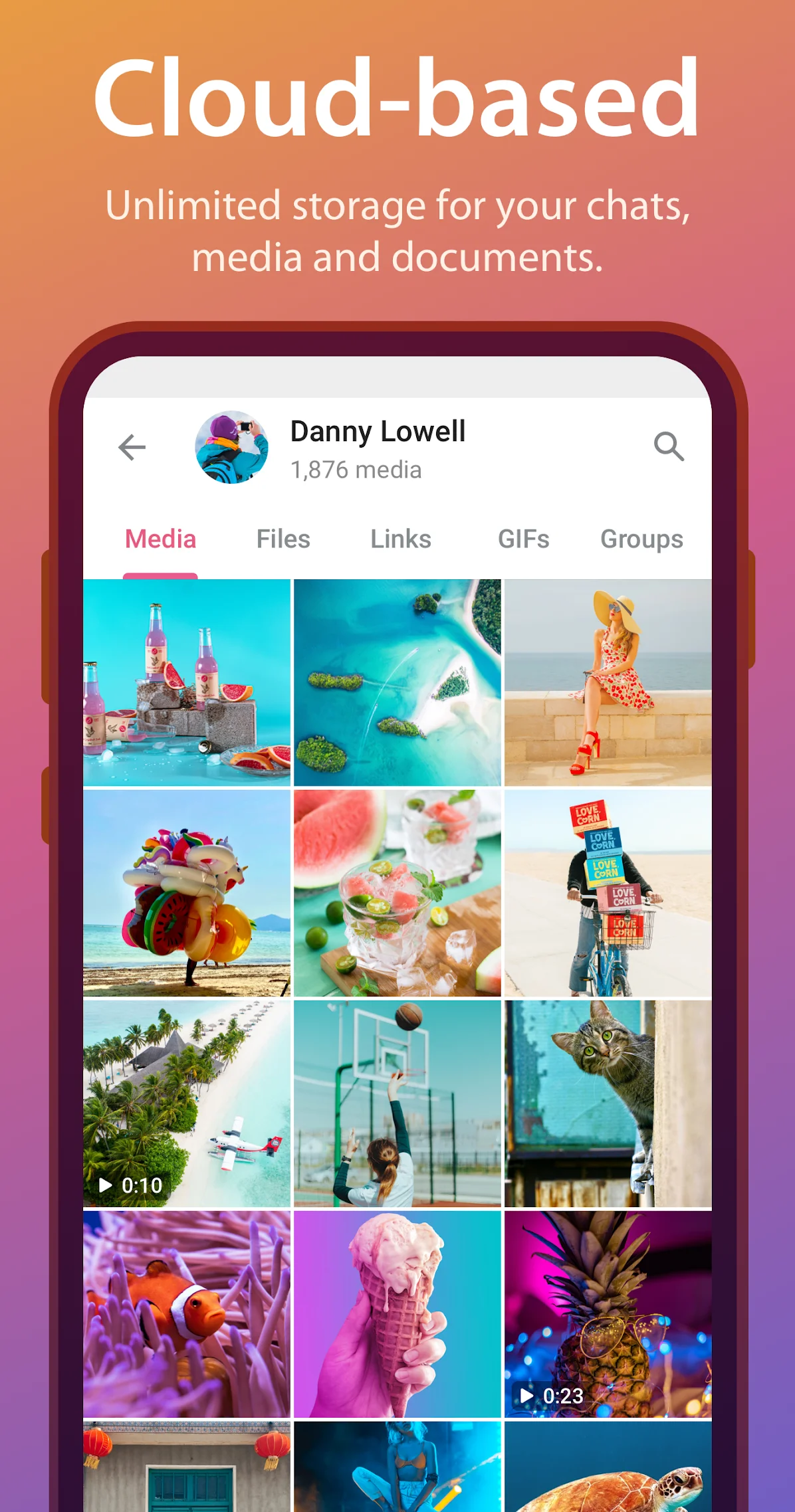
Telegram stands out from other messaging tools with its generous file-sharing limits and permanent cloud locker:
Join supergroups up to 200,000 members and broadcast channels
Telegram provides unmatched community tools for organizing work teams, study groups, gaming clubs, and creator channels:
- Supergroups with 200,000 members: host massive communities with granular admin permissions, pinned announcements, and threaded topic discussions.
- Unlimited broadcast channels: subscribe to news outlets, developer blogs, and creator feeds with infinite audience reach and instant message broadcasts.
- Interactive bots and mini-apps: automate tasks, play casual games, manage polls, and integrate productivity tools with Telegram’s open bot platform.
- Voice and video calls: start group voice chats with thousands of listeners, or jump into high-definition group video calls with screen-sharing support.
Keep your conversations safe with Secret Chats and two-step verification
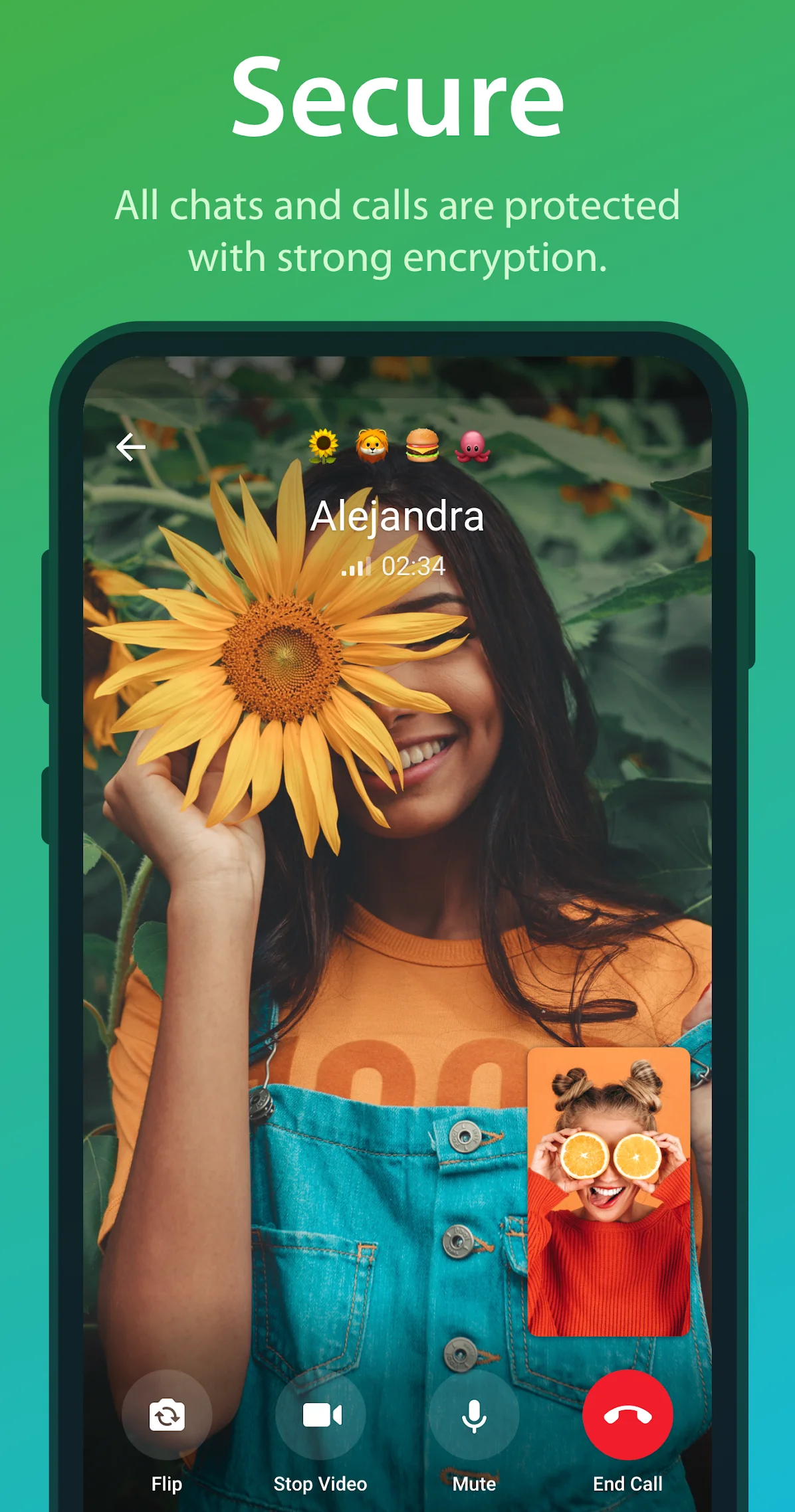
Telegram combines strong distributed cloud security with optional peer-to-peer privacy tools:
Quick fixes for common Telegram issues
- Notifications not appearing: open ChromeOS Settings > Apps > Manage your apps > Telegram and confirm Notifications are enabled. If using Telegram Web, grant notification permissions when prompted by Chrome.
- Sign-in code not arriving: check the Telegram app on your phone or tablet first, as Telegram sends login codes to active devices before sending an SMS.
- Camera or microphone blocked during calls: verify permissions in Settings > Privacy and security > Permissions to ensure Telegram has access to your microphone and webcam.
- Cannot find downloaded files: files saved from Telegram appear in your ChromeOS Files app under My files > Downloads or the Play files folder.
Related messaging and social guides
- Messenger on Chromebook and Googlebook: Set up Meta’s chat app, Meta AI tools, and HD video calls.
- Facebook Lite on Chromebook and Googlebook: Run Meta’s lightweight social app to save data and laptop storage.
- WhatsApp on Chromebook and Chrome: Connect with phone contacts and manage end-to-end encrypted messaging.
- Discord on Chromebook: Join gaming communities, voice channels, and server chats.
Frequently asked questions
Is Telegram completely free to use on Chromebook and Googlebook?
Can I use Telegram on Chromebook without keeping my phone turned on?
What is the maximum file size I can send on Telegram?
Does Telegram support voice calls and video conferences on ChromeOS?
Are Telegram chats encrypted on Chromebook?
Discover more from Chrome Geek
Subscribe to get the latest posts sent to your email.