Chrome Autofill Can Now Pull Order Numbers and Flight Details From Gmail
 by
Sophie Sullivan
Post Updated: October 29, 2026
by
Sophie Sullivan
Post Updated: October 29, 2026
Chrome’s autofill can now fill in the details you usually have to dig out of your inbox. Google announced that enhanced autofill now uses Gemini with Personal Intelligence to suggest information from Gmail, like order numbers, tracking details and flight bookings, right inside online forms.
1. What is new in Chrome autofill
The old way: autofill has always handled the basics, like your name, home address and credit card number. For anything else, such as a booking code or a tracking number, you had to switch tabs and search your email.
The new way: with enhanced autofill, Chrome uses Gemini and Personal Intelligence to find the right detail in Gmail and offer it as you type. Google first previewed this in May, and it is now starting to roll out.
2. How it looks when you fill a form
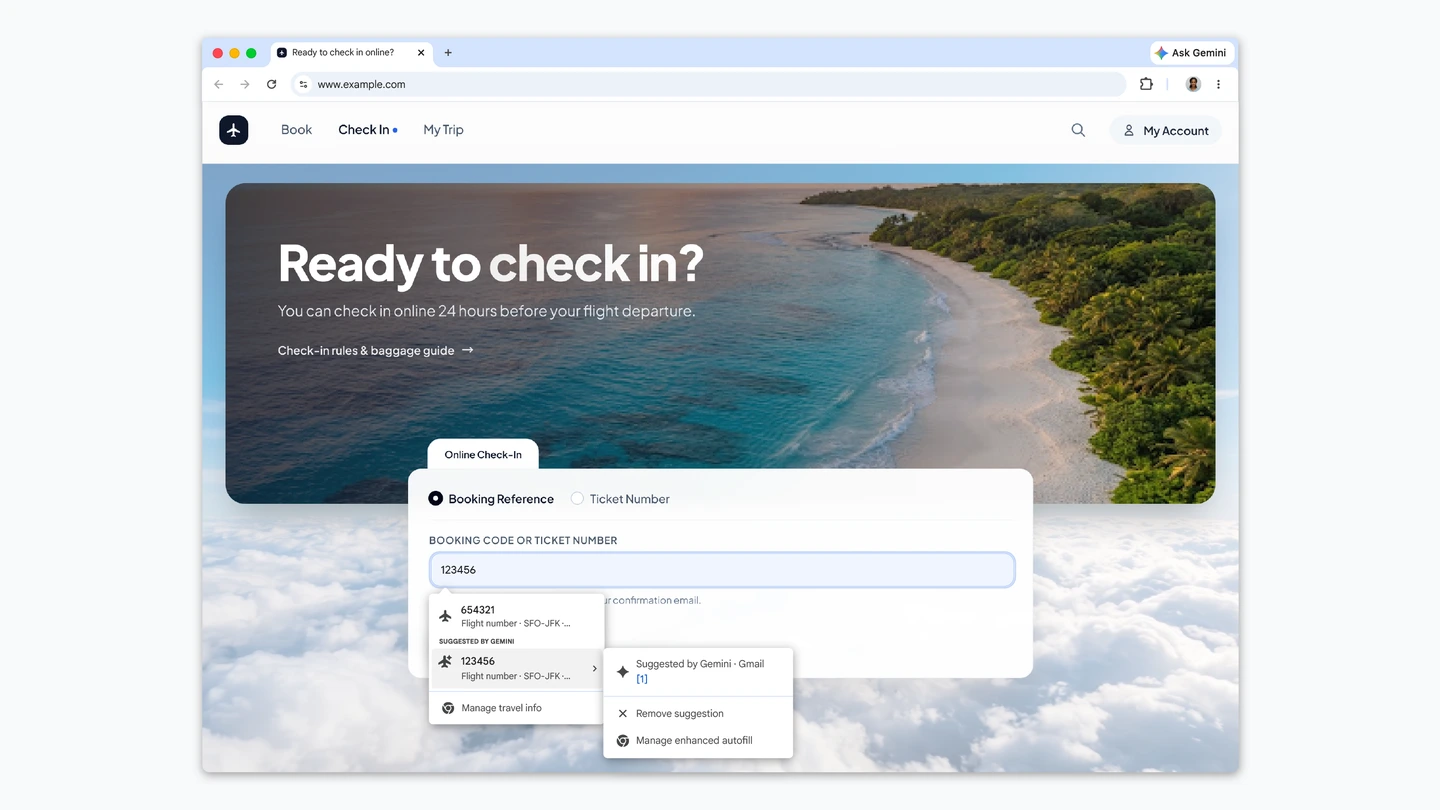
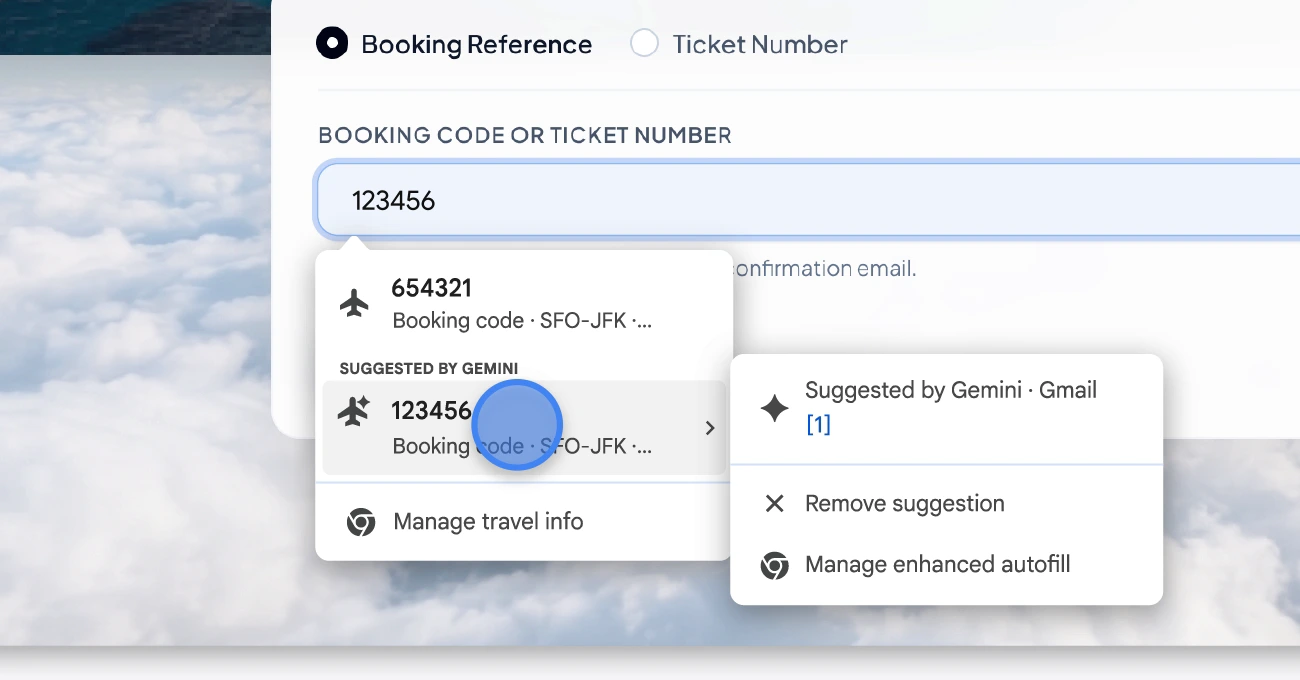
Suggested by Gemini: when Chrome finds a match, the autofill dropdown shows a section labelled “Suggested by Gemini”, as 9to5Google explains. In Google’s demo, a flight check-in form gets the booking code from a confirmation email.
See where it came from: open the small menu next to a suggestion and Chrome shows that it came from Gmail. From the same menu you can tap Remove suggestion or Manage enhanced autofill.
3. Privacy and how to turn it off
Encrypted data: Google says sensitive data is encrypted and that “you remain in control”.
Your choice: in Chrome settings you can turn enhanced autofill on or off and choose what it can access. You can also remove any single suggestion you do not want to see again.
Worth knowing: this is one more Google feature that reads your Gmail to help you, after Google recently let you connect Gmail and Photos to personalise ads. Enhanced autofill only works for Gemini in Chrome users who have Personal Intelligence turned on.
4. Who gets it
Chromebooks and Googlebooks: Google’s post says desktop, Android and iOS, and does not mention ChromeOS or Googlebook OS by name. We will update this post if Google confirms it for Chromebooks.
Our take
This is the kind of AI feature that saves real time. Hunting through email for a booking reference or a tracking number while a form waits is a small but constant annoyance, and Chrome already sits right where that data is needed. It builds nicely on the Google Wallet autofill upgrade from June. The trade-off is letting Gemini look through your inbox, so it is good that it only works with Personal Intelligence turned on, is clearly labelled, and is easy to switch off. Personal Intelligence keeps showing up in more places, from Chrome to Google Maps saved places.
Making Chrome faster to sign in, too? Here is how to switch your Google account to passkeys.
Discover more from Chrome Geek
Subscribe to get the latest posts sent to your email.