Gemini Notebook Can Now Record Lectures and Notes on Android and iOS
 by
Sophie Sullivan
October 28, 2026
by
Sophie Sullivan
October 28, 2026
Gemini Notebook’s mobile app can now record audio, so you can capture a lecture, a meeting or your own thoughts and turn it straight into a source. As 9to5Google reports, the recorder is now rolling out widely on Android and iOS, about six weeks after Google first promised it.
1. What the recorder does
Record, then use it: tap the new microphone icon and Gemini Notebook starts recording. When you finish, the audio file is uploaded as a source. In Google’s words, your notes “live directly alongside your sources, meaning you can chat, cite, and build from them anytime”.
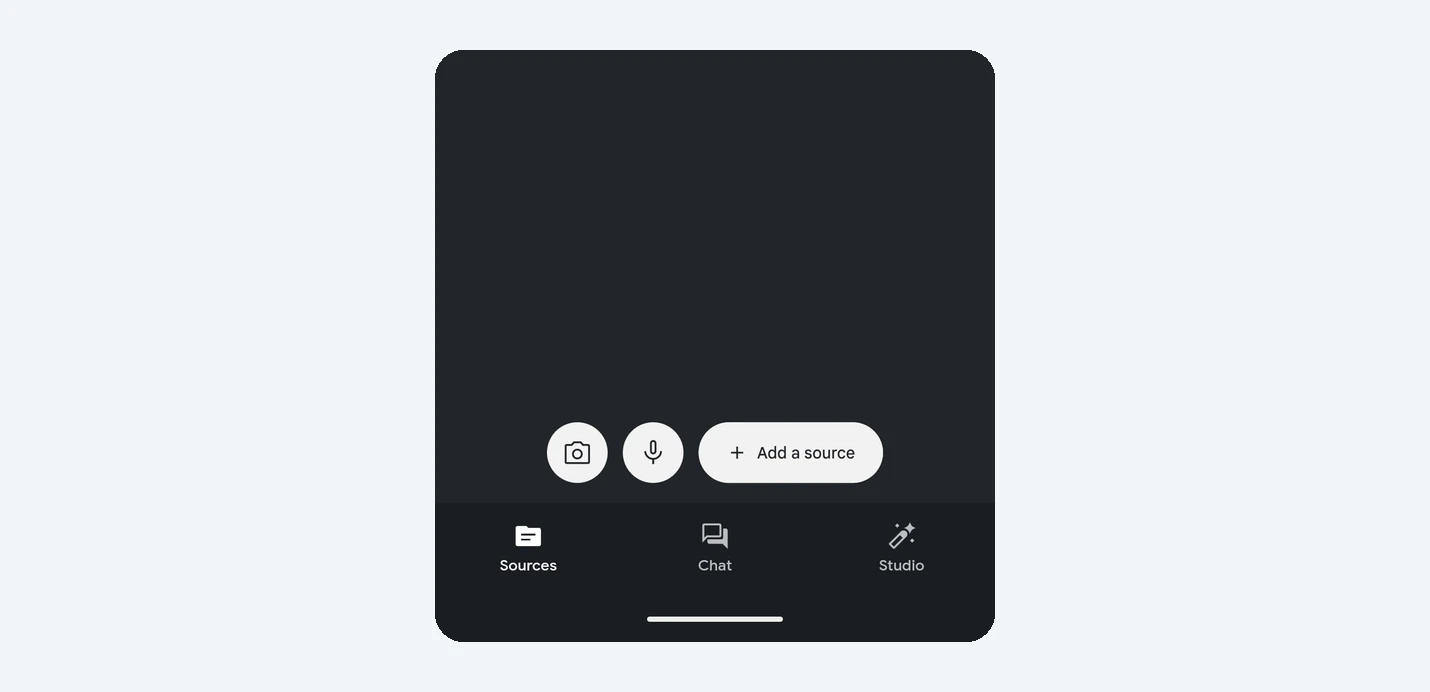
Where it goes: start a recording from the home screen and it creates a brand new notebook. Start it from the Sources tab inside a notebook and the recording is added to that notebook instead.
2. How to record a lecture or a note
- Update the Gemini Notebook app from the Play Store or the App Store.
- To start a new notebook, tap the microphone on the home screen. To add to an existing one, open it, go to the Sources tab and tap the microphone there.
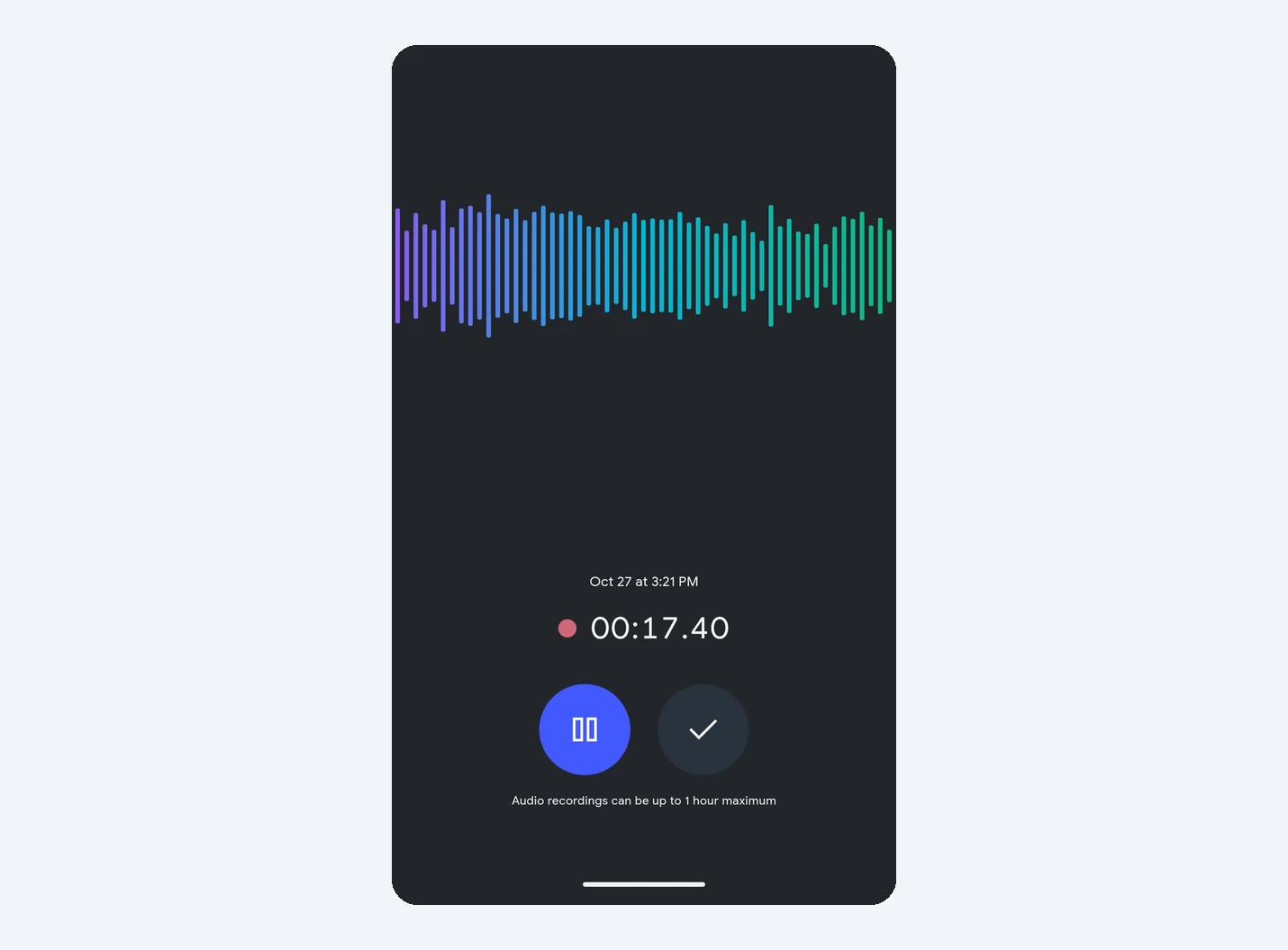
- Talk, or point your phone at the speaker. A waveform and a running timer show it is recording.
- Tap pause if you need a break, then tap the checkmark when you are done. The recording uploads as a source.
- Open the Chat tab and ask things like “Summarise the key points” or “Make me a quiz from this lecture”.
Not seeing the mic? 9to5Google says force stopping the app can make it show up. On Android, long-press the app icon, tap App info, then Force stop, and open it again.
3. Background recording and the limits
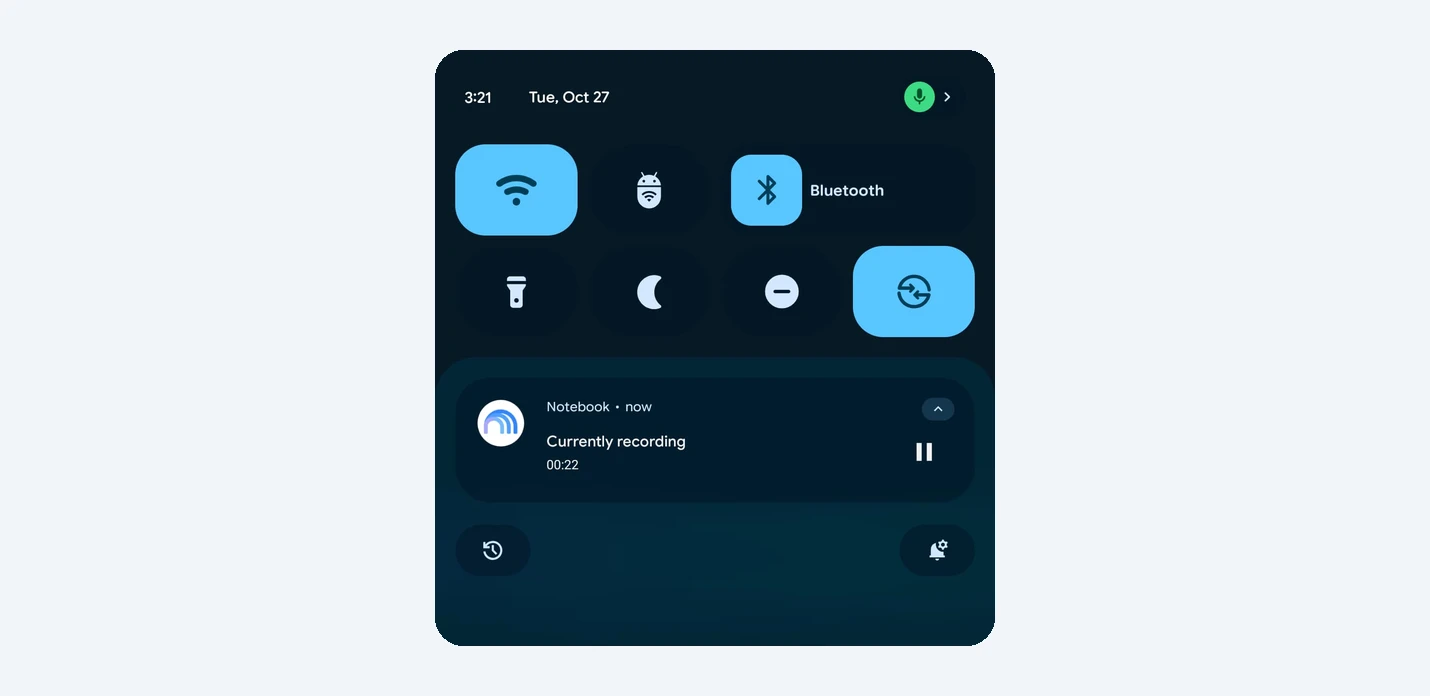
Lock your phone: you can switch to another app or lock the screen and the recording keeps going. A “Currently recording” notification with a pause button stays in your notification shade, so you always know it is on.
One hour per recording: each recording stops at one hour, so a long lecture or meeting may need two recordings.
Who gets it: Google’s September announcement says the notes feature works for users, including under-18s, who have English set as the output language in settings. Google’s Workspace notes list Gemini Notebook study features for personal accounts, Workspace Individual and Workspace customers.
4. Part of a busy month for Gemini Notebook
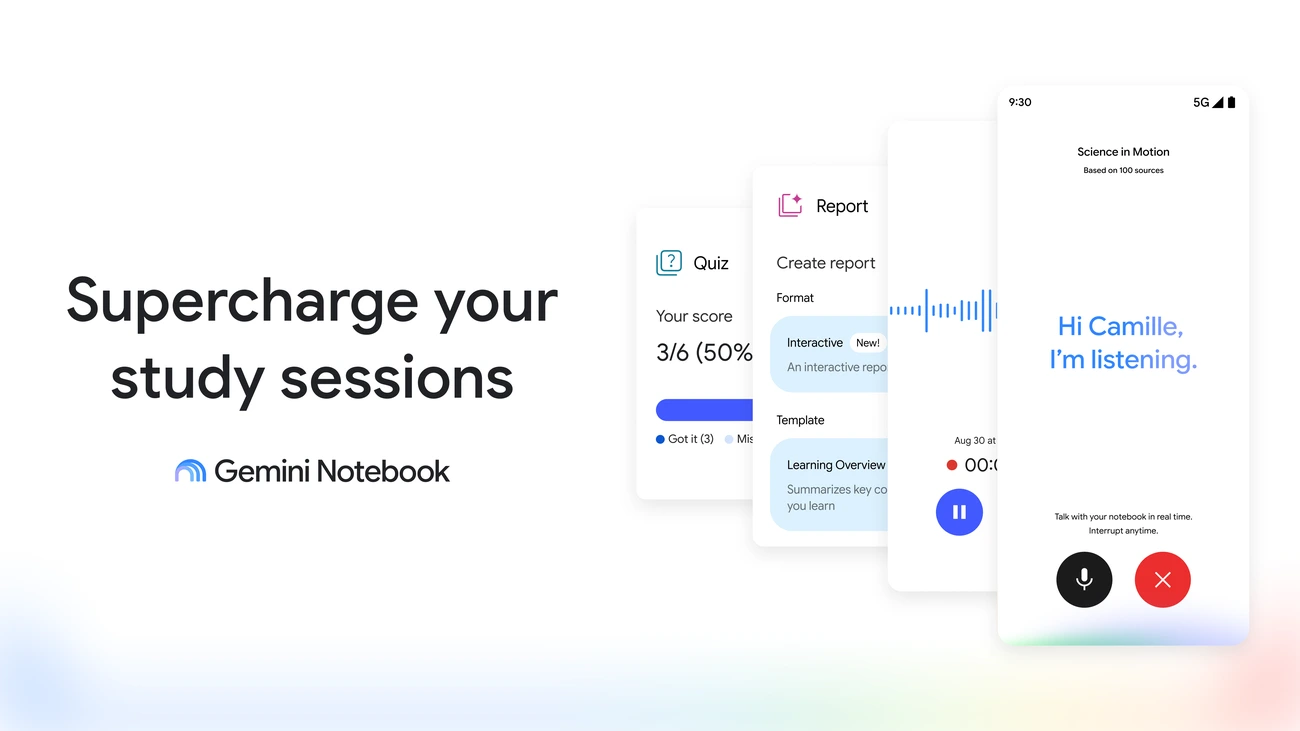
What else is new: the recorder follows a run of updates. Last week Gemini Notebook became a Connected App inside Gemini chat, and earlier this month it got new study features like short videos and guided reviews. Google also added a Live button in the Chat tab for real-time voice conversations with your notebooks.
A small change too: tapping the Create New button now starts a new notebook straight away, instead of first opening the Add a source panel.
Our take
This is the feature that makes Gemini Notebook a real study tool on your phone. Recording a lecture and then asking questions about it, or turning it into flashcards, used to mean juggling a separate recorder app and an upload. Now it is one tap. The one-hour cap and the English-only start are the main catches, but recording on your phone in class and then opening the same notebook on your Chromebook later is a strong combo.
Turn those recordings into slides and videos. Here is how Gemini Notebook lets you shape them first.
Discover more from Chrome Geek
Subscribe to get the latest posts sent to your email.