Gemini Notebook Now Lets You Shape Slides and Videos Before They Render
 by
Sophie Sullivan
October 19, 2026
by
Sophie Sullivan
October 19, 2026
Gemini Notebook is getting more hands-on with two of its most popular outputs. In a post on Google’s Keyword blog on October 19, Google said Slide Decks and Video Overviews now come with a step-by-step creation flow, so you can shape the result before Notebook builds it. Google says the change is based on user feedback.
What is changing in Gemini Notebook
Before: Notebook went straight from your first prompt to a finished slide deck or video, with no chance to check the plan along the way.
Now: Notebook can walk you through a quick creation process based on your sources. You start in the chat and ask it to make slides or a video overview.
Pick your topics: Notebook suggests topics from your sources to include. Once you confirm them, you can steer the content further and guide the visual style and format.
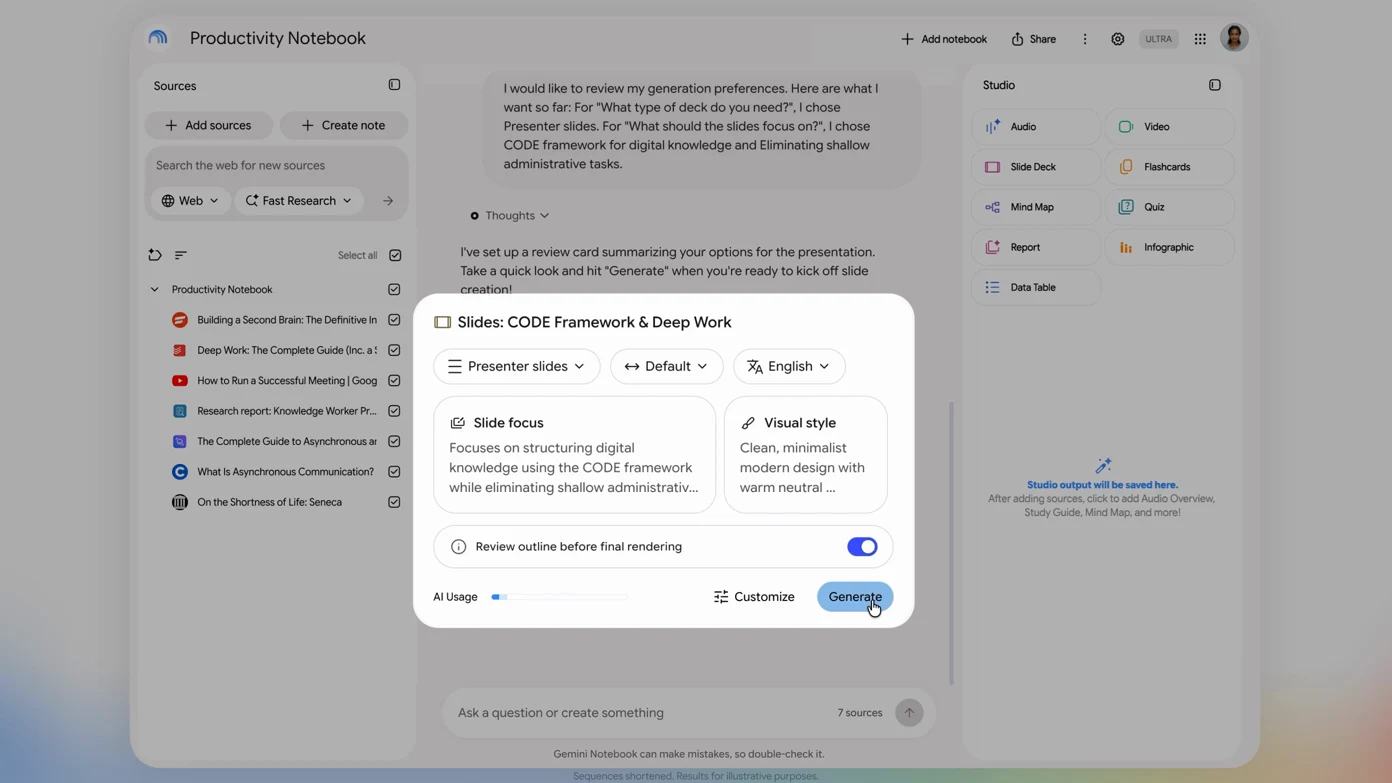
How the new Review toggle works
Switch it on for more control: with the new Review toggle on, Notebook shows you its plan in the Studio panel before it renders anything.
For slides: click “Review outline notes” to see the planned slides.
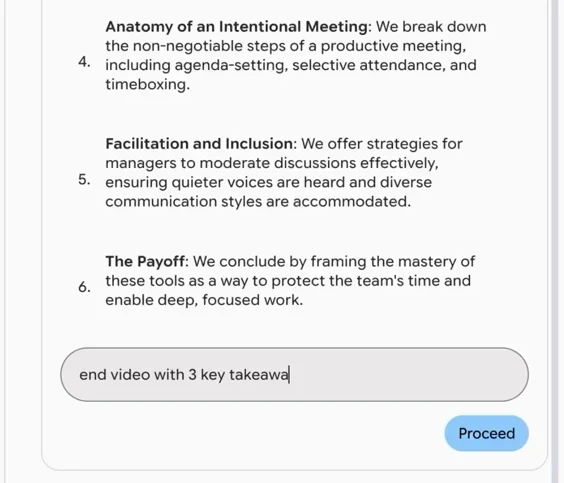
For videos: click “Review producer notes” to see the planned scenes.
Give feedback: you can ask for changes, like adding an executive summary at the start or swapping the order of a scene. When it looks right, select “Proceed” to make the final slide deck or video.
Slide Decks vs Video Overviews: what you get
You can still go fast
Already know what you want: say it in your prompt, and Notebook goes straight to the review step.
Want a quick result: open the Studio panel, click Slide Deck or Video, leave the review toggle off and Notebook makes it as usual.
When you get it, and using it on a Chromebook
Rollout: Google says these co-creation features are rolling out globally to all Gemini Notebook users over the coming week, so do not worry if you do not see the toggle yet.
On a Chromebook or Googlebook: Gemini Notebook runs on the web at notebook.google.com, so you can use it in Chrome. New to Notebook? Our guide shows how to create Gemini study notebooks on Chrome and Chromebook. You can also catch up on the 3 study features Notebook added last week.
Our take: this is a small change that saves real time. Checking the outline before Notebook builds a whole deck or video means fewer do-overs, and you can still skip it when you just want something quick.
Using Gems in Gemini? Here is what changes as Gems become skills.
Discover more from Chrome Geek
Subscribe to get the latest posts sent to your email.