How to Install and Use VLC on Chromebook and Googlebook
 by
Juniya Sankara
Post Updated: October 25, 2026
by
Juniya Sankara
Post Updated: October 25, 2026
You can install and use VLC on Chromebook and Googlebook through the official app from Google Play. It gives you a versatile, ad-free media player capable of playing nearly any video or audio file format without extra codecs or internet connections.
Googlebook runs Android apps natively through Google Play, giving you the same dependable media playback alongside phone-app casting. This guide walks you through the Google Play installation, Chromebook file setup, gesture playback controls, equalizer settings, and local network streaming.
Need help setting up your media? Contact us with your laptop model and the file format you want to play.
Choose VLC for offline and local media
VLC does not operate as a cloud website or browser extension. It is a standalone application that accesses your local storage, external USB drives, and local network shares to decode video and audio files smoothly on your laptop hardware. The official Google Play listing identifies Videolabs as the publisher.
How to install VLC on Chromebook and Googlebook
If the Play Store is not visible, check Google’s Android app setup guide for Chromebook or the guide on installing apps on Googlebook. On school or workplace laptops, the administrator may manage app installations. Advanced users can also explore the Debian Linux package (sudo apt install vlc) when the Linux development environment is enabled.
Cast VLC from your phone on Googlebook
If you already have your favorite media and playlists configured in VLC on your Android phone, Googlebook’s Cast My Apps feature lets you control your phone’s VLC player directly on your laptop screen. Connect your phone through your Googlebook phone hub setup, open Cast My Apps, and select VLC. This lets you stream your phone’s local media and playlists immediately without copying files over to your laptop.
Video playback and on-screen gesture controls
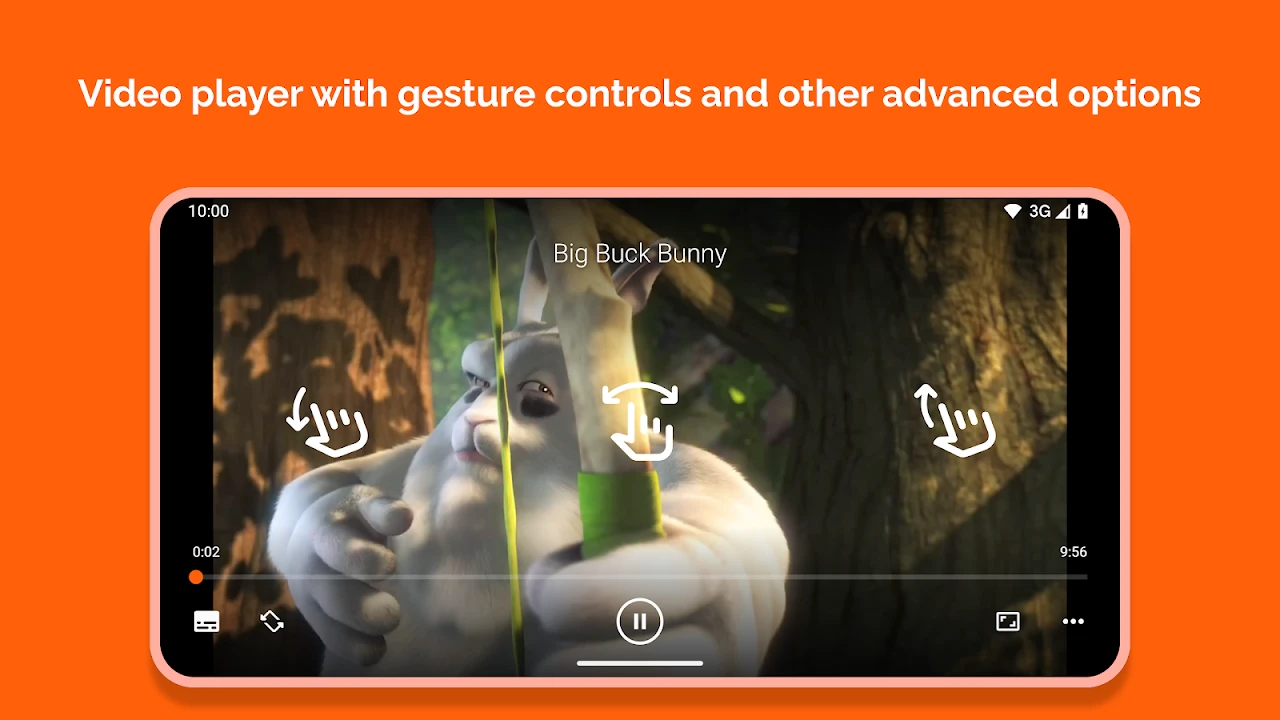
VLC includes intuitive touch and pointer gestures that make adjusting playback quick during full-screen viewing. You can adjust settings without hunting for small menu icons:
- Brightness: slide your finger or drag the pointer up or down on the left side of the screen.
- Volume: slide up or down on the right side of the screen to raise or lower audio output.
- Seeking: swipe horizontally across the screen to jump forward or backward through the timeline.
- Subtitles and audio tracks: tap the player controls menu to toggle subtitles, download captions automatically, or switch alternate language audio channels.
Audio playback and equalizer settings
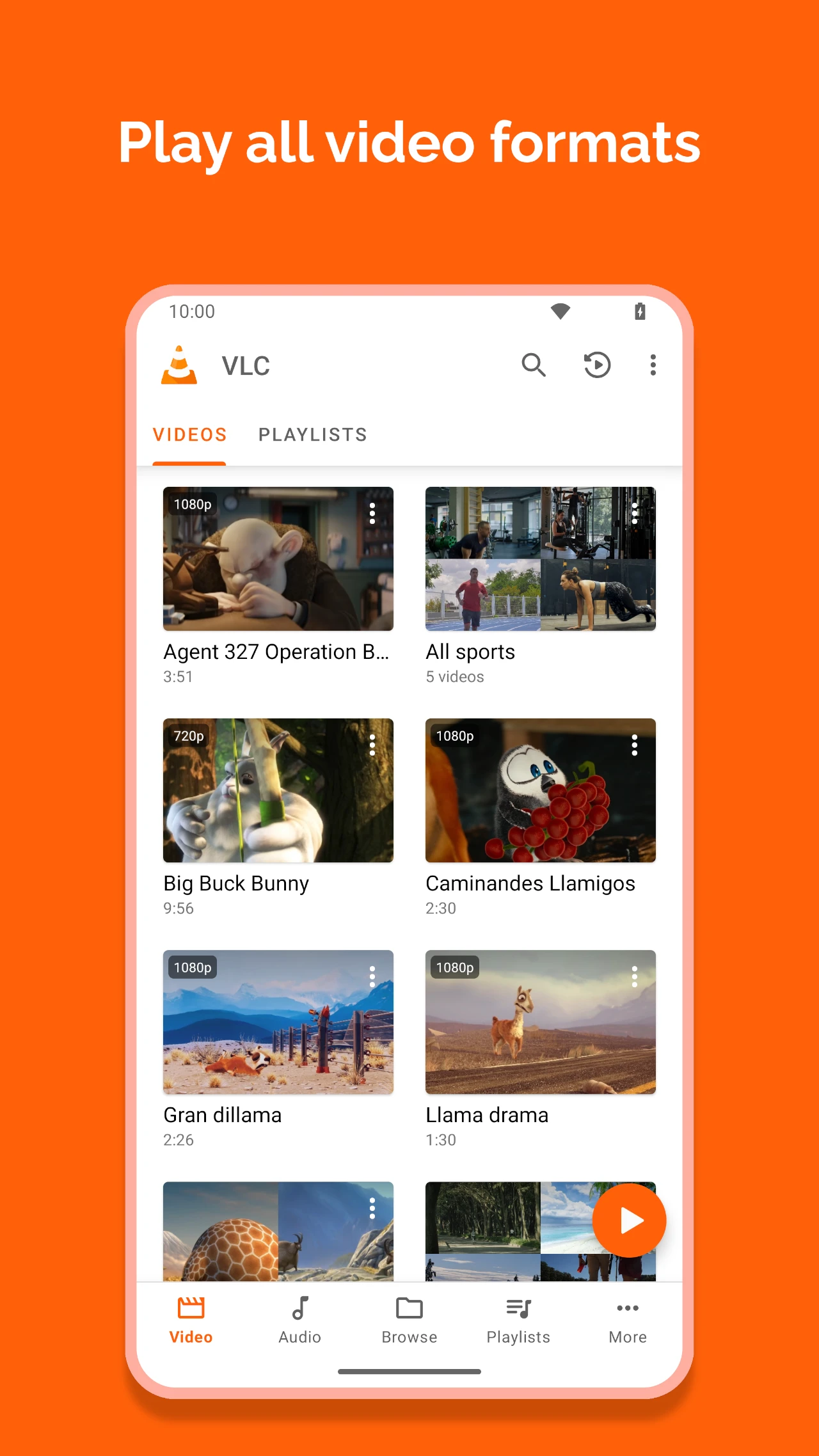
VLC is also a complete audio player. The Audio tab organizes your local collection by Artists, Albums, Tracks, and Genres, with background playback continuing even when you switch apps or minimize the window.
Stream from local networks and home servers
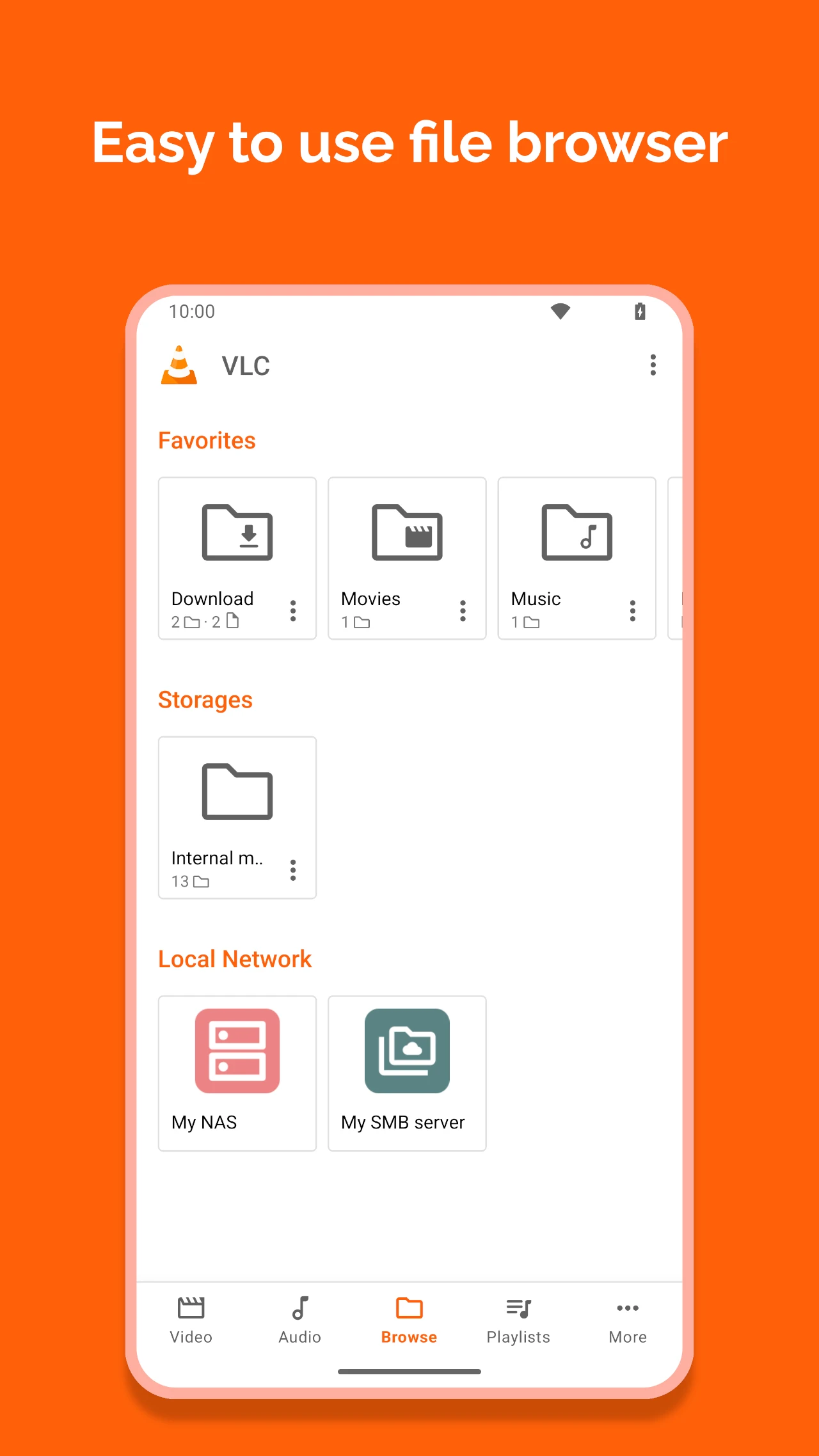
Beyond local files in your Downloads folder, VLC can stream media across your home network. Open the Browse tab to discover local media servers and shared folders without copying large files to internal storage.
Quick fixes for common playback issues
- Video stutters or drops frames: open Settings > Extra settings > Hardware acceleration and switch between Automatic and Decoding acceleration to match your processor.
- Audio and video are out of sync: open the controls menu during playback, select Audio delay, and adjust the offset until speech matches lip movement.
- Storage files do not appear: open Settings > Extra settings > Media library and verify that your Downloads and SD card folders are selected for scanning.
- Subtitles do not display: ensure the subtitle file (.srt, .ass) shares the exact same base filename as your video file, or use the subtitle search feature in VLC to download matching captions.
Related media guides
- Best Media Players on Chromebook: Explore top alternatives for local playback and streaming across ChromeOS.
- MX Player on Chromebook: Set up hardware acceleration, subtitle gestures, and playback controls.
- How to Play DVDs on a Chromebook Without Using Windows: Connect an external optical drive and play DVD movies without Windows.
Frequently asked questions
Is VLC free on Chromebook and Googlebook?
Can VLC play MKV, MP4, and DVD video files?
How do I install VLC on a Googlebook?
Does VLC have a web version in Chrome?
Can VLC access files from a local network drive or NAS?
Discover more from Chrome Geek
Subscribe to get the latest posts sent to your email.