Gemini Live on Android Gets a Plus Button for Photos, Files and Screen Sharing
 by
Sophie Sullivan
Post Updated: October 27, 2026
by
Sophie Sullivan
Post Updated: October 27, 2026
Gemini Live on Android now has a plus button that lets you add photos, files and your screen without leaving the conversation. As 9to5Google reports, Google is rolling out this small redesign in the Google app, which powers Gemini on Android. It saves a few taps if you like to show Gemini things, but one button you may use a lot now sits one step deeper.
1. What is new in Gemini Live
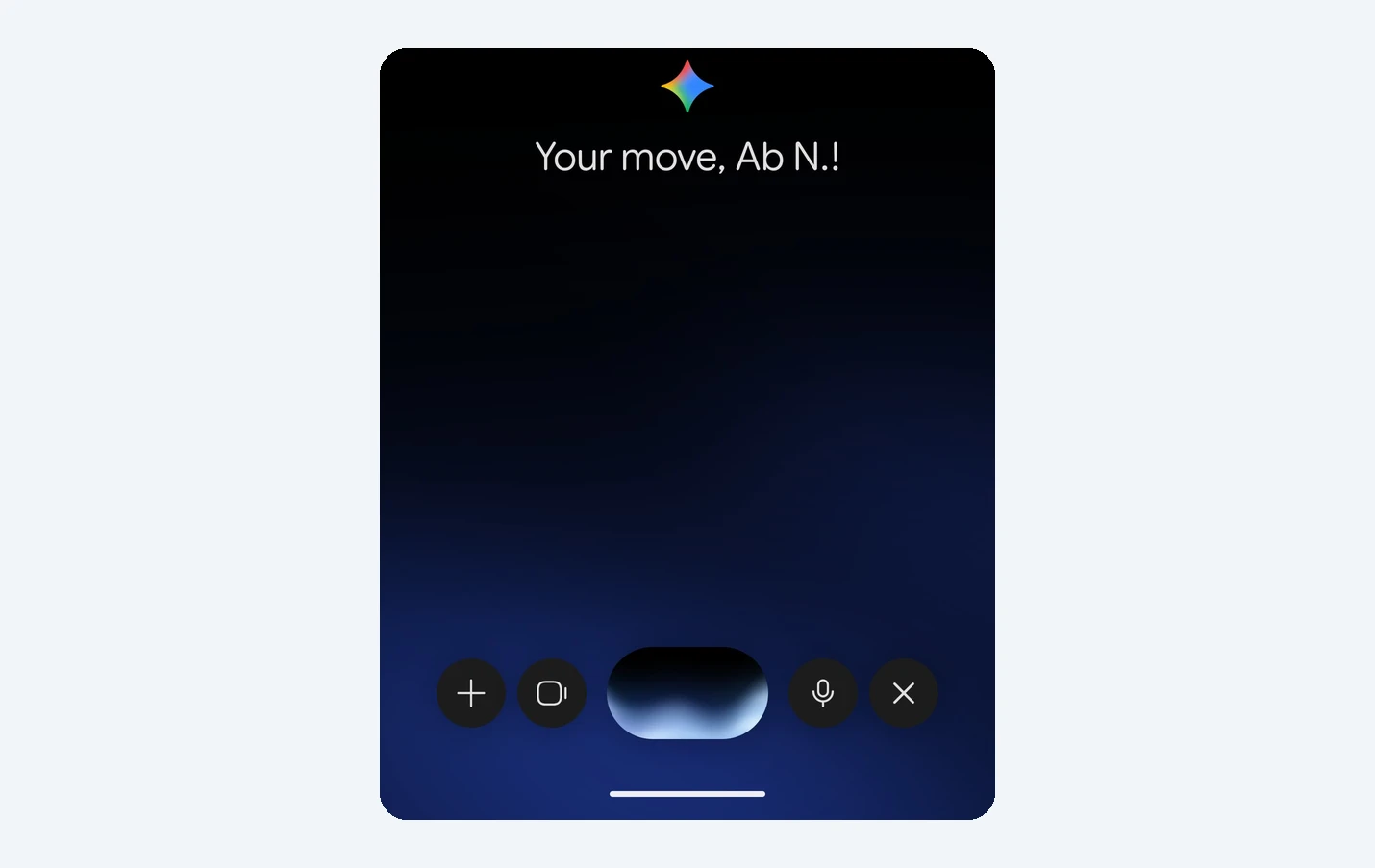
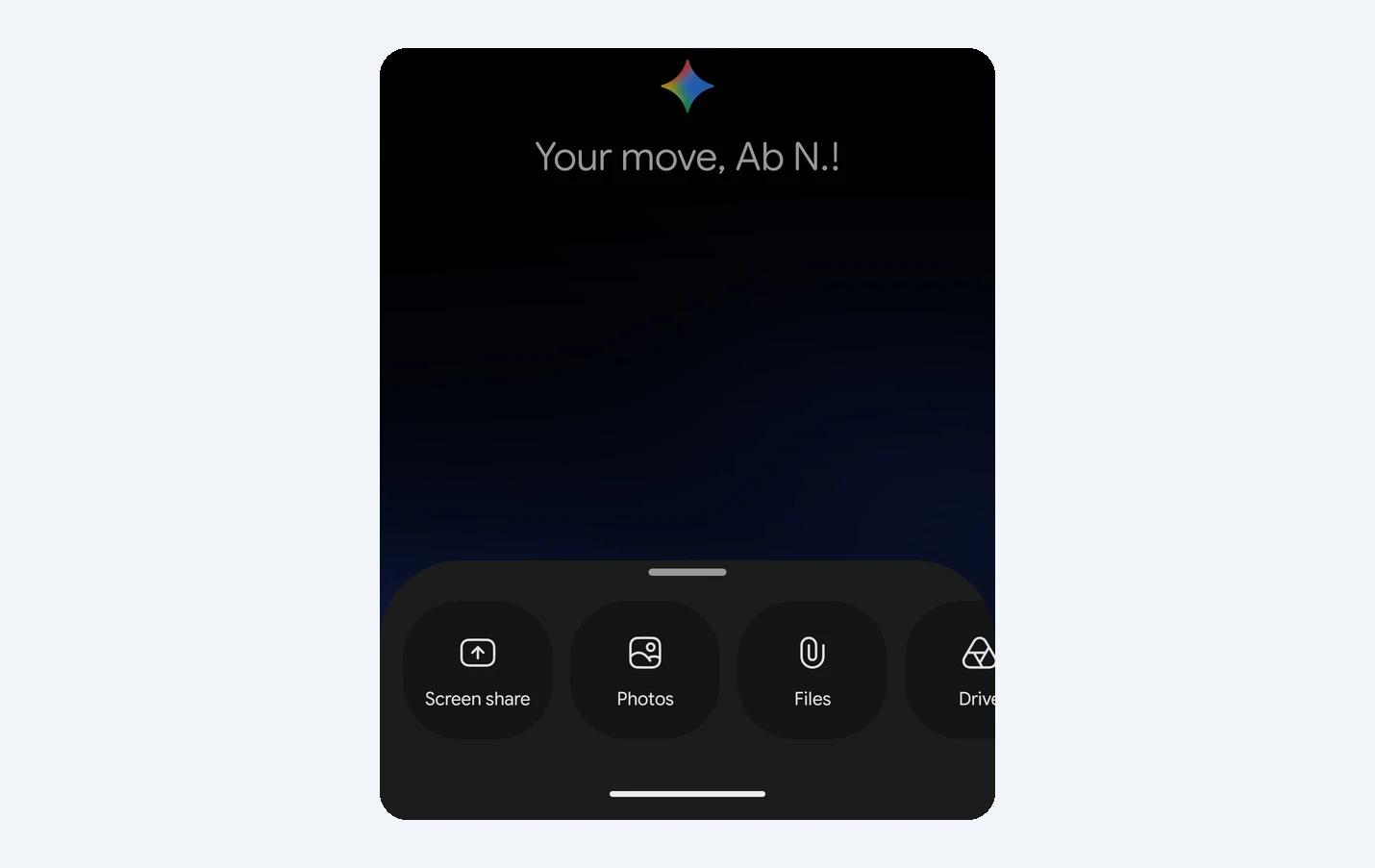
The plus button: when you start Gemini Live inside the Gemini app, you will now see a plus button on the left of the control bar. Tap it and a familiar carousel slides up with four choices: Screen share, Photos, Files and Drive.
Why it helps: until now, if you wanted to talk to Gemini about a photo or a document, you first had to add it in the Gemini overlay and then switch to Live. Now you can drop it into a Live chat that is already running.
2. What moved, and what stayed
Screen sharing: the screen share button no longer has its own spot on the bar. It is now the first item in the plus menu, so sharing your screen takes one extra tap.
Camera: the camera button is still one tap away. It now sits right next to the waveform in the middle.
Mic and close: nothing changed on the right. The mic mute switch and the close button are where they were.
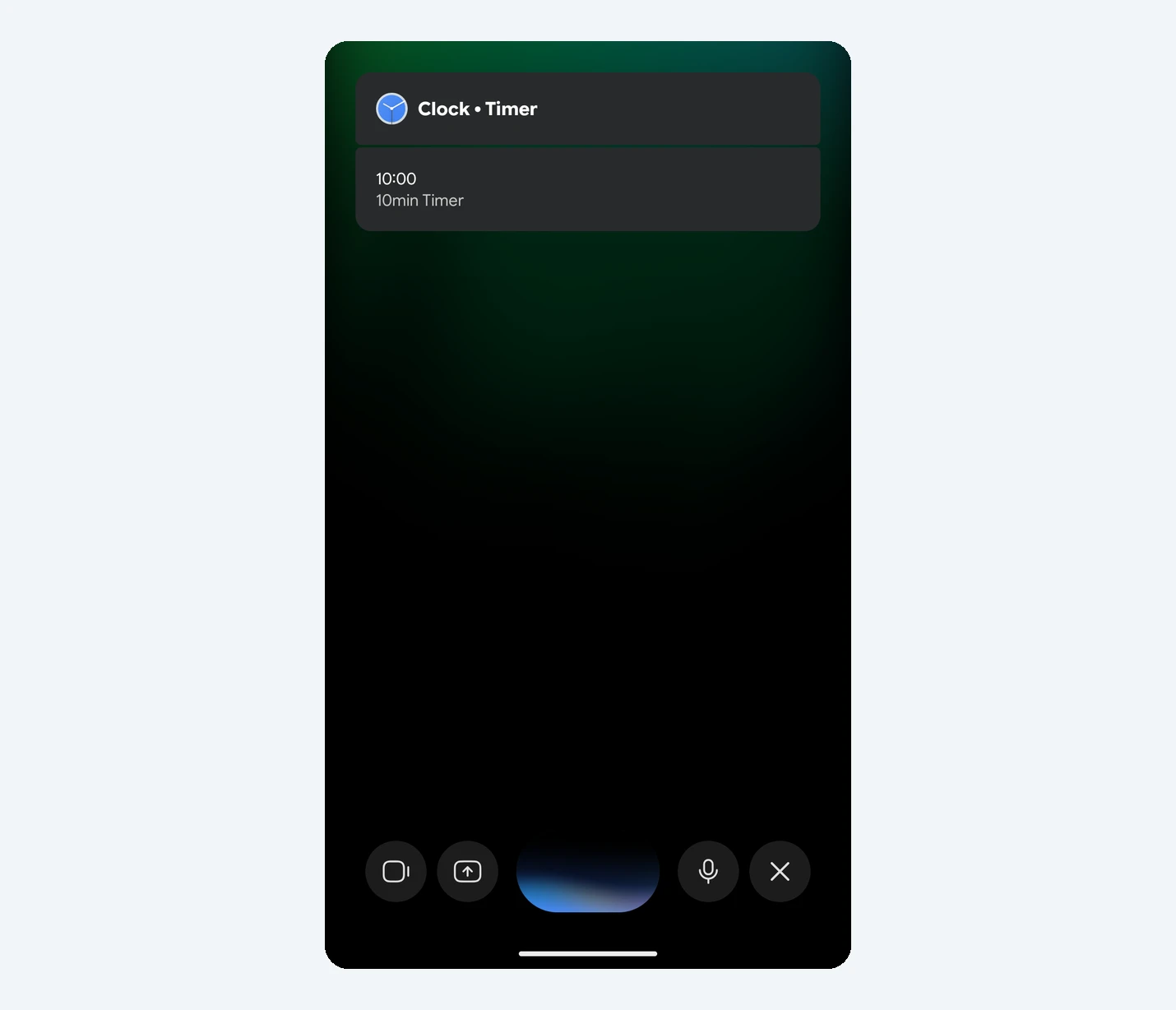
One catch: the plus menu does not show up when you start Live from the Gemini overlay (the panel that pops up over other apps). You need to open Live from inside the Gemini app to get it.
3. Who gets it
Check your Google app version: Gemini on Android runs through the Google app, so that is the version that matters. Open the Play Store, search for Google, open the Google app page and tap About this app to see the version number. You can also go to Settings > Apps > Google and scroll to the bottom. If you are below 17.68, tap Update in the Play Store.
Still not there? Google is rolling the change out gradually, so being on 17.68 does not guarantee you have it yet. Fully closing and reopening the Gemini app can help, otherwise give it a few days.
4. How to use the new plus menu
- Open the Gemini app on your Android phone (not the overlay).
- Tap the Live button to start a Gemini Live conversation.
- Tap the plus (+) button on the far left of the controls.
- Pick Screen share, Photos, Files or Drive, then choose what you want to add.
- Keep talking and ask Gemini about it, for example “What does this error mean?” or “Summarise this PDF for me”.
Want to point your camera instead? you do not need the plus menu for that. Just tap the camera button next to the waveform. It opens your camera so Gemini can see what you see.
5. More Gemini Live changes may be coming
This is the latest in a string of Gemini interface changes on Android this month, after the new side panel and single Settings page that arrived last week. Google is also testing more for Live: an Android Authority APK teardown earlier this month found a new waveform animation and a speaker button that would likely mute Gemini’s voice replies without turning down your phone’s volume. Those are still in testing and not live yet, and features found in app code do not always ship.
Our take
This is a sensible tweak. Adding a photo or a file in the middle of a voice chat used to mean backing out, and now it is one button away. The trade-off is screen sharing, which now takes an extra tap. If you share your screen with Gemini often, you will notice it for a day or two, but having photos, files and Drive in the same place makes Live much more useful for quick questions about the things on your phone.
Gemini on Android also got a new side panel and one Settings page. Here is where everything moved.
Discover more from Chrome Geek
Subscribe to get the latest posts sent to your email.