Gemini on Android Gets a Cleaner Side Panel and One Settings Page
 by
Sophie Sullivan
Post Updated: October 24, 2026
by
Sophie Sullivan
Post Updated: October 24, 2026
The Gemini app on Android now has a tidier side panel and a single Settings page. As 9to5Google reports, the redesign that reached iOS, macOS and the web last week alongside Gemini 4 Argon is now widely available on Android. It arrives through a server-side update, so there is nothing to download from the Play Store, but it may take a little while to reach every phone.
1. What changed in the side panel
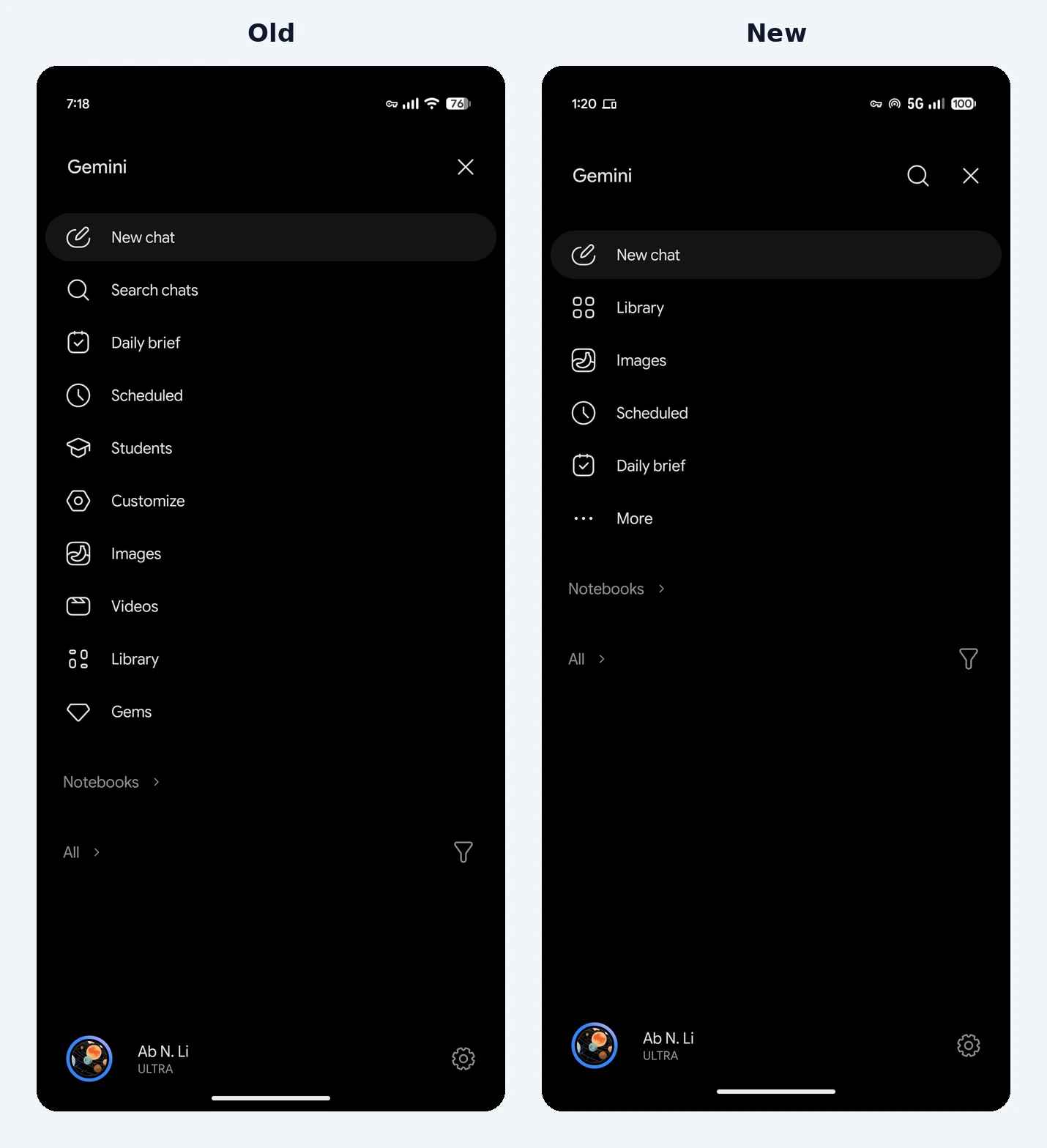
Before: in the old layout, Search chats was the second item in the list and Library sat near the bottom, below Images and Videos.
Now: search is a magnifying glass in the top-right corner, next to the close button. New chat is still first, and Library now comes straight after it. To keep the drawer from getting cluttered while still showing your recent chats, Gemini shows only five items and puts the rest behind a “More” button.
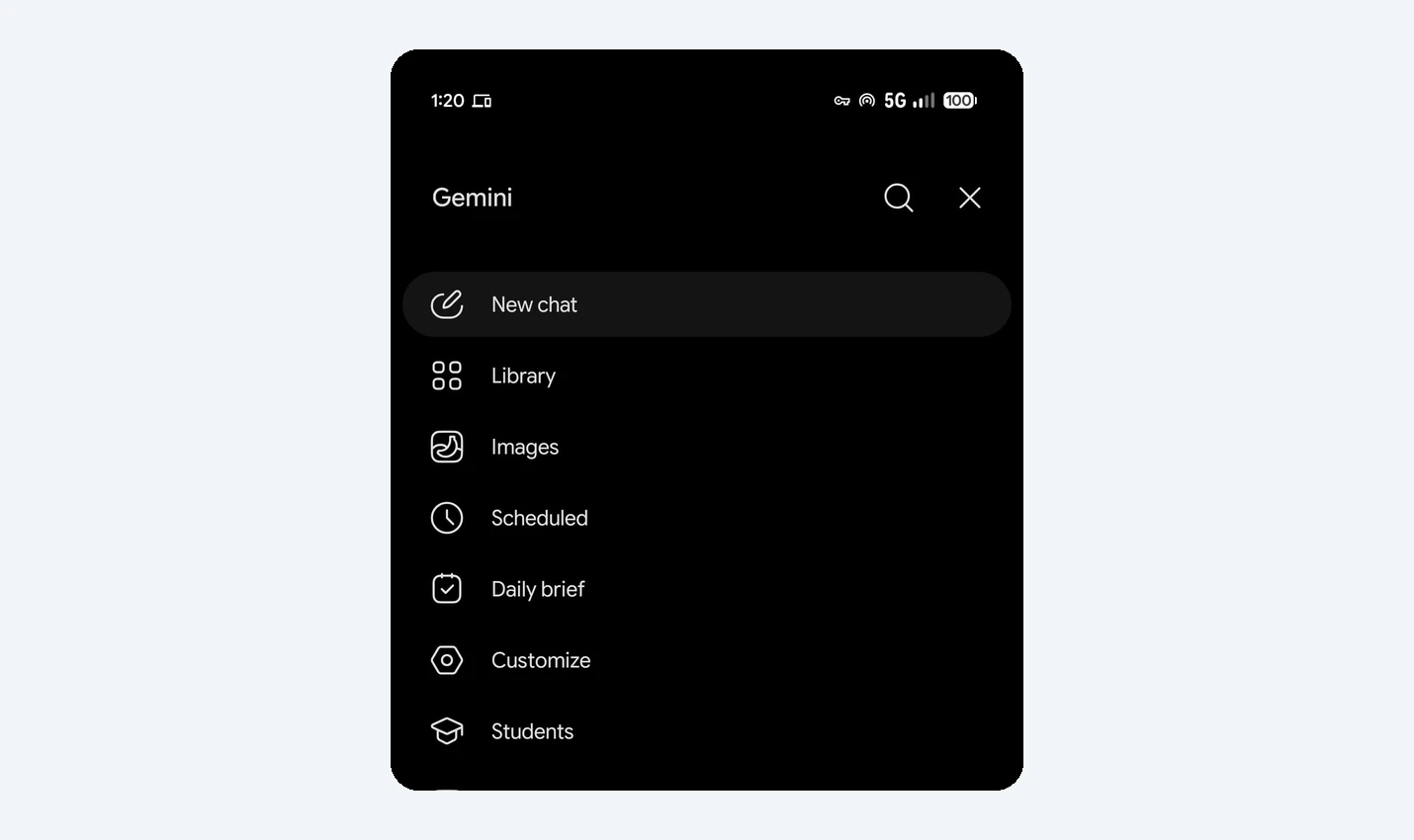
The full list: on an AI Ultra account, tapping More shows New chat, Library, Images, Scheduled, Daily brief, Customize, Students, Videos and Gems. What you see can depend on your plan and country. Japan’s HelenTech, which also has the new layout on a Pixel 11 Pro and in the Gemini app on a Googlebook, notes that Daily brief does not show up there yet because it has not launched in Japan.
Customize: this item opens one page where you manage skills, which are replacing Gems, and connectors (a refreshed take on Connected Apps) in one place.
2. One Settings page for everything
Before: Gemini’s options were split between the account menu (your profile picture) and a separate Gemini Settings page, so finding the right switch often meant checking both.
Now: Google has moved everything onto one Settings page. The account menu is now just for switching accounts, sending feedback and getting help.
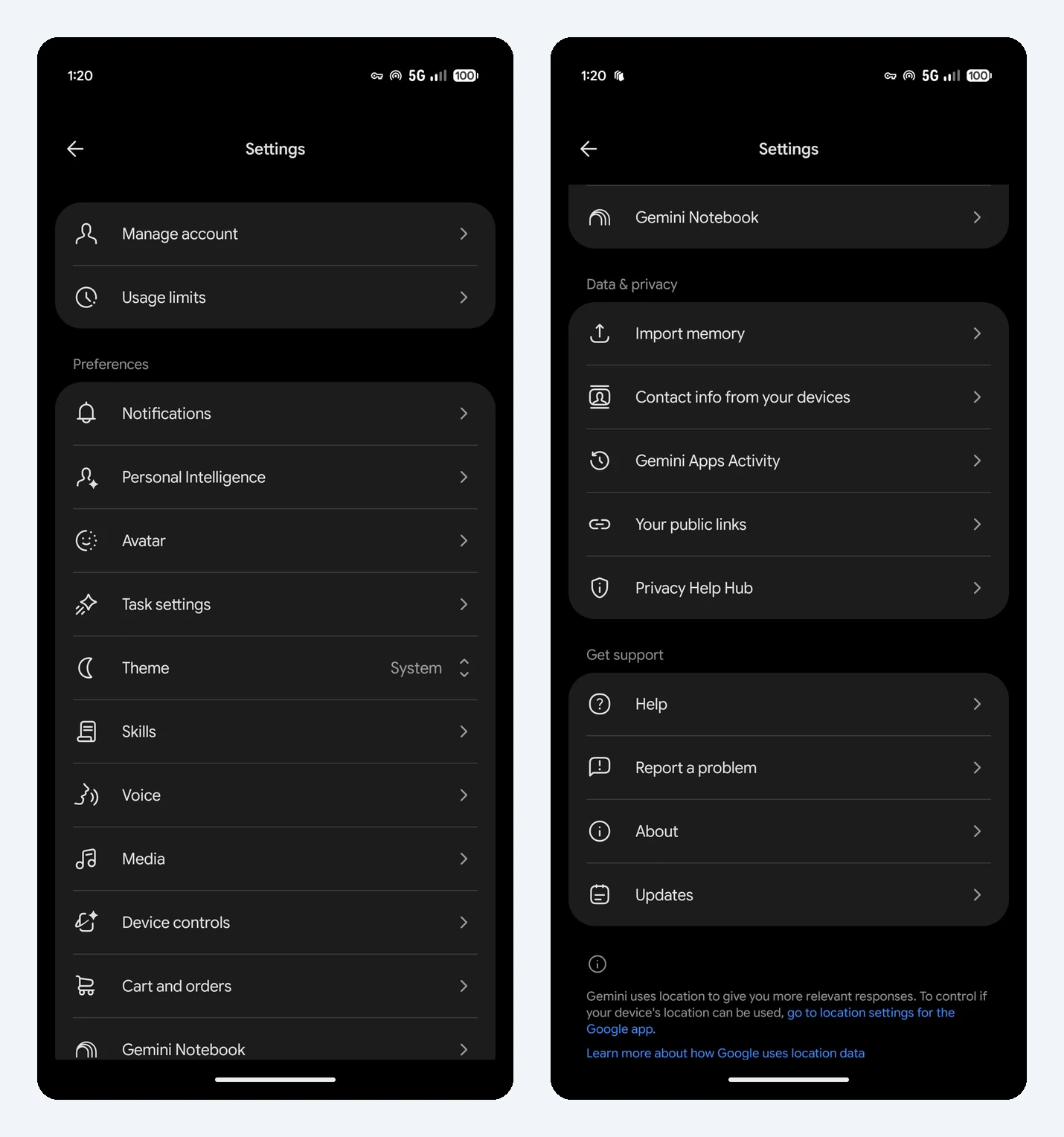
What is on the page: it starts with Manage account and Usage limits, then three sections:
- Preferences: Notifications, Personal Intelligence, Avatar, Task settings, Theme (new), Skills, Voice, Media, Device controls, Cart and orders, and Gemini Notebook.
- Data and privacy: Import memory, Contact info from your devices, Gemini Apps Activity, Your public links, and Privacy Help Hub.
- Get support: Help, Report a problem, About, and Updates.
Good to know: Task settings is where the old Gemini Spark settings went, after Google folded Spark into the main chat as “Task” earlier this month. HelenTech also points out that the web app and Google Workspace accounts may show the menus a little differently.
3. Who gets it
Don’t see it yet? server-side changes reach phones in waves, so yours may simply not have it yet. Fully closing and reopening the Gemini app can help, otherwise give it a few days.
Our take
This is a sensible clean-up. The old Gemini side panel had grown into a long list, and having settings in two places was confusing. Moving search to a corner and Library to the top puts the things most people use first. The new Theme option is a nice small extra. If you use Gemini on a phone and on your Chromebook or Googlebook, the good news is that the layout now matches more closely across all of them, so you only have to learn it once.
Spotted Gemini Notebook in the new Settings list? Here is what it can now do from any chat.
Discover more from Chrome Geek
Subscribe to get the latest posts sent to your email.