Gemini Can Now Create and Search Your Gemini Notebooks Right From Chat
 by
Sophie Sullivan
Post Updated: October 24, 2026
by
Sophie Sullivan
Post Updated: October 24, 2026
You can now manage your Gemini Notebooks without leaving a Gemini chat. Google has made Gemini Notebook a Connected App in the Gemini app, the same way Gmail, Drive and Google Photos already plug in. Type @Gemini Notebook, ask in plain English, and Gemini creates the notebook, files the sources or pulls answers from your notes. Google announced it on its Workspace Updates blog on October 23, and it is available now.
1. What the Gemini Notebook Connected App does
Before: Gemini Notebooks already sat in the Gemini app’s side panel, but working with them meant opening the notebook itself. If you found something useful in a chat, you had to move it over by hand.
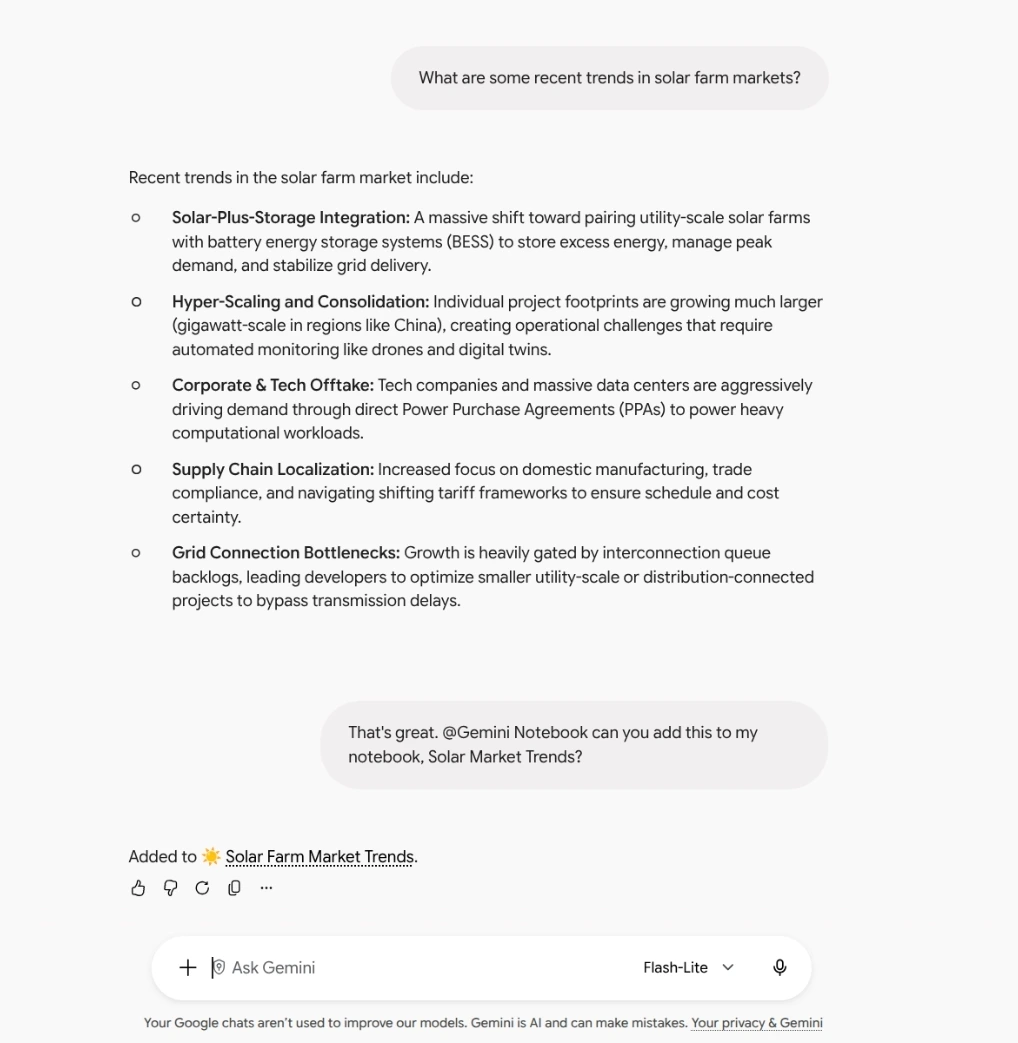
Now: you can type @Gemini Notebook in a chat and tell it what you want. In Google’s own example, a user asks Gemini about solar farm market trends, then says “@Gemini Notebook can you add this to my notebook, Solar Market Trends?” Gemini replies that the answer was added.
The four jobs: Google lists four kinds of requests the Connected App handles, each with a sample prompt you can copy.
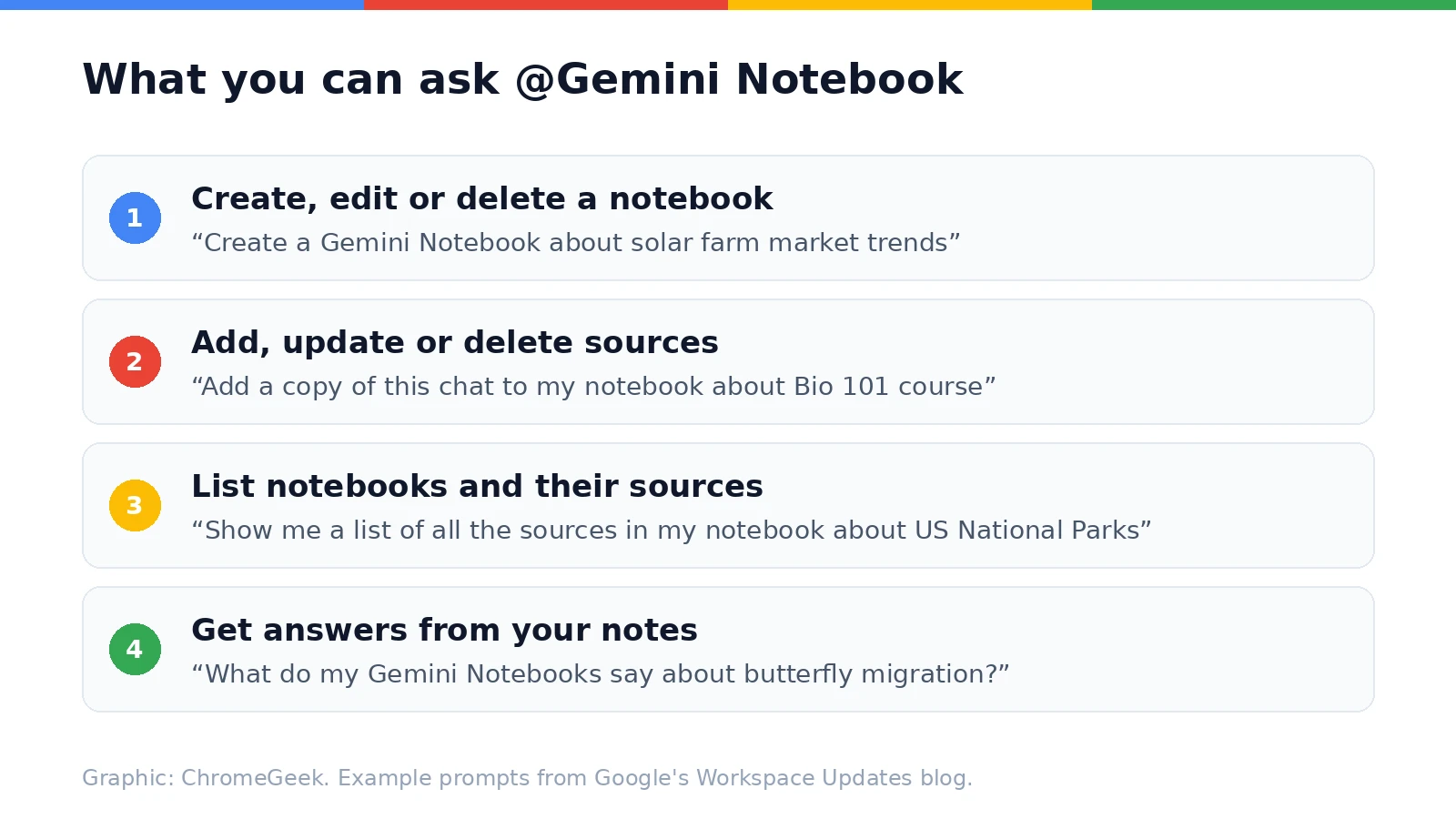
It can act on its own: you do not always have to type the @ mention. Google says the Gemini app will “automatically detect when to use the Gemini Notebook Connected App for relevant prompts.” If you have been building notebooks with features like guided slide decks and videos, this is the bridge that lets your everyday chats feed into them.
2. Who gets it, and the default setting
For Workspace admins: the Connected App is on by default, but users only get it if they are in a group or organizational unit where both Gemini and Gemini Notebook are turned on. Google says it is already live on both Rapid Release and Scheduled Release domains.
3. How to turn it off (or on)
The setting: Google says you control it from the Gemini app’s settings:
- Open the Gemini app or gemini.google.com in Chrome.
- Go to Settings, then Connected Apps.
- Find Gemini Notebook and switch it off, or on if you are in the EEA.
Can’t find it? Google has just reshuffled Gemini’s menus. On the redesigned app, Connected Apps are also managed under Customize, in the Connectors tab, next to skills, which are replacing Gems.
4. Gemini on Android also gets a new side panel and settings page
Same week, new look: Gemini on Android is also getting the redesigned side panel, with search moved to the top and Library right under New chat, plus a single Settings page that replaces the old split between the account menu and Gemini Settings. We cover every change in our full post on the new Gemini for Android side panel and Settings page.
Our take
This is a small change that makes Gemini Notebook far more useful day to day. The best research often happens in a random chat, and now saving it to the right notebook takes one sentence. We do wish Google had made it opt-in everywhere, since Gemini can reach into your notebooks without an @ mention. If you rely on notebooks for school or work on your Chromebook, try the @ mention once, then check Connected Apps and decide how much freedom you want to give it.
New to Gemini Notebook? These study features are a good place to start.
Discover more from Chrome Geek
Subscribe to get the latest posts sent to your email.