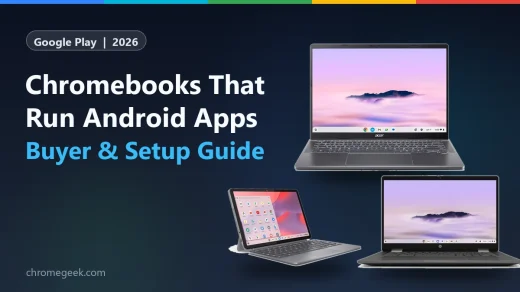
Chromebooks That Can Run Android Apps: What to Buy & How to Check (2026)
 by
Juniya Sankara
Post Updated: November 16, 2026
Every Chromebook launched since 2019 can install and run Android apps and games from the Google Play Store, with Chromebook Plus laptops giving you the smoothest speed. Choosing the right Chromebook today comes down to picking the right memory, screen, and chip for your apps.
Below we cover the best Chromebooks by use case and how to check an older laptop before buying. Every Googlebook runs Android apps natively alongside phone casting, though older or managed Chromebooks still have a few limits worth checking.
Not sure if a laptop runs the apps you need? Contact us with the model and we will help you check.
Best Chromebooks that run Android apps (by use case)
Best Overall: Acer Chromebook Plus 514
$$ Mid-range
Chromebook Plus
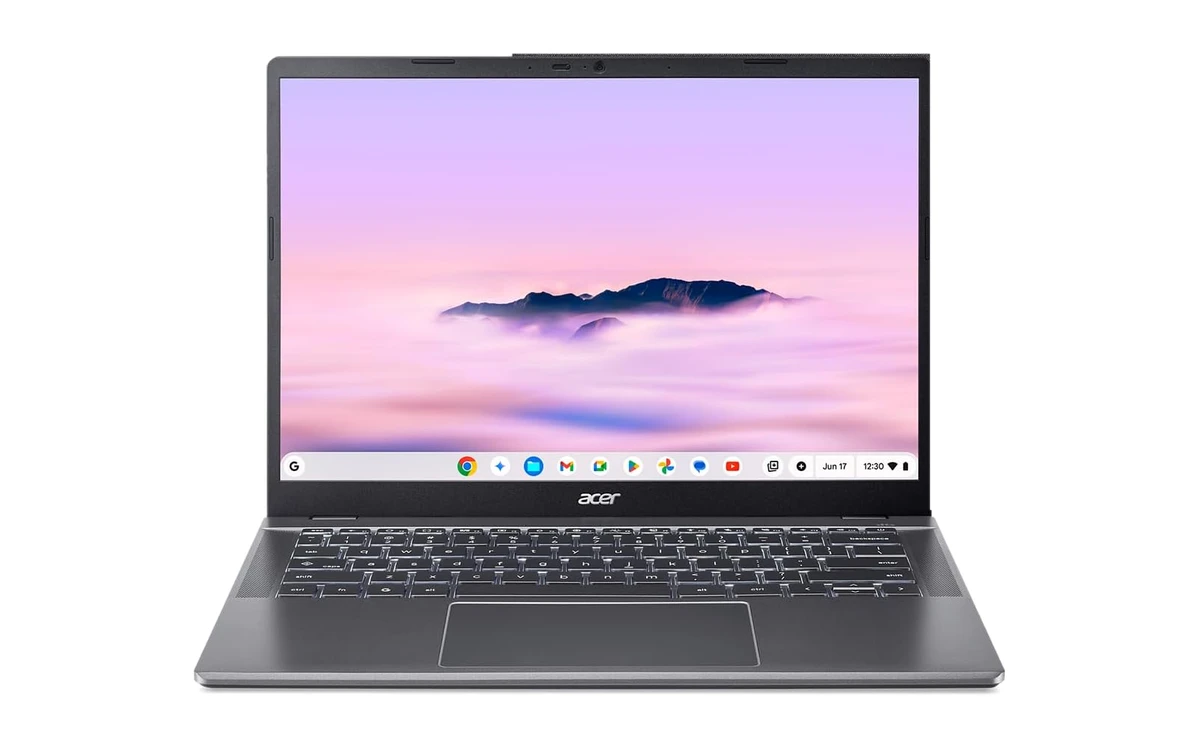
Google’s Chromebook Plus standard sets a clear baseline for running Android apps well: at least a Core i3 chip, 8GB of memory, and 128GB of storage. The Acer Chromebook Plus 514 clears that bar easily with a 256GB SSD, Wi-Fi 7, and an anti-glare 14-inch touchscreen.
- Fast app launches: The Core i3 chip and 256GB SSD open Play Store apps quickly and leave plenty of space for offline downloads.
- Touchscreen convenience: Tap and swipe directly inside mobile-first Android apps without reaching for the trackpad.
- Room for Chrome tabs too: 8GB of LPDDR5 memory keeps your Android apps and browser windows open side by side.
Worth knowing: It is a regular clamshell laptop, so it does not fold back into a tablet. Compare all the Plus models in our full roundup if you want a 2-in-1 or a 16-inch screen.
Best for Work: Acer Chromebook Plus 714
$$$ Premium
Work & Multitasking
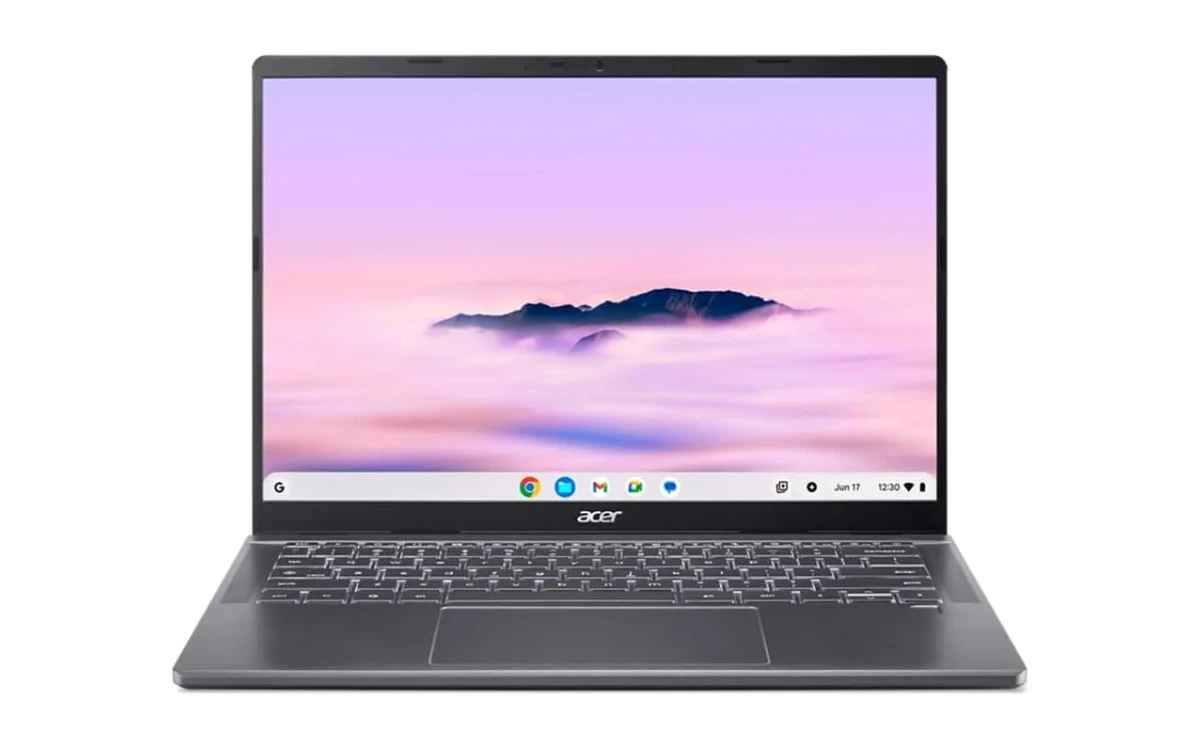
If you run Android productivity apps like Slack, Zoom, Microsoft 365, and Adobe Acrobat alongside dozens of Chrome tabs, 16GB of memory makes a huge difference. The Acer Chromebook Plus 714 pairs 16GB with an Intel Core Ultra 5 processor and a crisp 120Hz screen.
- 16GB of memory: ChromeOS can run its Android app container and heavy browser work together without shutting background apps down.
- Smooth 120Hz display: Scrolling long spreadsheets, chats, and PDFs feels noticeably cleaner.
- Long update horizon: Newer Core Ultra hardware gives it plenty of power for years of updates.
Worth knowing: It is the priciest option here. Our work guide also includes 8GB mid-range laptops and a 15-inch screen if you want to spend less.
Best 2-in-1 for Touch Apps: Acer Chromebook Spin 314
$$ Mid-range
360° Convertible
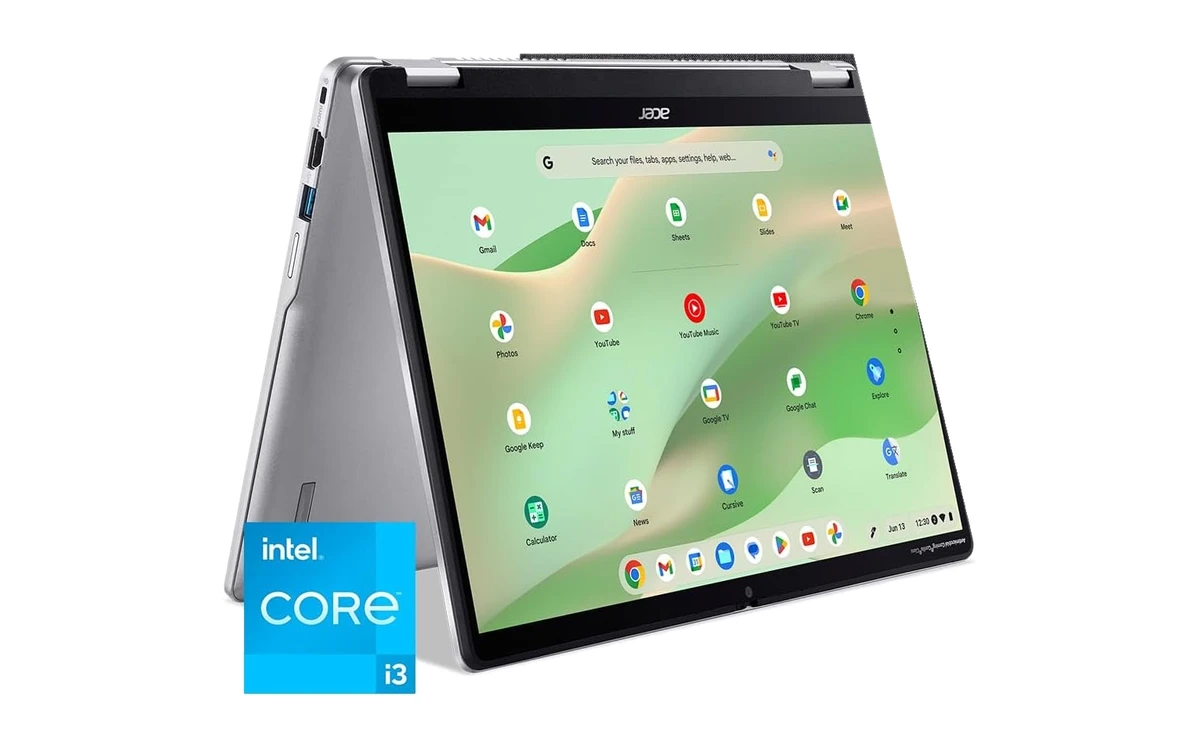
Many Android apps are built for phones and tablets first, so flipping your laptop into tablet mode feels natural. The Acer Chromebook Spin 314 folds back 360 degrees with a tough Gorilla Glass touchscreen and stylus support for drawing, study, and reading apps.
- Laptop, tent, and tablet modes: Use the keyboard for essays, then fold it flat for touch-first Android apps and note-taking.
- Stylus-ready screen: Works with a compatible stylus (sold separately) for sketching and marking up homework.
- 8GB memory for multitasking: Keeps study apps, Classroom, and browser research moving smoothly.
Worth knowing: The 128GB eMMC drive fills up faster than a 256GB SSD if you install huge Android games. If you prefer an ARM tablet that detaches completely, our student guide also covers the Lenovo Chromebook Duet.
Best for Gaming: ASUS Chromebook Vibe CX34 Flip
$$ Mid-range
Cloud Gaming
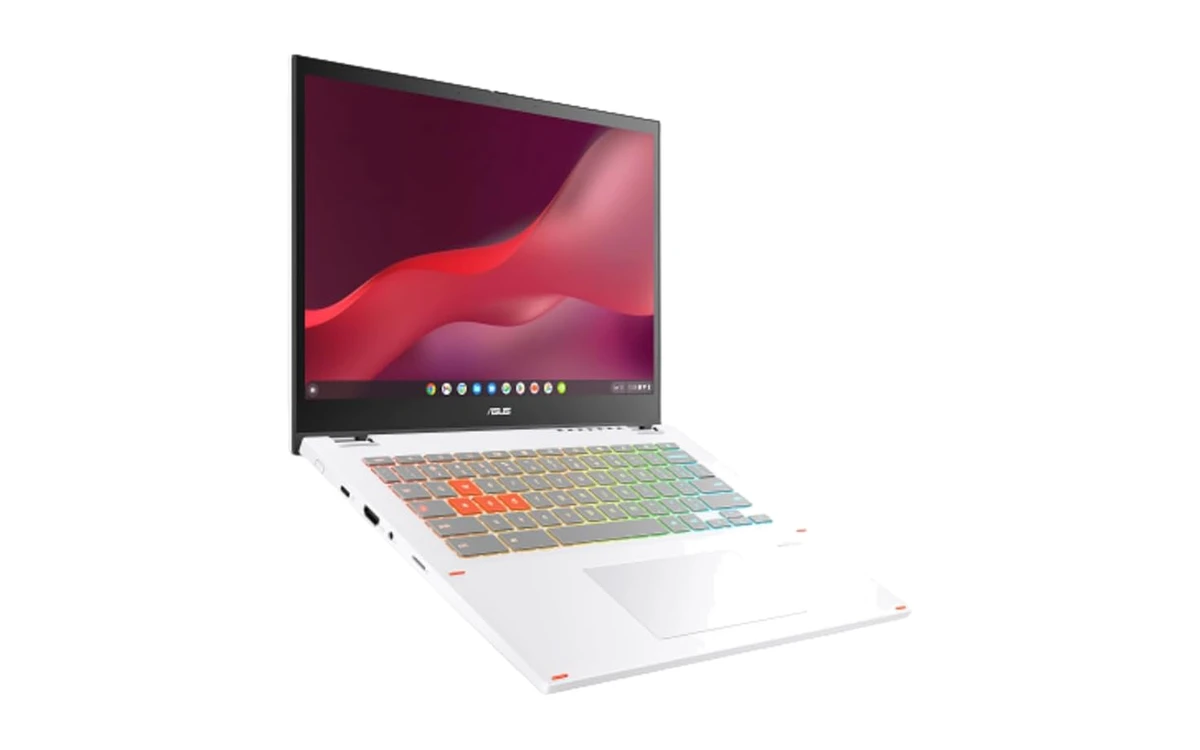
A lot of readers check Android compatibility specifically to play games from Google Play. The ASUS Chromebook Vibe CX34 Flip brings a fast 144Hz touchscreen, an anti-ghosting RGB keyboard, an included stylus, and a Core i5 chip with a 256GB SSD so both Android and cloud games feel smooth.
- 144Hz touchscreen: Fast motion stays fluid in cloud streams and high-frame-rate Android titles.
- Anti-ghosting keyboard: Multi-key WASD combos register reliably when playing keyboard-mapped games.
- 256GB SSD space: Gives you plenty of room for big Play Store game installs without constant cleanup.
Worth knowing: It is slightly older than brand-new Chromebook Plus models, so check its Auto Update Expiration date if you want the longest possible update window.
Best Budget: Acer Gateway Chromebook 314
$ Budget
Budget
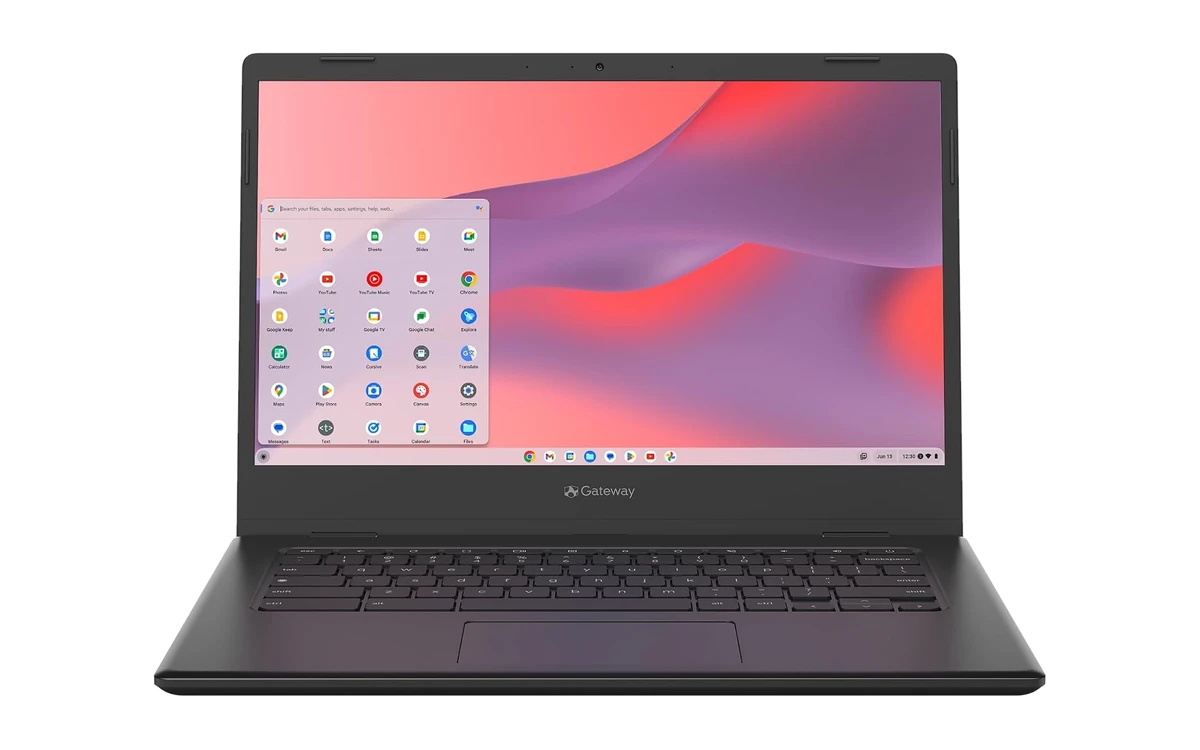
If you just want a low-cost laptop that runs Google Play and everyday web apps, skip ultra-cheap refurbished laptops whose updates already expired. The Acer Gateway Chromebook 314 gives you a sharp 1080p screen, current update support, and Google Play access out of the box.
- Sharp 1080p screen: Makes text, videos, and Android interfaces look clear compared with cheap 720p laptops.
- Current update window: Unlike old clearance laptops, you still get automatic ChromeOS updates and security fixes.
- Great for light apps: Handles Spotify, YouTube, Disney+, Kindle, and basic Android tools cleanly.
Worth knowing: With 4GB of memory and 64GB of storage, stick to one or two Android apps at a time. Our budget roundup also includes an 8GB budget 2-in-1 if you want extra breathing room.
What specs matter for Android apps on a Chromebook
8GB vs. 4GB of memory
ChromeOS runs Android apps inside their own container alongside your browser. 4GB handles one light app at a time, while 8GB on any Chromebook Plus keeps Android apps and Chrome tabs from reloading.
Touchscreen and 2-in-1 hinges
Most Android apps are built for taps and swipes first. You can still use a mouse or trackpad on any Chromebook, though a touchscreen or 360-degree hinge makes signing PDFs and playing mobile games much easier.
Intel and AMD vs. ARM processors
MediaTek Kompanio ARM chips run mobile Android code natively and offer long battery life. Intel Core and AMD chips handle heavy browser multitasking faster while still running popular Android apps well.
Storage space and update expiration
Android games and offline downloads fill up 64GB drives fast, so aim for 128GB or more when possible. Before buying a used laptop, check Google’s Auto Update policy list so you do not buy an expired model.
How to check if your Chromebook has the Google Play Store
If you already own a Chromebook and are not sure whether Android apps are turned on, check in Settings:
Why the Play Store might be missing or grayed out:
- School or workplace restriction: Organization administrators frequently block Google Play downloads on managed Chromebooks and school accounts.
- Expired pre-2019 hardware: Very old Chromebooks past their Auto Update Expiration date lose Play Store support. Check your update status under Settings > About ChromeOS > Additional details.
- Signed in as a Guest: Google Play is disabled in Guest mode and requires signing in with a regular Google account.
Frequently asked questions
Do all new Chromebooks run Android apps?
Yes. Every Chromebook launched from 2019 onward supports the Google Play Store out of the box, and newer models include years of automatic ChromeOS updates.
Why is the Google Play Store missing on my Chromebook?
The most common reasons are a school or work administrator policy blocking Play Store downloads, signing in with Guest mode instead of a Google account, or an older Chromebook made before 2019 that has reached its Auto Update Expiration date.
How much RAM do I need to run Android apps on a Chromebook?
4GB of memory is fine for one or two light apps at a time, while 8GB is the sweet spot so Android apps and Chrome tabs can run side by side without reloading. Pick 16GB if you also run heavy productivity tools or Linux apps.
Do I need a touchscreen Chromebook for Android apps?
No, most Android apps work with a touchpad, keyboard, or mouse, and many adapt to laptop windows automatically. A touchscreen or 2-in-1 convertible simply feels much better for touch-first games, drawing apps, and scrolling.
Do Googlebooks run Android apps the same way Chromebooks do?
Yes. Every Googlebook runs Android apps natively from the Google Play Store out of the box, and also supports Cast My Apps from your linked Android phone if you want to mirror an active app session onto your laptop screen.
Best accessories for running Android apps on a Chromebook
- Playing Android games or editing without a touchscreen? See our best mice for Chromebook and Googlebook.
- Using a 2-in-1 or detachable tablet on a desk stand? Check the best keyboards for Chromebook and Googlebook.
- Want Android apps open beside your browser workspace? Pick from the best monitors for Chromebook and Googlebook.
- Need HDMI, Ethernet, or extra USB-A ports for gamepads and drives? See our best USB-C hubs and docks for Chromebook and Googlebook.
- Taking Android calls, listening to music, or gaming? Browse the best headsets for Chromebook and Googlebook.
Discover more from Chrome Geek
Subscribe to get the latest posts sent to your email.