6 Best USB-C Hubs and Docks for Chromebook and Googlebook (2026)
 by
Joseph Vance
Post Updated: November 14, 2026
The best USB-C hubs and docks for Chromebook and Googlebook are the Anker 8-in-1 USB-C Hub for an all-round desk setup, the Plugable UD-MSTH2 for two 4K monitors, and the Anker 5-in-1 USB-C Hub for a low-cost travel hub. Each one adds the ports your laptop is missing through a single USB-C connection.
We picked hubs and docks for every setup, from slim travel hubs to a dual-monitor dock with wired Ethernet, plus a tiny adapter for USB-A gadgets. Each card lists the ports, the display support and how much power passes through to your laptop.
Not sure which ports your laptop supports? Contact us with your model, and we will help you pick the right hub.
Best USB-C hubs and docks for Chromebook and Googlebook
Anker 8-in-1 USB-C Hub
$ Budget
Ethernet + SD
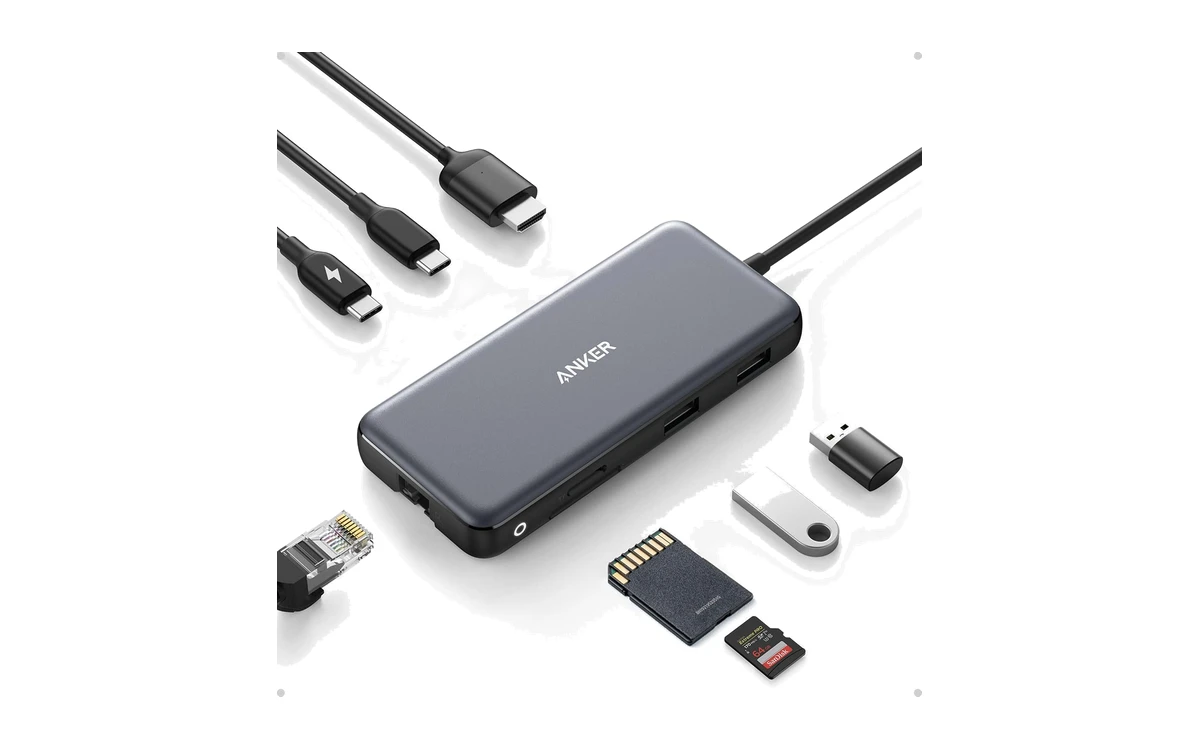
The Anker 8-in-1 USB-C Hub covers almost everything a Chromebook or Googlebook is missing. One USB-C plug adds an HDMI port, wired Ethernet, SD card readers and three fast USB ports, while still charging your laptop. Anker lists ChromeOS by name.
- Every port you need: HDMI, Ethernet, SD, microSD, USB-C and two USB-A ports in one small hub.
- Sharp 4K at 60Hz: Smooth 4K output on laptops that support DisplayPort 1.4 over USB-C.
- Keeps your laptop charged: Plug your charger into the hub for up to 85W pass-through charging.
Worth knowing: On laptops with older DisplayPort 1.2, HDMI drops to 4K at 30Hz. For full charging speed, Anker recommends a 100W charger, which is not included.
Anker 5-in-1 USB-C Hub
$ Budget
Travel
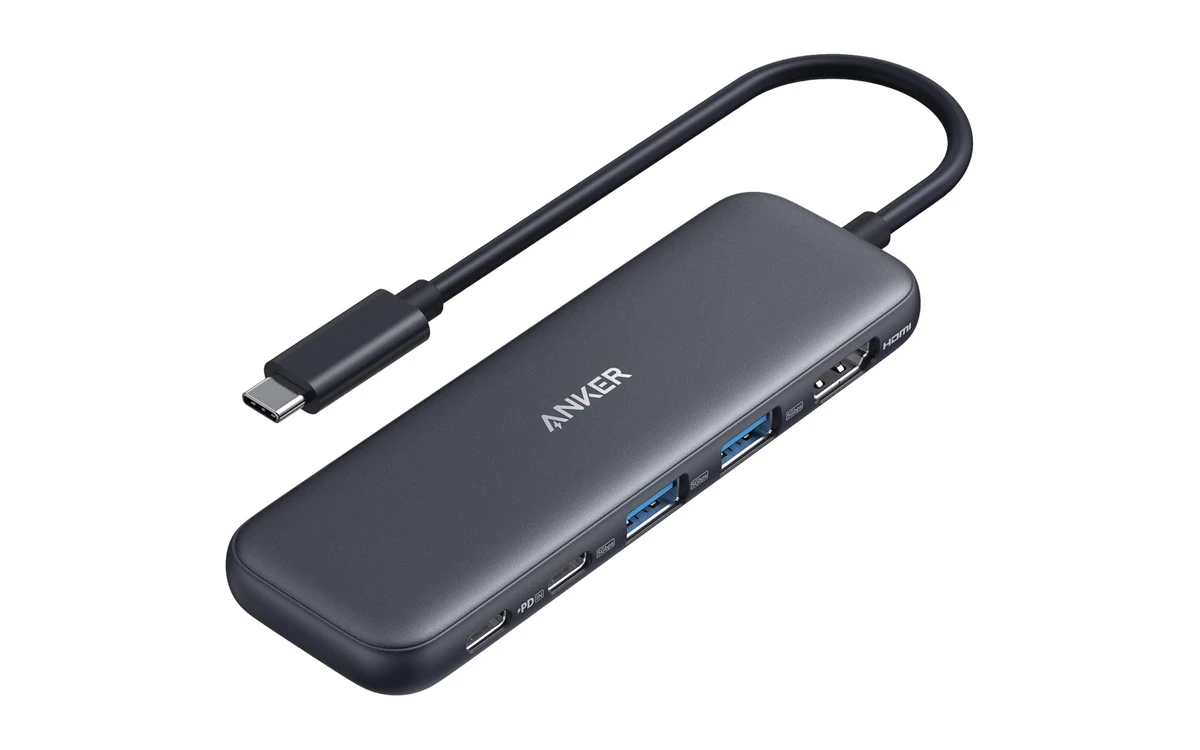
The Anker 5-in-1 USB-C Hub is a small, low-cost hub that slips into a laptop bag. It adds HDMI for a monitor or TV, two USB-A ports for older gadgets and a USB-C data port, and it passes power through so your laptop keeps charging.
- Cheap and compact: Small enough to live in your bag for presentations and travel.
- Two USB-A ports: Plug in flash drives, mouse receivers and other older USB gadgets.
- Pass-through charging: Up to 85W reaches your laptop while you use the hub.
Worth knowing: HDMI is limited to 4K at 30Hz, which is fine for work but not as smooth for scrolling. The USB-C power port is for charging only, not data.
UGREEN Revodok Pro 6-in-1
$$ Mid-range
10Gbps
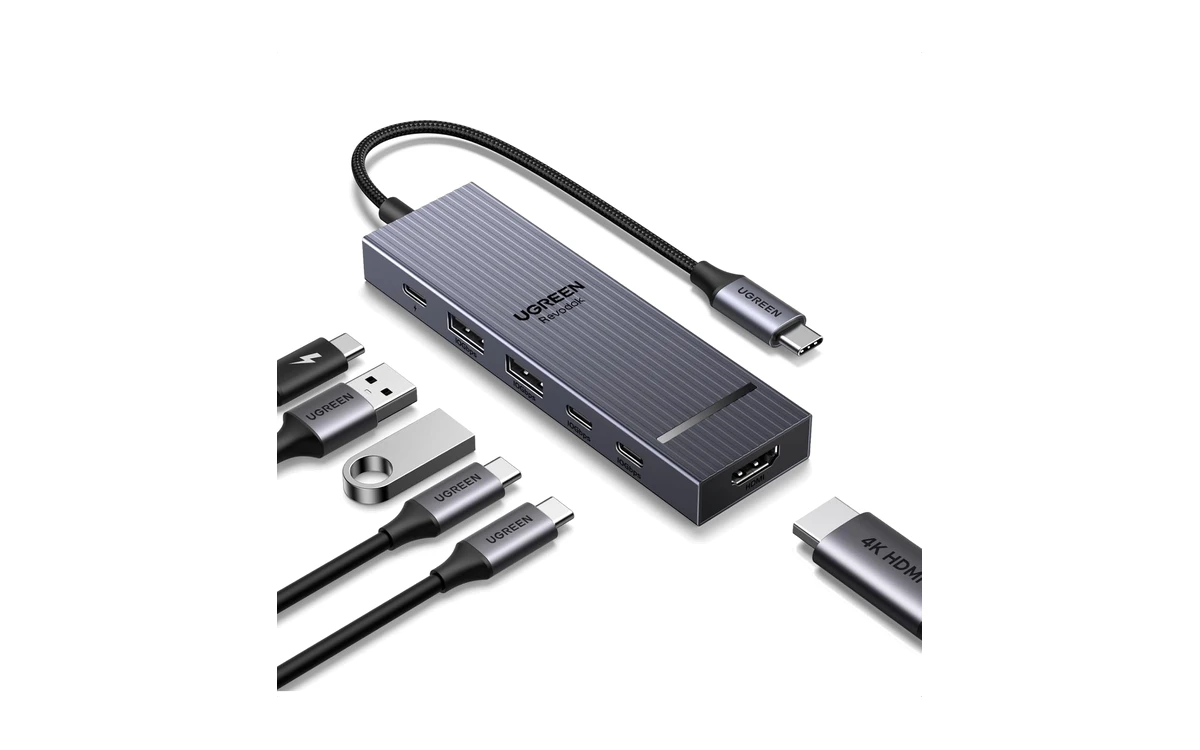
The UGREEN Revodok Pro is the hub to get if you move a lot of files. All four of its USB ports run at 10Gbps, twice the speed of most budget hubs, and its HDMI port handles 4K at 60Hz. It is a great match for external SSDs and fast flash drives.
- Four 10Gbps ports: Two USB-C and two USB-A ports all run at full 10Gbps speed.
- Smooth 4K at 60Hz: Sharp, fluid output to a 4K monitor or TV.
- Charges while you work: Up to 85W passes through to your laptop.
Worth knowing: It has no Ethernet or SD card reader. UGREEN does not list ChromeOS by name, though it uses standard USB-C features that Chromebooks support.
Plugable UD-MSTH2 Dual 4K Dock
$$$ Premium
Dual 4K
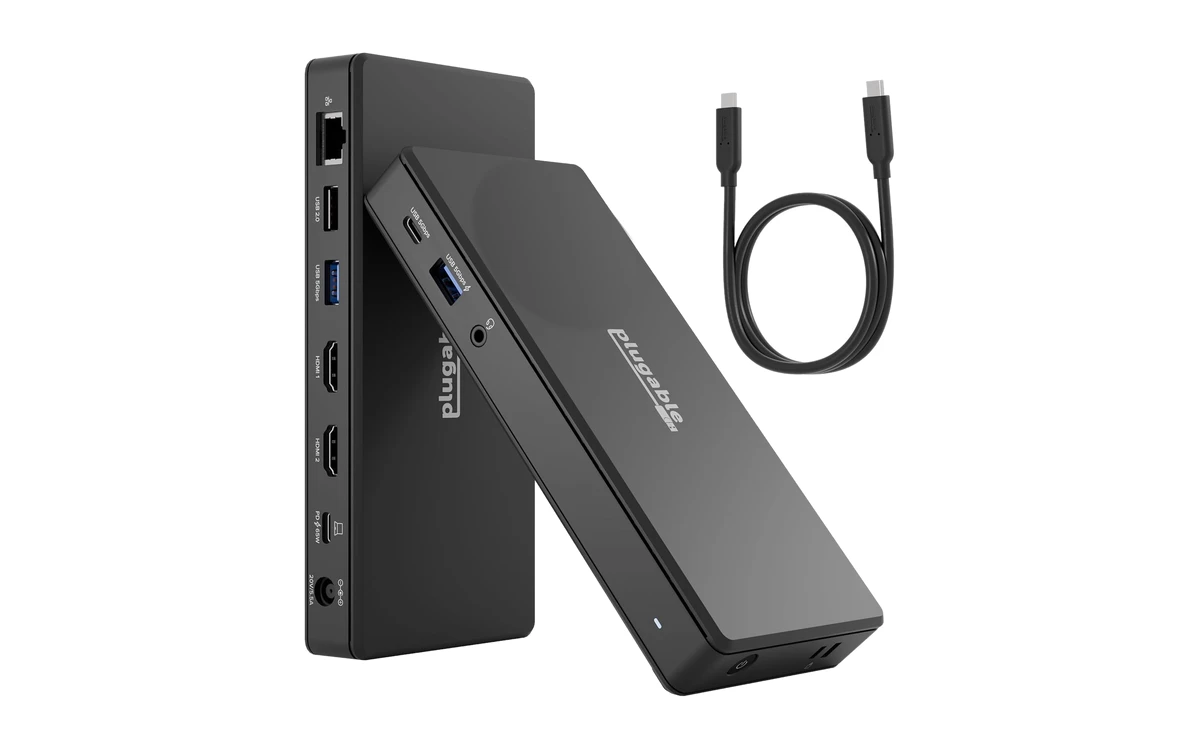
The Plugable UD-MSTH2 is a full docking station built for Windows and ChromeOS. One USB-C cable runs two HDMI monitors, wired Ethernet, four USB ports and audio, and it has its own power adapter. It is the best way to build a two-monitor desk around a Chromebook or Googlebook.
- Two 4K monitors: Run two HDMI screens at up to 4K 60Hz each on laptops that support it.
- Made for ChromeOS: Plugable designs and lists it for ChromeOS, with no drivers to install.
- Lifetime support: Plugable backs it with lifetime support from its North American team.
Worth knowing: Dual monitors need a laptop whose USB-C port supports DisplayPort Alt Mode and MST, and dual 4K at 60Hz needs a higher-end laptop. It charges at up to 65W, so power-hungry laptops may charge slowly.
Anker 8-in-1 Dual HDMI Docking Station
$$ Mid-range
Dual HDMI
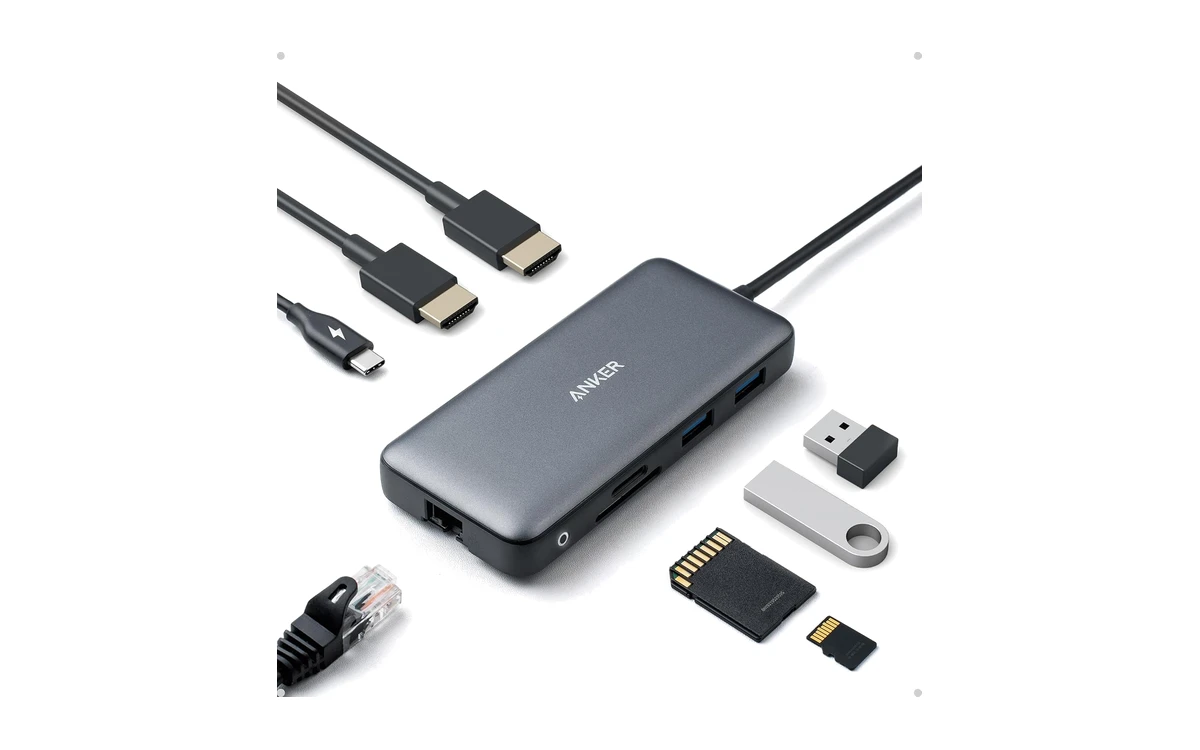
The Anker 8-in-1 Dual HDMI Docking Station gives you two HDMI ports in a small, bus-powered hub. Connect one 4K monitor at 60Hz, or two monitors at 4K 30Hz, plus Ethernet, SD cards and USB-A gadgets. Anker lists ChromeOS as supported.
- Two HDMI ports: Add two external screens without a big desktop dock.
- Ethernet and card readers: Wired internet and SD and microSD slots are built in.
- Small and portable: Far smaller than a full dock, so it can travel with you.
Worth knowing: Two separate screens need a laptop that supports MST over USB-C; otherwise both monitors may show the same picture. Two screens run at 4K 30Hz, and you need a 100W charger for full pass-through power.
Anker USB-C to USB-A Adapter (2 Pack)
$ Budget
Pocket Size
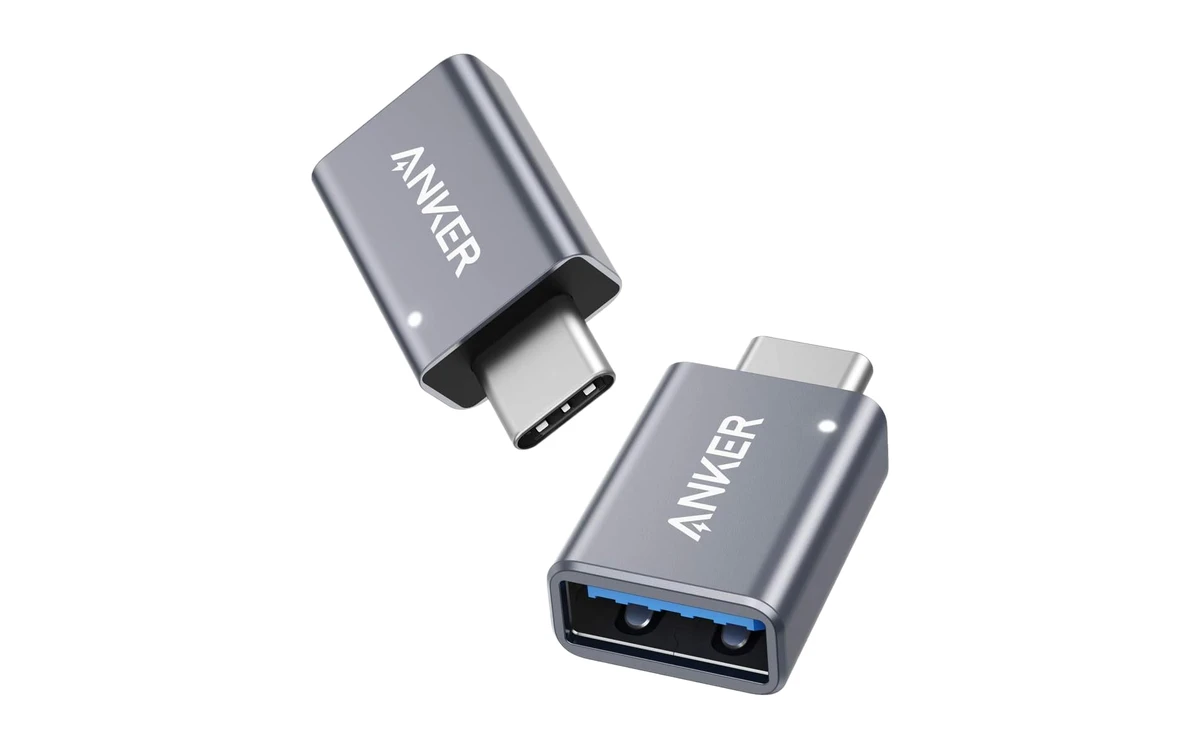
Sometimes you do not need a whole hub, just one USB-A port. These tiny Anker adapters turn a USB-C port into a full-size USB-A port, so you can plug in a mouse or keyboard receiver, a flash drive or an older charging cable on a Googlebook or Chromebook with only USB-C ports.
- Tiny enough to leave plugged in: Perfect for a wireless mouse or keyboard receiver.
- Two in the box: Keep one in your bag and one at your desk.
- Fast USB 3.0: Quick enough for flash drives and external storage.
Worth knowing: It adds one USB-A port per adapter and no HDMI or charging. For more ports, pick one of the hubs above.
How to choose a USB-C hub or dock for Chromebook and Googlebook
Hub or dock?
A hub is small, powered by your laptop and great for travel. A dock has its own power adapter, more ports and better support for two monitors, so it is better for a permanent desk setup.
Check your USB-C port
Video output needs a USB-C port that supports DisplayPort Alt Mode. Most Chromebooks and Googlebooks do, but check your laptop’s spec sheet or look for a display symbol next to the port.
Displays and refresh rate
For one monitor, look for HDMI at 4K 60Hz. Two separate monitors need MST support on your laptop, so check before buying a dual-HDMI hub.
Charging power
Pass-through charging lets your charger power the laptop through the hub. Most Chromebooks and Googlebooks need 45W to 65W, and hubs keep some power for themselves.
Frequently asked questions
Do USB-C hubs work with Chromebooks?
Yes. Standard USB-C hubs and docks work with Chromebooks and Googlebooks with no drivers needed. Plug the hub in, and its ports, network and displays work straight away.
Can I connect two monitors to a Chromebook with a hub?
Many Chromebooks can run two external monitors through a dock like the Plugable UD-MSTH2, but your laptop must support DisplayPort Alt Mode and MST over USB-C. Check how many external displays your model supports first.
Will my Chromebook charge through a USB-C hub?
Yes, if the hub has a USB-C power input. Plug your laptop charger into the hub, and it passes power through to the laptop while you use the other ports.
Do USB-C hubs work with Googlebook?
Yes. Googlebooks use USB-C hubs and docks the same way Chromebooks do. Because some Googlebooks only have USB-C ports, a hub is the easiest way to add HDMI, USB-A and SD card slots.
Why is my monitor not working through the hub?
Make sure the hub is plugged into a USB-C port that supports video, and try a different HDMI cable. Then open Settings, then Device, then Displays to check that the monitor is detected and set up the way you want.
More Chromebook guides
- Adding a big screen? See our best monitors for Chromebook and Googlebook.
- Need a keyboard for your dock? Check the best keyboards for Chromebook and Googlebook.
- Using a mouse with a USB receiver? See the best mice for Chromebook and Googlebook.
- On lots of video calls? Our best webcams for Chromebook and Googlebook guide has the top picks.
Discover more from Chrome Geek
Subscribe to get the latest posts sent to your email.