8 Best Monitors for Chromebook and Googlebook (2026)
 by
Joseph Vance
Post Updated: November 14, 2026
The best monitors for Chromebook and Googlebook are the Dell 27 Plus S2725DC for a sharp single-cable desk setup, the Dell S2725QC for crisp 4K, and the ASUS ZenScreen MB16ACV for a second screen you can take anywhere. Each one is easy to set up in ChromeOS display settings.
We picked monitors for every setup, from USB-C screens that charge your laptop over one cable to an ultrawide, a webcam monitor for video calls and two portable screens. Each card shows the size, the connections and how it powers your laptop.
Not sure your laptop supports an external monitor? Contact us with your model, and we will check it for you.
Best monitors for Chromebook and Googlebook
Dell 27 Plus QHD USB-C Monitor (S2725DC)
$$ Mid-range
65W USB-C
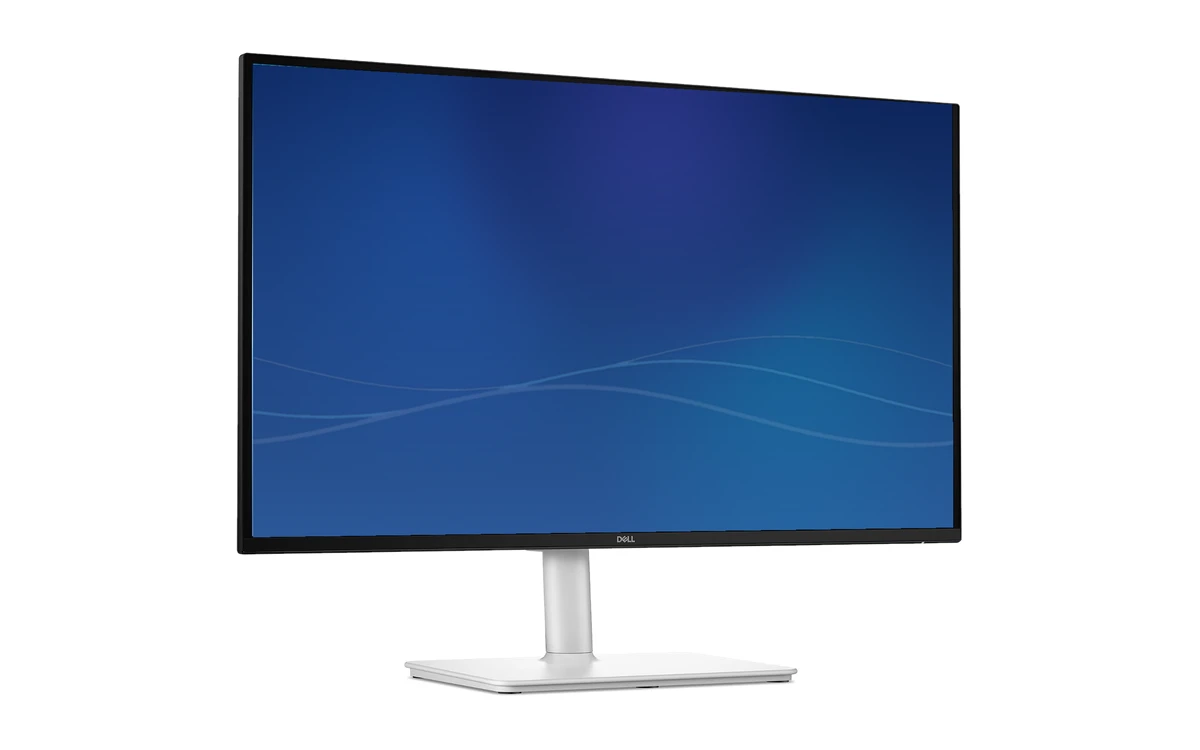
The Dell 27 Plus S2725DC is the monitor we would recommend to most Chromebook and Googlebook owners. One USB-C cable carries the picture and charges your laptop at up to 65W, the QHD screen is sharper than a standard 1080p monitor, and the stand adjusts every way you need.
- One cable does it all: USB-C sends video and charges your laptop at the same time, so your desk stays tidy.
- Sharper than 1080p: QHD gives you more room for side-by-side windows, and 144Hz makes scrolling smooth.
- Handy front ports: A pop-out USB-C and USB-A port make it easy to charge a phone or plug in a flash drive.
Worth knowing: The 65W charging is enough for most Chromebooks and Googlebooks, but not for power-hungry laptops that need more. Your laptop’s USB-C port must support video output.
Dell 27 4K USB-C Monitor (S2725QC)
$$ Mid-range
4K
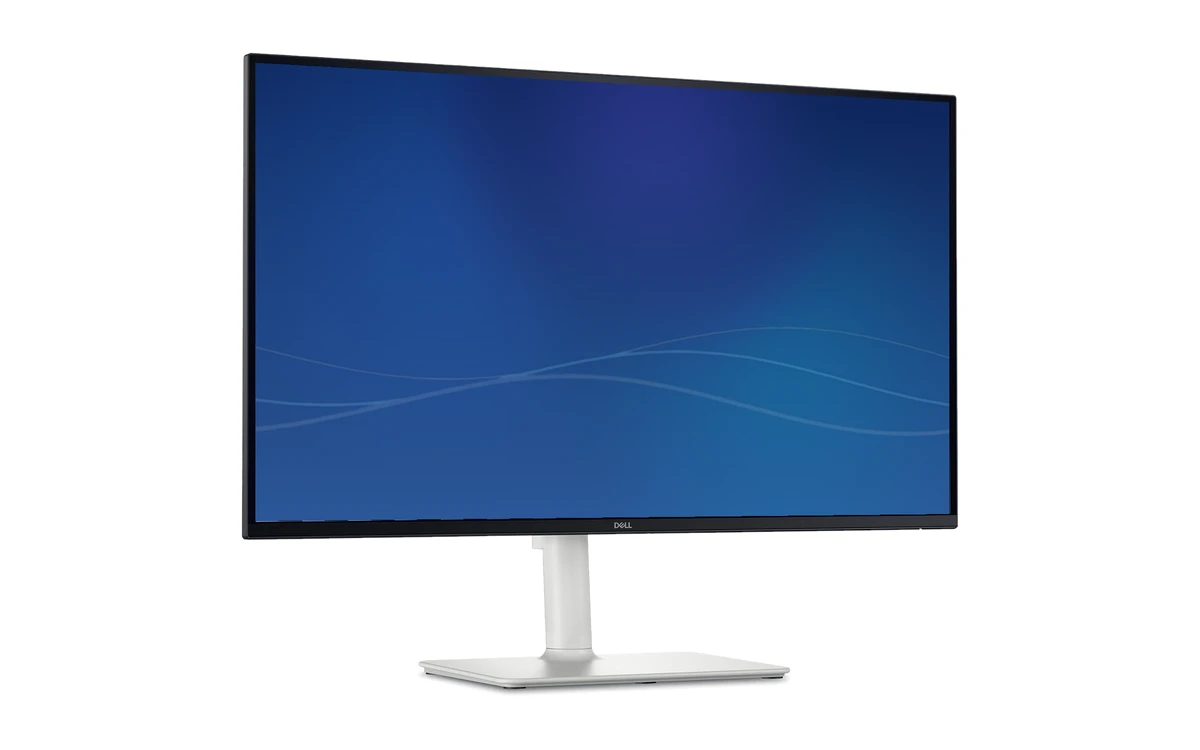
The Dell S2725QC packs a 4K screen into a 27-inch monitor, so text looks razor sharp and photos show fine detail. It also connects and charges your laptop over a single USB-C cable, and the 120Hz refresh rate keeps scrolling smooth.
- Crisp 4K text: Fonts and photos look noticeably sharper than on a QHD or 1080p monitor.
- Accurate color: 99% sRGB coverage is great for photo editing and design work.
- Single-cable setup: USB-C carries video and up to 65W of charging.
Worth knowing: Older or entry-level Chromebooks may not run 4K at its full refresh rate. You may want to raise the display size in ChromeOS settings so text is not too small.
ASUS BE249CGN 24-inch USB-C Monitor
$$ Mid-range
96W + Ethernet
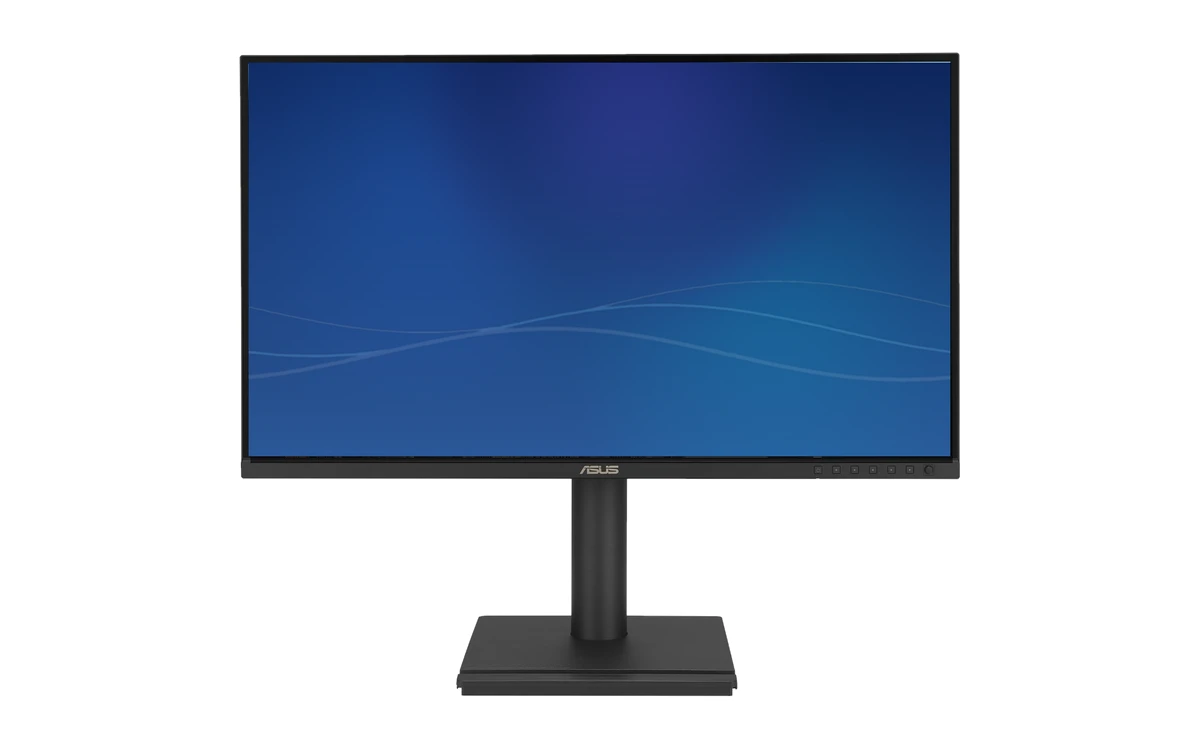
The ASUS BE249CGN works like a monitor and a docking station in one. Plug in a single USB-C cable and your laptop gets a 24-inch screen, wired Ethernet, extra USB ports and up to 96W of charging, which makes it a great home office or school desk setup.
- Built-in dock: Ethernet and USB ports turn one cable into a full desk setup.
- Strong 96W charging: Enough power for nearly any Chromebook or Googlebook.
- Fully adjustable stand: Raise, tilt, swivel or turn it to portrait for reading long documents.
Worth knowing: It is 1080p, so it is less sharp than the 27-inch picks, though it looks fine at 24 inches.
ASUS BE27ACSBK 27-inch Webcam Monitor
$$$ Premium
Built-in Webcam
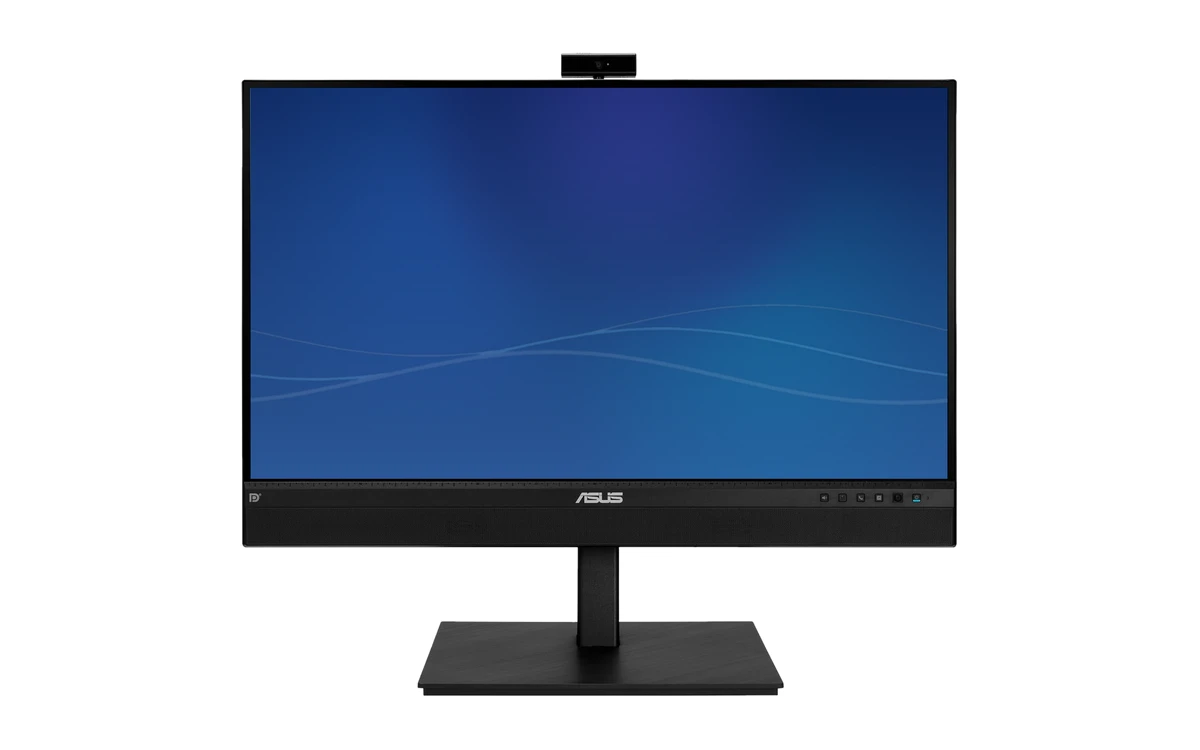
The ASUS BE27ACSBK puts a Full HD webcam, microphones and speakers into a sharp 27-inch QHD monitor. Connect your Chromebook or Googlebook with one USB-C cable and you get a better camera and sound for Google Meet calls than most laptops have built in.
- Better camera for calls: The Full HD webcam sits at eye level on top of the screen, not below your chin.
- Clear voice pickup: A microphone array with noise canceling helps others hear you, not your keyboard.
- One-cable desk: USB-C carries the picture, the webcam, the audio and power.
Worth knowing: It costs more than a plain monitor of the same size. If you already own a good webcam, the Dell S2725DC is better value.
LG 34WR55QK-B 34-inch UltraWide
$$ Mid-range
Ultrawide
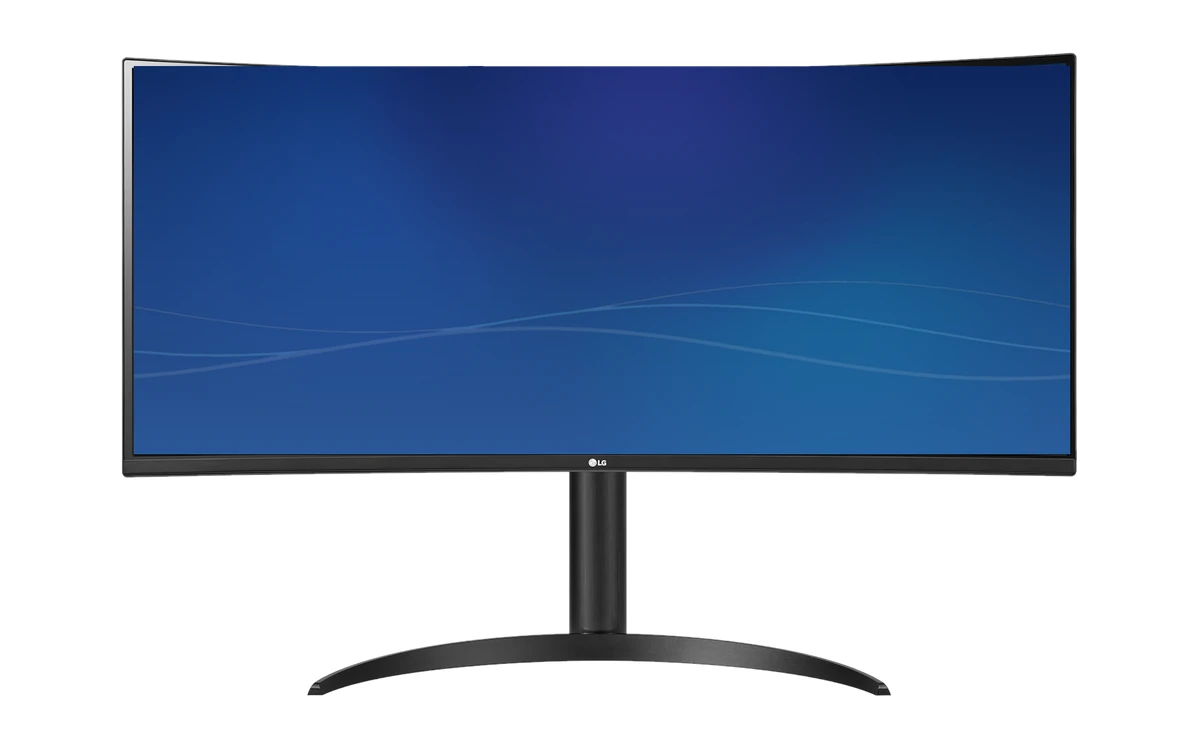
The LG 34WR55QK-B is a curved 34-inch ultrawide that gives you the space of two monitors with no gap in the middle. It is perfect for keeping a document, a browser and a chat window open side by side, and it connects and charges your laptop over USB-C.
- Two screens in one: Snap several windows side by side on one wide, curved screen.
- USB-C with 65W charging: One cable for video and power.
- Plenty of ports: Two HDMI ports and a DisplayPort let you connect a second computer too.
Worth knowing: It takes up a lot of desk space. Some entry-level Chromebooks may not run its full resolution at 100Hz, so check your laptop supports ultrawide output first.
Dell 24 Monitor (SE2426H)
$ Budget
Budget
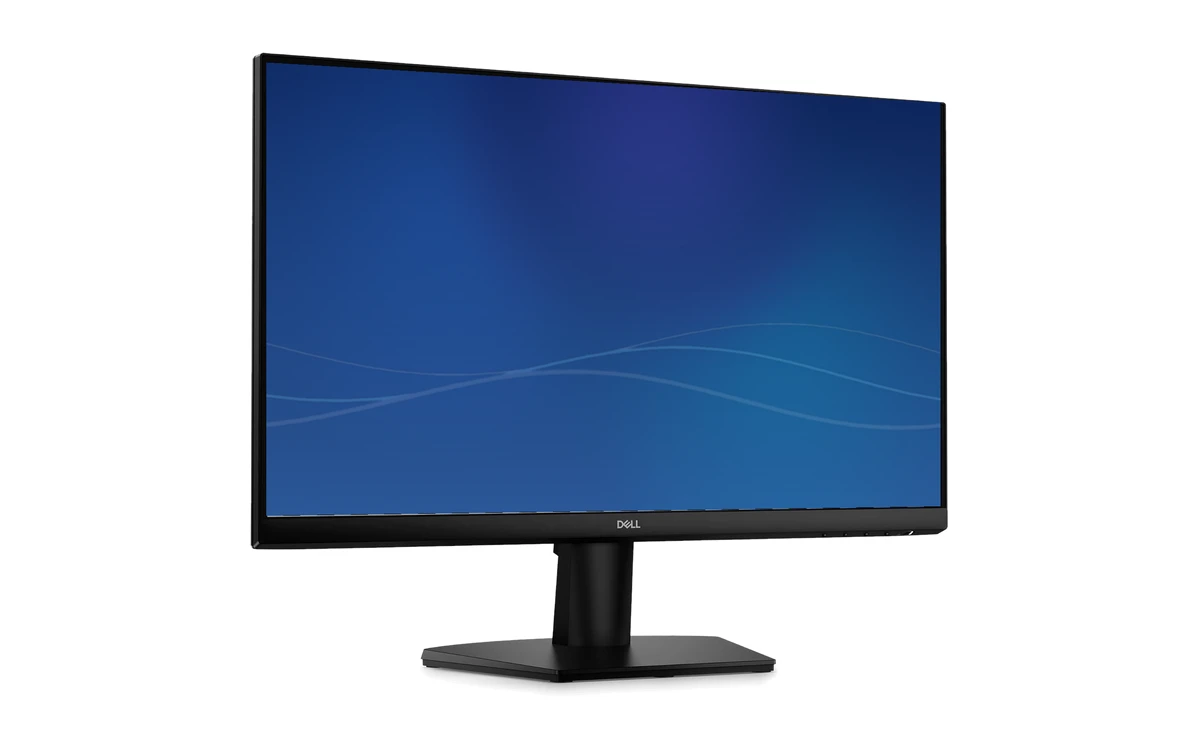
The Dell SE2426H is a simple, low-cost 24-inch monitor with a good IPS screen and a smooth 144Hz refresh rate. It connects over HDMI, so it is a great match for Chromebooks with an HDMI port, and a cheap USB-C to HDMI cable connects it to everything else.
- Low price, good screen: IPS gives accurate colors and wide viewing angles at a budget price.
- Smooth 144Hz: Scrolling and cloud gaming look smoother than on a standard 60Hz monitor.
- Two HDMI ports: Connect your laptop and a streaming stick or console at the same time.
Worth knowing: It has no USB-C and cannot charge your laptop. The stand only tilts. Googlebooks and Chromebooks without HDMI need a USB-C to HDMI cable or adapter.
ASUS ZenScreen MB16ACV
$$ Mid-range
Portable
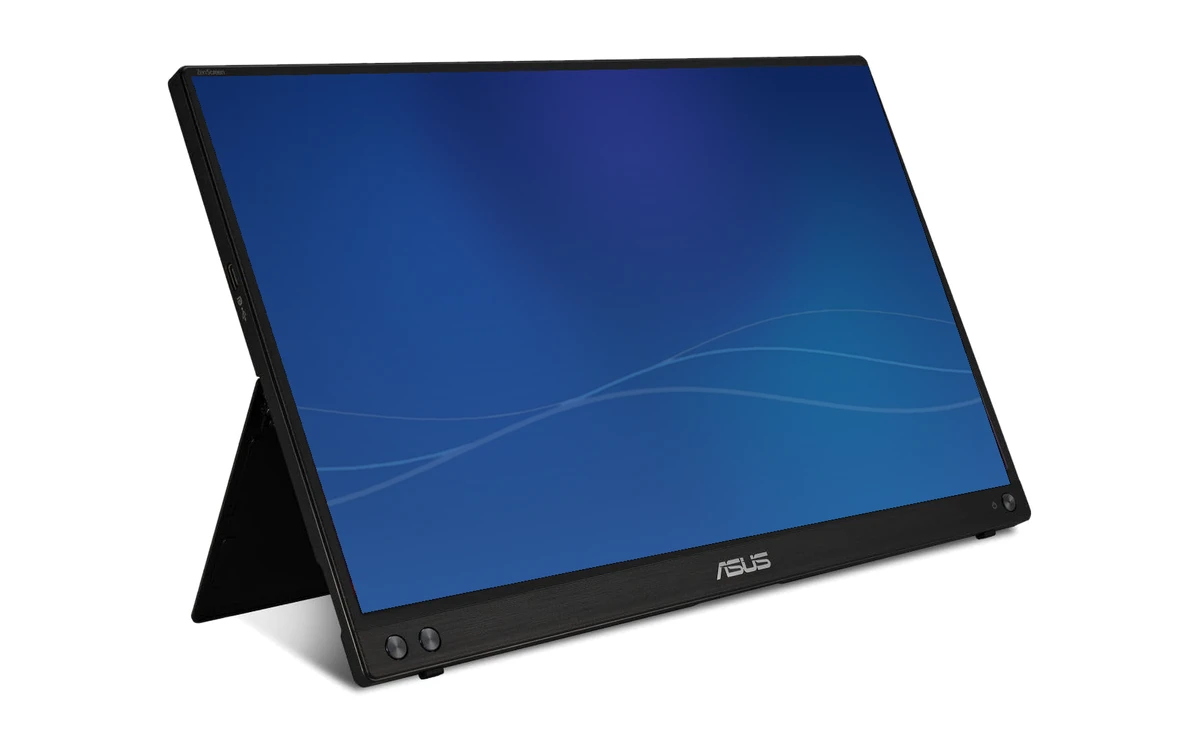
The ASUS ZenScreen MB16ACV is a slim 15.6-inch screen you can slip into a laptop bag. A single USB-C cable powers it and carries the picture, so you can set up a two-screen workspace in a cafe, a hotel or a classroom in seconds.
- One cable, no charger: It runs on power from your laptop’s USB-C port.
- Built-in kickstand: Stand it up in landscape or portrait without a separate case.
- Long warranty: ASUS backs it with a 3-year warranty.
Worth knowing: Because it draws power from your laptop, your battery will drain faster when you are unplugged. It has no HDMI port.
AOC 16T20 Portable Monitor
$ Budget
Portable
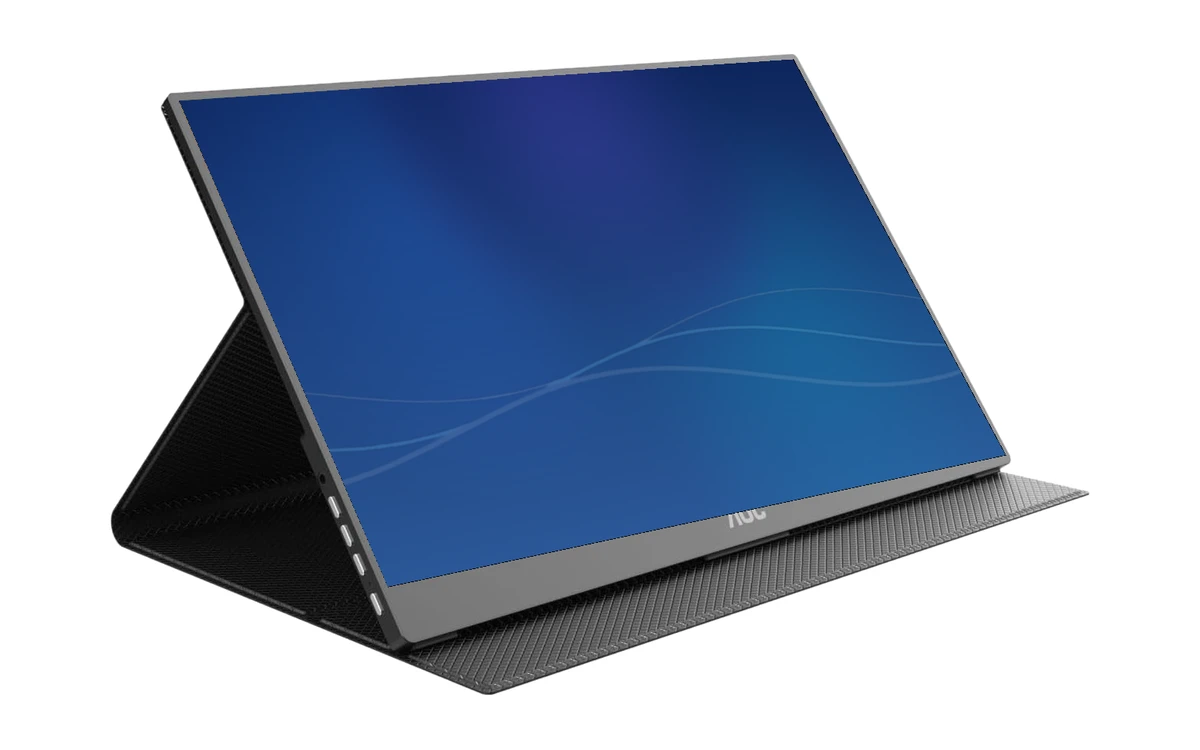
The AOC 16T20 is a low-cost portable monitor with a 15.6-inch Full HD IPS screen and a cover that folds into a stand. It connects over USB-C or mini HDMI, so it works with Chromebooks, Googlebooks and older laptops alike.
- Two ways to connect: Use USB-C, or mini HDMI for laptops and devices without video over USB-C.
- Cover doubles as a stand: The smart cover protects the screen in your bag and props it up on the desk.
- Built-in speakers: Handy for videos when you do not have headphones.
Worth knowing: The cover-stand is less flexible than a kickstand, and the built-in speakers are basic.
How to choose a monitor for Chromebook and Googlebook
USB-C or HDMI?
A USB-C monitor can send video, charge your laptop and add ports over one cable, as long as your laptop’s USB-C port supports video output. HDMI monitors are cheaper; Googlebooks and Chromebooks without HDMI need a USB-C to HDMI cable.
Check the charging wattage
If you want the monitor to charge your laptop, look for 65W or more of USB-C power delivery. Most Chromebooks and Googlebooks charge fine at 45W to 65W.
Size and resolution
24-inch 1080p is fine for basic work. At 27 inches, QHD or 4K looks much sharper. An ultrawide gives the space of two screens on one.
Setting it up
Plug the monitor in, then go to Settings, then Device, then Displays to choose mirror or extended mode, arrange the screens and adjust the display size.
Frequently asked questions
Can I connect a monitor to a Chromebook?
Yes. Almost every Chromebook and Googlebook can use an external monitor over USB-C or HDMI. Plug it in, and the screen will appear in Settings, then Device, then Displays, where you can mirror or extend your desktop.
How do I know if my Chromebook’s USB-C port supports a monitor?
Most modern Chromebooks and Googlebooks support video over USB-C. Check your laptop’s spec sheet for DisplayPort over USB-C, or look for a display symbol next to the port.
Can a monitor charge my Chromebook?
Yes, if the monitor has USB-C with power delivery. The Dell, ASUS BE249CGN and LG picks in this guide charge your laptop over the same USB-C cable that carries the picture.
Do monitors work with Googlebook?
Yes. Googlebooks connect to external monitors the same way Chromebooks do. Because some Googlebooks only have USB-C ports, a USB-C monitor or a USB-C to HDMI cable is the easiest way to connect.
Can I use two external monitors with a Chromebook?
Many Chromebooks support two external screens, but it depends on the model. Check your laptop’s spec sheet for how many external displays it supports before buying a second monitor.
More Chromebook guides
- Building a full desk setup? See our best keyboards for Chromebook and Googlebook.
- Need a mouse to match? Check the best mice for Chromebook and Googlebook.
- Working from home? See the best Chromebooks for work.
- Shopping for a new laptop too? Our best Chromebook Plus laptops guide has the top picks.
Discover more from Chrome Geek
Subscribe to get the latest posts sent to your email.