How to Play Minecraft on Chromebook and Googlebook
 by
Juniya Sankara
Post Updated: October 25, 2026
by
Juniya Sankara
Post Updated: October 25, 2026
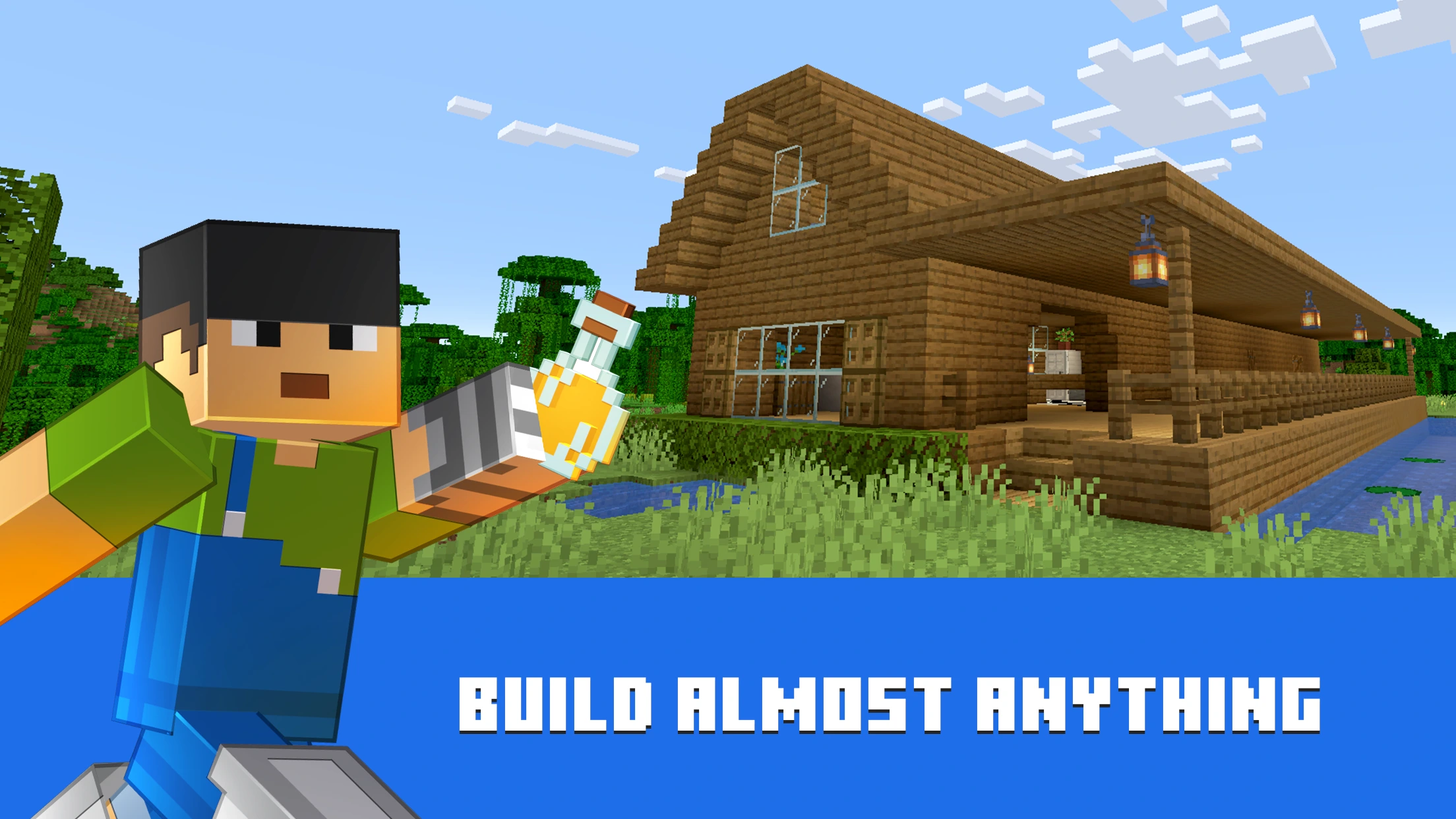
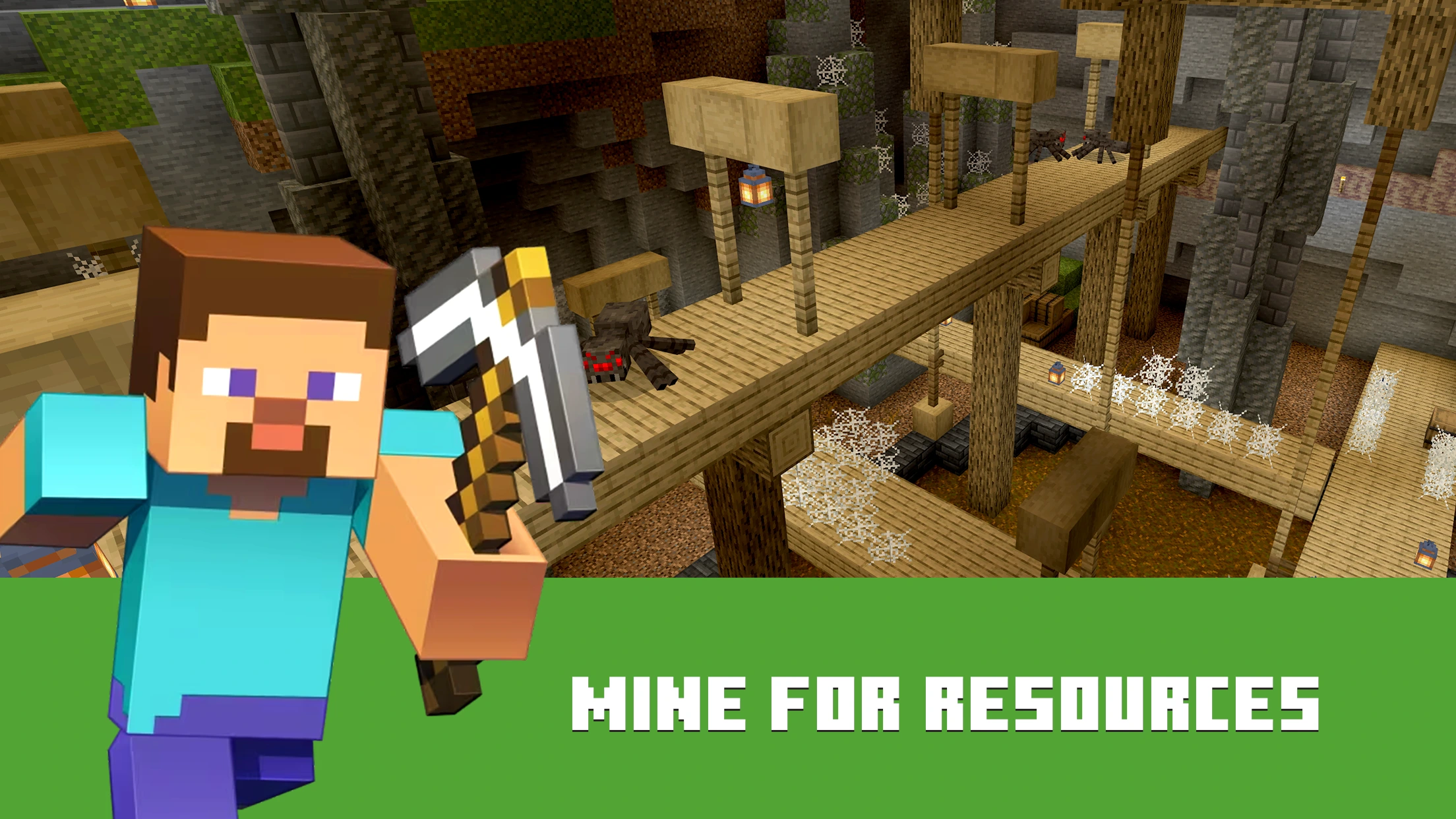
You can play Minecraft on Chromebook by installing the official game from Google Play. It is Minecraft: Bedrock Edition, where you can build freely in Creative mode or gather resources, craft tools and survive the night in Survival mode.
Googlebook runs Android apps from Google Play, so start with the same official Minecraft listing. This guide covers installation, Chromebook requirements, purchase options and joining friends in Bedrock Edition.
Need help getting started? Contact us with your laptop model and the message shown in Google Play.
Which Minecraft edition should you choose?
If your friends play on a Windows PC, ask which edition they use. Minecraft for Windows is Bedrock; Java Edition is separate. Buying the PC bundle does not replace the Google Play purchase for your Chromebook.
How to install Minecraft on Chromebook
1
2
3
4
School and work Chromebooks may have Play Store access managed by an administrator. If the store is missing or installation is blocked, ask the administrator whether consumer Minecraft or Minecraft Education is permitted.
Minecraft Chromebook requirements
Mojang lists the following minimum Chromebook requirements. Keep ChromeOS updated and leave extra storage available as your worlds and downloaded content grow.
| Operating system | ChromeOS 111 or newer |
|---|---|
| Architecture | 64-bit: x86_64 or arm64-v8a |
| Memory | 4 GB RAM |
| Storage | At least 1 GB for installation, maps and other files |
| Minimum processor | AMD A4-9120C; Intel Celeron N4000, Intel 3865U, Core i3-7130U or m3-8100Y; MediaTek Kompanio 500 (MT8183); Qualcomm SC7180; or better |
| Recommended processor examples | AMD Ryzen 3 3250C or Intel Celeron N4500 |
You can find your ChromeOS version in Settings under About ChromeOS. Google Play shows the installation details for your laptop.
Playing Minecraft on Googlebook
Googlebook uses Android technology and runs apps from Google Play. Open the Play Store, search for Minecraft by Mojang, review the price and choose Install. Launch the game from your apps, then use a Microsoft account for Bedrock multiplayer.
Use the same Google account that you use for your Play purchases. You can learn more about installing apps and games on Googlebook in Google’s guide. Googlebook also offers Cast My Apps for accessing apps from a connected Android phone.
How much does Minecraft cost?
The full Google Play game is a paid purchase with optional in-app purchases. Check the amount shown on your Chromebook for your region and account. Marketplace packs and optional Realms subscriptions can cost extra; you do not need to subscribe to Realms just to create your own single-player world.
Google’s Chromebook purchase guide says the Chromebook purchase also includes Android access under the same Google account, and existing Android owners can receive a discounted Chromebook purchase. Sign in with the account that owns the Android game to see the offer available to you.
Want to try it first? Use Minecraft’s official free-trial page and follow the options offered for your device. A trial is a limited demo, not the full game. Do not confuse a Realms subscription trial with a free copy of Minecraft.
Start a world and learn the controls
For a first session, create a Creative world to practice moving, placing blocks and opening your inventory. Choose Survival when you want to collect materials, craft equipment and manage threats. Give the world a memorable name so you can find it again.
- Move: use W, A, S and D. Move the mouse to look around.
- Jump: press Space.
- Mine or attack: use the left mouse button. Use the right button to place a block or use an item.
- Open inventory: press E. Use number keys to select items in your hotbar.
- Adjust your setup: open Settings and review Keyboard & Mouse, Controller or Touch controls as appropriate for your input device.
These are the defaults in Minecraft’s official controls guide. You can change bindings in Settings. A mouse can make looking around and placing blocks easier than using a laptop touchpad.
Multiplayer and cross-play with friends
The Chromebook Bedrock game supports cross-play with other Bedrock players on supported Windows PCs, mobile devices and consoles. Sign in with a Microsoft account and make sure everyone has updated their game. Java Edition and Minecraft Education use separate multiplayer systems.
1
2
3
4
For child accounts, a parent may need to allow multiplayer and cross-network play in Xbox privacy and online safety settings. An invitation cannot override account permissions. Use an internet connection for online play.
When to use Minecraft Education
Minecraft Education on Chromebook is designed for lessons, coding and group learning. Install that separate app if your teacher or learning group asks for it. A regular consumer Minecraft purchase and a personal Microsoft account do not automatically supply an Education license.
Education offers free demo lessons without an account. Those demos cannot save progress or host or join multiplayer games. The fuller Education trial requires an academically verified Microsoft account and has a limited number of sign-ins; continued full access requires suitable licensing.
Watch the official Minecraft Chromebook trailer
Minecraft’s official Chromebook trailer shows the game’s building, exploration and cross-play appeal. Use Google Play for the current app and available updates.
Quick fixes if Minecraft will not install or connect
- No Install option: check the listing on your laptop, your signed-in Google account and device compatibility. On managed devices, ask the administrator.
- Download will not finish: check your internet connection and free local storage, then restart the laptop and try Google Play again.
- Game runs slowly: close unused apps and try reducing render distance in the video settings. Minimum requirements do not guarantee the same experience in every world.
- Cannot join a friend: check that both players use current Bedrock versions, are signed in and have the required multiplayer permissions.
- Considering a reinstall: back up worlds you want to keep before removing the app or its data.
Frequently asked questions
Can you play Minecraft on a Chromebook?
Is Minecraft free on Chromebook?
Can I play Minecraft on Googlebook?
Can Chromebook players join Java Edition friends?
Is Minecraft Education the same as regular Minecraft?
Discover more from Chrome Geek
Subscribe to get the latest posts sent to your email.