7 Best Mice for Chromebook and Googlebook (2026)
 by
Joseph Vance
Post Updated: November 14, 2026
The best mice for Chromebook and Googlebook are the Logitech Pebble Mouse 2 M350s for slim, quiet everyday use, the Logitech MX Master 4 for a premium desk setup, and the Logitech Lift for all-day wrist comfort. Each one works with ChromeOS gestures and settings as soon as it connects.
We picked mice for every setup, from Bluetooth models that need no adapter to a gaming mouse and a plain USB-C wired option. Each card shows how it connects, what it works with and how it is powered.
Not sure which mouse fits your laptop? Contact us with your laptop model, and we will point you to the right one.
Best mice for Chromebook and Googlebook
Logitech Pebble Mouse 2 M350s
$ Budget
Bluetooth
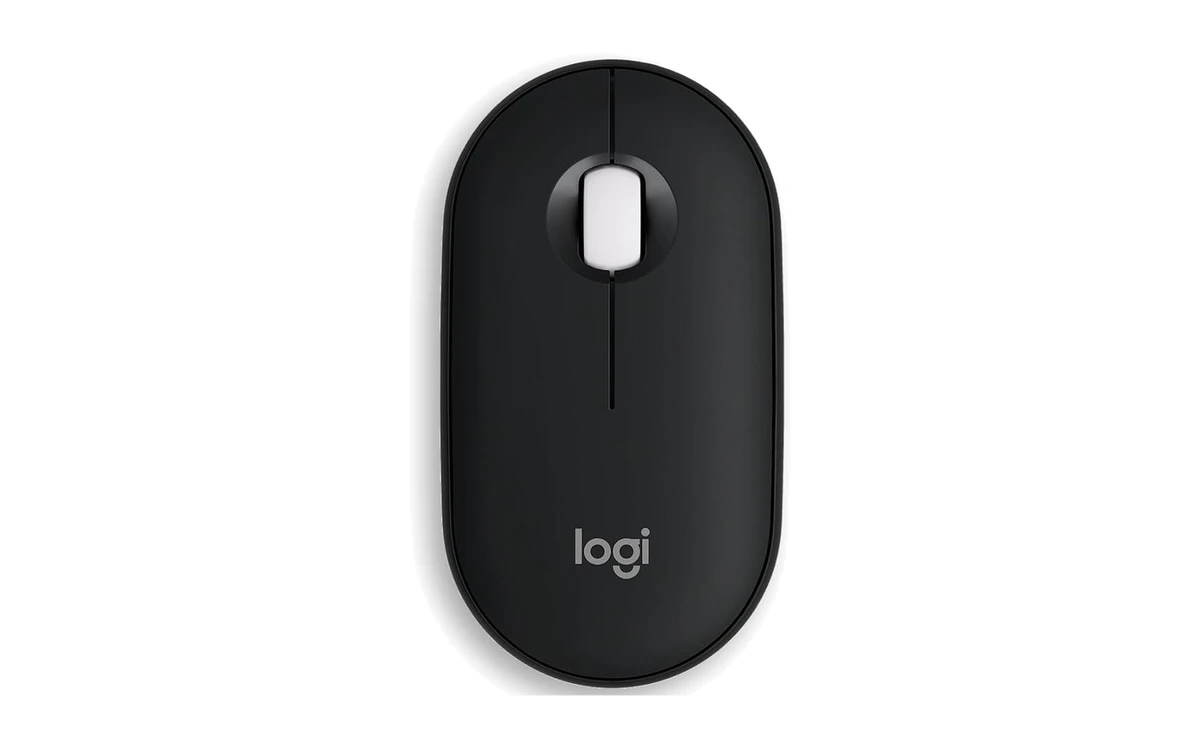
The Logitech Pebble Mouse 2 M350s is the mouse we would recommend to most Chromebook and Googlebook owners. It is slim enough to slip into a laptop sleeve, its clicks are almost silent, and because it connects over Bluetooth, you never need a USB port or adapter.
- No adapter needed: Bluetooth pairing works on any Chromebook or Googlebook, including models with only USB-C ports.
- Switch between 3 devices: One button moves the mouse between your laptop, tablet and phone.
- Quiet clicks: Logitech says it removes about 90% of click noise, so it is great for classrooms, libraries and shared spaces.
Worth knowing: Its flat, low shape is built for travel, so people with large hands may find it less comfortable for long days at a desk.
Logitech MX Master 4
$$$ Premium
USB-C Receiver
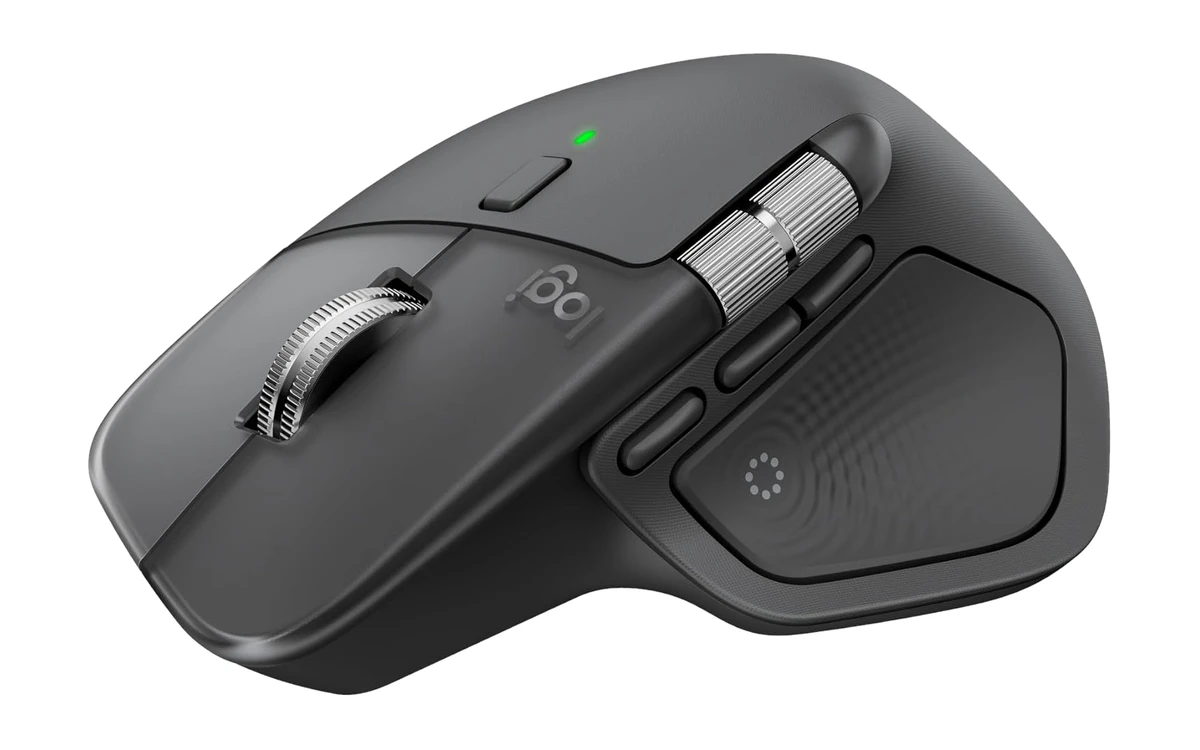
The Logitech MX Master 4 is the mouse to get if you spend all day at a desk. It has a sculpted shape that supports your whole hand, a fast metal scroll wheel and a thumb wheel for side-scrolling through wide spreadsheets. Its receiver plugs into USB-C, and Logitech lists Googlebook laptops by name.
- USB-C receiver in the box: Plug it straight into a Googlebook or Chromebook with only USB-C ports, or use Bluetooth instead.
- Super-fast scrolling: The MagSpeed wheel spins through long documents in a flick and stops exactly where you want.
- Comfortable all day: The tall, sculpted shape and thumb rest take strain off your hand during long workdays.
Worth knowing: It is the most expensive pick and only suits right-handed users. Its haptic feedback and Actions Ring are set up in Logitech’s Options+ app, which does not run on Chromebooks.
Logitech Lift Vertical Ergonomic Mouse
$$ Mid-range
Vertical
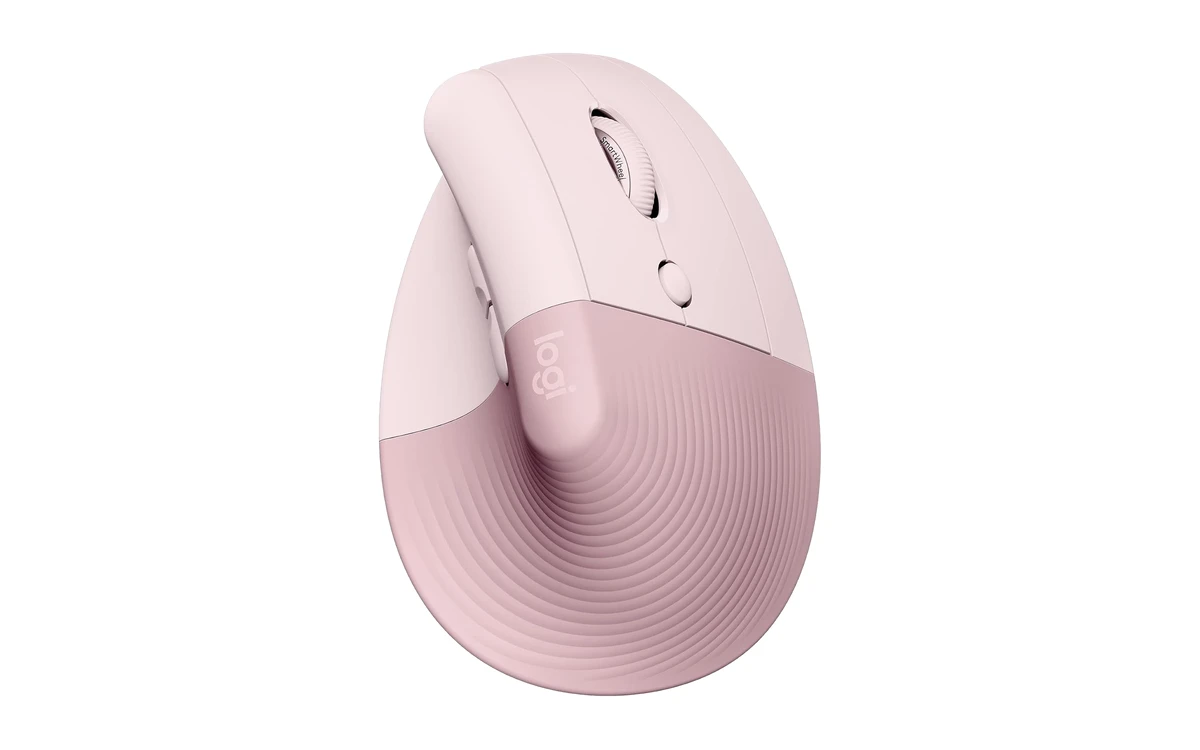
The Logitech Lift holds your hand in a handshake position, at a 57-degree angle, which keeps your wrist and forearm in a more natural line. If your wrist aches after a long day on a laptop trackpad or a flat mouse, this is the easiest fix.
- Natural handshake grip: The upright shape takes pressure off your wrist and forearm.
- Made for smaller hands: It is sized for small to medium hands, which many vertical mice are not.
- Chrome OS listed: Logitech lists Chrome OS among its supported systems, over Bluetooth or the Logi Bolt receiver.
Worth knowing: Vertical mice take a few days to get used to. The included Logi Bolt receiver is USB-A, so use Bluetooth on laptops with only USB-C ports. It also comes in a left-handed version.
Logitech MX Anywhere 3S
$$ Mid-range
Works on Glass
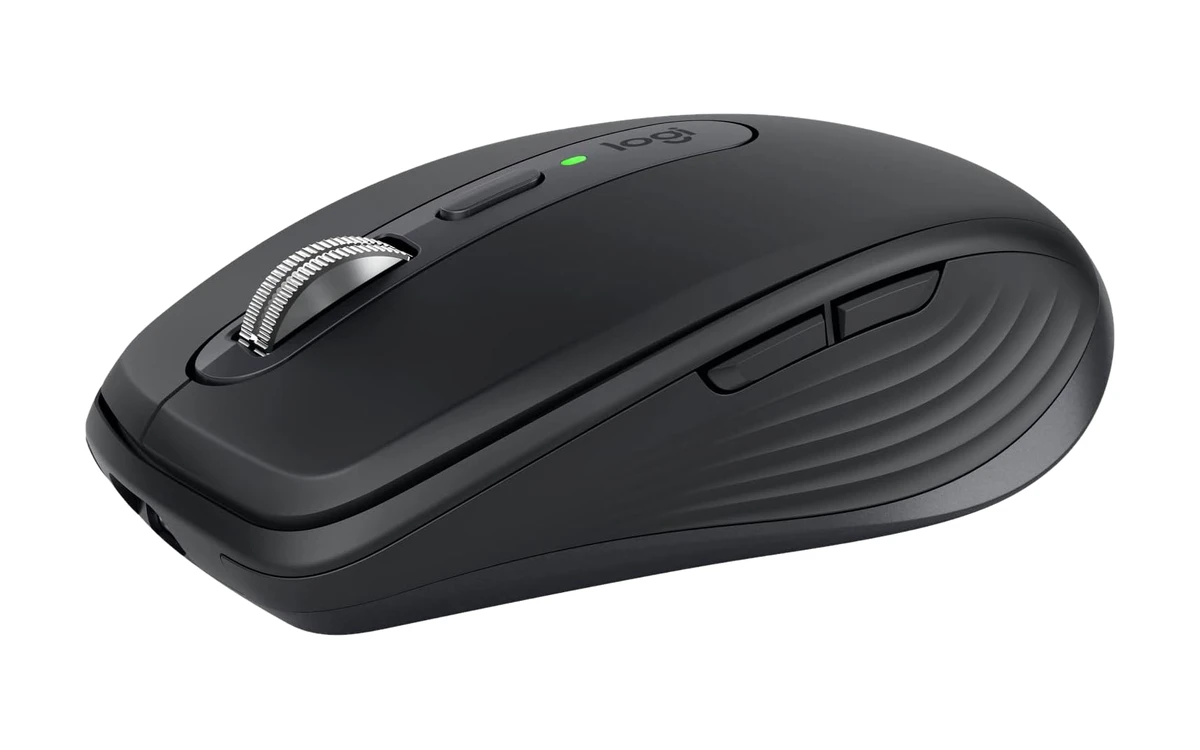
The Logitech MX Anywhere 3S packs the fast scroll wheel and quiet clicks of Logitech’s premium mice into a small body that fits in a pocket. Its sensor works on almost any surface, even glass, so it is ideal for cafes, trains and hotel desks. Logitech lists both ChromeOS and Googlebook OS.
- Works on any surface: Track on a glass table, a couch arm or your knee without a mouse pad.
- Quick USB-C charging: Up to 70 days per charge, and a 1-minute charge gives about 3 hours of use.
- Googlebook OS listed: Logitech names ChromeOS and Googlebook OS as supported systems.
Worth knowing: It is small for large hands, and it comes without a USB receiver. It connects over Bluetooth, which suits most Chromebooks and Googlebooks anyway.
Logitech M240 Silent Bluetooth Mouse
$ Budget
Works with Chromebook
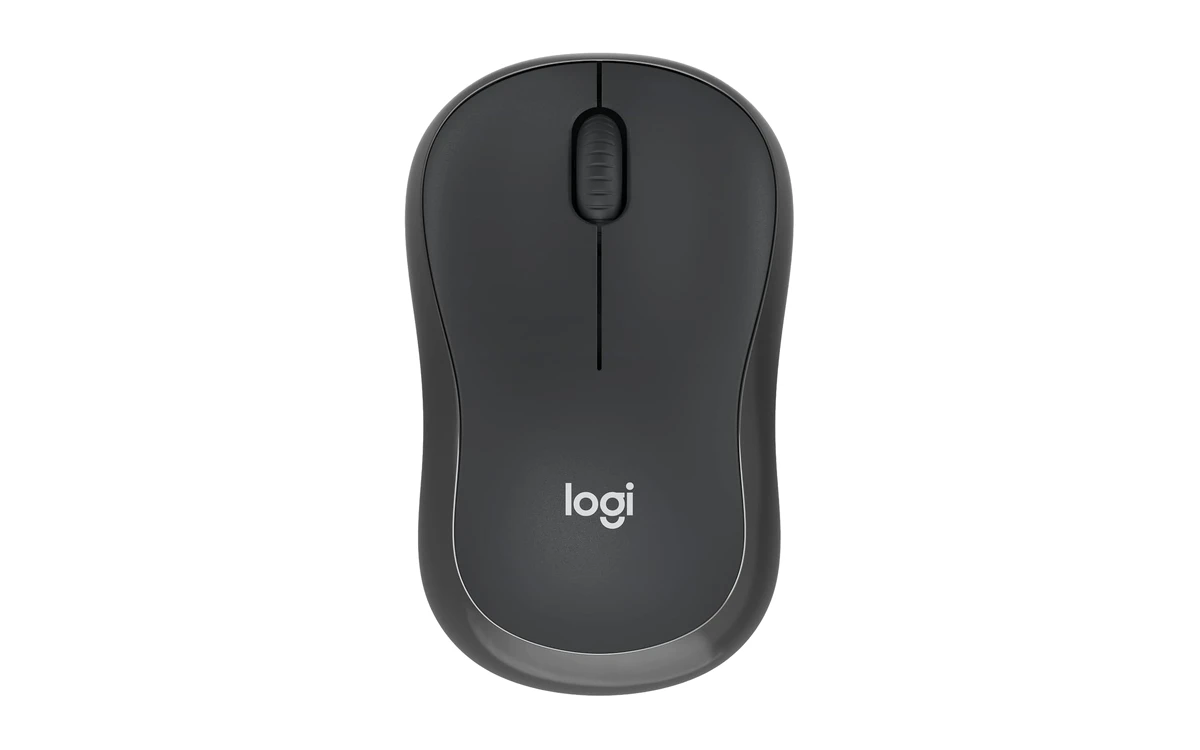
The Logitech M240 Silent is a small, quiet, low-cost Bluetooth mouse with a proper rounded shape. It is a Works with Chromebook certified product, which means Google has tested it on Chromebooks, and it is a great pick for students and anyone who just wants a reliable mouse.
- Works with Chromebook certified: Tested to work with Chromebooks, so you can expect it to pair and work without fuss.
- Quiet clicks: About 90% less click noise than a standard mouse, according to Logitech.
- Fits either hand: The compact, symmetrical shape works for right- and left-handed users.
Worth knowing: It pairs with one device at a time and has no extra buttons. It is a basic mouse, done well.
Logitech G309 Lightspeed
$$ Mid-range
Gaming
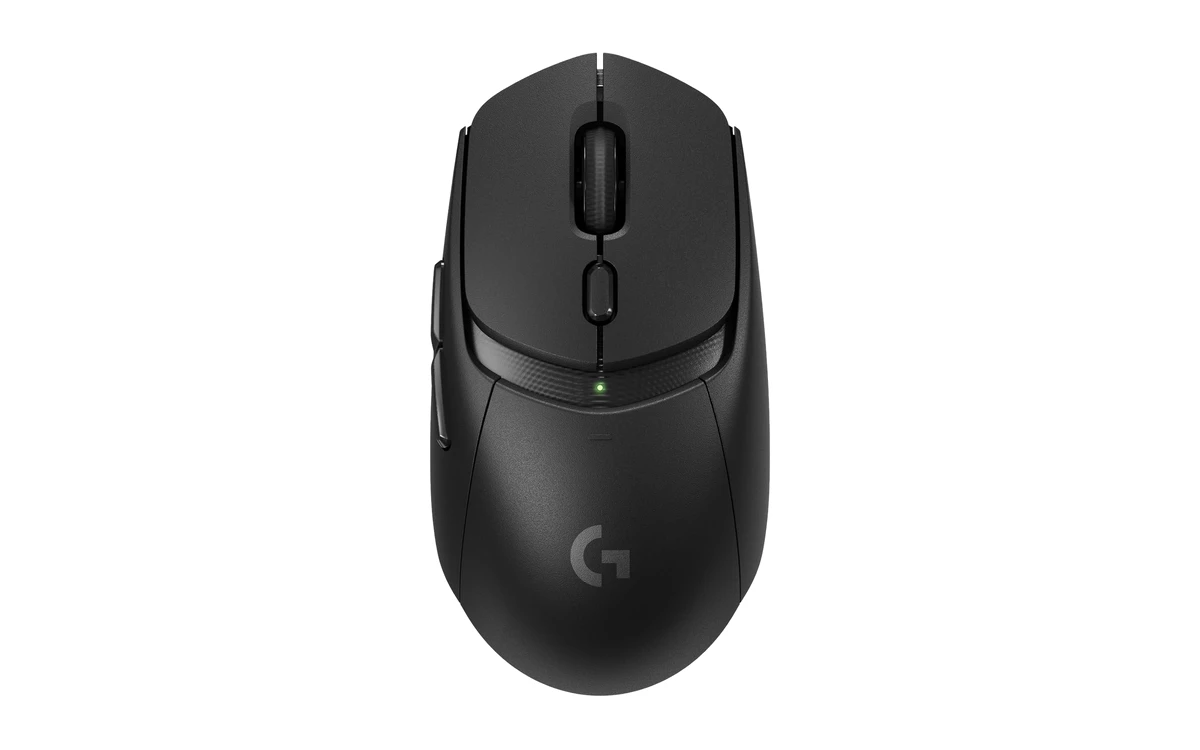
The Logitech G309 Lightspeed is a light, fast wireless gaming mouse that also connects over Bluetooth. The Lightspeed receiver gives you the low delay you want for cloud gaming and Android games on a Chromebook, and Bluetooth keeps it handy for everyday work.
- Low-delay Lightspeed wireless: The included receiver is made for fast, responsive gaming.
- Bluetooth as a backup: Switch to Bluetooth when you do not want to use a port.
- Long battery life: More than 300 hours on one AA battery, according to Logitech.
Worth knowing: The Lightspeed receiver is USB-A, so use a USB-C adapter or Bluetooth on laptops with only USB-C ports. Logitech does not list ChromeOS, though it works as a standard mouse. Its G HUB app does not run on Chromebooks, so its settings stay at their defaults.
Lenovo 400 USB-C Compact Wired Mouse
$ Budget
Wired USB-C
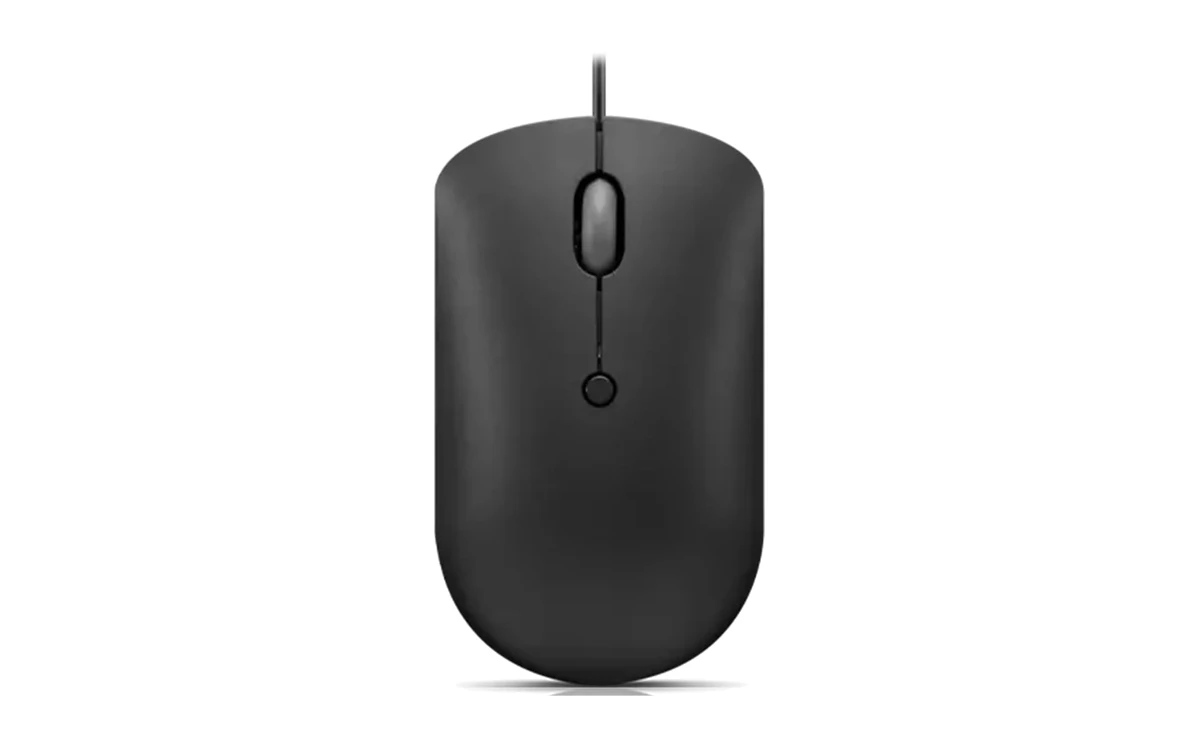
The Lenovo 400 is a small wired mouse that plugs straight into a USB-C port. There is nothing to pair, charge or lose, which makes it a reliable choice for Googlebooks and newer Chromebooks that only have USB-C ports, and for school devices that get passed around.
- Plugs straight into USB-C: No receiver, adapter or batteries needed.
- Chrome OS listed: Lenovo lists Chrome OS among its supported systems.
- Adjustable speed: A button changes the pointer speed, up to 2400 DPI.
Worth knowing: The cable takes up a USB-C port, which may also be your charging port on some laptops.
How to choose a mouse for Chromebook and Googlebook
Bluetooth or USB receiver?
Bluetooth works with every Chromebook and Googlebook and needs no port. A mouse with a USB-A receiver needs a small USB-C adapter on laptops that only have USB-C ports, such as some Googlebooks. The MX Master 4 comes with a USB-C receiver.
Size and grip
Small, flat mice are great for travel. Full-size and vertical mice are more comfortable for long days at a desk, especially if your wrist or hand gets sore.
Battery or rechargeable
AA-powered mice last a year or more on one battery. Rechargeable mice charge over USB-C, often with the same cable as your laptop.
Extra buttons
ChromeOS can assign actions to extra mouse buttons. Go to Settings, then Device, then Mouse and touchpad, and open your mouse’s settings.
Frequently asked questions
Does any mouse work with a Chromebook?
Yes. Almost any USB or Bluetooth mouse works with a Chromebook or Googlebook. Basic clicking, scrolling and pointer speed work straight away, and you can change settings in ChromeOS mouse settings.
How do I connect a Bluetooth mouse to a Chromebook?
Put the mouse in pairing mode, then open Quick Settings, select Bluetooth and choose Pair new device. Select the mouse from the list, and it is ready to use in a few seconds.
Do Bluetooth mice work with Googlebook?
Yes. Googlebooks pair with Bluetooth mice the same way Chromebooks do. Bluetooth is the easiest choice because some Googlebooks only have USB-C ports, which means USB-A receivers need an adapter.
Can I customize mouse buttons on a Chromebook?
Yes. ChromeOS lets you assign actions and keyboard shortcuts to extra mouse buttons. Go to Settings, then Device, then Mouse and touchpad, select your mouse and choose Customize mouse buttons.
Can I use Logitech Options+ on a Chromebook?
No. Logitech’s Options+ and G HUB apps are made for Windows and macOS, so you cannot install them on a Chromebook. The mice still work out of the box, and ChromeOS settings handle pointer speed, scrolling and button actions.
More Chromebook guides
- Completing your desk setup? See our best keyboards for Chromebook and Googlebook.
- Pairing a new mouse with a new laptop? Check the best Chromebook Plus laptops.
- Working from home? See the best Chromebooks for work.
- Playing cloud games? Our guide to the best Chromebooks for gaming has the laptops to match.
Discover more from Chrome Geek
Subscribe to get the latest posts sent to your email.