10 Best Media Players for Chromebook and Googlebook
 by
Frank Cross
Post Updated: November 2, 2026

The best media players for Chromebook and Googlebook include VLC Media Player for playing virtually any audio and video file format, MX Player for smooth touch and trackpad gesture controls, and Just (Player) for a lightweight open-source experience with zero bloat.
Our guide gives you the rest of the top media players we think you need to try on ChromeOS, including powerful open-source players and network media hubs that many users have never heard of.
Ready to upgrade your playback experience? Share your favorite media setup or contact us with questions.
Chromebook Media Players Compared
| Media Player | Category | Best For | License / Price |
|---|---|---|---|
| 1. VLC Media Player | Universal Player | All-round local audio and video playback | Free & Open Source |
| 2. MX Player | Video Player | Touch and trackpad gesture controls | Freemium |
| 3. Just (Player) | Lightweight Video | Zero-bloat ExoPlayer playback | Free & Open Source |
| 4. Nova Video Player | Media Hub | Network streaming and automatic metadata | Free & Open Source |
| 5. Kodi | Home Theater | Complete centralized entertainment library | Free & Open Source |
| 6. Plex | Personal Streaming | Server transcoding and remote access | Freemium |
| 7. Jellyfin | Personal Streaming | 100% free open-source media server | Free & Open Source |
| 8. mpv-android | Power-User Video | Custom shaders and advanced ASS subtitles | Free & Open Source |
| 9. Musicolet | Offline Music | Pure offline music with multi-queues | 100% Free (No Ads) |
| 10. Poweramp | Hi-Res Audio | Audiophile 64-bit sound processing | Free Trial / Paid |
1. VLC Media Player
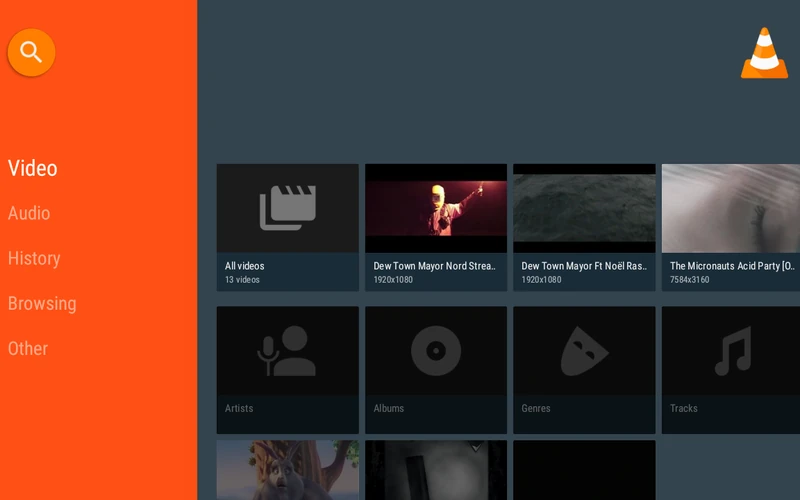
What it does: Plays almost any video and audio file format without extra codec packs, including MKV, MP4, AVI, MOV, Ogg, FLAC, TS, M2TS, and AAC. It supports multi-track audio, subtitle selection, network streaming streams, and media organization.
Why we chose it: VLC is the undisputed universal standard for media playback on ChromeOS. Whether you plug in an external USB flash drive packed with high-bitrate video clips or stream directly from a local network URL, VLC handles complicated codecs and audio tracks without stuttering or requiring internet verification.
Good to know: If you ever encounter choppy audio or desynchronization when watching movies through VLC for Android on a Chromebook, head to Settings > Advanced > Audio output and switch the engine from AudioTrack to OpenSL ES for seamless audio sync.
2. MX Player
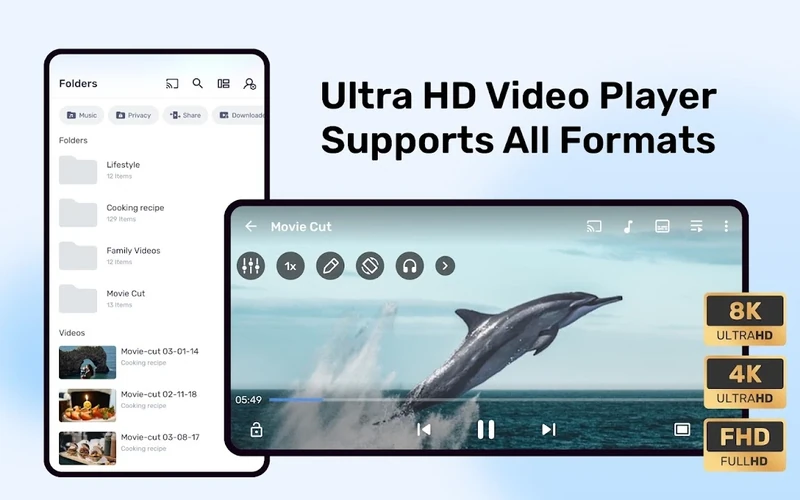
What it does: Delivers hardware-accelerated video decoding with multi-core performance, pinch-to-zoom magnification, subtitle gesture navigation, and dual-audio track switching.
Why we chose it: MX Player offers the smoothest gesture navigation on Chromebook touchscreens and trackpads. Swiping vertically on the left side of the screen adjusts display brightness, swiping on the right controls volume, and sliding horizontally scrubs through video timelines with precise millisecond timestamps.
Good to know: The free version includes banner and interstitial ads in the file browser. If you regularly watch videos with custom AC3 or DTS audio formats that fail to play sound by default, you can enable custom codec packs in the decoder preferences.
3. Just (Player)
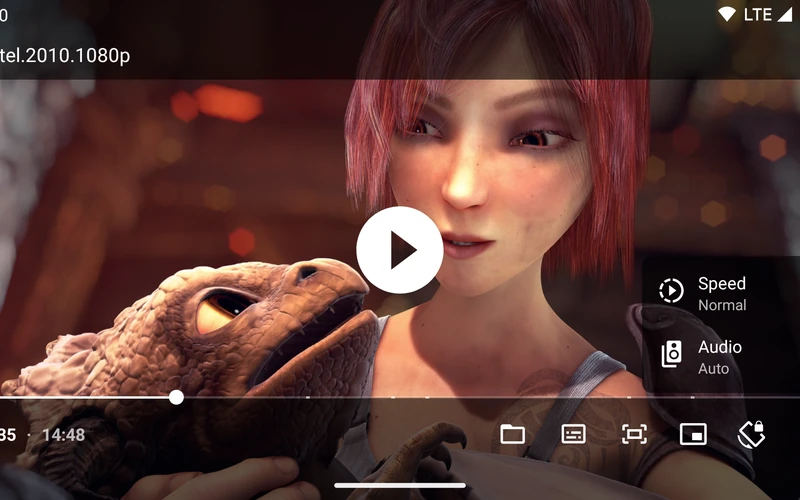
What it does: A minimalist video player built on Android’s ExoPlayer and Media3 architecture with bundled FFmpeg audio extensions, supporting AC3, DTS, TrueHD, AV1, and HEVC without extra software.
Why we chose it: Just (Player) is one of the best hidden gems in modern media playback. It contains zero advertisements, zero user analytics, and zero background bloat. For Chromebooks with modest RAM or budget processors, it launches instantly and plays demanding files with hardware acceleration and accurate Bluetooth audio sync.
Good to know: Just (Player) uses the Android system file picker rather than an internal media library dashboard. Double-click or open any video file directly from the ChromeOS Files app to start playback immediately.
4. Nova Video Player
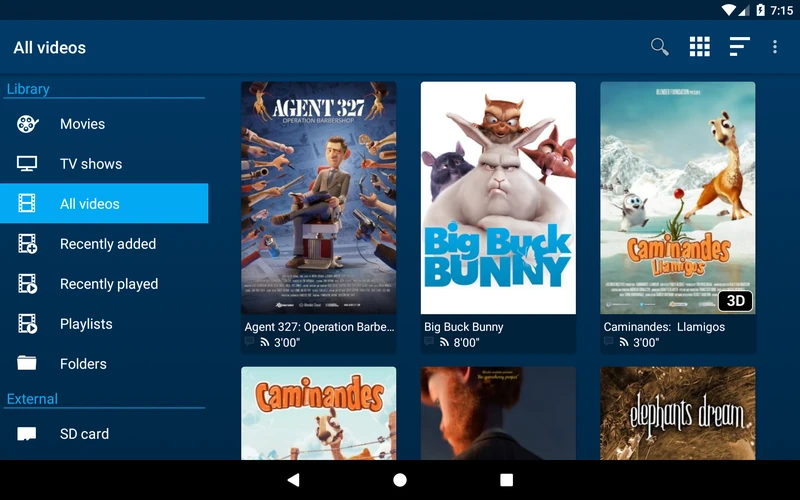
What it does: Scans local storage and network folders (SMB, UPnP, FTP, FTPS, WebDAV) to present videos in a graphical library complete with movie posters, episode lists, plot synopses, and cast details from IMDb and TheMovieDB.
Why we chose it: Nova gives you a complete home theater experience without needing to install, configure, or pay for a server application. It automatically indexes movies stored on your home PC or network-attached drive, downloads matching subtitles in seconds, and remembers playback resume points across your network.
Good to know: For the best visual experience on ChromeOS, allow Nova to scan your shared media folders while connected to Wi-Fi so it can cache posters and show information locally for fast offline browsing.
5. Kodi
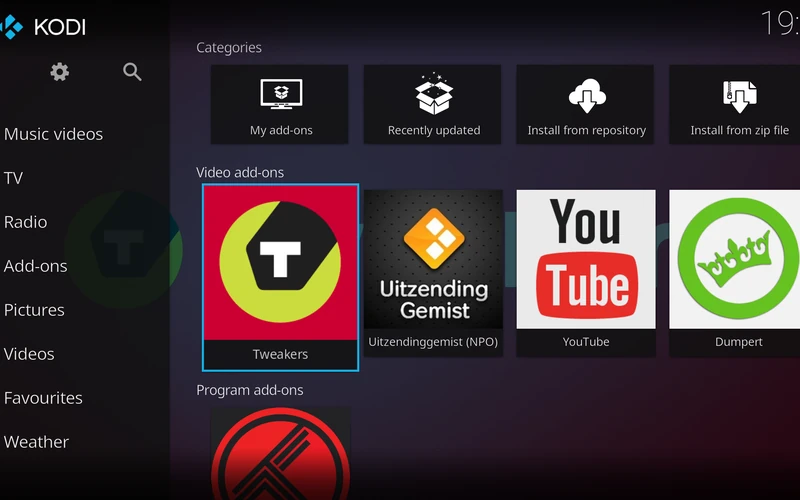
What it does: A comprehensive home theater platform designed to manage, index, and play large collections of videos, music tracks, podcasts, and digital photos across local hard drives and network servers.
Why we chose it: If you connect your Chromebook to an external monitor or television for family movie nights, Kodi transforms your laptop into a dedicated media console. Its Estuary interface is optimized for keyboard and gamepad navigation, and its vast add-on library lets you expand functionality with custom scrapers and streaming sources.
Good to know: Kodi runs in a dedicated full-screen interface that bypasses typical desktop window controls. Use the Backspace key to step back through menu tiers, or press the Esc key to return directly to the main dashboard.
6. Plex
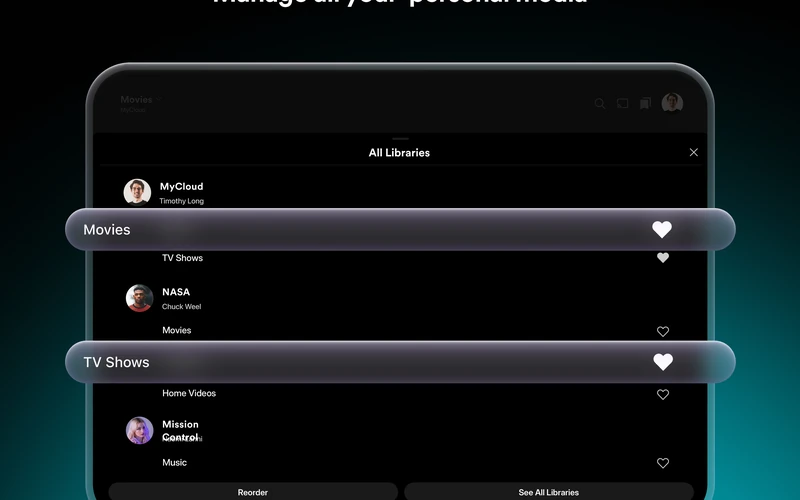
What it does: Connects your Chromebook to your personal Plex Media Server running at home, letting you stream video collections, music tracks, and photos anywhere with on-the-fly transcoding and library sync.
Why we chose it: Plex solves the classic Chromebook storage dilemma. Instead of filling your laptop’s internal eMMC or SSD with multi-gigabyte video files, Plex streams your entire media collection from home while dynamically adjusting video quality to match your current internet connection speed.
Good to know: Streaming from your personal server over the local network or web browser is free. Downloading videos to your Chromebook for offline viewing when traveling requires a Plex Pass subscription or a one-time in-app activation fee.
7. Jellyfin
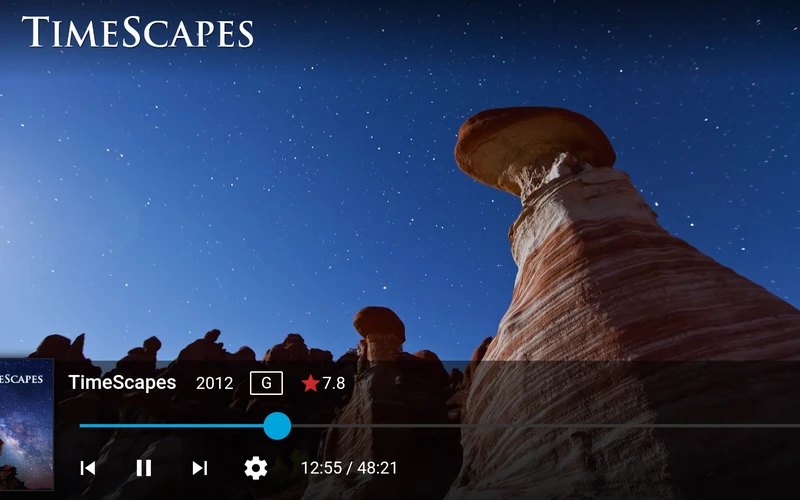
What it does: The official open-source client for Jellyfin media servers, providing smooth streaming of movies, live TV, music albums, and books with zero premium paywalls.
Why we chose it: For users who believe in digital ownership and privacy, Jellyfin provides a full-featured media streaming experience with zero corporate tracking and zero paid subscription tiers. Hardware transcoding, user profiles, subtitle synchronization, and remote streaming are 100% free forever.
Good to know: Jellyfin requires an active Jellyfin server running on a PC, NAS, or home server. If you prefer not to install the Android app, you can also stream your Jellyfin library by opening your server URL directly in Google Chrome.
8. mpv-android
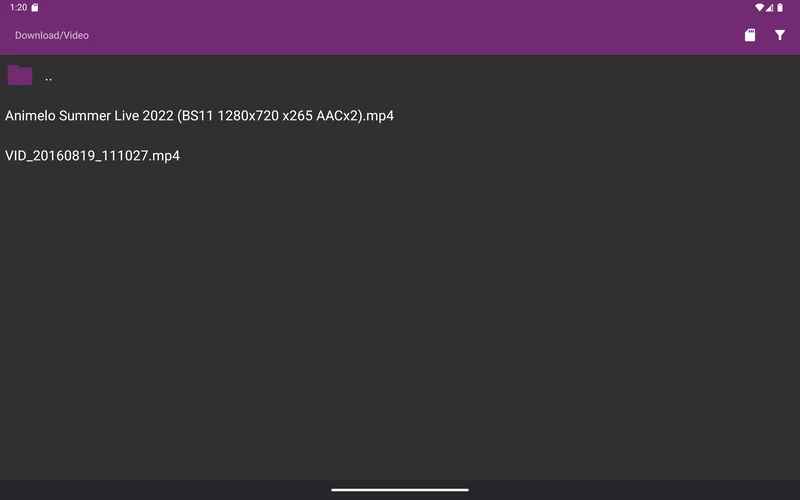
What it does: An open-source media player powered by libmpv, renowned for precision subtitle rendering, customizable video output scalers, and hardware-accelerated playback.
Why we chose it: If you frequently watch international content with styled ASS or SSA subtitles that fail to render correctly in standard players, mpv renders complex typography, positioning, and animations flawlessly. It offers keyboard shortcut support and precise frame-by-frame navigation that power users appreciate.
Good to know: The interface focuses strictly on playback functionality rather than shiny media catalogs. You can access configuration settings by swiping from the edge or configuring a custom mpv.conf file for custom shaders.
9. Musicolet Music Player
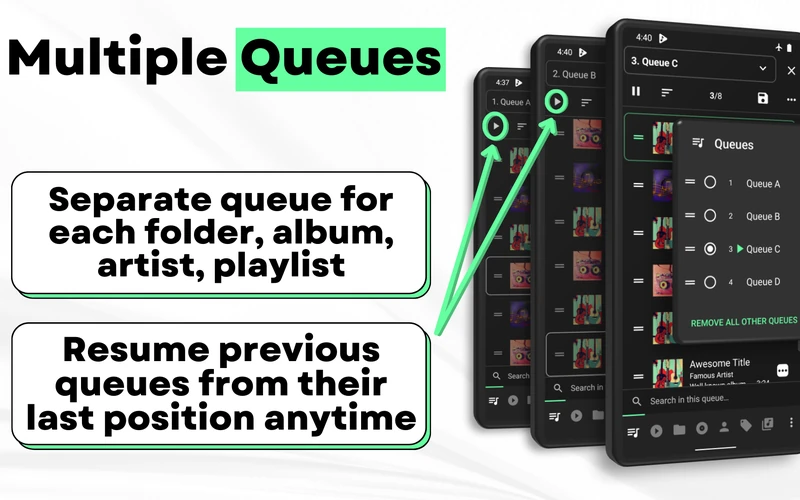
What it does: A dedicated offline music player designed strictly for playing local audio files stored on your Chromebook or SD card, complete with multiple queues, folder navigation, and synchronized lyrics.
Why we chose it: In an era where most music apps demand internet connectivity and monthly subscriptions, Musicolet is dedicated entirely to your private offline audio collection. It does not even request internet permissions, which means zero ads, zero battery-wasting network pings, and absolute privacy for your listening habits.
Good to know: Musicolet allows you to manage up to 20 separate listening queues simultaneously, making it easy to keep workout, study, and relaxing playlists ready to go without losing your place.
10. Poweramp Music Player
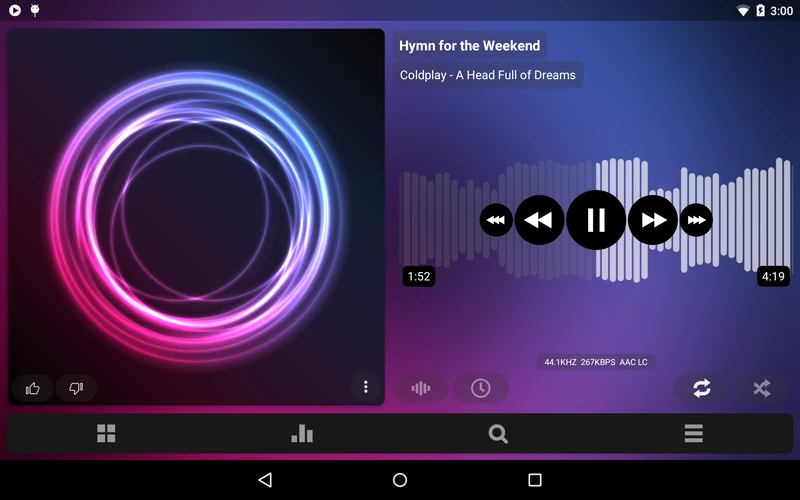
What it does: A high-performance audio player equipped with a proprietary 64-bit audio processing engine, high-resolution output support up to 24-bit/192kHz, and a flexible parametric equalizer.
Why we chose it: For music enthusiasts listening through high-quality wired headphones or a USB-C DAC connected to their Chromebook, Poweramp delivers studio-quality sound tuning. Its graphic equalizer includes separate bass and treble tone dials, stereo expansion, gapless playback, and smooth cross-fading.
Good to know: Poweramp provides a full-featured 15-day free trial on the Google Play Store, after which a one-time purchase of the Poweramp Full Version Unlocker is required for permanent access.
How to Choose the Best Media Player for Your Chromebook
When selecting a media player for ChromeOS, consider how you intend to access your files and how your hardware handles video decoding:
- Local Storage vs. Network Streaming: If you keep movie and audio files stored directly in your Downloads folder, on a USB flash drive, or on an SD card, VLC, MX Player, and Just (Player) provide instantaneous offline playback. If your collection resides on a home PC, network drive, or home server, Nova Video Player, Plex, and Jellyfin automatically organize your media and stream smoothly over Wi-Fi.
- Hardware Acceleration & Battery Efficiency: Android media players utilize ChromeOS’s hardware video decoding layer, allowing smooth 1080p and 4K playback with low CPU temperatures and extended battery life. Linux (Crostini) desktop players, while powerful, often lack full GPU pass-through on certain Chromebook processors, which can lead to higher power consumption.
- Subtitles and Audio Formats: If you frequently watch multi-language films or anime releases with styled ASS/SSA subtitle tracks, mpv-android and VLC provide the most accurate visual formatting. For high-resolution local music, Musicolet gives you a clean offline player without ads, while Poweramp caters to audiophiles demanding advanced parametric equalization.
Frequently Asked Questions
What is the best media player for playing local MKV and MP4 files on Chromebook? +
Can I use hardware acceleration for video playback on ChromeOS? +
What is the best media player for streaming video from a home NAS or server? +
Which music player is best for offline playback with zero ads on Chromebook? +
Why does my video have out-of-sync audio in VLC for Android on Chromebook? +
Related Media Guides & Setup Walkthroughs
If you are setting up local playback from scratch, read our dedicated walkthrough for VLC on Chromebook and Googlebook to configure audio output engines and subtitle rendering. For touchscreen or trackpad gesture tuning and custom hardware decoders, follow our setup tutorial for MX Player on Chromebook and Googlebook.
Readers running dedicated media servers at home can follow our comprehensive guide to Plex on Chromebook and Googlebook to manage remote libraries and offline syncing. Finally, if you have physical DVD movies that you want to watch without booting up Windows, check out our guide on how to play DVDs on a Chromebook using an external optical disc drive.
Discover more from Chrome Geek
Subscribe to get the latest posts sent to your email.