How to Install and Use Plex on Chromebook and Googlebook
 by
Gloria Brown
Post Updated: November 3, 2026
You can install and use Plex on Chromebook and Googlebook through the official Android app from Google Play. It transforms your ChromeOS laptop into a comprehensive media center, letting you stream self-hosted video libraries, watch 50,000+ free on-demand movies, browse 600+ live television channels, and unite all your streaming subscriptions under a single discovery hub.
Googlebook runs Android applications natively through Google Play, pairing Plex’s streamlined desktop-style entertainment interface with effortless phone-app casting. This comprehensive guide covers the unified Google Play setup, streaming subscription discovery, where-to-watch universal search, free ad-supported on-demand libraries, live TV electronic program guides, and self-hosted Plex Media Server playback.
Need help connecting your personal server or finding where to watch your favorite titles? Contact us with your device specs, server setup, or streaming service questions.

How to install Plex on Chromebook and Googlebook
Installing Plex from Google Play provides a touch-friendly, clamshell-optimized streaming powerhouse on your Chromebook or Googlebook:
The official Google Play listing packages Plex under the application identifier com.plexapp.android. Installing the official Android application delivers hardware-accelerated video decoding, background audio playback, and automatic background feature updates.
If the Play Store is not active on your device, check Google’s Android app setup guide for Chromebook or the guide on installing apps on Googlebook. On school and workplace devices, administrator policies may regulate Android installations. You can also access your personal library and stream directly through any Chrome browser tab at app.plex.tv without installing any local software packages.
Cast Plex from your phone on Googlebook
If your Android phone already has an active movie session, customized watchlist, or downloaded media queue, Googlebook’s Cast My Apps feature lets you stream your phone’s app directly onto your laptop display. Open the Phone Hub in the bottom-right corner of your Googlebook shelf, click Cast My Apps, and select Plex. Your phone’s active playback session appears immediately in an adaptive desktop window, allowing you to resume your binge, adjust volume, and browse channels on a larger display without transferring local video files across devices.
Discover movies, shows, and unified streaming services
Modern streaming is fractured across dozens of disconnected apps. Plex Discover solves this fragmentation by aggregating your paid subscriptions, free streaming channels, and personal server libraries into a single unified entertainment dashboard:
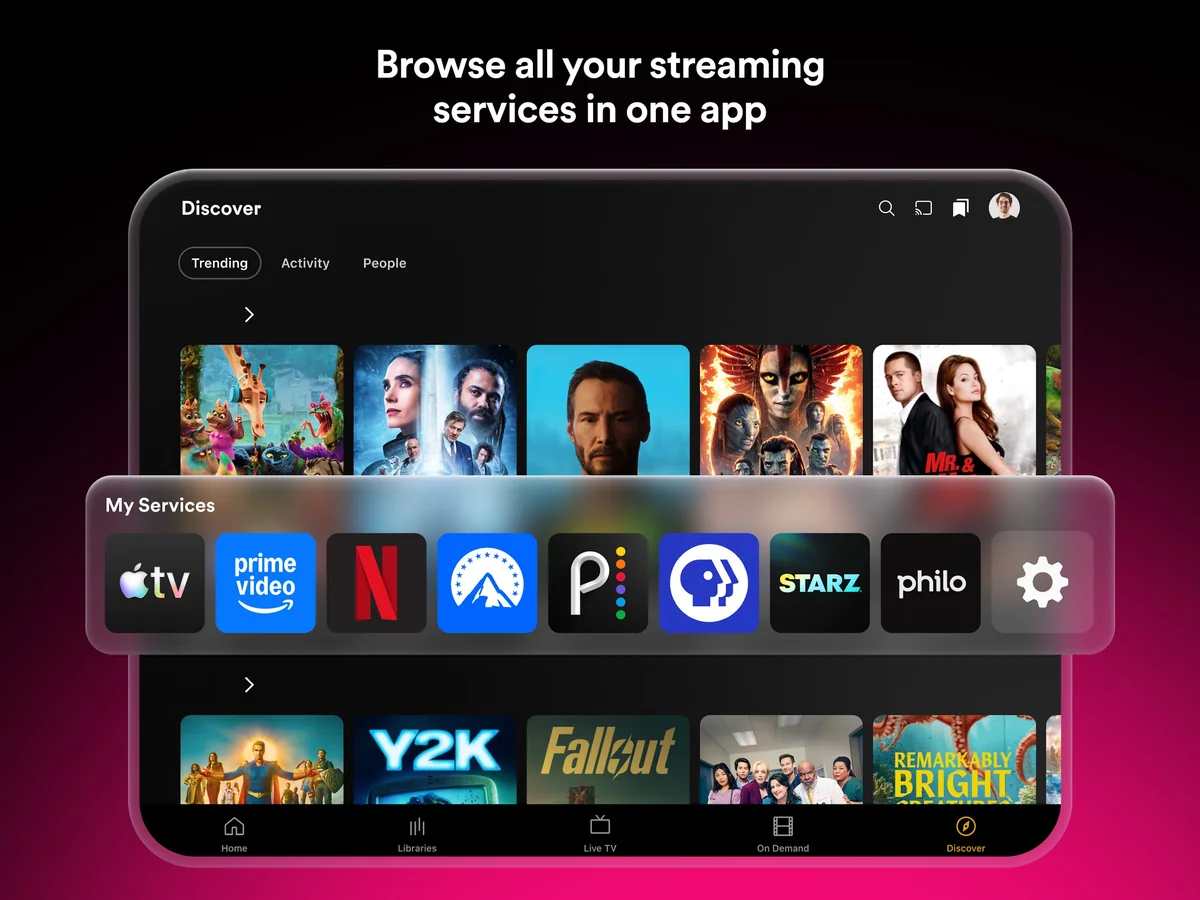
Stream search: find where any movie or show is streaming
Wondering whether a classic film or trending series is included in your subscription, available on a free ad-supported channel, or behind a paywall? Plex’s universal Stream Search answers instantly:
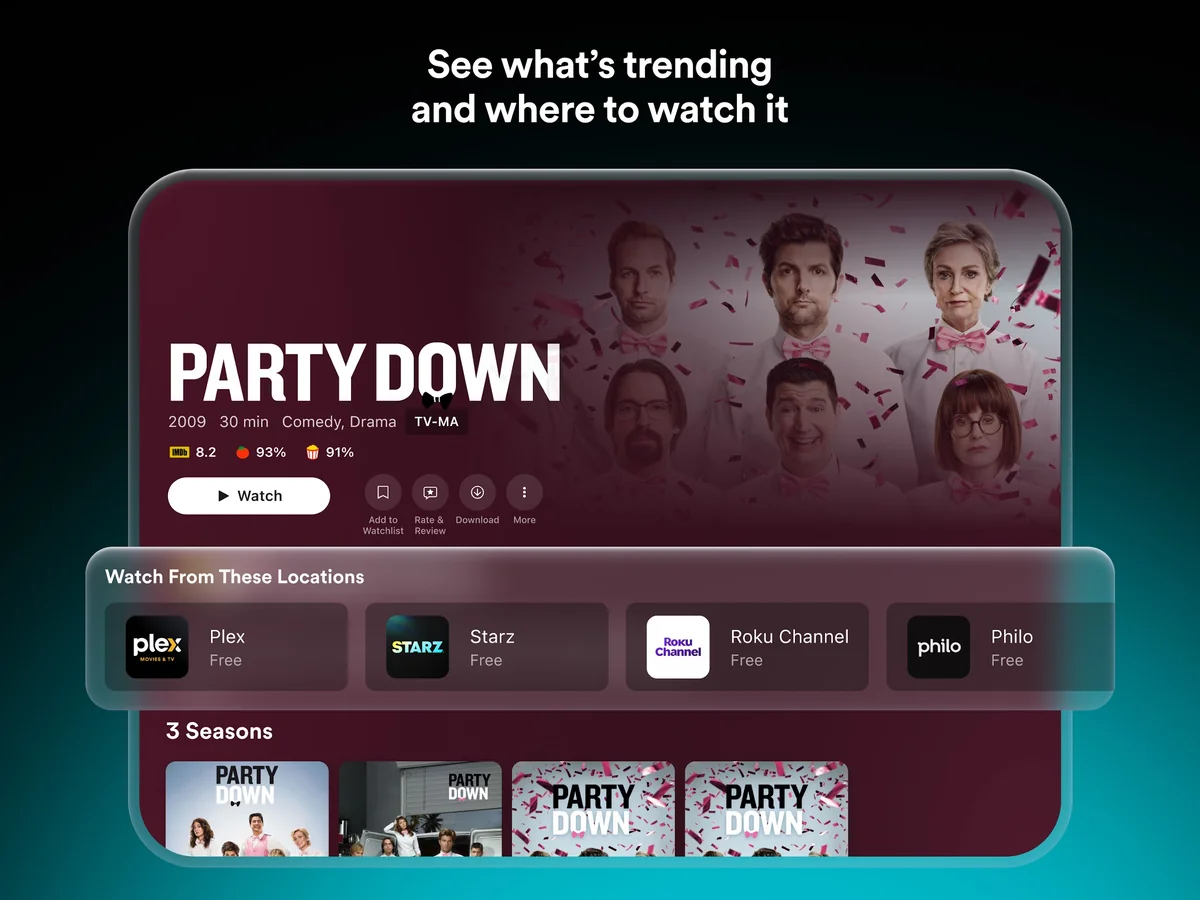
Universal watchlist and cross-device synchronization
Instead of managing fragmented watchlists inside half a dozen separate streaming services, Plex provides a single master watchlist that travels with your account everywhere:
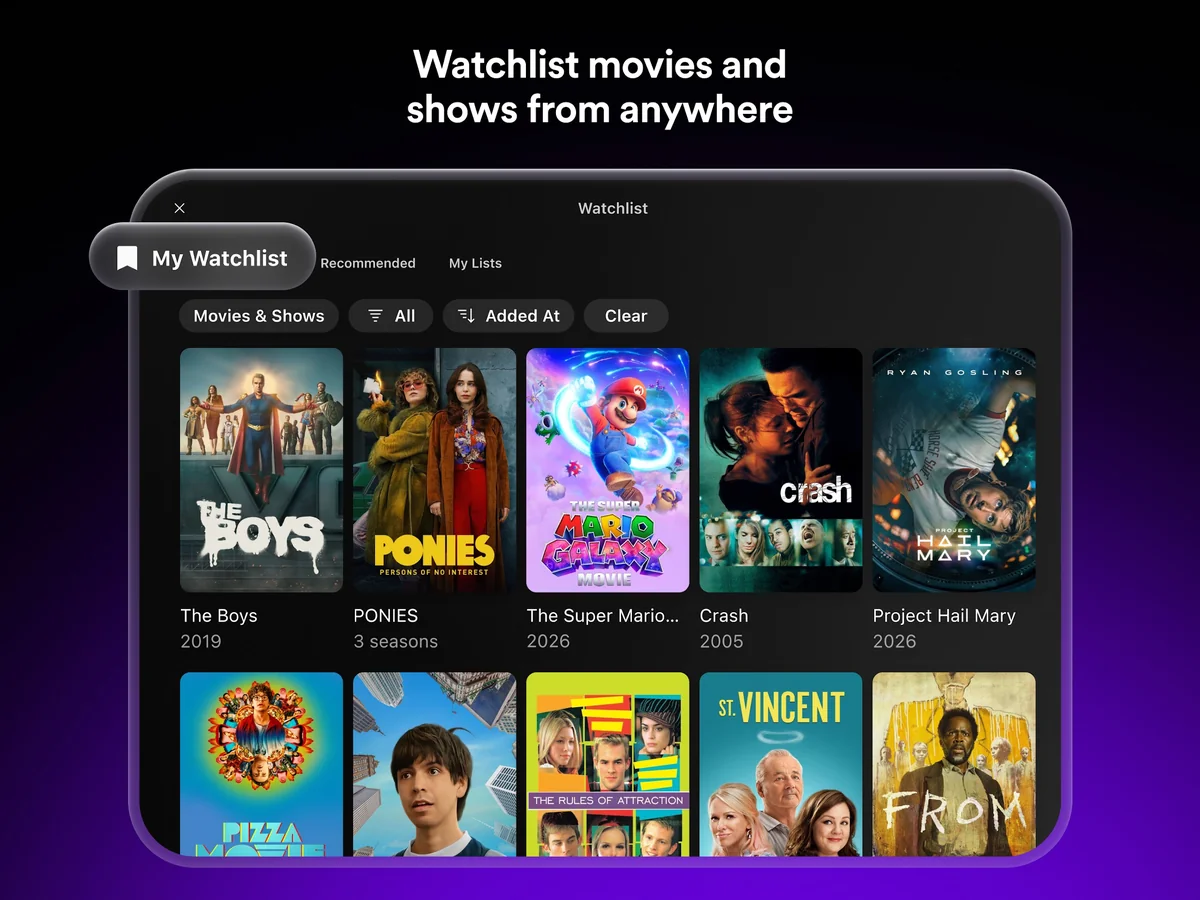
Social reviews, ratings, and community discussions
Algorithms often push sponsored content rather than genuine favorites. Plex brings social connection back to cinema through authentic friend ratings and community reviews:
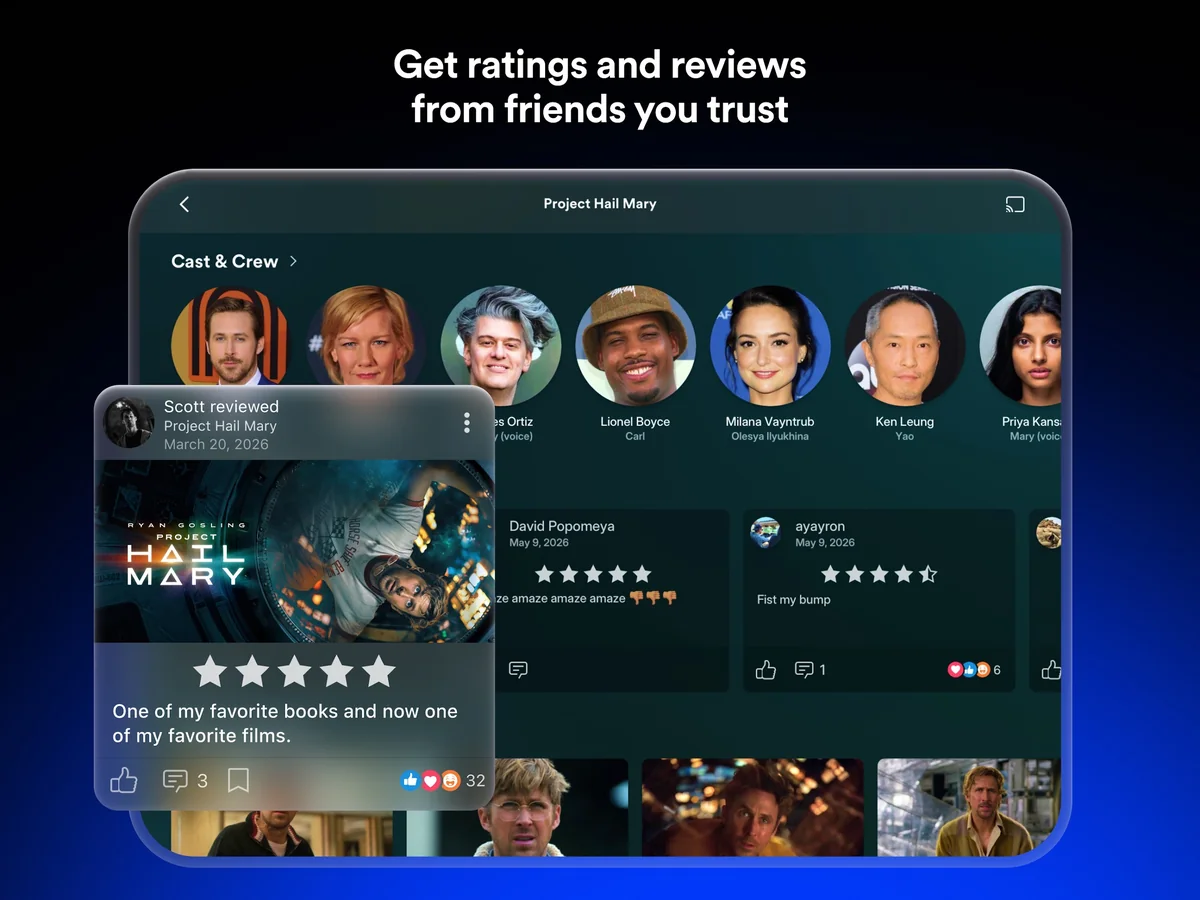
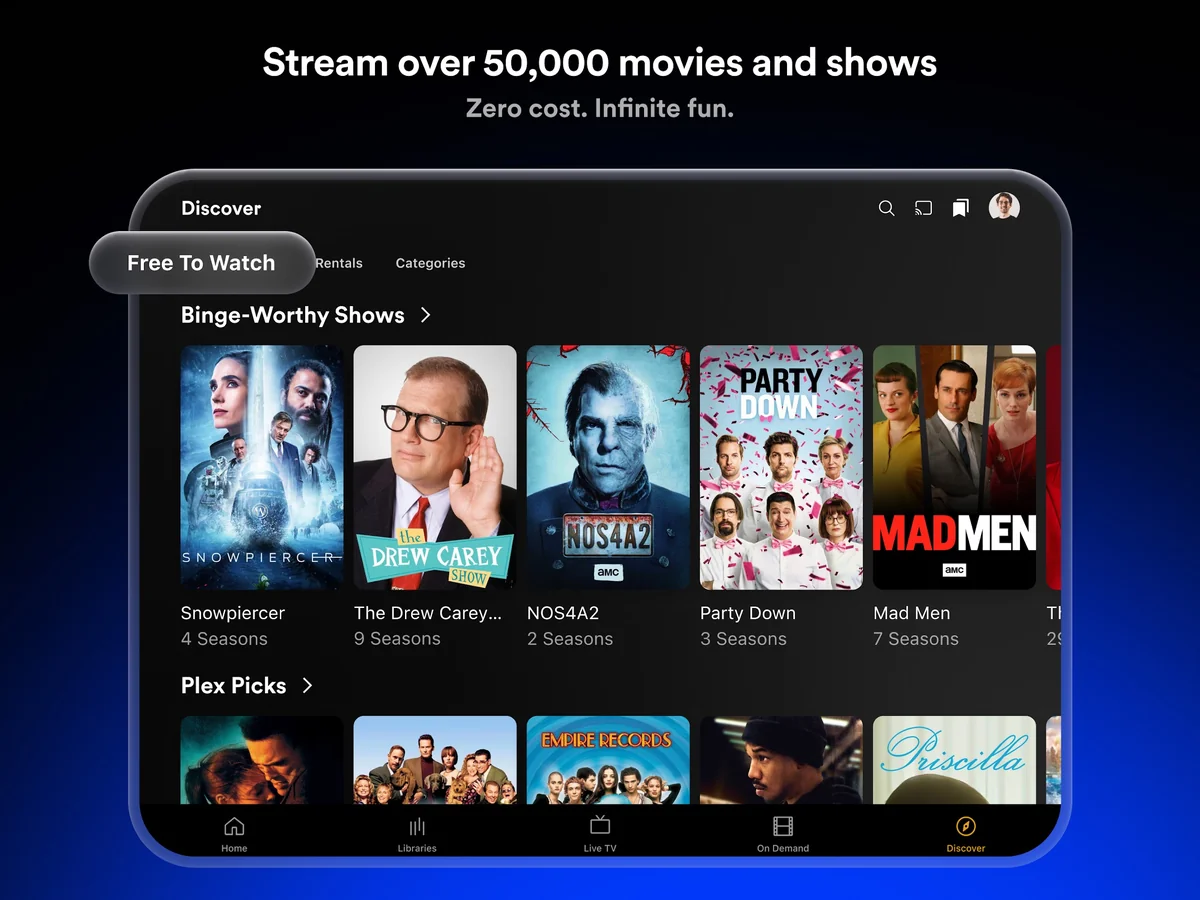
Stream 50,000+ free on-demand movies and television series
Even without connecting a personal server or third-party subscription, Plex functions as a massive standalone streaming powerhouse with over 50,000 free ad-supported titles:
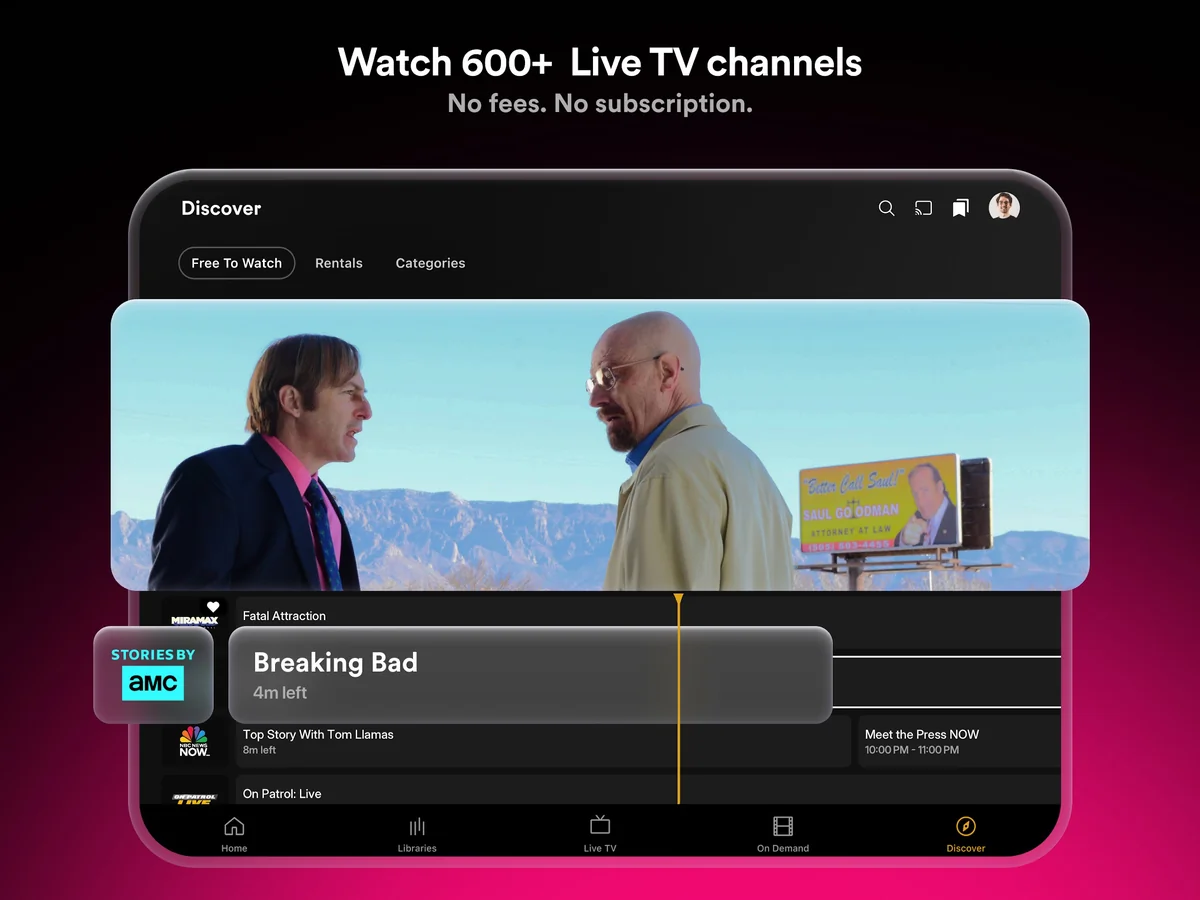
600+ live TV channels with electronic program guide (EPG)
Plex re-creates the nostalgic live cable television experience with more than 600 linear streaming channels accessible directly on your Chromebook:
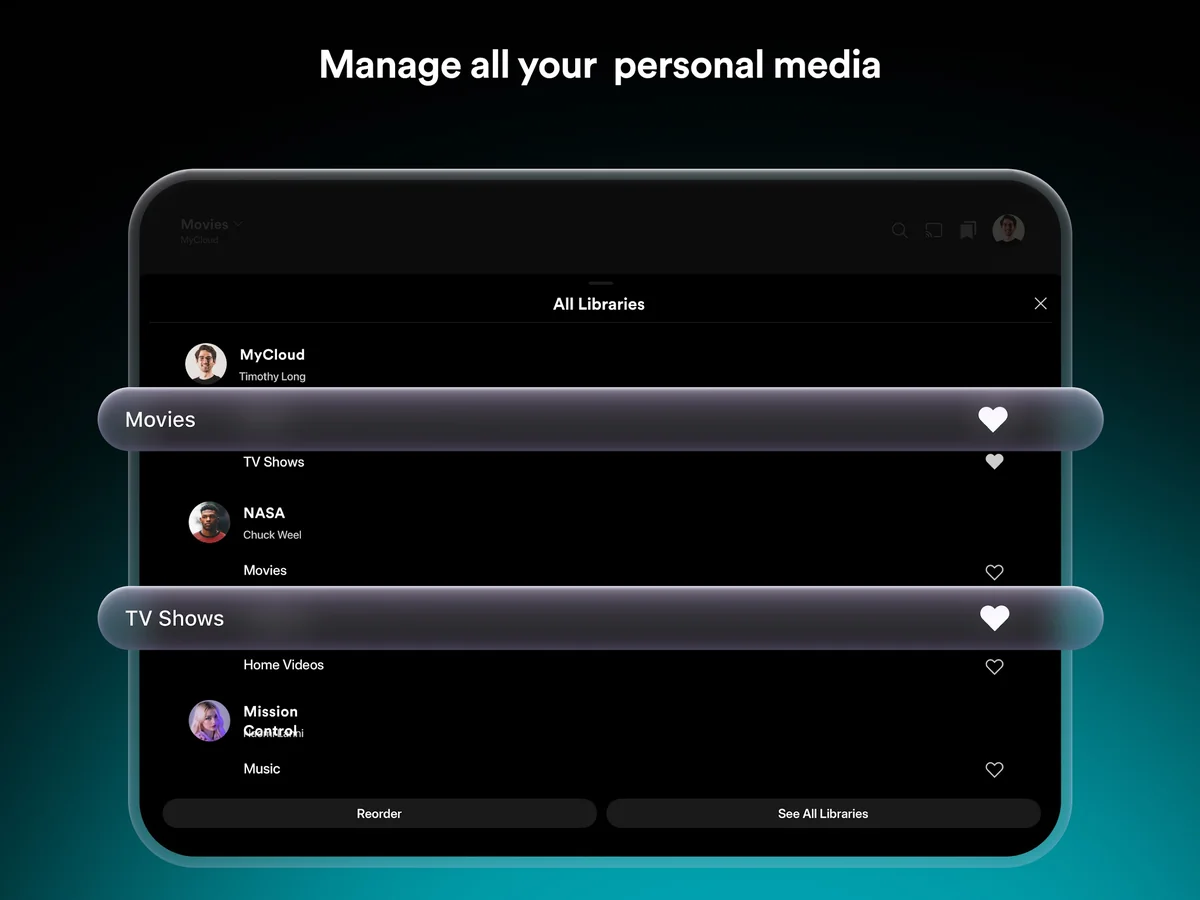
Plex Media Server: organize and stream personal collections
For collectors and home theater enthusiasts, Plex remains the undisputed king of personal media management. Pair the ChromeOS app with a free Plex Media Server running on your home PC, Mac, Linux machine, or NAS:
Plex Free vs. Plex Pass: do you need a subscription on Chromebook?
Plex provides tremendous value on its free tier, but power users can upgrade to Plex Pass for specialized playback enhancements:
Frequently asked questions about Plex on Chromebook
Is Plex free to use on Chromebook and Googlebook?
Yes. Plex is completely free to download and use on Chromebooks and Googlebooks. The free tier gives you unlimited access to stream over 50,000 on-demand movies and television shows, watch 600+ linear live TV channels, manage universal cross-service watchlists, and stream personal media from your home Plex Media Server. An optional Plex Pass subscription ($4.99/month or lifetime pass) unlocks power-user features such as offline media downloads, hardware-accelerated server transcoding, skip intro/credits detection, and access to the dedicated Plexamp audiophile music player.
Do I need to run Plex Media Server on my Chromebook to stream movies?
No. You do not need to host Plex Media Server on your Chromebook. If you want to watch Plex’s free catalog of 50,000+ on-demand movies, stream 600+ live television channels, or find where shows are streaming across Netflix, Hulu, and Prime Video, Plex works entirely standalone out of the box. If you have personal media files (such as home videos, ripped movies, or lossless FLAC music), you install Plex Media Server on an always-on PC, Mac, Linux workstation, or NAS on your home network, and the Plex ChromeOS app streams that library seamlessly over Wi-Fi or cellular connections.
Can I download Plex movies and shows for offline viewing on Chromebook?
Yes, but offline synchronization requires an active Plex Pass subscription. With Plex Pass, you can open any movie or show hosted on your personal Plex Media Server, tap the Download icon, and save the transcoded media directly to your Chromebook’s internal storage or an inserted MicroSD card. This lets you watch your favorite movies and series while traveling or in airplane mode without needing an active internet connection. Free ad-supported on-demand movies and linear live TV channels require an active internet connection and cannot be downloaded offline.
Can I stream media directly from a USB flash drive or external SSD using Plex on Chromebook?
Plex is primarily an active client-server media streaming player and discovery platform rather than a simple offline file browser like VLC. While the Android app can detect locally saved video files, Plex is engineered to catalog, index, and transcode media through Plex Media Server. If you want to play raw video files (such as MKV, MP4, or AVI) directly from a plugged-in USB-C flash drive or external solid-state drive without running a network server, we recommend using VLC for Chromebook or MX Player alongside Plex.
How do I resolve “Server is unavailable” or connection errors on ChromeOS?
If Plex reports that your home media server is offline or unavailable, first ensure the host computer running Plex Media Server is powered on, awake (not sleeping or in hibernation), and connected to your home network. Next, open your Plex Media Server dashboard on the host machine, navigate to Settings > Remote Access, and confirm Remote Access is green and fully accessible outside your home network. On your Chromebook, toggle Wi-Fi off and back on, verify you are logged into the matching Plex account, or open Chrome and test direct browser streaming at app.plex.tv to rule out Android container network routing delays.
Explore more entertainment and media tools for Chromebook
Looking to expand your ChromeOS entertainment setup? Explore our curated guide to the 10 best media players for Chromebook, learn how to play offline media files with VLC on Chromebook and Googlebook, stream premium subscription releases with Disney Plus on Chromebook, or browse on-demand digital purchases on Amazon Prime Video for Chromebook.
Discover more from Chrome Geek
Subscribe to get the latest posts sent to your email.