How to Install and Use Disney Plus on Chromebook and Googlebook
 by
Juniya Sankara
Post Updated: October 28, 2026
You can install and use Disney Plus on Chromebook and Googlebook through the official Android app from Google Play or directly via the web player at disneyplus.com. It brings blockbuster films from Marvel Studios, Lucasfilm, Pixar, and Walt Disney Animation alongside integrated Hulu drama hubs and ESPN sports directly to your laptop display.
Googlebook runs Android applications natively through Google Play, giving you the same dependable streaming experience alongside effortless phone-app casting. This comprehensive guide walks you through the Google Play installation, Chrome browser setup and PWA shortcuts, offline video downloads, IMAX Enhanced playback, multi-user parental PINs, and proven troubleshooting fixes.
Need help setting up your streaming apps? Contact us with your laptop model and any playback or sign-in questions.
How to install Disney Plus on Chromebook and Googlebook
Installing the official Disney+ app through Google Play takes only a minute and enables offline video downloading:
The official Google Play listing identifies Disney+ under the package identifier com.disney.disneyplus. Installing the official app provides automatic background security updates, touch gesture navigation, and local download storage.
If the Play Store is not active on your device, check Google’s Android app setup guide for Chromebook or the guide on installing apps on Googlebook. On school or workplace laptops, administrator policies may manage or restrict app downloads. While there is no native Debian Linux package (.deb) for ChromeOS Linux, you can always navigate directly to disneyplus.com in Google Chrome to stream your favorite titles instantly without installing extra software.
Cast Disney Plus from your phone on Googlebook
If your Android phone already has Disney+ configured with your favorite watchlists, downloaded episodes for an upcoming flight, and active login sessions, Googlebook’s Cast My Apps feature lets you stream your phone’s app directly onto your laptop display. Open the Phone Hub in the bottom-right corner of your Googlebook shelf, click Cast My Apps, and select Disney+. Your phone’s active streaming session opens immediately in an adaptive desktop window, allowing you to control playback and watch your queue without re-entering passwords or transferring files.
Disney Plus Web vs. Android app: choosing your ideal ChromeOS setup
On Chromebooks and Googlebooks, you can choose between running the Google Play Android app and streaming through the Google Chrome browser. Both options provide high-definition playback, but each caters to different viewing needs:
Exploring brand hubs: Disney, Pixar, Marvel, Star Wars, Nat Geo, Hulu, and ESPN
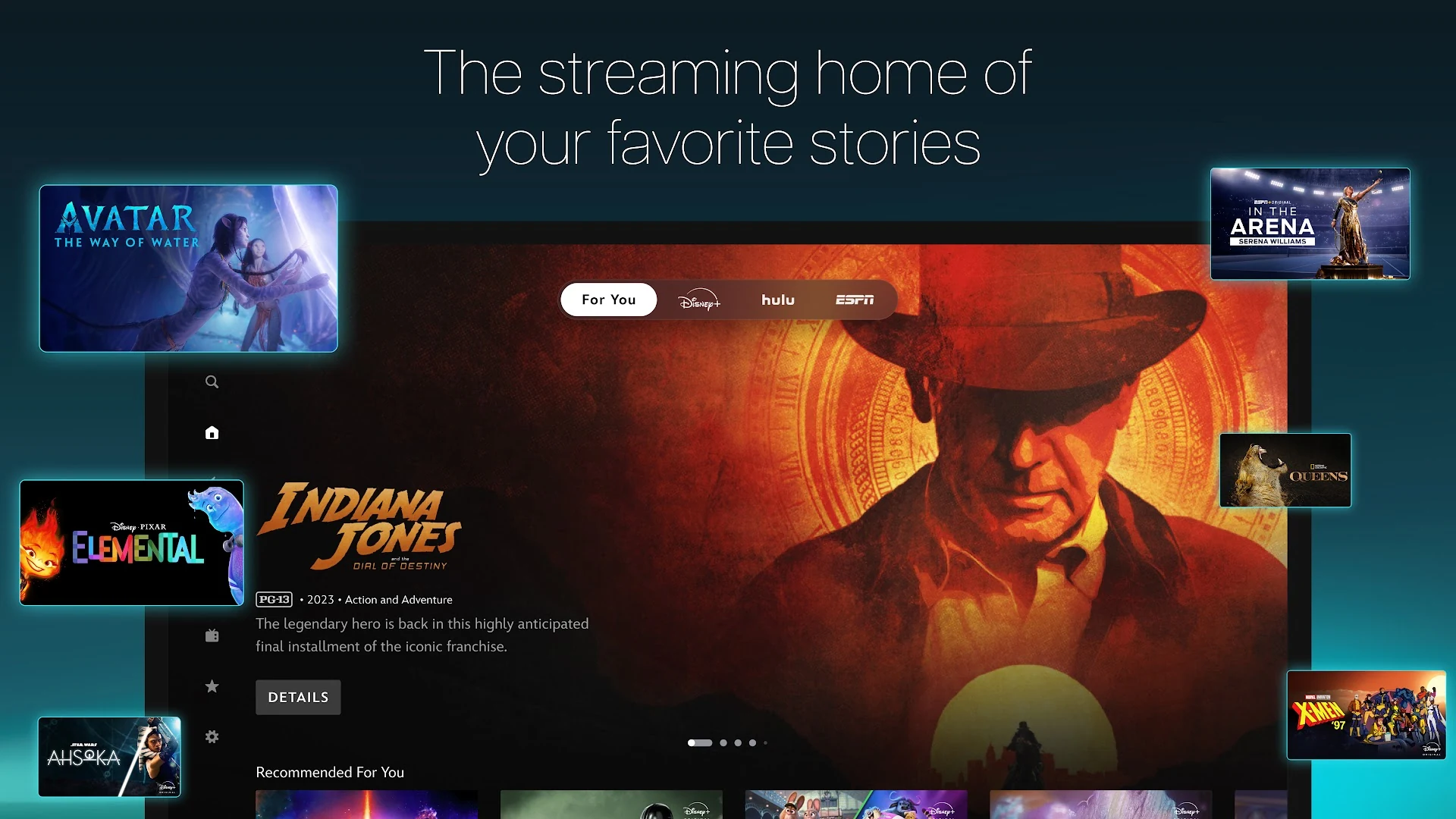
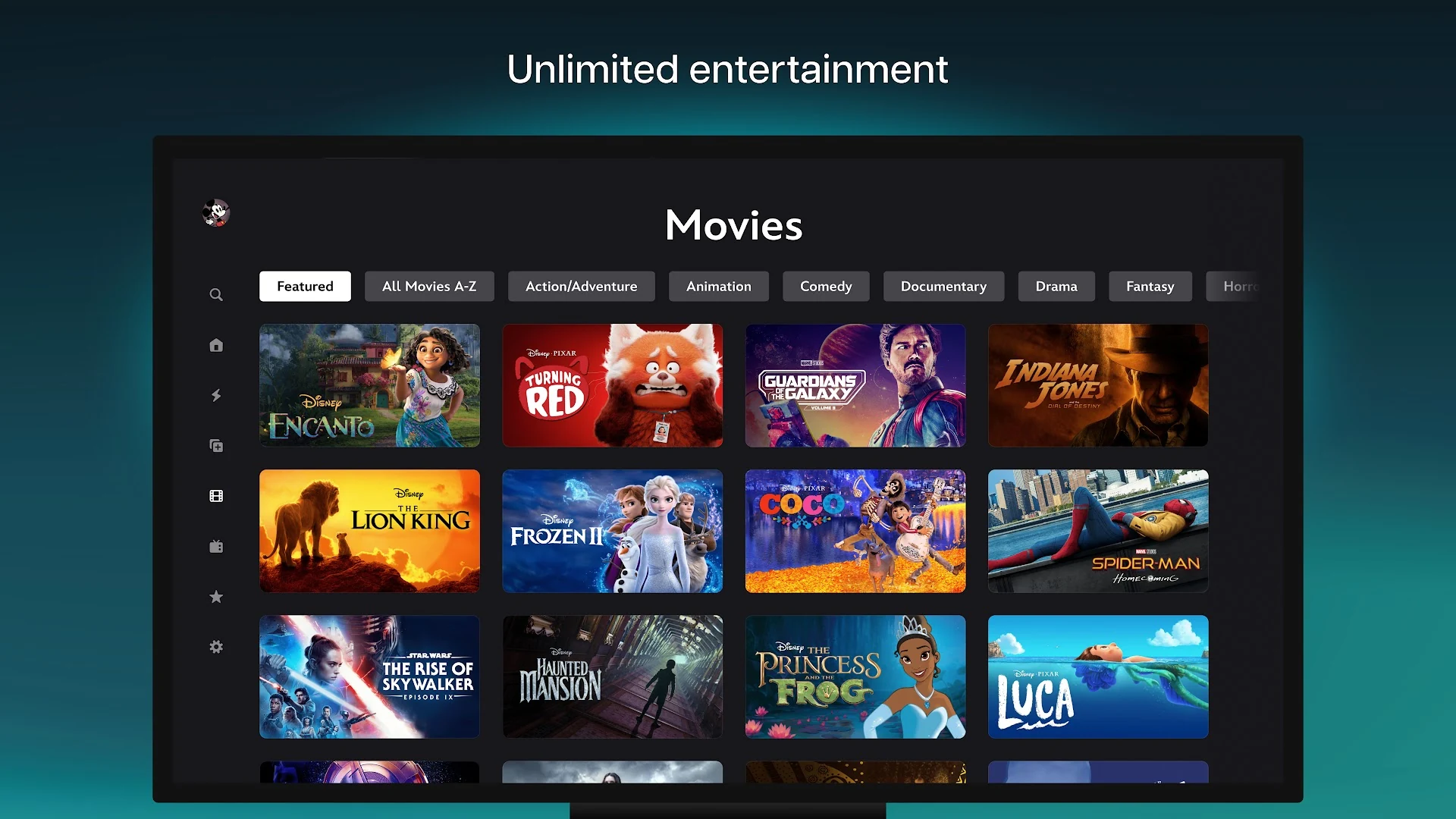
Disney+ organizes its expansive catalog into dedicated brand hubs that make finding specific entertainment franchises fast and intuitive:
- Signature animation and family classics: explore decades of iconic animation from Walt Disney Animation Studios, Pixar gems from Toy Story to Elemental, and live-action reimaginings.
- Marvel Cinematic Universe and Star Wars: stream entire movie phases, complete chronological sagas, and critically acclaimed original series like Loki, Andor, The Mandalorian, and X-Men ’97.
- Integrated Hulu content hub: subscribers with eligible Disney Bundles can watch hit adult dramas, award-winning comedies such as The Bear and Shogun, and original films directly inside the Disney+ app without switching accounts.
- ESPN sports and ABC News live streams: access live sports broadcasts, ESPN Originals, studio talk shows, and 24/7 continuous news feeds curated by season and current events.
- National Geographic expeditions: stream natural history documentaries, scientific explorations, and stunning wildlife docuseries in high-definition HDR.
4K UHD streaming, IMAX Enhanced, and offline downloads
Disney+ takes advantage of high-resolution laptop displays, crisp convertible touchscreens, and external monitor connections:
- 4K Ultra HD and Dolby Vision: stream supported titles with vibrant contrast, deep black levels, and vivid colors on premium Chromebook and Googlebook screens.
- IMAX Enhanced aspect ratio: enjoy an expanded 1.90:1 aspect ratio on selected Marvel and Pixar films, delivering up to 26% more picture area and eliminating letterbox black bars on widescreen laptop displays.
- Offline download management: tap the download icon beside any movie or episode in the Android app to save it locally. Open the Downloads tab at the bottom of the app to watch without an internet connection or manage storage consumption.
- Surround sound and spatial audio: plug in headphones or connect Bluetooth speakers to experience immersive Dolby Atmos sound design in big-budget action sequences and concert films.
Custom viewer profiles, Kid-Proof Exit, and Profile PINs
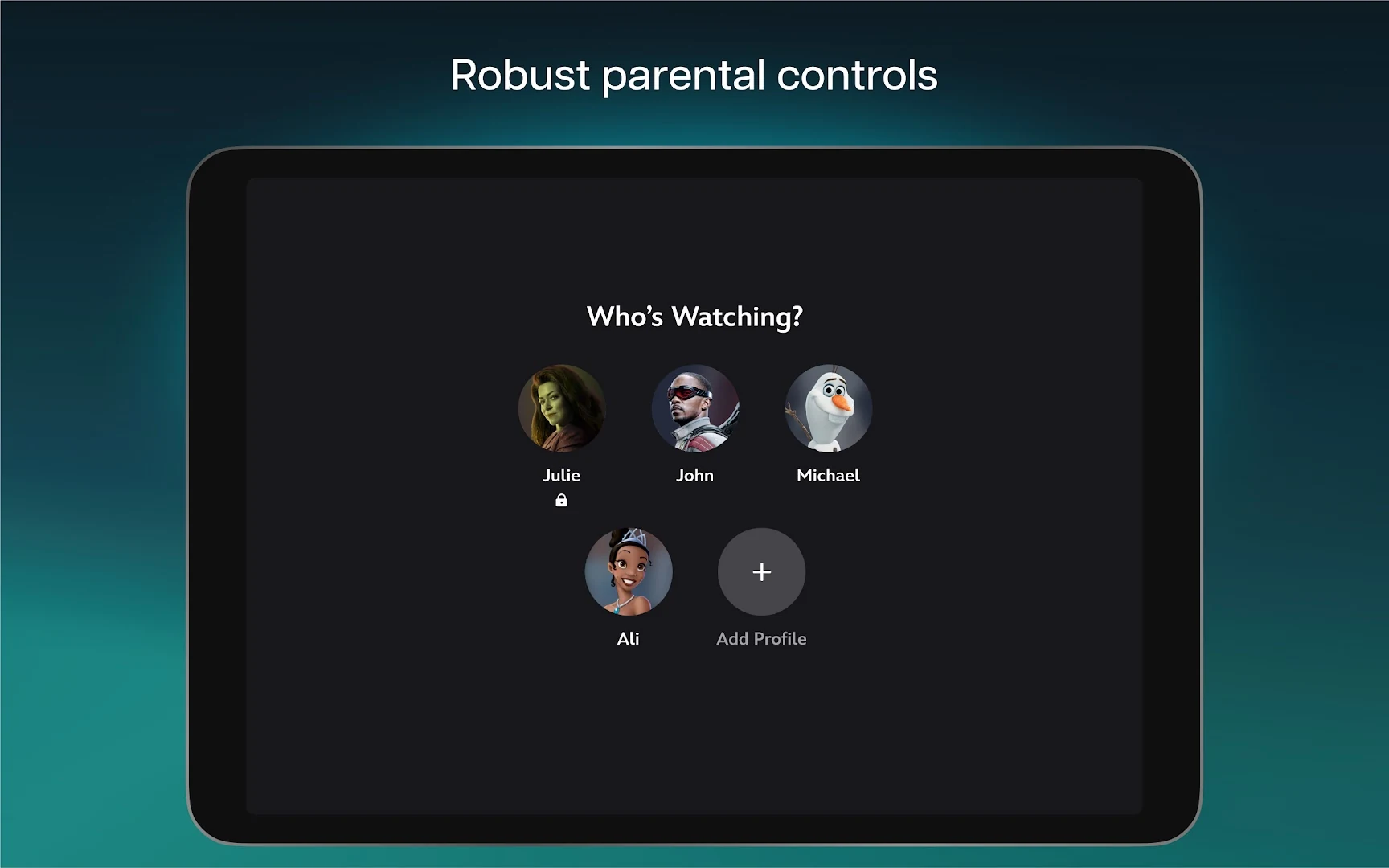
Because Chromebooks and Googlebooks are frequently shared among family members, Disney+ includes robust multi-user profile options and child protection tools:
- Up to seven distinct profiles: create personalized profiles for each family member with custom Disney character avatars, tailored recommendation feeds, and independent watchlists.
- Content rating limits: restrict mature titles by setting content ratings (ranging from TV-Y to TV-MA) on a per-profile basis so younger viewers only see age-appropriate content.
- 4-Digit Profile PIN protection: lock adult profiles with a confidential 4-digit PIN to prevent children from navigating outside their designated profile.
- Kid-Proof Exit: require a simple question challenge before exiting a Junior profile, stopping accidental access to full platform menus.
Troubleshooting Disney Plus streaming and playback on ChromeOS
If you experience playback buffering, unexpected error codes, or display issues on your laptop, apply these quick fixes:
- Black screen with audio playing: disable hardware graphics acceleration temporarily in Google Chrome. Navigate to Chrome Settings > System, turn off Use graphics acceleration when available, and restart the browser.
- Error Code 83 or device compatibility error: Error 83 typically indicates an unverified browser environment or DRM handshake issue. Ensure Google Chrome is updated to the latest stable release and that Widevine DRM is enabled. If streaming in browser, clear cookies for
disneyplus.comor switch to the Google Play app. - Video buffering or frequent resolution drops: verify your internet connection speed (at least 5 Mbps for HD, 25 Mbps for 4K). In the Disney+ player settings, adjust data usage from Automatic to Moderate to reduce bandwidth demand.
- Audio out of sync with video: disconnect and reconnect external Bluetooth speakers or headphones. A quick tab reload or closing background tabs usually resolves audio-video desync immediately.
- App crashes or fails to open from launcher: clear the Android app cache by navigating to ChromeOS Settings > Apps > Manage your apps > Disney+ > Storage and clicking Clear cache.
Frequently asked questions about Disney Plus on Chromebook and Googlebook
Can I download Disney Plus movies to watch offline on a Chromebook?
Yes. When you install the official Disney+ app from Google Play, you can download movies, full seasons, and original series directly to your Chromebook or Googlebook internal storage or microSD card. Offline downloads are perfect for road trips, flights, or locations without reliable Wi-Fi.
Should I use the Disney Plus Android app or stream via Google Chrome?
Both options provide excellent playback. The Google Chrome browser player at disneyplus.com is ideal for desktop multitasking, offering fast loading, physical keyboard controls, and widescreen streaming without consuming local storage. The Google Play Android app is the better choice if you need offline downloads for travel or use a 2-in-1 convertible in tablet mode.
How do I cast Disney Plus from my Android phone to Googlebook?
Open the Phone Hub from the bottom-right shelf of your Googlebook and make sure your Android phone is linked. Click Cast My Apps, then select Disney+. Your phone’s active Disney+ session will stream into a floating desktop window on your laptop, letting you continue watching without signing in again.
Why is Disney Plus showing a black screen when I click play?
A black screen during video playback is usually caused by outdated graphics acceleration in the browser. In Google Chrome, go to Settings > System and toggle ‘Use graphics acceleration when available’ off, relaunch Chrome, and try playing your video again. Also ensure your ChromeOS version is up to date.
Can I watch Hulu and ESPN content inside the Disney Plus app on Chromebook?
Yes. Disney+ includes integrated Hulu and ESPN hubs directly on the home screen. If you have an active Disney Bundle or eligible standalone subscriptions linked to the same Disney account, you can stream selected Hulu series (like The Bear and Shogun) and ESPN sports programming seamlessly within the Disney+ interface.
Explore more streaming and media guides on ChromeGeek
- Amazon Prime Video on Chromebook: Install Guide & Web Access: Stream original movies, TV series, and live sporting events on ChromeOS.
- 10 Best Apps to Watch Movies and TV Shows on Chromebook: Compare top video streaming platforms and media apps for ChromeOS laptops.
- How to Install and Use VLC on Chromebook and Googlebook: Play offline video files, MKV formats, and network media streams with zero ads.
- How to Install and Use MX Player on Chromebook and Googlebook: Set up hardware-accelerated playback and multi-format subtitle gestures on ChromeOS.
- Top 10 Media Players on Chromebook: Discover top video and audio players for local files and streaming formats.
- 19 Best Disney Games for Chromebook and Googlebook: Experience magical adventures, kart racing, and puzzle challenges across ChromeOS.
- Googlebook News and Guides Hub: Learn about Googlebook hardware, Gemini AI features, and phone-laptop casting capabilities.
Discover more from Chrome Geek
Subscribe to get the latest posts sent to your email.