How to Install and Use Messenger on Chromebook and Googlebook
 by
Gloria Brown
Post Updated: October 25, 2026
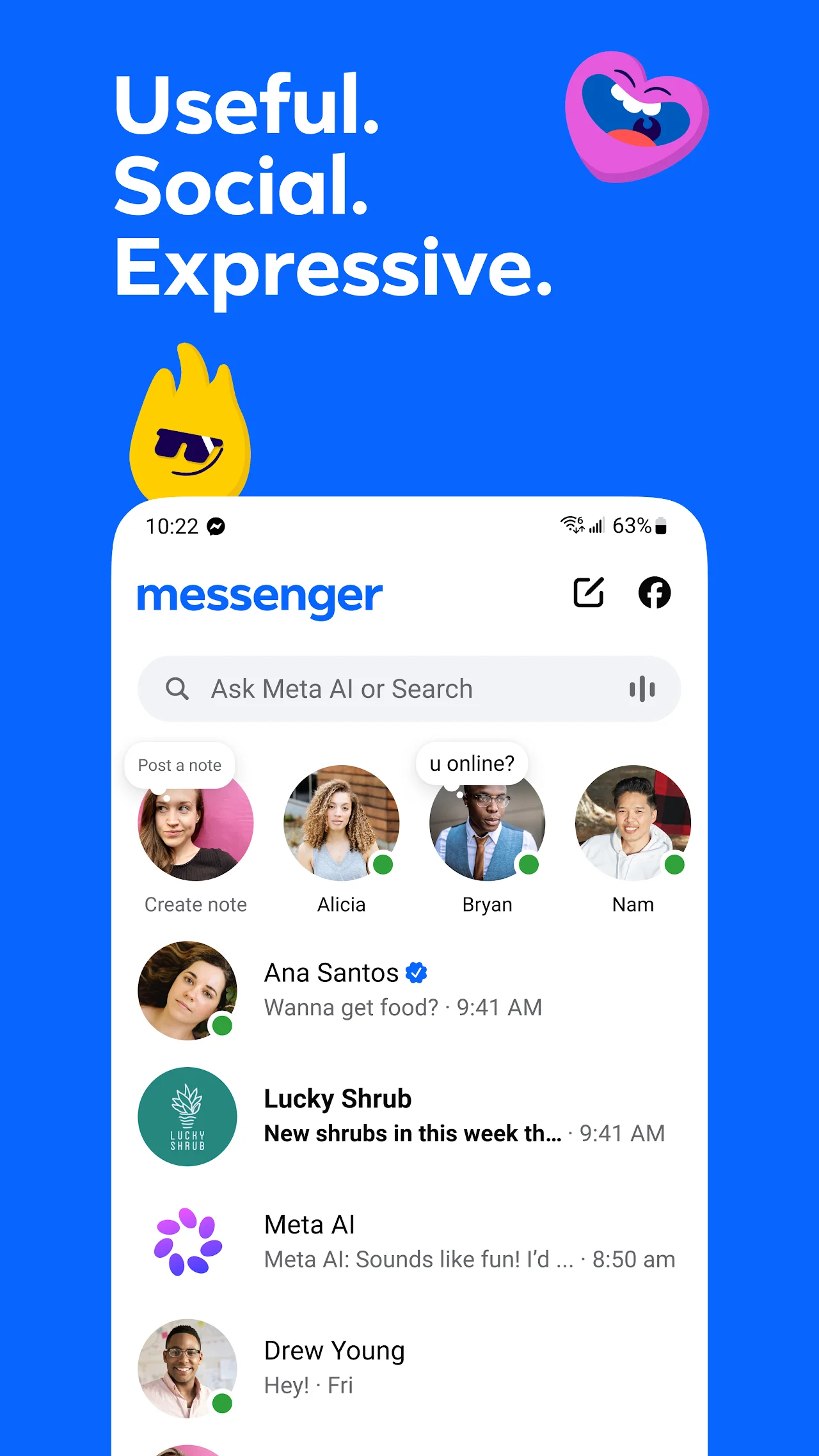
You can install and use Messenger on Chromebook and Googlebook through the official app from Google Play. It gives you a fast, reliable messaging hub to stay in touch with friends and family, chat with Meta AI, make high-definition video calls, and share high-resolution photos across all your devices.
Googlebook runs Android apps natively through Google Play, giving you the same seamless messaging alongside phone-app casting. This guide walks you through the Google Play installation, Googlebook phone-app casting, Messenger web in Chrome, Meta AI assistance, HD video calling, and account privacy settings.
Need help setting up your chats? Contact us with your laptop model and any setup questions.

Choose Messenger Android app or Messenger web
The official Google Play listing identifies Meta Platforms, Inc. as the developer. Using the official app or the browser version ensures your account remains secure and avoids third-party wrapper tools.
How to install Messenger on Chromebook and Googlebook
If the Play Store is not visible, check Google’s Android app setup guide for Chromebook or the guide on installing apps on Googlebook. On school or workplace laptops, the administrator may manage app installations. If you cannot install apps from Google Play, you can always open Messenger on the web in Google Chrome.
Cast Messenger from your phone on Googlebook
If you already have Messenger active on your Android phone, Googlebook’s Cast My Apps feature lets you access your mobile chat sessions directly on your laptop screen. Connect your phone through your Googlebook phone hub setup, open Cast My Apps, and select Messenger. This lets you respond to notifications, send messages, and check active threads directly from your laptop without reinstalling the app or syncing duplicate logins.
Chat with Meta AI assistant for quick answers and ideas
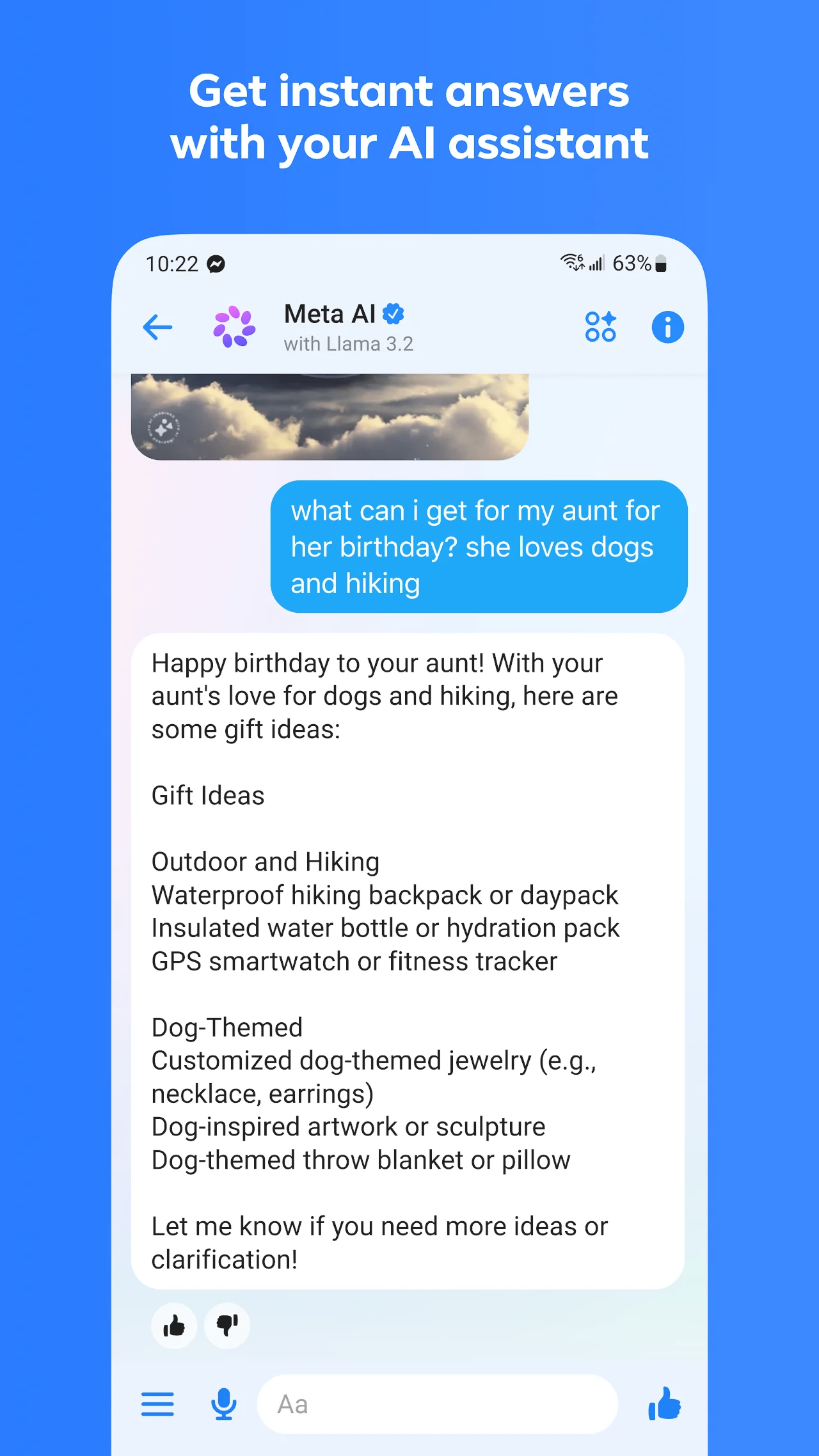
Messenger includes Meta AI, an intelligent assistant powered by Llama that helps you answer questions, brainstorm ideas, draft messages, and discover recommendations without leaving your chat window.
Host high-definition voice and video calls
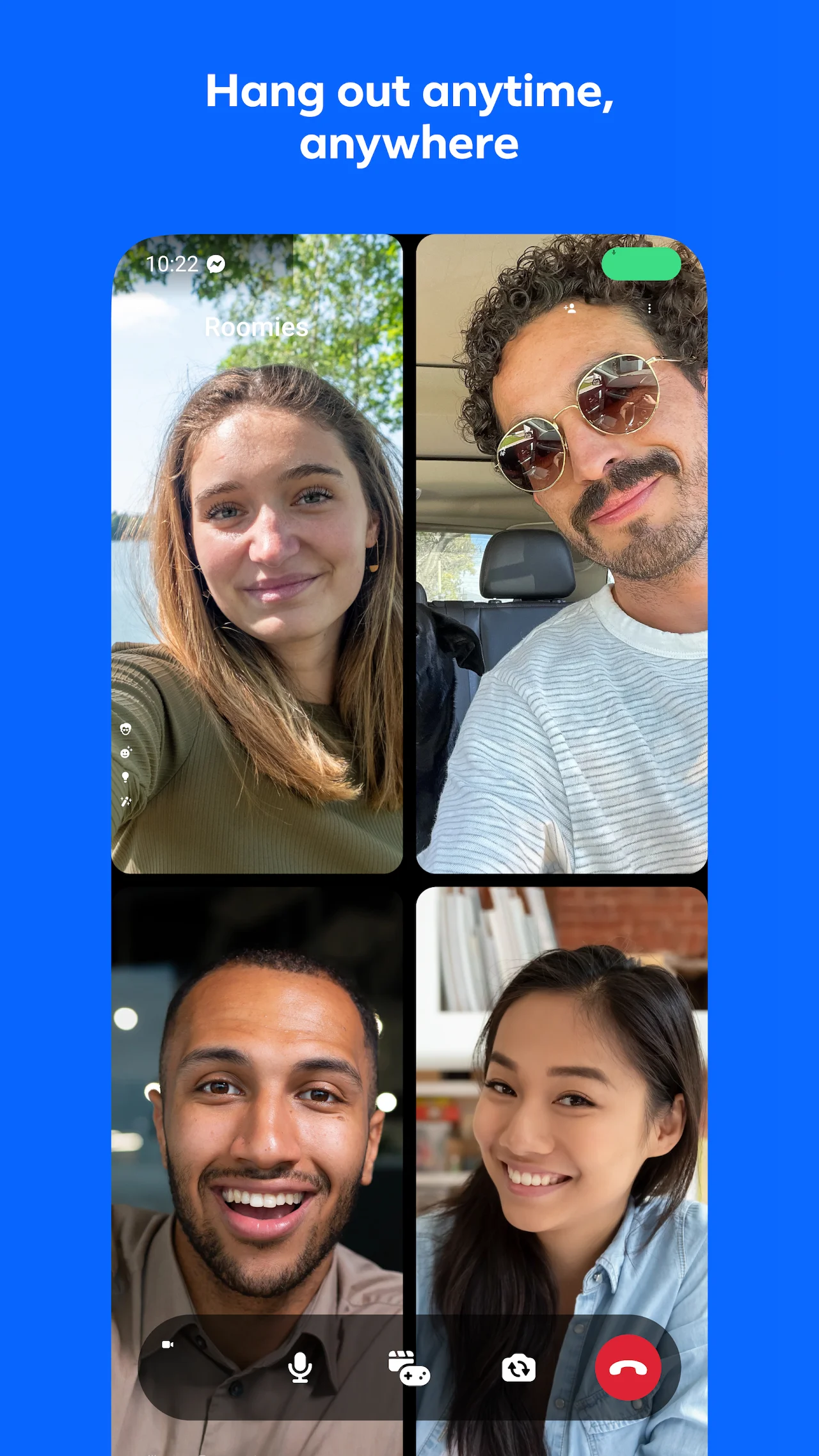
Messenger makes face-to-face conversations easy on laptop screens with high-definition audio and video calling. Connect your webcam and microphone to catch up with family or jump into group calls.
Share high-definition photos, shared albums, and large files
Sharing media in Messenger is faster and crisper than ever, with built-in support for large file transfers and organized photo albums:
- High-definition photos: toggle HD when selecting pictures from your Files app to send full-resolution images without heavy compression.
- Shared group albums: create dedicated albums within group chats so everyone can contribute, organize, and reminisce over vacation photos or special events.
- Large file transfers up to 100MB: send Word documents, spreadsheets, PDFs, and audio recordings directly inside your chat threads without third-party cloud storage links.
- Disappearing messages and encryption: keep private conversations secure with end-to-end encrypted chats and configurable disappearing message timers.
Quick fixes for common Messenger issues
- Notifications not popping up: open ChromeOS Settings > Apps > Manage your apps > Messenger and confirm Notifications are toggled on. If using Messenger web, allow notifications when prompted by Chrome.
- Camera or microphone not working on calls: check your app permissions in Settings > Privacy and security > Permissions to ensure Messenger has access to your camera and microphone hardware.
- App freezes or fails to sync: clear the app cache by opening Settings > Apps > Messenger > Storage and selecting Clear cache. Restart your laptop and reopen the app.
- Cannot sign in to your account: ensure your Google account and Facebook credentials are up to date. If two-factor authentication is active, approve the login prompt from your phone or authenticator app.
Related messaging and social guides
- Facebook Lite on Chromebook: Run Meta’s lightweight social app to save data and storage.
- WhatsApp on Chromebook and Chrome: Connect with phone contacts and manage end-to-end encrypted messaging.
- Telegram on Chromebook: Set up fast cloud messaging, channels, and large file transfers.
- Discord on Chromebook: Join gaming communities, voice channels, and server chats.
Frequently asked questions
Is Messenger free to use on Chromebook and Googlebook?
Do I need a Facebook account to use Messenger?
Can I use Messenger without installing the Android app?
Does Messenger on Chromebook support video calling and screen sharing?
Are Messenger chats end-to-end encrypted on Chromebook?
Discover more from Chrome Geek
Subscribe to get the latest posts sent to your email.