How to Install and Use WeVideo on Chromebook and Googlebook
 by
Gloria Brown
Post Updated: November 2, 2026
You can install and use WeVideo on Chromebook and Googlebook through the official Android app from Google Play or directly via the cloud video editor in your Google Chrome browser. It provides intuitive multi-track timeline editing, screen and webcam capture, chroma key green screen effects, and cloud rendering built specifically for lightweight laptops.
Googlebook runs Android applications natively through Google Play, giving you the same dependable editing tools alongside effortless phone-app casting. This comprehensive guide walks you through the Google Play installation, Chrome browser setup, multi-track timeline editing, screen and webcam recording, chroma key green screen effects, and proven troubleshooting fixes.
Need help setting up your video editing projects? Contact us with your laptop model and any export or sign-in questions.
How to install WeVideo on Chromebook and Googlebook
Installing the official WeVideo application from Google Play gives you quick touch access, local media management, and offline clip drafting on your laptop:
The official Google Play listing packages WeVideo under the application identifier com.wevideo.mobile.android. Installing the Android application ensures automatic background updates and quick touch gesture editing.
If the Play Store is not active on your device, check Google’s Android app setup guide for Chromebook or the guide on installing apps on Googlebook. On school and workplace devices, administrator policies may regulate Android installations. While there is no native Debian Linux package (.deb) for ChromeOS Linux, you can always navigate directly to WeVideo online in Google Chrome to edit your footage immediately without installing local software.
Cast WeVideo from your phone on Googlebook
If your Android phone already holds recorded footage, rough timeline cuts, or an active WeVideo login session, Googlebook’s Cast My Apps feature lets you stream your phone’s app directly onto your laptop display. Open the Phone Hub in the bottom-right corner of your Googlebook shelf, click Cast My Apps, and select WeVideo. Your phone’s active video editing session appears instantly in an adaptive desktop window, allowing you to organize clips and review playback without transferring large video files.
WeVideo Web vs. Android app: choosing your ideal ChromeOS setup
On Chromebooks and Googlebooks, you can choose between running the Google Play Android app and working directly in the Google Chrome browser. Both options link to your central cloud account, but each caters to different workflows:
Multi-track timeline editing and audio precision on ChromeOS
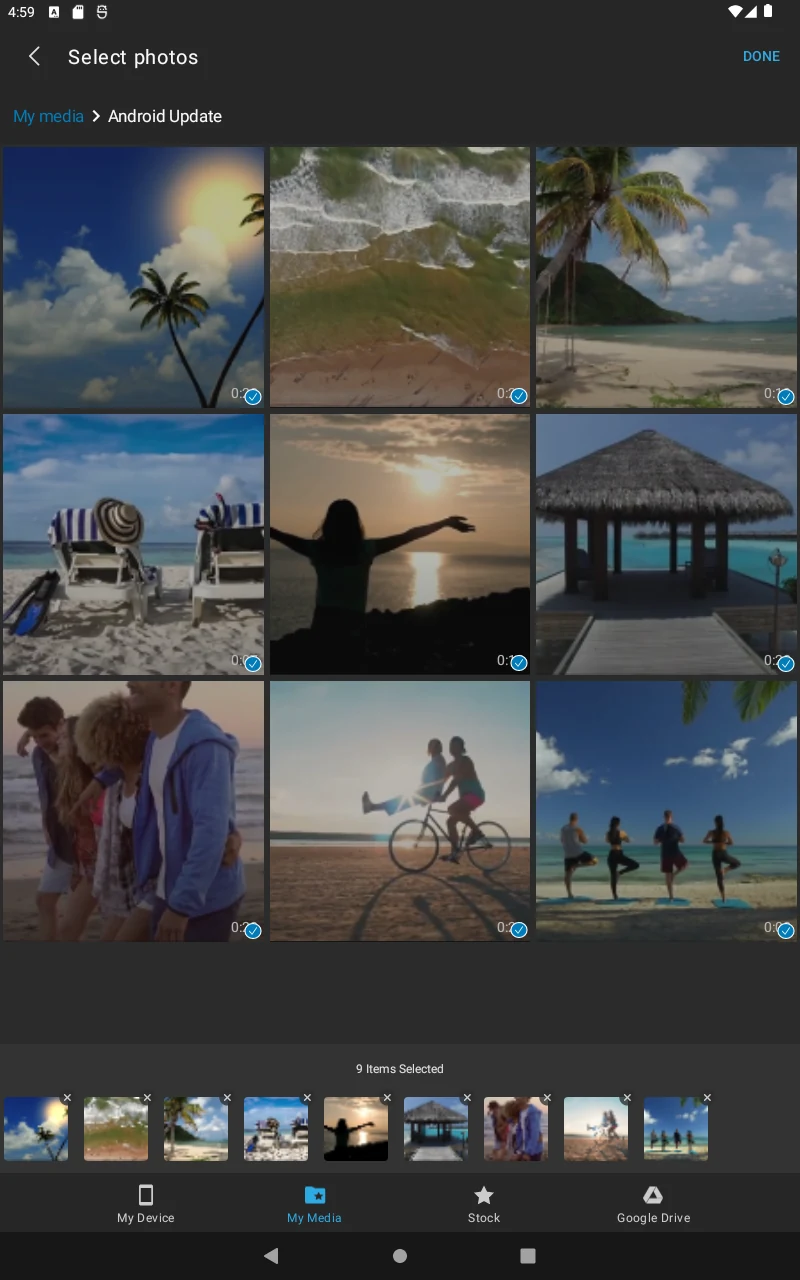
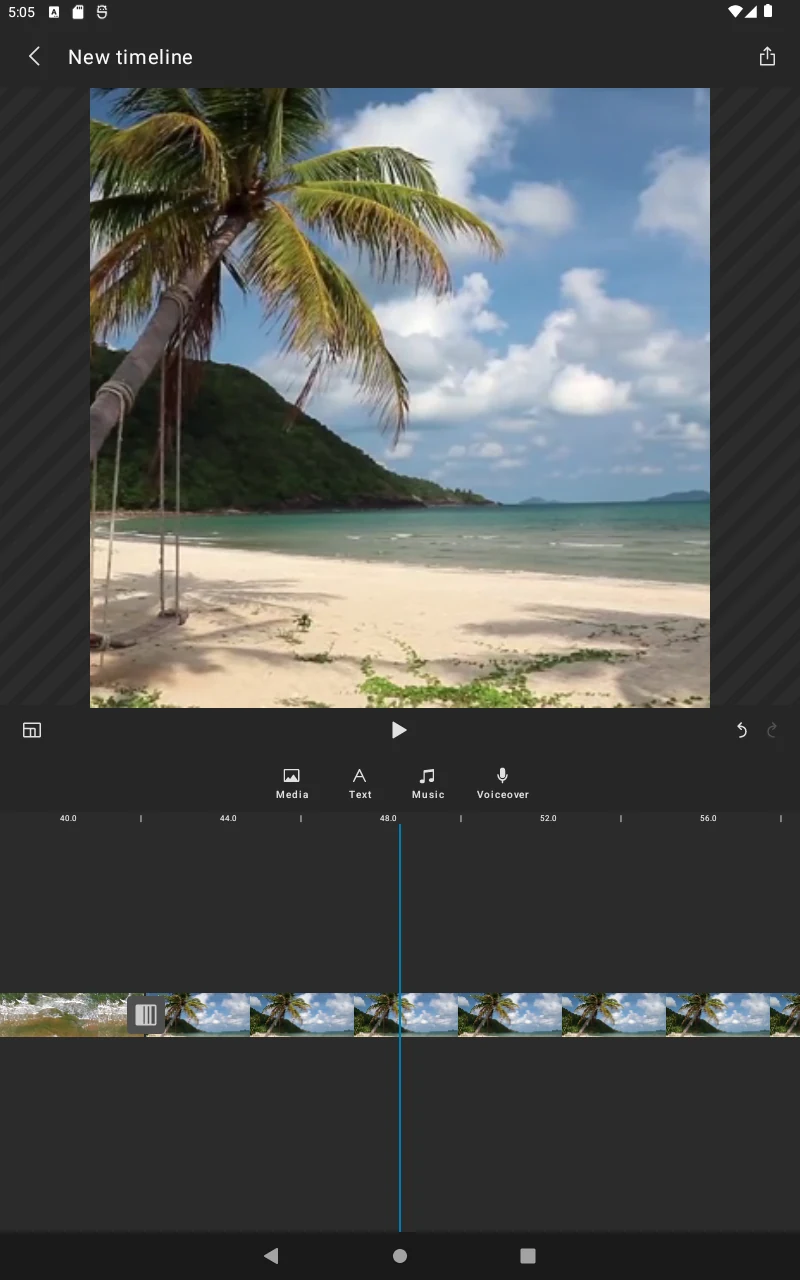
Unlike basic mobile trimmers, WeVideo offers an expansive multi-track timeline editor designed for Chromebook touchscreens and laptop displays. You can layer multiple video tracks for picture-in-picture, cut away b-roll, and blend background music beneath voiceovers with granular audio waveform controls.
Add styled animated titles, captions, and motion text
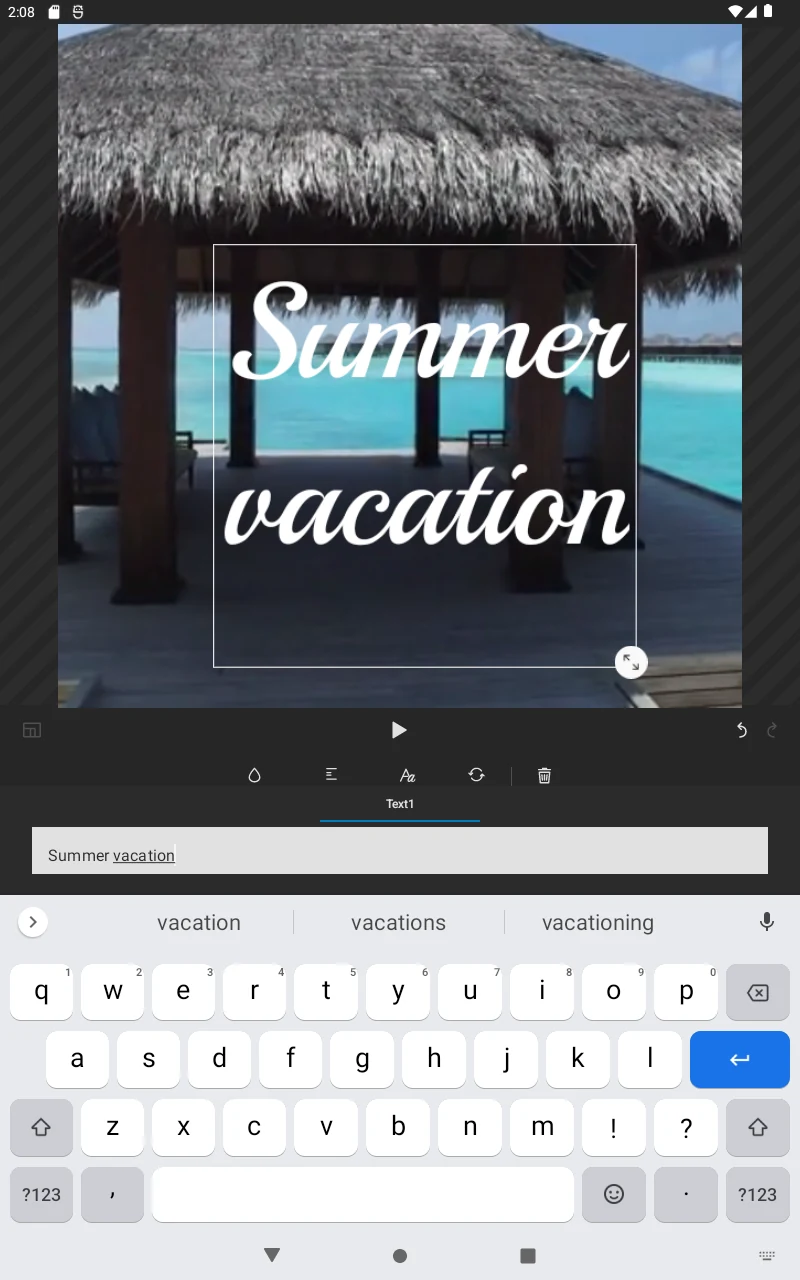
Captions and on-screen graphics keep viewers engaged on educational presentations and social media clips. WeVideo includes a robust typography suite with preset lower-thirds, callouts, and motion cards:
Full-screen real-time playback and video scrubbing
Reviewing your cuts in full resolution ensures seamless transitions and perfectly timed audio cues before starting final rendering:
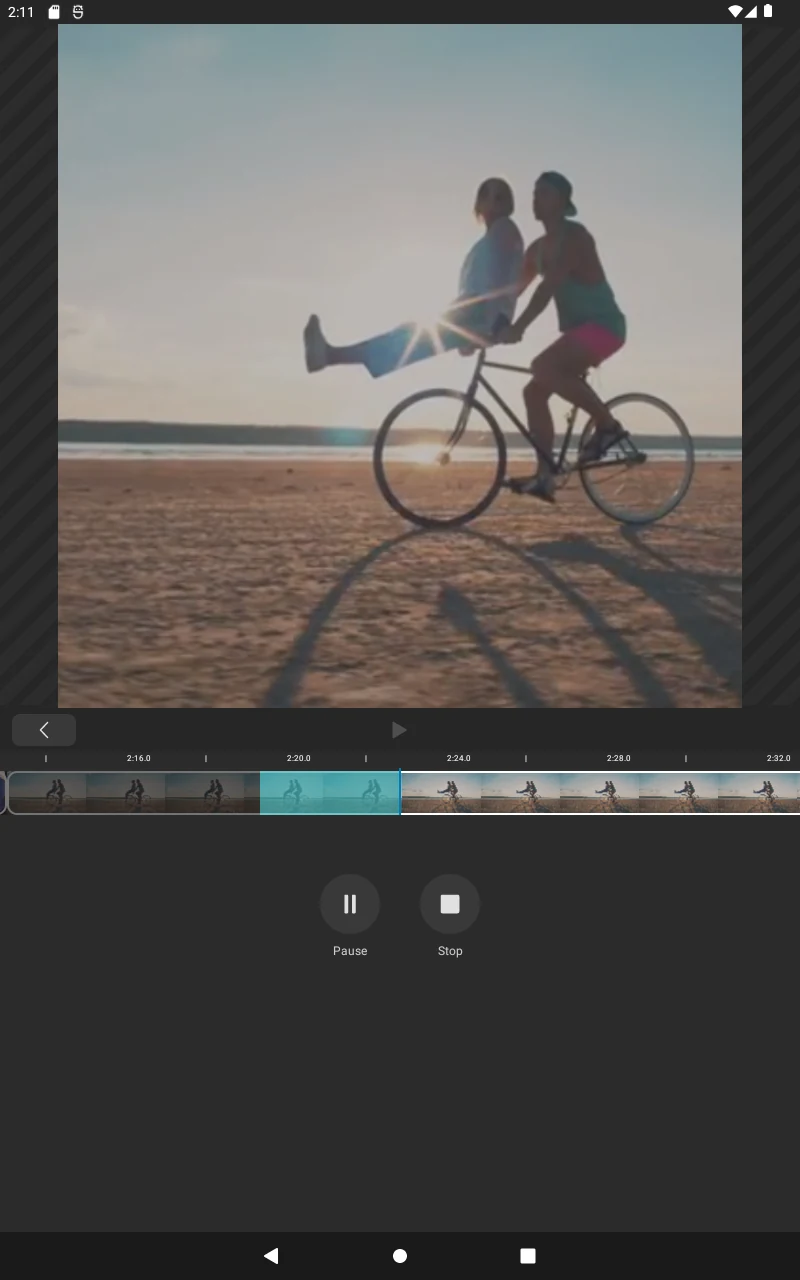
WeVideo provides responsive scrubbing controls and dedicated full-screen preview modes. Use trackpad swipes or touch gestures to glide back and forth through complex timelines without stuttering, allowing students and creators to audit scene pacing effortlessly.
Rich stock media library and classroom interactivity
Finding copyright-compliant media can be difficult for school projects and marketing videos. WeVideo includes direct access to over 1 million royalty-free stock video clips, high-resolution photographs, and licensed background music tracks within the editor. You can search by mood, topic, or genre and drag assets straight into your project without leaving the tab.
For teachers and instructional designers, WeVideo Classroom features interactive video modules (powered by PlayPosit technology). You can embed multiple-choice questions, polls, and open discussions directly into timestamps on your video. When students watch on their Chromebooks, the video pauses automatically until they answer, turning passive video viewing into active learning.
Cloud rendering: fast exports without overheating your Chromebook
Traditional video editing software places extreme thermal load and battery drain on lightweight laptops. WeVideo solves this by offloading rendering to secure cloud servers:
WeVideo pricing and plan tiers on ChromeOS
WeVideo offers both a free entry tier and expanded paid subscription plans to fit individual creators, schools, and business teams:
Ready to get started? Check out current plan options and start creating today at WeVideo.com.
Frequently asked questions about WeVideo on Chromebook
Why does WeVideo display a ‘Something went wrong. Please reload’ message on Chromebook?
This issue usually stems from corrupted browser cache data, restrictive third-party cookies, or interfering Chrome extensions (such as ad blockers or script filters). Clear your browser cache and cookies for wevideo.com, temporarily disable extensions, and reload the tab. If you are using school managed Wi-Fi, ensure your school IT network allows connections to WeVideo cloud streaming servers.
How do I fix the ‘This app is blocked’ error when signing in with Google?
The ‘This app is blocked’ error occurs when your Google Workspace for Education domain has not explicitly whitelisted WeVideo under API access controls. Reach out to your school or organization Google Workspace administrator and request that they mark the WeVideo web application and Google Play package as a Trusted Third-Party App in the Google Workspace Admin console.
Why cannot WeVideo access my Chromebook camera or microphone?
ChromeOS strictly safeguards hardware audio and video input permissions. When using the browser editor, click the padlock or site settings tune icon on the left side of Chrome’s address bar, ensure Camera and Microphone are toggled to Allow, and refresh the page. If you are using the Android app, navigate to ChromeOS Settings > Apps > Manage your apps > WeVideo > Permissions and enable Microphone and Camera.
What should I do if I see a ‘Deleted media’ warning in my timeline?
A ‘Deleted media’ placeholder appears when a video, photo, or audio file linked in your timeline was deleted from your internal drive, cloud storage, or Google Drive before finishing the cloud sync. Open the Project Media tab, select Re-link or Upload, and re-import the original file from your local files or Google Drive to restore the asset.
How can I access WeVideo when outside my school network?
If your school uses single sign-on (SSO) portals like ClassLink, Clever, or Google Workspace with IP range restrictions, accessing WeVideo from home requires authenticating through your school’s official portal login or utilizing your school-issued Google account. You can also log into WeVideo directly via the web editor using your school Google Workspace credentials without needing a school VPN.
Explore more video editing tools for Chromebook
Looking to compare video editors for ChromeOS? Check out our curated guides to the 11 best video editors for Chromebook, the versatile mobile timeline in CapCut on Chromebook and Googlebook, the professional multi-track tool PowerDirector on Chromebook, and the pro editing powerhouse LumaFusion on Chromebook.
Discover more from Chrome Geek
Subscribe to get the latest posts sent to your email.