CapCut on Chromebook and Googlebook: Install and Edit Videos
 by
Gloria Brown
Post Updated: October 25, 2026
You can use CapCut on Chromebook through its web editor or Google Play. It is useful for trimming clips, adding text and music, and making videos for YouTube, TikTok or Instagram. Start in the browser if you want to edit without installing an app.
On Googlebook, use the same web route or check CapCut in the Play Store. This guide walks you through getting started, making a first video and choosing free tools without an unexpected upgrade prompt.
Need help with your setup? Contact us with your laptop model and whether you are using CapCut Web or the app.

Choose how to use CapCut
Compatibility in brief: Play Store availability depends on your device and account; school or work administrators may manage access. If installation is unavailable, use CapCut Web. The Windows and Mac desktop downloads are separate from these routes.
How to open CapCut Web on Chromebook or Googlebook
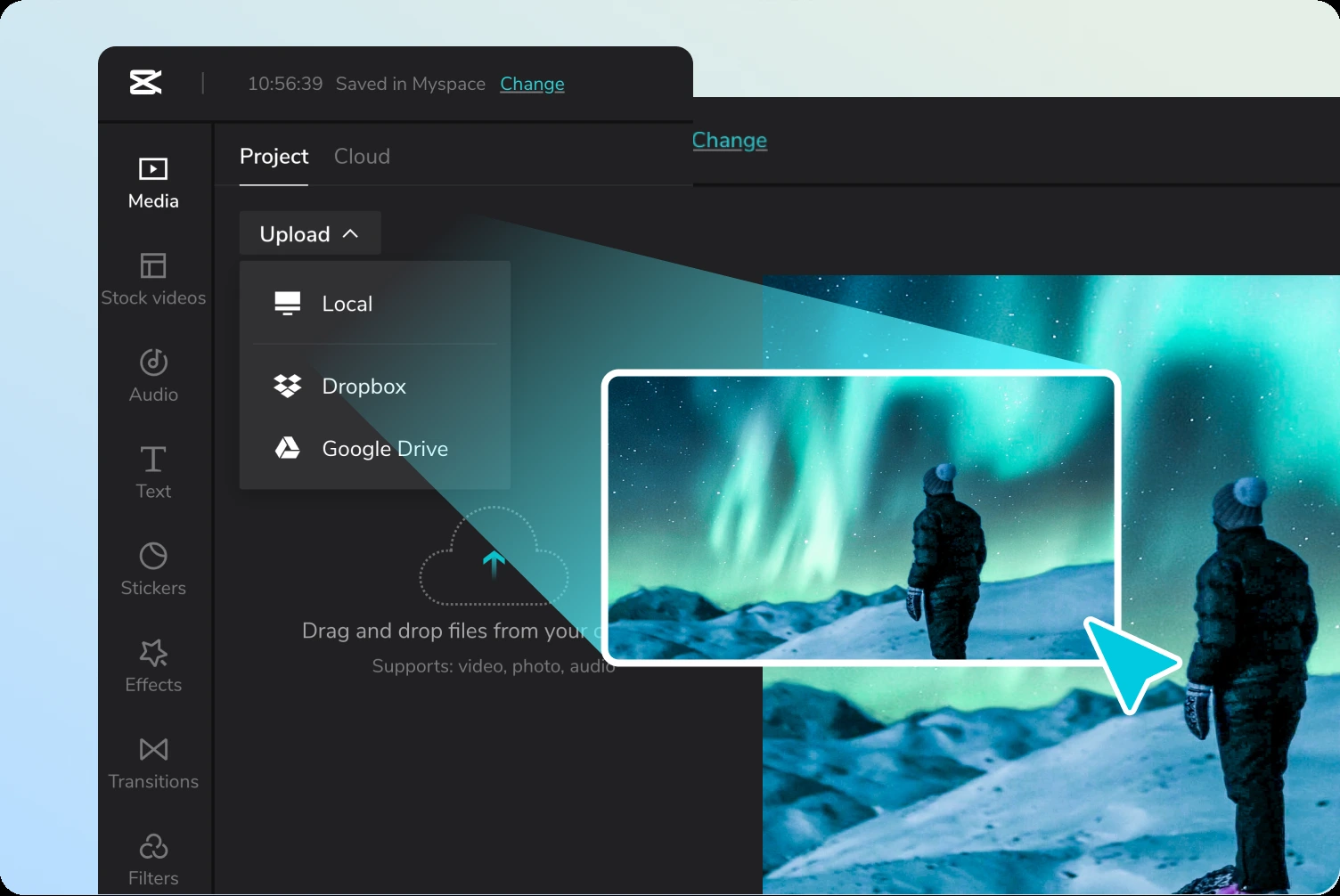
CapCut documents these Chromebook routes in its Google collaboration guide. You do not need a separate Chrome extension to start editing.
How to install CapCut from Google Play
Make your first CapCut video
Begin with a few clips rather than a large folder. A simple first project makes it easier to learn the timeline, the row of clips and audio tracks that controls what plays and when.
- Put clips in order: arrange them to tell the story, then cut pauses and unwanted sections.
- Add readable text: keep titles short and away from the edges where social apps place buttons.
- Balance sound: play the full video with headphones and lower music when someone speaks.
- Use captions carefully: review generated subtitles for names and spelling. Check the tool’s paid label before using it.
- Preview the whole edit: look for black gaps, abrupt sound changes and text that disappears too quickly.
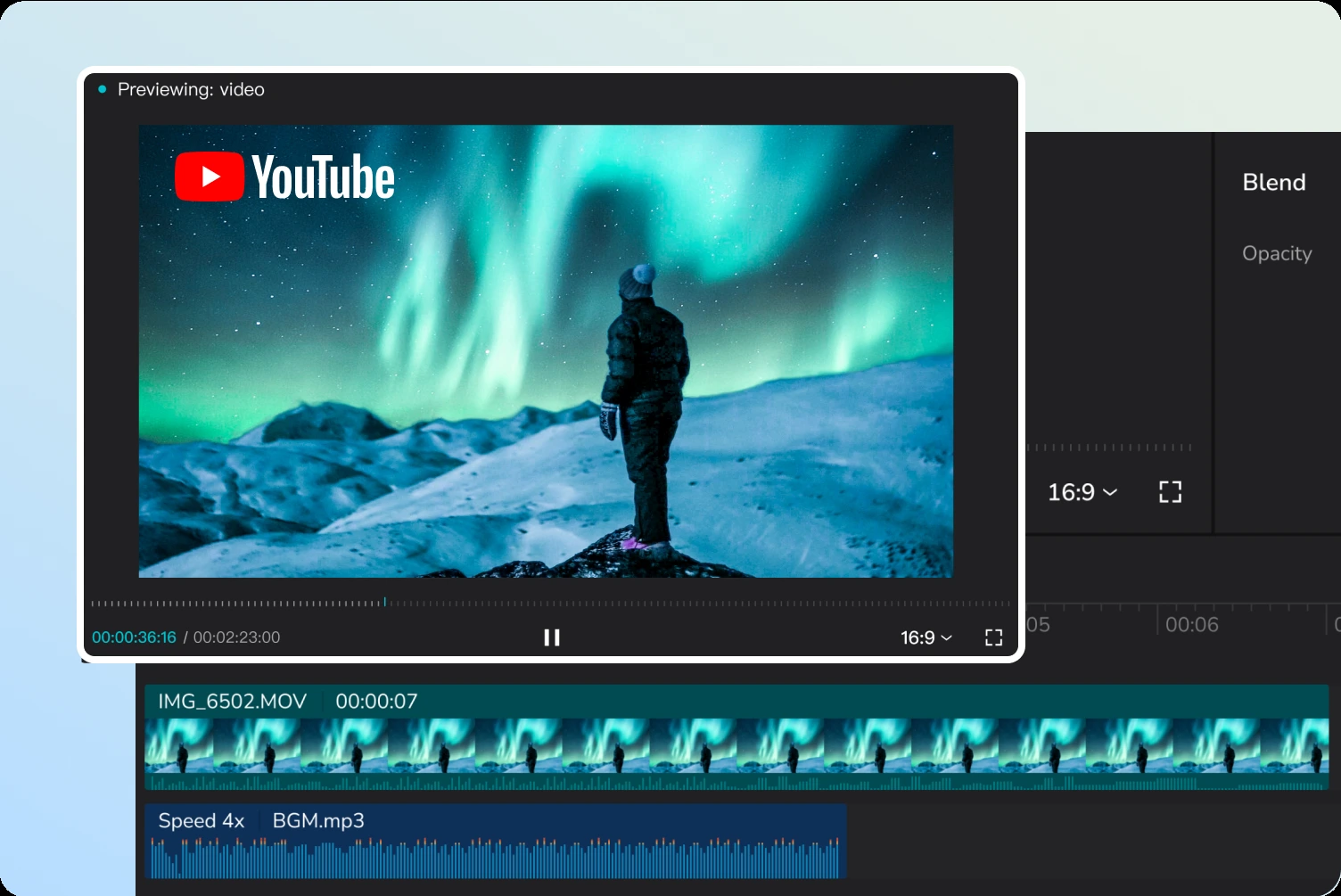
The official app listing describes tools such as speed adjustments, keyframe animation, background removal and text-to-speech. Features and controls differ between the app and web editor, so choose the version that has the tools you need.
What is free, and when do you need a paid plan?
CapCut’s current plans page lists a Free plan with basic editing and free templates. Pro adds premium tools and templates, AI access and more cloud storage. Other plans may appear for AI use or teams; you do not need to subscribe just to start a basic edit.
Look for paid labels before adding an effect or asset. A tool you can preview is not always included in a free export. AI features can also have credit limits. Use your account’s checkout page for the actual price and included benefits in your region.
If export asks you to upgrade, CapCut recommends replacing Pro elements with free alternatives. Check every track and your project cover. Then choose an available free export setting and try again.
Export and save your finished video
Open Export, choose the settings available to your account, and download the finished file. Start with a short test export before committing to a long edit. Open the downloaded video in the Files app and check that its picture, sound and captions look right.
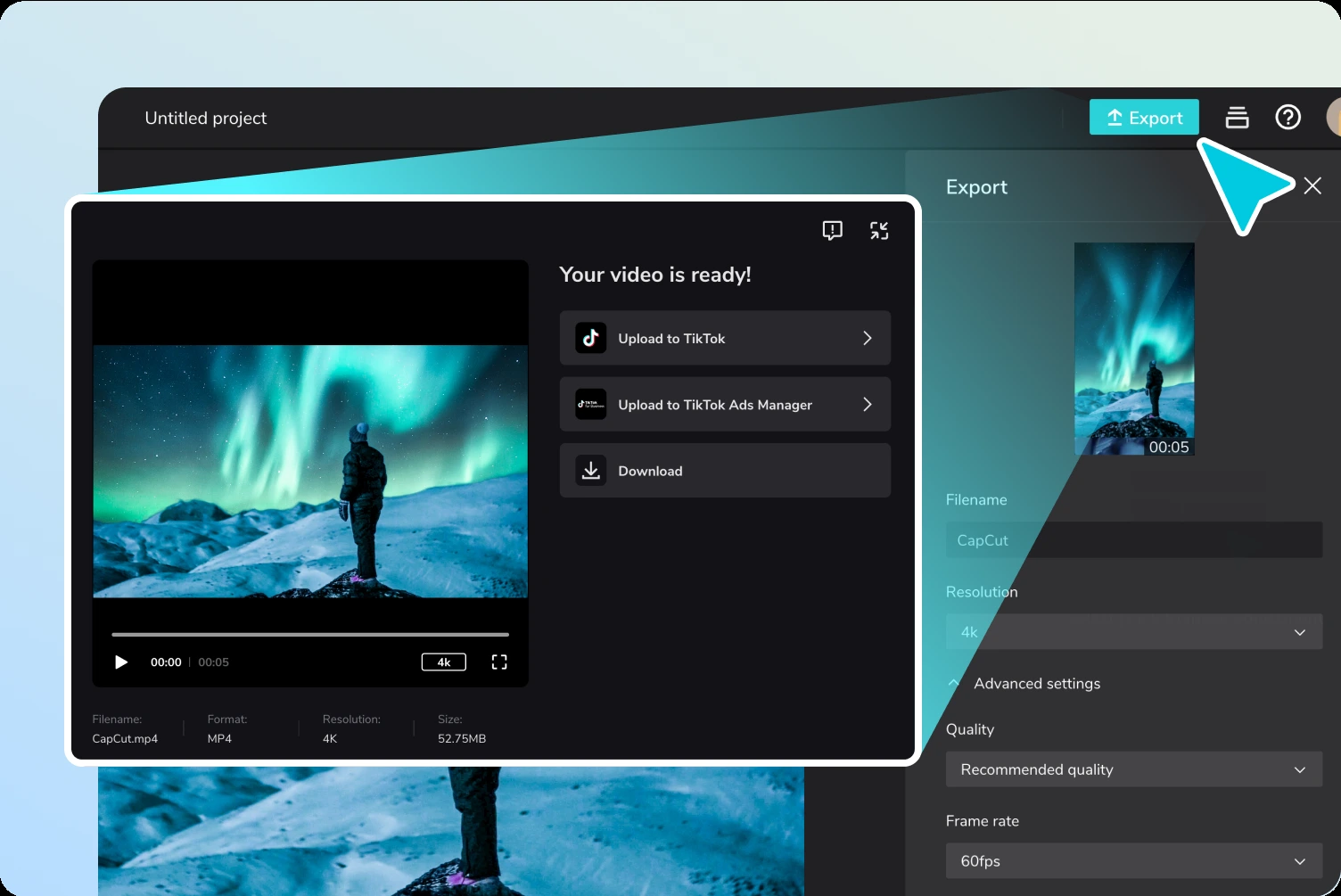
Want a clean video without a watermark? CapCut’s watermark guide recommends manual editing with your own clips and free assets. Check the timeline for an ending logo clip and review any template restrictions. The screenshot above illustrates export controls, not a promise that every shown setting is free.
Keep original footage until you finish the project, and save a separate copy of the final export. A project draft is not the same as a playable video. Use an internet connection for CapCut Web and its cloud tools.
Watch CapCut’s official web editor introduction
This video from CapCut shows the browser editing workflow. Its interface is from an earlier version, so follow the current editor for button positions and paid labels.
Quick fixes for common problems
- Upload stalls: check your connection and try one small clip first.
- Editor feels slow: close unused tabs and split a large project into shorter sections.
- Downloaded video is missing: check Files > Downloads and your browser’s download history.
- Paid tools are still locked: check that you signed in with the account used for the subscription.
- Project media is missing: restore the original files if you moved or deleted them. Keep source clips until editing is complete.
For more options, see our video editors for Chromebook guide.
Frequently asked questions
Is CapCut free on Chromebook?
Can I use CapCut on Googlebook?
Why does CapCut ask me to pay when I export?
Does CapCut add a watermark?
Can I edit offline in CapCut Web?
Discover more from Chrome Geek
Subscribe to get the latest posts sent to your email.