Google Is Testing Scrollable Tabs in Chrome Again: How to Try Them
 by
Sophie Sullivan
November 3, 2026
Tab scrolling is coming back to Chrome. Google has rebuilt the horizontal tab strip on desktop, so once it fills up you can scroll through your tabs instead of losing them off the edge. It is live in Chrome Canary now behind the #tab-strip-unification flag. Google announced the test in a Chrome Community post, and The Verge covered it on November 2.
1. What Google is testing
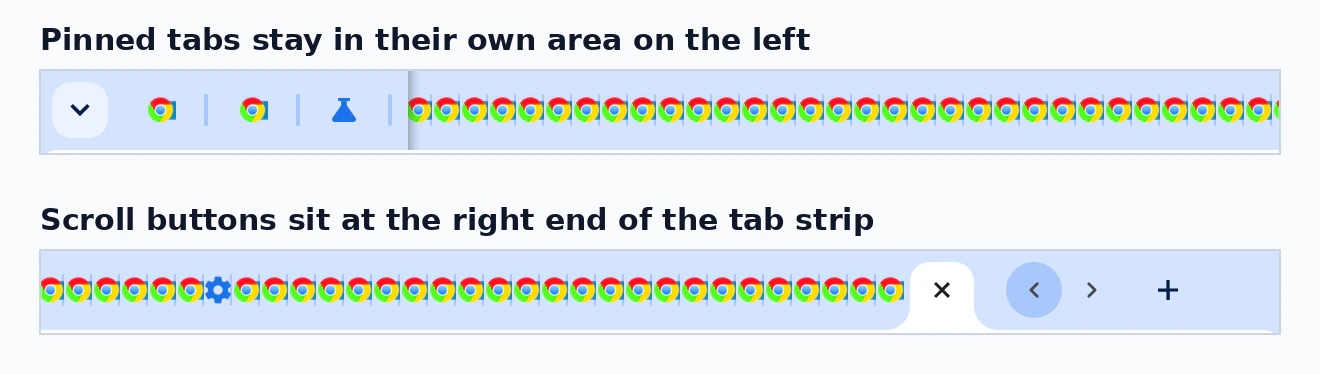
The short version: when you open lots of tabs, the tab strip now becomes scrollable instead of hiding tabs out of view. Google says you can scroll with gestures, your mouse wheel, or the clustered scroll arrows at the trailing end of the strip. If you don’t want the arrows, you can turn them off in Appearance settings or by right-clicking them.
Pinned tabs: they now live in a dedicated fixed area on the left. Google says that area can grow to 50% of the available width before your other tabs start scrolling past it.
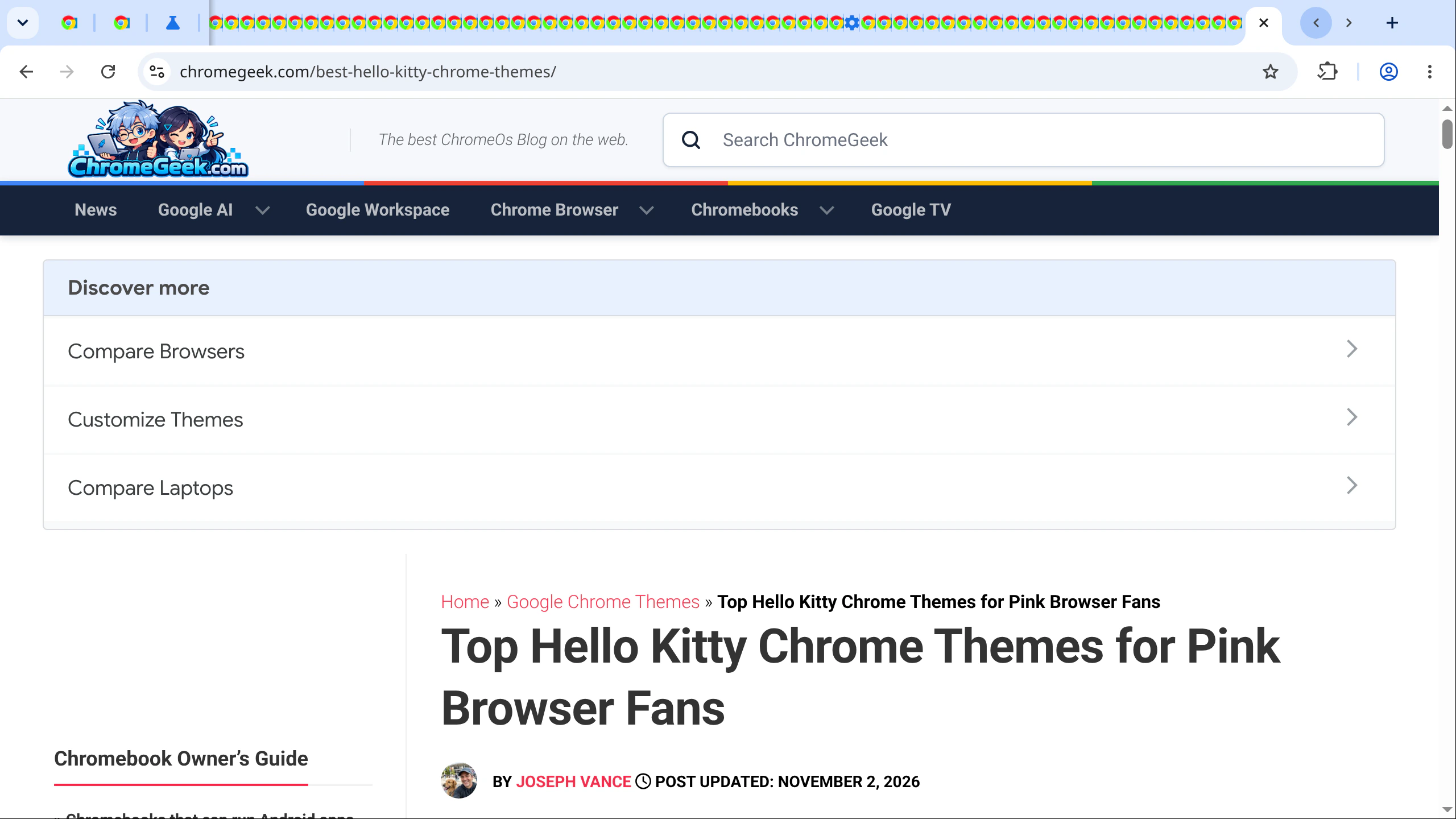
Our test: we tried it in Chrome Canary 159.0.8139.2 on Linux with a fresh profile and around 80 ChromeGeek tabs. It worked, but with the default settings, tabs still shrank to roughly favicon size before the strip started to scroll. That is when the two arrow buttons showed up. Right-clicking the buttons gave us an Unpin option to hide them, and Settings > Appearance had a new switch called “Automatically show tab scroll buttons when needed.”
One Linux quirk: on Linux, spinning the mouse wheel over the tab strip switched between tabs in our test instead of scrolling them, so we used the arrow buttons. Google lists the mouse wheel as a way to scroll, so it may behave differently on Windows and Mac.
2. Why tab scrolling went away
The old flag: Chrome used to have an experimental tab scrolling flag, #scrollable-tabstrip. Chrome 144 removed it in January, and browsers built on Chromium, such as Brave, lost it too. Lots of people who juggle dozens of tabs were not happy, and many said so in the Chromium bug report.
Google’s reason: a Chrome developer explained in the bug that the old version was never launched in stable and only ever sat behind a flag. While the team rebuilt the tab strip for features like split tabs (which extensions can now use too, as we covered in Chrome 155’s Split View API), the old scrolling code started failing tests in a way that “would have started to cascade into crashes.”
The promise: in January, the team committed to bringing scrolling back to the horizontal tab strip with the new design, aiming for the first half of the year. The #tab-strip-unification flag showed up for testing in Chrome 152 in late July, a bit later than that target, and Google is now asking for wider feedback.
3. How to turn on scrollable tabs in Chrome Canary
- Download and install Chrome Canary. It installs next to your regular Chrome, so you keep both.
- Open Canary and type
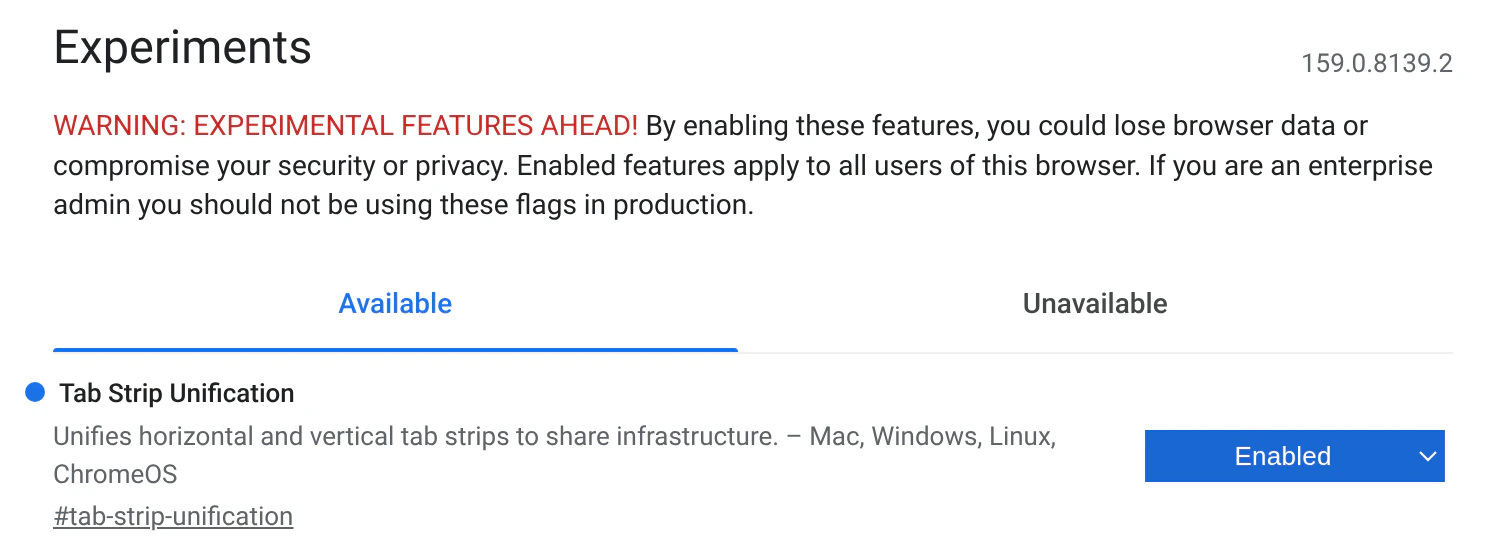
chrome://flags/#tab-strip-unificationinto the address bar. - Find Tab Strip Unification and change it from Default to Enabled.
- Click Relaunch at the bottom of the page.
- Open enough tabs to fill the tab strip. Once it is full, scroll with your trackpad or mouse, or click the arrow buttons at the right end.
- Optional: to hide the arrows, right-click them, or turn off Automatically show tab scroll buttons when needed in Settings > Appearance.
4. What still needs work
Tab width: if you liked picking bigger tabs with the old flag, that is not back yet. On October 7, a Chrome developer said the new strip will use a similar minimum tab size to today, then added:
“…in a future change we will likely introduce larger minimum tab widths in the settings page.”
Polish: the same developer said the team is still working on animations, but the feature is in good enough shape to try in Canary.
Your feedback: Google’s post asks how you find the size of tabs in a scrollable strip and whether you like the scroll buttons on by default. You can reply in that same Community thread and tag your post with #horizontal.
5. Does it work on Chromebooks?
Not confirmed yet. The Tab Strip Unification entry in chrome://flags lists Mac, Windows, Linux and ChromeOS. But Google’s post only talks about Chrome on desktop, and we have not tested it on a Chromebook, so we can’t say yet if scrolling tabs work there.
Googlebooks: we have not seen anything about this feature on Googlebooks. We’ll update this post once we’ve tried it on a Chromebook or Google says more.
6. Chrome is also testing Match case for Find in page
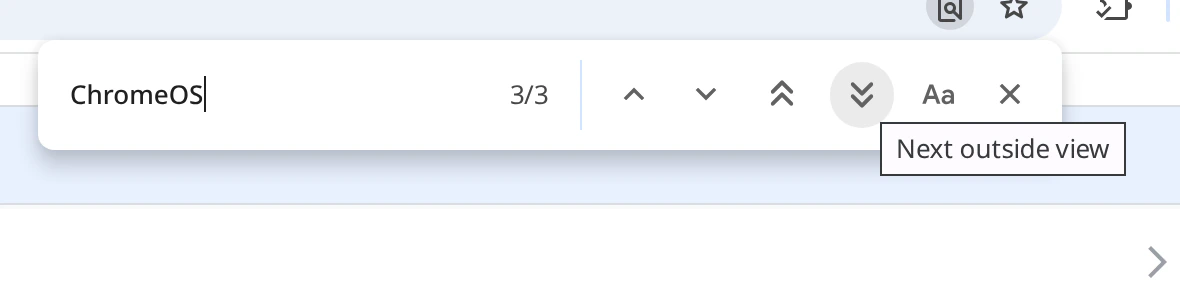
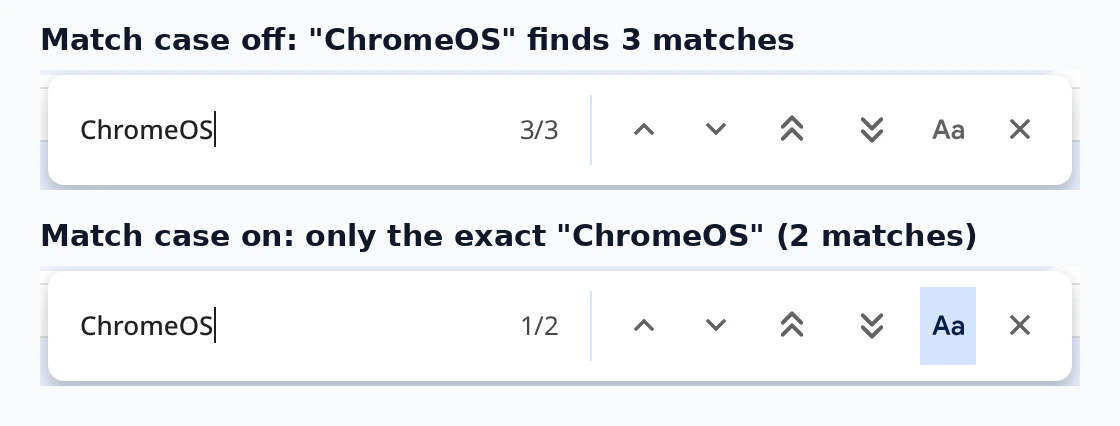
What it does: Chrome’s Find in page tool (Ctrl+F) ignores capital letters today, so searching for “Web” also finds “web.” Browser sleuth Leopeva64 spotted a new Match case button in Canary on October 30. It shows as Aa in the Find bar, and when it is on, Chrome only finds matches with the exact same capital and small letters. Edge already has this.
Two skip buttons: a couple of days earlier, Leopeva64 also found two new buttons called Next outside view and Previous outside view. They jump to the next match below what you can see on screen, or the previous one above it, so you skip every match that is already visible.
Our test: in Canary 159 on Linux, none of these buttons showed up on their own, and we could not find a flag for them in chrome://flags. PiunikaWeb also could not get them on a Mac. They only appeared for us when we started Canary from the command line with --enable-features=FindInPageMatchCase,FindInPageSkipViewport, feature names we found in Chromium’s source code. Both are off by default.
Our take
This is the right way to bring tab scrolling back. The dedicated pinned tab area and the optional buttons feel planned, not bolted on. The big gap is tab size. Right now tabs still get very small before scrolling kicks in, which is exactly what heavy tab users complained about, so the promised wider minimum tab widths matter a lot. If you live with 50 or more tabs open, try it in Canary and tell Google what you think while there is still time to change it. Match case in Find in page is a small fix, but one Chrome should have had years ago.
Sources (linked above): Google Chrome Community, Chromium issue tracker, The Verge, PiunikaWeb and Leopeva64 on X. Screenshots by ChromeGeek in Chrome Canary 159.0.8139.2 on Linux.
Read more: the best Chrome extensions worth installing, what is new in Chrome 156 and what Arc users should do now.
Discover more from Chrome Geek
Subscribe to get the latest posts sent to your email.