Arc Browser Shuts Down December 22: What Arc Users Should Do Now
 by
Sophie Sullivan
Post Updated: October 23, 2026
by
Sophie Sullivan
Post Updated: October 23, 2026
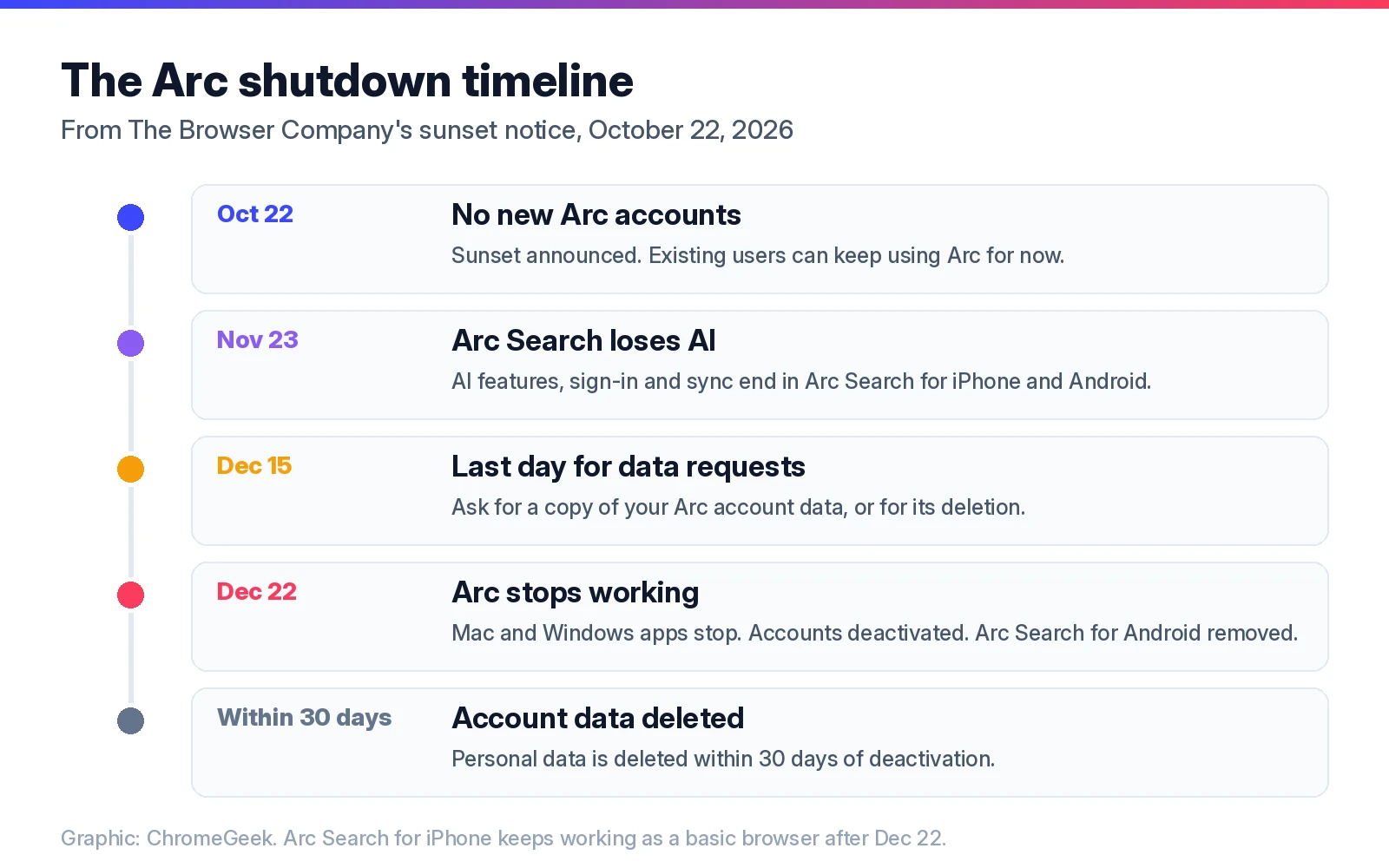
The Browser Company is shutting down the Arc browser on December 22, 2026, and wants its users to move to Dia, its newer browser. The company announced the sunset on October 22, saying it can no longer keep Arc as safe and secure as a modern browser needs to be. If Arc is your daily browser, you have about two months to move your tabs, passwords and extensions. Here are the key dates, how the Dia move works, and how to switch to Google Chrome instead.
1. Arc shutdown: the key dates
The Browser Company published the full schedule in its Arc sunset help article. Here is what happens and when.
Why it is closing: the company says keeping a browser secure takes more and more work in the age of AI, and that its security team is now focused only on Dia, which was built to resist modern attacks. Until December 22, Arc still gets basic updates and fixes, but no new features, and support only looks at big problems like crashes.
Local data counts too: after December 22 you will not be able to open Arc at all, so tabs, history and passwords stored on your computer become hard to reach. The data copy you can request by December 15 only covers account details and usage records, not your browsing data. Move or export that yourself before the deadline.
2. Option one: move to Dia
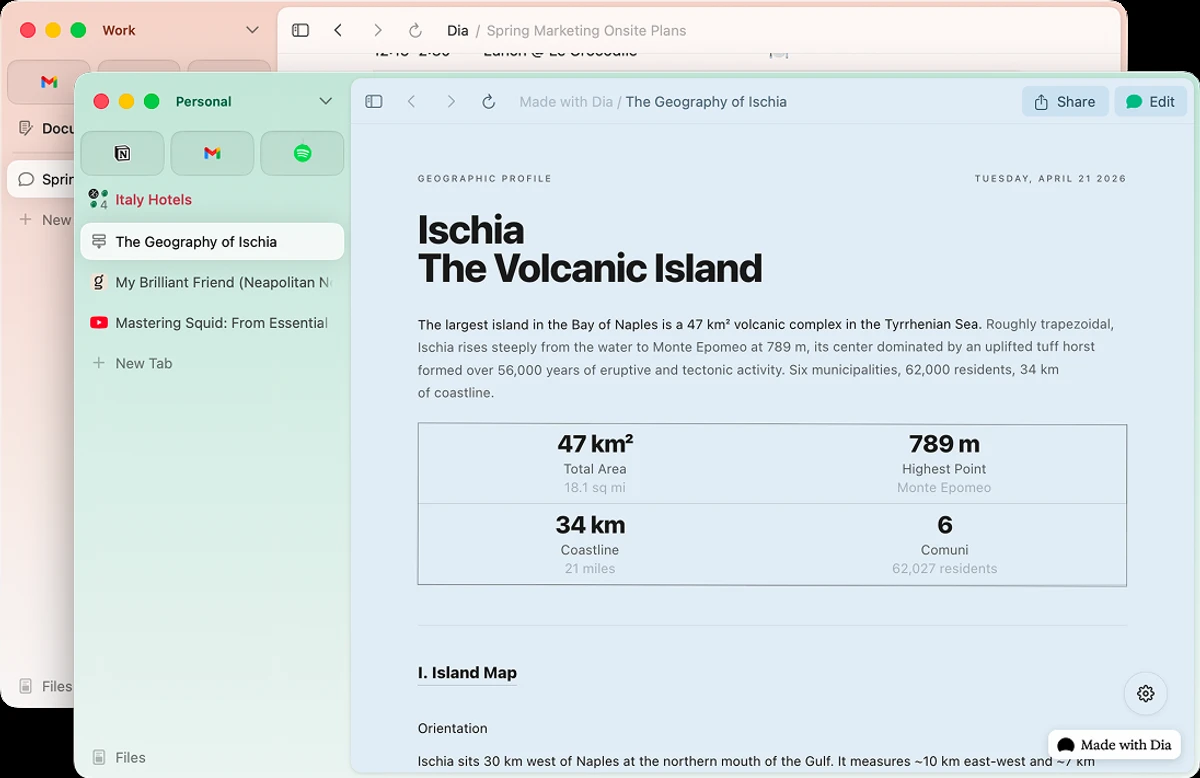
What Dia is: Dia is made by the same team as Arc and keeps the parts Arc fans like most: the sidebar, pinned tabs, folders and the Tab Switcher. Your Arc Spaces become Profiles that you swipe between, and you choose whether they share data. Dia is available for macOS and Windows. There is no Dia for iPhone or Android.
What it costs: the browser itself is free, and the company says the Arc features you use stay free in Dia, with AI optional. Dia’s paid plans are only for its AI tools and currently top out at $100 a month for Better Days. Its pricing page lists the Better Answers plan at $10 a month in one spot and $20 in another, so check the price before you subscribe. Paid plans are rolling out to new Mac users first; Dia says Windows is not affected yet.
How to import Arc into Dia
According to The Browser Company’s Move from Arc to Dia guide, it takes a few clicks:
- Download Dia from diabrowser.com/download and open it.
- When Dia asks which browser to import from, choose Arc.
- Pick which of your extensions to install in Dia.
- Keep Arc installed until the import finishes, because Dia reads your data through the Arc app. On Windows, quit Arc first, or click Close if Dia shows a Cookies file locked message.
Already using Dia? On a Mac, go to Dia > Import from Another Browser and select Arc. On Windows, open the Dia app menu, choose Import from another browser, then Arc. Each Arc Space arrives as a new Profile, so nothing already in Dia changes. You will need a Dia account, as your Arc account does not carry over.
What comes over: Spaces (as Profiles, with their order and colors), Favorites, pinned tabs, folders (as pinned Tab Groups), bookmarks, history, passwords, cookies so you stay signed in, extensions and open tabs. GitHub Live Folders become Live Groups.
What does not: Easels, Boosts and other Arc-only features. Dia also does not import saved payment methods or autofill data. To keep an Easel, open it and use Share > Share Via to save it as an image. Boosts cannot be exported at all.
3. Option two: switch to Google Chrome
Arc is built on Chromium, the same open-source engine as Chrome, so Chrome feels familiar and runs all the same extensions. There is no one-click Arc import in Chrome like the one in Dia, but you can move the important things in about 15 minutes.
Step 1: Try Chrome’s built-in import
In Chrome, click the three-dot menu, then Bookmarks and lists > Import bookmarks and settings. Chrome lists the browsers it can read on your computer. If Arc shows up, pick it and choose what to bring over. If it does not, use the file method below, which works on Mac, Windows and Chromebooks.
Step 2: Save your Arc sidebar tabs
Arc’s Spaces, Favorites, pinned tabs and folders are not normal bookmarks, so export them with Arc’s own tool:
- On a Mac: Arc > Settings > Advanced > Export Data, then choose where to save it.
- On Windows: press Ctrl + comma to open settings, then under Advanced, find Export Spaces and tabs and select Export Data.
- Arc saves a file called Arc Data Export.md, with a section for each Space and all its links.
Heads up: this file is a plain list of links, not a bookmarks file, so Chrome cannot import it directly. Open it in any text editor and open or bookmark the links you want to keep. To grab one folder at a time, right-click it in Arc’s sidebar and choose Copy All Links. If you also saved classic bookmarks in Arc, open arc://bookmarks and use the bookmark manager’s export option to save an HTML file that Chrome can import in Step 1.
Step 3: Move your passwords
- In Arc, type arc://password-manager/settings in the address bar.
- Next to Export passwords, click Download file to save a CSV file.
- In Chrome, open the three-dot menu and go to Passwords and autofill > Google Password Manager > Settings.
- Under Import passwords, click Select file and choose the CSV.
- Delete the CSV file afterwards (and empty the trash), because it stores your passwords as plain text.
While you are there, it is a good moment to set up passkeys in Chrome for your main accounts, so fewer logins depend on any one browser.
Step 4: Reinstall your extensions
Arc uses extensions from the Chrome Web Store, so every one of them works in Chrome. They do not move over with a file, so open the Chrome Web Store and add them again. Write down your list from Arc’s extensions page first. If you want to trim the list, our guide to the best Chrome extensions is a good place to start.
Step 5: Make Chrome feel like Arc
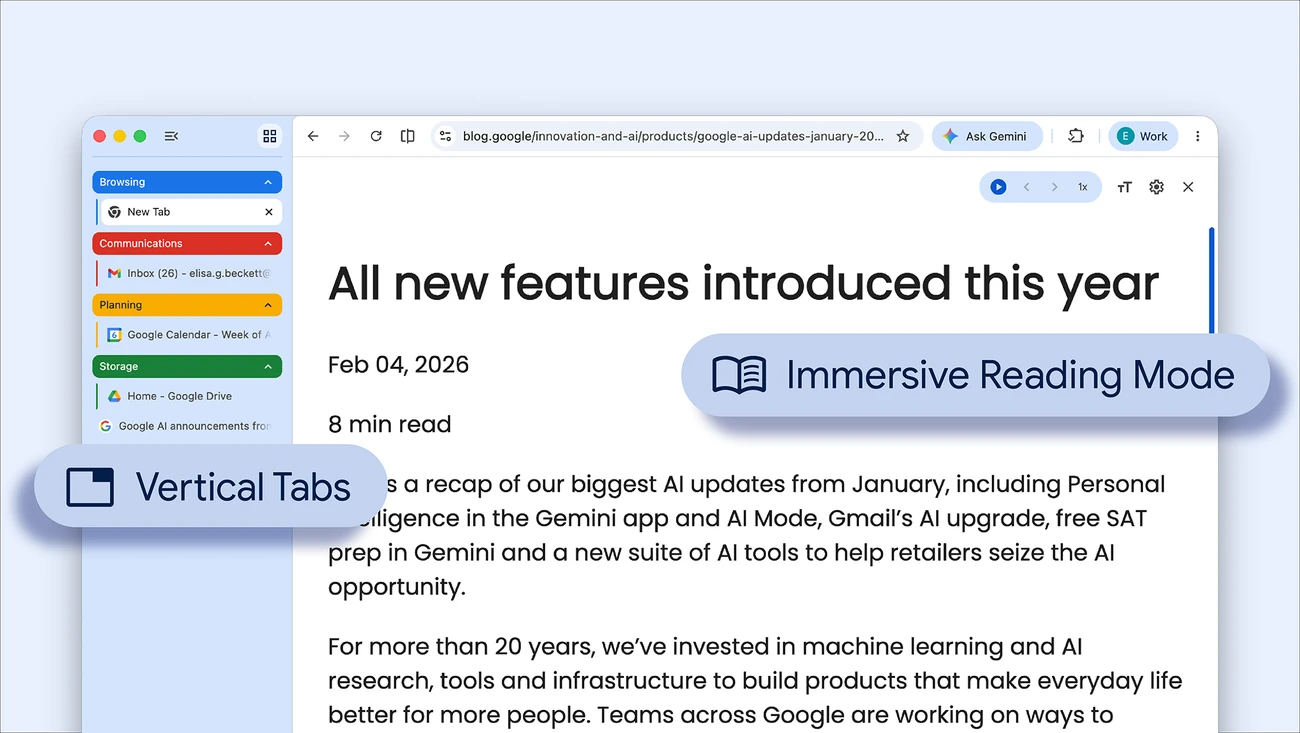
Vertical tabs: Chrome now has its own vertical tabs. Right-click the top of any Chrome window and choose Show Tabs Vertically. Google rolled the feature out from Chrome 146 in April, as we covered in our vertical tabs and reading mode post, so update Chrome if you do not see it.
Spaces and folders: Chrome has no Spaces, but color-coded tab groups work like Arc folders, and separate Chrome profiles keep work and personal logins apart, much like Spaces from different Arc profiles. Your Arc history does not come along with the file method, so expect your address bar suggestions to take a few days to catch up.
On your phone
Arc Search for Android goes away on December 22, so Android users should switch to Chrome now. To save your open tabs first, go to Settings > Storage > Export data in Arc Search. On iPhone, Arc Search keeps working as a basic browser, but you can still export your tabs from the Tab Switcher: tap Settings, then Export Data.
4. Other browsers with Arc-style vertical tabs
If neither Dia nor plain Chrome feels right, these browsers have vertical tabs and some form of Spaces. All but Zen are built on Chromium, so your Chrome extensions keep working.
Zen is different: it runs on Firefox’s engine, so it uses Firefox add-ons rather than Chrome extensions. Check that your must-have extensions exist for Firefox before you switch.
Room is brand new: it is a free, open-source Mac browser that its creator, Jonas Lekevicius, launched this week as a “love letter to Arc”. Room pairs a de-Googled Chromium engine with a native Mac interface, a sidebar, Spaces and a built-in ad blocker, and its code is on GitHub. It is very early, so treat it as one to try alongside a main browser for now.
Our take
If you loved Arc for its sidebar and Spaces, Dia is the least painful move, because it imports almost everything and even switches to the Arc layout for you. If you were drifting away from Arc anyway, now is a good time to go to Chrome: vertical tabs and tab groups cover most of what Arc did, and your extensions work as before. Whatever you pick, do not wait for December 22. Export your tabs and passwords this week, while Arc still opens.
Moving to Chrome? See what the latest Stable release added this week.
Discover more from Chrome Geek
Subscribe to get the latest posts sent to your email.