Chrome Now Asks Before Loading HTTP Sites: What It Means for Routers, NAS and Printers
 by
Sophie Sullivan
Post Updated: October 22, 2026
by
Sophie Sullivan
Post Updated: October 22, 2026
Chrome now stops and asks you before it connects to a website over plain, unencrypted HTTP. Google announced on October 21 that the “Always use secure connections” setting is now on by default for all Chrome users, after a test run with Enhanced Protection users earlier this year. Most people will never see the new warning, but if you set up routers, NAS boxes, printers or work intranet pages in Chrome, here is what changes and how to handle it.
1. What Chrome changed
The short version: for years Chrome only showed a small “Not secure” label in the address bar on HTTP pages. In its announcement, Google says that label had three problems: people miss it, it never appears on quick HTTP redirects, and it only shows up after your data has already been sent.
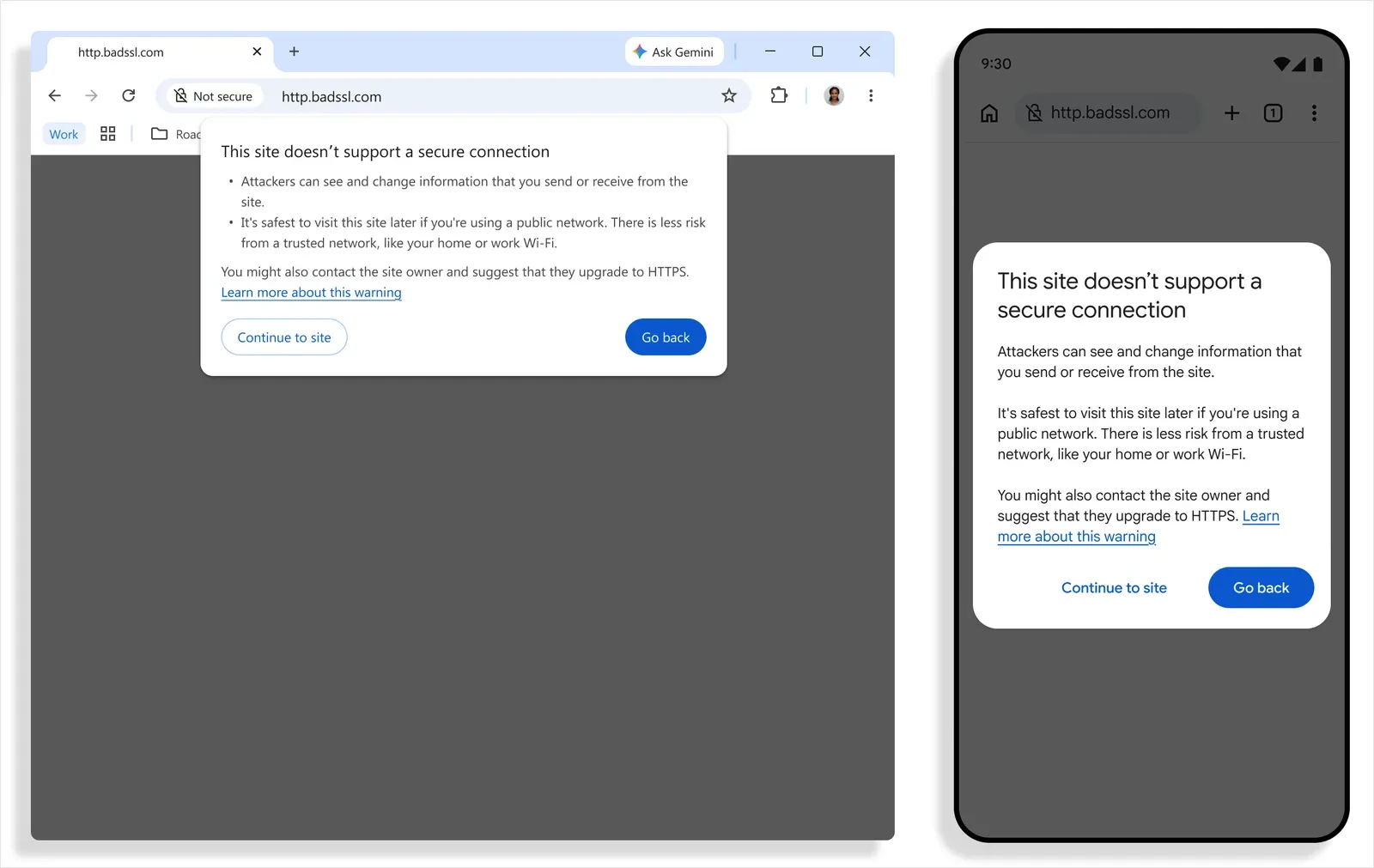
Now Chrome asks first: when you open a public site that does not support HTTPS, Chrome shows a prompt titled “This site doesn’t support a secure connection” before anything loads. It warns that attackers can see and change what you send or receive, and that it is safest to wait if you are on a public network. You then choose Continue to site or Go back.
Who gets it: Google says the protection was switched on for Enhanced Protection users earlier this year and has now been extended to all users by default. Google also says Chrome is the first browser to make this change.
2. How often you will actually see it
Once per site: Chrome asks the first time you visit an HTTP site. Once you approve it, Chrome will not warn again until you have not visited that site for at least two weeks. If you use an old HTTP site every week, you may only ever see the prompt once.
Rare overall: Google’s early rollout data shows nearly 95% of desktop Chrome users do not see a single HTTP warning in a given week, and fewer than 1% see three or more. Google says warning rates on mobile are even lower.
Redirects count too: you can see the prompt even if you end up on a secure page, because some links bounce through an HTTP address first. That hidden hop is exactly what Google wants to flag.
3. Routers, NAS boxes, printers and intranet pages
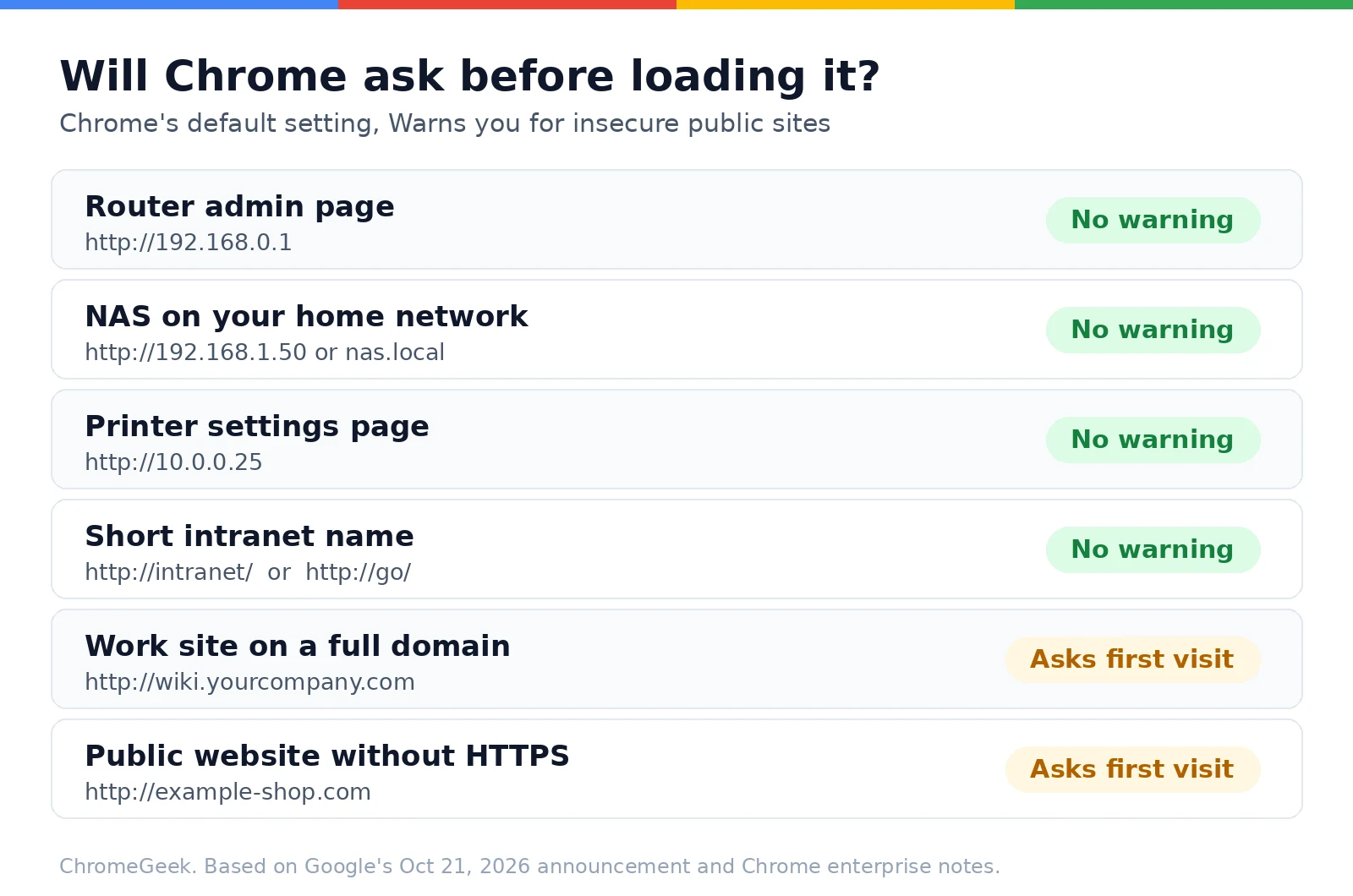
Good news for home networks: by default, Chrome does not warn on sites that cannot get a publicly trusted HTTPS certificate. Google’s examples are local IP addresses like 192.168.0.1, which you often type to set up a home Wi-Fi router, and single-label names like intranet/. Google’s enterprise release notes add that other private address ranges such as 10.x.x.x and short names like go/ are excluded too.
Why they are exempt: an attacker would have to be on your own local network to tamper with that traffic, so Google treats it as lower risk.
Router admin pages
If you open your router by its IP address, nothing changes. Some routers and mesh systems use a normal-looking web address instead of an IP. To Chrome that can look like a public site, so you may get the prompt once. On your own home network it is fine to choose Continue to site, or you can type the router’s IP address instead.
NAS boxes and printers
A NAS or printer you reach by its local IP or a local name like nas.local will not trigger a warning. If you reach your NAS from outside the house through a public web address over plain HTTP, expect the prompt. That is a good moment to switch on the HTTPS option most NAS systems offer, since that traffic really does cross the internet.
Work intranet pages
Short names like intranet/ are exempt, but an internal tool on a full domain name, such as wiki.yourcompany.com, still counts as a public name and will ask on first visit if it has no HTTPS. IT teams can fix that with policies, covered below.
4. How to manage the setting
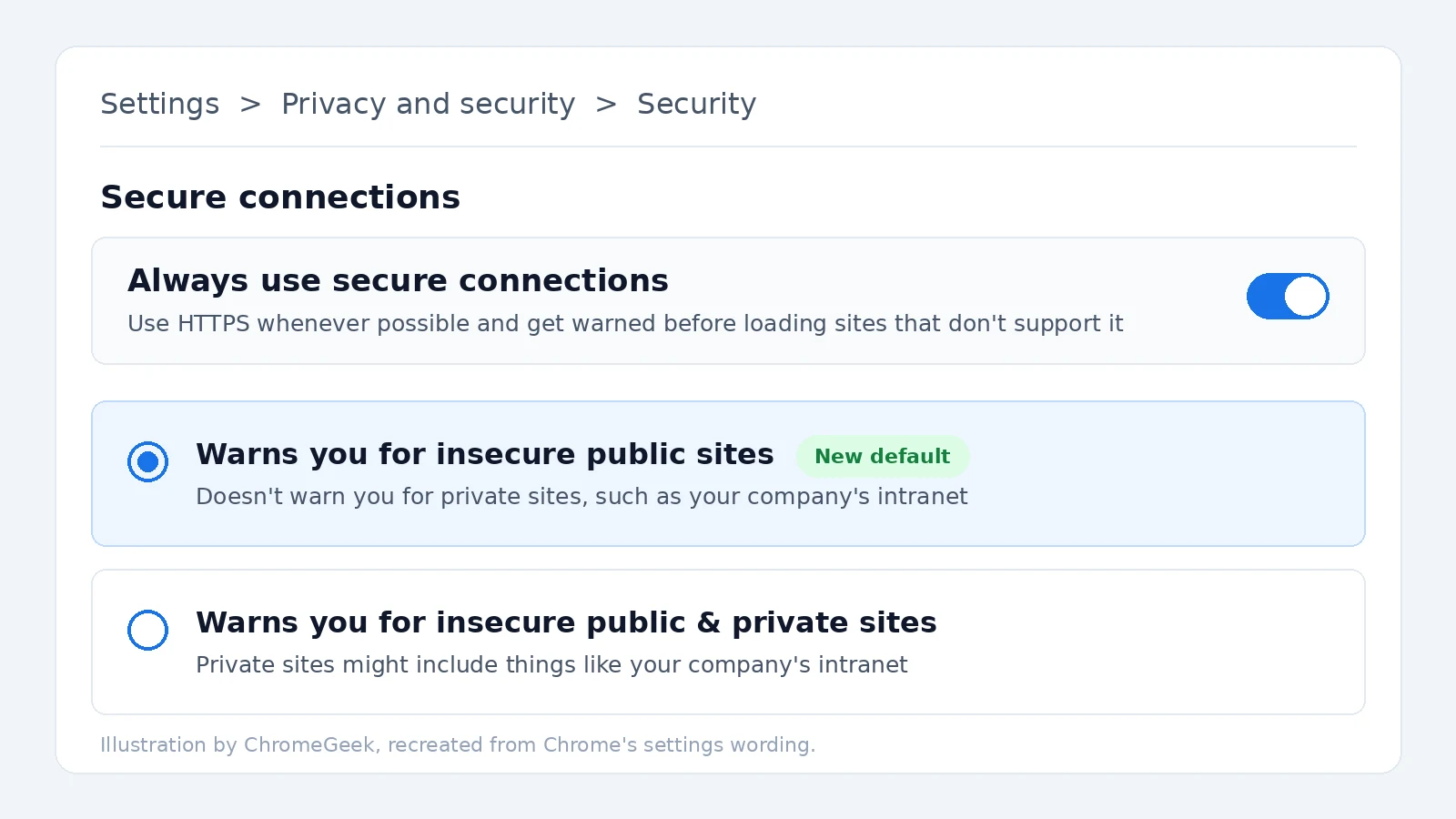
On a computer or Chromebook: open Chrome, click the three-dot menu, then Settings > Privacy and security > Security. Under Secure connections, you will find the Always use secure connections toggle. You can also paste chrome://settings/security into the address bar.
On Android: tap the three-dot menu, then Settings > Privacy and security, and look for Always use secure connections under Security.
Pick a level: with the toggle on, you choose between Warns you for insecure public sites, the new default that skips private sites, and Warns you for insecure public & private sites, a stricter mode that also asks before local devices and intranet pages.
Turning it off: switching the toggle off stops the prompts. We would not recommend it, since a single click on Continue to site already handles the odd old site. Google says Chrome keeps your choice if you had set this option yourself before the change.
5. Chromebooks, Android and other platforms
Chromebook owners: because ChromeOS is listed, the prompt applies to Chrome on your Chromebook too. Setting up a router or printer by IP address is unaffected. If you are a few versions behind, update first: Chrome on Stable is now at version 156, as we covered in our Chrome 156 roundup.
School and work Chromebooks: the HttpsOnlyMode and HttpAllowlist policies work on ChromeOS as well as on Windows, Mac, Linux and Android, so your admin may have set this for you. If the toggle is greyed out, that is why.
6. For IT admins and site owners
Allow specific HTTP sites: the HttpAllowlist policy takes a list of hostnames or patterns such as [*.]example.com. Those sites are not upgraded to HTTPS and do not show the warning.
Lock or change the mode: the HttpsOnlyMode policy can force the new default and stop users turning it off (force_balanced_enabled), force the stricter mode that also warns on private sites (force_enabled), or switch the feature off (disallowed).
Site owners: the real fix is HTTPS on every step, including redirects from example.com to www.example.com. One HTTP hop in the chain is enough to trigger the prompt for your visitors.
How this fits Google’s long HTTPS push
This is the end of a plan that has been running for years. Our earlier Towards HTTPS by default post covered the first steps: automatic upgrades from http:// to https:// tested in Chrome 115, warnings on risky insecure downloads, and Google’s stated goal of turning on HTTPS-First Mode for everyone. In October 2025 Google set the date, saying the public-sites version of Always use secure connections would become the default with Chrome 154. Yesterday’s post confirms that switch has now been rolled out to all users.
Our take
This is a sensible change that most people will never notice. The exemptions for local IPs and short intranet names mean the everyday jobs of Chromebook owners, like logging into a router or checking a printer, keep working without extra clicks. When the prompt does appear, treat it as a real question: on home Wi-Fi, Continue to site is usually fine, but on hotel or cafe Wi-Fi, Go back is the safer choice.
Chrome got another new warning this week. Here is what the suspicious site shield means.
Discover more from Chrome Geek
Subscribe to get the latest posts sent to your email.