Best Chrome Extensions Worth Installing
 by
Joseph Vance
October 12, 2026
by
Joseph Vance
October 12, 2026
The best Chrome extensions can help you block ads, manage passwords, write, save notes, and organize tabs. These picks are available in the Chrome Web Store.
We chose extensions that solve everyday browser problems. We also point out useful limits, paid features, and privacy details so you can choose what works for you.
Block ads and stay private
Ad blockers, a password manager and a VPN to keep your browsing cleaner and safer.
1. uBlock Origin Lite
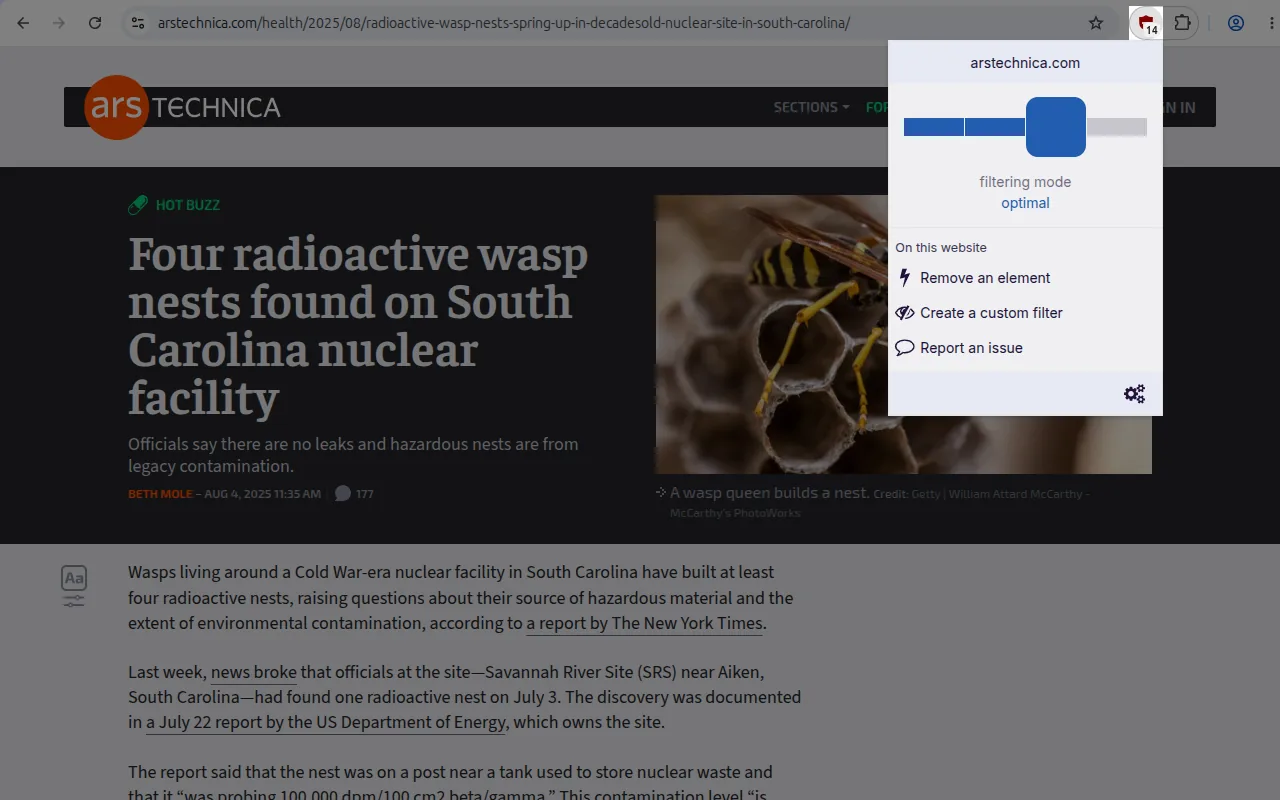
What it does: Blocks ads, trackers and crypto miners on the pages you visit. It is built for the current Manifest V3 rules in Chrome.
👍 Why we like it: It works the moment you install it, with nothing to set up. The default lists match the well known uBlock Origin lists. It is the uBlock version that still works on current Chrome.
Good to know: It has less control than the old full uBlock Origin. The developer says it collects no data.
2. Bitwarden Password Manager
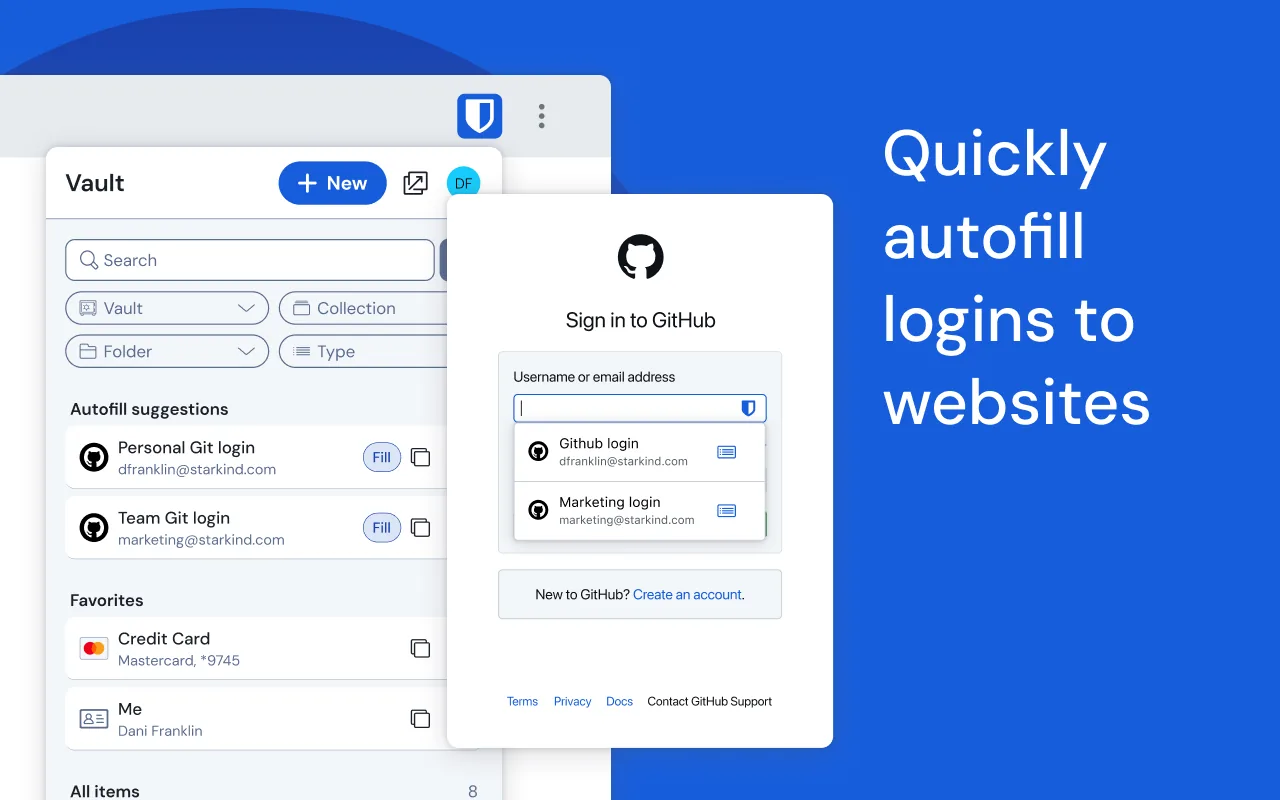
What it does: Stores your passwords, passkeys and notes in an encrypted vault. It fills in logins and makes new strong passwords for you.
👍 Why we like it: The free plan covers unlimited passwords on unlimited devices, with no ads. It is open source. It is plainer than paid rivals, but it does the main job well and costs nothing to start.
Good to know: The look is plainer than some paid managers. Premium and business plans cost extra. As a password manager it handles your login details, and the listing says none of it is sold.
3. Privacy Badger
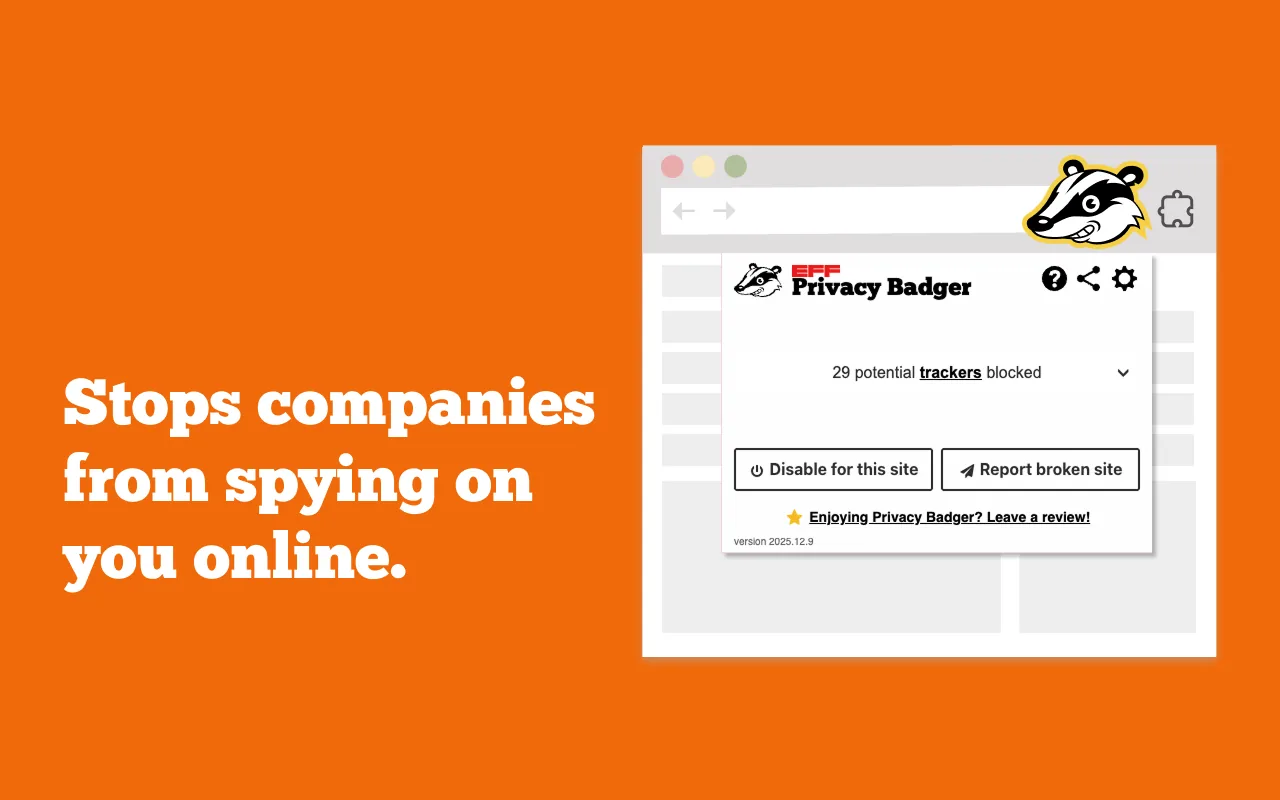
What it does: Blocks third-party trackers that follow you from site to site. It uses tracker information supplied by the EFF, and you can turn on local learning in settings.
👍 Why we like it: There is nothing to set up. It comes from the Electronic Frontier Foundation, a digital rights nonprofit. It works well as a second layer next to an ad blocker.
Good to know: It is not a full ad blocker, so some ads still show. A site may need an exception if it breaks. The developer says it collects no data.
4. Proton VPN
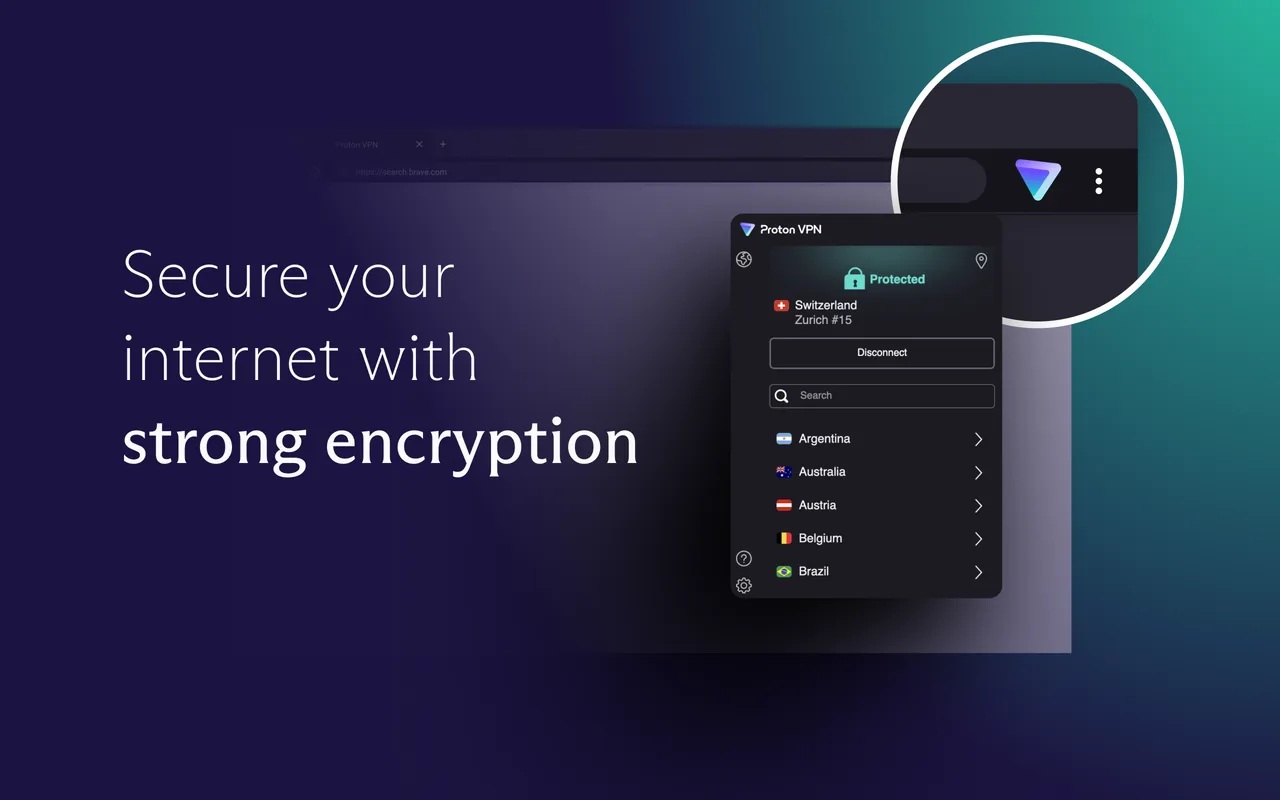
What it does: Sends your browser traffic through a Proton VPN server, so sites and Wi-Fi networks see less about you.
👍 Why we like it: The listing says there is a free plan with no usage limits. Proton says its apps are open source and audited. It is one of the few VPN names we are happy to point readers to.
Good to know: It covers the browser only, not other apps. Fake Proton VPN listings have been reported, so check that the publisher is Proton AG. The listing says it handles login information only.
Write, translate and use AI
Help with writing, translating and chatting with AI, right inside Chrome.
5. Grammarly
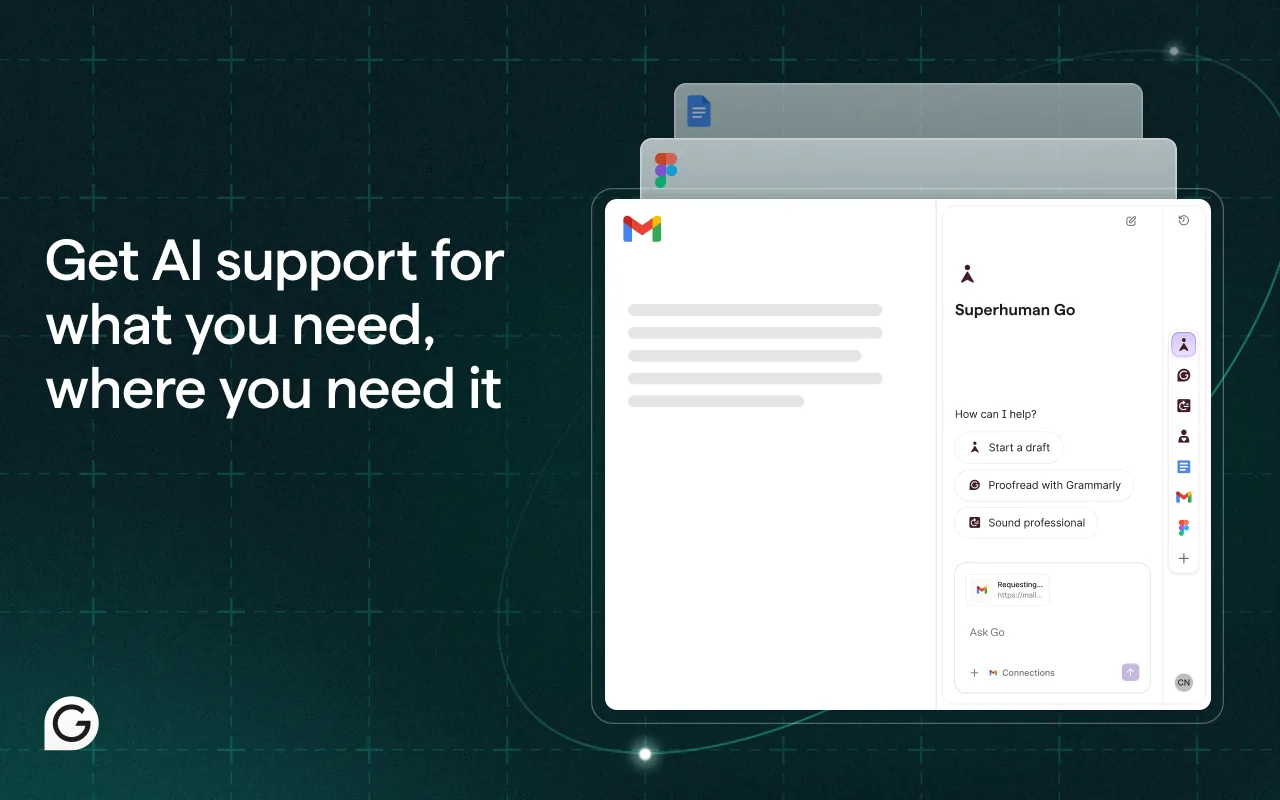
What it does: Checks spelling, grammar and tone as you type in Gmail, Google Docs, LinkedIn and many other sites.
👍 Why we like it: The free plan already catches the mistakes most people make in emails and posts. It works in almost any text box, so you do not have to paste your writing somewhere else. The paid plan adds sentence rewrites and tone changes.
Good to know: The Chrome Web Store says it handles personal information, messages, location, activity and website content. Consider pausing it on sites with sensitive details.
6. Google Translate
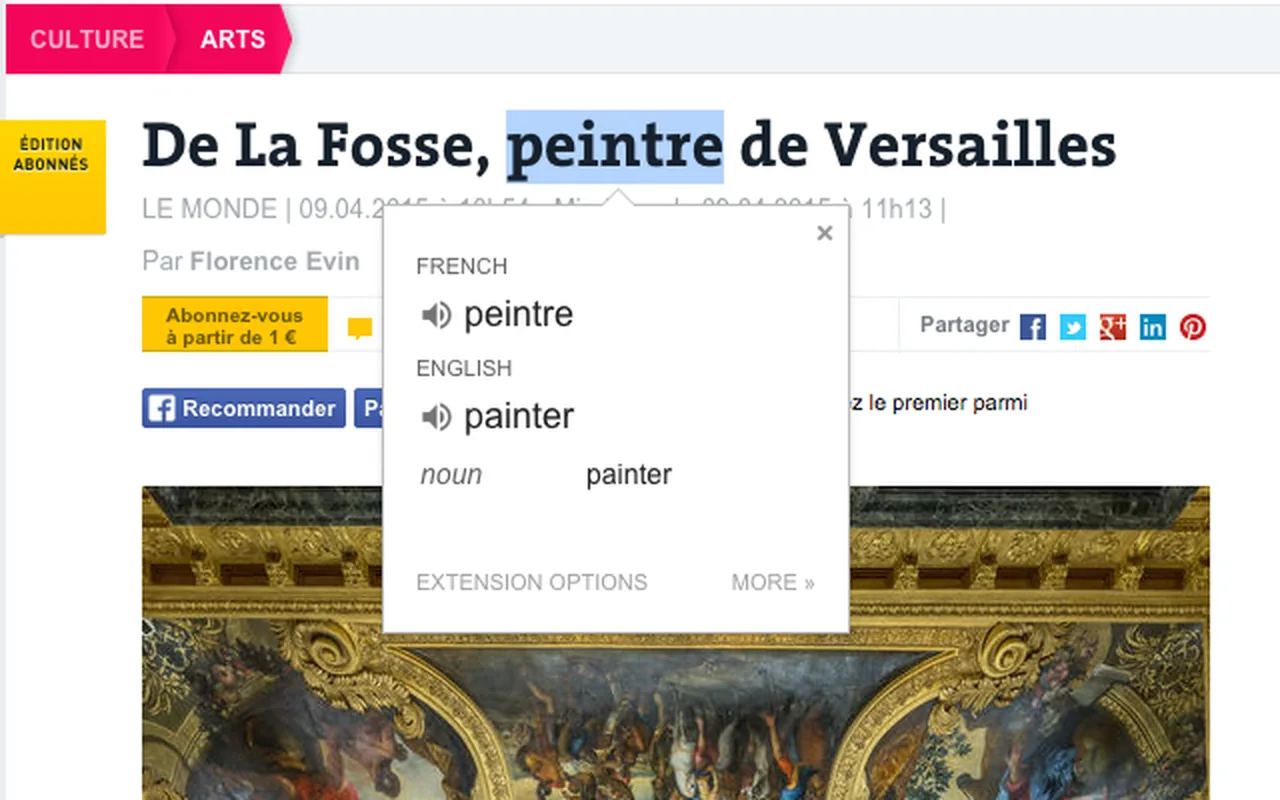
What it does: Translates text you highlight or right-click, in a small pop-up on the page.
👍 Why we like it: It is quick and it comes from Google. Highlight a word or sentence and the translation shows right there. You can set it to show the translation every time you highlight text.
Good to know: It only translates selected text, not whole pages. Whole-page translation is now built into Chrome. The listing says it handles location, activity and website content.
7. Sider
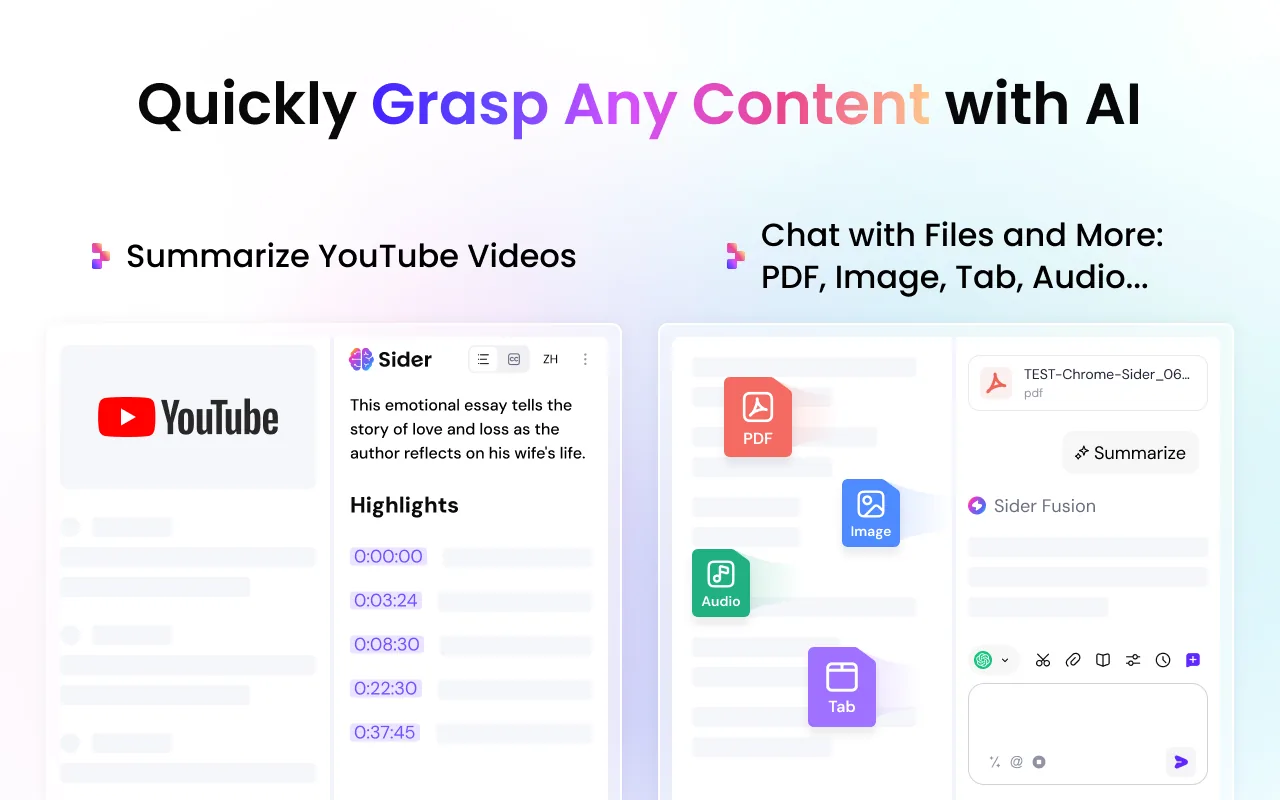
What it does: Adds an AI sidebar to Chrome where you can chat with models like ChatGPT, Claude, Gemini, DeepSeek and Grok. It can also summarize, translate and write.
👍 Why we like it: It puts several chatbots in one panel, so you do not need a new tab for each. Highlight text and ask about it without leaving the page. It can summarize pages and YouTube videos too.
Good to know: The Chrome Web Store says it handles personal information and website content. Free use is limited.
8. Monica AI Assistant
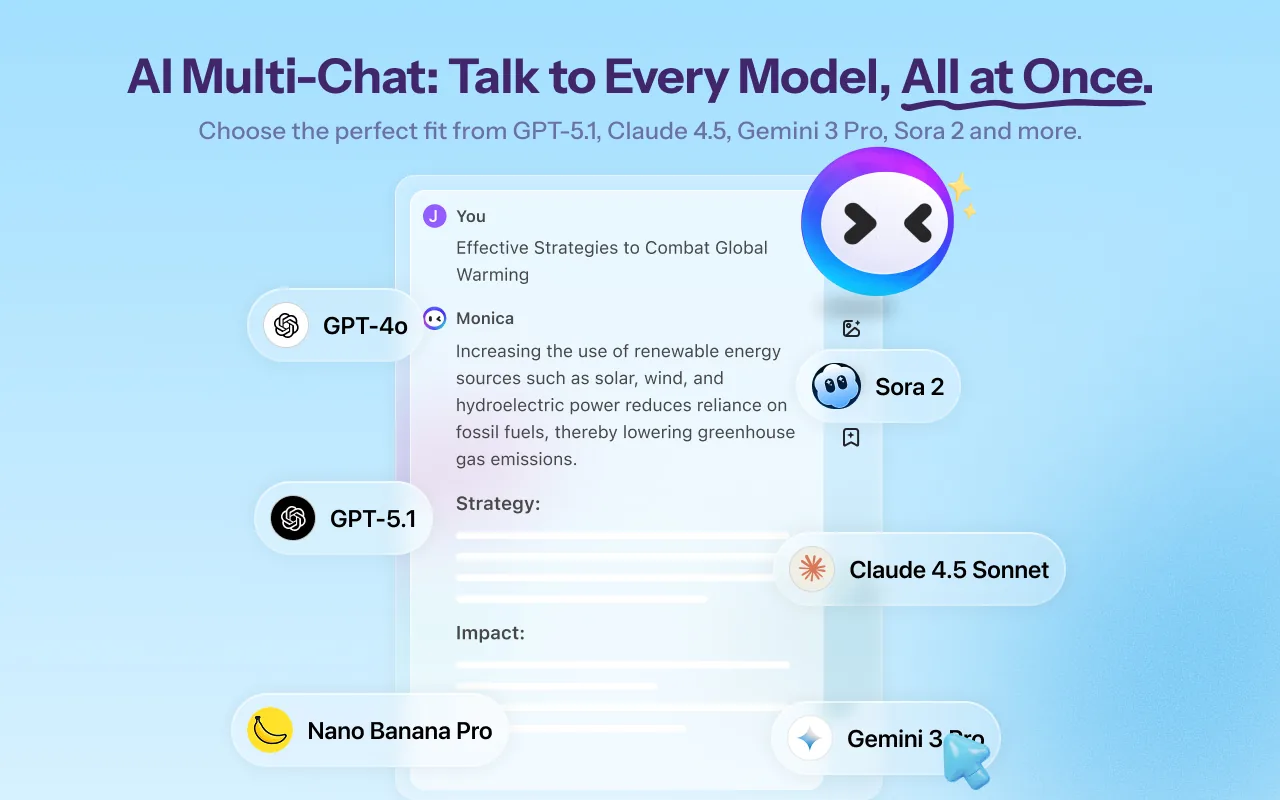
What it does: An AI assistant in a sidebar. It can chat with several models, write, translate, search and summarize pages.
👍 Why we like it: It is an all-in-one panel, and Ctrl/Cmd + M opens it. It helps keep tasks moving without switching tabs. It supports GPT, Claude and Gemini models.
Good to know: The Chrome Web Store says it handles personal, financial and payment information, personal messages and browser activity. Free use is limited.
Capture, save and document
Tools for PDFs, screenshots, screen recording, notes and how-to guides.
9. Adobe Acrobat
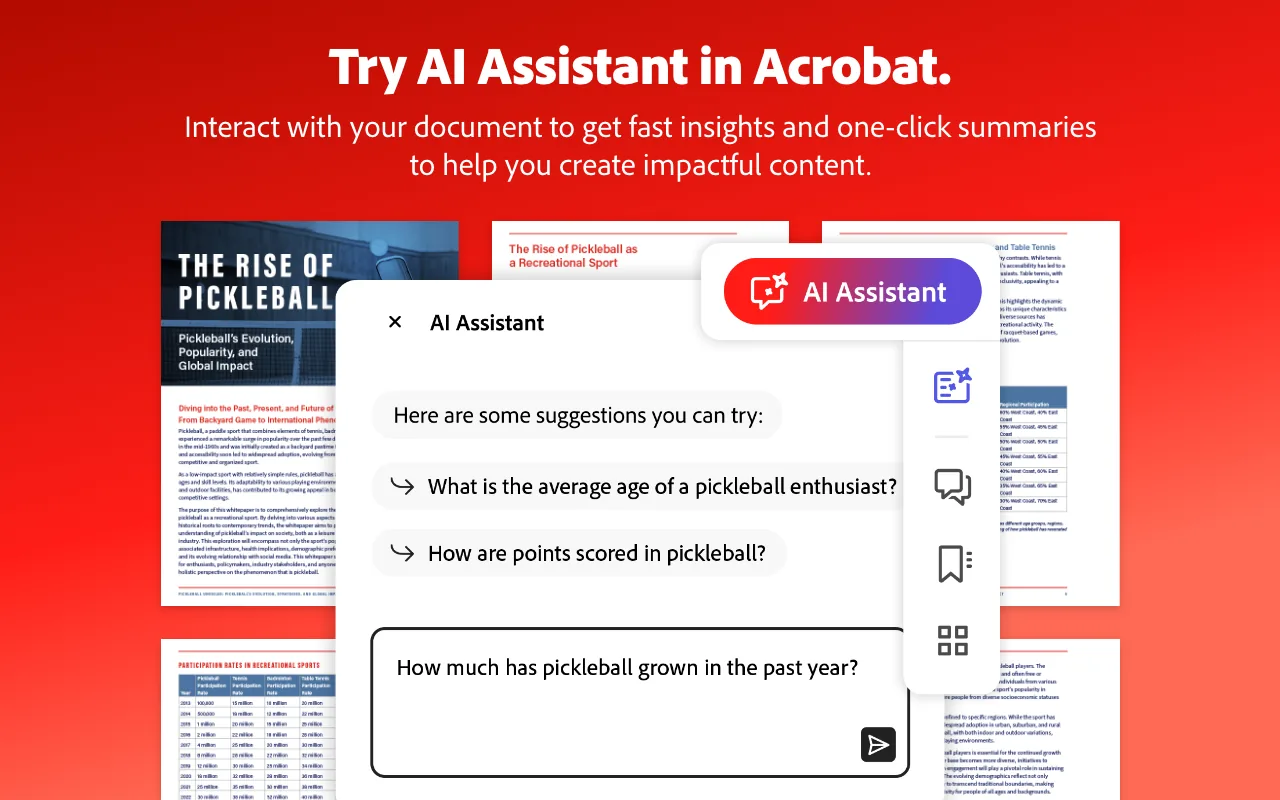
What it does: Opens PDFs in Chrome with Acrobat tools. You can view, print, comment, highlight, fill forms and sign.
👍 Why we like it: Commenting and signing are free, which covers most quick PDF jobs. It is the official Adobe listing. Convert, merge and compress tools are there if you pay.
Good to know: Many tools lead to a paid plan. The listing says it handles location and activity.
10. GoFullPage
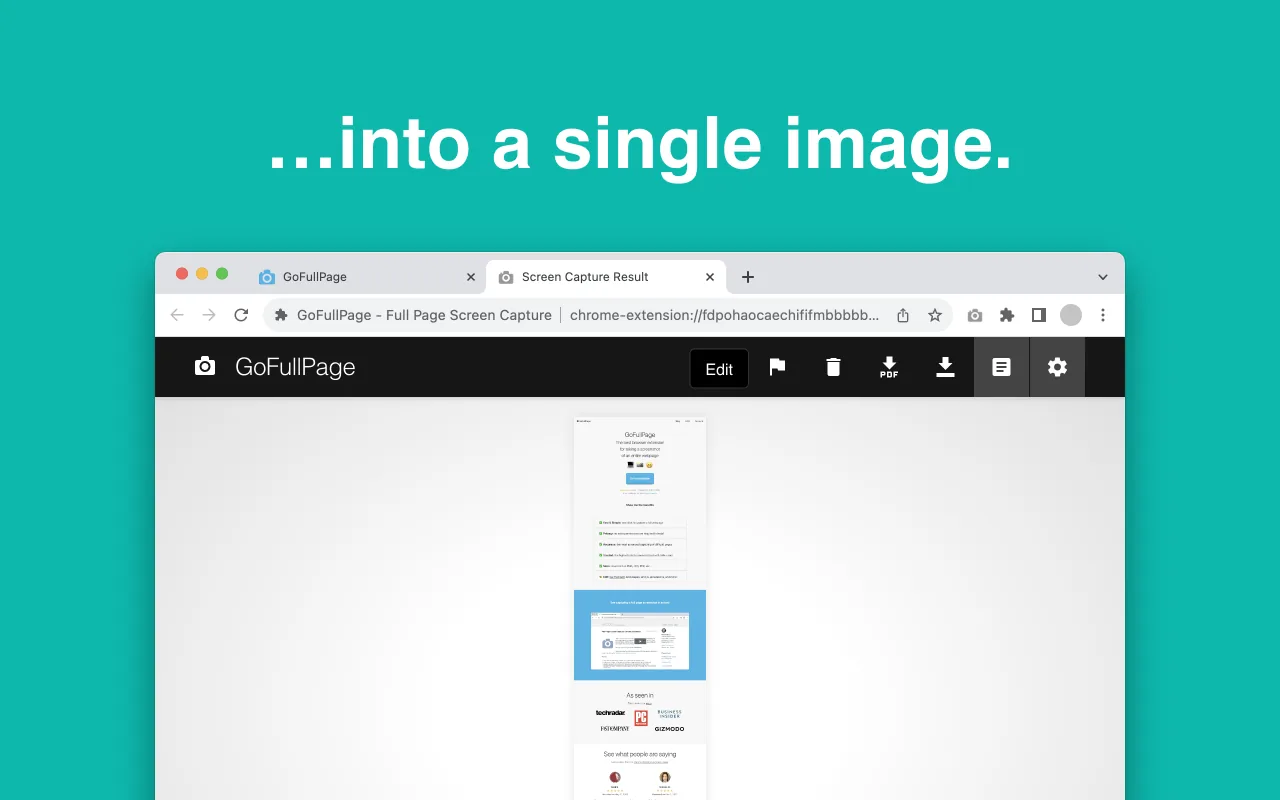
What it does: Takes a screenshot of a whole web page, top to bottom, in one click or with Alt+Shift+P.
👍 Why we like it: It does one job well. Click, wait a moment and you get a single image you can download as PNG, JPEG or PDF. The listing says there are no ads and no extra permissions.
Good to know: The editor tools are premium. Very long pages may be split into several images. The developer says it collects no data.
11. Loom
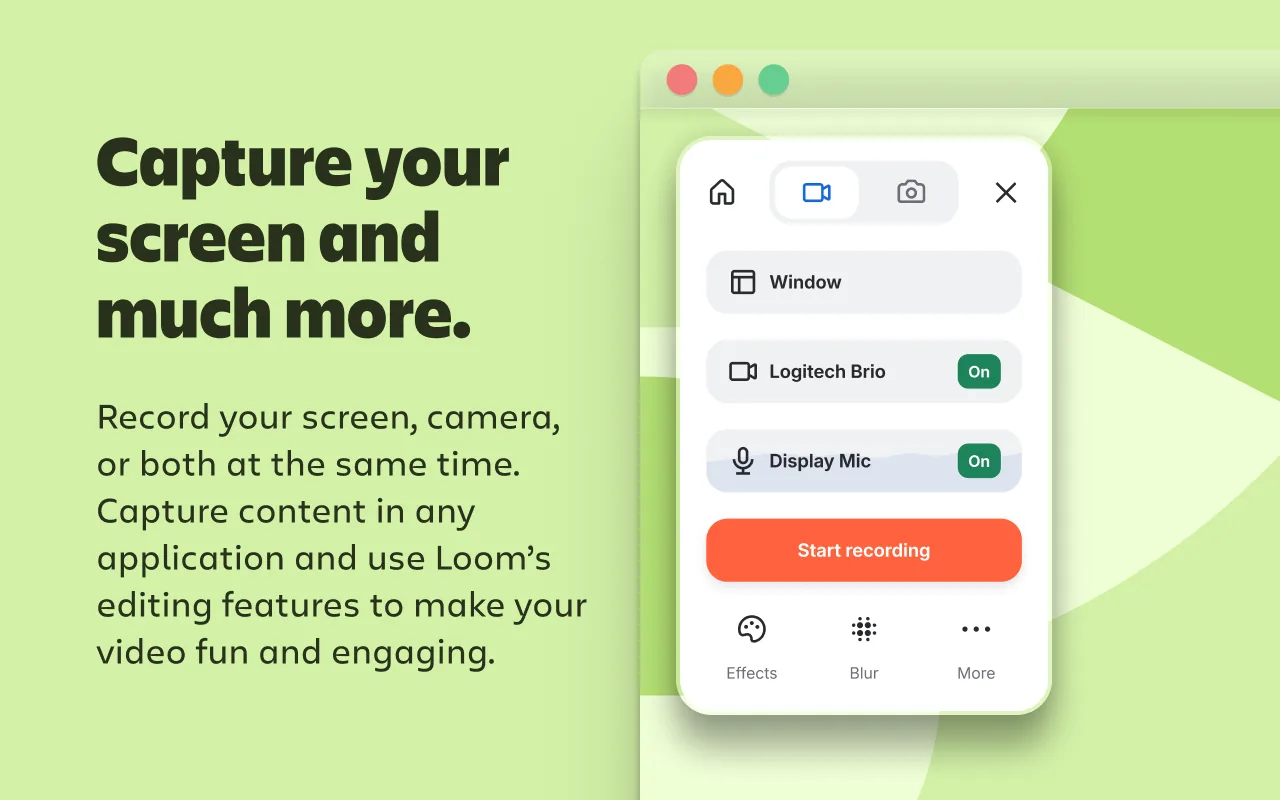
What it does: Records your screen, camera and microphone and gives you a link to share straight away.
👍 Why we like it: You press one button, record and send a link. There is no file upload and no waiting. It is popular for quick how-to videos and feedback in place of meetings.
Good to know: You need an account, and your videos live on Loom’s servers. The free plan has limits.
12. Google Keep
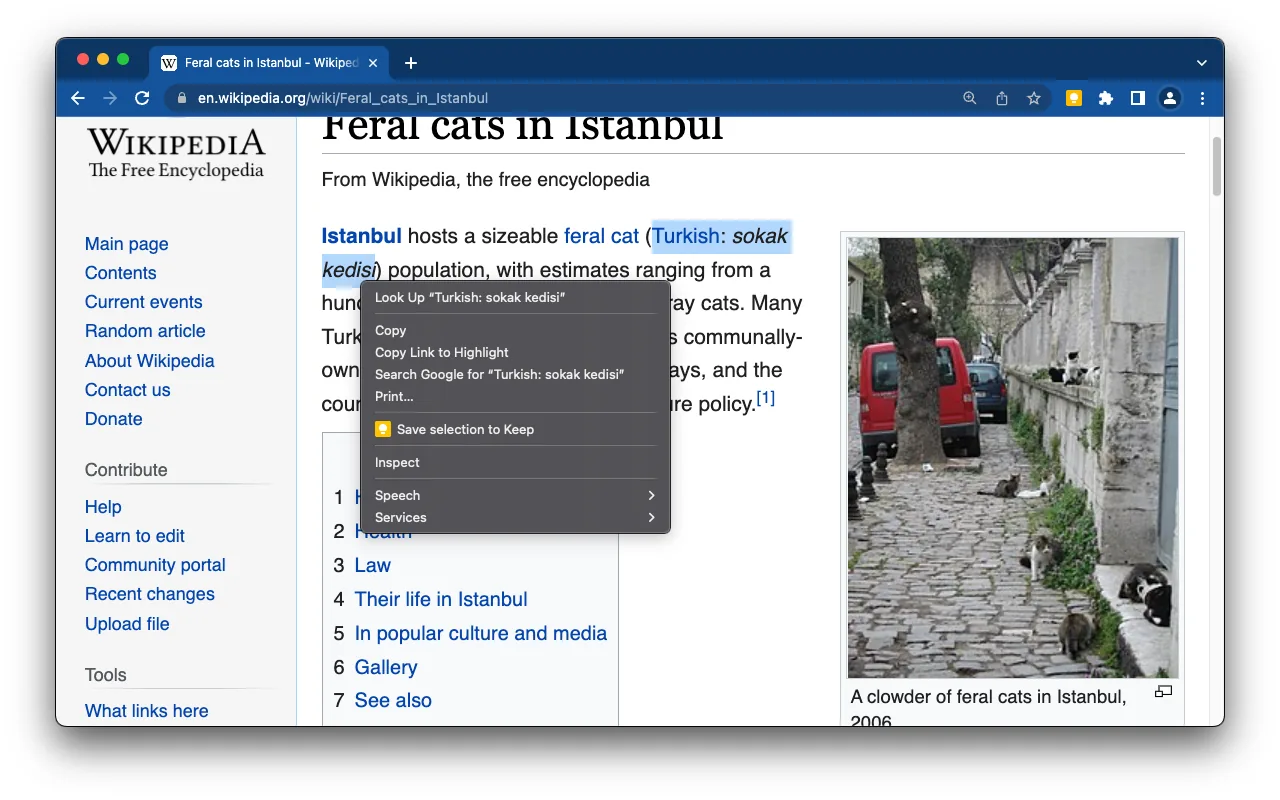
What it does: Saves web pages, text and images to Google Keep with one click.
👍 Why we like it: Notes sync to the Keep app on Android and iPhone, so what you save on your laptop is on your phone too. You can add a note and labels when you save. It is the simplest clipper for anyone who already uses Google.
Good to know: Google says notes made in this extension do not save automatically. Open keep.google.com to edit notes linked to a page. The listing says it handles personal information, login information, activity and website content.
13. Scribe
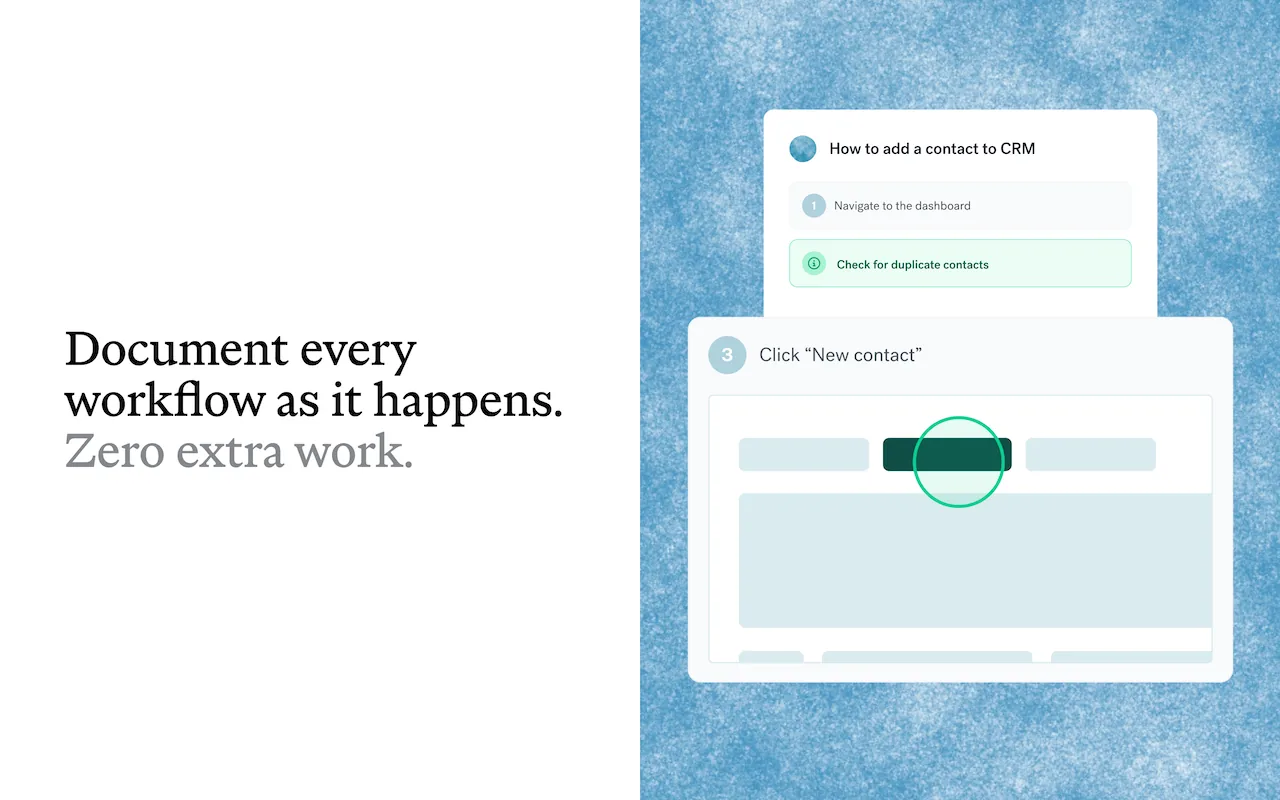
What it does: Records the steps you take in the browser and turns them into a step-by-step guide with screenshots.
👍 Why we like it: Writing a how-to guide by hand takes ages. Scribe builds the guide while you do the task. It suits training guides and support notes.
Good to know: It records what you click and what is on screen, so check what you are capturing before you record anything private. The Basic plan is free and Pro is paid.
14. Obsidian Web Clipper
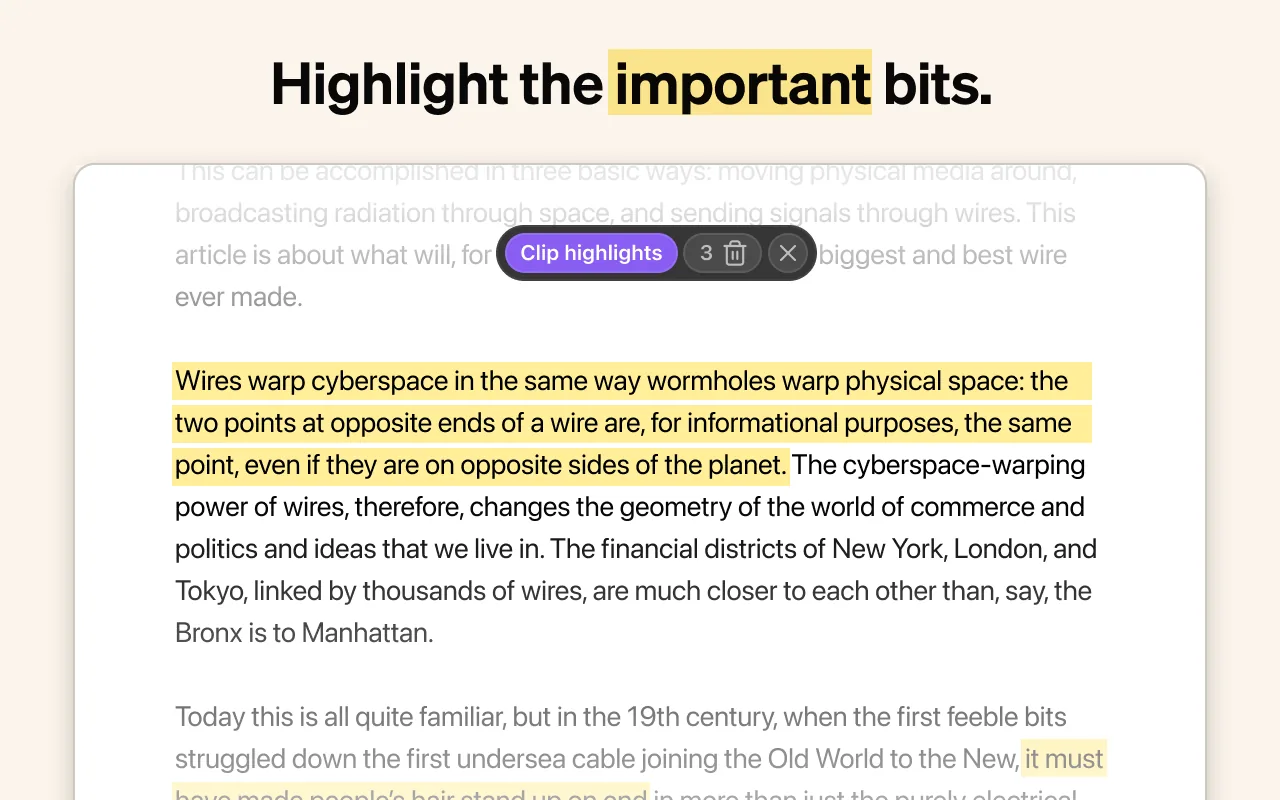
What it does: Saves web pages and highlights into your Obsidian notes as plain files you keep.
👍 Why we like it: Your clips are yours. They are saved in your own Obsidian vault in open formats, and you can read them offline. The listing says it is free and open source.
Good to know: It is most useful with the Obsidian app. The AI interpret feature needs a model provider you set up yourself. The developer says it collects no data.
Browse and read better
Dark mode, tab control, a calmer new tab page and handy YouTube add-ons.
15. Dark Reader
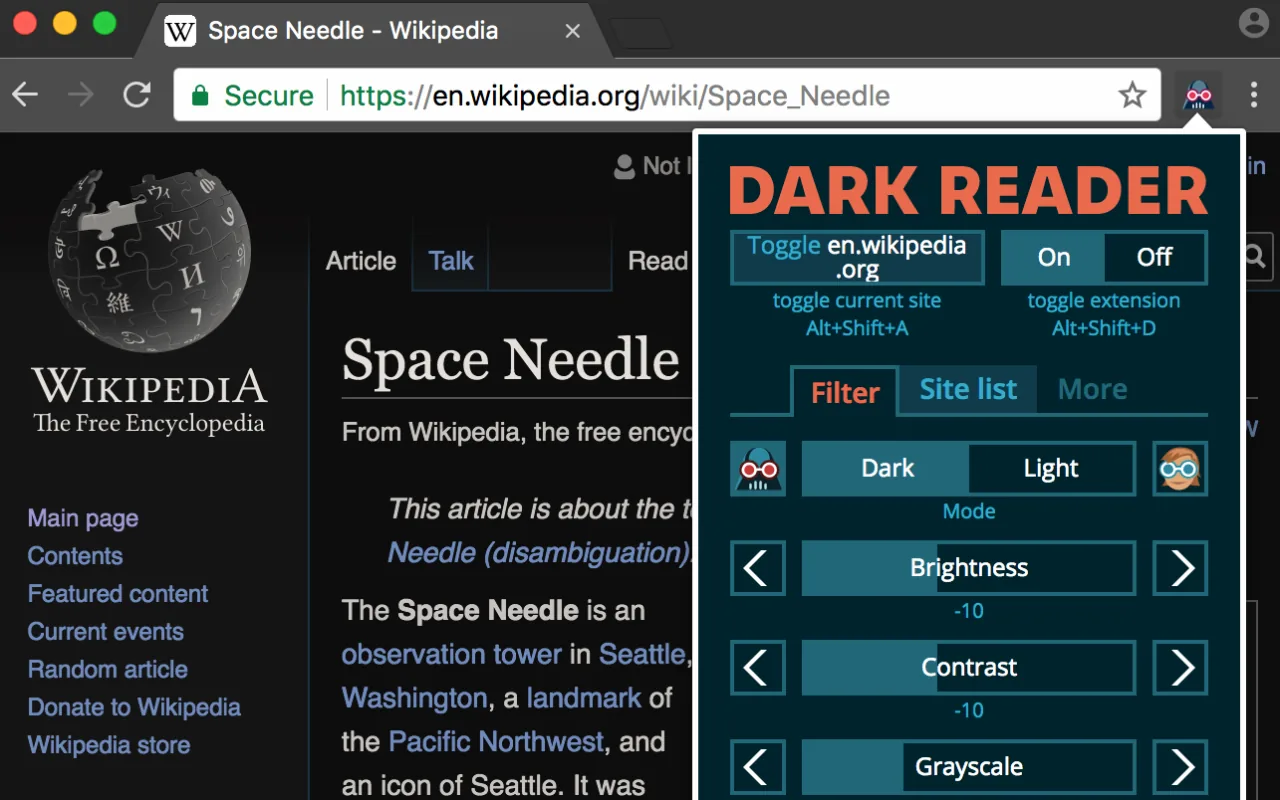
What it does: Turns bright websites dark. You can change brightness, contrast, sepia and fonts.
👍 Why we like it: Chrome’s own dark mode does nothing for sites that have no dark theme. Dark Reader makes one on the fly. You can switch it off for a single site, and it can follow your system setting.
Good to know: Some pages look odd and need an exception. A site can stay dark until you refresh. The developer says it collects no data.
16. OneTab
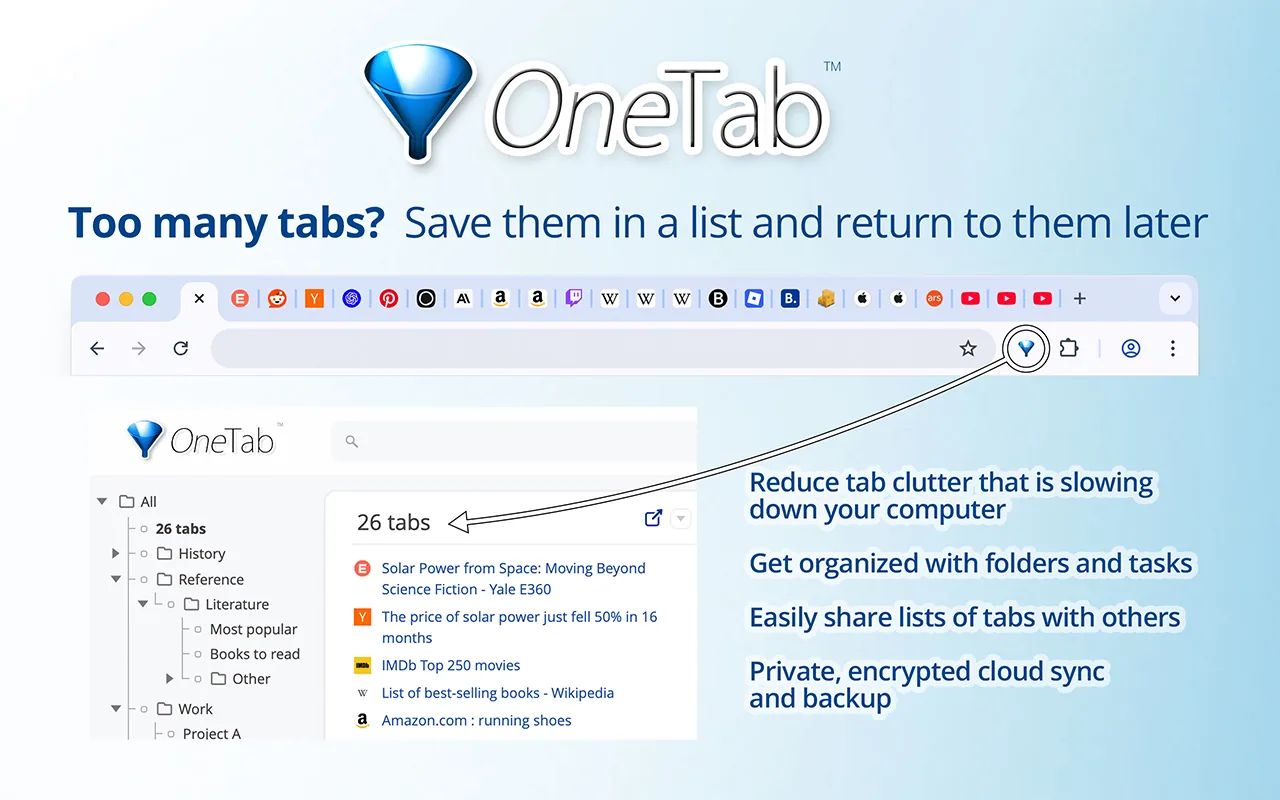
What it does: Turns all your open tabs into one list. You can restore them one by one or all at once.
👍 Why we like it: If you have 30 tabs open, one click clears them and frees up memory. It is simple and needs little setup. The listing says your tab URLs are never sent to anyone unless you choose to share a list.
Good to know: It looks dated and has no device sync. Chrome’s own tab groups cover some of the same need. The developer says it collects no data.
17. Momentum
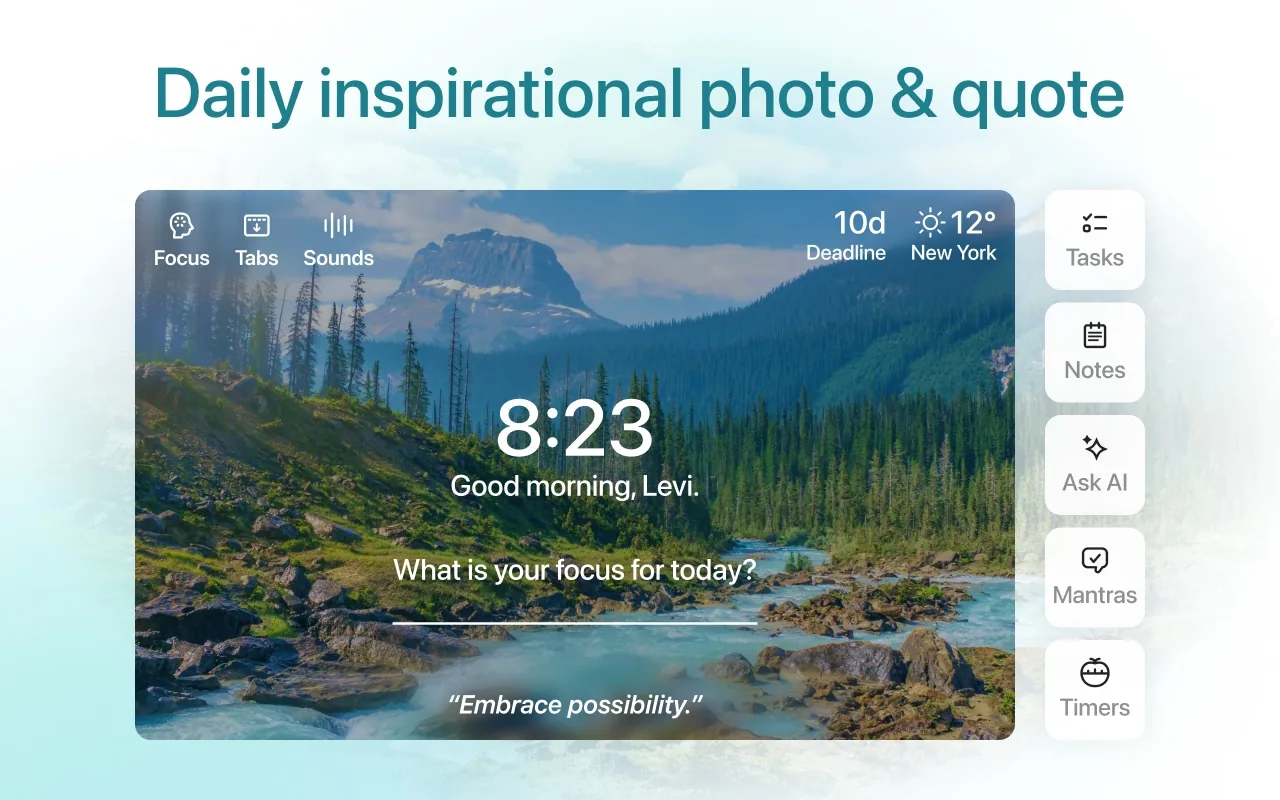
What it does: Replaces the new tab page with a daily photo, a quote, a to-do list, a focus timer and local weather.
👍 Why we like it: It makes the blank new tab useful and calmer. You can hide the parts you do not want. The free version covers the basics.
Good to know: It takes over your new tab page. A lot of the extras are in the paid Plus plan. The listing says it handles personal and login information.
18. SponsorBlock for YouTube
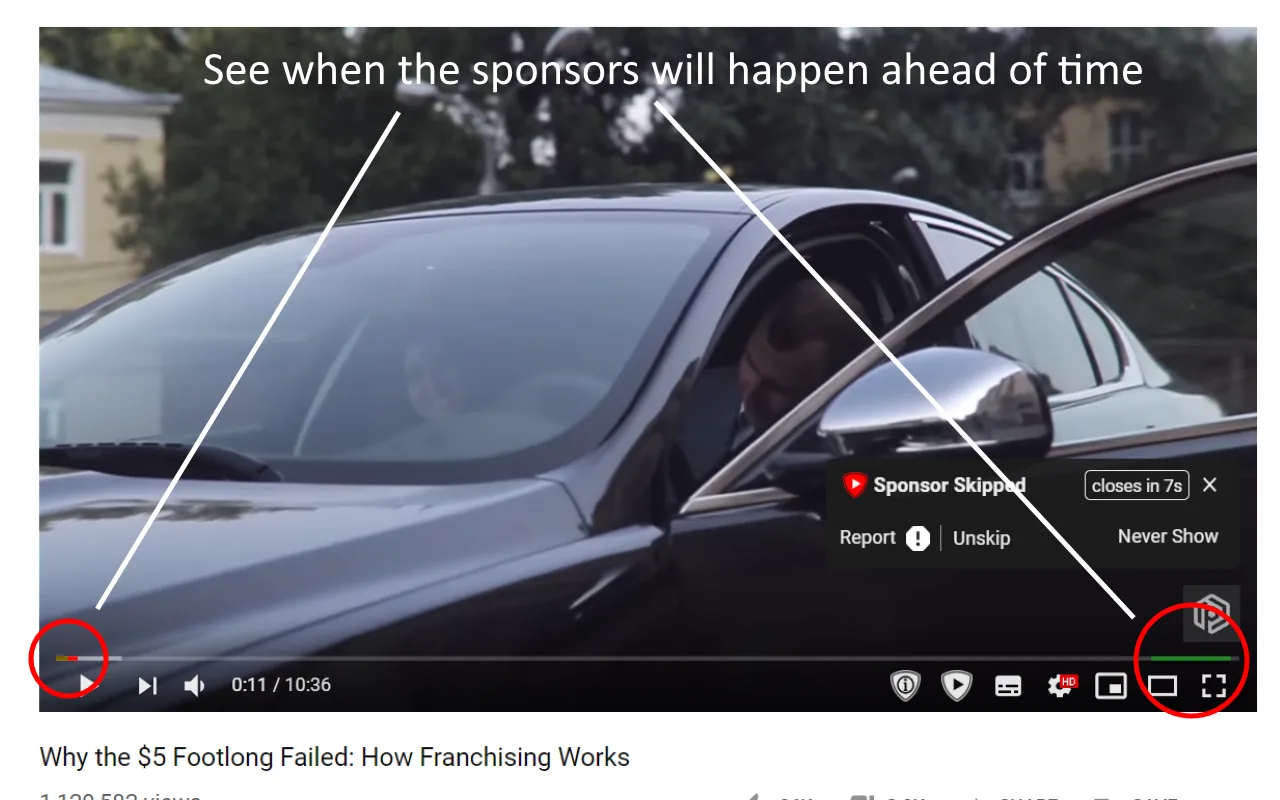
What it does: Skips sponsor reads, intros, outros and subscribe reminders in YouTube videos.
👍 Why we like it: People submit the start and end of these segments, and everyone else skips them. It saves real time on long videos. It is open source and the database is public.
Good to know: It depends on the community, so very new or small videos may have nothing marked. It is not an ad blocker. The developer says it collects no data.
19. Return YouTube Dislike

What it does: Shows dislike counts on YouTube again, after YouTube hid them.
👍 Why we like it: It helps you judge a video before you spend time on it. The listing says it uses archived dislike data plus votes from people who use the extension.
Good to know: The numbers are estimates, especially on newer videos with few votes. Several similar listings exist, so use the Install button on this card. The developer says it collects no data.
Shop, email and tweak sites
A price tracker, a Gmail helper and a tool for changing how sites work.
20. Keepa – Amazon Price Tracker
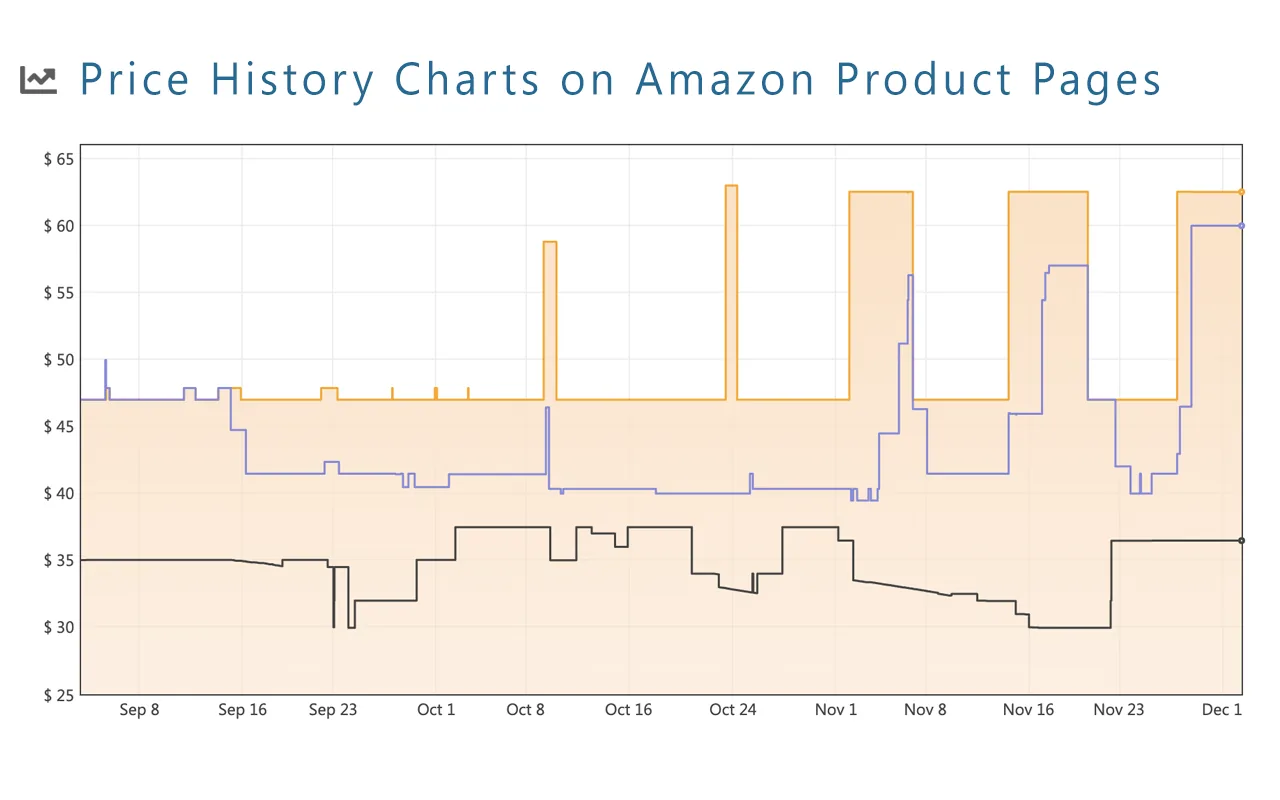
What it does: Adds a price history chart to Amazon product pages and lets you set price drop alerts.
👍 Why we like it: It shows whether a sale price is real. You can see how the price moved over time and set an alert for the price you want. It works on many Amazon country sites.
Good to know: It works on Amazon only. The listing says it handles personal information, which fits alerts that need an account.
21. Checker Plus for Gmail
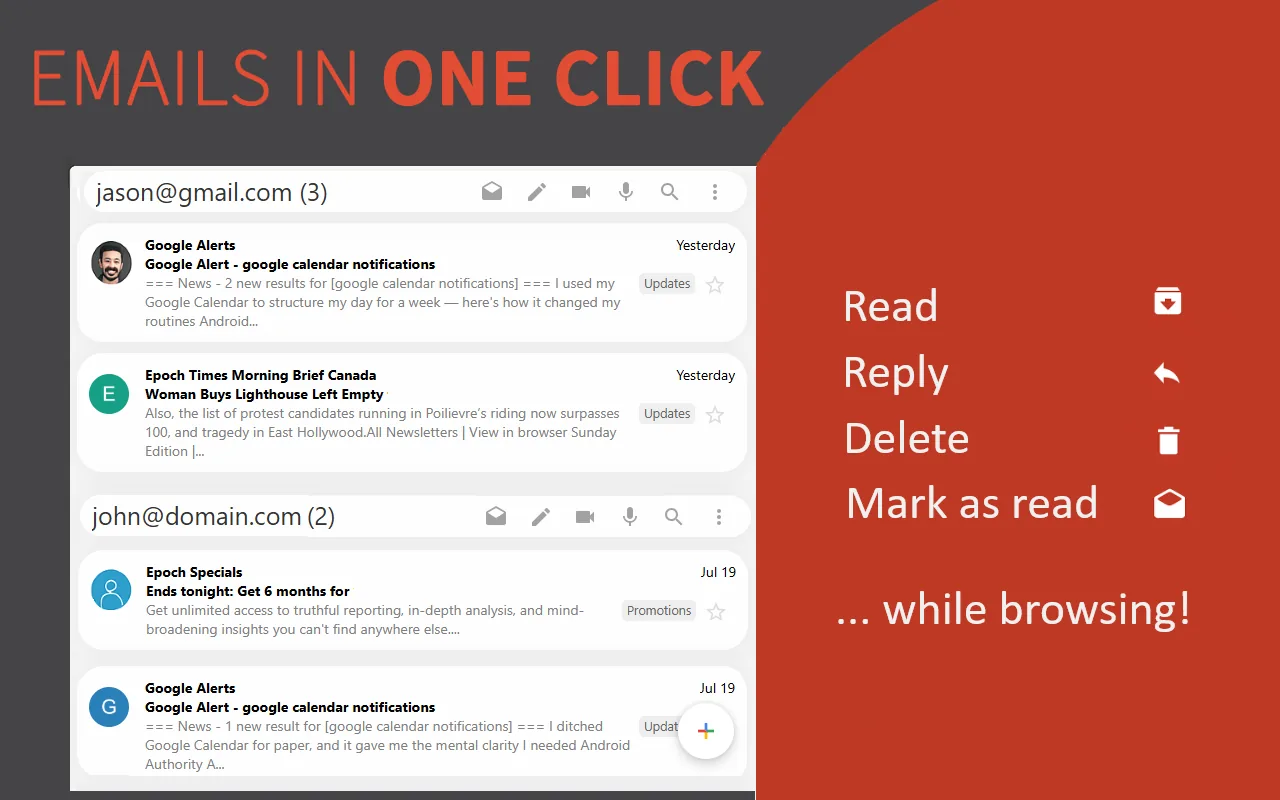
What it does: Shows Gmail notifications with previews, and lets you read, reply, archive and delete from a pop-up.
👍 Why we like it: You can handle email without opening Gmail. It works with several accounts. It also has voice notifications and a side panel mode.
Good to know: It works with Gmail only, and it is run by one developer. The listing says it handles personal, financial and payment information and login information.
22. Tampermonkey
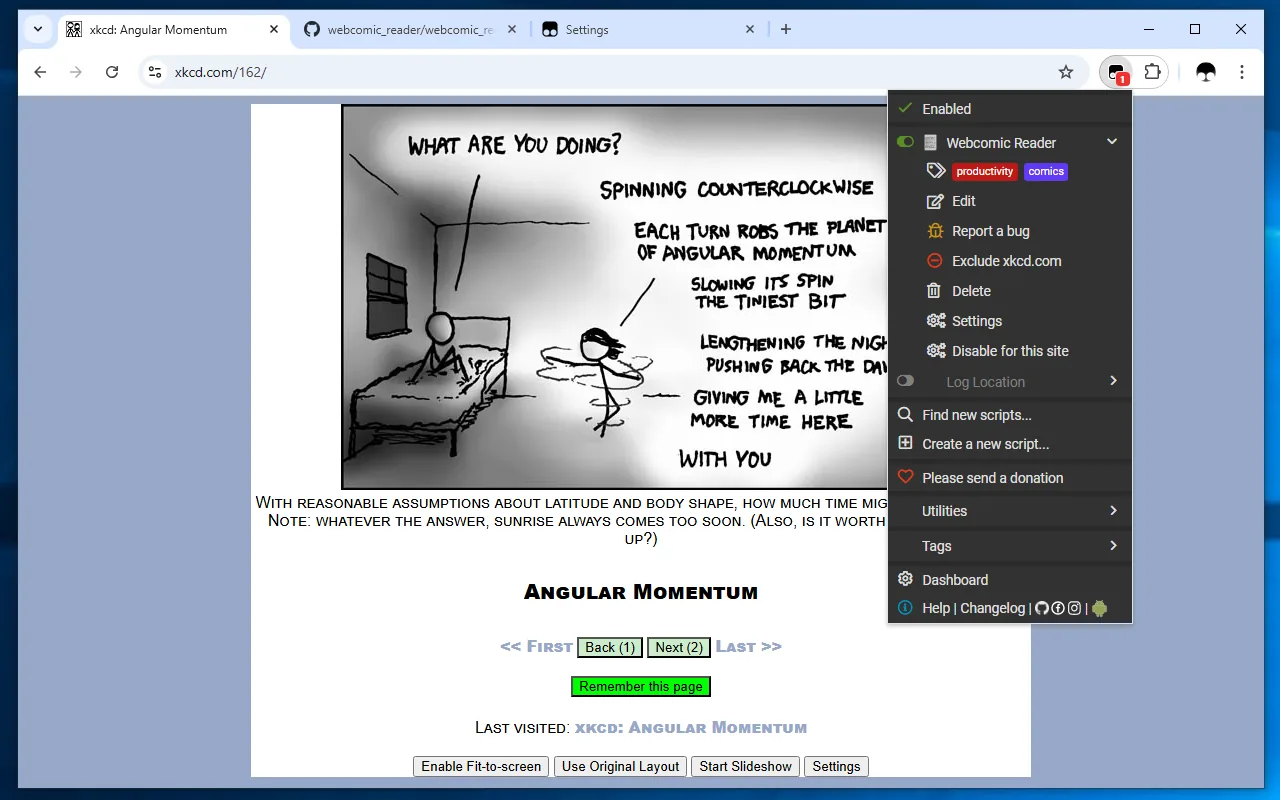
What it does: Runs userscripts, which are small programs that change how a website looks or works.
👍 Why we like it: If you want to tweak a site, there is usually a userscript for it. You get a manager to turn scripts on and off in two clicks. Sync works through Chrome Sync, Google Drive, Dropbox, OneDrive or WebDAV.
Good to know: A userscript can read and change the pages you visit, so only install scripts from sources you trust. The listing says it collects anonymous usage information.
Looking for more extensions?
Discover more from Chrome Geek
Subscribe to get the latest posts sent to your email.