10 Best Chrome Extensions for Students
 by
Gloria Brown
Post Updated: October 12, 2026
by
Gloria Brown
Post Updated: October 12, 2026
The best Chrome extensions for students include MyBib for creating citations, Grammarly for improving essays and checking grammar, and Kami for highlighting and taking notes on PDFs.
Being a student means juggling homework, research, online classes, and multiple browser tabs. The right Chrome extensions can make studying easier, help you stay organized, and save you valuable time.
We’ve put together some of the most useful extensions for writing, reading, note-taking, and staying focused. Many offer free features, making them worth trying whether you’re in middle school, high school, or college.
Also check out our guide to the best Chromebooks for students.
Research and citations
Citation and reference tools help you collect academic sources and format bibliographies for essays and research papers.
1. MyBib: Free Citation Generator
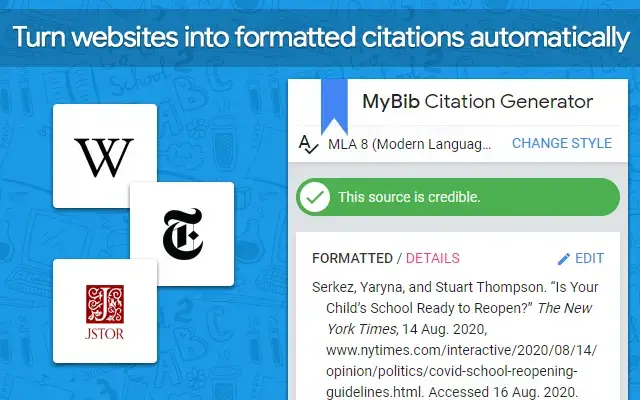
What it does: Formats web pages and online PDFs into academic citations with one click. It supports common citation styles including APA, MLA, Chicago, and Harvard.
Why we like it: Building a bibliography by hand takes time and makes it easy to miss punctuation rules. MyBib pulls the article details from the page you are reading so you can copy formatted references or in-text citations right away. You can also organize your saved sources into a project list and export them to Google Docs or reference managers.
Good to know: Always double-check the generated author names, publication dates, and required citation style rules before submitting an assignment.
2. Zotero Connector
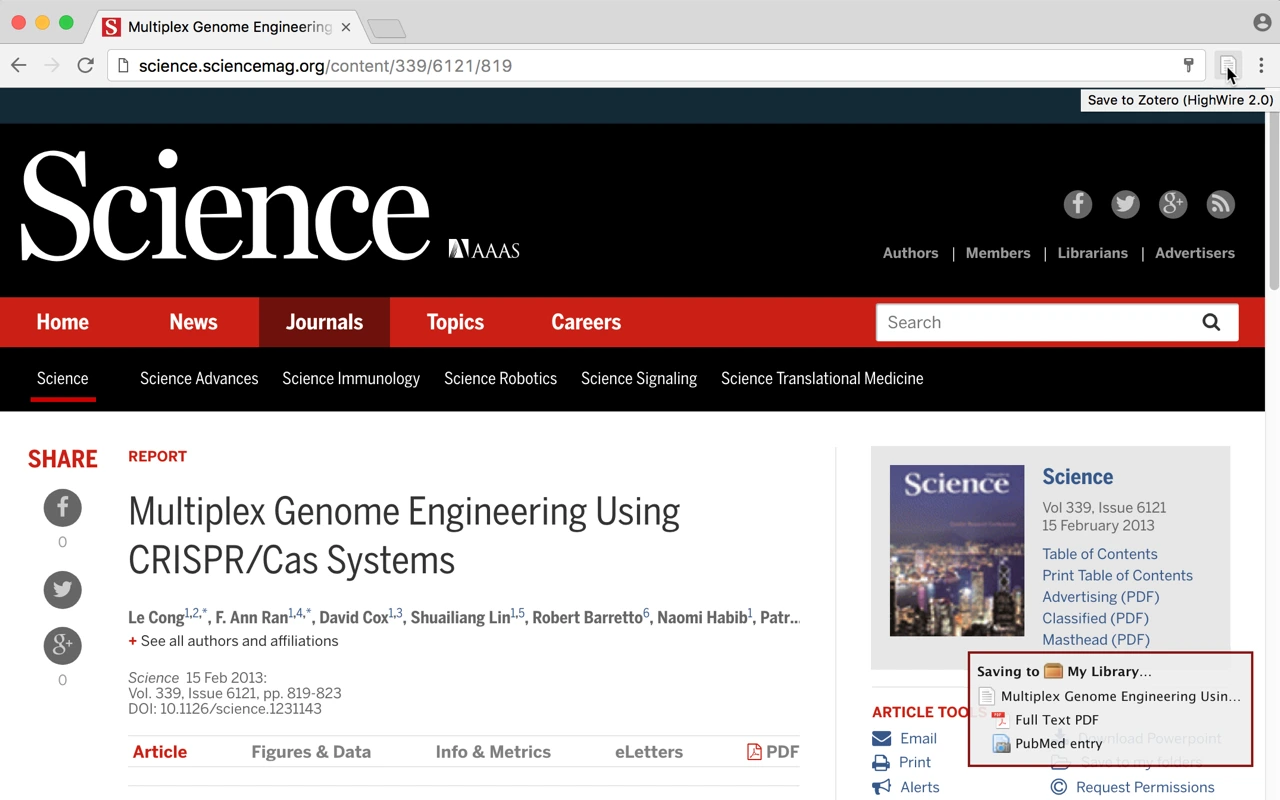
What it does: Detects journal articles, books, news stories, and PDFs as you browse and saves their citation information to your Zotero library.
Why we like it: It is particularly helpful for university assignments, literature reviews, and larger research projects where you need to keep track of dozens of academic sources. When an open PDF is available on a supported site, the extension can save both the reference details and the PDF file at the same time.
Good to know: While the Connector can save many sources directly to an online Zotero library, the full research and citation workflow requires the Zotero desktop application, which does not run natively on a standard Chromebook without Linux setup.
Writing and documents
Writing and PDF extensions let you check your drafts for mistakes and mark up digital course readings in Chrome.
3. Grammarly
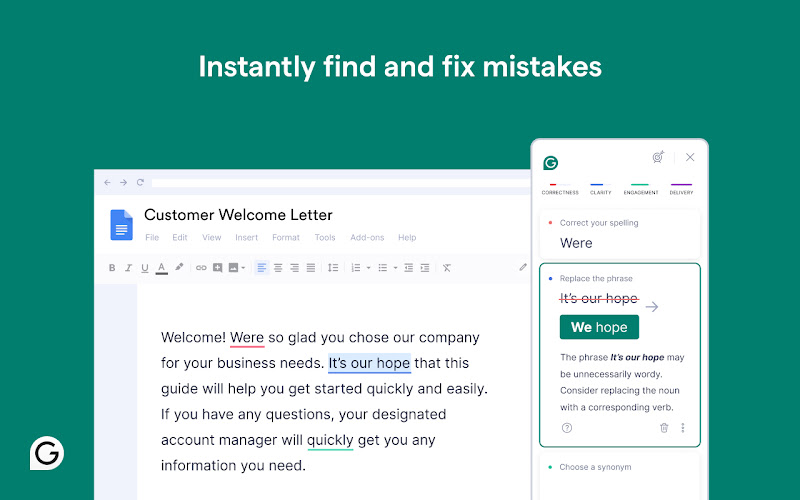
What it does: Checks your spelling, grammar, and punctuation as you type in Google Docs, Gmail, and web forms.
Why we like it: It catches everyday typos and unclear sentences while you draft essays, discussion board posts, or emails to instructors. Because it works directly inside browser text fields, you do not have to copy and paste your writing into a separate tool.
Good to know: The free plan covers core spelling, grammar, and punctuation checks, while full-sentence rewrites, tone adjustments, and higher AI limits require a paid plan. Because writing assistants process the text you type, think carefully before using it on private or sensitive documents.
4. Kami
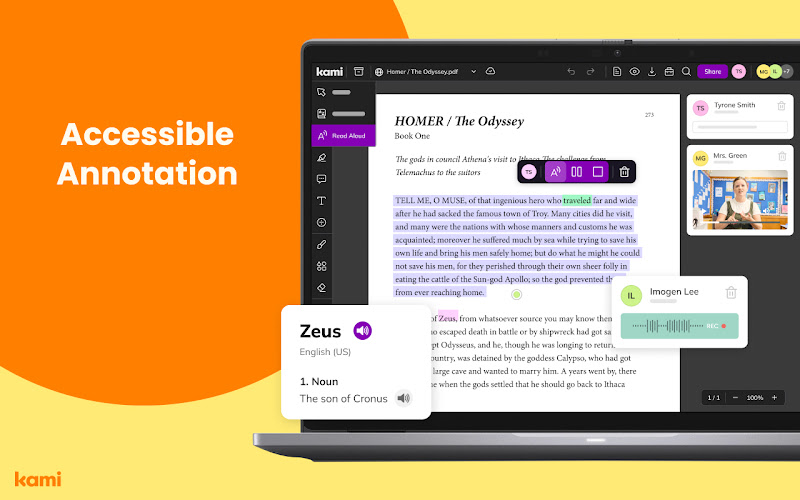
What it does: Opens PDFs and class handouts in Chrome so you can highlight passages, add text notes, and draw on pages.
Why we like it: Students can mark up course readings and complete digital worksheets in the browser without printing paper copies. The free plan includes core highlighting, text boxes, comments, and drawing tools that cover everyday reading assignments.
Good to know: Features such as voice and video comments, built-in read-aloud tools, equation editors, and direct Google Classroom assignment grading require a paid plan or school license.
Reading and notes
Text-to-speech and web-clipping tools make it easier to listen to long articles and save reading material for class.
5. Read Aloud
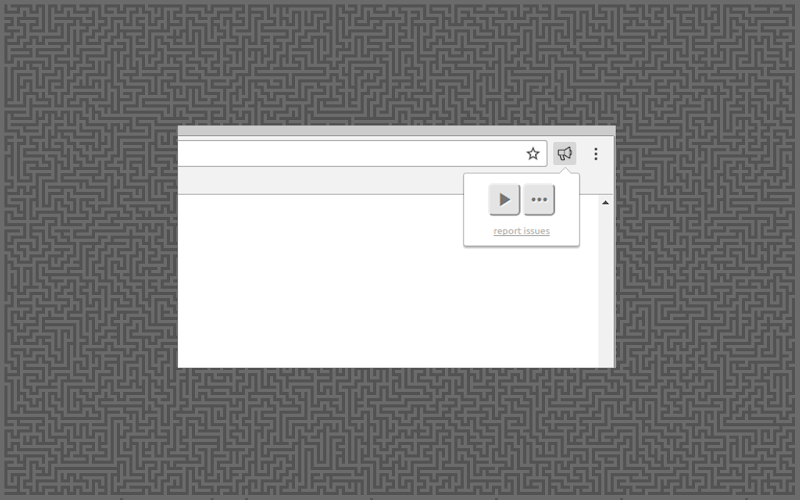
What it does: Reads web articles and supported documents out loud using text-to-speech, with controls for voice, speed, and pitch.
Why we like it: Listening to long articles, online course materials, or your own essay drafts can help when your eyes are tired from reading on screen. You can start, pause, skip sections, and change the reading speed from a compact toolbar pop-up.
Good to know: Standard browser voices are free, but premium cloud voices may cost extra or require your own API key. Some PDFs or ebook formats require extra setup, and the listing notes that it handles website content and account details.
6. Notion Web Clipper
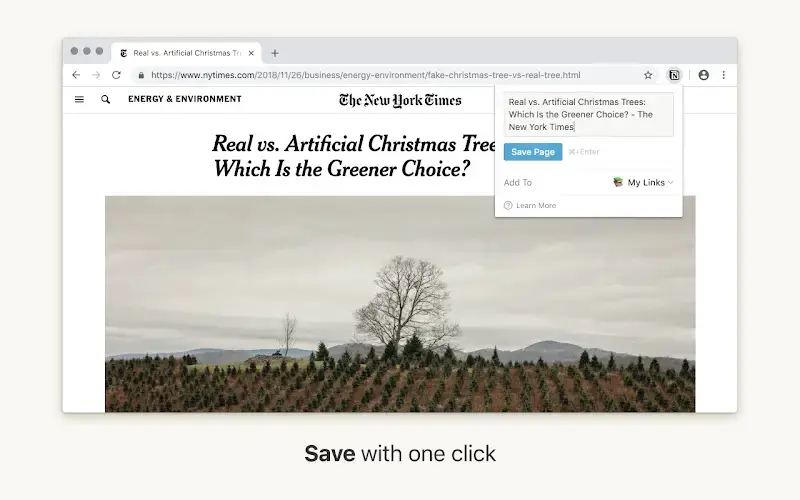
What it does: Saves web pages and articles directly into a chosen page or database inside your Notion workspace.
Why we like it: Instead of leaving dozens of browser tabs open while working on a paper, you can clip useful articles straight into your class notebook or research table. Saved clips keep the source URL and page text so you can tag and organize your reading material by subject.
Good to know: You need a Notion account, and this extension is most useful for students who already organize their notes and coursework in Notion.
Exam preparation and focus
Flashcard makers, study timers, and website blockers help you review course material and manage distractions during study sessions.
7. Knowt
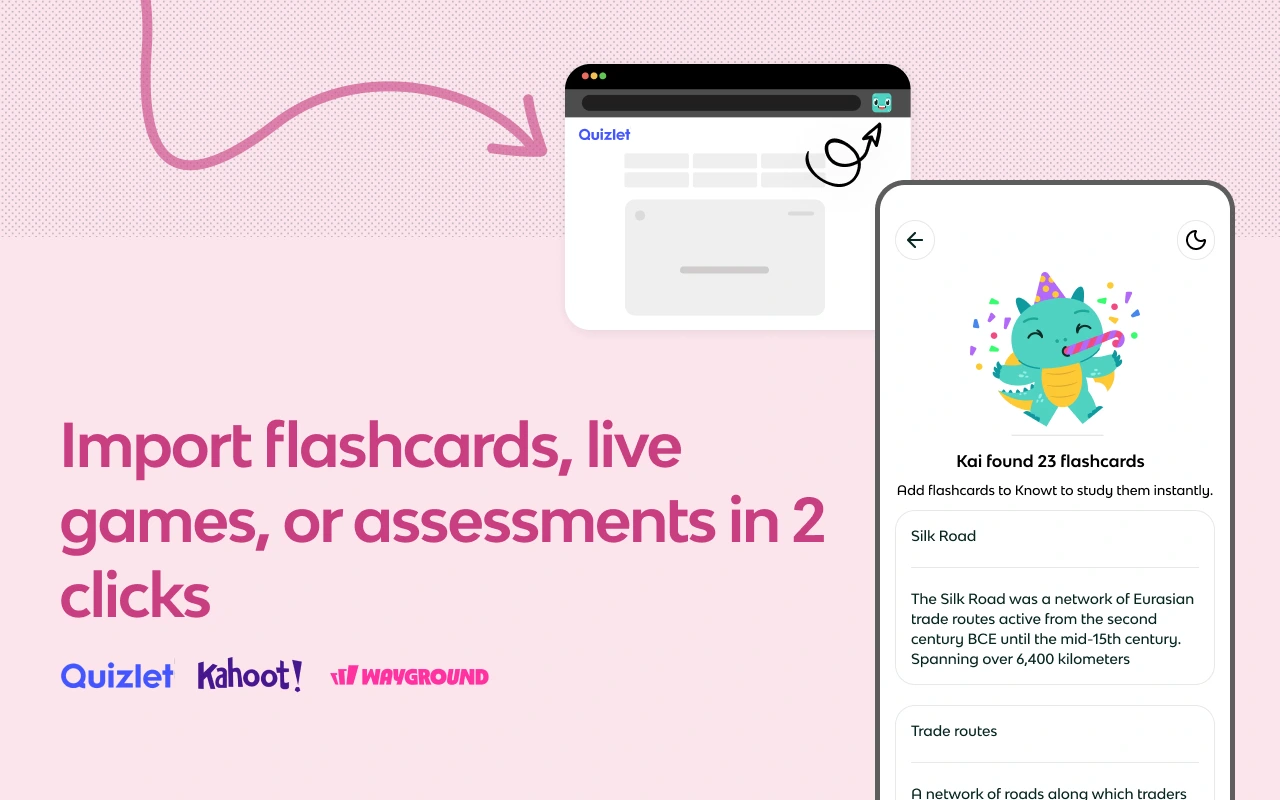
What it does: Creates flashcards, revision notes, and practice questions from supported articles, PDFs, lecture videos, and imported flashcard sets.
Why we like it: It helps you turn class readings, lecture videos, or existing flashcard sets into study decks for exam preparation without retyping every term by hand. Once imported, you can review your cards using practice modes and spaced repetition inside Knowt.
Good to know: You need a Knowt account, and AI note generation, video summaries, and practice tools have usage and plan limits unless you pay for a subscription.
8. Clockify
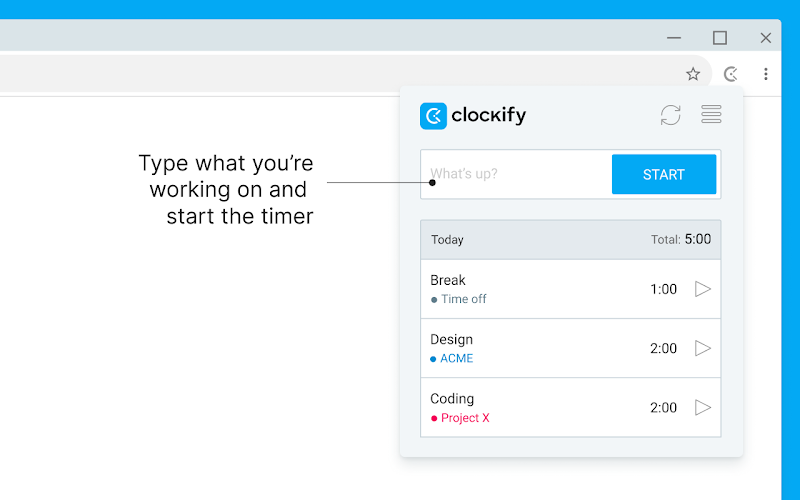
What it does: Runs a study timer in Chrome so you can log homework hours and organize your work by subject or project.
Why we like it: You can start a timer for each class assignment and use the built-in Pomodoro mode to structure your study blocks and breaks. Checking your weekly time log helps you see how long different subjects take so you can plan your study schedule realistically.
Good to know: You need a Clockify account, and the Chrome Web Store listing notes that the extension handles personal information, login details, and website content.
9. Forest
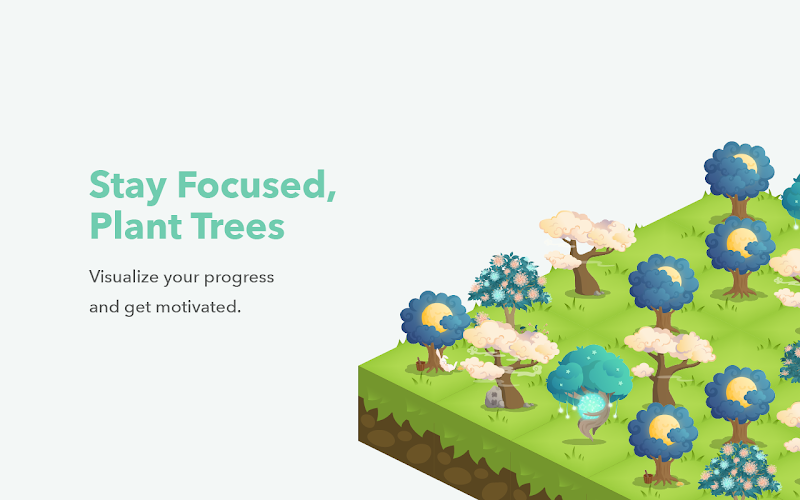
What it does: Runs timed focus sessions in Chrome using a custom blocklist or allowlist of websites while growing a virtual tree.
Why we like it: Leaving your current tab to open another research page does not automatically kill your tree. Instead, your tree only withers if you visit a website on your blocklist and choose to give up on the session, which helps you stay off distracting sites during homework blocks.
Good to know: The Chrome extension has fewer features than the Forest mobile app, and syncing your forest across devices requires a Forest account.
Accessibility and reading support
Reading support controls let you adjust fonts, spacing, and page colors to make websites more comfortable to read.
10. Helperbird
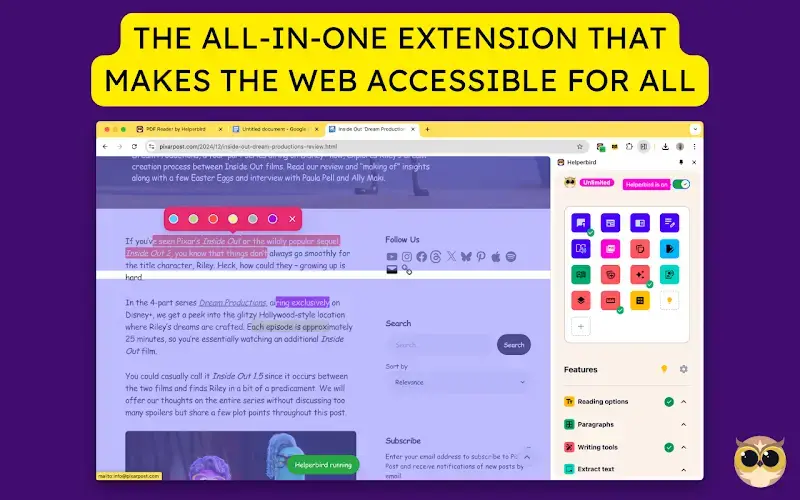
What it does: Lets you change fonts, text size, letter and line spacing, page colors, and reading overlays on websites in Chrome.
Why we like it: Students who find crowded web pages tiring to read can switch to fonts such as OpenDyslexic or Lexend Deca, add a reading ruler, or apply a colored tint to reduce glare. The free version includes core font, spacing, color contrast, and text-to-speech settings.
Good to know: Advanced tools such as sticky notes, voice typing, word prediction, OCR text extraction from images, and page summaries require a paid Helperbird Pro plan.
Looking for more Chrome extensions?
If you want more tools for studying and daily browser work, check out these related ChromeGeek guides:
Discover more from Chrome Geek
Subscribe to get the latest posts sent to your email.