How to Install and Use Adobe Acrobat Reader on Chromebook and Googlebook
 by
Gloria Brown
Post Updated: November 3, 2026
You can install and use Adobe Acrobat Reader on Chromebook and Googlebook through the official Android application from Google Play, the modern web client, or the Chrome browser extension. As the industry benchmark for digital document handling, Adobe Acrobat Reader provides essential tools for reading multi-page PDFs, annotating text with highlighters and sticky notes, filling interactive forms, and creating legally binding digital signatures.
Whether you are reviewing contracts for work, submitting classroom assignments, or managing financial statements on a touchscreen laptop, ChromeOS gives you multiple ways to work with PDF files without friction. This guide walks you through the Google Play installation, phone casting integration, touch and stylus signing, Liquid Mode reading, direct text editing, and practical troubleshooting steps to optimize your workflow.
Need help configuring cloud storage integrations or opening encrypted documents on a school device? Contact us with your laptop model and we will be happy to assist.

Get on Google Play →Launch Web Client →Adobe Acrobat for Chrome →
How to install Adobe Acrobat Reader on Chromebook and Googlebook
The most versatile way to run Adobe Acrobat Reader on ChromeOS hardware is through the official Android application distributed via the Google Play Store. It brings native multi-window support, touch gesture controls, offline file storage, and USI stylus integration to your laptop:
If you are setting up Android applications on ChromeOS for the first time, check Google’s Android app setup guide for Chromebook or the guide on installing apps on Googlebook. On school or work-managed hardware where Google Play is disabled by policy, you can bypass installation entirely by opening Adobe Acrobat Web directly in Google Chrome.
Cast Adobe Acrobat Reader from your phone on Googlebook
Googlebook’s Cast My Apps feature lets you stream your phone’s Adobe Acrobat Reader session directly on your laptop screen. When you start reviewing a document, contract, or invoice on your phone while away from your desk, you do not need to email files or re-download attachments. Simply click Phone Hub on your Googlebook shelf, select the active Adobe Acrobat Reader window, and continue reading, annotating, or signing with full access to your laptop screen, keyboard, and trackpad without file transfers.
View and annotate PDF documents with collaborative notes
Adobe Acrobat Reader delivers a responsive reading workspace calibrated for both convertible Chromebook touchscreens and traditional clamshell laptops. When examining lengthy technical documentation, legal agreements, or academic papers, you can navigate pages smoothly using multi-touch trackpad scrolling or full tablet gestures. The tablet interface cleanly surfaces quick actions along the top bar, letting you search keywords instantly, share links, or toggle between single-page and continuous view modes.
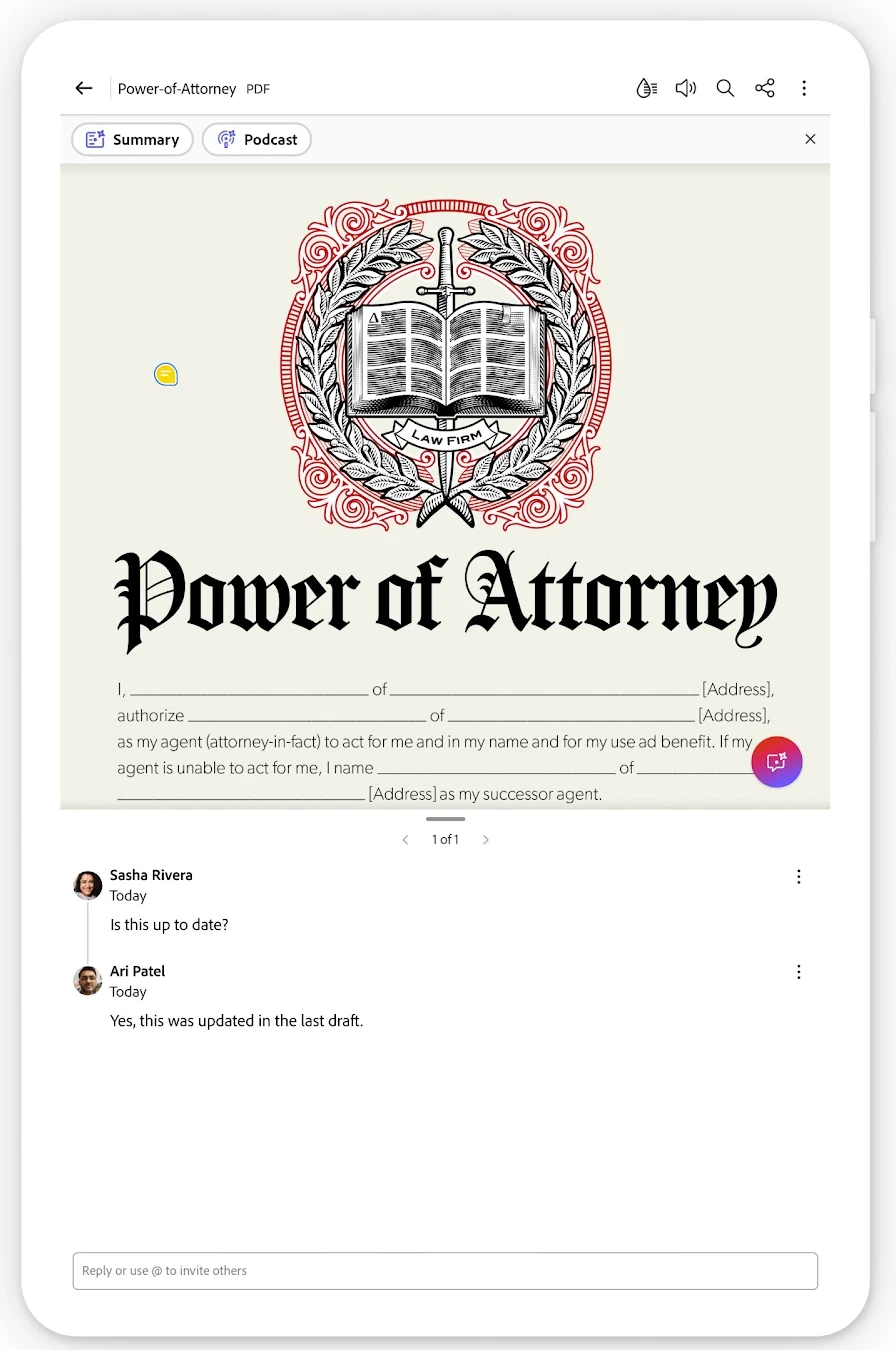
Document markup is where Acrobat excels for daily teamwork. You can highlight passages in multiple colors, strike through outdated provisions, underline critical clauses, and drop sticky notes anywhere on the page. In addition, Adobe Cloud integration allows multiple colleagues or classmates to review the same file simultaneously, replying to specific feedback threads directly within the document side panel without generating conflicting file versions.
Fill forms and e-sign contracts with touch or USI stylus input
Handling interactive paperwork is straightforward thanks to built-in Adobe Fill & Sign capabilities. When opening tax documents, job applications, permission slips, or commercial purchase orders, Acrobat Reader automatically identifies active form fields, checkboxes, and radio buttons, allowing you to click or tap to enter text with automated autofill suggestions.
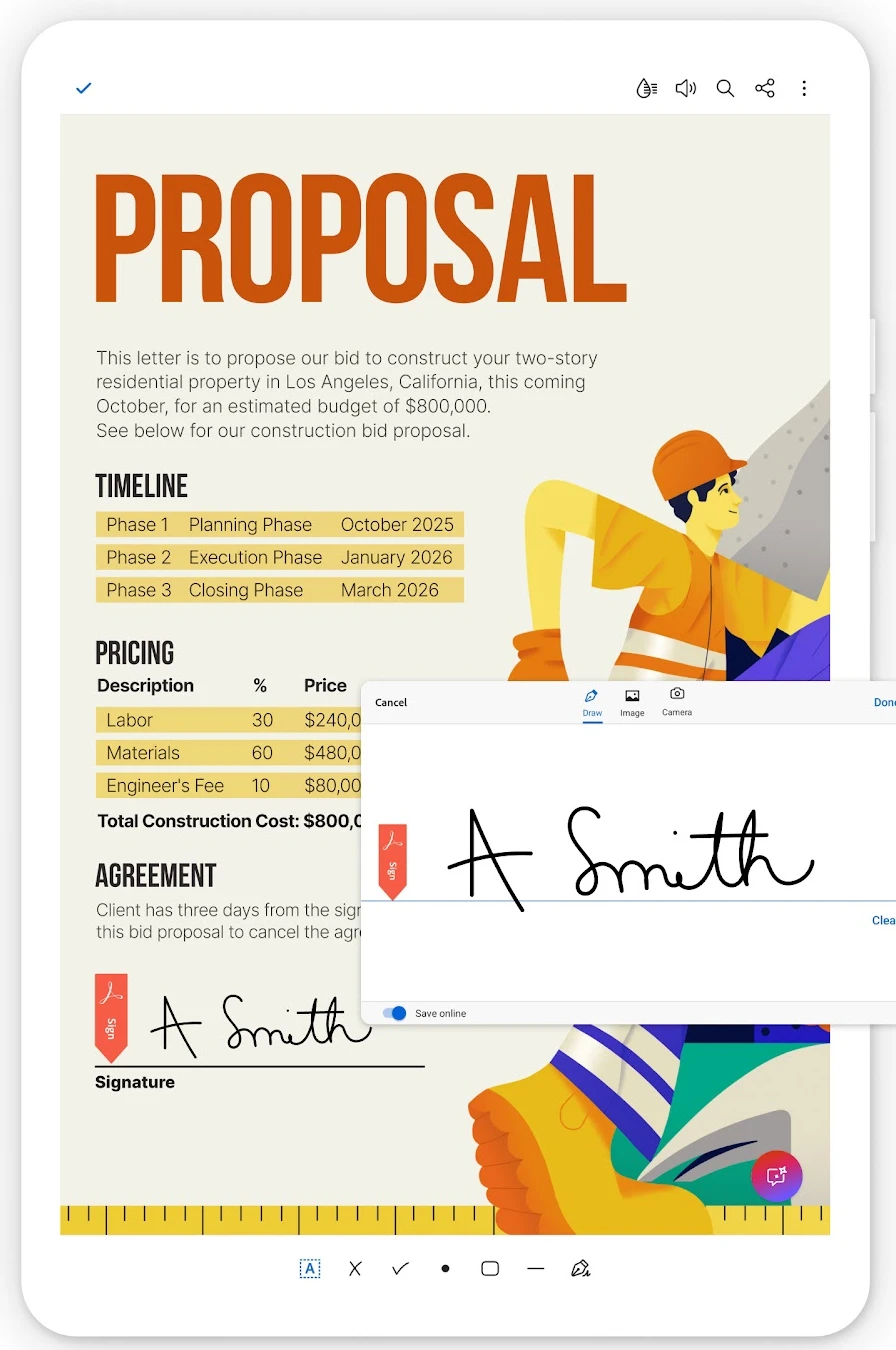
For formal signatures, tap the signature pen tool on the bottom control bar. You can draw your signature naturally on your Chromebook screen using an active USI stylus or your finger, or import an image of your signature. Once saved to your profile, you can place your signature and date stamp on any contract with a single tap, creating legally enforceable electronic documents without printing a single sheet of paper.
Distraction-free reading with Adobe Liquid Mode and text reflow
Static PDF layouts are notorious for requiring constant pinch-zooming and horizontal panning, especially on compact 11-inch and 12-inch Chromebook screens. Adobe solves this problem through Liquid Mode, an intelligent reading engine driven by Adobe Sensei AI. With a single tap of the droplet icon, the application decomposes complex PDF layouts and reflows the text dynamically into a clean, responsive reading view.
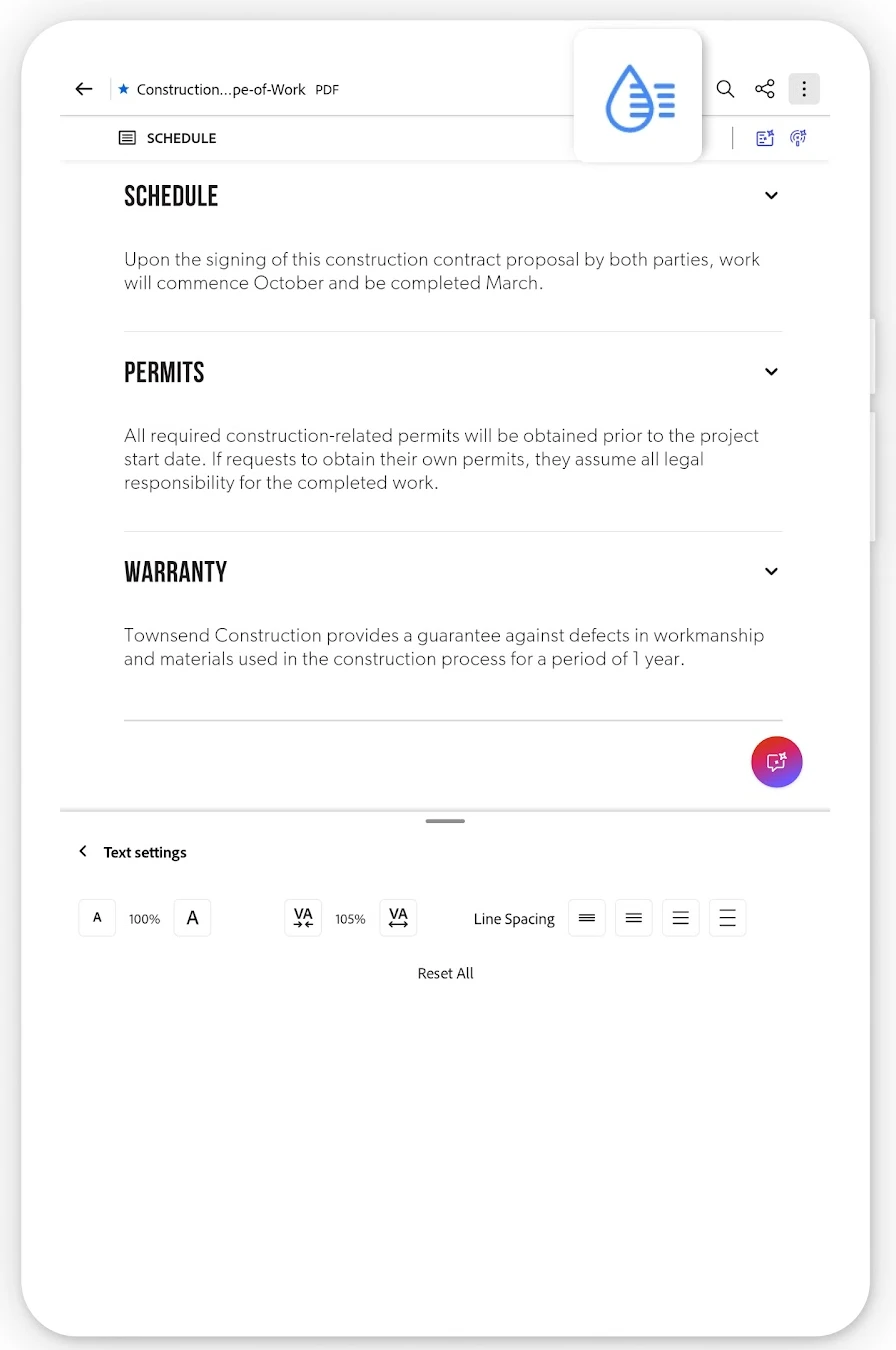
Liquid Mode organizes documents with collapsible section headings, reformats tabular data for easy reading, and allows you to adjust font sizes, character spacing, and line height to match your personal reading preferences. You can also engage the Read Aloud speech synthesis feature, turning long research articles and eBooks into audio presentations while taking notes.
Direct PDF editing, text formatting, and image management
If you need to make structural modifications to existing PDF files, Acrobat offers dedicated editing tools. When subscribed to Acrobat Premium or an Adobe Creative Cloud plan, you can tap Edit PDF to modify existing text blocks, correct typos, adjust typography fonts, and rearrange paragraphs directly on your Chromebook without converting back to Microsoft Word or Google Docs.
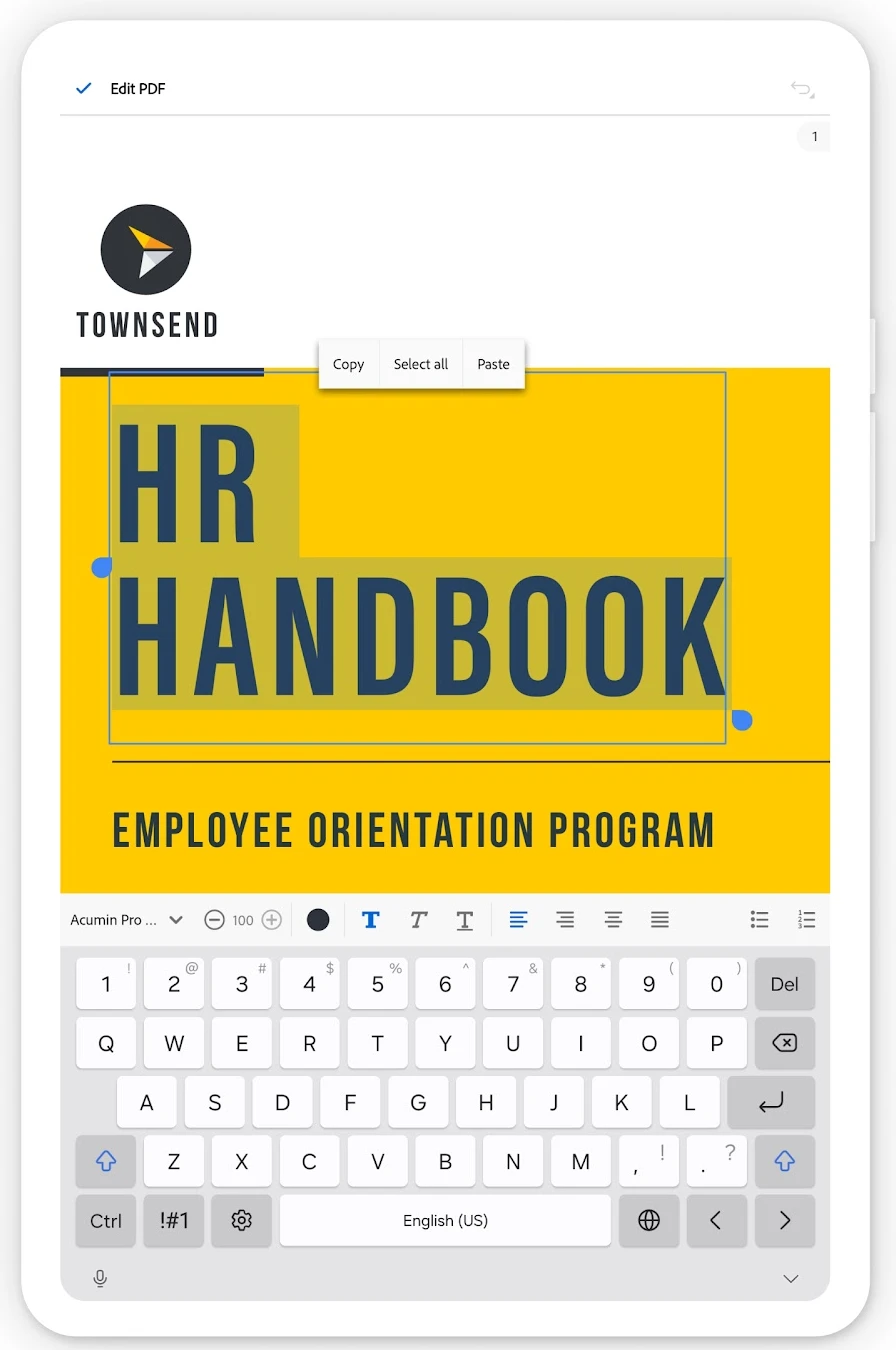
Beyond typography adjustments, the editor lets you insert new graphics, resize or rotate existing images, and organize pages. You can delete redundant slides, rotate landscape schematics, extract individual sections into standalone files, or merge multiple PDF documents into a unified portfolio ready for distribution.
Adobe Acrobat Reader Android app vs. Web client vs. Chrome extension
Depending on whether you prioritize stylus handwriting, zero-install speed, or integrated browser workflows, here is how the three primary Adobe Acrobat options compare on ChromeOS:
Troubleshooting common Adobe Acrobat Reader issues on ChromeOS
If you encounter performance hiccups or file opening errors, these proven fixes resolve the vast majority of ChromeOS document hurdles:
Frequently asked questions about Adobe Acrobat Reader on Chromebook
Is Adobe Acrobat Reader free on Chromebook and Googlebook?
Yes. Adobe Acrobat Reader is free to download and use on ChromeOS hardware. The free tier includes full PDF viewing, Liquid Mode text reflow, highlighting, sticky note comments, and digital form filling with hand-drawn signatures. Advanced features like direct PDF text editing, file conversions, and page organizing require an optional Acrobat Premium subscription.
Should I use the Adobe Acrobat Android app or the web platform on Chromebook?
Both options deliver strong functionality. The official Android app from Google Play is ideal for touchscreen convertibles, offline document reading, USI stylus sketching, and biometric signing. The Adobe Acrobat web client in Google Chrome is perfect for zero-install access, fast browser uploads, and school or enterprise Chromebooks where app downloads are restricted.
Can I sign PDF documents using a stylus or touchscreen on ChromeOS?
Yes. Adobe Acrobat Reader integrates Fill & Sign tools directly into the interface. You can tap the signature tool to draw your signature by hand using any USI stylus or your finger, save your initials, and drag them into legal signature fields across contracts, waivers, and forms.
How does Adobe Liquid Mode improve reading on Chromebook screens?
Liquid Mode uses Adobe Sensei AI to analyze static PDF structures and automatically reflow text, tables, and images to fit your display width. It eliminates the need to pinch and zoom horizontally, adds collapsible section headers, and allows you to adjust font sizes and line spacing to match your comfort.
How do I open PDF files directly from Google Drive in Adobe Acrobat?
You can connect your Google Drive account directly within the Adobe Acrobat Reader app or web client. Once linked, any document stored in your Drive cloud can be opened, annotated, signed, and saved back to Google Drive automatically without manual file exporting.
Explore more creative and productivity tools for Chromebook
To build a comprehensive digital workspace on ChromeOS, check out our companion guides on dedicated contract form filling with Adobe Fill & Sign for Chromebook, mobile photo editing with Adobe Photoshop Express for Chromebook, professional RAW color grading with Adobe Lightroom for Chromebook, and our curated roundup of the Best PDF Editors for Chromebook.
Discover more from Chrome Geek
Subscribe to get the latest posts sent to your email.