How to Install and Use ibis Paint X on Chromebook and Googlebook
 by
Joseph Vance
November 17, 2026
You can install and use ibis Paint X on Chromebook and Googlebook directly through the official Android app on Google Play. It brings a full digital art studio with thousands of brushes, unlimited layers, vector line art tools, and manga panel dividers right to your laptop screen.
Googlebook runs Android apps natively through Google Play alongside instant phone-app casting from the Phone Hub. This guide covers Google Play installation, stylus and keyboard setup, brush and layer tools, manga features, and quick fixes for ChromeOS.
Need help setting up ibis Paint X? Contact us with your laptop model and any stylus or canvas questions.
How to install ibis Paint X on Chromebook and Googlebook
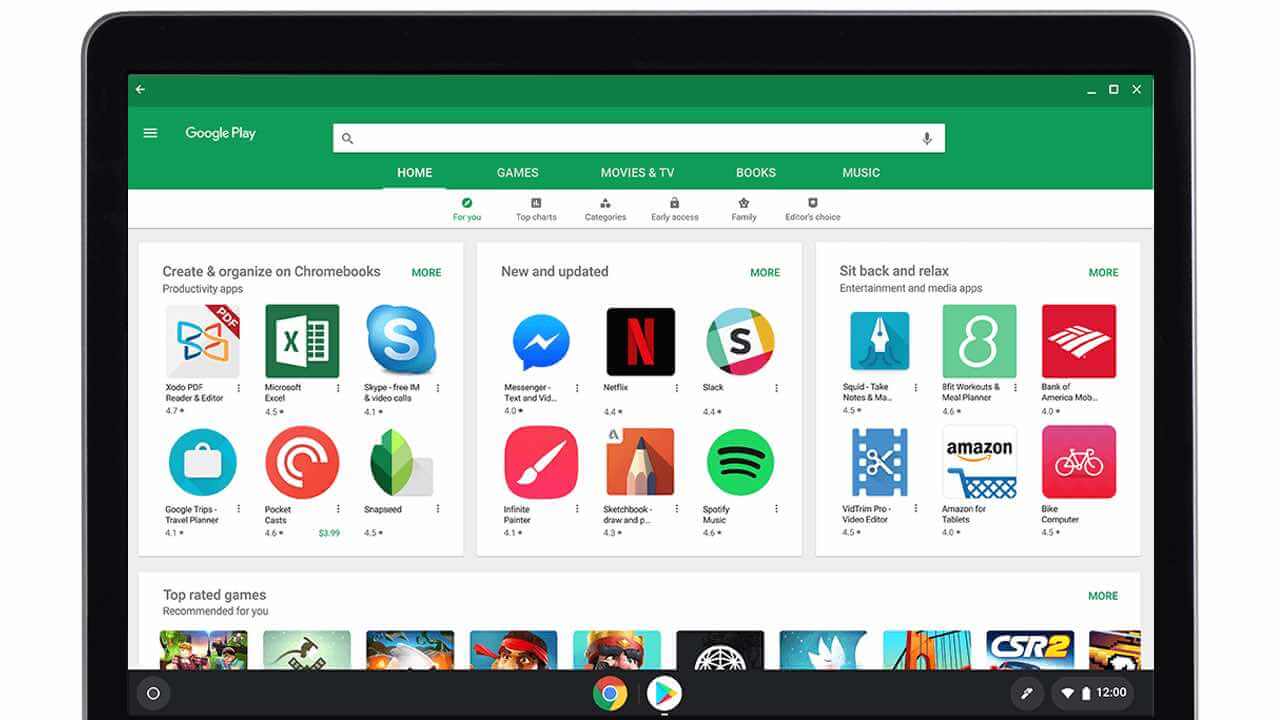
Installing the official ibis Paint X app from Google Play takes just a moment and unlocks full offline drawing on your laptop:
The official Google Play listing identifies ibis Paint X under the package ID jp.ne.ibis.ibispaintx.app. Installing the Android app gives you full access to local project storage, stylus pressure input, and offline drawing.
If the Play Store is missing on your laptop, check Google’s Android app setup guide for Chromebook or the guide on installing apps on Googlebook. On school or work devices, administrator policies may restrict app installs. Because ibis Paint X does not offer a browser-based web editor or a native Linux .deb package, the Google Play app is the primary way to run it on ChromeOS.
Cast ibis Paint X from your phone on Googlebook
If you already started an illustration on your Android phone and want to check details or continue a quick edit on a larger screen, Googlebook’s Cast My Apps feature lets you stream your phone’s active session directly onto your laptop display. Open the Phone Hub in the bottom-right corner of your Googlebook shelf, click Cast My Apps, and choose ibis Paint X. Your phone’s canvas opens immediately in a floating desktop window without exporting or transferring project files.
Canvas layout, stylus input, and desktop controls
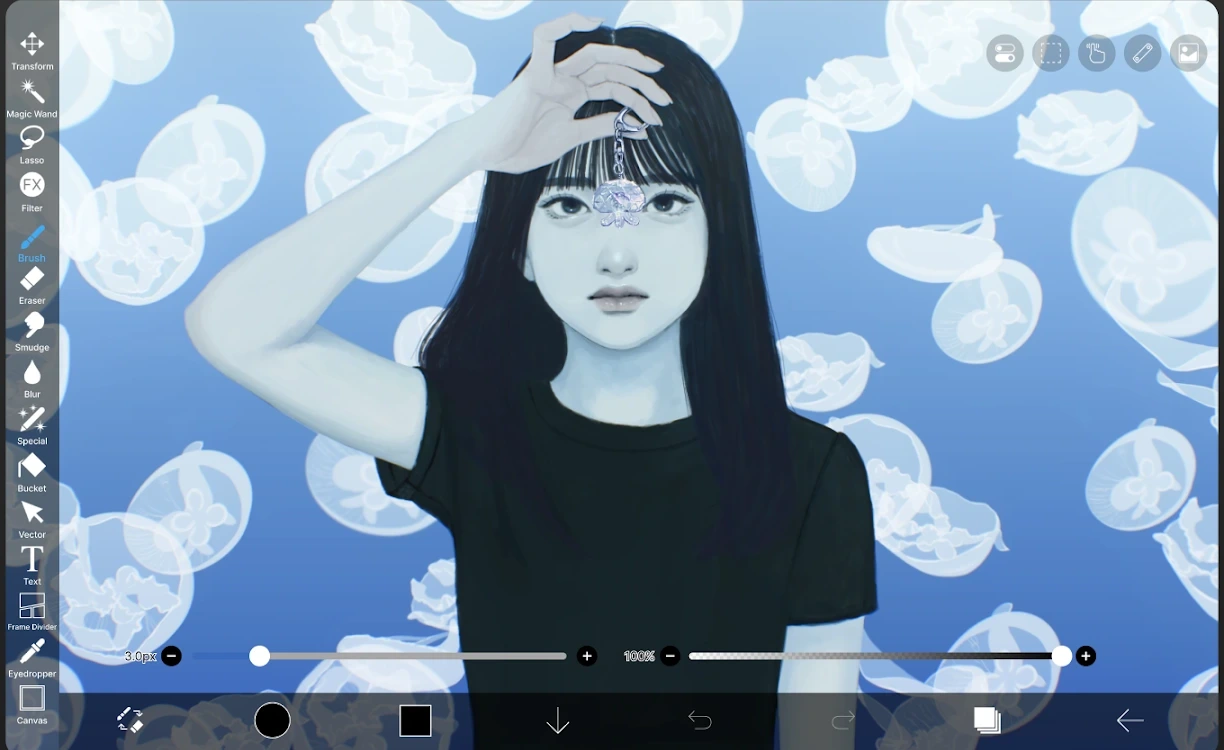
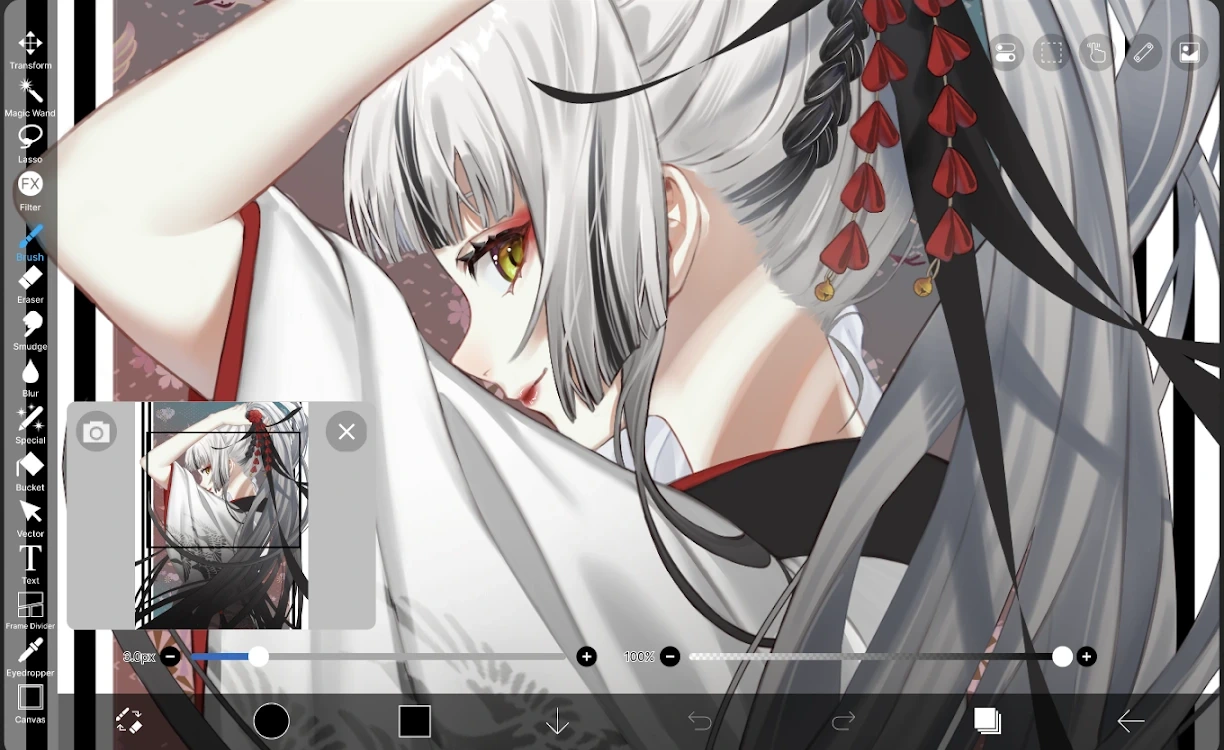
ibis Paint X adapts cleanly to widescreen Chromebook and Googlebook displays, placing tools along the left rail and layer controls along the bottom bar so your artwork stays front and center:
Brushes, layers, and vector line art tools
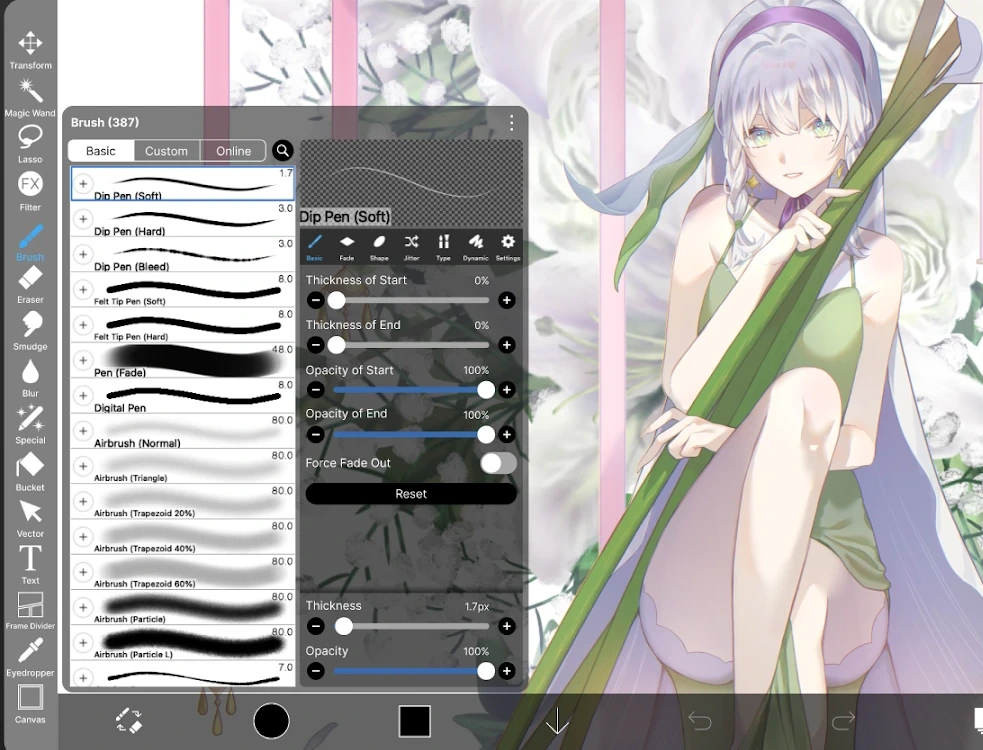
Whether you are sketching rough thumbnails or finishing detailed character art, ibis Paint X packs a deep set of illustration tools:
- Extensive brush library: choose from thousands of dip pens, felt tip pens, airbrushes, watercolors, and textured brushes, and customize thickness, opacity, and taper from the Brush panel.
- Dedicated vector layers: draw crisp ink lines on vector layers so you can resize strokes, adjust line weight, or clean up overlapping intersections with the Vector Eraser without losing sharpness.
- Full layer management: add as many layers as your device memory supports, organize work into folders, and apply clipping masks, alpha lock, and 27 blending modes.
- Built-in stroke stabilizer: smooth out shaky hand or mouse lines in real time using the Stabilizer menu in the top-right toolbar.
Reference window, manga tools, and time-lapse exports
Beyond standard painting, ibis Paint X includes workflow helpers built specifically for comic creators and illustrators:
- Floating reference window: open a movable reference image right on top of your canvas to check poses, lighting, or color palettes without switching windows.
- Manga panel and tone tools: slice pages cleanly using the Frame Divider tool, drop in speech bubbles and manga backgrounds from the Materials library, and apply screen tones.
- Automatic time-lapse recording: every stroke is recorded automatically, letting you export an MP4 speed-paint video alongside PNG, JPEG, or layered PSD files.
Troubleshooting ibis Paint X on ChromeOS
If you run into brush lag, stylus quirks, or missing exports on your Chromebook or Googlebook, try these quick fixes:
- Accidental finger marks while using a stylus: open the app’s Settings menu, turn on Disable Finger Drawing or Palm Rejection, and confirm your stylus battery is charged.
- Brush lag on high-resolution canvases: reduce canvas dimensions slightly, keep background Chrome tabs closed to free RAM, or lower the Stabilizer level when sketching quickly.
- Cannot find exported PNG or PSD files: when saving artwork, choose Save as PNG or use Share > Save to Device, then check the Pictures or Downloads folder inside the ChromeOS Files app.
- App freezes or fails to launch: open ChromeOS Settings > Apps > Manage your apps > ibis Paint X > Storage and select Clear cache without deleting your saved gallery projects.
Frequently asked questions about ibis Paint X on Chromebook and Googlebook
Is ibis Paint X free to use on Chromebook and Googlebook?
Yes. You can download and use ibis Paint X for free from Google Play, which includes thousands of brushes, layers, filters, and manga tools supported by occasional ads. Paid Prime Membership or the one-time Remove Ads add-on removes ads and unlocks extra cloud storage and premium materials.
Does ibis Paint X support stylus pressure sensitivity on ChromeOS?
Yes. On Chromebooks and Googlebooks with USI or active stylus support, ibis Paint X detects pen pressure for line thickness and opacity. You can fine-tune pressure curves and stabilizer settings inside the app’s Settings menu.
How do I cast ibis Paint X from my Android phone to Googlebook?
Open the Phone Hub from the bottom-right shelf of your Googlebook, click Cast My Apps, and select ibis Paint X. Your phone’s active drawing session opens in a floating desktop window so you can view or continue a sketch without transferring project files.
Is there a web version of ibis Paint X for Chromebook?
No. Unlike browser-based design tools, ibis Paint X does not offer an online web editor at ibispaint.com. On Chromebook and Googlebook, the official Google Play Android app is the supported way to draw and edit canvases.
Why is my brush lagging or missing strokes in ibis Paint X on Chromebook?
Brush lag usually happens on very large canvases or when multiple heavy background tabs are open. Lower your canvas resolution slightly, set Stabilizer to a moderate value, or close unused Chrome tabs. You can also clear the app cache in ChromeOS Settings under Apps > Manage your apps > ibis Paint X.
Companion drawing and creative guides
Round out your digital art, sketching, and photo-editing toolkit on ChromeOS with these companion guides:
- Scalable vector illustration: If you want infinite zoom, symmetry tools, and clean SVG exports alongside raster painting, check out our guide on how to install and use Infinite Design on Chromebook and Googlebook.
- Stylus sketching and notes: For organizing visual mood boards, PDF markups, and handwritten class notes with a stylus, see how to install and use Notability on Chromebook and Googlebook.
- Quick photo retouching: To clean up reference photos, remove backgrounds, or prep exported artwork for social posts, try Photoshop Express on Chromebook and Googlebook.
- Color grading and filters: When you want custom color presets and AI masks for finished illustrations or photography, explore how to install and use Polarr on Chromebook and Googlebook.
Discover more from Chrome Geek
Subscribe to get the latest posts sent to your email.