How to Install and Use Infinite Design on Chromebook and Googlebook
 by
Gloria Brown
Post Updated: November 12, 2026
You can install and use Infinite Design on Chromebook and Googlebook through the official Android app on Google Play. It gives you an infinite canvas, editable vector paths, and clean illustration tools for logos, icons, and digital art.
Googlebook runs Android apps natively from Google Play and supports quick phone-app casting when your sketches live on your phone. This guide covers Play Store setup, vector layers, symmetry and perspective guides, SVG exports, and common ChromeOS fixes.
Need help setting up Infinite Design? Contact us with your laptop model and any stylus or export questions.
How to install Infinite Design on Chromebook and Googlebook
Setting up Infinite Design through Google Play takes about a minute and gives you full offline access to your vector projects:
The official Google Play listing identifies Infinite Design under the package ID com.brakefield.idfree. Running the native Android app gives you responsive touch, stylus, and trackpad controls without needing an internet connection.
If the Play Store is missing on your laptop, check Google’s Android app setup guide for Chromebook or the guide on installing apps on Googlebook. On school or work devices, an administrator may control which Play Store apps you can install. Infinite Design does not offer a web app or Linux (.deb) package, so the Google Play version is the official way to run it on ChromeOS.
Cast Infinite Design from your phone on Googlebook
If you already started a logo or illustration on your Android phone, Googlebook’s Cast My Apps feature lets you open that phone session right on your laptop screen. Open the Phone Hub from the bottom-right corner of your Googlebook shelf, select Cast My Apps, and pick Infinite Design. Your phone’s active workspace appears in a desktop window so you can review layers or make quick edits without moving project files.
Infinite canvas, unlimited layers, and scalable vectors
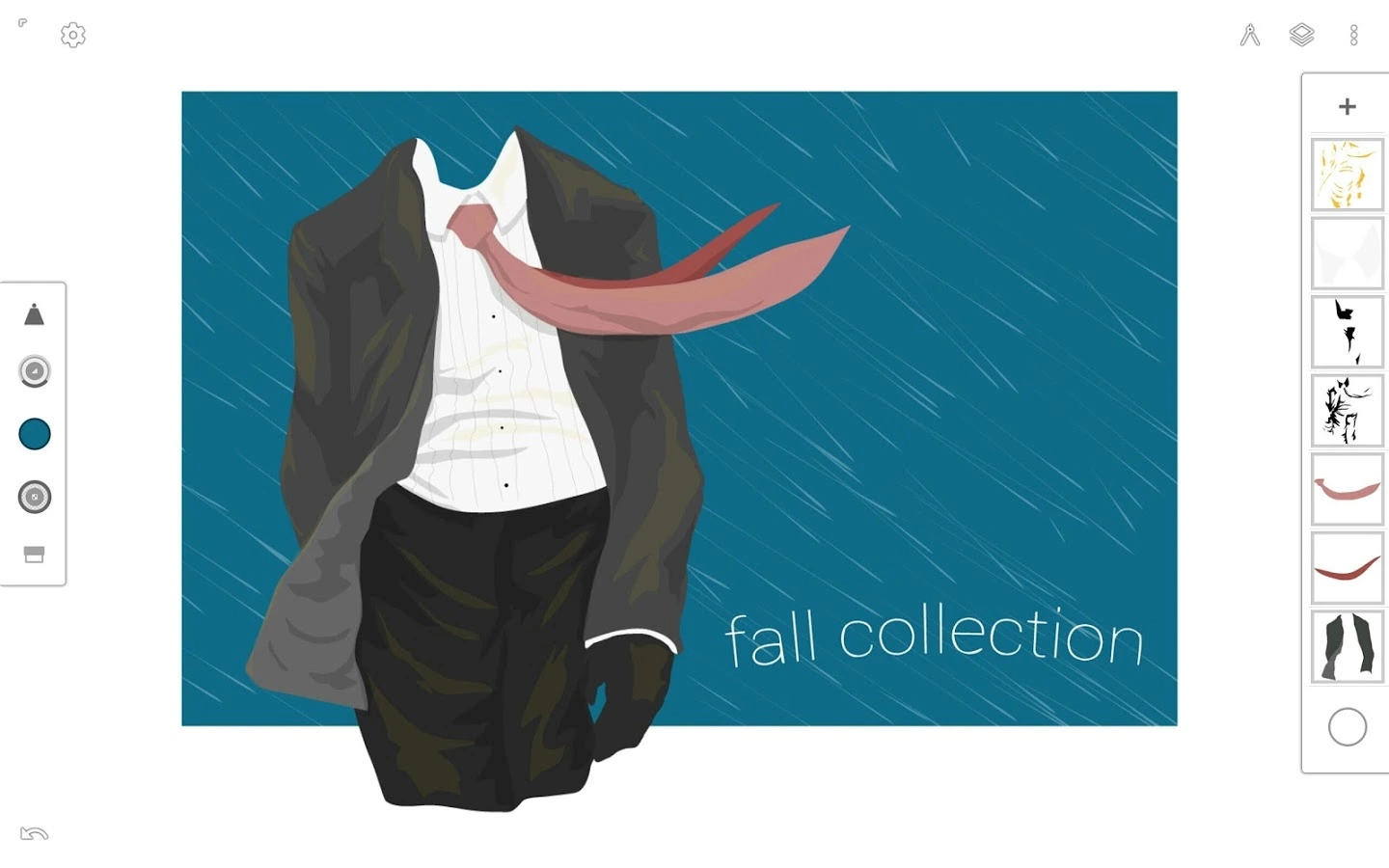
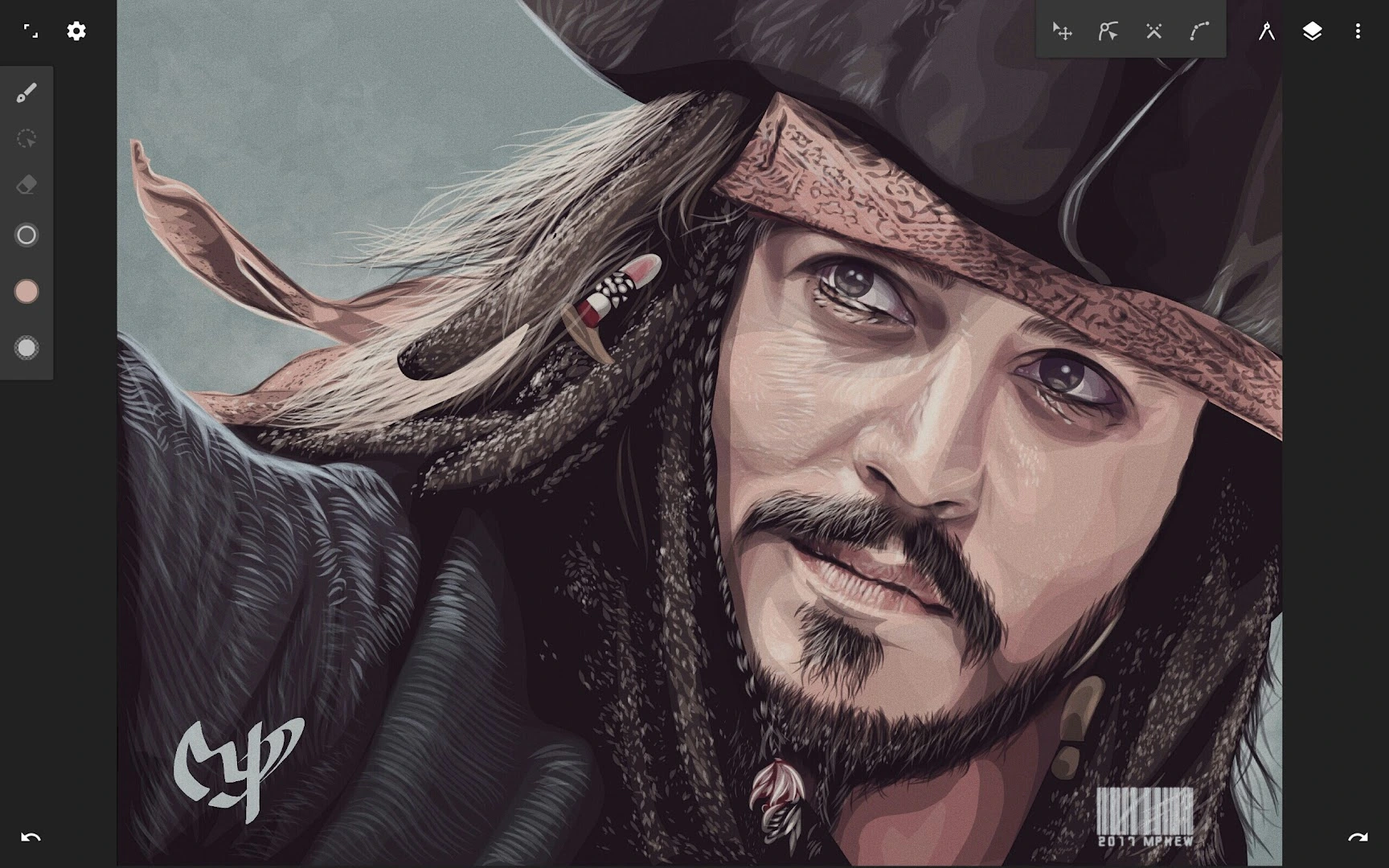
Unlike pixel-based paint programs, Infinite Design builds every stroke as mathematical vector paths that stay sharp at any zoom level or print size:
Precision pen, path editing, and transform tools
Every stroke in Infinite Design remains editable after you lift your pen, letting you reshape curves without redrawing from scratch:
- Pen and Bezier curve tool: place exact anchor points and drag handles to build clean logos, badges, and geometric lettering with a mouse or stylus.
- Node and segment editing: select any existing stroke to move individual points, smooth sharp corners, or trim overlapping line segments cleanly.
- Boolean and offset paths: combine, subtract, or outline overlapping shapes to create custom icons and layered sticker borders in seconds.
- Non-destructive transforms: scale, rotate, skew, and flip selected objects or entire layers with zero blur or pixel loss.
Symmetry, perspective grids, and shape guides
Built-in drawing guides help you keep proportions balanced whether you are designing architectural scenes or symmetrical mascots:
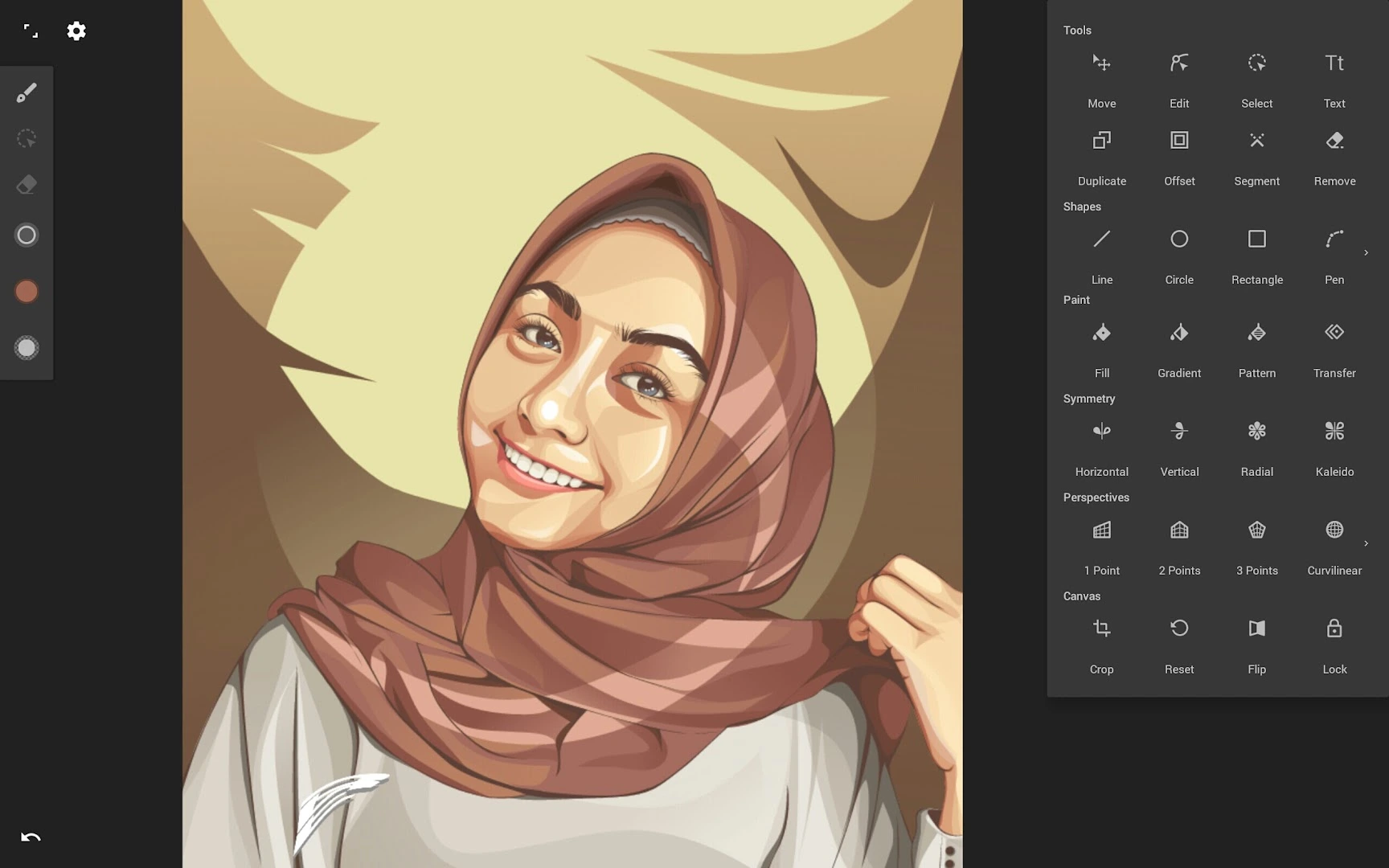
- Four symmetry modes: mirror your strokes in real time with horizontal, vertical, radial, and kaleidoscope symmetry.
- Five perspective grids: snap lines to 1-point, 2-point, 3-point, isometric, or curvilinear perspective guides for clean scenes and product mockups.
- Live shape snapping: sketch rough lines, circles, or rectangles and let Infinite Design snap them into crisp geometric vectors automatically.
- Gradient and pattern fills: fill closed paths with linear or radial gradients, solid swatches, or custom repeating patterns.
Typography, color palettes, and SVG or PNG export
Infinite Design includes text styling and flexible export options so your ChromeOS artwork is ready for web or print:
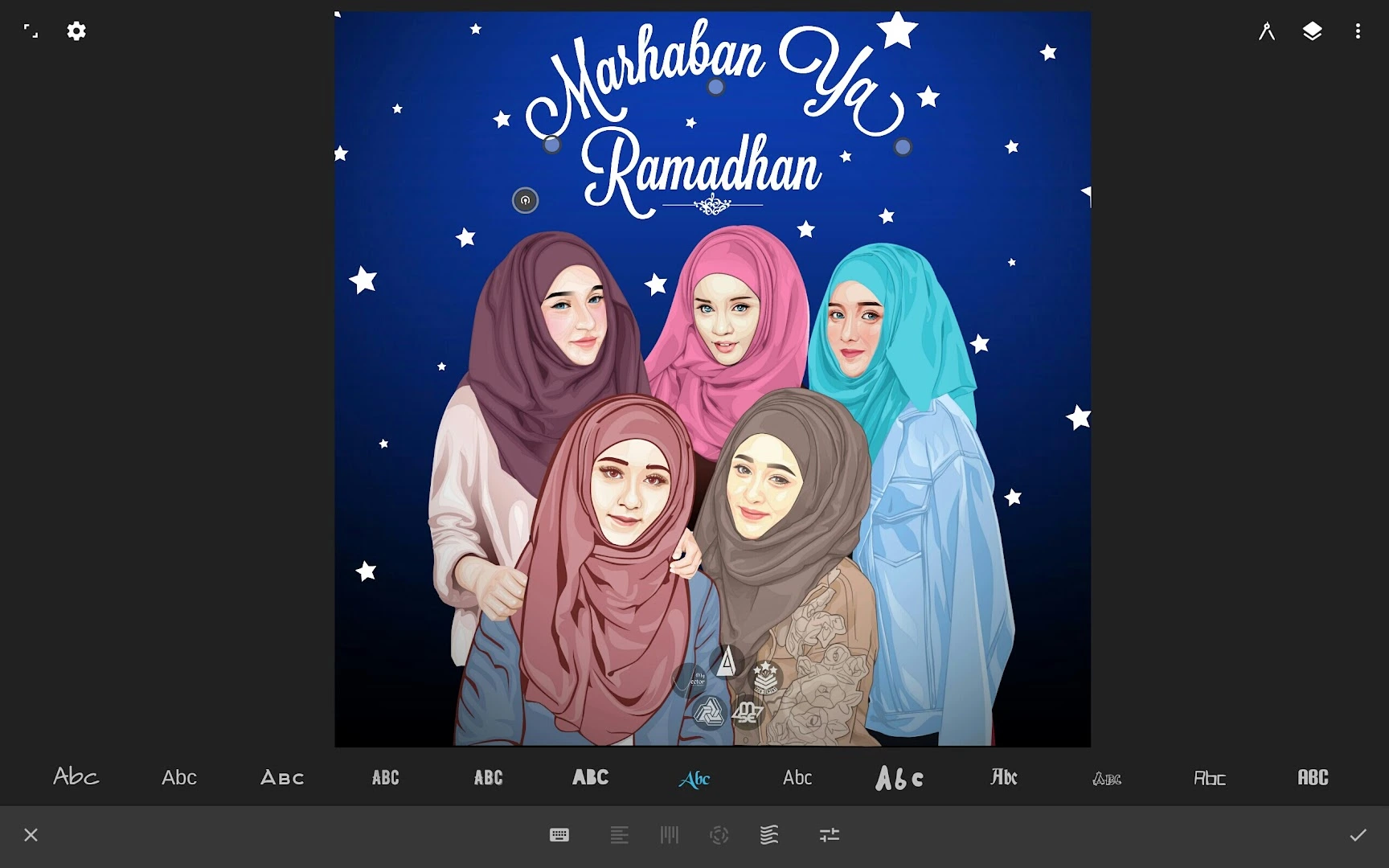
- Custom text on paths: add headlines, adjust font weights and alignment, or convert text into editable vector shapes for custom logo work.
- Color wheel and palettes: pick colors from an HSB wheel, sample shades from reference images, and save custom swatches for brand projects.
- SVG, PNG, and JPEG export: save scalable SVG files to open in desktop editors, or export transparent PNGs for slides, thumbnails, and stickers.
Troubleshooting Infinite Design on ChromeOS
If you run into stylus hiccups, slowdowns on detailed artwork, or export issues, try these quick ChromeOS fixes:
- Stray marks from your palm: open Infinite Design’s settings menu and turn on palm rejection or stylus-only drawing so resting your hand on the screen does not draw extra lines.
- Lag on complex vector files: hide finished background layers while sketching new details, or merge completed shapes to reduce the number of active paths on screen.
- Missing exported SVG or PNG files: check the Pictures or Downloads folder inside the ChromeOS Files app, or use the Share option after exporting to save directly to Google Drive.
- Zoom or pan feels sluggish with a trackpad: use two-finger pinch gestures on the touchscreen or hold the Spacebar and drag with your mouse for smoother canvas navigation.
- App freezes or fails to launch: open ChromeOS Settings > Apps > Manage your apps > Infinite Design > Storage and click Clear cache, then restart the app.
Frequently asked questions about Infinite Design on Chromebook and Googlebook
Is Infinite Design free to use on Chromebook and Googlebook?
Yes. Infinite Design is free to download from Google Play with core vector brushes, layers, and basic tools included. Advanced features such as full SVG export, extra symmetry modes, and perspective guides are unlocked through an optional one-time Pro upgrade.
Do I need a touchscreen or stylus to use Infinite Design on ChromeOS?
No. While a USI stylus and touchscreen make freehand sketching feel natural on 2-in-1 convertibles, Infinite Design also works well with a mouse or trackpad for placing anchor points, adjusting Bezier curves, and aligning vector shapes.
Can I export artwork from Infinite Design as SVG or PNG files?
Yes. You can export your completed designs as scalable SVG vectors for print and web logos, or as high-resolution PNG and JPEG images with optional transparent backgrounds saved directly to your ChromeOS Files app.
How do I cast Infinite Design from my Android phone to Googlebook?
Open the Phone Hub from the bottom-right corner of your Googlebook shelf, select Cast My Apps, and choose Infinite Design. Your phone’s active drawing session opens in a floating desktop window without transferring files.
Why does my stylus lag or draw unintended lines in Infinite Design?
Palm touches or too many complex vector paths on a single layer can cause stray marks or slowdowns. Enable palm rejection in Infinite Design’s settings, hide finished layers while sketching, and keep ChromeOS updated for smooth stylus input.
Companion design and drawing guides
Pair your vector artwork with raster painting, layout design, and photo editing using our companion ChromeOS guides:
- Natural raster painting: If you want textured brushes, watercolor blending, and digital canvas painting from the same studio, check out our guide on Infinite Painter on Chromebook and Googlebook.
- Freehand sketching and concept art: Explore a clean, distraction-free workspace with Copic color libraries in our walkthrough for Sketchbook on Chromebook.
- Templates and social graphics: Drop your exported SVGs and PNGs into flyers, presentations, and posters by learning how to use Canva on Chromebook and Googlebook.
- Photo retouching and edits: Compare top browser and Android tools for color grading and image touch-ups in our roundup of the 12 Best Photo Editors for Chromebook.
Discover more from Chrome Geek
Subscribe to get the latest posts sent to your email.