You can install and use Canva on Chromebook and Googlebook through the official Google Play Android app, the full-featured web platform at canva.com, or by casting from your phone. As one of the world’s most popular visual design and creative suites, Canva enables students, marketers, and independent entrepreneurs to create professional social media graphics, polished marketing presentations, multi-track videos, and print-ready brochures without expensive subscription barriers or demanding workstation hardware.
Whether you are designing promotional flyers on a convertible 2-in-1 touchscreen with a digital stylus, collaborating with remote team members on a live classroom presentation, or generating generative AI graphics with Magic Studio, ChromeOS and Googlebook offer optimized pathways for modern visual design. Our comprehensive guide covers the best setup routes, widescreen layout scaling, real-time team collaboration, and practical performance tips.
Need assistance configuring stylus pressure or troubleshooting graphic export rendering on your device? Contact us with your laptop specifications and our team will be glad to help.
Canva: Visual suite, graphic design, and video editor
Install the official Canva Android app from Google Play for offline editing and stylus support, or launch the zero-install web editor instantly in any Chrome browser.
The most responsive way to create and edit designs on touchscreen Chromebooks and Googlebooks is downloading the official Android app from Google Play. It provides tablet multitasking, touch-first gestures, offline project editing, and seamless stylus sketching:
1
Launch Google Play: Launch the Play Store from your Chromebook or Googlebook app launcher and sign in with your Google account.
2
Search for Canva: Type Canva into the search bar and select Canva: Design, Photo & Video published by Canva.
3
Install the visual suite: Click Install to download the application. ChromeOS automatically installs the package and pins the Canva shortcut directly to your app launcher and shelf.
4
Launch and authenticate: Open Canva from your shelf, sign in using your Google account, email, or school single sign-on (SSO), and start customizing layouts immediately.
If the Play Store is not visible on your device, consult Google’s official Android app setup guide for Chromebook and companion guide on installing apps on Googlebook. Note that school and enterprise managed profiles may restrict third-party Google Play downloads. In managed environments, you can simply open Google Chrome, navigate to canva.com, and use the full browser suite with zero installation. You can also click the install icon in the Chrome URL bar to pin Canva as a Progressive Web App (PWA) with a standalone window.
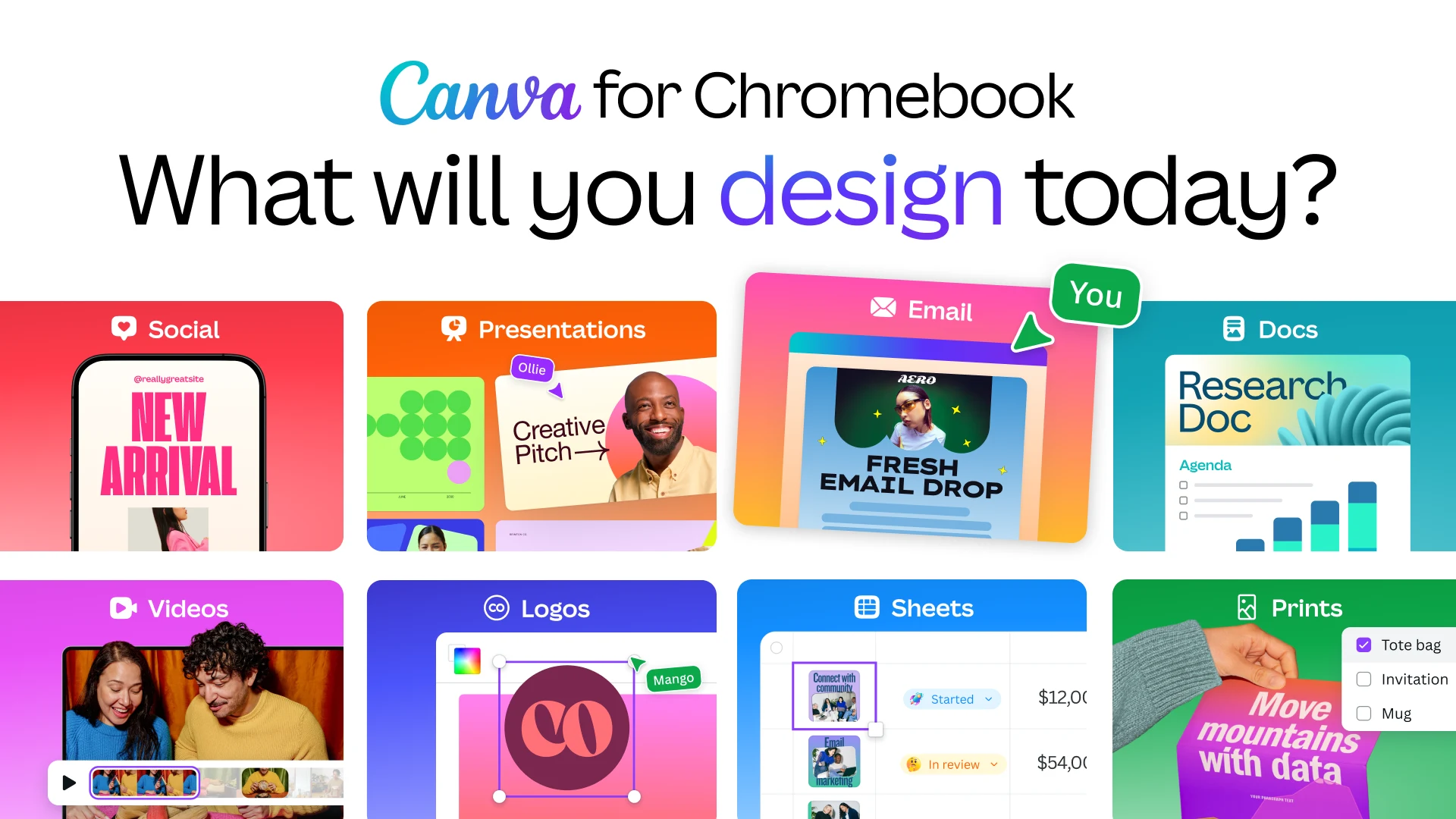
Create social media graphics, documents, presentations, and videos directly from the Canva home dashboard on ChromeOS. Official screenshot: Canva.
Cast Canva from your phone on Googlebook
Googlebook users can also access Canva directly through native phone hub streaming. Using Cast My Apps from the Googlebook phone hub, you can wirelessly mirror your smartphone’s active Canva session onto your laptop screen. This lets you access mobile camera photos, continue drafting social media posts, and review team graphics on a larger display without transferring project files, configuring USB cables, or managing duplicate app logins.
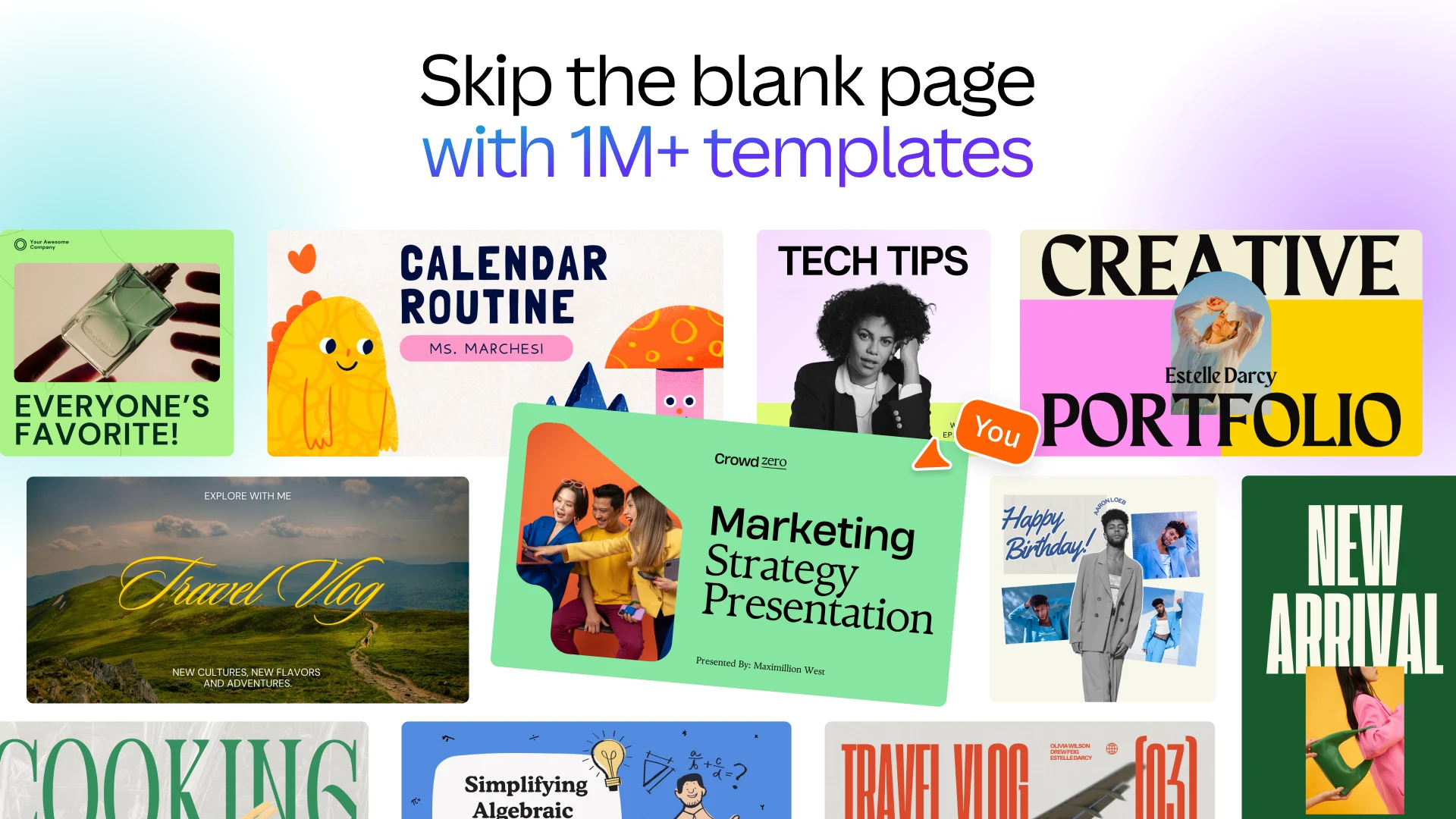
Jumpstart your creative workflow with over one million customizable design templates across marketing, social media, and presentations. Official screenshot: Canva.
Canva templates and graphic design workspace
Canva delivers an intuitive visual editor engineered to eliminate creative friction, giving both beginners and seasoned designers powerful layout tools on ChromeOS:
1M+ Curated TemplatesJumpstart your creative process with professionally designed templates for Instagram stories, YouTube thumbnails, resumes, event flyers, classroom posters, and business logos.
Drag-and-Drop CanvasPosition shapes, vector graphics, photo frames, and text boxes effortlessly using touch gestures, precision trackpad clicks, or USB external mice.
Typography & Brand KitsAccess thousands of modern web typefaces, customize letter spacing and text curved effects, and establish brand consistency with custom color palettes.
High-Resolution ExportsExport finished artwork directly into print-quality PDF, transparent PNG, SVG vector graphics, or MP4 formats ready for immediate commercial distribution.
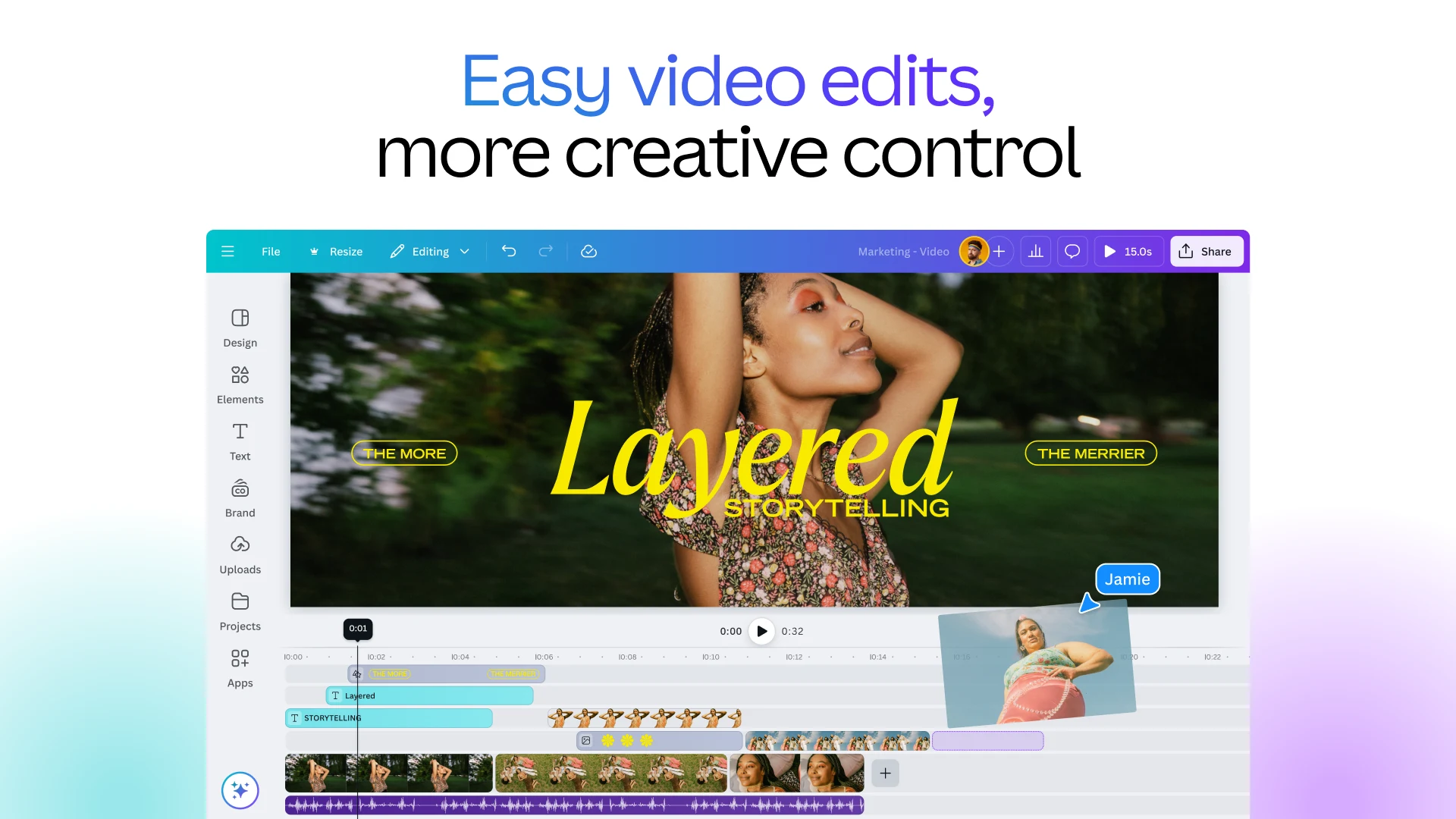
Trim video clips, sync background music, layer animations, and produce high-definition videos with Canva’s timeline editor. Official screenshot: Canva.
Multi-track video editing, audio sync, and animations
Canva unifies graphic design and video creation into a streamlined timeline editor, enabling users to produce professional video content directly on their Chromebook:
Multi-Layer TimelineTrim raw footage, split clips, arrange layered b-roll, and scrub through project sequences smoothly with the visual timeline editor.
Royalty-Free Audio LibraryBrowse thousands of licensed background music tracks and audio sound effects with visual beat-matching markers that align cuts to rhythm.
Dynamic Motion EffectsApply animated text transitions, page sweeps, kinetic type, and element entrances with single-click animation presets.
Multi-Format Video ResizingConvert landscape 16:9 YouTube videos into vertical 9:16 TikTok clips or square Instagram reels instantly without manual re-editing.
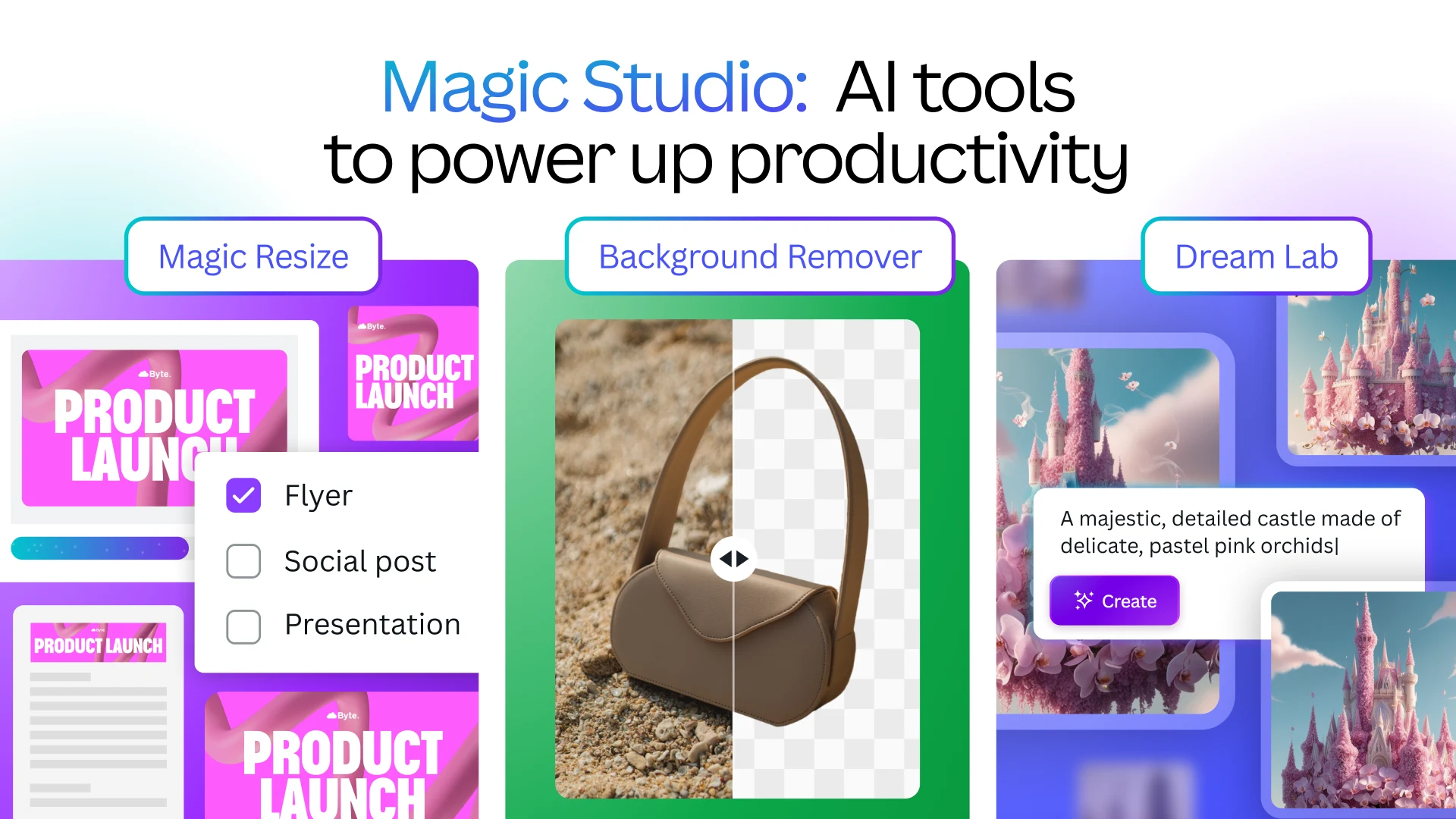
Automate complex graphic design workflows using Canva Magic Studio for one-click background removal and generative AI editing. Official screenshot: Canva.
Magic Studio: AI-powered creative design tools
Canva’s built-in Magic Studio integrates intelligent artificial intelligence tools that accelerate everyday graphic workflows and complex photo editing:
Magic Background RemoverIsolate portrait subjects, merchandise products, and logos from cluttered photo backgrounds with a single tap, creating instant transparent PNG cutouts.
Magic Switch & Instant ResizingTransform entire marketing flyers into social media posts, multi-slide pitch decks, or summary blog graphics while automatically adapting layout constraints.
Dream Lab & Generative ArtGenerate custom stock photography, detailed illustrations, and surreal backgrounds from simple natural language prompts directly on your canvas.
Magic Write AI AssistantDraft marketing headlines, social captions, product summaries, and speech talking points directly inside your text boxes using contextual AI suggestions.
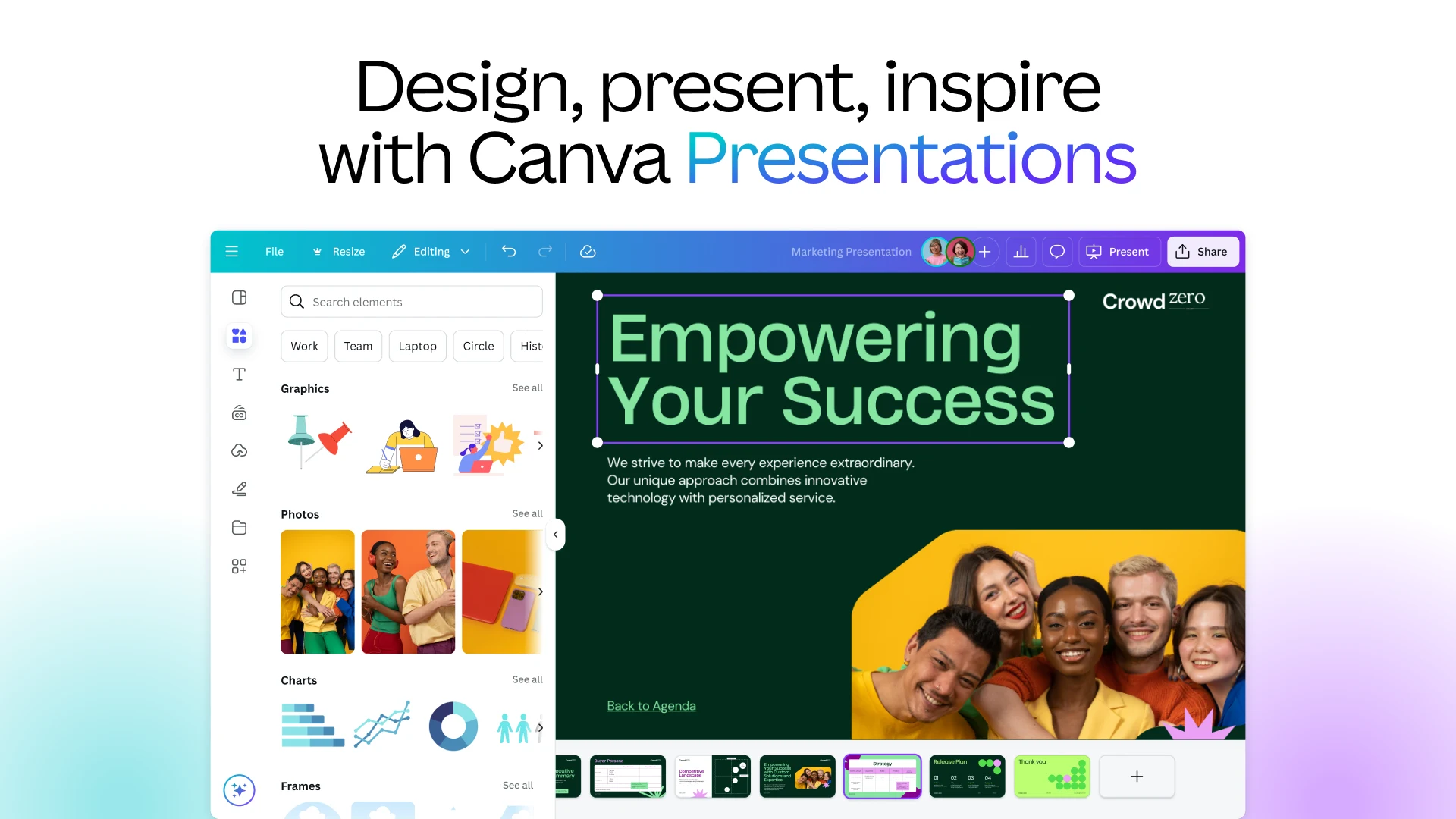
Craft engaging pitch decks, embed animated charts, and deliver full-screen presentations directly from your Chromebook. Official screenshot: Canva.
Interactive slide decks and full-screen presentations
Canva Presentations replaces traditional static slideshows with animated, interactive visual experiences optimized for academic lectures and executive pitches:
Interactive Presentation CanvasDesign multi-page slide decks with smooth animated transitions, audio narration, embedded YouTube videos, and interactive click-through elements.
Dynamic Data VisualizationCreate clear, animated charts, graphs, and statistical tables that update automatically when spreadsheet numbers are modified.
Presenter View & NotesDisplay private speaker talking points, elapsed timer clocks, and upcoming slide previews on your Chromebook while streaming slides to an external projector.
Live Audience EngagementEnable Canva Live to generate an interactive session PIN where attendees can submit questions, vote on real-time polls, and send emoji reactions from their phones.
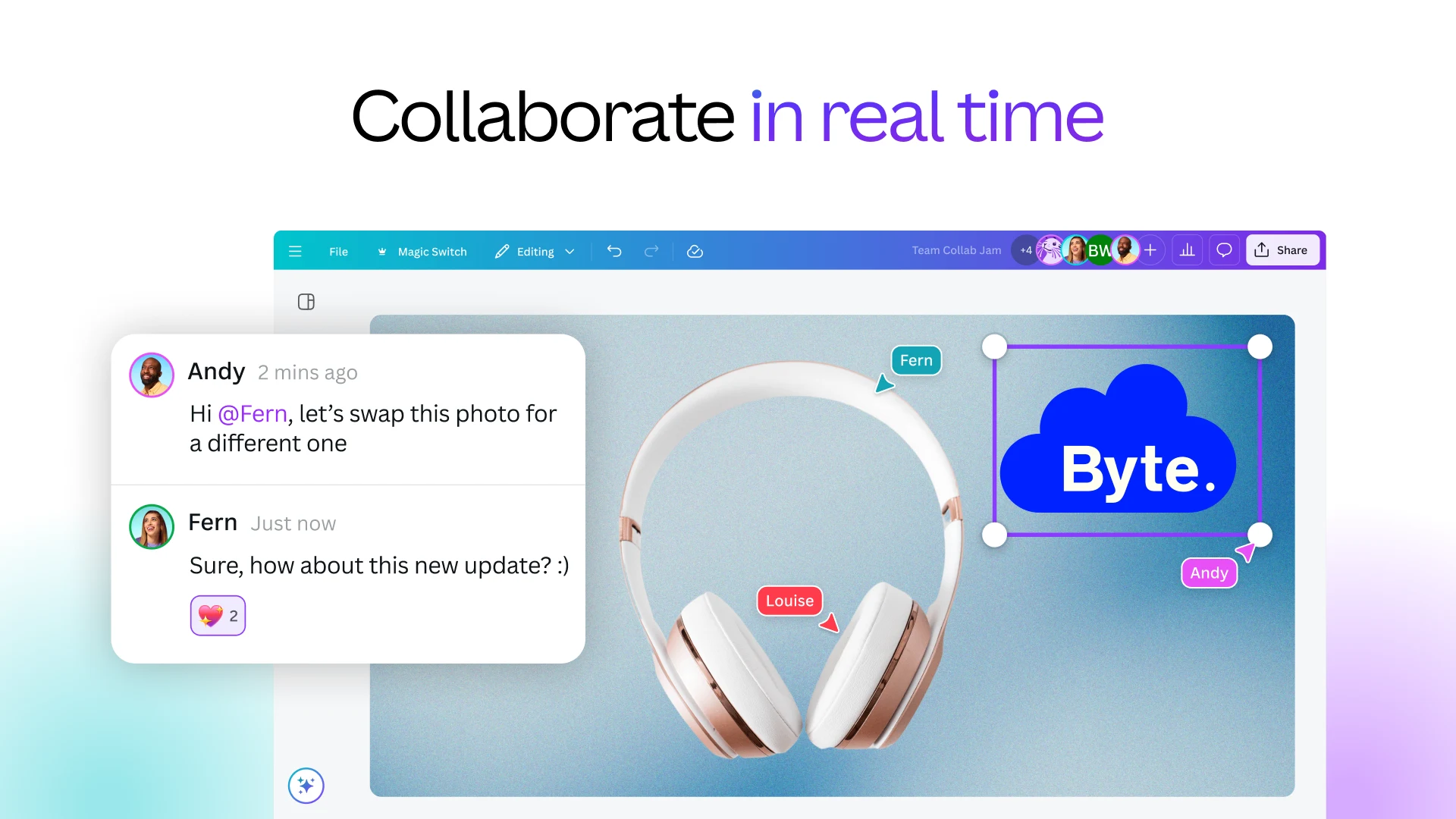
Collaborate simultaneously with classmates or colleagues using real-time canvas co-editing, live feedback, and threaded comments. Official screenshot: Canva.
Real-time team collaboration and live sharing
Canva unifies creative teams with real-time co-authoring tools that make group brainstorming and design reviews effortless on ChromeOS hardware:
Simultaneous Multi-User EditingWork together on the same canvas in real time. Colored participant cursors indicate exactly where team members are editing and modifying layout objects.
Threaded Comments & MentionsLeave precise margin feedback, tag teammates using @mentions, and resolve design tasks without leaving the active workspace.
Granular Permission ControlsShare view-only links, editable design invites, or reusable template links to prevent accidental modification of finalized corporate assets.
Integrated Team FoldersOrganize graphics into department folders, brand asset libraries, and shared client archives accessible across Chromebooks and web sessions.
Canva Android app vs. Canva Web vs. Phone Hub casting
Compare the advantages of each Canva access method on ChromeOS to select the best match for your creative workflow:
Feature
Canva Android App (Recommended for Tablets)
Canva Web (canva.com)
Phone Hub (Cast My Apps)
Installation Required
Google Play Store (~55MB)
Zero Installation (Browser)
Wireless Stream from Phone
Offline Design Editing
Supported for Pre-Loaded Files
Requires Active Internet Connection
Requires Active Phone Connection
Stylus & Touch Drawing
Optimized for Stylus & Touch
Standard Mouse & Trackpad
Mouse & Touch Forwarding
School Administrator Bypass
May Be Blocked on School Accounts
Works on Any Managed Browser
Uses Personal Phone Apps
System RAM Consumption
Moderate (~240MB)
Low (~180MB browser tab)
Ultra Low (Phone executes app)
Multi-Monitor Workflow
Single App Window
Multi-Tab & External Displays
Single Mirrored Window
Troubleshooting common Canva issues on ChromeOS
If you encounter canvas lagging, window scaling glitches, or login restrictions on your device, apply these verified fixes:
School or Enterprise Play Store BlocksMany school and corporate Chromebooks disable Play Store downloads. Simply open the Chrome browser and navigate to canva.com to access the full editor. Click the install icon in the URL bar to create a standalone PWA desktop icon without needing administrator approval.
App Window Scaling & Narrow LayoutsIf the Canva Android app opens in a narrow smartphone view, click the window header pill dropdown centered at the top of the app window and select Tablet or Resizable. This instantly reformats the toolbar into a spacious widescreen layout.
Canvas Lag During Video & Animation PlaybackIf complex timelines experience frame drops on entry-level hardware, open Chrome Settings > System and confirm that Use graphics acceleration when available is turned on. Closing unnecessary browser tabs also frees up RAM for smoother rendering.
Cloud Auto-Save Delays in the BackgroundAndroid apps on ChromeOS enter power-saving sleep when minimized. Open ChromeOS Settings > Apps > Manage your apps > Canva > Battery and choose Unrestricted so cloud auto-saving and media uploads continue in the background.
Frequently asked questions about Canva on Chromebook
Is Canva free to use on Chromebook and Googlebook?
Yes. Canva offers a comprehensive free plan that includes thousands of design templates, basic photo editing tools, drag-and-drop graphic elements, and 5GB of cloud storage. An optional Canva Pro subscription unlocks premium stock photography, the Magic Studio AI suite, one-click Background Remover, and unlimited brand kits.
Can I use Canva offline on my Chromebook?
Yes. When using the Canva Android application from Google Play, you can enable offline design access for your ongoing projects. While browsing the extensive online template catalog requires an active internet connection, pre-loaded graphics, saved layouts, and offline files can be edited smoothly without Wi-Fi.
Should I use the Canva Android app or the Canva web version?
Both options perform exceptionally well. The Canva Android app is ideal for touchscreen 2-in-1 Chromebooks, offline drafting, and digital stylus sketching. The web platform at canva.com is ideal for traditional clamshell laptops, school-managed devices with Play Store restrictions, and large external monitor setups.
How do I fix Canva opening in a narrow phone window on ChromeOS?
If the Canva Android app launches in a narrow phone view, look at the centered window header bar at the top of the app window. Click the device toggle icon and switch the display setting from Phone to Tablet or Resizable. This reorganizes Canva’s toolbars and canvas into a spacious widescreen desktop layout.
How do I cast Canva from my phone to a Googlebook?
Connect your Android smartphone to your Googlebook using the built-in phone hub. From the Googlebook shelf, open the phone hub menu, select ‘Cast My Apps’, and choose Canva. This streams your active mobile design session directly to your laptop display, letting you edit social media graphics using your physical keyboard and trackpad.
The first lady of ChromeGeek.com - I am a Chromebook enthusiast and I'm in charge of writing ChromeOS tutorials and finding the best Chrome-related content to share with you all. I enjoy reading, hitting the gym on Sundays before church, and absolutely love playing games on my Android phone and Chromebook. Currently living in Houston, Texas, I'm studying marketing with plans to pursue a law degree in the future.
 by
Gloria Brown
Post Updated: November 2, 2026