How to Install and Use LumaFusion on Chromebook and Googlebook
 by
Juniya Sankara
Post Updated: November 3, 2026
You can install and use LumaFusion on Chromebook and Googlebook through the official Android app from Google Play. It brings studio-grade multi-track video editing, magnetic timelines, 4K rendering, 3D LUT color grading, and comprehensive keyframe animation directly to lightweight laptops.
Googlebook runs Android applications natively through Google Play, pairing LumaTouch’s fluid desktop-class editing engine with smooth phone-app casting. This comprehensive guide covers the unified Google Play setup, multi-track magnetic timeline editing, color correction and LUT grading, keyframe motion controls, audio mixing, and export workflows.
Need help setting up your video editing projects? Contact us with your device specs, storage setup, or video format questions.

How to install LumaFusion on Chromebook and Googlebook
Installing LumaFusion from Google Play gives you the complete touch-and-keyboard video workstation on your Chromebook or Googlebook:
The official Google Play listing packages LumaFusion under the application identifier com.luma_touch.lumafusion. Installing the official Android application delivers hardware-accelerated video decoding and automatic background feature updates.
If the Play Store is not active on your device, check Google’s Android app setup guide for Chromebook or the guide on installing apps on Googlebook. On school and workplace devices, administrator policies may regulate Android installations. While there is no native Debian Linux package (.deb) for ChromeOS Linux, LumaFusion is built natively for ChromeOS Android with full support for hardware video acceleration, trackpad gestures, and keyboard navigation.
Cast LumaFusion from your phone on Googlebook
If your Android phone already holds high-frame-rate mobile footage, rough on-the-go cuts, or an active project session, Googlebook’s Cast My Apps feature lets you stream your phone’s app directly onto your laptop display. Open the Phone Hub in the bottom-right corner of your Googlebook shelf, click Cast My Apps, and select LumaFusion. Your phone’s active editing session appears instantly in an adaptive desktop window, allowing you to review cuts, trim clips, and verify audio levels without transferring massive video files across devices.
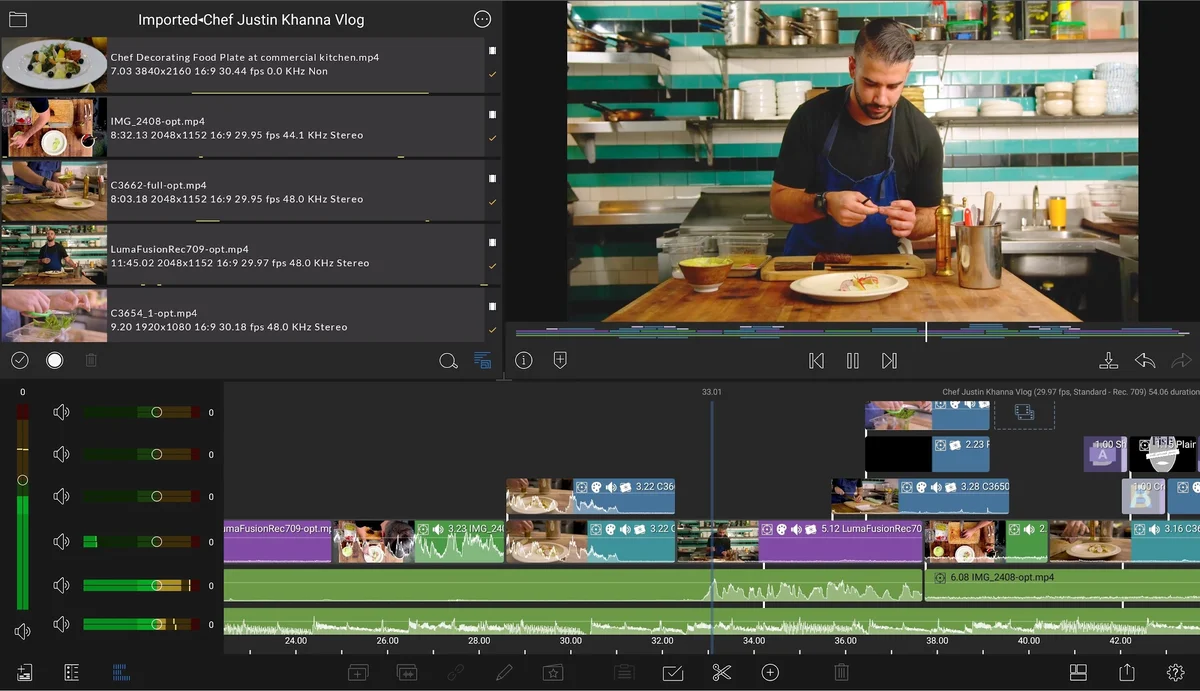
Multi-track magnetic timeline and workspace layouts
LumaFusion provides the most powerful timeline engine available on ChromeOS. Whether you prefer a traditional track-based workflow or an elastic magnetic timeline that eliminates accidental gaps, LumaFusion adapts to your editing style:
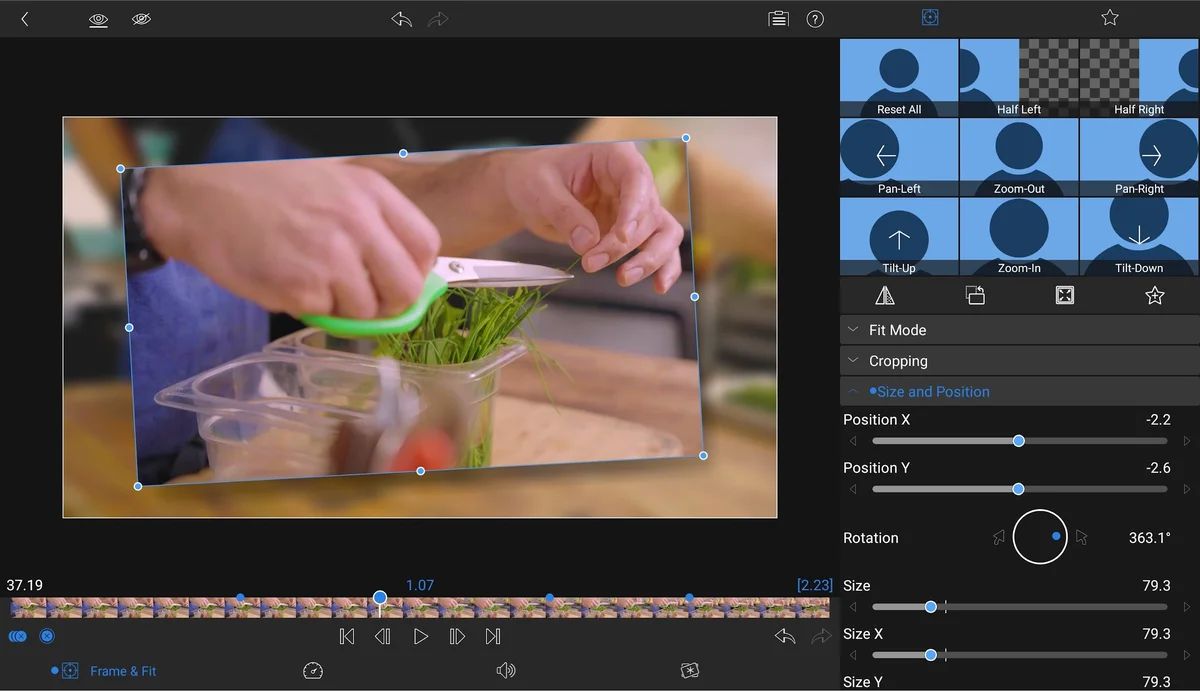
Frame & Fit motion, rotation, and keyframe animation
Dynamic movement transforms static clips into engaging visual stories. LumaFusion’s Frame & Fit editor delivers workstation-grade animation controls directly on Chromebook displays:
3D LUT color grading and visual effect compositing
Color grading sets the mood and production quality of your film. LumaFusion gives ChromeOS creators a complete color suite with support for industry-standard Look-Up Tables (LUTs):
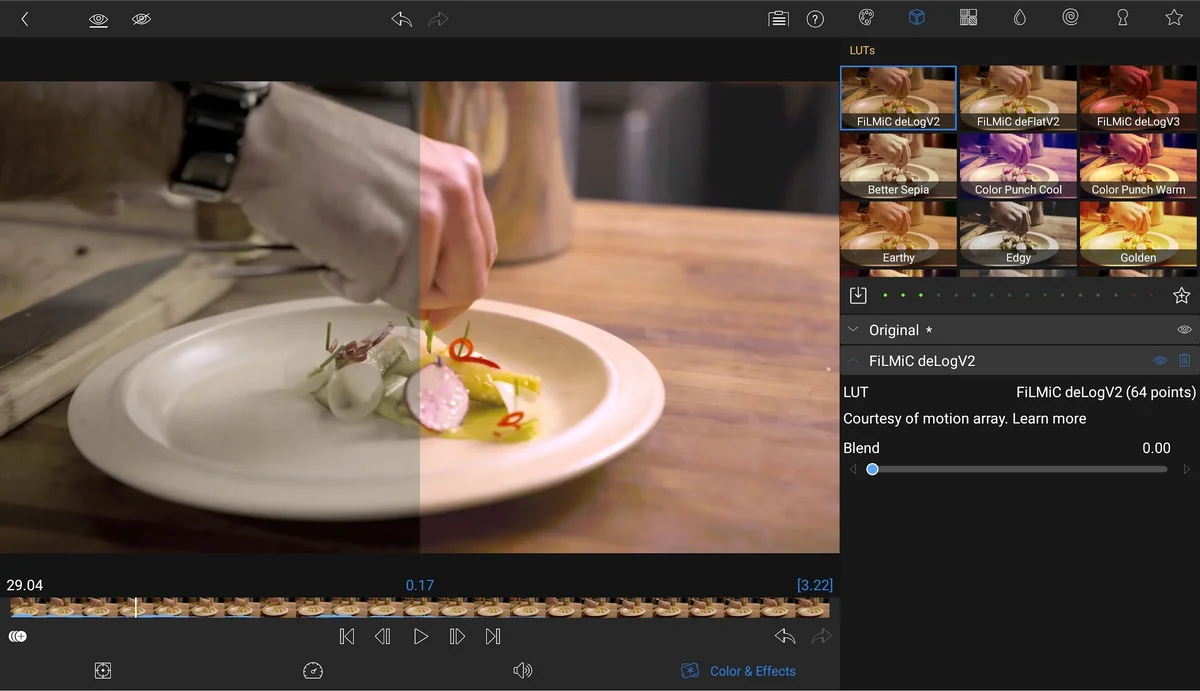
Chroma key green screen and background replacement
Compositing actors or graphics into virtual backgrounds requires clean edge isolation. LumaFusion includes high-accuracy chroma key and luma key engines:
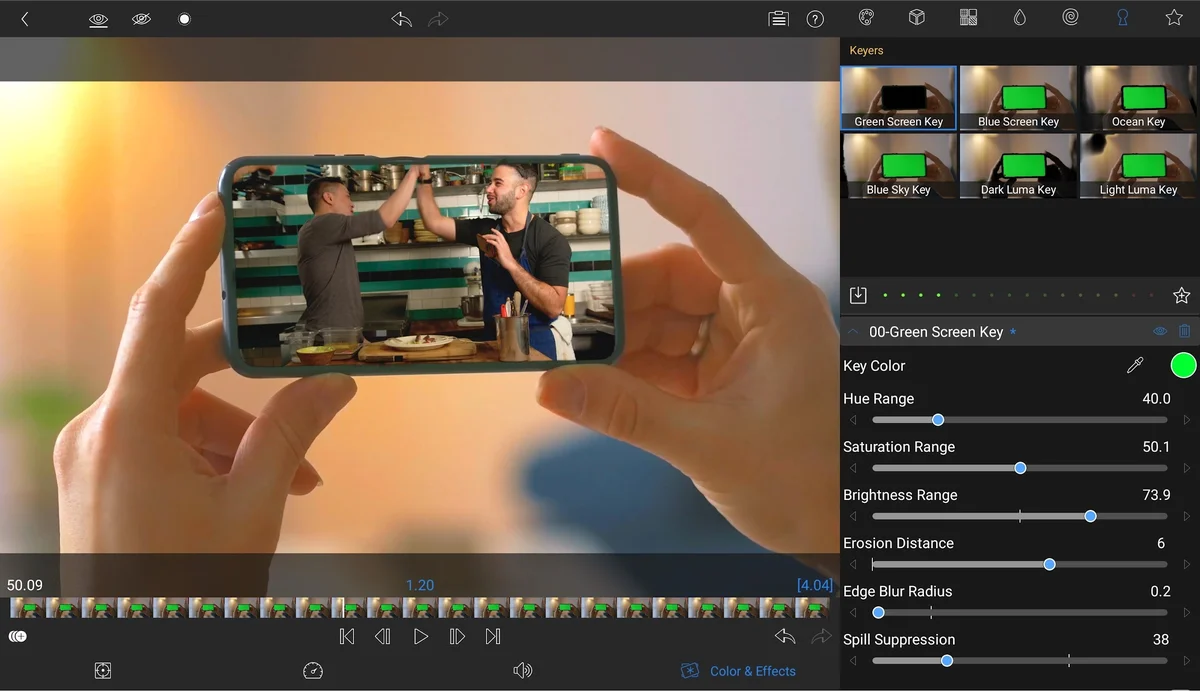
To key out a green or blue screen, drop your backdrop footage onto an upper timeline track and tap the Color & Effects icon. Select the Keyers tab and choose Green Screen Key or Blue Screen Key. Tap the eye dropper to sample your exact backdrop shade, then adjust the Hue Range, Saturation Range, and Brightness Range sliders. Use the Erosion Distance and Spill Suppression controls to banish green halo reflections around hair and clothing cleanly.
Multilayer titler, shapes, and custom typography
Engaging video content demands stylish text callouts, lower-thirds, and branded end screens. LumaFusion’s multilayer title designer eliminates the need for external graphics software:
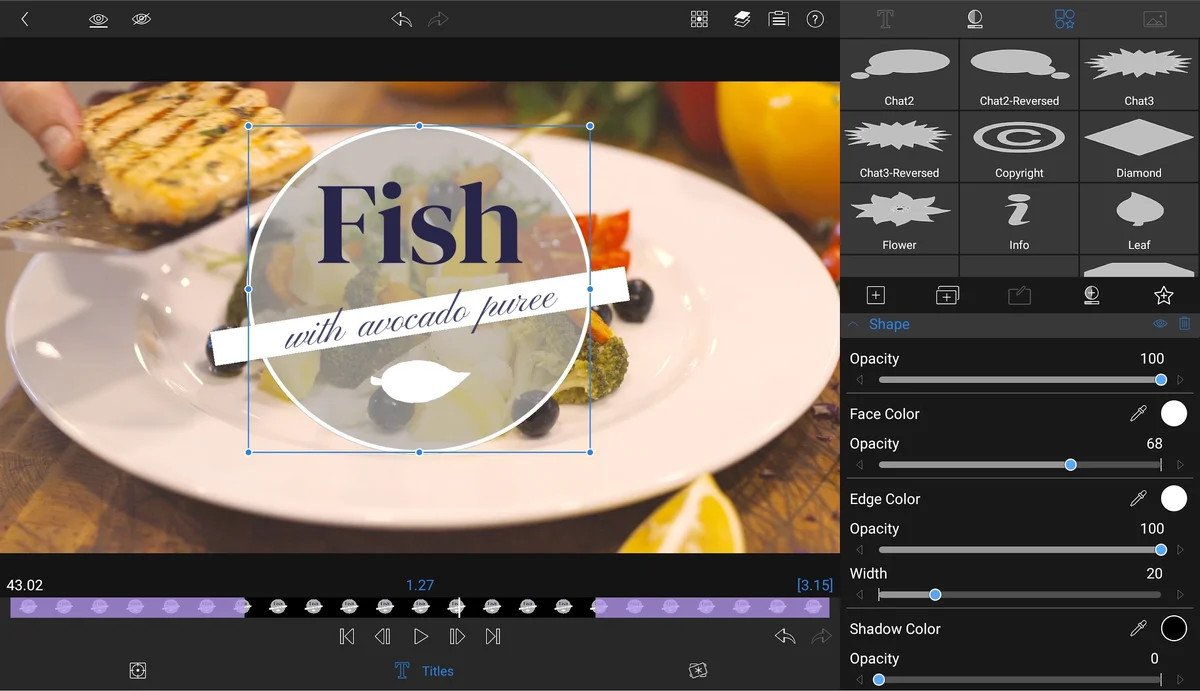
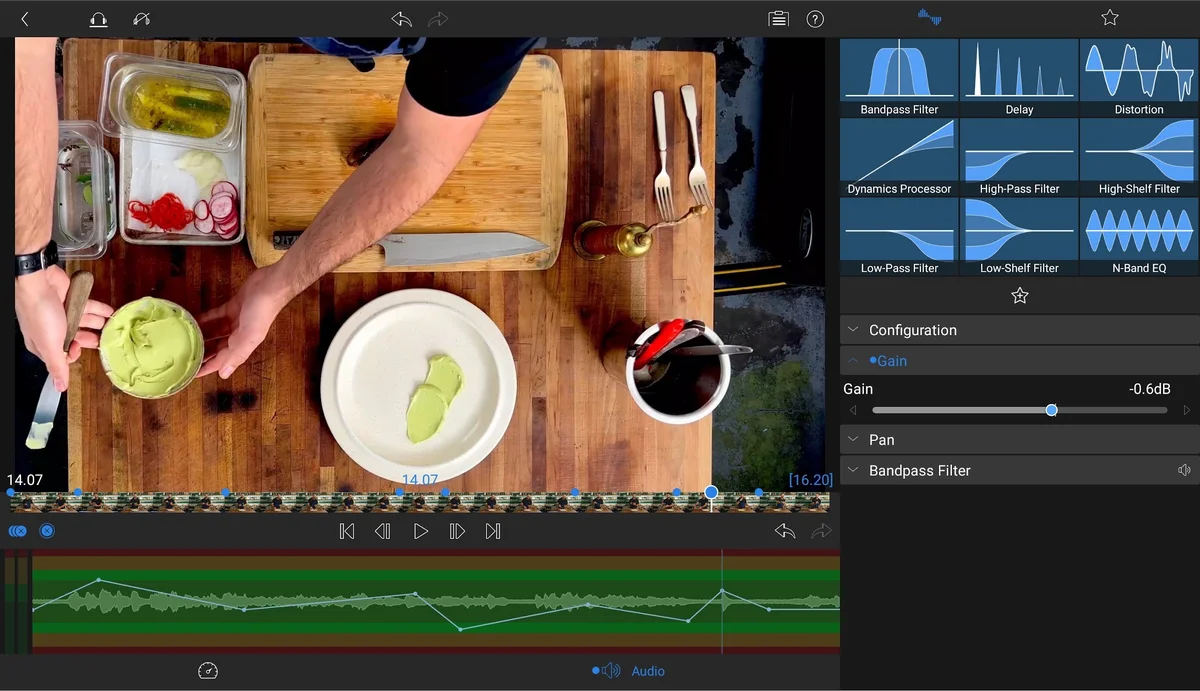
Advanced audio editing, equalization, and keyframe automation
Poor audio ruins great video. LumaFusion incorporates a comprehensive multi-track audio workstation designed to clean dialogue and balance music tracks:
External SSD editing, USB-C media drives, and export formats
Chromebooks often have modest internal storage (64GB to 256GB). LumaFusion solves this storage bottleneck by supporting direct editing from external USB-C solid-state drives:
LumaFusion pricing: one-time purchase vs. Storyblocks Creator Pass
Unlike subscription-based video editors that charge recurring monthly fees, LumaFusion follows a creator-friendly business model:
Frequently asked questions about LumaFusion on Chromebook
Is LumaFusion free or does it require a recurring subscription on Chromebook?
LumaFusion is not free, but it features a transparent one-time purchase model on Google Play ($29.99) with zero mandatory recurring subscriptions. Once purchased, you own the full core multi-track video editing suite, color grading tools, titler, audio mixer, and export engine permanently. An optional Creator Pass subscription is available inside the app for creators who want unlimited access to the Storyblocks royalty-free stock media and music library.
Can LumaFusion edit 4K video directly from an external USB-C SSD on Chromebook?
Yes. LumaFusion supports direct external media editing on Chromebooks and Googlebooks equipped with USB-C or USB 3.0 ports. You can connect an external solid-state drive (such as a Samsung T7 or SanDisk Extreme) or high-speed flash drive, browse the connected volume via the Media Library tab, and drop clips directly onto your timeline without filling your laptop’s internal eMMC or NVMe storage.
How do I fix lag or dropped frames when editing multi-track video on Chromebook?
If you experience timeline stutter when previewing multiple 4K video streams on a budget or fanless Chromebook, navigate to LumaFusion Settings > Preview Quality and select ‘Speed Optimized’ or switch to 1080p preview resolution. In addition, close background Chrome tabs to free up system RAM, verify your Chromebook is connected to its AC power adapter to prevent CPU power throttling, and ensure your video footage is stored on fast internal SSD or high-speed USB-C media rather than slow MicroSD cards.
Does LumaFusion support keyboard shortcuts and trackpad gestures on ChromeOS?
Yes. LumaFusion is fully optimized for desktop and clamshell ChromeOS environments. You can use standard hardware keyboard shortcuts such as Spacebar (play/pause), J-K-L (reverse, pause, forward shuttling), Split Clip, Delete, and arrow keys for frame-by-frame scrubbing. It also supports two-finger trackpad panning across your timeline, pinch-to-zoom timeline scaling, and external USB or Bluetooth mice.
Can I transfer LumaFusion projects between iPad, iPhone, and Chromebook?
Yes. LumaFusion features cross-platform project export through LumaFusion Project Packages (.lfpackage). You can archive your entire project including timeline data and linked media into a single .lfpackage file and transfer it via Google Drive, an external USB-C SSD, or cloud storage between Chromebooks, Googlebooks, Android tablets, iPads, and iPhones seamlessly.
Explore more video editing tools for Chromebook
Looking to compare video editors for ChromeOS? Check out our curated guides to the 11 best video editors for Chromebook, explore mobile-first clip creation in CapCut on Chromebook and Googlebook, manage collaborative cloud video projects with WeVideo on Chromebook and Googlebook, or produce animated motion sequences using PowerDirector on Chromebook.
Discover more from Chrome Geek
Subscribe to get the latest posts sent to your email.