How to Install and Use Adobe Lightroom on Chromebook and Googlebook
 by
Frank Cross
Post Updated: November 2, 2026
You can install and use Adobe Lightroom on Chromebook and Googlebook through the official Android app from Google Play or edit directly in Chrome via the web platform. It gives photographers a desktop-grade darkroom workspace with RAW image processing, generative AI removal, selective masking, and automated cloud sync across all your devices.
Googlebook and modern Chromebooks run Android apps natively with full GPU hardware acceleration, offering responsive slider adjustments, stylus pressure support, and companion phone streaming. This guide walks you through the Google Play setup, Googlebook phone casting, browser-based web editing, pro color grading, Firefly AI tools, and practical performance tips.
Need assistance editing your photos or configuring your device? Contact us with your laptop model and any setup questions.

Choose Adobe Lightroom for pro photo editing
The official Google Play listing verifies Adobe as the certified developer. Installing the official app ensures full compatibility with ChromeOS external drive access, high-DPI displays, and secure Adobe ID synchronization.
How to install Adobe Lightroom on Chromebook and Googlebook
If your laptop is managed by a school or workplace organization, check with your administrator if Google Play access is restricted. For device-specific setup guidance, see the official Google Android app setup guide for Chromebook and the companion guide on installing apps on Googlebook. If Google Play is unavailable on your device, you can use the web editor directly in Google Chrome without any setup.
Cast Adobe Lightroom from your phone on Googlebook
If you already capture and edit photos on your mobile device, you can use Cast My Apps from the Googlebook phone hub to stream your phone’s active Lightroom workspace directly to your laptop screen. This allows you to inspect high-resolution RAW captures, review edits on a larger display, and tweak color sliders with your laptop trackpad or mouse without manual file transfers.
Use Adobe Lightroom Web directly in Google Chrome
For devices where local app installation is restricted or storage is limited, Adobe provides a complete browser-based editor at lightroom.adobe.com. Simply log in with your Adobe account inside Google Chrome to access your synchronized albums, apply preset adjustments, fine-tune tonal values, and export finished JPEGs directly to Google Drive.
Fine-tune exposure and color curves with pro grading tools
Adobe Lightroom provides industry-standard color grading architecture. You can adjust exposure, contrast, highlights, shadows, whites, and blacks with granular floating-point accuracy. Dedicated Tone Curve controls let you shape overall contrast using Parametric curves or isolate Red, Green, and Blue channels for nuanced cinematic color casts.
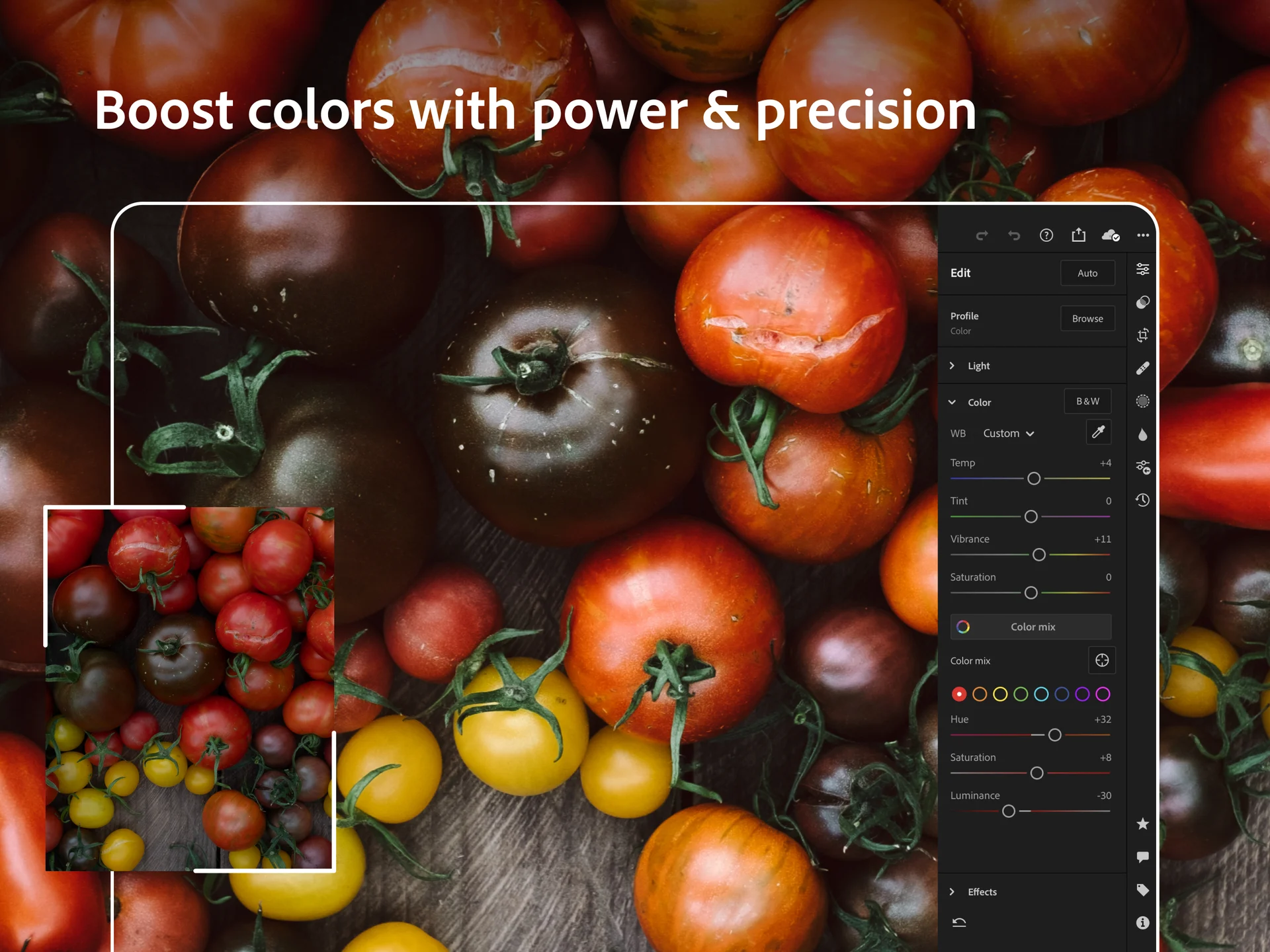
The dedicated Color Mixer panel provides individual Hue, Saturation, and Luminance (HSL) adjustments across eight distinct color spectrums. Whether adjusting foliage greens, calming vibrant sky blues, or perfecting skin tones, Lightroom gives you surgical control over every hue.
Erase distractions with Firefly Generative AI Remove
Powered by Adobe Firefly generative AI, Lightroom’s Generative AI Remove tool lets you eliminate distracting background elements, power lines, and photobombers with a single brush stroke. Unlike traditional cloning stamps that merely replicate adjacent textures, Firefly generates contextually realistic backgrounds that seamlessly match surrounding depth, texture, and light gradients.
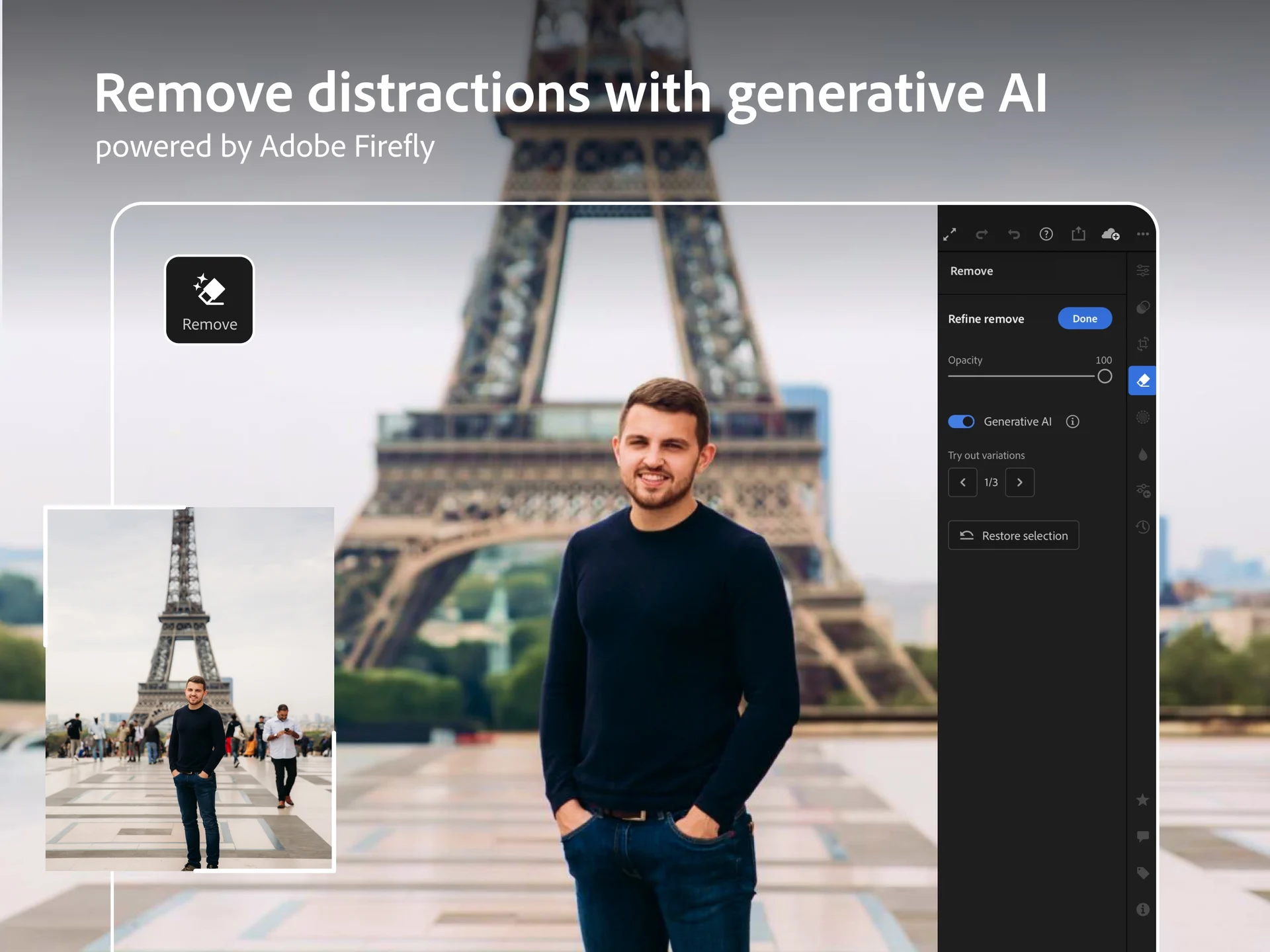
On touch-enabled Chromebooks and Googlebooks with USI stylus support, you can precisely paint over unwanted details, adjust brush feathering, and choose between multiple AI-generated replacement variations until your composition is spotless.
Create optical depth with AI Lens Blur
Lightroom’s Lens Blur tool uses machine learning to compute a three-dimensional depth map of any two-dimensional image. This lets you apply realistic optical background blur (bokeh) to portraits, street shots, and product captures, even if the photo was originally shot on a phone camera without hardware depth sensors.
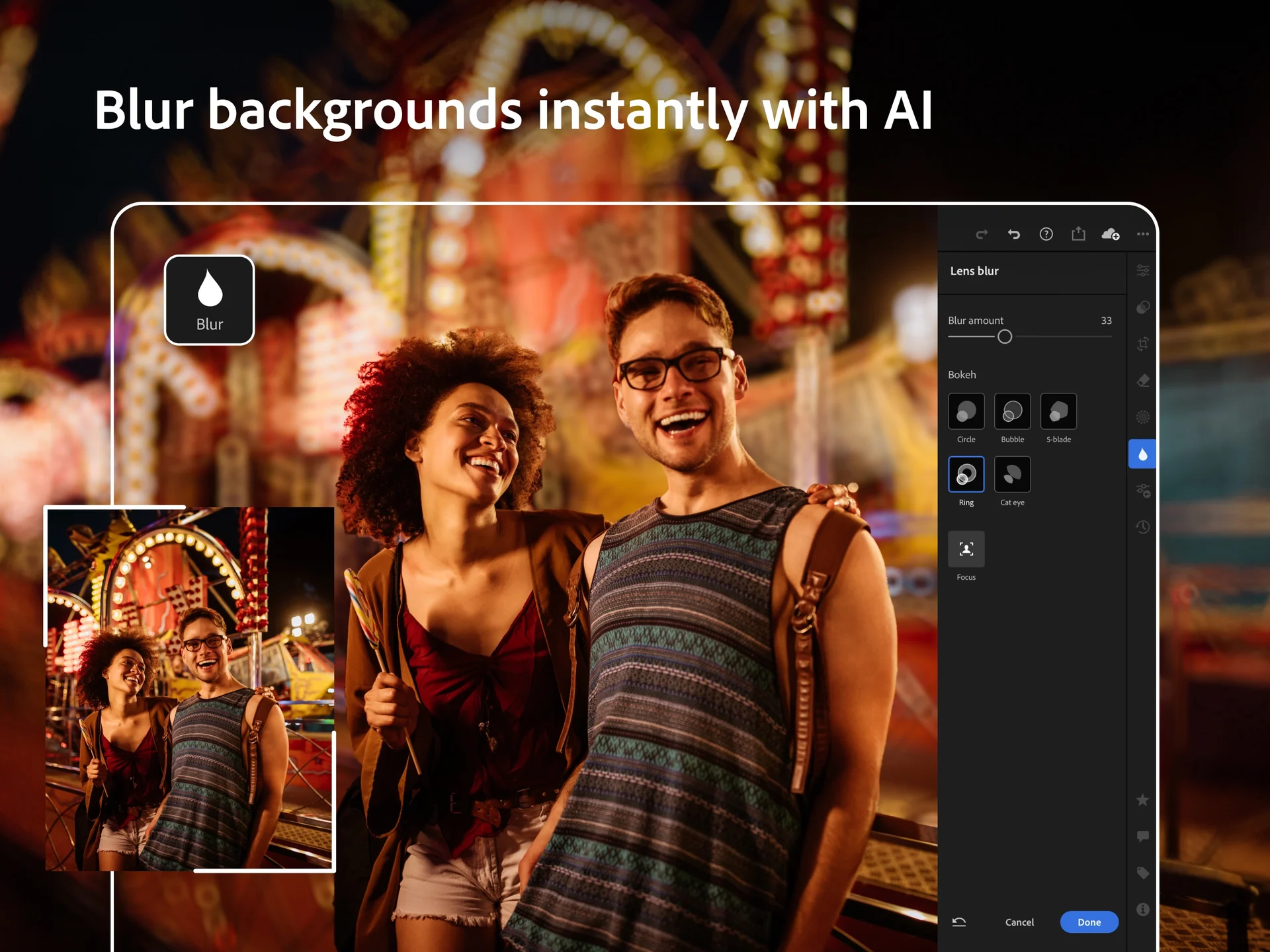
You can adjust the focal point interactively by clicking anywhere on your subject, alter the blur intensity, and choose from five distinct aperture blade simulations (Circle, Bubble, 5-blade, Ring, and Cat’s Eye) to emulate classic prime lenses.
Isolate skies and subjects with selective AI masking
One of Lightroom’s most powerful capabilities is AI-driven masking. With a single click, Lightroom automatically identifies people, facial features, hair, clothing, skies, and backgrounds. You can apply exposure, sharpness, and color modifications exclusively to the detected subject without altering surrounding pixels.
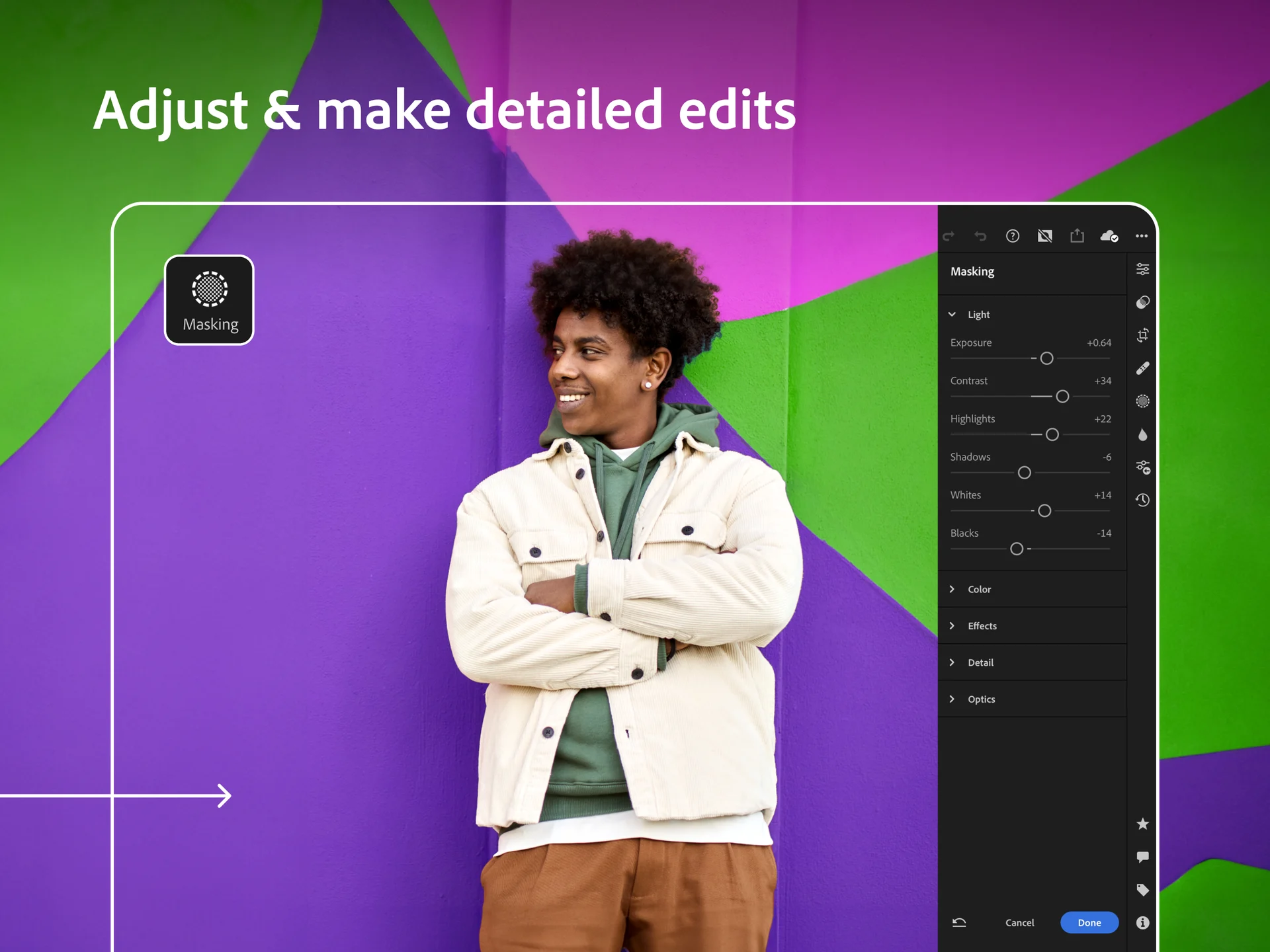
Combine AI masks with linear gradients, radial filters, and luminance range masks to create complex multi-layered adjustments that highlight subjects and direct viewer attention.
Apply cinematic film presets and creative profiles
Lightroom includes hundreds of premium presets and creative profiles categorized by style, including vintage film aesthetics, modern portraits, travel scenery, and black-and-white conversions. Adaptive presets automatically leverage AI masking to selectively enhance portraits or landscape skies with a single click.
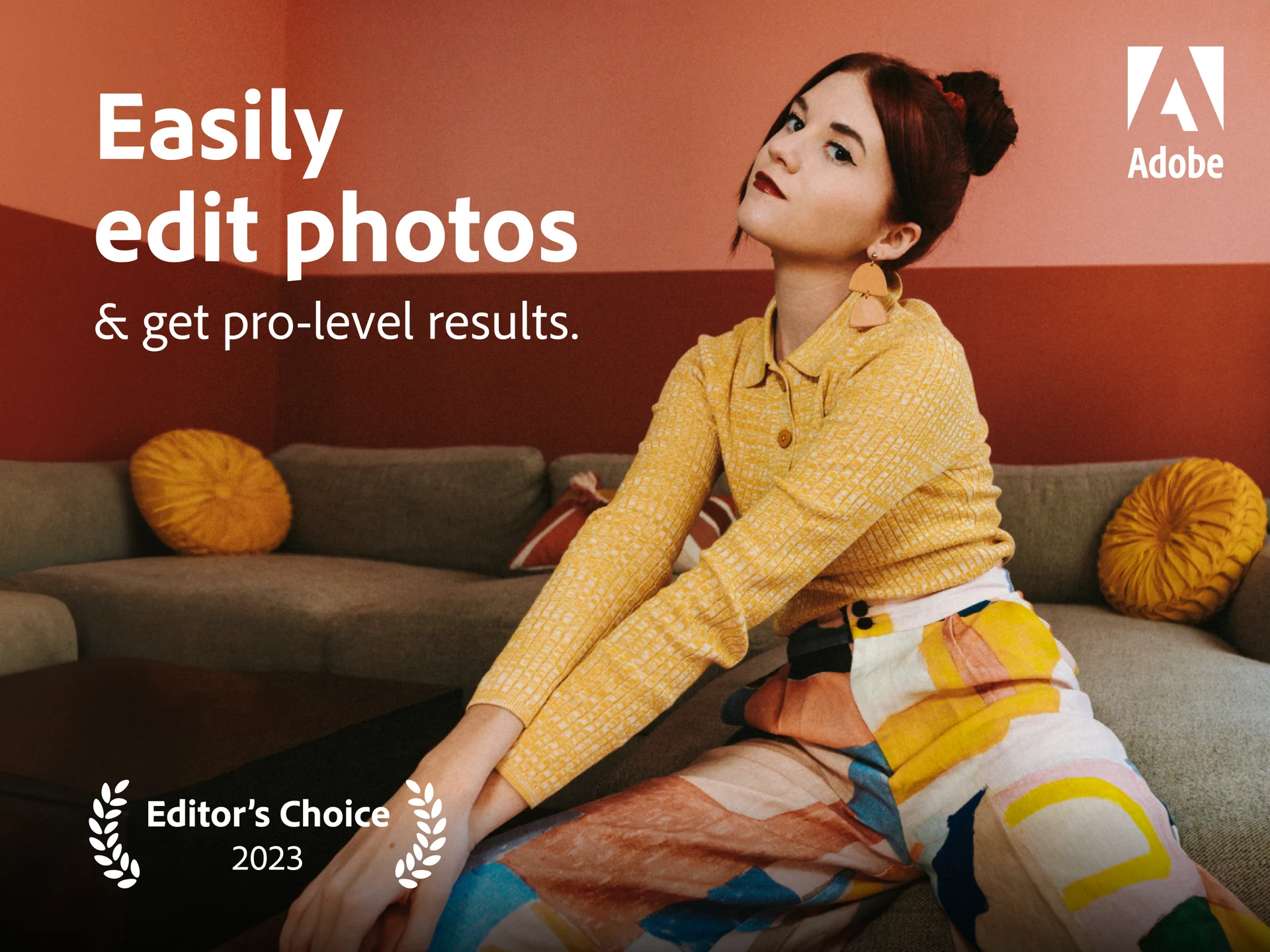
You can customize preset intensity using the Amount slider, save your personal adjustments as custom reusable presets, and sync them seamlessly across your Chromebook, Googlebook, phone, and tablet via Adobe Cloud.
Recommended Chromebook specs for smooth RAW editing
Troubleshooting Adobe Lightroom on ChromeOS
- App crashes or stutters during large RAW imports: Go to ChromeOS Settings > Apps > Manage your apps > Lightroom > More settings and permissions > Storage, and click “Clear cache”. Ensure your Chromebook has at least 5GB of free internal storage for preview rendering.
- Cannot access external SD card or USB drive: Open the ChromeOS Files app, right-click your external drive, and toggle “Share with Android”. In Lightroom settings, ensure external storage permissions are enabled.
- Cloud sync shows paused or offline: Verify your internet connection and check that background data is unrestricted under ChromeOS Android app permissions. Tap the cloud sync icon in Lightroom to force a manual sync refresh.
- Lightroom Web fails to load in Chrome: Disable ad-blocking or privacy extensions for lightroom.adobe.com, update ChromeOS to the latest stable build, and clear browser cached images.
Related photography and creative media guides
- 12 Best Photo Editors for Chromebook: Discover top photo editing apps, RAW processors, and online creative tools for ChromeOS.
- Polarr on Chromebook and Googlebook: Explore creator aesthetic filters, AI segmentation masks, and pro-level color grading.
- Photoshop Express on Chromebook: Fast photo enhancements, collage layouts, and quick social media graphics.
- Snapseed on Chromebook: Google’s versatile photo editor featuring selective control points, curves, and healing brushes.
- CapCut on Chromebook and Googlebook: Edit vertical videos, trending reels, and cinematic clips with smart AI tools.
Frequently asked questions
Is Adobe Lightroom free to use on Chromebook and Googlebook?
Can I edit RAW photos in Adobe Lightroom on Chromebook?
What is the difference between Adobe Lightroom Android and Lightroom Web?
How does Generative AI Remove work in Adobe Lightroom on ChromeOS?
How do I cast Adobe Lightroom from my phone to Googlebook?
Discover more from Chrome Geek
Subscribe to get the latest posts sent to your email.