How to Install and Use Notability on Chromebook and Googlebook
 by
Joseph Vance
Post Updated: November 17, 2026
You can install and use Notability on Chromebook and Googlebook through the official Android app from Google Play or directly via the web app at notability.com. It combines handwritten notes, PDF markup, synced audio recordings, and AI study tools in one workspace.
Googlebook runs Android apps natively from Google Play alongside instant phone-app casting. This guide walks you through Play Store installation, Chrome web access, stylus handwriting, PDF annotation, AI Smart Notes and flashcards, and common ChromeOS fixes.
Need help setting up Notability? Contact us with your laptop model and any stylus or sync questions.
How to install Notability on Chromebook and Googlebook
Installing Notability from Google Play takes less than a minute and gives you full offline notebook access and stylus support:
The official Google Play listing identifies Notability under the package identifier com.gingerlabs.notability. Installing the Android app gives you full stylus responsiveness, local PDF imports, and offline study access.
If the Play Store is not active on your device, check Google’s Android app setup guide for Chromebook or the guide on installing apps on Googlebook. On managed school or workplace laptops, administrator policies may restrict Play Store downloads. While there is no native Linux (.deb) package for ChromeOS Linux, you can open notability.com in Google Chrome to view, type, and study your synced notes without installing anything.
Cast Notability from your phone on Googlebook
If you already have lecture recordings, scanned handouts, or active notebooks open on your Android phone, Googlebook’s Cast My Apps feature lets you open your phone’s Notability session directly on your laptop screen. Open the Phone Hub in the bottom-right corner of your Googlebook shelf, click Cast My Apps, and select Notability. Your phone’s current notebook appears in a desktop window so you can review annotations or copy text without transferring files or signing in again.
Notability Web vs. Android app: choosing your ChromeOS setup
Depending on whether you use a touchscreen convertible with a stylus or a standard clamshell laptop, you can choose between three convenient ways to run Notability on ChromeOS:
Handwriting, USI stylus inking, and PDF annotation
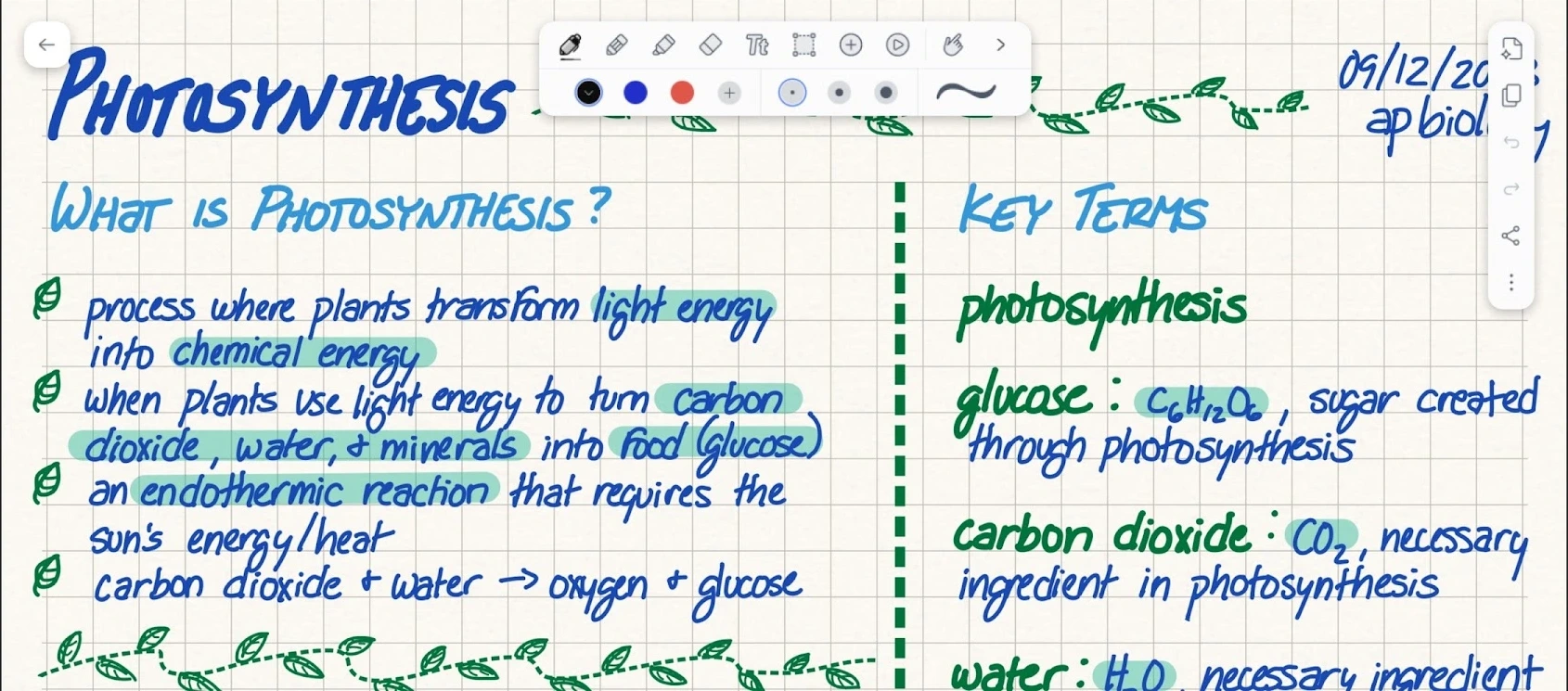
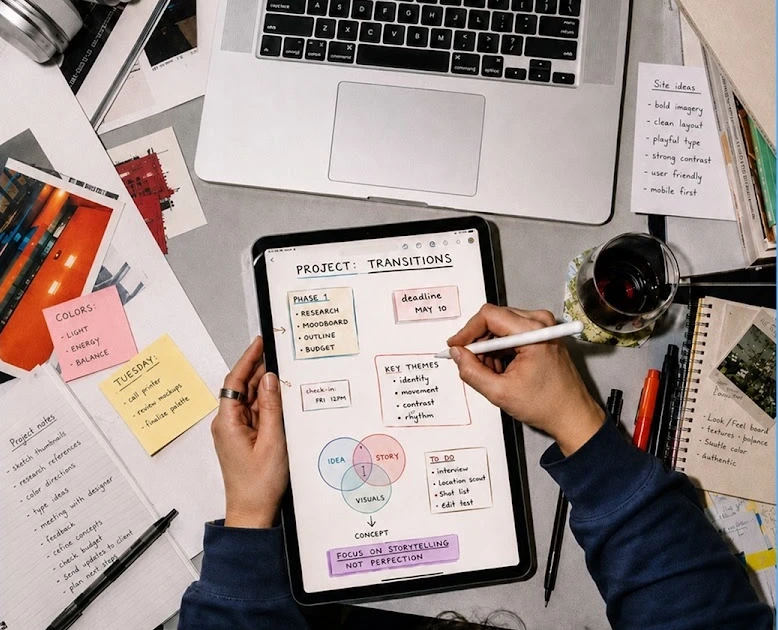
Notability is built around responsive digital ink and clean document markup on larger screens:
- Natural pen and highlighter tools: switch between pressure-sensitive ink, fountain pens, highlighters that snap behind text, and an adjustable eraser from the floating toolbar.
- Import and mark up PDFs: open syllabi, textbooks, slide decks, and forms directly from your Chromebook Files app or Google Drive to sign, underline, and add margin notes.
- Shape detection and lasso tool: draw clean diagrams, flowcharts, and underlines automatically, or circle handwritten blocks to resize, recolor, and move them anywhere on the page.
- Combined typing and ink: click anywhere to start a typed text box, checklist, or bulleted outline alongside your sketches and diagrams.
AI Smart Notes, audio sync, and flashcards
Beyond basic note-taking, Notability includes built-in study and review tools designed for lectures and meetings:
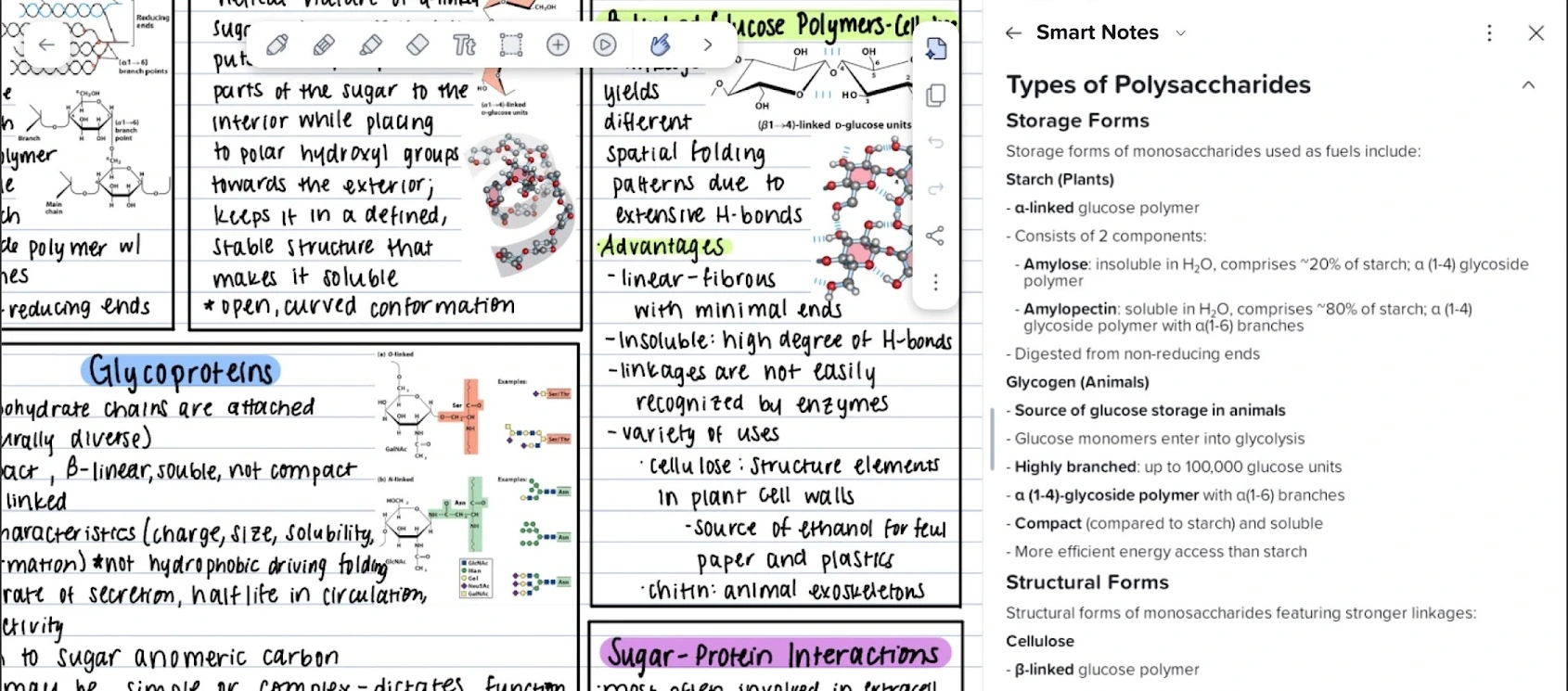
- AI Smart Notes summaries: generate clean, structured outlines and key takeaways from long notes, imported PDFs, and recorded lectures without manual retyping.
- Audio recording synced to your strokes: record a class or meeting while taking notes, then tap any handwritten word during playback to jump straight to that exact moment in the audio.
- Live transcription and searchable notes: search across typed text, handwritten pages, and transcripts to find definitions or action items in seconds.
- Interactive quizzes and flashcards: turn your study materials into practice quizzes and flashcard sets inside Notability Learn to test retention before exams.
Organizing subjects, templates, and cloud sync
Keeping a full semester of classes or client projects tidy is straightforward with Notability’s library controls:
- Subjects and dividers: group individual notes into color-coded subjects and collapsible dividers so every course or project stays separated.
- Custom paper templates: choose ruled, grid, dotted, Cornell, or planner layouts and switch page backgrounds at any time.
- Notability Cloud and backups: keep your library synced automatically across Android, Chromebook, Googlebook, and the web, with export options to PDF or Google Drive.
Troubleshooting Notability on ChromeOS
If you run into stylus lag, microphone permission prompts, or sync delays on your Chromebook or Googlebook, try these fixes:
- Handwriting lag or delayed ink: close unused browser tabs to free up RAM, then go to ChromeOS Settings > Apps > Manage your apps > Notability > More settings and permissions > Battery and set background usage to Unrestricted.
- Microphone not recording audio: open ChromeOS Settings > Apps > Manage your apps > Notability > Permissions and confirm that Microphone is allowed.
- Cannot import PDFs from local folders: grant Files and media permission under Notability’s app permissions in ChromeOS Settings, or move the PDF into your Google Drive folder first.
- Notes not syncing to notability.com: verify you are signed into the same Notability account on both devices and check that Wi-Fi is connected without a restrictive school firewall blocking sync.
- App freezes or fails to launch: open ChromeOS Settings > Apps > Manage your apps > Notability > Storage and click Clear cache, then relaunch the app.
Frequently asked questions about Notability on Chromebook and Googlebook
Is Notability free to use on Chromebook and Googlebook?
Yes. Notability offers a free starter tier on Google Play and the web with core note-taking, PDF markup, and basic editing tools. A Notability Plus subscription unlocks unlimited edits, full handwriting recognition and math conversion, unlimited AI Smart Notes summaries, and automatic cloud backup.
Does Notability support USI styluses on touchscreen Chromebooks?
Yes. On touchscreen Chromebooks and 2-in-1 Googlebooks, the Notability Android app supports USI pens and active styluses with low-latency digital ink, pressure sensitivity, and palm rejection so you can rest your hand naturally while writing.
Should I use the Notability Android app or the web app at notability.com?
Use the Google Play Android app if you want stylus handwriting, offline access to notebooks, and audio recording synced to your strokes. Use the web app at notability.com in Google Chrome when you prefer typing with a physical keyboard, reviewing Smart Notes on a larger monitor, or saving local storage space.
How do I cast Notability from my Android phone to Googlebook?
Open the Phone Hub from the bottom-right shelf of your Googlebook and make sure your Android phone is linked. Click Cast My Apps, then select Notability. Your phone’s active notebook session opens in a floating desktop window without transferring files or signing in again.
Why is my handwritten ink lagging or missing strokes in Notability on ChromeOS?
Ink lag usually happens when multiple heavy browser tabs or Android apps compete for memory, or when battery saver throttles the stylus digitizer. Close unused Chrome tabs, set Notability’s battery mode to Unrestricted in ChromeOS App Settings, and update ChromeOS and the app from Google Play.
Companion note-taking and document guides
Build a complete study and document workflow on ChromeOS with these companion guides:
- Typed notebooks and web clipping: If you prefer structured text notebooks, web clippings, and task checklists across devices, follow our guide to Evernote on Chromebook and Googlebook.
- Dedicated PDF viewing and forms: For signing contracts, filling forms, and reviewing large PDFs, see how to set up Adobe Acrobat Reader on Chromebook and Googlebook.
- More PDF tools for ChromeOS: Compare browser-based and offline annotation apps in our roundup of the best PDF editors for Chromebook.
- Long-form essays and reports: When it is time to turn lecture outlines into polished papers, check our walkthrough for Microsoft Word on Chromebook and Googlebook.
- Shared study and class schedules: Keep assignment deadlines and group study sessions organized with TimeTree on Chromebook and Googlebook.
Discover more from Chrome Geek
Subscribe to get the latest posts sent to your email.