How to Install and Use Evernote on Chromebook and Googlebook
 by
Juniya Sankara
Post Updated: November 2, 2026
You can install and use Evernote on Chromebook and Googlebook through the official progressive web app (PWA), browser access, or native Android app support. Whether you are capturing lecture notes, archiving PDF receipts, managing team action items, or clipping long-form web research, Evernote provides a centralized workspace to keep your ideas organized and accessible across all your devices.
Googlebook and modern Chromebooks run web applications with desktop fluidity and support cross-device phone app casting, giving you multiple versatile ways to draft notes, manage to-dos, and search handwritten text. This updated guide walks you through setting up Evernote as a desktop PWA, organizing notebooks and tags, managing tasks with reminders, utilizing the Chrome Web Clipper, and resolving common sync issues.
Have questions about organizing your notebooks or configuring account sync? Contact us with your device model and ChromeOS version.
How to install Evernote on Chromebook and Googlebook
Installing Evernote on your ChromeOS laptop gives you immediate desktop access with dedicated window management and shelf shortcuts:
The official Google Play listing provides the mobile application package com.evernote. While Evernote prioritizes its desktop web client on large screens, the progressive web app (PWA) delivers the fastest performance, instantaneous note rendering, and full keyboard shortcut integration on ChromeOS.
If the Play Store is not currently enabled on your device, consult Google’s official Android app setup guide for Chromebook or the guide on installing apps on Googlebook. Note that on managed school or enterprise Chromebooks, administrator permissions may regulate Play Store installations; in these cases, the Evernote Web PWA provides an unhindered, fully capable alternative.
Cast Evernote from your phone on Googlebook
If your Android phone already stores camera document scans, offline notebooks, or personal audio voice memos, Googlebook’s Cast My Apps feature lets you stream the mobile app directly onto your laptop screen. Open the Phone Hub in the bottom-right shelf of your Googlebook, select Cast My Apps, and tap Evernote. Your phone’s active notebook session opens immediately inside an adaptive desktop window on ChromeOS, letting you review mobile attachments, transcribe voice recordings, and organize notebooks without transferring local files or re-authenticating.
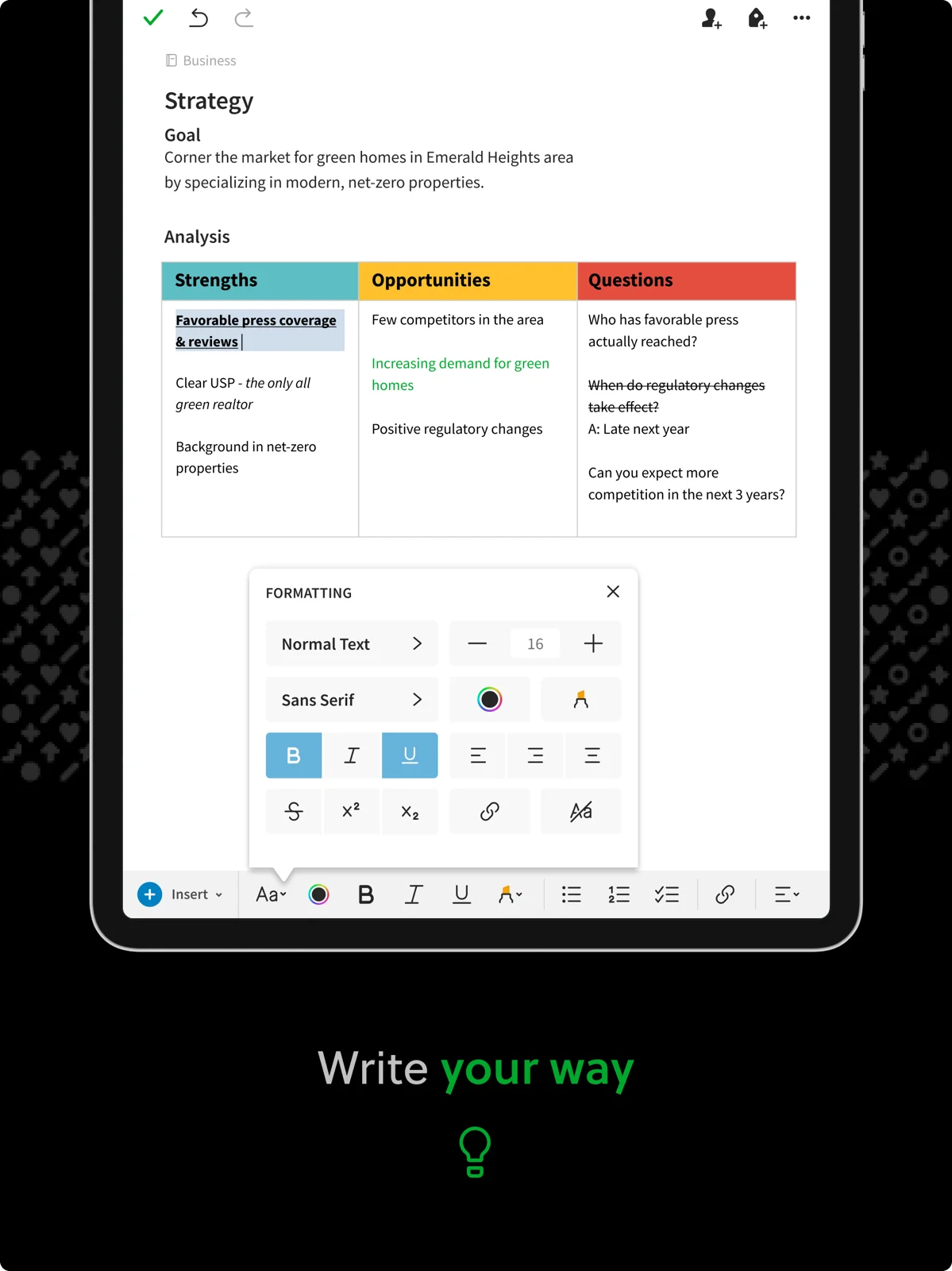
Rich text note editing and structured content formatting
Evernote provides a modern, distraction-free document editor designed to handle everything from quick meeting minutes to elaborate research projects on large Chromebook and Googlebook displays:
Managing tasks, to-do checklists, and deadline reminders
Evernote bridges note-taking and action management through its dedicated Tasks system, ensuring your action items never get lost inside dense documents:
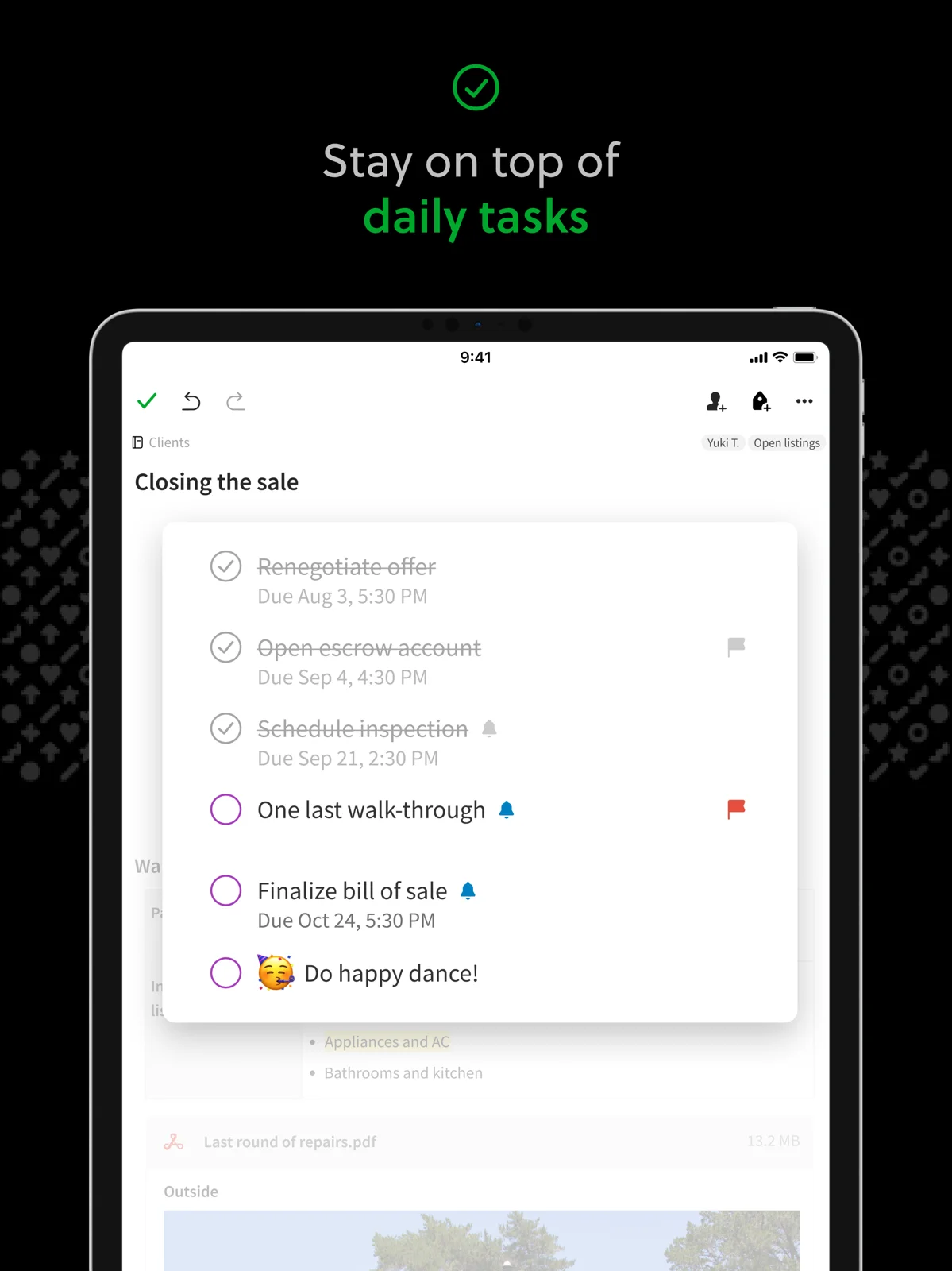
Key task management capabilities on ChromeOS include:
- Contextual In-Note Tasks: add actionable checkboxes directly beneath project meeting notes or lecture outlines so action items stay anchored to their background context.
- Centralized Task Hub: open the Tasks tab in the left sidebar to view every pending item across all your notebooks sorted by due date, priority flag, or notebook title.
- Due Dates & Timed Reminders: set specific target dates and push notification reminders so your Chromebook alerts you before critical deadlines arrive.
- Google Calendar Integration: connect your Google Calendar account to view upcoming events alongside relevant meeting agendas and link notes directly to schedule invites.
Finding notes fast with AI-powered search, OCR, and tags
As your note library expands to thousands of entries, Evernote’s search engine ensures you can retrieve any document, scanned receipt, or whiteboard sketch instantly:
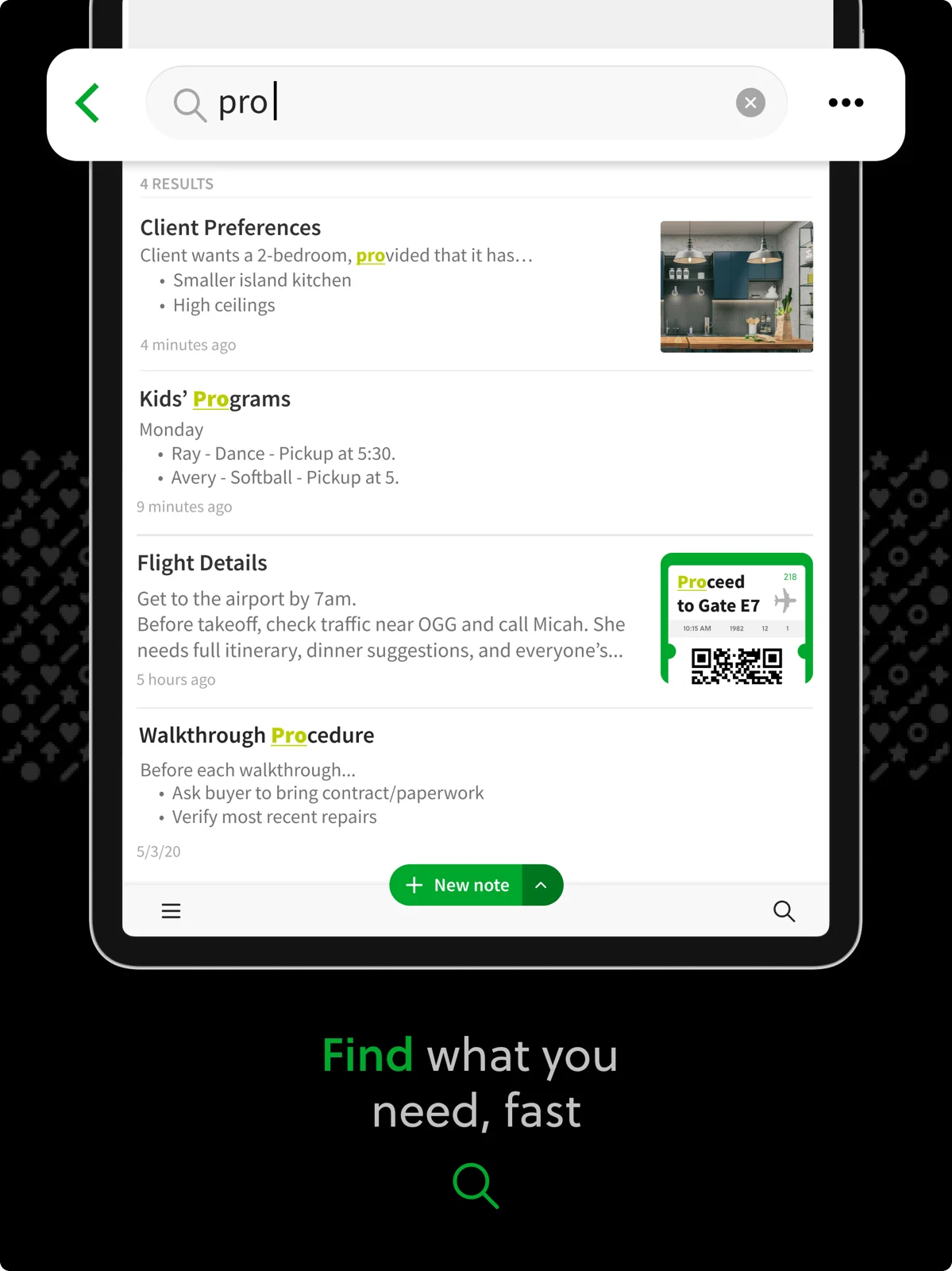
#research, #clients, #2026) with saved searches to create granular, dynamic filters across your entire notebook collection.Capturing web research with the Evernote Web Clipper on Chrome
One of Evernote’s defining strengths on ChromeOS is its seamless integration with Google Chrome through the official Evernote Web Clipper extension:
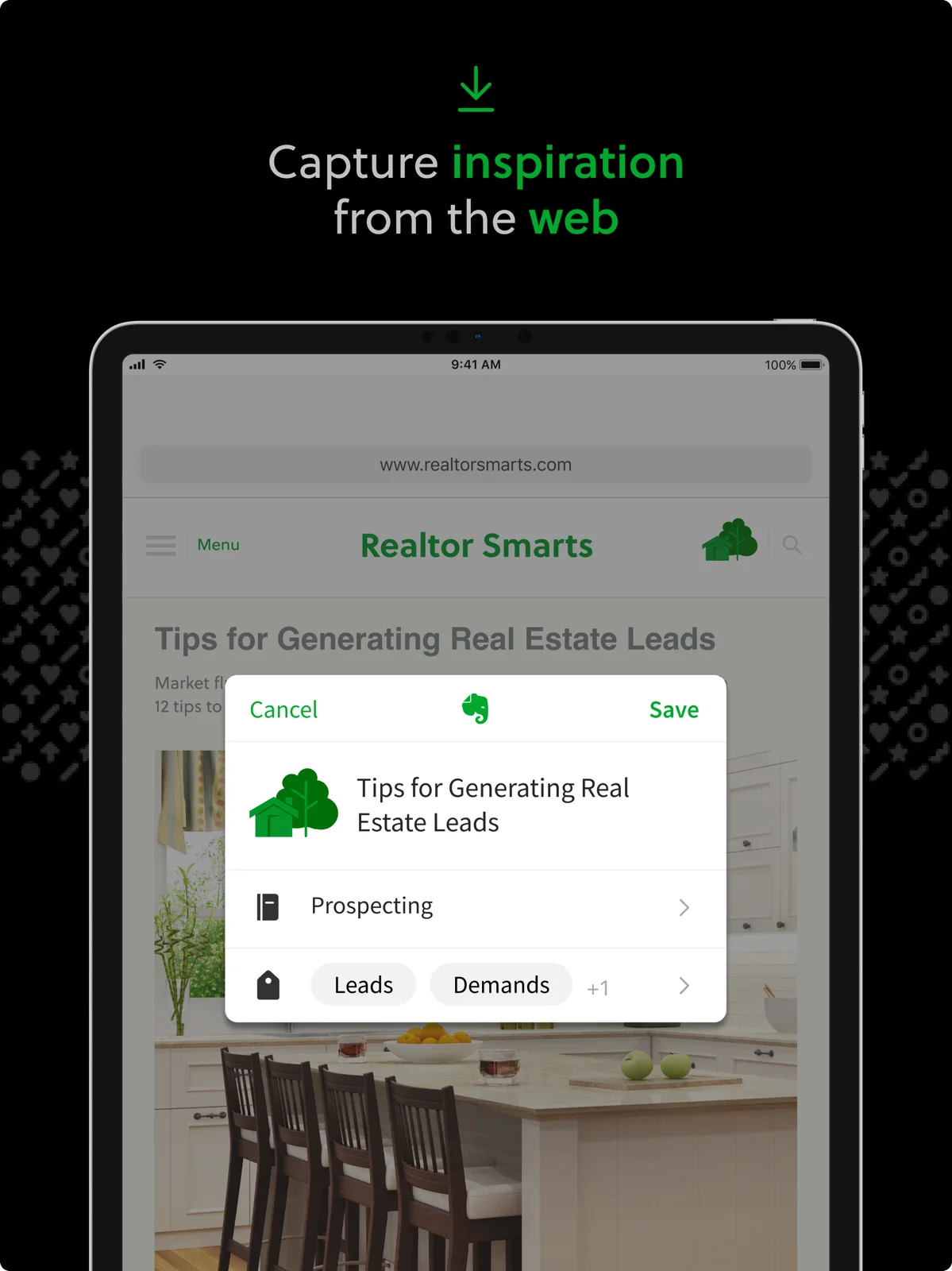
To set up and utilize Web Clipper on your Chromebook:
- Install from Chrome Web Store: visit the Chrome Web Store and search for Evernote Web Clipper, then click Add to Chrome.
- Choose your capture format: click the elephant icon in your Chrome extensions bar when viewing any web page. Select between Article (strips ads and sidebars), Simplified Article, Full Page, Bookmark, or Screenshot.
- Annotate and highlight: use the built-in highlighter, callout arrows, and text tools to mark essential passages before saving.
- Assign notebook and tags: designate the destination notebook and assign tags directly from the popup menu, then click Save Clip. The clip synchronizes immediately to your Evernote library.
Troubleshooting Evernote on Chromebook and Googlebook
If you encounter synchronization delays, loading errors, or extension hiccups while using Evernote on ChromeOS, apply these practical troubleshooting steps:
- Evernote Web fails to load or spins indefinitely: clear your browser cache and cookies for
evernote.com. In Chrome, pressCtrl + Shift + Backspace, choose Cached images and files and Cookies and other site data for the past 24 hours, and click Clear data. Restart your browser. - Web Clipper extension not saving clips: ensure third-party cookies or aggressive ad blockers are not preventing authentication tokens from refreshing. Click the extensions puzzle icon, select Evernote Web Clipper, sign out, and sign back in to refresh API tokens.
- Notes not syncing across devices: verify that you have not exceeded your account plan’s active device limit. Free accounts are limited to one active device; check Account Summary > Devices in Evernote Web to revoke stale sessions from old phones or computers.
- Slow typing or sluggish editor responsiveness: notes with dozens of high-resolution images or large PDF attachments can strain local browser memory. Split oversized notes into multiple entries or convert embedded PDFs into linked cloud attachments.
- Offline note access unavailable: because Evernote Web requires an internet connection, always ensure critical documents or travel itineraries are exported to local PDF copies in the ChromeOS Files app before boarding flights or entering areas with unreliable Wi-Fi.
Frequently asked questions about Evernote on Chromebook and Googlebook
Is Evernote free to use on Chromebook and Googlebook?
Yes. Evernote offers a free plan that lets you create rich text notes, build to-do lists, and clip web pages with up to 50 notes and one notebook across one device. Upgrading to Evernote Personal or Professional unlocks unlimited notes, 20 GB monthly uploads, AI search, and seamless synchronization across all your computers, tablets, and phones.
What is the best way to run Evernote on a Chromebook or Googlebook?
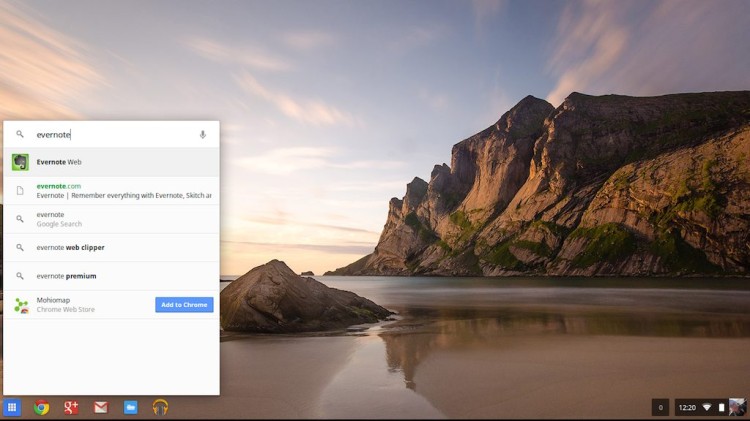
The officially recommended method is installing Evernote Web as a Progressive Web App (PWA) through Google Chrome. In Chrome, visit evernote.com, click the three-dot menu, select Save and share, and click Install Evernote. This creates a dedicated, full-screen desktop window pinned to your ChromeOS shelf with rapid loading and continuous feature updates.
Can I use Evernote offline on my Chromebook?
Evernote Web requires an active internet connection to load and sync notes. If you need offline note-taking on ChromeOS, you can enable offline caching on supported notebooks through the Android app version, or draft your ideas in Google Keep or a local text editor and paste them into Evernote once reconnected.
Does the Evernote Web Clipper extension work on ChromeOS?
Yes. The official Evernote Web Clipper Chrome extension installs directly from the Chrome Web Store on your Chromebook or Googlebook. It allows you to clip full web pages, simplified articles, research bookmarks, or screenshots directly into your chosen Evernote notebook with custom tags and highlights.
How do I cast Evernote from my phone to Googlebook?
Open the Phone Hub from the bottom-right shelf of your Googlebook and ensure your Android phone is linked. Click Cast My Apps, then select Evernote. Your active mobile note session, camera scans, or audio notes will stream inside an adaptive desktop window on your laptop display without requiring you to sign in again.
Explore more productivity and organizer guides on ChromeGeek
- How to Install and Use Microsoft To Do on Chromebook and Googlebook: Organize daily tasks, sync checklists with Outlook, and manage project deadlines on ChromeOS.
- 15 Best Productivity Extensions for Chrome: Supercharge your browser workflow with top tools for tab management, focus timers, and quick note-taking.
- How to Install and Use Cozi Family Organizer on Chromebook and Googlebook: Keep household schedules, grocery lists, and shared family calendars synchronized on your laptop.
- How to Install and Use Microsoft Copilot on Chromebook and Googlebook: Leverage generative AI assistance to summarize long notes, draft documents, and brainstorm ideas on ChromeOS.
Discover more from Chrome Geek
Subscribe to get the latest posts sent to your email.