How to Install and Use Microsoft To Do on Chromebook and Googlebook
 by
Frank Cross
Post Updated: November 2, 2026
You can install and use Microsoft To Do on Chromebook and Googlebook through the official Android app from Google Play or directly in your Google Chrome browser as a Progressive Web App. It combines an intelligent daily planner with cross-platform cloud synchronization, giving you smart task recommendations, subtask checklists, shared team lists, and seamless Microsoft 365 integration.
Googlebook and Chromebook devices run Android applications smoothly through Google Play, giving you full access to Microsoft To Do alongside convenient phone casting and desktop multitasking. This step-by-step guide walks you through the Google Play installation, Chrome PWA setup, My Day planning techniques, collaborative list sharing, Microsoft 365 Outlook bridging, and proven troubleshooting solutions.
Need help organizing your tasks or syncing with Outlook? Contact us with your device details and account setup.
How to install Microsoft To Do on Chromebook and Googlebook
Installing the official Microsoft To Do app from Google Play provides offline access, native push notifications, and quick shelf integration on your laptop:
For complete setup instructions, check out our official Android app setup guide for Chromebook and our companion guide on installing apps on Googlebook. Note that school or enterprise managed devices may require administrator permission to install external Google Play utilities or enable Android subsystems. Alternatively, you can run the zero-install web application at to-do.office.com in Google Chrome or install it as a lightweight Progressive Web App (PWA).
Master daily productivity with My Day and intelligent suggestions
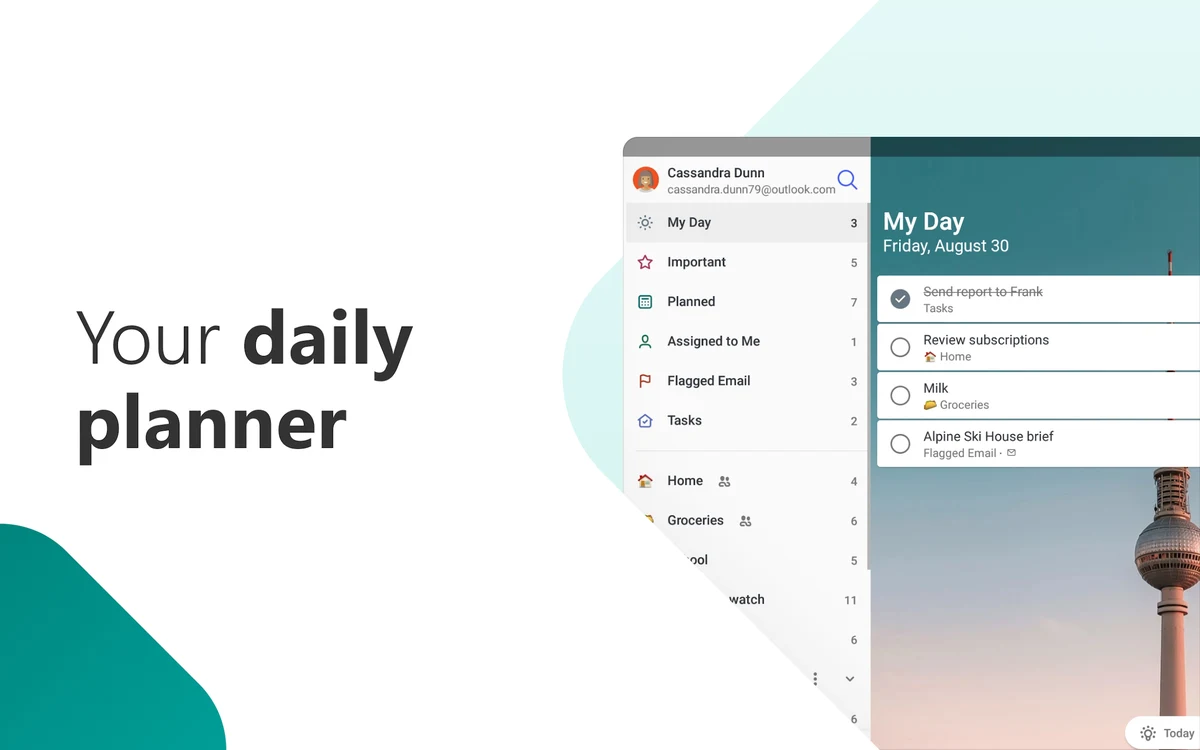
Microsoft To Do centers around My Day, a personalized daily dashboard designed to help you focus on what matters most each day. Rather than overwhelming you with an endless backlog of unfinished tasks, My Day resets to a blank slate every single morning:
Cast Microsoft To Do from your phone on Googlebook
Googlebook users can also access Microsoft To Do effortlessly through native phone hub integration. Using Cast My Apps from the Googlebook phone hub, you can wirelessly stream your phone screen and app sessions directly onto your desktop workspace without transferring files, configuring cables, or running duplicate local instances.
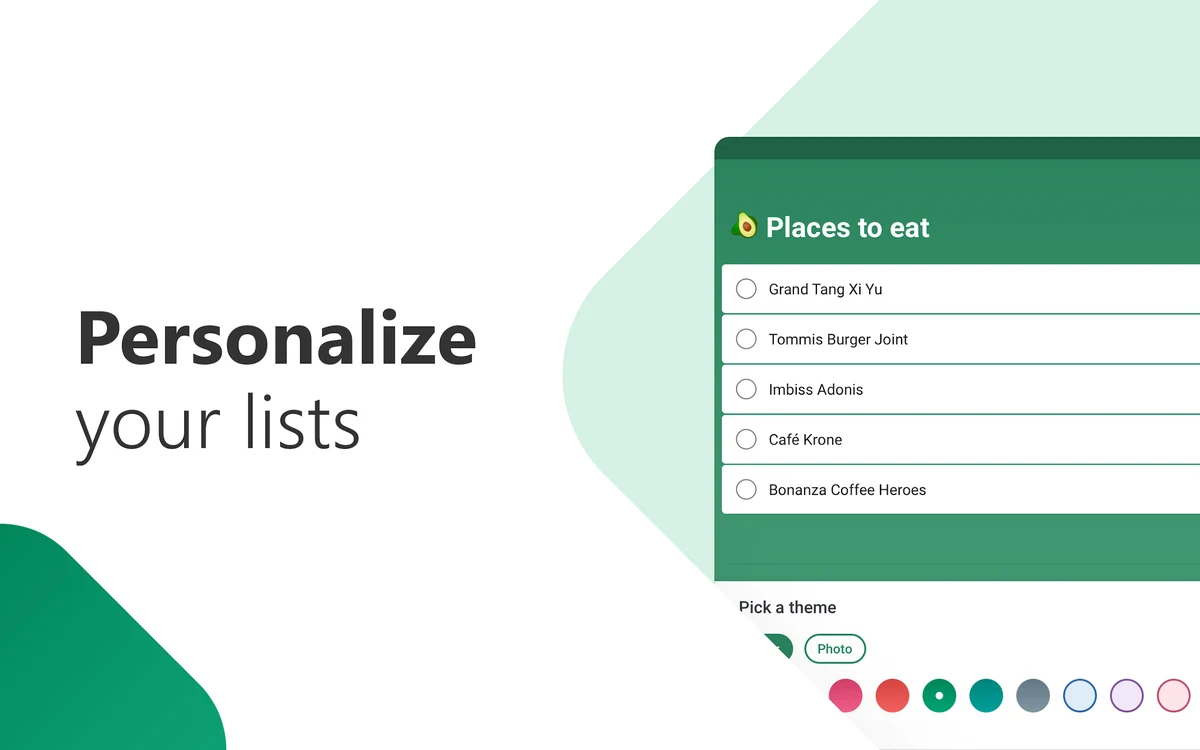
Core features: list sharing, reminders, and custom themes
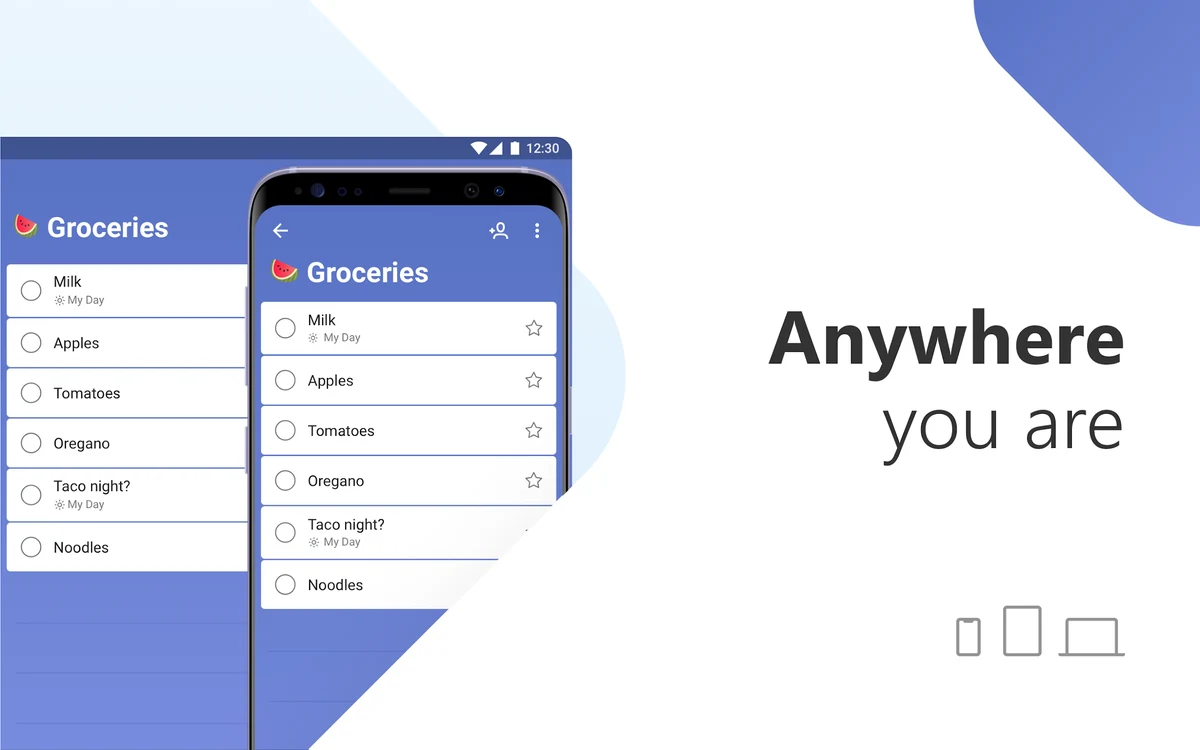
Microsoft To Do provides comprehensive productivity tools tailored for individual focus, collaborative team workflows, and domestic organization:
Seamless Microsoft 365 and Outlook integration on ChromeOS
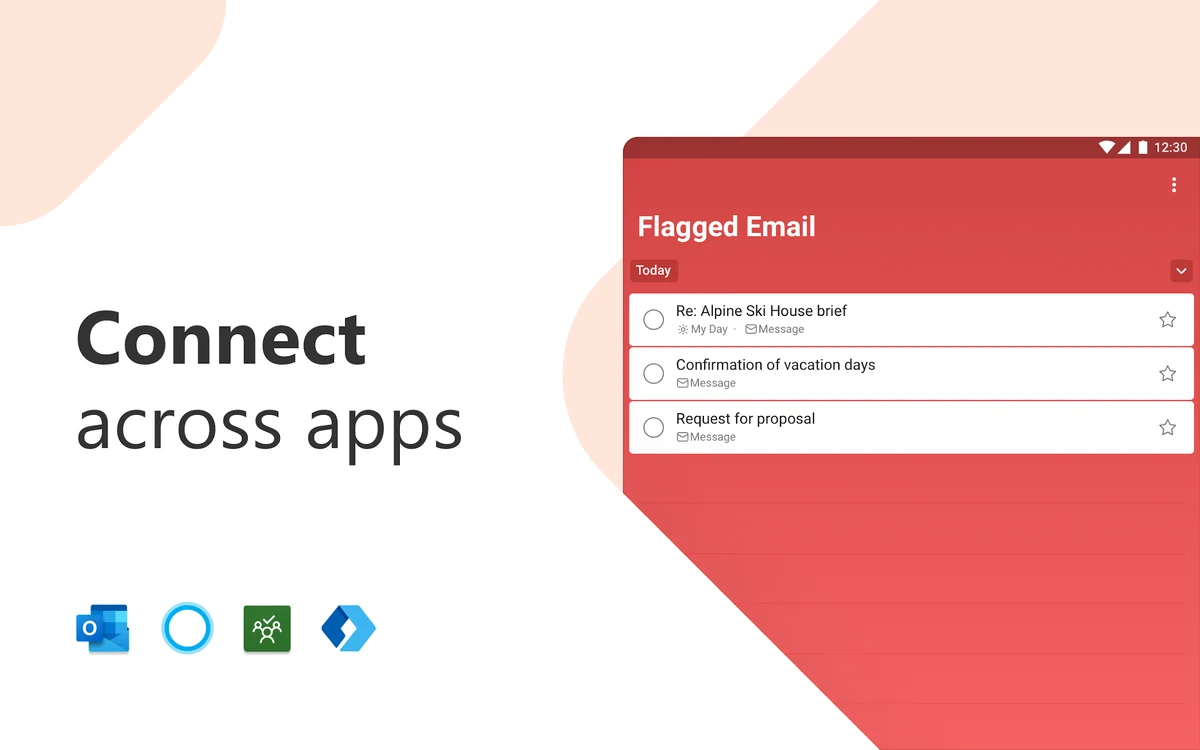
One of the most powerful advantages of Microsoft To Do is its deep, native integration across the Microsoft 365 ecosystem. If you use Outlook, Microsoft Teams, or Microsoft Planner, your tasks converge into a single centralized command center:
Microsoft To Do Android app vs. Chrome web PWA comparison
On Chromebook and Googlebook, you can run Microsoft To Do either as an Android app from Google Play or as a Progressive Web App (PWA) in Google Chrome. Here is how both options compare:
Troubleshooting common Microsoft To Do issues on ChromeOS
If you encounter syncing delays or notification glitches, these straightforward troubleshooting steps will get your planner back in order:
Frequently asked questions about Microsoft To Do on Chromebook
Is Microsoft To Do completely free to use on Chromebook and Googlebook?
Yes. Microsoft To Do is completely free with no subscriptions or in-app paywalls required. All core features (including My Day daily planning, subtask checklists, file attachments up to 25MB, smart reminders, list sharing, and cross-device cloud synchronization) are accessible with a free personal Microsoft account or an organizational Microsoft 365 work or school account.
Can I use Microsoft To Do offline on ChromeOS?
Yes. The Microsoft To Do Android app provides full offline functionality on Chromebook and Googlebook. You can review scheduled tasks, create new checklists, check off completed items, and set reminders without an active internet connection. As soon as your laptop reconnects to Wi-Fi, all local updates automatically sync to the Microsoft cloud.
How do I install Microsoft To Do as a Progressive Web App (PWA) in Chrome?
To install the PWA, open to-do.office.com in your Google Chrome browser and sign in with your Microsoft account. Click the install icon (a desktop monitor with a down arrow) on the right side of the Chrome address bar, or open the browser menu and select Save and share > Install Microsoft To Do. The PWA runs in a dedicated window and can be pinned to your ChromeOS shelf.
Why are my flagged Outlook emails not appearing in Microsoft To Do?
If flagged Outlook emails do not appear, open Microsoft To Do, click your profile avatar or the gear icon to open Settings, and scroll down to the Smart lists section. Toggle Flagged email to On. This feature requires a Microsoft account hosted on Outlook.com or Microsoft 365 Exchange; third-party IMAP or POP mailboxes inside Outlook do not sync to To Do.
Can I share and collaborate on task lists with other users?
Yes. Open any custom list you created in Microsoft To Do, click the Share icon in the top-right header, and select Create invitation link. Anyone who opens the invitation link can view, add, edit, and check off items in real time. Shared lists update instantly across Android, iOS, Windows, macOS, and web browsers.
Explore more productivity and office tools for Chromebook
Looking to build a complete productivity setup on your laptop? Discover web navigation and extension tools in our guide to Microsoft Edge on Chromebook and Googlebook, explore cross-platform note-taking in Evernote on Chromebook, and manage your cloud file backups in Dropbox on Chromebook and Googlebook. You can also handle full document editing and spreadsheets with our guide to WPS Office on Chromebook and Googlebook.
Discover more from Chrome Geek
Subscribe to get the latest posts sent to your email.