How to Install and Use WPS Office on Chromebook and Googlebook

Share

You can install and use WPS Office on Chromebook and Googlebook through the official Google Play Android app, modern web browser access, or desktop Linux. As a full-featured, lightweight office suite trusted by over 1.5 billion users worldwide, WPS Office offers comprehensive compatibility with Microsoft Word, Excel, and PowerPoint documents alongside integrated PDF editing, electronic form signing, and cloud synchronization without requiring expensive subscriptions.

Whether you are drafting university essays, calculating multi-sheet budgets, delivering executive slide presentations, or scanning paper receipts into searchable PDF files, ChromeOS and Googlebook provide seamless pathways to keep your productivity workflow moving. Our guide explains the best installation methods, phone casting workflows, multi-tab window multitasking, and proven troubleshooting steps to optimize your office experience.

Need assistance configuring font rendering or troubleshooting cloud file synchronization on your device? Contact us with your laptop details and our team will be glad to help.

Official WPS Office app icon logo

WPS Office: Complete office suite, PDF editor, and cloud workspace
Install the official WPS Office Android app from Google Play for offline editing and tablet multitasking, or create and collaborate on documents instantly in any browser via WPS Web.

Get on Google Play →Launch Web Suite →

How to install WPS Office on Chromebook and Googlebook

The most versatile and responsive way to run WPS Office on ChromeOS hardware is installing the official Android application via Google Play. It provides full offline document editing, integrates with local drive storage, and offers an optimized tablet interface with physical keyboard shortcuts:

1

Launch Google Play: Launch the Play Store from your Chromebook or Googlebook app launcher and sign in with your Google account.
2

Search for WPS Office: Type WPS Office into the search bar and select WPS Office – PDF, Word, Sheet, PPT published by WPS SOFTWARE PTE. LTD.
3

Install the application: Click Install to download the office suite. ChromeOS automatically installs the package and adds the WPS Office shortcut to your app launcher and shelf.
4

Launch and authenticate: Open WPS Office from your app shelf, grant storage permissions when prompted to enable local document saving, and sign in with your WPS, Google, or email account to sync cloud files.

If the Play Store is not visible on your screen, refer to Google’s official Android app setup guide for Chromebook and our companion guide on installing apps on Googlebook. Note that school or enterprise managed devices may restrict third-party Play Store downloads. In managed environments, you can open Chrome and navigate to drive.wps.com to create, edit, and share documents directly via the browser client without installing local software. Power users can also deploy the official 64-bit WPS Office Linux package through the ChromeOS Linux development environment.
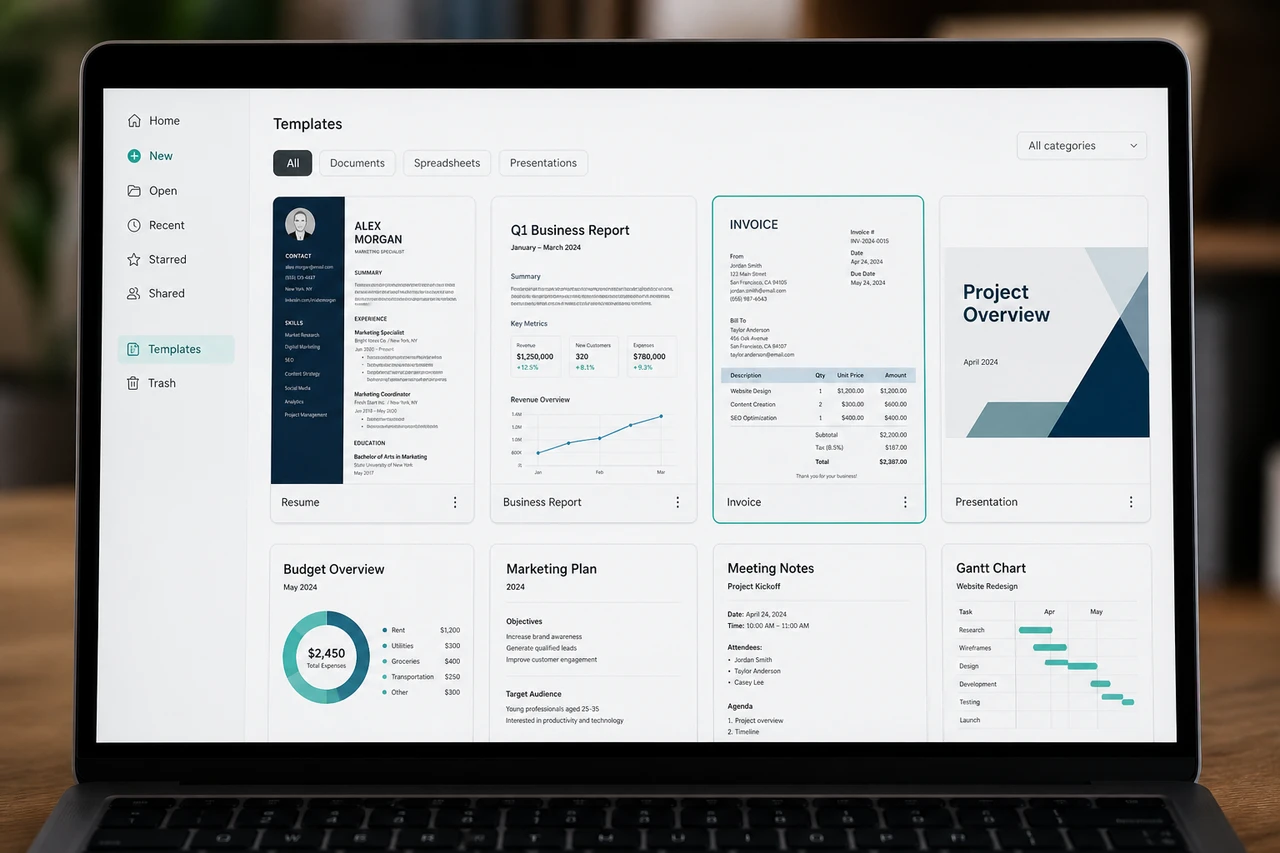
WPS Office tablet home dashboard on Chromebook displaying document templates, recent files, and cloud storage categories
Access recent documents, explore professional templates, and organize cloud storage folders from the tablet home dashboard. Official screenshot: WPS Software.

Cast WPS Office from your phone on Googlebook

Googlebook users can also access WPS Office seamlessly through native phone hub streaming. Using Cast My Apps from the Googlebook phone hub, you can wirelessly stream your phone’s active WPS Office session, review mobile document drafts, and inspect recently scanned paperwork directly on your desktop display without transferring files, configuring cables, or running duplicate local installations.
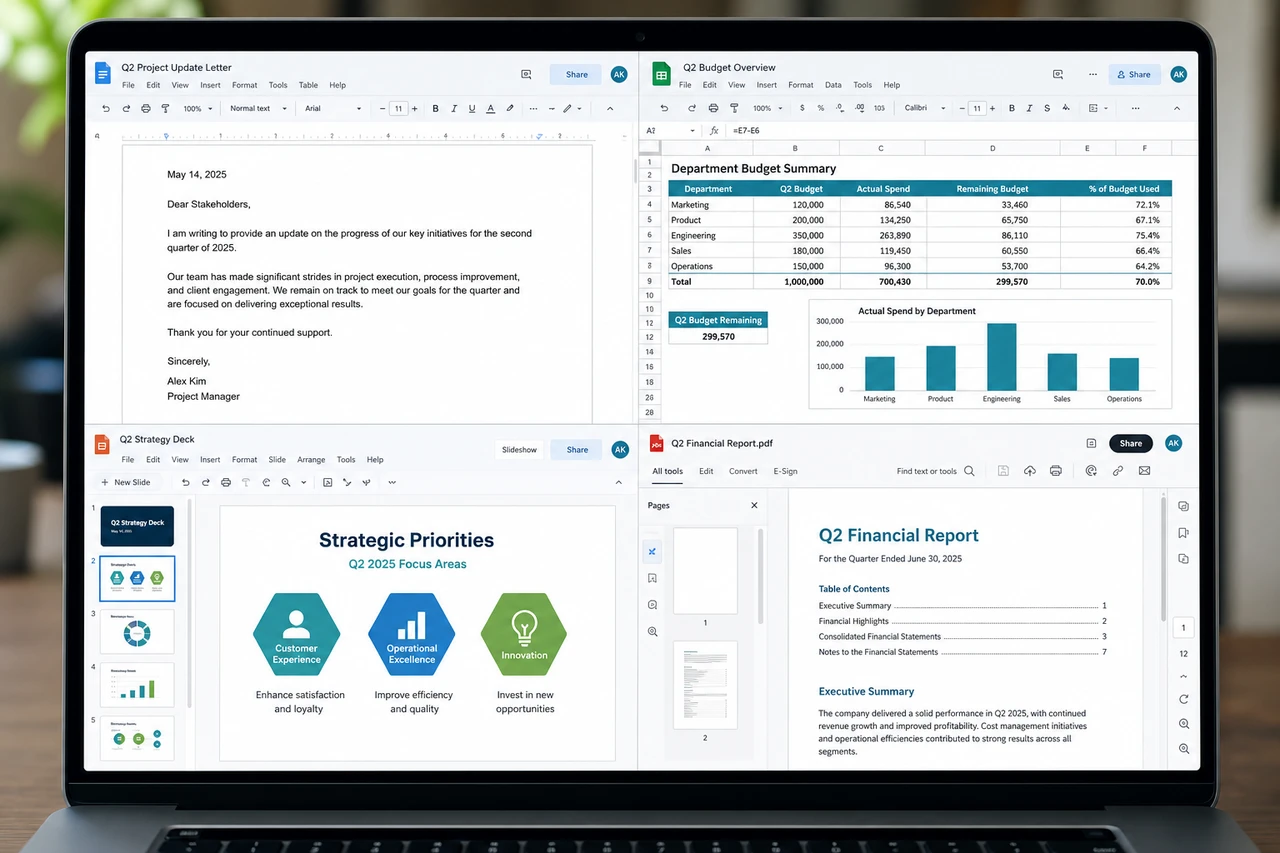
WPS Office multi-window workspace on Chromebook running Writer, Spreadsheets, Presentation, and PDF editor simultaneously
Multitask effortlessly across Writer, Spreadsheets, Presentation, and PDF documents in a synchronized desktop layout. Official screenshot: WPS Software.

WPS Writer: Word processing and Microsoft Word compatibility

WPS Writer provides a full-fledged word processing environment tailored for drafting academic papers, professional resumes, and business reports with precise formatting controls:
Native DOCX & DOC SupportOpen, edit, and save Microsoft Word files with layout fidelity. Headers, footers, footnotes, multi-column tables, and image wraps render accurately without misaligned margins.
Rich Typography & FormattingAccess comprehensive character styling, paragraph alignment, line spacing, bulleted outlines, and extensive font libraries compatible with standard Windows and ChromeOS typefaces.
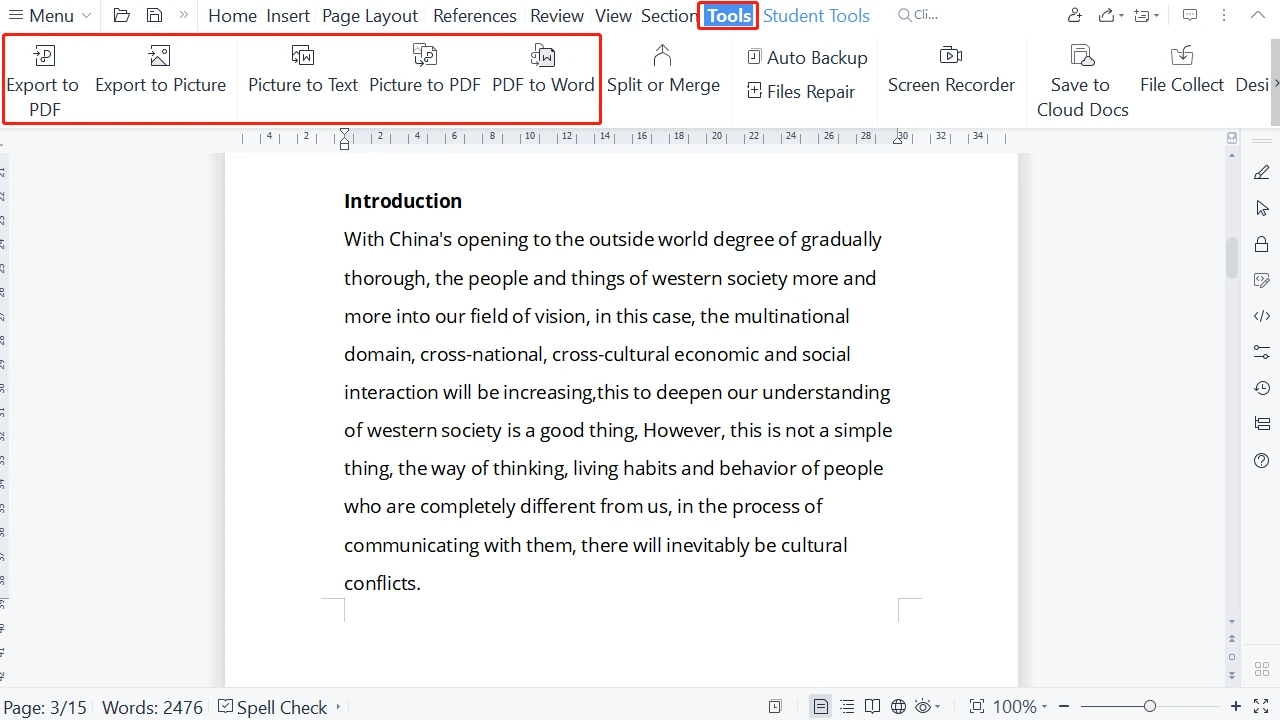
Instant PDF ConversionExport finished articles, legal agreements, and academic manuscripts into standardized PDF documents directly from the Writer menu with zero quality degradation or third-party tools.
Track Changes & CommentsCollaborate with colleagues using revision tracking, markup highlights, margin comments, and word count statistics essential for editorial reviews and collaborative writing.
WPS Office Writer word processor on Chromebook showing ribbon toolbar tabs, text formatting options, and document canvas
Draft essays and business reports with precise formatting controls, standard fonts, and Microsoft Word docx compatibility. Official screenshot: WPS Software.

WPS Spreadsheets: Data analysis, formulas, and chart visualization

WPS Spreadsheets delivers powerful calculation tools, data modeling, and visualization capabilities built for students, accountants, and business analysts:
Full Excel XLSX EngineCompute complex financial models and statistical data using hundreds of standard mathematical, logical, lookup, and financial formulas identical to Microsoft Excel.
Dynamic Visual ChartsTransform raw numbers into insightful bar charts, pie graphs, scatter plots, trend lines, and pivot tables to visualize business revenue share and quarterly performance.
Multi-Tab WorkbooksSwitch effortlessly between interconnected worksheets within a single workbook file, freezing panes and filtering column records to analyze extensive data tables.
Lightweight Resource FootprintUnlike bulky desktop spreadsheets, WPS Spreadsheets runs smoothly on entry-level Chromebooks with 4GB of RAM, maintaining fast cell scrolling and rapid calculation times.
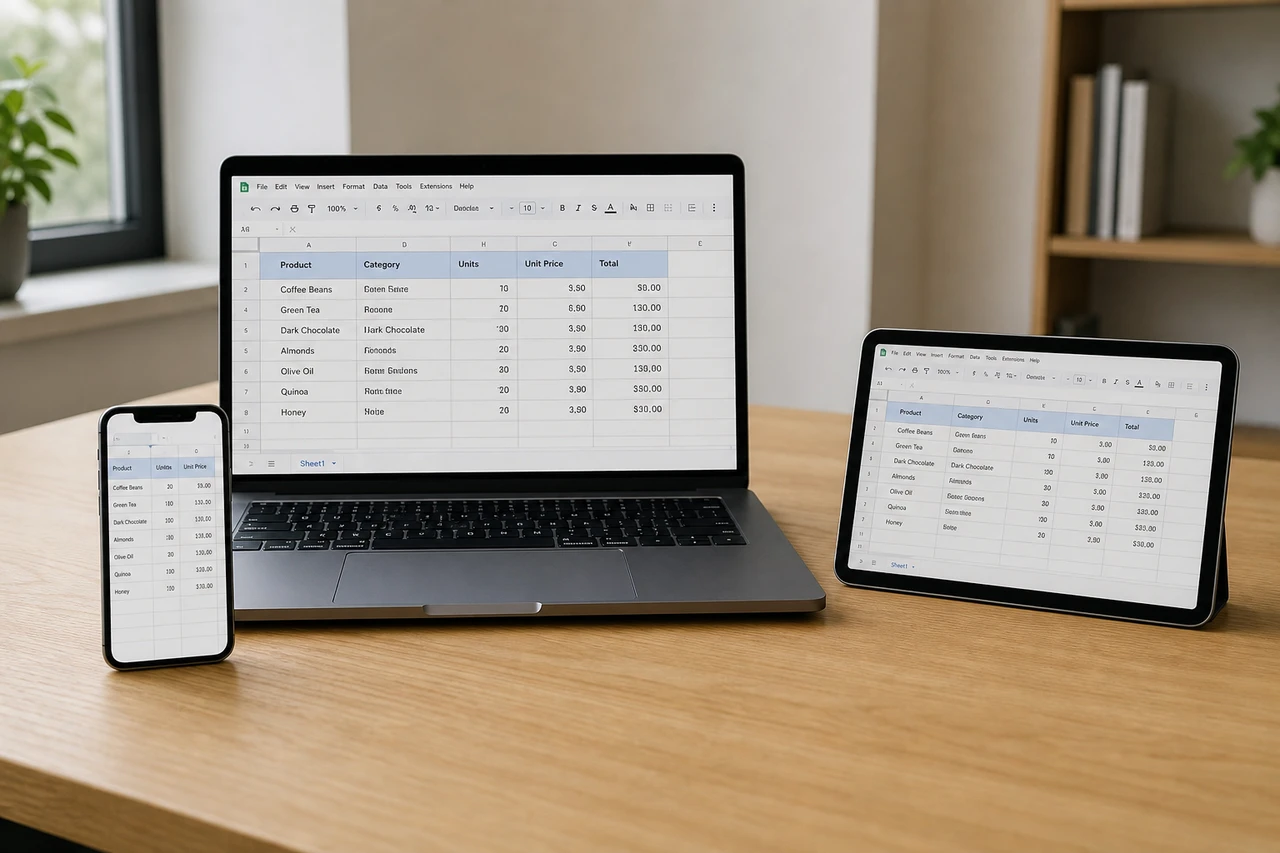
WPS Office Spreadsheets on Chromebook displaying formula calculation bar, data table columns, and multiple worksheets
Build data tables, calculate financial equations, and organize multi-sheet workbooks with full Excel compatibility. Official screenshot: WPS Software.

WPS Presentation and PDF editor: Slide decks, forms, and digital signatures

WPS Office unifies presentation design and PDF document management into a single workflow, eliminating the need for standalone slide creators or separate PDF reader software:
PowerPoint PPTX FidelityBuild dynamic slide presentations with animated transitions, shape alignments, embedded media, speaker notes, and full-screen external monitor presentation support.
Comprehensive PDF AnnotationHighlight text passages, add sticky notes, redact sensitive content, insert custom stamps, and bookmark lengthy legal contracts directly inside the native PDF workspace.
Digital Signatures & FormsSign agreements and formal sponsorship contracts with fingertip or stylus touch signatures, fill interactive PDF form fields, and export finalized contracts securely.
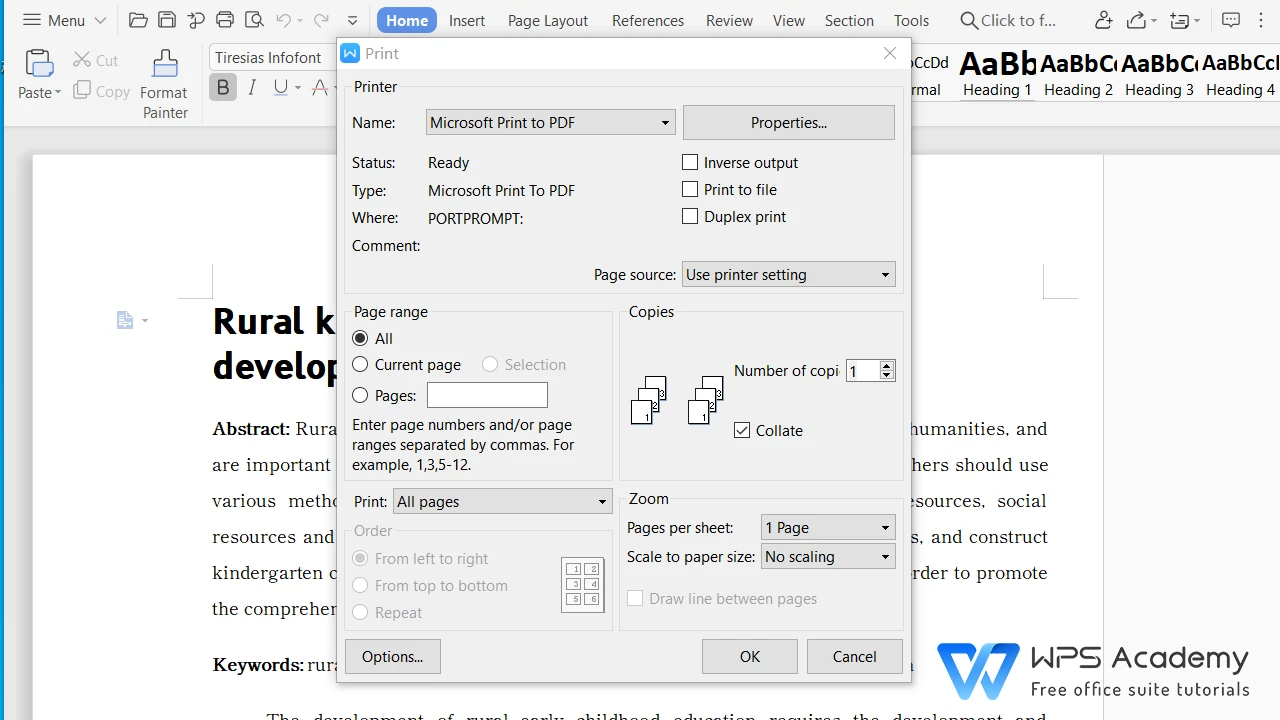
Professional Print & ExportConfigure page ranges, sheet layouts, and print dimensions cleanly before outputting hard copies or standardized PDF archives.
WPS Office print settings and document layout configuration window on Chromebook
Configure page ranges, print options, and paper orientation easily before exporting or printing finished documents. Official screenshot: WPS Software.

Install desktop WPS Office via ChromeOS Linux (Crostini)

If your Chromebook supports the ChromeOS Linux container and you prefer a traditional desktop window layout with deep Linux filesystem integration, you can install the official 64-bit Debian package:

1. Enable Linux ContainerOpen Settings > About ChromeOS > Developers and turn on the Linux development environment. Set disk size to at least 10GB.
2. Download Linux PackageVisit the official WPS Linux download page or download the Debian package in terminal:
wget https://wdl1.pcfg.cache.wpscdn.com/wpsdl/wpsoffice/download/linux/11723/wps-office_11.1.0.11723.XA_amd64.deb
3. Install via APT Package ManagerIn the Terminal app, execute the installation command to unpack the binaries and resolve dependencies:
sudo apt install ./wps-office_*.deb -y
4. Launch Desktop SuiteWPS Writer, Spreadsheets, and Presentation shortcuts will appear in your ChromeOS app drawer under the Linux apps folder ready to launch.

WPS Office Android app vs. Web suite vs. Desktop Linux

Choose the ideal WPS Office implementation based on your device specifications and workflow requirements:

Feature WPS Android App (Recommended) WPS Web (drive.wps.com) WPS Desktop Linux (Crostini)
Installation Required Google Play Store (~90MB) Zero Installation Debian Package via Crostini
Full Offline Document Editing Supported (Local Storage) Requires Active Connection Full Offline Storage
PDF Form Filling & Signatures Touch & Stylus Signing Basic PDF Viewing Full PDF Tools
Document Camera Scanner (OCR) Fully Supported Not Available Not Available
System RAM Consumption Moderate (~220MB) Low (~160MB browser tab) High (~650MB+ container)
Phone Hub Casting Supported (Cast My Apps) Not Applicable Not Applicable

Troubleshooting common WPS Office issues on ChromeOS

If you experience unexpected behavior, window layout problems, or cloud synchronization errors, apply these tested fixes:

School Administrator Blocks Google PlayMany managed Chromebooks issued by schools and enterprises restrict third-party Play Store downloads. Open Google Chrome and visit drive.wps.com to create, edit, and export documents directly through the web platform without requiring administrator privileges.
App Window Scaling and Header SizingIf WPS Office opens in a narrow phone aspect ratio, click the window pill dropdown centered at the top of the app window and select Tablet or Resizable. This expands toolbars and side navigation panels into a full widescreen layout.
Document Font Substitution or Missing FontsIf a Word document appears with altered line breaks due to missing Microsoft fonts (such as Calibri, Cambria, or Times New Roman), save the file with ‘Embed TrueType fonts’ enabled from your PC, or use standard web fonts provided by WPS Office.
Cloud Sync Pausing When App is MinimizedAndroid apps on ChromeOS enter sleep mode when sent to the background. Open ChromeOS Settings > Apps > Manage your apps > WPS Office > Battery and choose Unrestricted so cloud auto-sync runs continuously in the background.

Frequently asked questions about WPS Office on Chromebook

Can I use WPS Office completely offline on Chromebook?

Yes. When you install the WPS Office Android application from the Google Play Store, you can create, open, edit, and save Word documents, Excel spreadsheets, PowerPoint slides, and PDF files without any active internet connection. All changes are stored safely on your local device and sync automatically to the cloud once you reconnect to Wi-Fi.

Is WPS Office free to use on Chromebook and Googlebook?

Yes. WPS Office provides a generous free version that includes full editing capabilities for Writer, Spreadsheets, Presentation, and built-in PDF viewing. An optional WPS Pro subscription removes in-app advertisements and unlocks advanced features like PDF page splitting, optical character recognition (OCR) conversion, and cloud storage expansion.

How do I use WPS Office if my school or work Chromebook blocks Google Play?

If your educational institution or employer has disabled the Google Play Store, you can access the full WPS Office suite through your Chrome browser by visiting drive.wps.com. The web platform requires zero installation, lets you edit documents collaboratively in real time, and saves your files directly to WPS Cloud or Google Drive.

Can WPS Office open and save native Microsoft Office files?

Yes. WPS Office offers comprehensive backward and forward compatibility with Microsoft Office formats, including DOCX, DOC, XLSX, XLS, PPTX, and PPT. Document formatting, tables, formula calculations, and slide animations remain intact when sharing files back and forth with Microsoft 365 users.

How do I cast WPS Office from my phone to a Googlebook?

Connect your Android phone to your Googlebook using the built-in phone hub. From the Googlebook taskbar, open the phone hub menu, select ‘Cast My Apps’, and click WPS Office. This streams your active mobile document session directly to your laptop display, letting you continue drafting and reviewing files using your physical keyboard and touchpad.

Explore more office and productivity tools on Chromebook

Looking to expand your office workflow across ChromeOS? If you collaborate frequently with Microsoft 365 environments, explore our companion guides to Microsoft Word on Chromebook, Microsoft Excel on Chromebook, and Microsoft PowerPoint on Chromebook. To coordinate project deadlines and daily checklists alongside your documents, you can also set up Microsoft To Do on Chromebook.


Discover more from Chrome Geek

Subscribe to get the latest posts sent to your email.

I have a passion for dogs, food, and cars, and I also have a deep interest in Chromebooks and cloud gaming/servers. I'm usually the first one in our office to try out new apps or games so if there is a trend, I am usually the first one to try things, good or bad lol. If you need help with your Chromebook or Chrome browser, you can send me an email at [email protected]