How to Install and Use Microsoft Edge on Chromebook and Googlebook
 by
Frank Cross
Post Updated: November 2, 2026
You can install and use Microsoft Edge on Chromebook and Googlebook through the official app from Google Play or as a 64-bit desktop Linux package. It delivers Chromium-based speed, built-in Copilot AI search, curated mobile extensions, and secure cross-platform synchronization with your Windows or Microsoft account.
Googlebook runs Android apps natively through Google Play, giving you the same dependable browsing experience alongside phone-app casting. This comprehensive guide walks you through the Google Play installation, desktop Linux setup, Copilot webpage summarization, extension management, and privacy tracking prevention.
Need assistance configuring your browser? Contact us with your device model and setup questions.
Choose the right Microsoft Edge setup for your workflow
Because Microsoft Edge is built on the same Chromium open-source engine as Google Chrome, web standards render identically across both browsers. Choosing Edge provides specialized productivity features like side-by-side Copilot assistance, built-in tracking prevention, and automated Microsoft Rewards without sacrificing web speed.
How to install Microsoft Edge on Chromebook and Googlebook
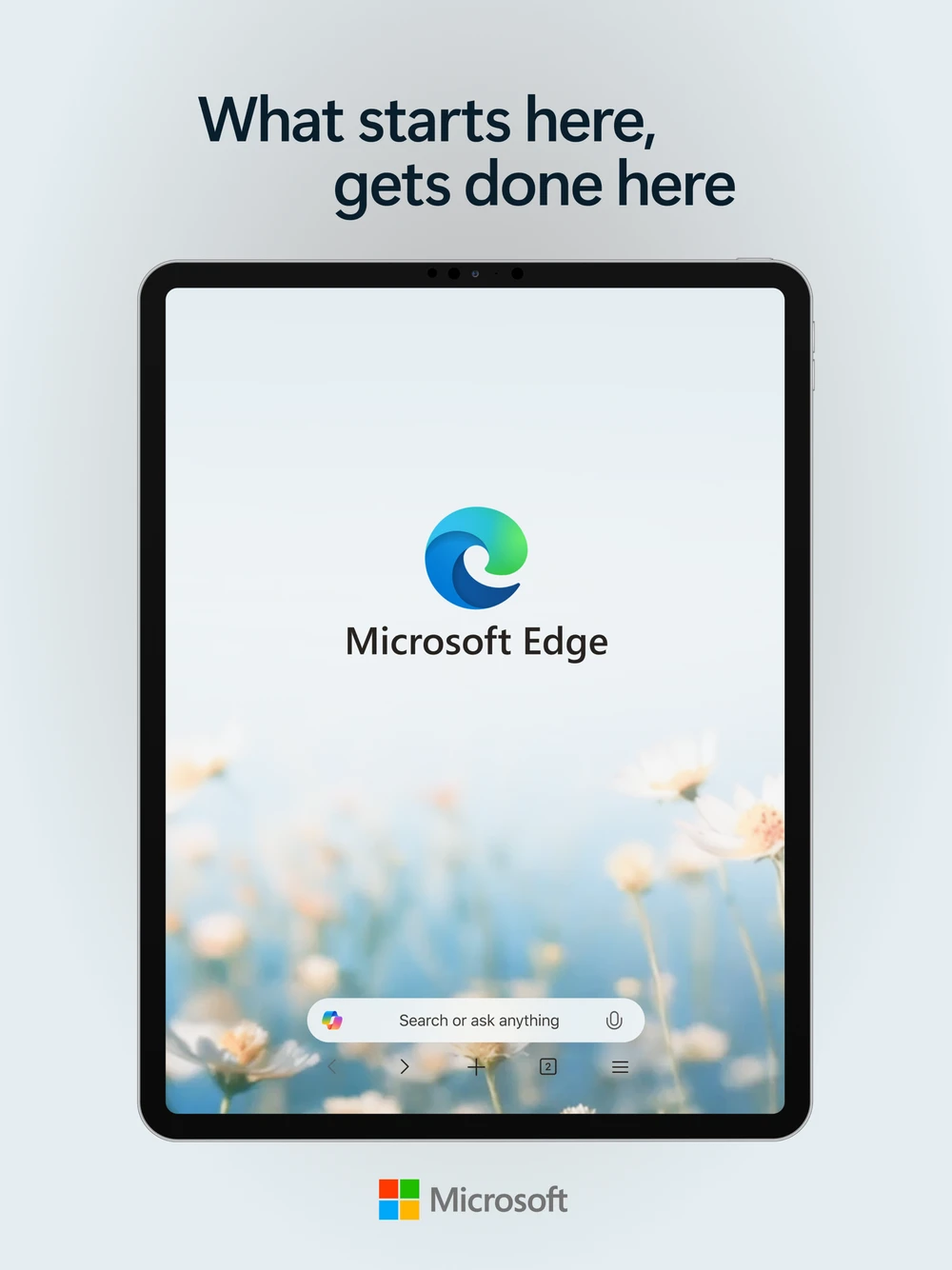
com.microsoft.emmx). Avoid third-party repackaged browsers.If the Play Store is not visible, check Google’s Android app setup guide for Chromebook or the guide on installing apps on Googlebook. On school or workplace laptops, administrator controls may manage app installations. Advanced users who need the full desktop browser experience can download the 64-bit Debian package (microsoft-edge-stable_amd64.deb) from Microsoft and install it via the ChromeOS Linux development environment (Crostini).
Cast Microsoft Edge from your phone on Googlebook
If you already browse with Microsoft Edge on your Android phone, Googlebook’s Cast My Apps feature lets you stream your active mobile browser directly on your laptop screen. Connect your phone through the Googlebook phone hub in device settings, open Cast My Apps, and select Microsoft Edge. This allows you to continue active browsing sessions, view open mobile tabs, and access saved website credentials on a larger display without transferring files or signing into new accounts.
Browse smarter with built-in Copilot AI
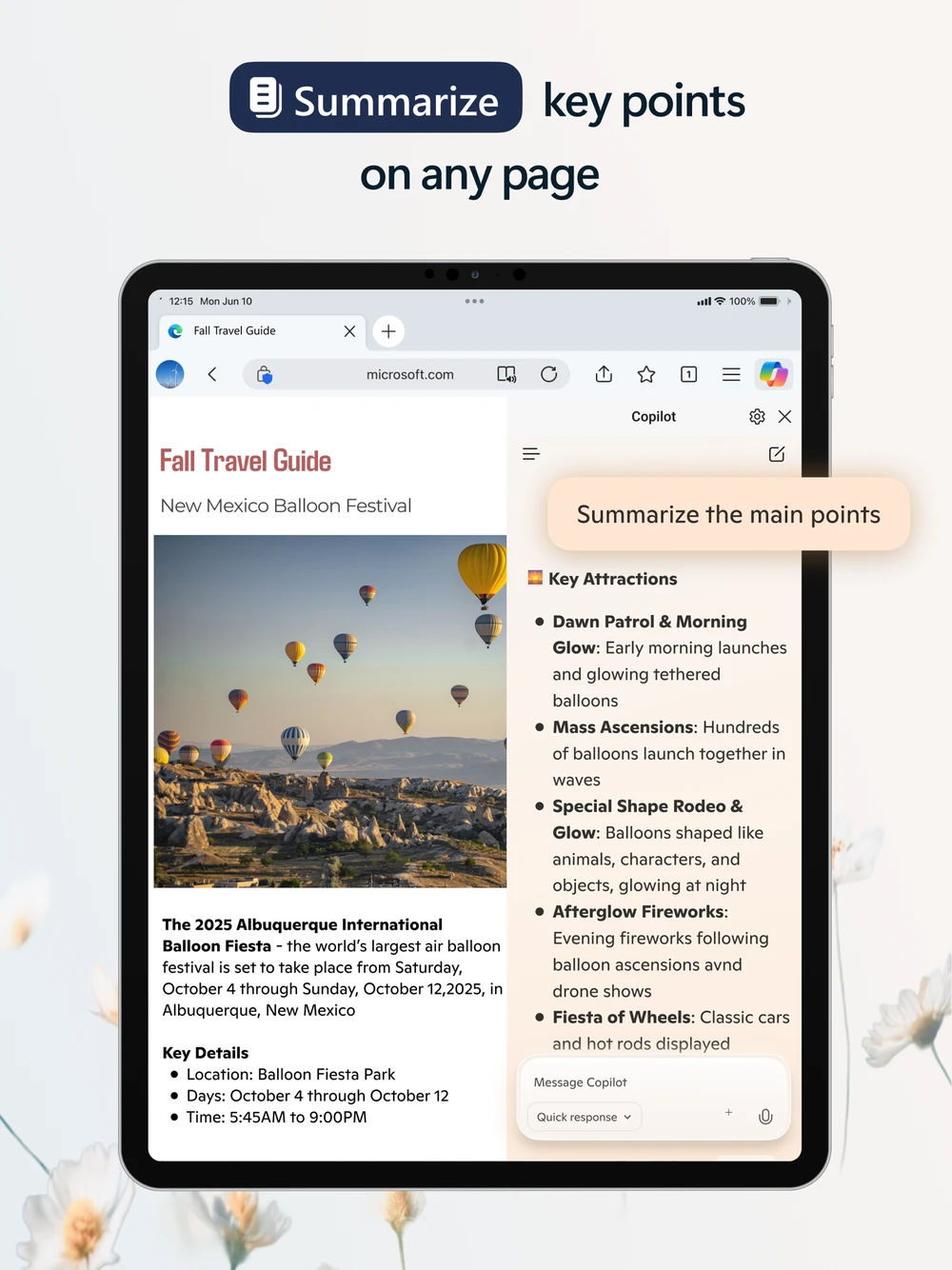
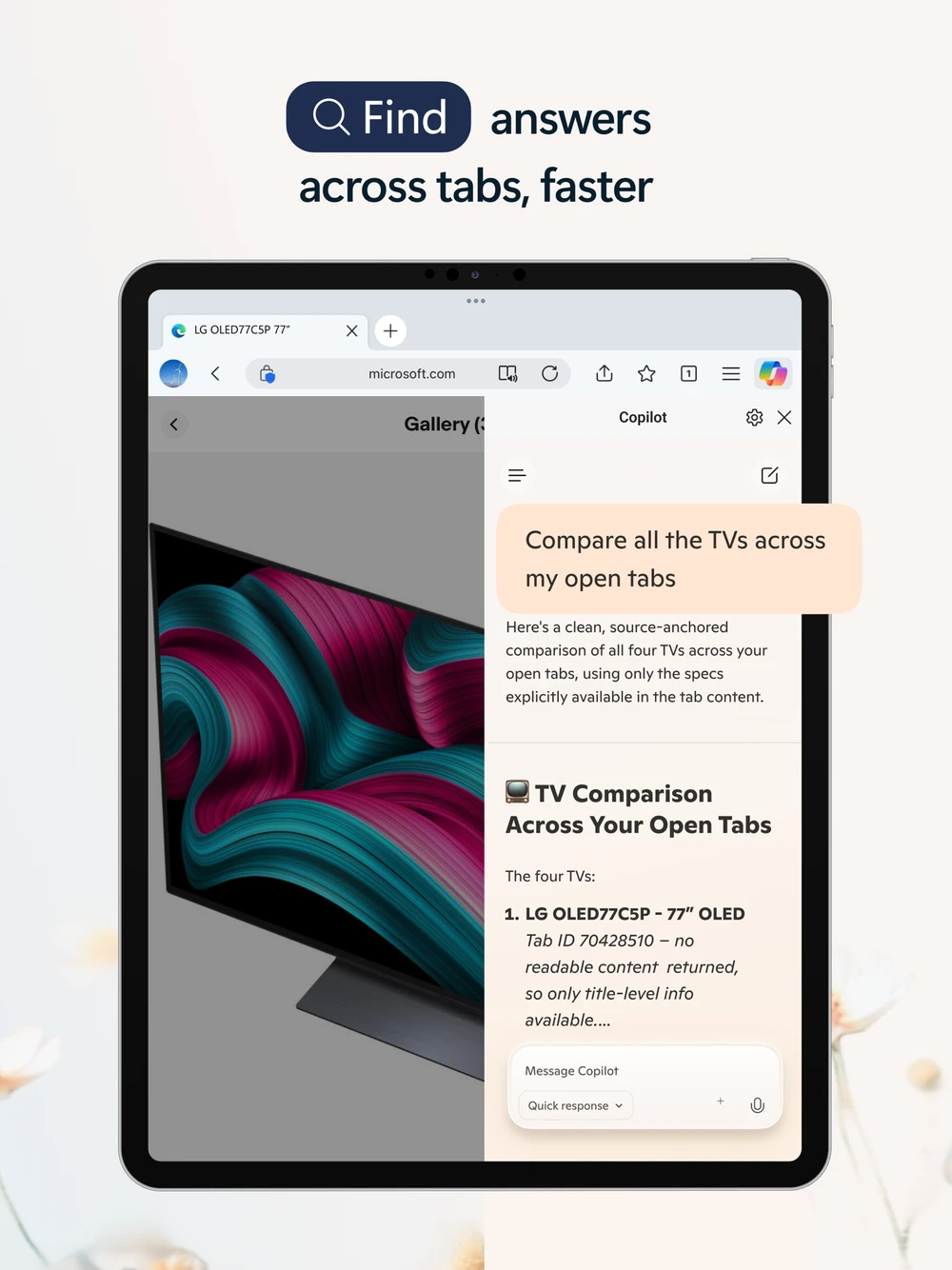
Microsoft Edge integrates Copilot directly into the browsing window, turning your browser into an active research assistant. Rather than opening separate AI tools in background tabs, Copilot analyzes the web page currently in front of you:
- Article Summarization: Tap the Copilot button to generate concise bullet-point summaries of long articles, news reports, or research documentation in seconds.
- Contextual Q&A: Ask specific questions about complex web pages, extract key data tables, or generate explanations for technical terminology.
- Multi-Tab Comparisons: Ask Copilot to compare product specifications, prices, or hotel amenities across multiple open tabs simultaneously.
- Content Drafting: Compose polished emails, outline presentations, or draft blog comments directly from the browser sidebar.
Install and manage extensions in Microsoft Edge
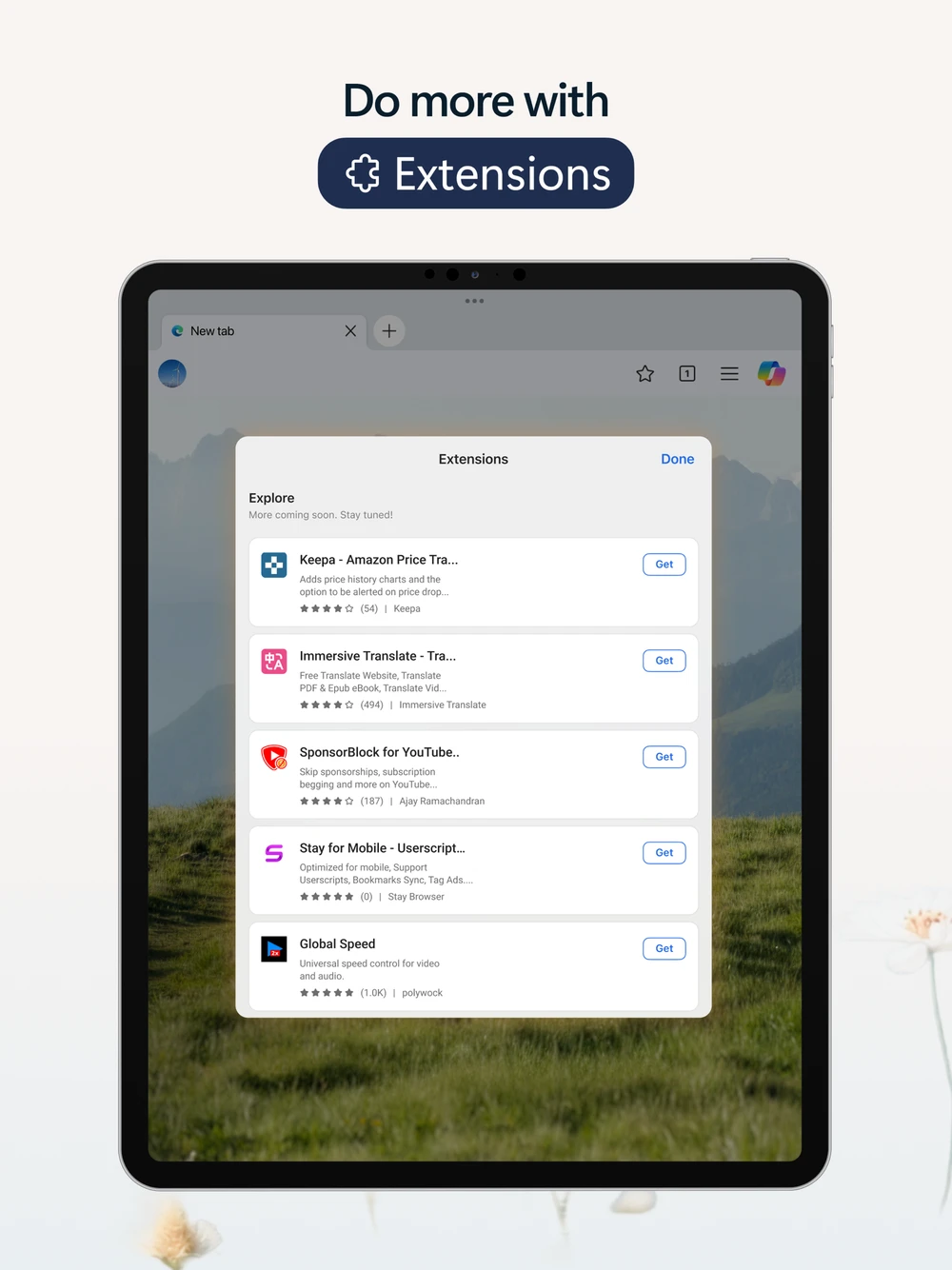
One of Microsoft Edge’s greatest advantages on mobile and tablet interfaces is its built-in extension support. Unlike mobile Chrome, which disables browser extensions completely, Edge includes an integrated extensions manager:
- Dark Reader: Invert bright web pages into eye-friendly high-contrast dark mode across all websites.
- Keepa and Coupert: Automatically track Amazon price histories, discover hidden coupon codes, and maximize shopping discounts.
- Tampermonkey: Run custom user scripts to modify web page layouts and automate repetitive web tasks.
- Ad Blockers: Block intrusive banner ads, video promotions, and pop-ups for cleaner reading.
To manage extensions, tap the three-dot menu icon in Edge, select Extensions, and toggle your desired add-ons. If you require unrestricted access to every desktop Chrome Web Store extension, install the desktop Linux version of Edge through the ChromeOS Linux environment.
Configure tracking prevention and private browsing
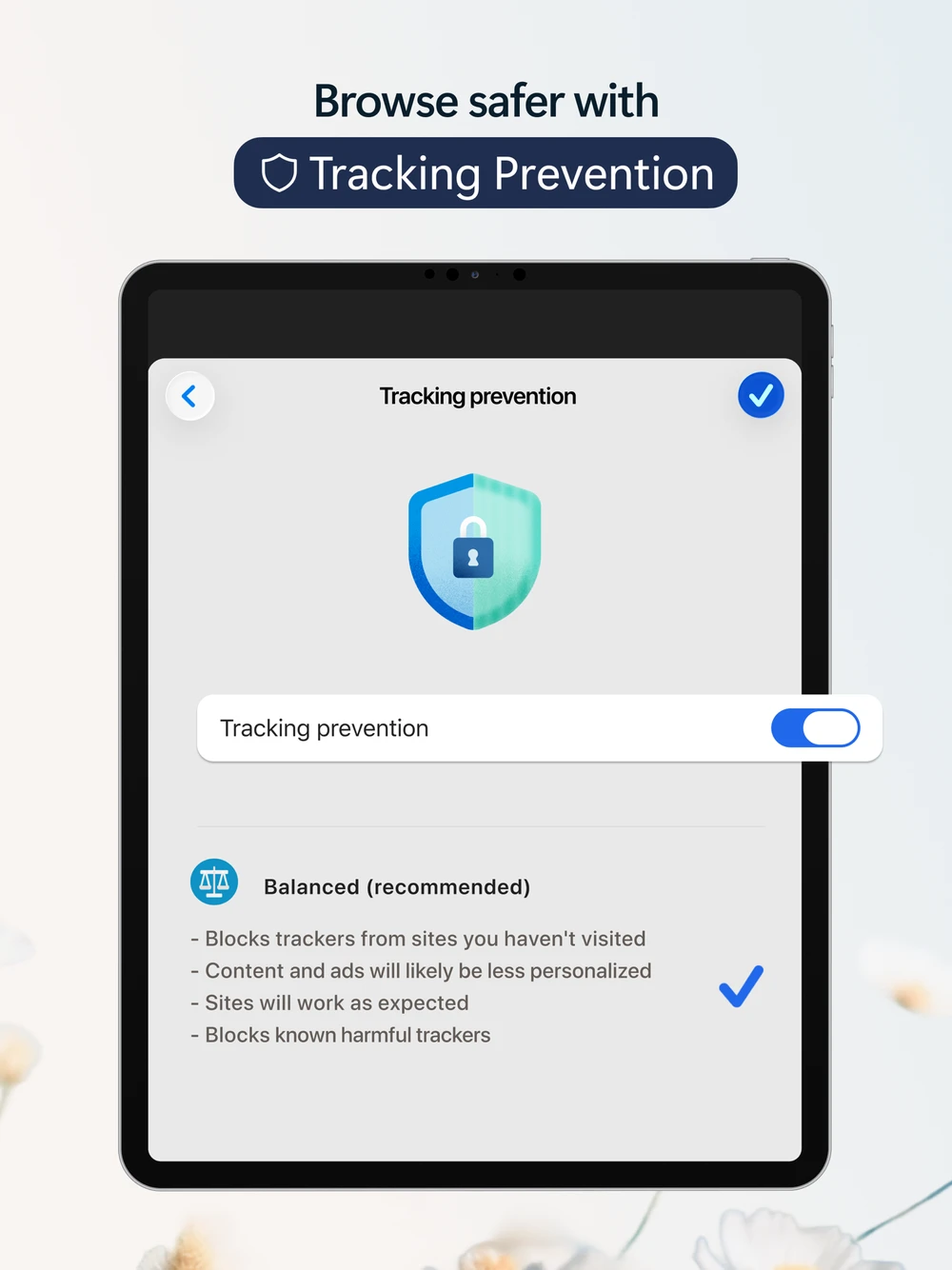
Microsoft Edge prioritizes user privacy with granular controls designed to stop websites from profiling your browsing habits across the web:
For temporary private browsing, select New InPrivate tab from the menu. InPrivate mode automatically purges your browsing history, cookies, and temporary site data the moment you close your private tabs. Additionally, Microsoft Defender SmartScreen scans downloaded files and warns you against deceptive phishing websites in real time.
Quick fixes for common Microsoft Edge issues
- Edge opens in a narrow phone window: Click the maximize button in the window title bar, or drag the window borders to expand the app into a full-width desktop view.
- Bookmarks or passwords fail to sync: Open Settings > Accounts, tap your profile, and verify that Sync is switched On. Re-enter your Microsoft password if an authentication prompt appears.
- High memory usage on low-RAM laptops: Open Edge settings, navigate to System and performance, and enable Sleeping Tabs to automatically put inactive background tabs to sleep.
- Linux .deb installation errors: Open the Terminal app in ChromeOS and run
sudo apt update && sudo apt upgrade -yto ensure your Debian container is up to date before installing the package.
Explore more browser and productivity tools
Looking to optimize your browsing and workstation productivity on ChromeOS? Discover alternative Chromium-powered engines in our roundup of the Best Browsers for Chromebook, block aggressive trackers and third-party advertising with Brave Browser on Chromebook, and manage customized workspaces with Opera Browser on Chromebook. You can also connect to remote computers and access desktop files seamlessly using Chrome Remote Desktop on Chromebook.
Frequently asked questions
Is Microsoft Edge free to install and use on Chromebook and Googlebook?
Can I install extensions in Microsoft Edge on ChromeOS?
What is the difference between the Google Play app and the Linux version of Edge?
Does Microsoft Edge Copilot AI work on Chromebook and Googlebook?
Can I sync bookmarks and passwords from Windows to Edge on ChromeOS?
Discover more from Chrome Geek
Subscribe to get the latest posts sent to your email.