How to Install and Use Chrome Remote Desktop on Chromebook and Googlebook
 by
Frank Cross
Post Updated: October 28, 2026
You can install and use Chrome Remote Desktop on Chromebook and Googlebook through the official Android app from Google Play or directly via the web platform at remotedesktop.google.com. It delivers seamless, encrypted remote access to Windows PCs, macOS workstations, and Linux machines directly from your lightweight ChromeOS laptop.
Googlebook supports Android applications natively through Google Play and introduces cross-device phone app casting, giving you multiple ways to monitor home servers, troubleshoot family devices, or access office files on the go. This complete guide walks you through setting up unattended remote access, generating secure screen-sharing codes, optimizing display scaling, and applying proven troubleshooting fixes.
Have questions about setting up remote access? Contact us with your laptop model and host operating system details.
How to install Chrome Remote Desktop on Chromebook and Googlebook
Installing the official Chrome Remote Desktop application via Google Play provides a dedicated touch-friendly interface for connecting to remote hosts:
The official Google Play listing identifies Chrome Remote Desktop under the package identifier com.google.chromeremotedesktop. Installing the Android application ensures automatic background updates and simple touch-mode navigation.
If the Play Store is not active on your device, check Google’s Android app setup guide for Chromebook or the guide on installing apps on Googlebook. On school or workplace laptops, administrator policies may manage or restrict app downloads. While Linux containers can run Debian client tools, you can always navigate directly to remotedesktop.google.com in Google Chrome to connect or share screens immediately without installing extra software.
Cast Chrome Remote Desktop from your phone on Googlebook
If your Android phone is already authenticated with your personal computers, office servers, and remote support pin codes, Googlebook’s Cast My Apps feature lets you stream your phone’s app directly onto your laptop display. Open the Phone Hub in the bottom-right corner of your Googlebook shelf, click Cast My Apps, and select Chrome Remote Desktop. Your phone’s active remote session opens immediately in an adaptive desktop window, allowing you to manage machines and interact with remote screens without re-entering PINs or reconfiguring connection profiles.
Chrome Remote Desktop Web vs. Android app: choosing your ideal ChromeOS setup
On Chromebooks and Googlebooks, you can choose between running the Google Play Android app, streaming via the web platform, or creating a standalone Chrome PWA. Each option provides distinct advantages depending on your workflow:
Setting up unattended remote access to Windows, Mac, and Linux
To control another computer from your Chromebook at any time, configure unattended remote access on your host machine:
- Download the host service: on the computer you want to control (Windows, macOS, or Linux), open Google Chrome, navigate to
remotedesktop.google.com/access, and click the blue download arrow under Set up remote access. - Install the host package: run the downloaded installer (
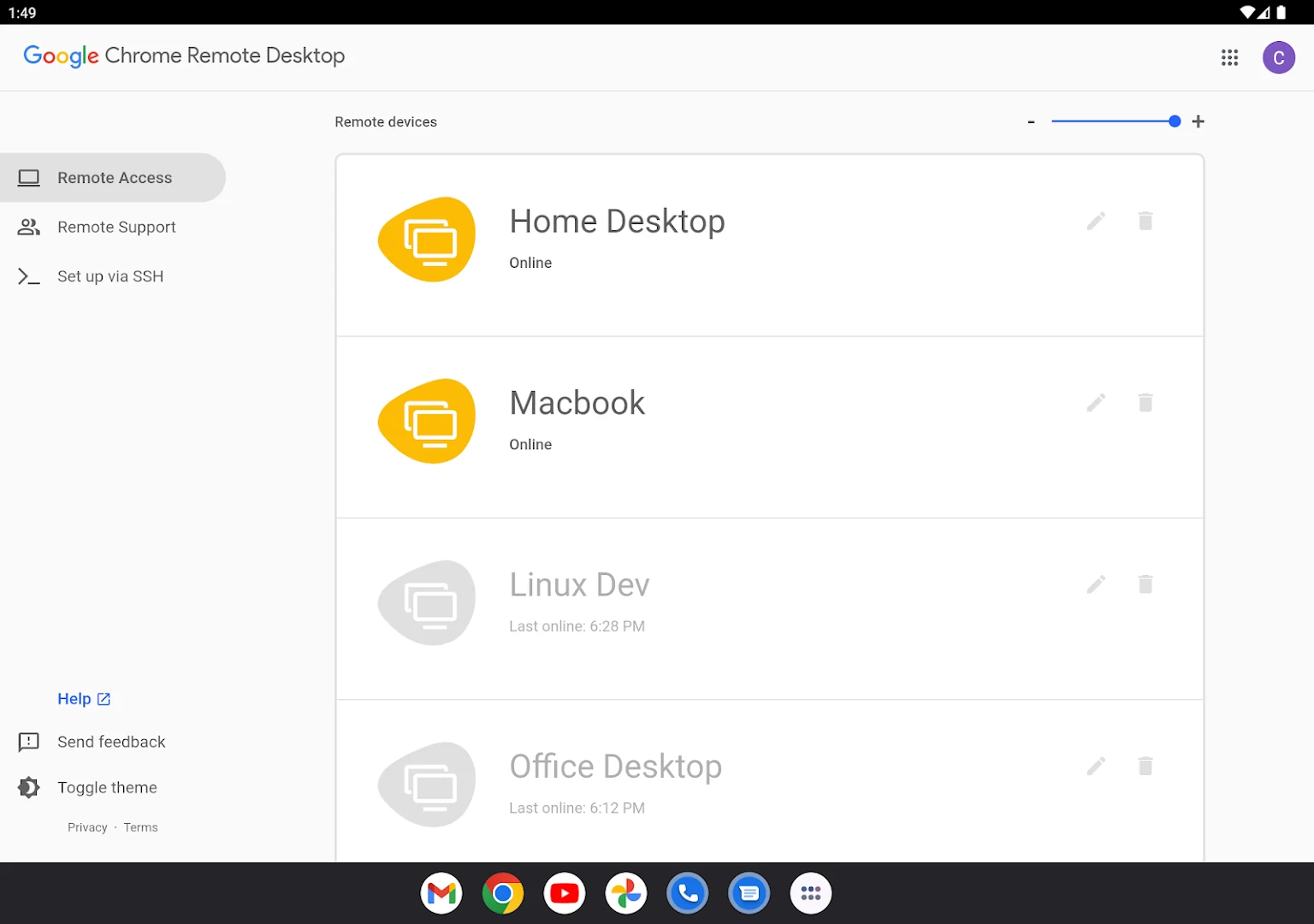
.msion Windows,.dmgon macOS, or.debon Linux/Debian). This registers a lightweight background service that runs automatically whenever the host machine is powered on. - Name your computer and choose a PIN: enter a recognizable device name (such as “Home Desktop” or “Office PC”) and set a confidential PIN with at least six digits. You will enter this PIN whenever connecting from your Chromebook.
- Grant host permissions: on macOS and Windows, grant required system accessibility and screen recording permissions when prompted so the service can relay keyboard and mouse events.
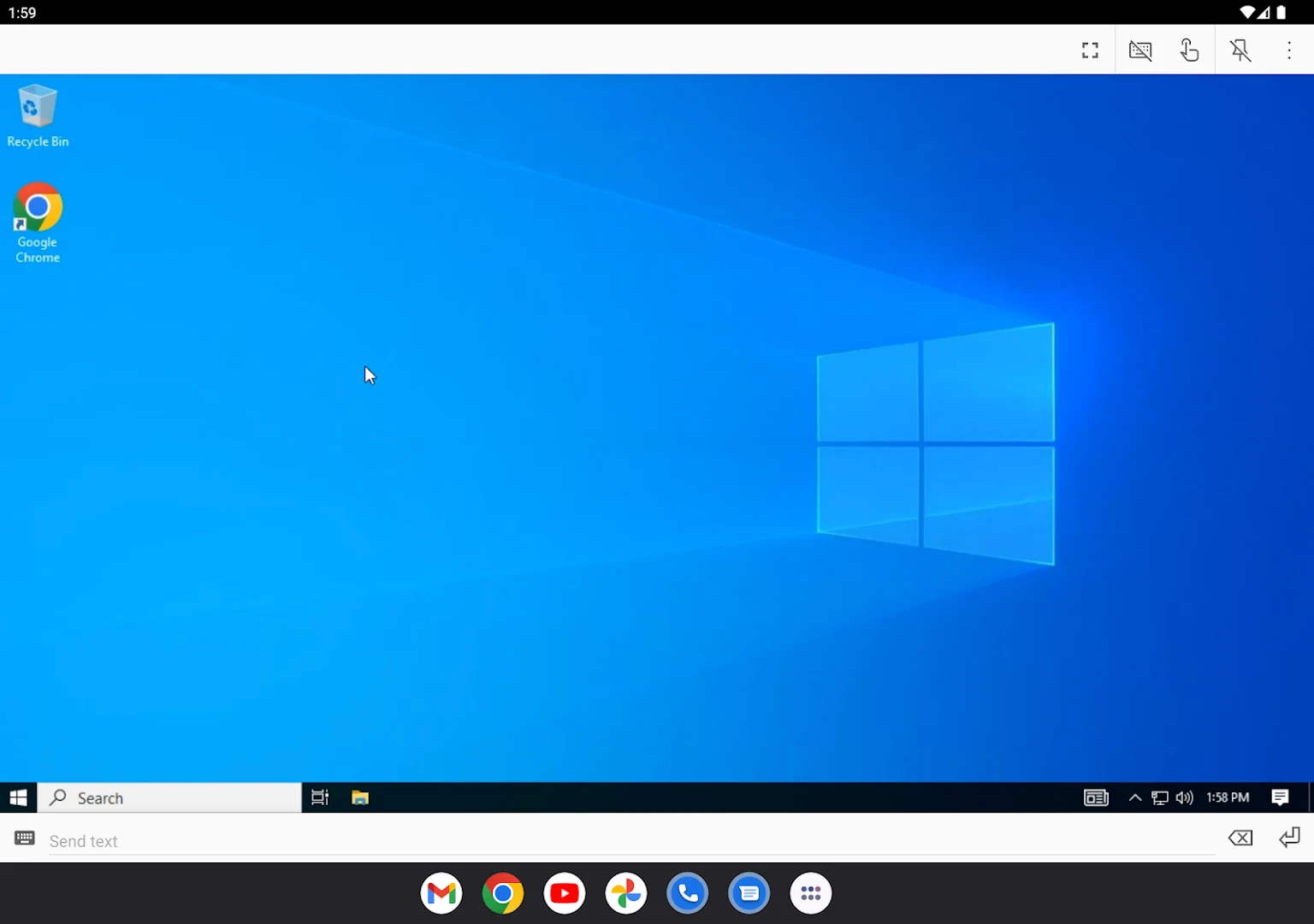
- Connect from ChromeOS: open Chrome Remote Desktop on your Chromebook or Googlebook. Your host computer will appear under Remote devices with an “Online” status. Click its name, enter your 6-digit PIN, and your remote desktop appears immediately.
Remote Support: sharing screens and providing technical assistance
Chrome Remote Desktop also includes a dedicated Remote Support tool designed for one-time screen sharing and technical support without sharing permanent PINs:
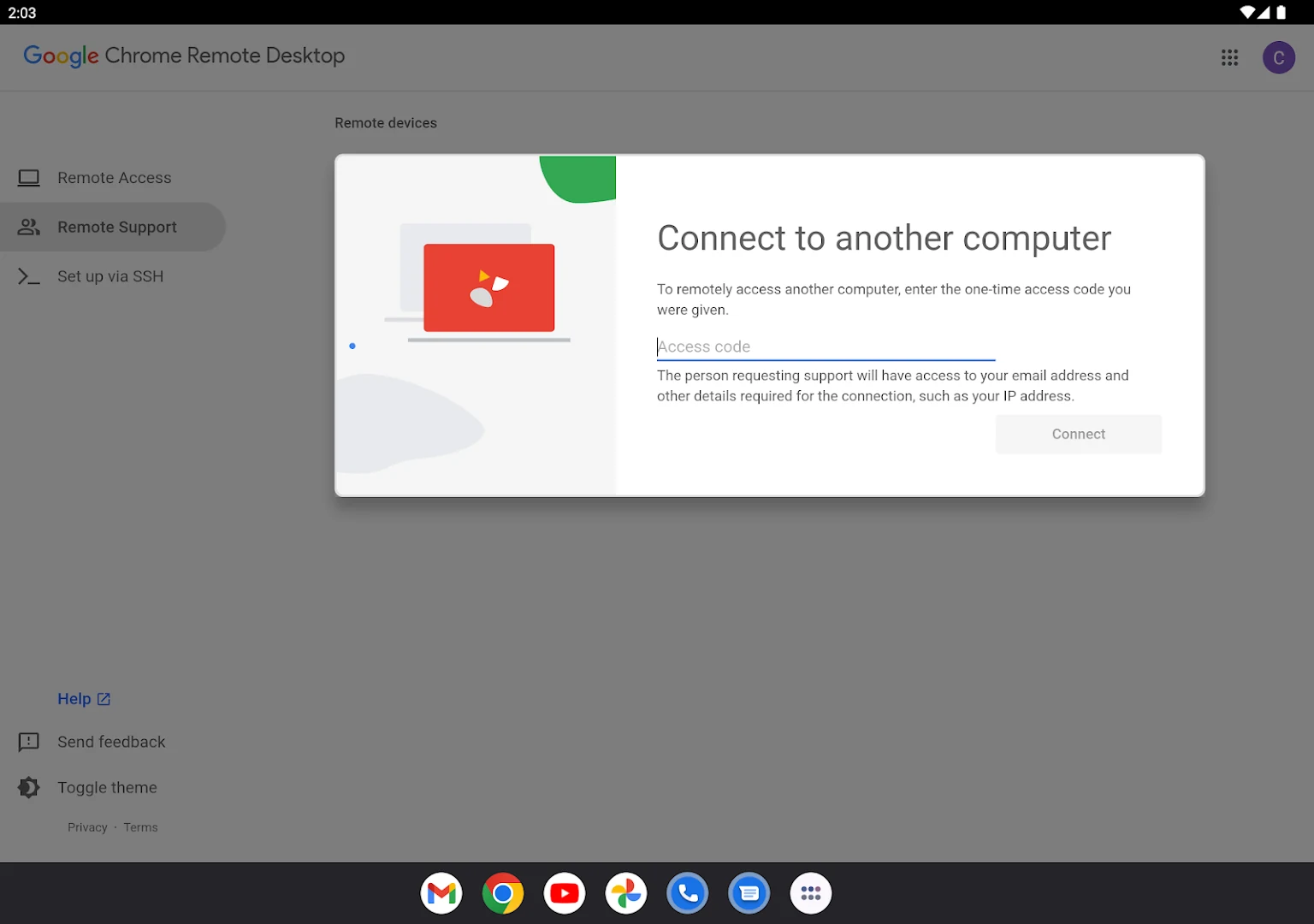
- Generate a one-time access code: navigate to the Remote Support tab at
remotedesktop.google.com/support. Under “Share this screen”, click Generate Code. Google generates a temporary 12-digit code valid for 5 minutes. - Give support from Chromebook: if a colleague, family member, or friend needs assistance, ask for their 12-digit code. In your Chrome Remote Desktop dashboard under “Give Support”, enter their code and click Connect.
- Secure user authorization: the remote user receives a pop-up showing your Google account email address. Once they click Share, you have full view and interactive control over their screen.
- Session termination control: the host user can click Stop Sharing at any second from a floating toolbar, immediately cutting the connection and safeguarding privacy.
Security, WebRTC streaming, and keyboard controls
Google engineered Chrome Remote Desktop on modern web standards designed for safety, responsive performance, and cross-platform flexibility:
- End-to-end encryption with WebRTC: all desktop video streams and input events are encrypted end-to-end using AES-256 and SSL/TLS over WebRTC peer-to-peer protocols. Google servers broker the handshake, but cannot decrypt your active desktop stream.
- Zero firewall or port forwarding setup: WebRTC utilizes intelligent NAT routing techniques and STUN/TURN relays, allowing connections across complex home routers, hotel Wi-Fi networks, and cellular hotspots without opening vulnerable router ports.
- Multi-display navigation: if your host workstation has multiple monitors, the side toolbar lets you view all displays simultaneously or focus on an individual monitor with hotkey switching.
- Dynamic resolution matching: toggle “Resize desktop to fit” in session settings. Chrome Remote Desktop dynamically alters the host computer’s display resolution to match your Chromebook’s native aspect ratio, eliminating black borders and blurry scaling.
- Special key forwarding: pass critical host system shortcuts (such as Windows key, Alt+Tab, and Ctrl+Alt+Del) directly to your remote PC via the slide-out input panel.
Troubleshooting Chrome Remote Desktop on ChromeOS
If you encounter connection drops, an offline status, or display glitches while using Chrome Remote Desktop, follow these practical troubleshooting steps:
- Host computer shows offline: verify that your host PC or Mac is powered on and awake. Sleep, hibernation, or network power-saving modes will disconnect the host service. Ensure power management settings prevent sleep when plugged in.
- Host connection timed out or network error: check if your host computer recently updated Chrome or restarted. On macOS, check System Settings > Privacy & Security > Accessibility and Screen Recording to confirm Chrome Remote Desktop permissions remain enabled.
- Remote session shows a black screen: in Google Chrome on your Chromebook, open Settings > System and toggle Use graphics acceleration when available off, then relaunch Chrome. On the host PC, ensure the display is not locked into an unsupported headless video mode.
- Keyboard shortcuts intercepted by ChromeOS: if ChromeOS intercepts shortcuts like Alt+Tab or Ctrl+W instead of sending them to your remote PC, enable the “Configure key mappings” toggle in the Chrome Remote Desktop side panel or run the app in full-screen mode (press the F4/Full-Screen key on your Chromebook keyboard).
- Strict institutional firewall blocks connection: Chrome Remote Desktop communicates via outbound UDP ports and HTTPS port 443. On restrictive corporate or school networks, proxy servers may block WebRTC relays; switching your Chromebook to a mobile hotspot can quickly verify network filtering.
Frequently asked questions about Chrome Remote Desktop on Chromebook and Googlebook
Is Chrome Remote Desktop completely free to use?
Yes. Chrome Remote Desktop is 100% free with no subscription tiers, session time limits, or hidden fees. All personal and commercial use is included with your standard Google account, providing unlimited unattended remote desktop access and remote technical support.
Can I wake up a sleeping computer remotely using Chrome Remote Desktop?
No. Chrome Remote Desktop requires the target host computer to be actively powered on and connected to the internet. To ensure reliable 24/7 access, configure your remote computer’s operating system power settings to prevent automatic sleep or hibernation when idle.
Should I use the Chrome Remote Desktop web platform or Android app on Chromebook?
The web platform at remotedesktop.google.com is best for standard Chromebook and Googlebook clamshell use, offering full physical keyboard shortcut mapping, multi-monitor display switching, remote audio streaming, and responsive window scaling. The Google Play Android app is ideal if you are using a 2-in-1 convertible in tablet mode with touch gestures and a virtual trackpad.
How do I send Ctrl+Alt+Del or special keyboard shortcuts to a remote PC?
When connecting through the Chrome browser or PWA window, open the right-hand slide-out session menu panel. Expand the ‘Input controls’ section, where you can click dedicated buttons for ‘Send Ctrl-Alt-Del’ or ‘Send PrtScn’, or toggle key mapping to pass host system keys directly to your remote desktop.
How do I cast Chrome Remote Desktop from my phone to Googlebook?
Open the Phone Hub from the bottom-right shelf of your Googlebook and ensure your Android phone is paired. Click Cast My Apps, then select Chrome Remote Desktop. Your active mobile remote session will open inside an adaptive desktop window on your laptop screen without requiring you to re-authenticate.
Explore more remote desktop and productivity guides on ChromeGeek
- TeamViewer on Chromebook: Setup Guide & Remote Access: Connect to remote computers, transfer files, and support clients across ChromeOS.
- How to Install AnyDesk on Your Chromebook: Set up fast, lightweight remote desktop control with minimal latency on ChromeOS.
- Best Remote Desktop Apps for Chromebook: Compare top remote access solutions, VNC clients, and cloud connectivity tools.
- Work Smarter Not Harder with These Chromebook Apps: Supercharge your daily workflow with essential productivity and multitasking tools.
- How to Install and Use VLC on Chromebook and Googlebook: Stream offline video formats, local media files, and network playlists on ChromeOS.
- Googlebook News and Guides Hub: Discover Googlebook hardware capabilities, Gemini AI features, and phone-laptop casting tools.
Discover more from Chrome Geek
Subscribe to get the latest posts sent to your email.