How to Install and Use TeamViewer on Chromebook and Googlebook
 by
Juniya Sankara
Post Updated: November 2, 2026
You can install and use TeamViewer on Chromebook and Googlebook through the official TeamViewer Remote Control Android app from Google Play or as a native Linux client via the ChromeOS Linux environment. As one of the world’s most trusted remote access and IT support platforms, TeamViewer gives you responsive, encrypted control over Windows PCs, macOS workstations, Linux servers, and mobile devices directly from your laptop.
Googlebook runs Android applications natively through Google Play and introduces cross-device phone app casting, giving you multiple ways to monitor workstations, provide remote technical assistance, or access office desktops on the go. This complete guide walks you through setting up Google Play installation, connecting via partner IDs, managing remote sessions, transferring files, optimizing keyboard controls, and resolving connection issues.
Have questions about setting up remote access to your computers? Contact us with your laptop model and host operating system details.
How to install TeamViewer on Chromebook and Googlebook
Installing the official TeamViewer Remote Control application from Google Play delivers an optimized touch and pointer interface with automatic cloud brokering across your ChromeOS devices:
The official Google Play listing identifies TeamViewer Remote Control under the package identifier com.teamviewer.teamviewer.market.mobile. Running the Android app provides fluid trackpad gestures, adaptive window resizing, and end-to-end 256-bit AES encryption.
If the Play Store is not currently enabled on your laptop, consult Google’s official Android app setup guide for Chromebook or the guide on installing apps on Googlebook. Note that on school or enterprise managed devices, administrator policies may regulate Play Store installations. For developers and system administrators requiring native desktop integration, ChromeOS also supports running the 64-bit Debian Linux package (.deb) of TeamViewer inside the Linux development environment.
Cast TeamViewer from your phone on Googlebook
If your Android phone already stores your saved TeamViewer connection profiles, computer contact lists, or two-factor authentication tokens, Googlebook’s Cast My Apps feature lets you stream the mobile app directly onto your laptop screen. Open the Phone Hub in the bottom-right shelf of your Googlebook, select Cast My Apps, and tap TeamViewer Remote Control. Your phone’s active remote session opens immediately inside an adaptive desktop window on ChromeOS, letting you control workstations, assist colleagues, and manage systems without re-entering login credentials or device IDs.
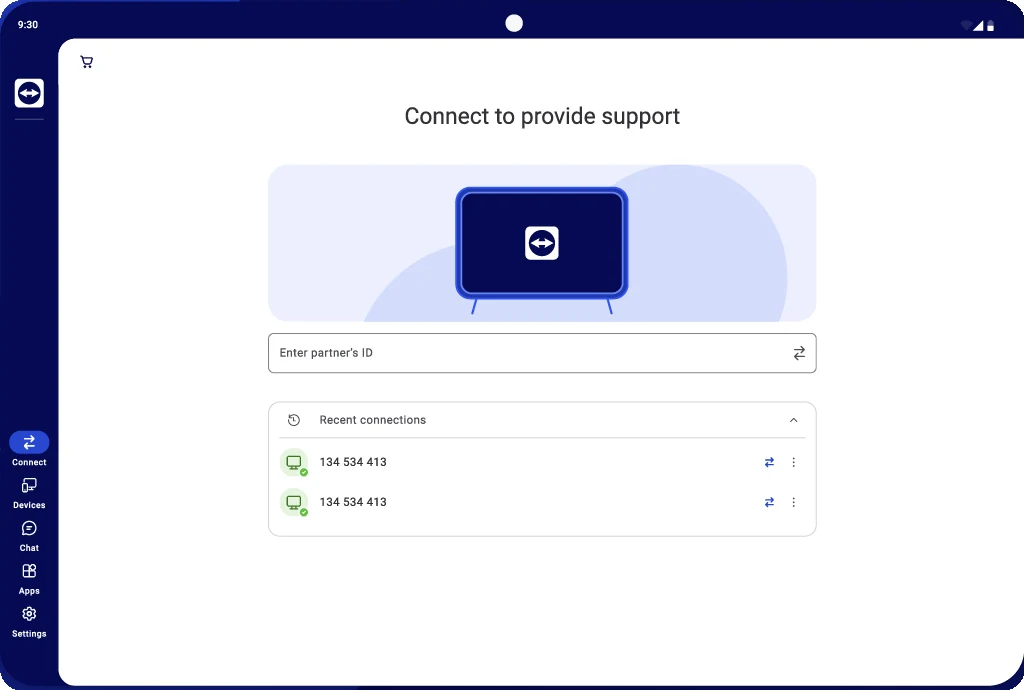
Connecting with Partner ID and managing remote computers
TeamViewer makes connecting to remote devices straightforward whether you are providing spontaneous tech support or checking in on an unattended office workstation. The clean tablet interface puts your connection tools front and center:
Mastering in-session controls, gestures, and keyboard navigation
When connected to a remote PC or Mac, TeamViewer delivers responsive interaction through an intuitive on-screen toolbar and flexible mouse modes tailored for both clamshell laptops and 2-in-1 convertibles:
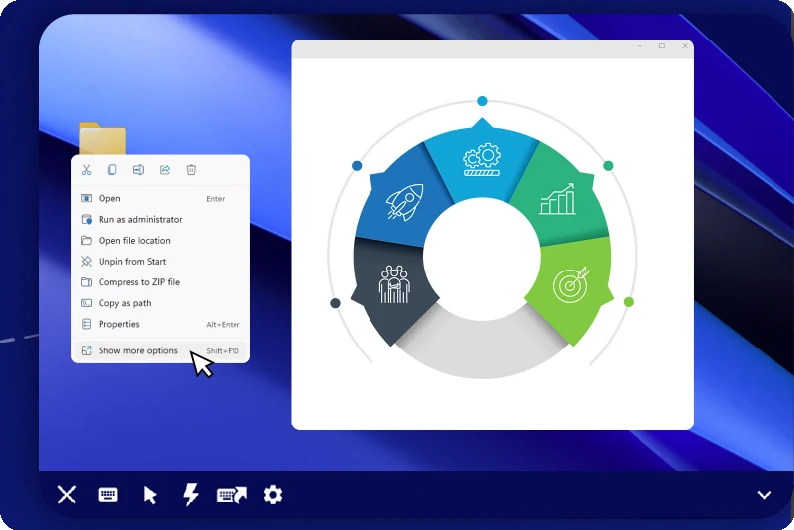
TeamViewer provides dedicated controls designed to bridge ChromeOS input with remote desktop operating systems:
- Mouse Pointer vs Touch Mode: toggle between standard pointer interaction (where your trackpad or external mouse drives the remote cursor directly) and touchscreen mode (where taps simulate clicks and two-finger drags scroll documents).
- In-Session Bottom Toolbar: tap the bottom toolbar icons to access quick controls, including close session, on-screen keyboard, mouse settings, action shortcuts, and display resolution settings.
- System Key Combinations: send critical operating system combinations that ChromeOS normally intercepts, such as Ctrl+Alt+Del, Windows key shortcuts, Alt+Tab, and function keys (F1-F12).
- Multi-Monitor Switching: if the remote workstation has multiple monitors connected, use the display icon on the toolbar to switch between screens or view all monitors simultaneously.
- Quality and Performance Tuning: adjust session quality from Auto to Optimize Speed (for slower Wi-Fi connections) or Optimize Quality (for sharp text rendering and color fidelity).
Real-time messaging, instant IT support, and remote assistance
Beyond direct desktop control, TeamViewer incorporates real-time chat and communication tools to streamline technical support sessions and device collaboration directly from ChromeOS:
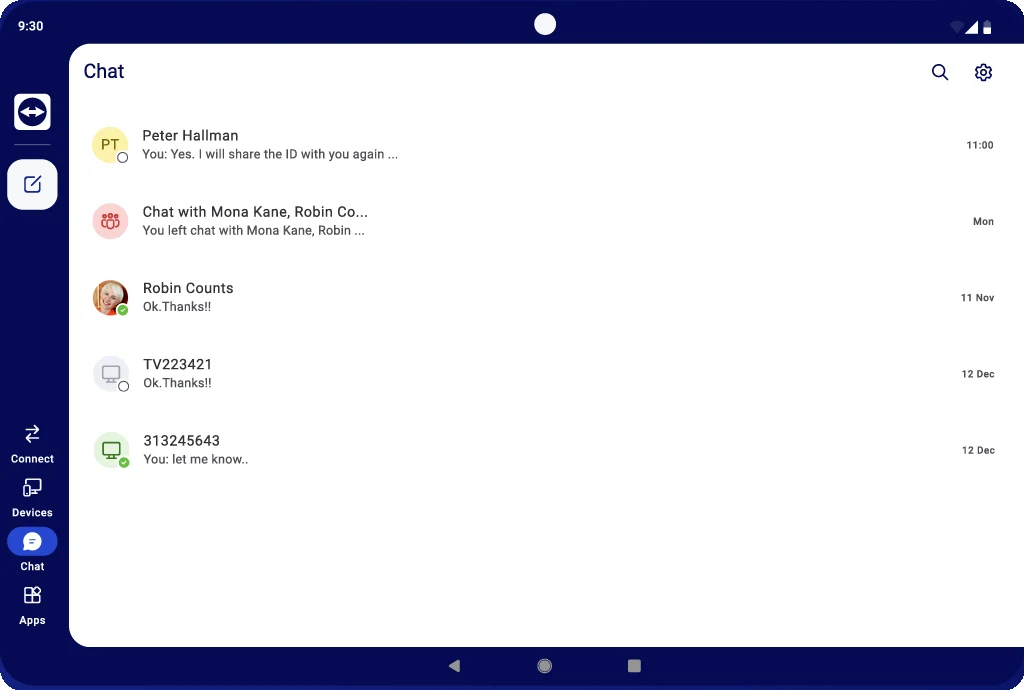
The integrated communication and management hub makes support effortless:
- Integrated Chat for Technical Help: exchange messages, connection codes, and diagnostic updates with clients or team members in real time without leaving the app.
- Direct Two-Way File Transfers: transfer logs, installation packages, and configuration files securely in both directions between your Chromebook storage and the remote machine.
- Device Status Tracking: monitor online and offline status across your saved computers list to connect immediately when a client or host workstation becomes available.
Cross-platform connectivity: Windows, macOS, and Linux
TeamViewer connects smoothly to virtually any desktop operating system from your Chromebook or Googlebook:
Optional: Install native TeamViewer client via ChromeOS Linux
While the Google Play Android app is the fastest and most convenient method for most users, power users and IT administrators can also run the official desktop Linux client directly inside the ChromeOS Linux development environment:
- Enable Linux on ChromeOS: open Settings > Advanced > Developers, then click Turn on next to the Linux development environment (Crostini). Follow the prompts to complete setup.
- Download the Debian package: visit the official TeamViewer Linux download page and download the 64-bit
.debpackage suitable for your Chromebook processor architecture (x86_64). - Install the package: move the downloaded file to the Linux files folder in the ChromeOS Files app. Right-click the package and select Install with Linux, or open Terminal and run
sudo apt-get install ./teamviewer_amd64.deb. - Launch native TeamViewer: open the ChromeOS app launcher, expand the Linux apps folder, and click TeamViewer for full desktop windowing and command-line support.
Troubleshooting TeamViewer on Chromebook and Googlebook
If you encounter connection drops, screen freezes, or authentication prompts when using TeamViewer on ChromeOS, follow these practical diagnostic steps:
- Remote partner shows offline: verify that the remote computer is powered on, connected to the internet, and has TeamViewer running. On unattended hosts, ensure sleep mode and network power-saving features are disabled in operating system power settings.
- Incoming connection limitations: remember that the TeamViewer Remote Control app on ChromeOS is designed primarily for outgoing connections (controlling other computers). To share your Chromebook screen with a technician, install the dedicated TeamViewer QuickSupport app from Google Play instead.
- Password or authentication rejection: confirm whether you are connecting via a temporary dynamic session password or a preset unattended access personal password. Note that dynamic passwords regenerate when the remote client restarts.
- Keyboard shortcuts intercepted by ChromeOS: shortcuts like Alt+Tab or Ctrl+N can trigger ChromeOS actions instead of the remote desktop. Use the on-screen toolbar action menu within TeamViewer to send host-specific system key combinations.
- Laggy performance over mobile hotspot: open session settings from the toolbar and change quality from Auto to Optimize Speed. This reduces graphical bandwidth consumption and maintains smooth cursor response.
Frequently asked questions about TeamViewer on Chromebook and Googlebook
Is TeamViewer free to use on Chromebook and Googlebook?
Yes. TeamViewer is free to download and use for personal, non-commercial remote access. You can connect to family computers or access your personal home PC at no cost. Commercial use, IT help desk support, and managing corporate device fleets require a paid TeamViewer license.
Can I remotely control my Chromebook from another computer using TeamViewer?
On ChromeOS, the TeamViewer QuickSupport Android app provides real-time screen sharing and diagnostic assistance to remote technicians, but ChromeOS security restrictions limit full unattended remote control of the Chromebook itself. The standard TeamViewer Remote Control app is designed for outgoing control, allowing your Chromebook to fully control remote Windows, Mac, and Linux PCs.
Does TeamViewer support physical keyboard shortcuts and right-click on ChromeOS?
Yes. TeamViewer Remote Control fully supports Chromebook trackpads, external USB and Bluetooth mice, and physical keyboards. Right-click works natively, and the expandable in-session control toolbar lets you send host-specific shortcuts including Windows key, Ctrl+Alt+Del, and function keys.
Can I run TeamViewer inside the Linux development environment on ChromeOS?
Yes. In addition to the Google Play Android app, you can enable the Linux development environment (Crostini) in ChromeOS Settings and install the official TeamViewer 64-bit Debian package (.deb). This provides a native desktop Linux application with window management integration and advanced command-line parameters.
How do I cast TeamViewer from my phone to Googlebook?
Open the Phone Hub from the bottom-right shelf of your Googlebook and ensure your Android phone is paired. Click Cast My Apps, then select TeamViewer Remote Control. Your active remote session or saved computers list will stream seamlessly inside an adaptive desktop window on your laptop screen without requiring you to re-authenticate.
Explore more remote desktop and productivity guides on ChromeGeek
- How to Install and Use Chrome Remote Desktop on Chromebook and Googlebook: Set up Google’s free remote desktop access, share screens securely, and cast from your phone.
- How to Install and Use RealVNC Viewer on Chromebook and Googlebook: Configure cloud connections, control remote PCs, and cast from your phone.
- How to Install AnyDesk on Your Chromebook: Set up fast, lightweight remote desktop control with minimal latency on ChromeOS.
- Best Remote Desktop Apps for Chromebook: Compare top remote access solutions, VNC clients, and cloud connectivity tools.
Discover more from Chrome Geek
Subscribe to get the latest posts sent to your email.