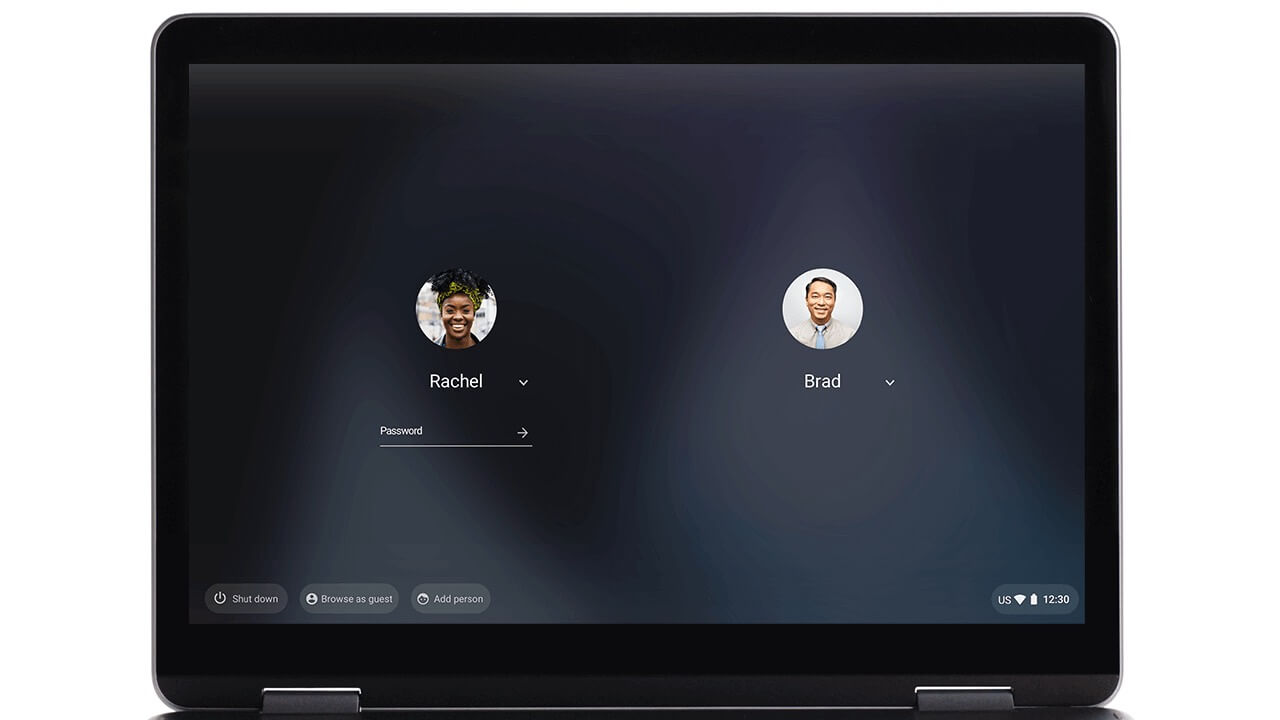
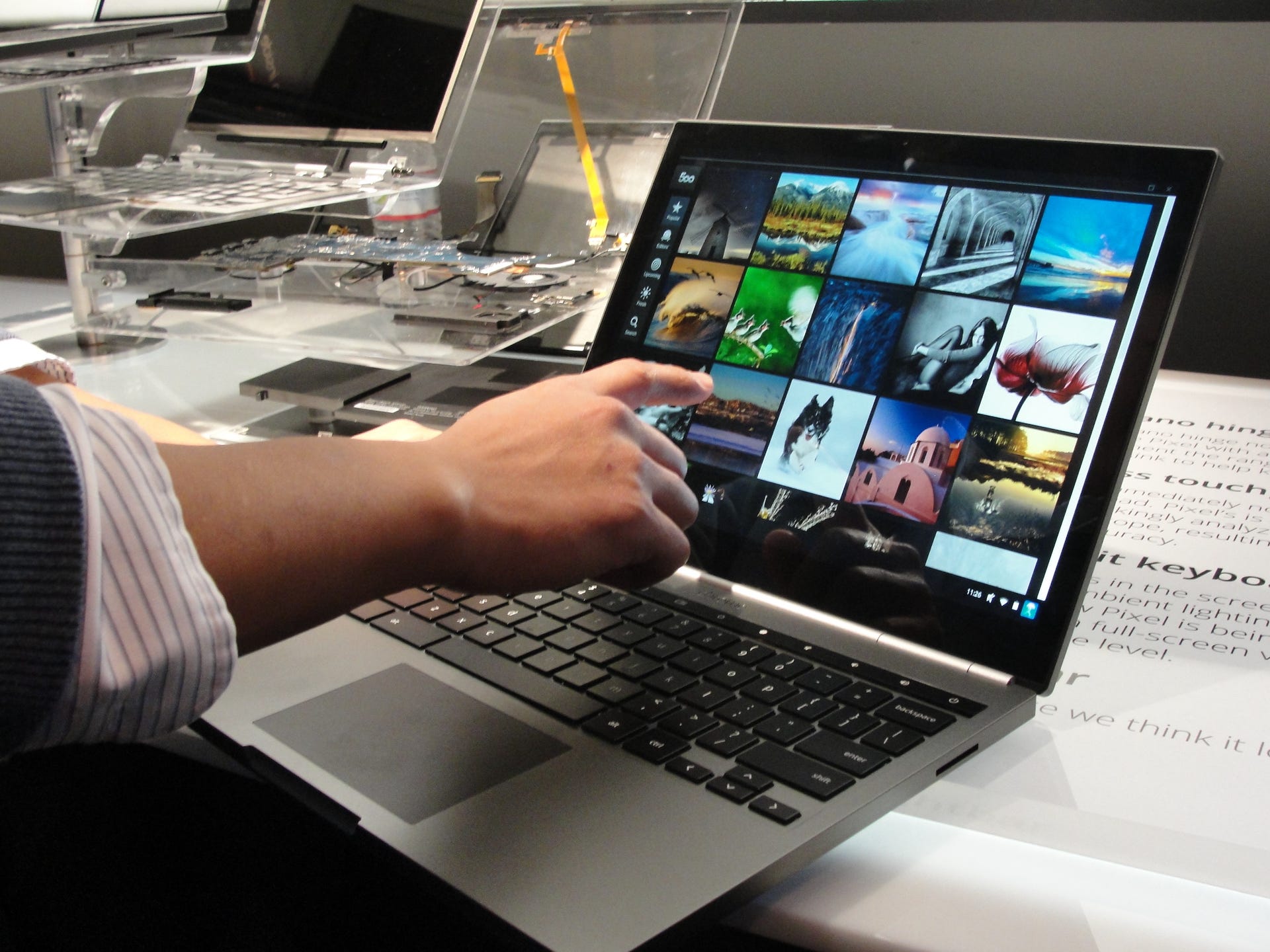
How to Install and Use Zoom on Chromebook and Googlebook
 by
Gloria Brown
Post Updated: November 2, 2026
You can install and use Zoom on Chromebook and Googlebook through the official Progressive Web App (PWA), Google Play Store, or directly inside your web browser. Rebranded as Zoom Workplace, the platform has evolved from a standalone video conferencing tool into an all-in-one AI-powered productivity ecosystem featuring real-time meeting transcription, team messaging channels, interactive digital whiteboards, cloud phone services, and collaborative task documents.
Whether you are attending remote university lectures, collaborating with enterprise teams across time zones, or connecting with family, ChromeOS and Googlebook offer multiple optimized ways to join meetings with crisp audio and video. This comprehensive guide details the best installation pathways, phone casting integration, hardware optimization techniques, and troubleshooting fixes to ensure seamless calls.
Need help setting up your audio devices or configuring administrator permissions on a school device? Contact us with your laptop model and we will be happy to assist.

Install Zoom Chrome PWA →Get on Google Play →Launch Web Client →
How to install Zoom on Chromebook and Googlebook
The fastest, most reliable way to run Zoom on ChromeOS hardware is through the official Progressive Web App (PWA) distributed via Google Play. Built specifically for ChromeOS in collaboration between Google and Zoom, the PWA offers native responsiveness, multi-window layout support, and full hardware acceleration:
If the Play Store is not visible on your screen, refer to Google’s official Android app setup guide for Chromebook and our companion guide on installing apps on Googlebook. Note that school or enterprise managed devices may restrict third-party Play Store downloads. In managed environments, you can open Chrome and navigate to app.zoom.us/wc/ to join meetings directly via the browser client without installing any local software. Power users can also deploy the Debian Linux desktop package through the ChromeOS Linux environment.
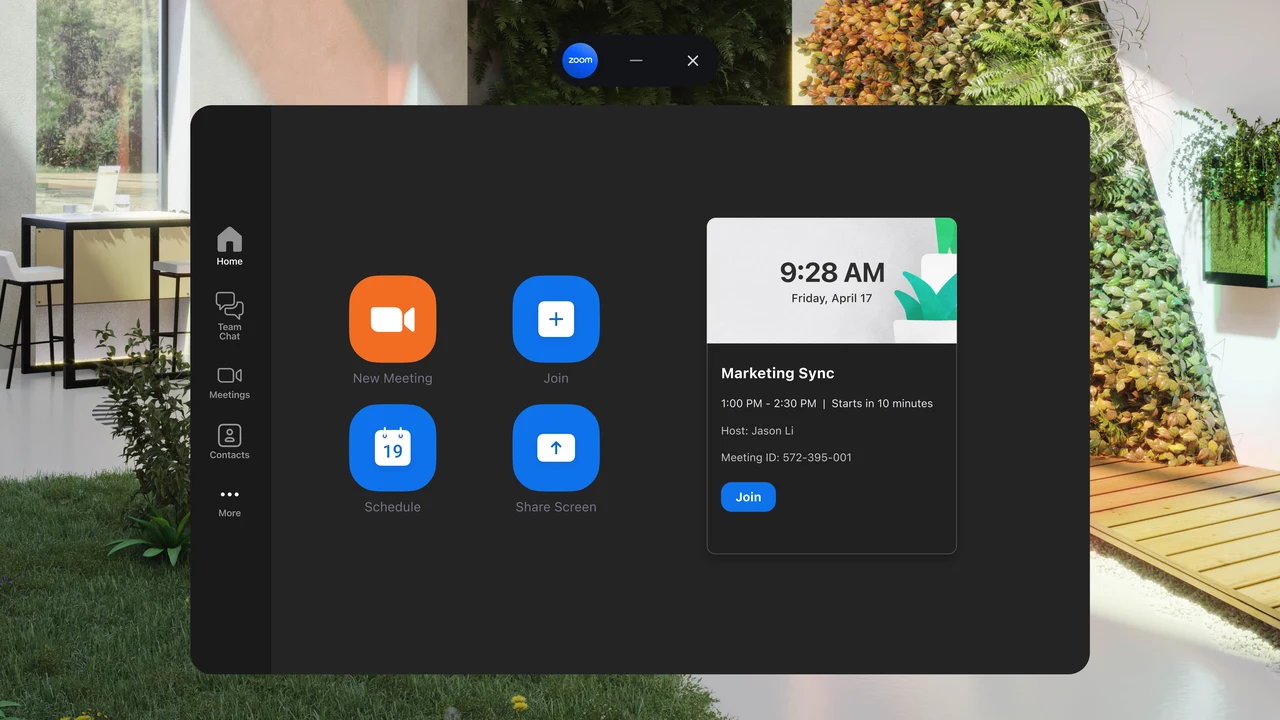
Cast Zoom from your phone on Googlebook
Googlebook users can also access Zoom seamlessly through native phone hub streaming. Using Cast My Apps from the Googlebook phone hub, you can wirelessly stream your phone’s active Zoom conference, ongoing voice call, or team chat channels directly onto your desktop workspace without transferring files, configuring cables, or running duplicate local instances.
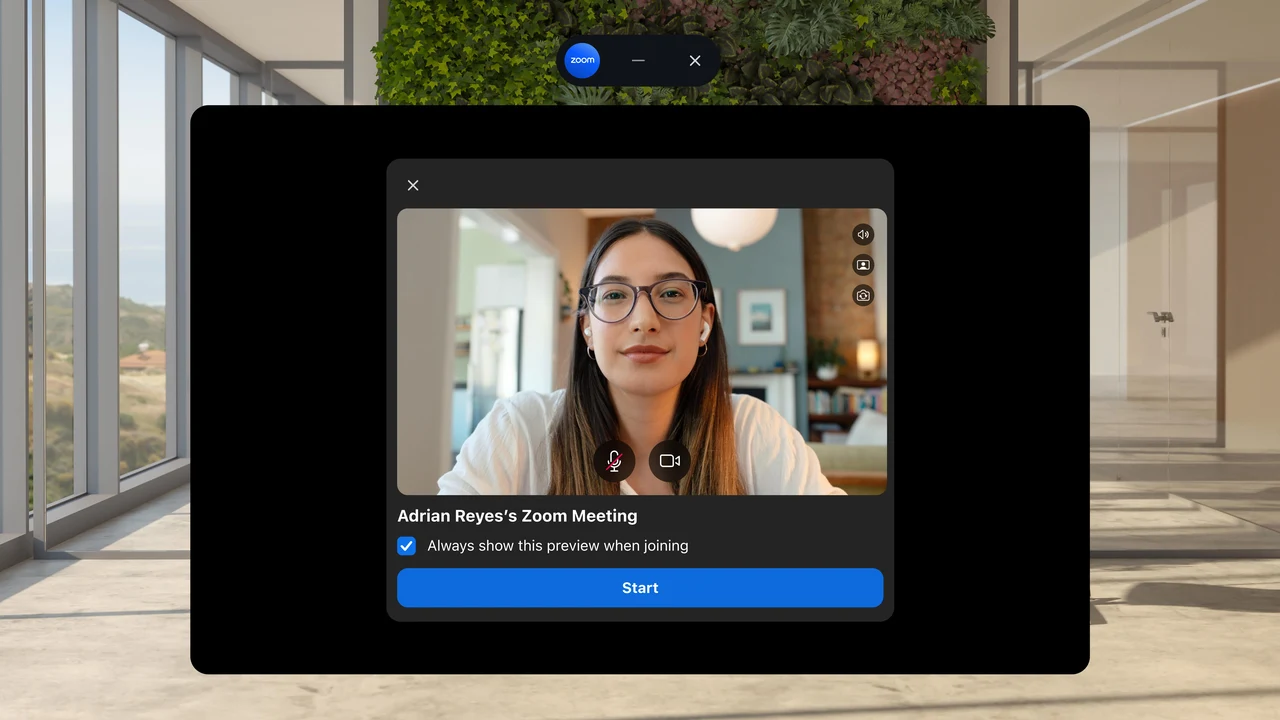
Zoom Workplace features and AI Companion on ChromeOS
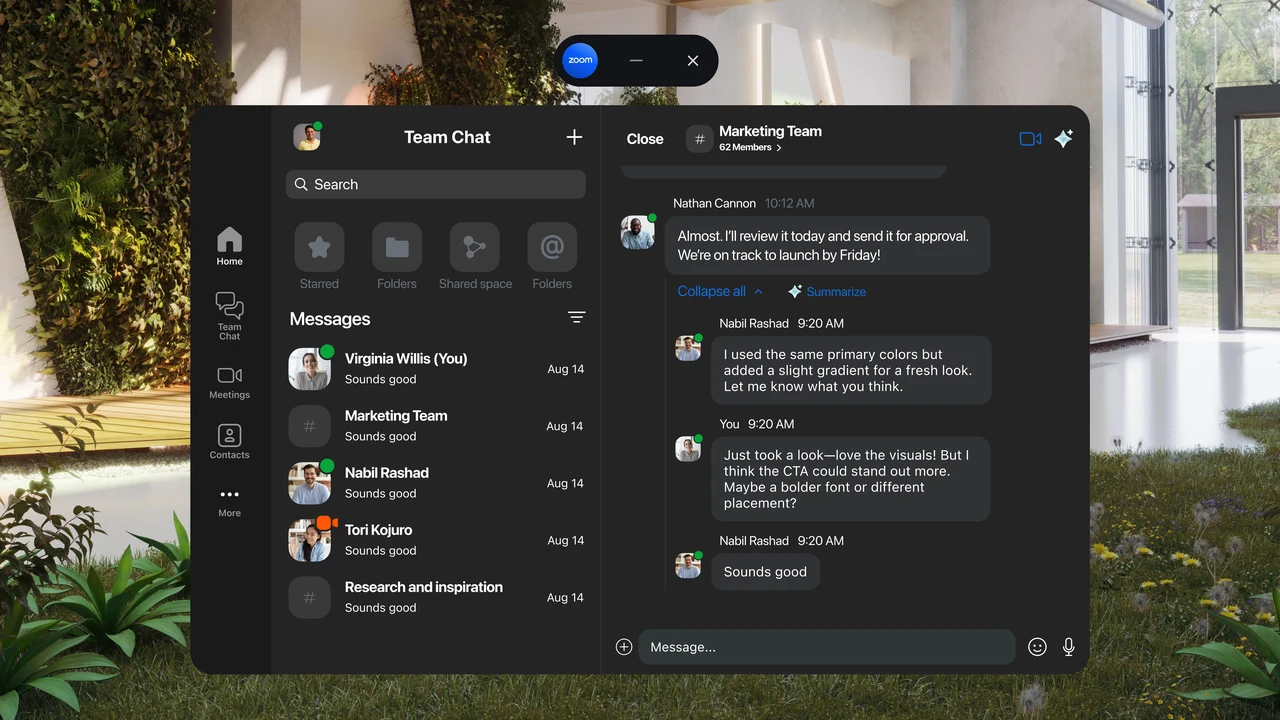
Zoom Workplace consolidates essential communication workflows into a unified desktop interface, eliminating the need to juggle separate tools for chat, phone calls, and video conferencing:
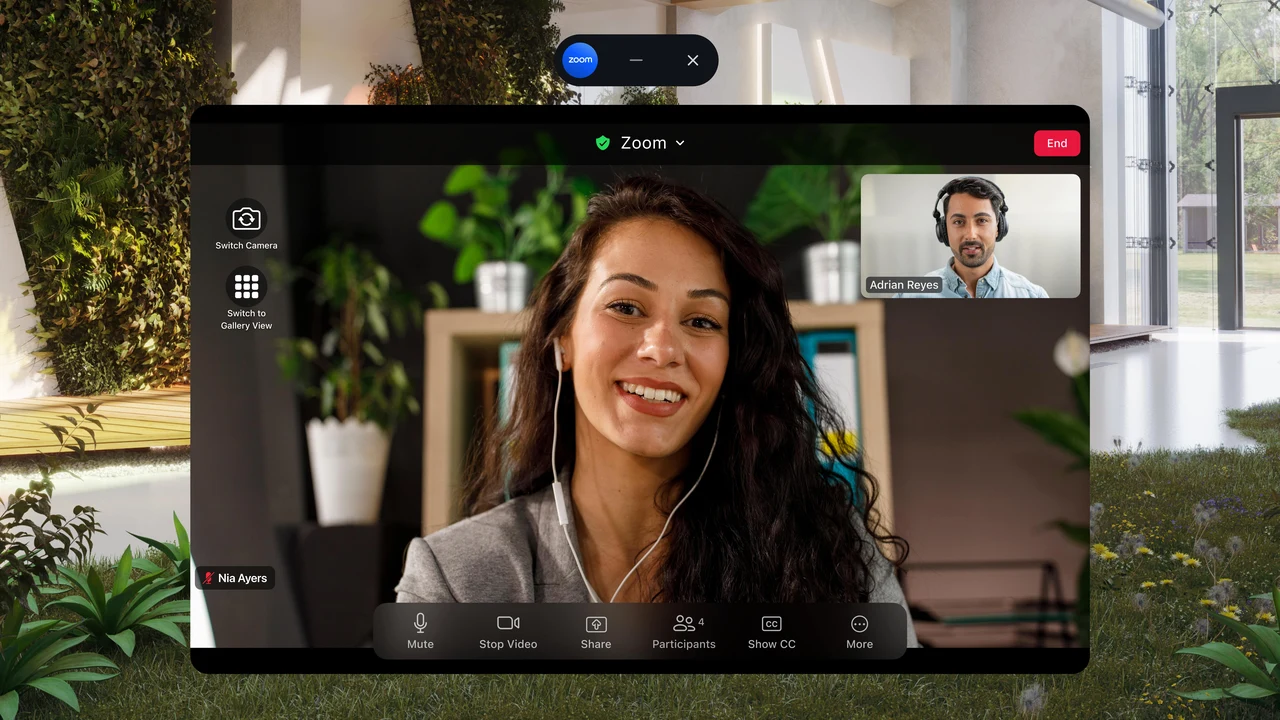
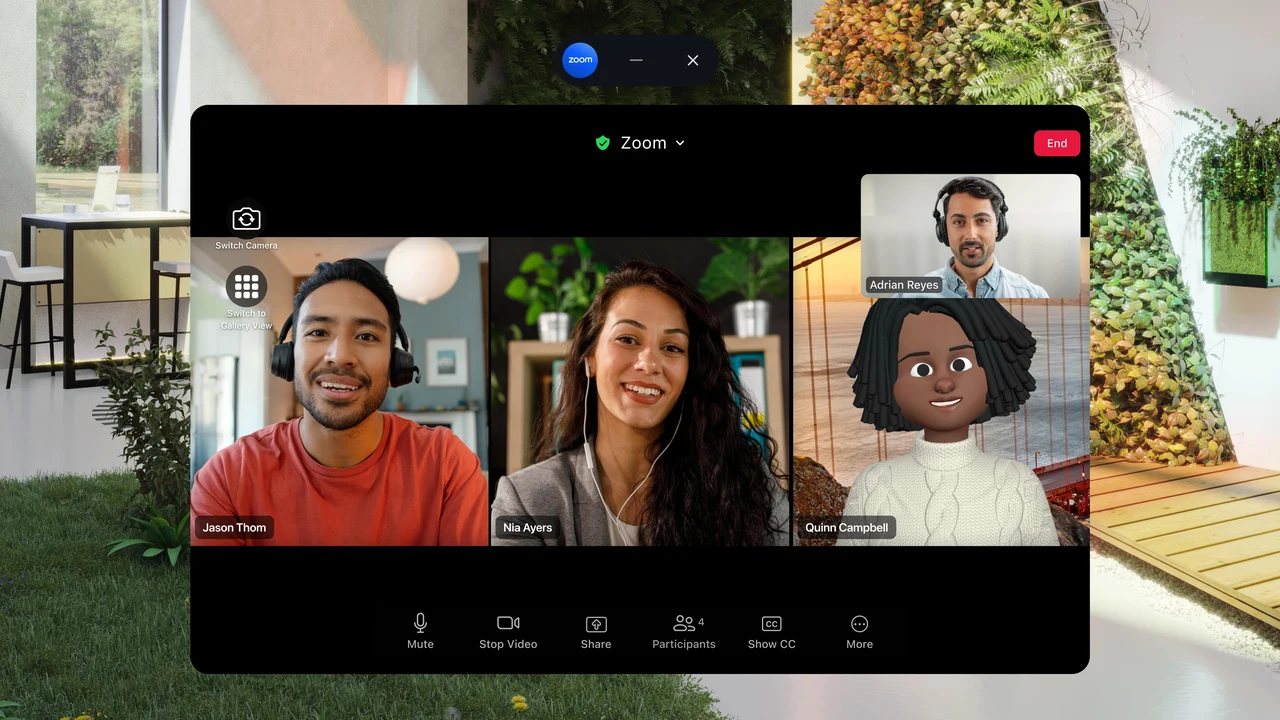
Interactive collaboration with Zoom Whiteboard and Docs
Transforming group meetings into tangible work outcomes is easy with Zoom’s built-in digital workspace tools:
Install desktop Zoom via ChromeOS Linux (Crostini)
If you require local video recording to your Chromebook SSD, advanced audio processing drivers, or native desktop window management, installing the Debian Linux version of Zoom inside the ChromeOS container provides an uncompromised desktop workstation:
wget https://zoom.us/client/latest/zoom_amd64.debsudo apt install ./zoom_amd64.deb -yzoom in the terminal, or locate the Zoom icon in your app launcher under Linux apps and right-click to pin it.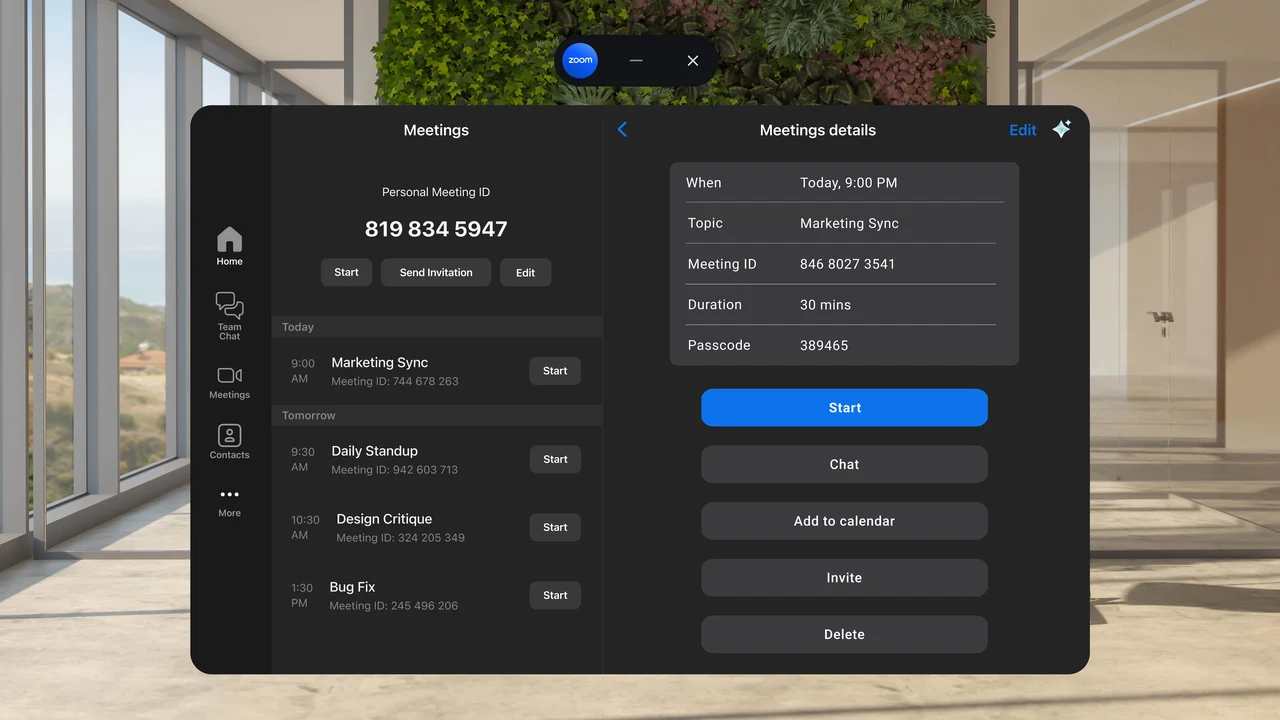
Zoom PWA vs. Android app vs. Web client vs. Linux desktop
Each method of running Zoom on ChromeOS offers unique advantages depending on your laptop’s hardware specifications and your specific meeting requirements:
Troubleshooting common Zoom issues on ChromeOS
If you experience choppy video, microphone silence, or installation blocks on your Chromebook, apply these verified fixes:
Frequently asked questions about Zoom on Chromebook
Which Zoom version is recommended for Chromebook and Googlebook?
The official Zoom for Chrome Progressive Web App (PWA) available on Google Play is the recommended option for most ChromeOS users. Built collaboratively by Google and Zoom, the PWA delivers faster loading speeds, lower RAM consumption, responsive window resizing, and full support for Zoom AI Companion and virtual background blur.
Can I use Zoom on a Chromebook without installing any software?
Yes. You can access Zoom entirely through the Google Chrome web browser by visiting zoom.us/join or app.zoom.us/wc/. Enter your Meeting ID and passcode to participate in audio, video, screen sharing, and in-meeting chat directly in a browser tab without installing local files or extensions.
Does Zoom AI Companion work on ChromeOS devices?
Yes. Zoom AI Companion is integrated directly into the Zoom Workplace interface on ChromeOS. When enabled by the meeting host on a licensed account, attendees can view real-time meeting summaries, generate post-call action items, and ask AI questions about what they missed without interrupting the conversation.
Can I use virtual backgrounds and background blur on Chromebook?
Yes. Both the Zoom PWA and the web client support background blur and custom image backgrounds. In the meeting window, tap the up arrow next to the Stop Video icon, select Virtual Background, and pick Blur or upload your own JPEG or PNG background image.
How do I join a Zoom meeting on a managed school or company Chromebook?
If your school or workplace administrator blocks the Google Play Store, simply open your Chrome browser and navigate to app.zoom.us/wc/. The web client bypasses app installation restrictions, letting you join classroom lectures and team conferences using standard web standards.
Explore more remote productivity and collaboration tools
Looking to build an efficient remote work setup on ChromeOS? Set up remote desktop access with Chrome Remote Desktop on Chromebook, discover alternative remote support options in our guide to the best remote desktop apps for Chromebook, organize daily projects with Microsoft To Do on Chromebook, and protect your research privacy using Firefox on Chromebook.
Discover more from Chrome Geek
Subscribe to get the latest posts sent to your email.